radio BUICK ENCORE 2021 Owner's Guide
[x] Cancel search | Manufacturer: BUICK, Model Year: 2021, Model line: ENCORE, Model: BUICK ENCORE 2021Pages: 313, PDF Size: 11.21 MB
Page 123 of 313
Buick Encore Owner Manual (GMNA-Localizing-U.S./Canada-14607636) -
2021 - CRC - 8/18/20
122 Infotainment System
recognition by not allowing selection of
song titles by voice at the highest level if
the number of songs exceeds the maximum
limit.
Voice command option changes through
media content limits are:
.Song files including other individual files
of all media types such as audiobook
chapters, podcast episodes, and videos.
.Album type folders including types such
as albums and audiobooks.
There are no restrictions if the number of
song files and albums is less than 4,000.
When the number of song files connected to
the system is between 4,000 and 8,000, the
content cannot be accessed directly with
one command like “Play
The restriction is that the command “Play
Song” must be spoken first; the system will
then ask for the song name. The reply
command would be to say the name of the
song to play.
Similar limits exist for album content.
If there are more than 4,000 albums, but
less than 8,000, the content cannot be
accessed directly with one command like,
“Play
Album” must first be spoken; the system will then ask for the album name. The reply
would be to say the name of the album
to play.
Once the number of songs has exceeded
approximately 8,000, there is no support for
accessing the songs directly through voice
commands. There will still be access to the
media content by using commands for
playlists, artists, and genres.
The access commands for playlists, artists,
and genres are prohibited after the number
of this type of media exceeds 4,000.
The system will provide feedback the first
time voice recognition is initiated if it has
become apparent that any of these limits
are reached during a device initializing
process.
Voice Recognition for the Phone
“Call
:Initiate a call to an
entered contact. The command may include
location if the contact has location numbers
stored.
“Call
“On Mobile,” or“On Other” :Initiate a call
to an entered contact and location at home,
at work, on mobile device, or on another
phone. “Call
:Initiate a call to a
standard phone number or to a local
emergency number.
“Pair Phone” :Begin the Bluetooth pairing
process. Follow instructions on the radio
display.
“Switch Phone” :Select a different phone
for outgoing calls.
“Voice Keypad” :Begin a dialog to enter
special numbers like international numbers.
The numbers can be entered in groups of
digits with each group of digits being
repeated back by the system. If the group
of digits is not correct, the command
“Delete” will remove the last group of digits
and allow them to be re-entered. Once the
entire number has been entered, the
command “Call”will start dialing the
number.
“Voice Mail” :Initiate a call to voice mail
numbers.
Voice Pass-Thru
Voice pass-thru allows access to the voice
recognition commands on the cell phone, for
example, Siri or Voice Command. See the
cell phone manufacturer's user guide to see
if the cell phone supports this feature. To
Page 130 of 313
Buick Encore Owner Manual (GMNA-Localizing-U.S./Canada-14607636) -
2021 - CRC - 8/18/20
Infotainment System 129
Features are subject to change. For further
information on how to set up Android Auto
and Apple CarPlay in the vehicle, see
my.buick.com.
Android Auto is provided by Google and is
subject to Google’s terms and privacy policy.
Apple CarPlay is provided by Apple and is
subject to Apple’s terms and privacy policy.
Data plan rates apply. For Android Auto
support see https://support.google.com/
androidauto. For Apple CarPlay support see
www.apple.com/ios/carplay/. Apple or
Google may change or suspend availability
at any time. Android Auto, Android, Google,
Google Play, and other marks are
trademarks of Google Inc.; Apple CarPlay is a
trademark of Apple Inc.
Settings
Settings (8 Inch Screen)
The Settings Menu allows adjustment of
different vehicle and radio features. The
menu may contain the following:
Time and Date
To set the time or date:1. Select Settings from the Home Page, then select Time and Date. 2. Select the desired function.
To set the time or date, touch
«orªto
change the hour, minutes, AM, PM, day,
month, or year.
To change the 12-24 Hr setting, touch
12-24 Hr.
To turn Auto Set on and off, touch Auto Set.
If auto timing is set, the time displayed on
the clock may not update immediately when
driving into a new time zone.
Auto set requires an active OnStar or
connected service plan.
Press
SBACK on the center stack to go to
the last menu and save the changes or
{
to return to the Home Page.
Language
This will set the display language in the
radio, instrument cluster, and voice
recognition. Touch Language and select the
appropriate language. Press
SBACK on the
center stack or touch the Back icon on the
infotainment display to go back to the
previous menu.
Valet Mode
If equipped, this will lock the infotainment
system and steering wheel controls. It may
also limit top speed, power, and access to
vehicle storage locations (if equipped).
To enable valet mode:
1. Enter a four-digit code on the keypad.
2. Touch Enter to go to the confirmation screen.
3. Re-enter the four-digit code.
Touch Lock or Unlock to lock or unlock the
system. Press
SBACK on the center stack
or touch the Back icon on the infotainment
display to go back to the previous menu.
Radio
Touch to display the Radio Menu and the
following may display:
.Manage Favorites: Touch to highlight a
favorite to edit. Touch Rename to rename
the favorite or Delete to delete it. Touch
and hold the station to drag it to a new
location. Touch Done to go back to the
previous menu.
.Number of Favorites Shown: Touch to set
the number of favorites to display. Select
Auto, 5, 10, 15, 20, 25, 30, 35, 40, 45, 50,
Page 131 of 313
Buick Encore Owner Manual (GMNA-Localizing-U.S./Canada-14607636) -
2021 - CRC - 8/18/20
130 Infotainment System
55, or 60. Auto will adjust the number of
favorite locations that can be seen. Press
SBACK on the center stack or touch the
Back icon on the infotainment display to
go back to the previous menu.
.Audible Touch Feedback: This allows
Audible Touch Feedback to be turned on
or off. Select Off or On.
.Tone Settings: Touch + or −to adjust
Bass, Midrange, Treble, or Surround. See
AM-FM Radio (8 Inch Screen) 0109.
.Audio Volume (If Equipped): This feature
adjusts the volume based on the vehicle
speed.
Press
SBACK on the center stack or
touch the Back icon on the infotainment
display to go back to the previous menu.
.Bose AudioPilot noise compensation
technology (If Equipped): This feature
adjusts the volume based on the noise in
the vehicle and speed. See AM-FM Radio
(8 Inch Screen) 0109.
.Maximum Startup Volume: This feature
sets the maximum startup volume. If the
vehicle is started and the volume is
greater than this level, the volume is
adjusted to this level. To set the
maximum startup volume, touch + or −to
increase or decrease. Press
SBACK on the center stack or
touch the Back icon on the infotainment
display to go back to the previous menu.
Vehicle Settings
See Vehicle Personalization (8 Inch Screen)
0 89 or
Vehicle Personalization (7 Inch Screen) 094.
Bluetooth
From the Bluetooth option, the following
may be displayed:
.Pair New Device: Touch to add a new
device.
.Device Management: Touch to connect to
a different phone source, disconnect a
phone, or delete a phone.
.Ringtones: Touch to change the ring tone
for the specific phone. The phone does
not need to be connected to change the
ring tone.
.Voice Mail Numbers: This feature displays
the voice mail number for all connected
phones. The voice mail number may be
changed by touching Edit, typing in the
new number, and touching Save.
Press
SBACK on the center stack or
touch the Back icon on the infotainment
display to go back to the previous menu.
.Text Message Alerts: This feature will turn
text message alerts on or off. Press Text
Message Alerts and then select Off or On.
Press
SBACK on the center stack or
touch the Back icon on the infotainment
display to go back to the previous menu.
See Text Messaging (8 Inch Screen) 0127.
Voice
From the Voice option, the following may
be displayed:
.Confidence Threshold: Select Confirm
More or Confirm Less for the system to
confirm more or less before acting on a
command.
.Prompt Length: Select Short or Long for
shorter or longer voice prompts.
Press
SBACK on the center stack or
touch the Back icon on the infotainment
display to go to the previous menu.
.Audio Feedback Speed: Touch Slow,
Medium, or Fast for feedback speed.
Press
SBACK on the center stack or
touch the Back icon on the infotainment
display to go back to the previous menu.
.Display “What Can I Say?” Tips: This
feature gives voice command tips.
Select Off or On.
Page 132 of 313
Buick Encore Owner Manual (GMNA-Localizing-U.S./Canada-14607636) -
2021 - CRC - 8/18/20
Infotainment System 131
Display
From the Display icon, the following may be
displayed:
.Mode: Touch Auto, Day, or Night to
adjust the display.
Press
SBACK on the center stack or
touch the Back icon on the infotainment
display to go to the previous menu.
.Calibrate Touchscreen: Touch to calibrate
the infotainment display and follow the
prompts.
Press
SBACK on the center stack or
touch the Back icon on the infotainment
display to go back to the previous menu.
.Turn Off Display: Touch to turn the
display off. Touch anywhere on the
display area or press any center stack
control again to turn the display on.
Rear Camera
Touch to display the Rear Camera menu. See
Rear Vision Camera (RVC) 0190.
Return to Factory Settings
Select Return to Factory Settings and the
following list may display:
.Restore Vehicle Settings: Restores factory
vehicle personalization settings. Touch
Restore Vehicle Settings. Touch Cancel or
Restore. If Restore is touched, a
confirmation pop-up will appear indicating
the vehicle settings have been restored.
.Clear All Private Data: If available, use to
erase personal private data before loaning
or selling the vehicle. Touch Clear All
Private Data. Touch Cancel or Delete.
If Delete is touched, a confirmation
pop-up will appear indicating all private
data has been cleared from the system.
.Restore Radio Settings: Restores factory
radio settings. Touch Restore Radio
Settings. Touch Cancel or Restore.
If Restore is touched, a confirmation
pop-up will appear indicating the radio
settings have been restored.
Press
SBACK on the center stack or touch
the Back icon on the infotainment display to
go back to the main settings menu.
Over-the-Air Software Updates
If equipped, the infotainment system can
download and install software updates over
a wireless connection. The system will
prompt for certain updates to be
downloaded and installed. There is also an
option to check for updates manually.
To manually check for updates, touch
SETTINGS on the Home Page, followed by
Software Information, and then System
Update. Follow the on-screen prompts. Steps
for downloading and installing updates may
vary by vehicle.
Downloading Over-the-Air software updates
requires Internet connectivity, which can be
accessed through the vehicle’s built-in 4G
LTE connection, if equipped and active.
If required, data plans are provided by a
third party. Optionally, a secured Wi-Fi
hotspot such as a compatible mobile device
hotspot, a home hotspot, or a public hotspot
can be used. Applicable data rates may
apply.
To connect the infotainment system to a
secured mobile device hotspot, home
hotspot, or public hotspot, touch SETTINGS
on the Home Page, followed by Wi-Fi, and
then Manage Wi-Fi Networks. Select the
Page 133 of 313
Buick Encore Owner Manual (GMNA-Localizing-U.S./Canada-14607636) -
2021 - CRC - 8/18/20
132 Infotainment System
appropriate Wi-Fi network, and follow the
on-screen prompts. Download speeds
may vary.
On most mobile devices, activation of the
Wi-Fi hotspot is in the Settings menu under
Mobile Network Sharing, Personal Hotspot,
Mobile Hotspot, or similar.
Availability of Over-the-Air software updates
varies by vehicle and country. Features are
subject to change. For more information on
this feature, see my.buick.com/learn.
English and Metric Unit Conversion
To change the display units between English
and metric units, seeInstrument Cluster
0 76.
Trademarks and License
Agreements
FCC Information
See Radio Frequency Statement 0290.
"Made for iPod," and "Made for iPhone,"
mean that an electronic accessory has been
designed to connect specifically to iPod or
iPhone, respectively, and has been certified
by the developer to meet Apple
performance standards. Apple is not
responsible for the operation of this device
or its compliance with safety and regulatory
standards. Please note that the use of this
accessory with iPod or iPhone may affect
wireless performance. iPhone, iPod, iPod
classic, iPod nano, iPod shuffle, and iPod
touch are trademarks of Apple Inc.,
registered in the U.S. and other countries.
Fees and Taxes: Subscription fee, taxes, one
time activation fee, and other fees may
apply. Subscription fee is consumer only. All
fees and programming subject to change.
Subscriptions subject to Customer
Agreement available at www.siriusxm.com.
SiriusX service only available in the
48 contiguous United States and Canada.
In Canada: Some deterioration of service
may occur in extreme northern latitudes.
This is beyond the control of SiriusXM
Satellite Radio.
Explicit Language Notice: Channels with
frequent explicit language are indicated with
an “XL” preceding the channel name.
Channel blocking is available for SiriusXM
Satellite Radio receivers by notifying
SiriusXM:
.USA Customers —See www.siriusxm.com
or call 1-888-601–6296.
.Canadian Customers —See
www.siriusxm.ca or call 1-877-438-9677.
It is prohibited to copy, decompile,
disassemble, reverse engineer, hack,
manipulate, or otherwise make available any
technology or software incorporated in
receivers compatible with the SiriusXM
®
Satellite Radio System or that support the
SiriusXM website, the Online Service or any
Page 134 of 313
Buick Encore Owner Manual (GMNA-Localizing-U.S./Canada-14607636) -
2021 - CRC - 8/18/20
Infotainment System 133
of its content. Furthermore, the AMBER voice
compression software included in this
product is protected by intellectual property
rights including patent rights, copyrights,
and trade secrets of Digital Voice
Systems, Inc.
General Requirements:1. A License Agreement from SiriusXM is required for any product that
incorporates SiriusXM Technology and/or
for use of any of the SiriusXM marks to
be manufactured, distributed,
or marketed in the SiriusXM
Service Area.
2. For products to be distributed, marketed, and/or sold in Canada, a separate
agreement is required with Canadian
Satellite Radio Inc. (operating as SiriusXM
Canada).
Bose
Bose, AudioPilot and Bose Centerpoint
surround are registered trademarks of Bose
Corporation in the U.S. and other countries.
DTS
Manufactured under license under U.S.Patent
Nos: 5,956,674; 5,974,380; 6,487,535 & other
U.S. and worldwide patents issued &
pending. For DTS patents, see http://patents.dts.com.
Manufactured under license from DTS
Licensing Limited. DTS, the Symbol, & DTS,
and the Symbol together are registered
trademarks, and DTS 2.0 Channel is a
trademark of DTS, Inc. ©DTS, Inc. All Rights
Reserved.
Dolby
Manufactured under license from Dolby
Laboratories. Dolby and the double-D symbol
are trademarks of Dolby Laboratories.
Java
Java is a registered trademark of Oracle
and/or its affiliates.
Cinavia
Cinavia Notice: This product uses Cinavia
technology to limit the use of unauthorized
copies of some commercially-produced film
and videos and their soundtracks. When a
prohibited use of an unauthorized copy is
detected, a message will be displayed or
copying will be interrupted.
More information about Cinavia technology
is provided at the Cinavia Online Consumer
Information Center at http://
www.cinavia.com. To request additional
information about Cinavia by mail, send a
postcard with your mailing address to:
Cinavia Consumer Information Center, P.O.
Box 86851, San Diego, CA, 92138, USA.
This product incorporates proprietary
technology under license from Verance
Corporation and is protected by U.S. Patent
7,369,677 and other U.S. and worldwide
patents issued and pending as well as
copyright and trade secret protection for
certain aspects of such technology. Cinavia is
a trademark of Verance Corporation.
Copyright 2004-2015 Verance Corporation. All
rights reserved by Verance. Reverse
engineering or disassembly is prohibited.
RMVB
Portions of this software are included under
license from RealNetworks, Inc. Copyright
1995-2015, RealNetworks, Inc. All rights
reserved
Page 138 of 313
Buick Encore Owner Manual (GMNA-Localizing-U.S./Canada-14607636) -
2021 - CRC - 8/18/20
Infotainment System 137
{Warning
Taking your eyes off the road for too
long or too often while using any
infotainment feature can cause a crash.
You or others could be injured or killed.
Do not give extended attention to
infotainment tasks while driving. Limit
your glances at the vehicle displays and
focus your attention on driving. Use voice
commands whenever possible.
The infotainment system has built-in
features intended to help avoid distraction
by disabling some features when driving.
These features may gray out when they are
unavailable. Many infotainment features are
also available through the instrument cluster
and steering wheel controls. Before driving:.Become familiar with the operation,
center stack controls, steering wheel
controls, and infotainment display.
.Set up the audio by presetting favorite
stations, setting the tone, and adjusting
the speakers.
.Set up phone numbers in advance so they
can be called easily by pressing a single
control or by using a single voice
command.
See Distracted Driving 0164.
Active Noise Cancellation (ANC)
If equipped, ANC reduces engine noise in the
vehicle’s interior. ANC requires the
factory-installed audio system, radio,
speakers, amplifier (if equipped), induction
system, and exhaust system to work
properly. Deactivation is required by your
dealer if related aftermarket equipment is
installed.
Page 139 of 313
Buick Encore Owner Manual (GMNA-Localizing-U.S./Canada-14607636) -
2021 - CRC - 8/18/20
138 Infotainment System
Overview (7 Inch Screen)
Infotainment System
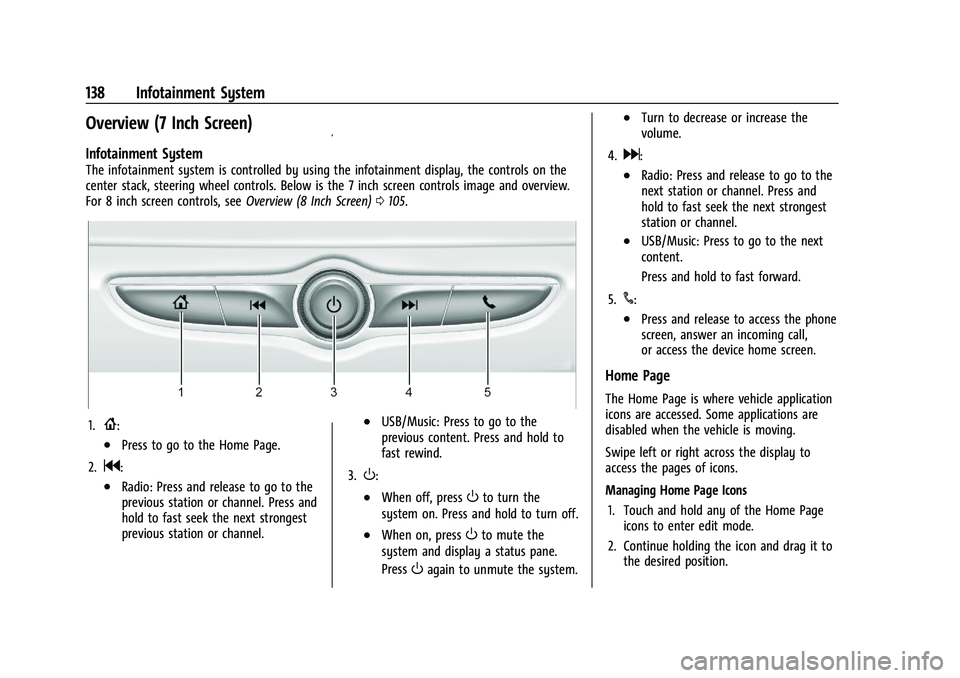
The infotainment system is controlled by using the infotainment display, the controls on the
center stack, steering wheel controls. Below is the 7 inch screen controls image and overview.
For 8 inch screen controls, seeOverview (8 Inch Screen)0105.
1.{:
.Press to go to the Home Page.
2.
g:
.Radio: Press and release to go to the
previous station or channel. Press and
hold to fast seek the next strongest
previous station or channel.
.USB/Music: Press to go to the
previous content. Press and hold to
fast rewind.
3.
O:
.When off, pressOto turn the
system on. Press and hold to turn off.
.When on, pressOto mute the
system and display a status pane.
Press
Oagain to unmute the system.
.Turn to decrease or increase the
volume.
4.
d:
.Radio: Press and release to go to the
next station or channel. Press and
hold to fast seek the next strongest
station or channel.
.USB/Music: Press to go to the next
content.
Press and hold to fast forward.
5.
#:
.Press and release to access the phone
screen, answer an incoming call,
or access the device home screen.
Home Page
The Home Page is where vehicle application
icons are accessed. Some applications are
disabled when the vehicle is moving.
Swipe left or right across the display to
access the pages of icons.
Managing Home Page Icons 1. Touch and hold any of the Home Page icons to enter edit mode.
2. Continue holding the icon and drag it to the desired position.
Page 140 of 313
Buick Encore Owner Manual (GMNA-Localizing-U.S./Canada-14607636) -
2021 - CRC - 8/18/20
Infotainment System 139
3. Release your finger to drop the icon inthe desired position.
4. To move an application to another page, drag the icon to the edge of the display
toward the desired page.
5. Continue dragging and dropping application icons as desired.
Steering Wheel Controls
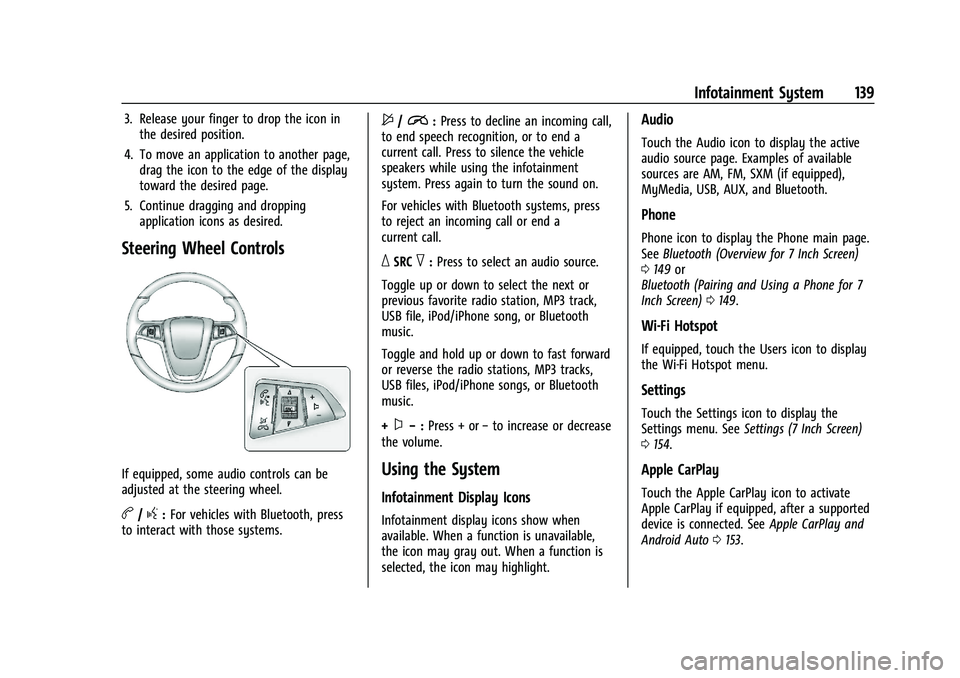
If equipped, some audio controls can be
adjusted at the steering wheel.
b/g:For vehicles with Bluetooth, press
to interact with those systems.
$/i: Press to decline an incoming call,
to end speech recognition, or to end a
current call. Press to silence the vehicle
speakers while using the infotainment
system. Press again to turn the sound on.
For vehicles with Bluetooth systems, press
to reject an incoming call or end a
current call.
_SRC^: Press to select an audio source.
Toggle up or down to select the next or
previous favorite radio station, MP3 track,
USB file, iPod/iPhone song, or Bluetooth
music.
Toggle and hold up or down to fast forward
or reverse the radio stations, MP3 tracks,
USB files, iPod/iPhone songs, or Bluetooth
music.
+
x− :Press + or −to increase or decrease
the volume.
Using the System
Infotainment Display Icons
Infotainment display icons show when
available. When a function is unavailable,
the icon may gray out. When a function is
selected, the icon may highlight.
Audio
Touch the Audio icon to display the active
audio source page. Examples of available
sources are AM, FM, SXM (if equipped),
MyMedia, USB, AUX, and Bluetooth.
Phone
Phone icon to display the Phone main page.
See Bluetooth (Overview for 7 Inch Screen)
0 149 or
Bluetooth (Pairing and Using a Phone for 7
Inch Screen) 0149.
Wi-Fi Hotspot
If equipped, touch the Users icon to display
the Wi-Fi Hotspot menu.
Settings
Touch the Settings icon to display the
Settings menu. See Settings (7 Inch Screen)
0 154.
Apple CarPlay
Touch the Apple CarPlay icon to activate
Apple CarPlay if equipped, after a supported
device is connected. See Apple CarPlay and
Android Auto 0153.
Page 141 of 313
Buick Encore Owner Manual (GMNA-Localizing-U.S./Canada-14607636) -
2021 - CRC - 8/18/20
140 Infotainment System
Android Auto
Touch the Android Auto icon to activate
Android Auto if equipped, after a supported
device is connected. SeeApple CarPlay and
Android Auto 0153.
OnStar Services
If equipped, touch the OnStar icon to display
the OnStar Services and Account pages.
Climate
If equipped, touch the Climate icon to
display the Climate main page.
Camera
If equipped, touch the Camera icon to access
the camera application.
SiriusXM
If equipped, touch the SiriusXM icon to
display the SiriusXM radio service.
Shortcut Tray
The shortcut tray is near the bottom of the
display. It shows up to four applications.
Infotainment Display Features
Infotainment display features show on the
display when available. When a feature is
unavailable, it may gray out. When a
feature is touched, it may highlight.
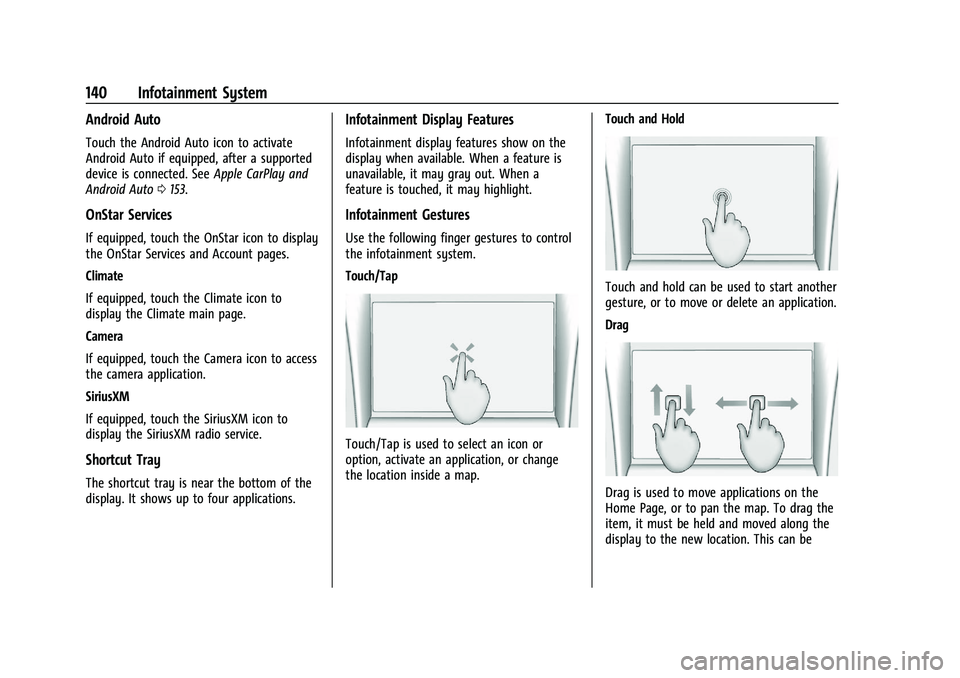
Infotainment Gestures
Use the following finger gestures to control
the infotainment system.
Touch/Tap
Touch/Tap is used to select an icon or
option, activate an application, or change
the location inside a map. Touch and Hold
Touch and hold can be used to start another
gesture, or to move or delete an application.
Drag
Drag is used to move applications on the
Home Page, or to pan the map. To drag the
item, it must be held and moved along the
display to the new location. This can be