power BUICK ENCORE GX 2020 Infotainment System Guide
[x] Cancel search | Manufacturer: BUICK, Model Year: 2020, Model line: ENCORE GX, Model: BUICK ENCORE GX 2020Pages: 89, PDF Size: 1.24 MB
Page 4 of 89
Buick Infotainment System (U.S./Canada 2.6) (GMNA-Localizing-U.S./Canada-
13583164) - 2020 - CRC - 2/26/19
Introduction 3
Before driving:
.Become familiar with the system
operation, center stack controls,
and infotainment display.
. Set up the audio by presetting
favorite stations, setting the
tone, and adjusting the
speakers.
. Set up cell phone and mobile
device numbers in advance so
they can be called easily by
pressing a single control or by
using a single voice command.
See “Distracted Driving” in the
owner ’s manual.
To play the infotainment system with
the ignition off, see “Retained
Accessory Power (RAP)” in the
owner ’s manual.
Infotainment System
The infotainment system is
controlled by using the infotainment
display, controls on the center stack,
steering wheel controls, and voice
recognition.
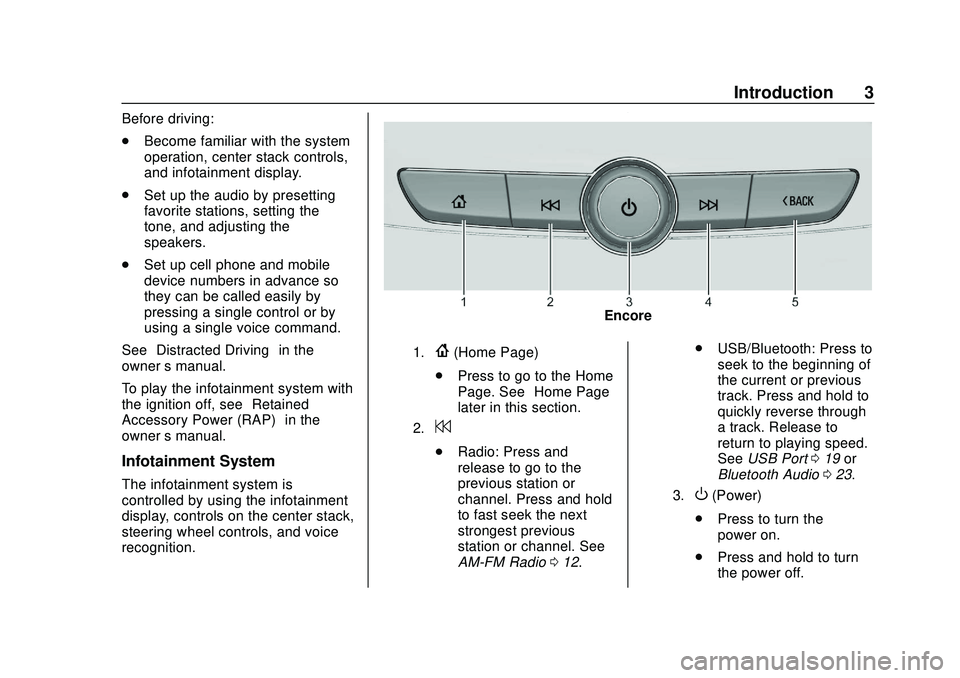
Encore
1.{(Home Page)
. Press to go to the Home
Page. See “Home Page”
later in this section.
2.7
. Radio: Press and
release to go to the
previous station or
channel. Press and hold
to fast seek the next
strongest previous
station or channel. See
AM-FM Radio 012. .
USB/Bluetooth: Press to
seek to the beginning of
the current or previous
track. Press and hold to
quickly reverse through
a track. Release to
return to playing speed.
See USB Port 019 or
Bluetooth Audio 023.
3.O(Power)
. Press to turn the
power on.
. Press and hold to turn
the power off.
Page 5 of 89
Buick Infotainment System (U.S./Canada 2.6) (GMNA-Localizing-U.S./Canada-
13583164) - 2020 - CRC - 2/26/19
4 Introduction
.Press to mute/unmute
the system when on.
When the power is on
and the system is not
muted, a quick status
pane will display when
Ois pressed. PressingOwill mute the system
and trigger this pane to
show a long press is
required to actually
power down the system.
. Turn to decrease or
increase the volume.
4.6
.
Radio: Press and
release to go to the next
station or channel.
Press and hold to fast
seek the next track or
strongest station or
channel. .
USB/Bluetooth: Press to
seek the next track.
Press and hold to fast
forward through a track.
Release to return to
playing speed. See USB
Port 019 or
Bluetooth Audio 023.
5.SBACK
. Press to return to the
previous display in
a menu.
Page 6 of 89
Buick Infotainment System (U.S./Canada 2.6) (GMNA-Localizing-U.S./Canada-
13583164) - 2020 - CRC - 2/26/19
Introduction 5
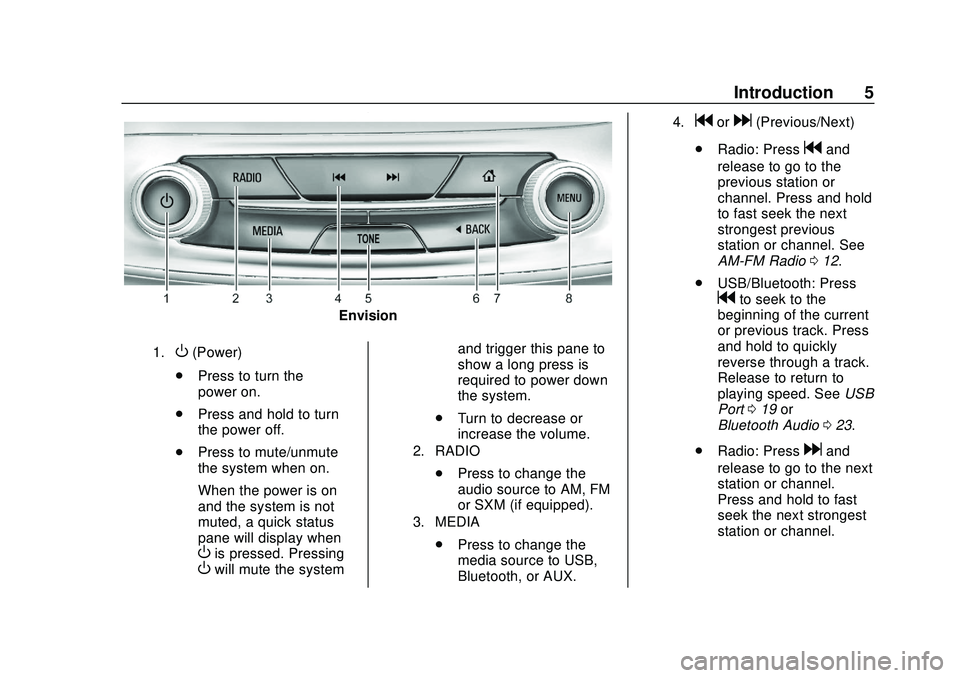
Envision
1.O(Power)
. Press to turn the
power on.
. Press and hold to turn
the power off.
. Press to mute/unmute
the system when on.
When the power is on
and the system is not
muted, a quick status
pane will display when
Ois pressed. PressingOwill mute the system and trigger this pane to
show a long press is
required to power down
the system.
. Turn to decrease or
increase the volume.
2. RADIO
.Press to change the
audio source to AM, FM
or SXM (if equipped).
3. MEDIA
.Press to change the
media source to USB,
Bluetooth, or AUX.
4.gord(Previous/Next)
. Radio: Press
gand
release to go to the
previous station or
channel. Press and hold
to fast seek the next
strongest previous
station or channel. See
AM-FM Radio 012.
. USB/Bluetooth: Press
gto seek to the
beginning of the current
or previous track. Press
and hold to quickly
reverse through a track.
Release to return to
playing speed. See USB
Port 019 or
Bluetooth Audio 023.
. Radio: Press
dand
release to go to the next
station or channel.
Press and hold to fast
seek the next strongest
station or channel.
Page 18 of 89
Buick Infotainment System (U.S./Canada 2.6) (GMNA-Localizing-U.S./Canada-
13583164) - 2020 - CRC - 2/26/19
Radio 17
Radio Reception
Unplug electronic devices from the
accessory power outlets if there is
interference or static in the radio.
FM
FM signals only reach about 16 to
65 km (10 to 40 mi). Although the
radio has a built-in electronic circuit
that automatically works to reduce
interference, some static can occur,
especially around tall buildings or
hills, causing the sound to fade in
and out.
AM
The range for most AM stations is
greater than for FM, especially at
night. The longer range can cause
station frequencies to interfere with
each other. Static can also occur
when things like storms and power
lines interfere with radio reception.
When this happens, try reducing the
treble on the radio.
SiriusXM Satellite Radio
Service
If equipped, SiriusXM Satellite
Radio Service provides digital radio
reception. Tall buildings or hills can
interfere with satellite radio signals,
causing the sound to fade in and
out. In addition, traveling or standing
under heavy foliage, bridges,
garages, or tunnels may cause loss
of the SiriusXM signal for a period
of time.
Cell Phone Usage
Cell phone usage, such as making
or receiving phone calls, charging,
or just having the phone on may
cause static interference in the
radio. Unplug the phone or turn it off
if this happens.
Backglass Antenna
The AM-FM antenna is integrated
with the rear window defogger in the
rear window. Do not scratch the
inside surface or damage the lines
in the glass. If the inside surface is
damaged, it could interfere with
radio reception. For proper radio
reception, the antenna connector
needs to be properly attached to the
post on the glass.
If attaching a cell phone antenna to
the glass, attach it between the grid
lines.
Caution
Using a razor blade or sharp
object to clear the inside rear
window can damage the rear
window antenna and/or the rear
window defogger. Repairs would
not be covered by the vehicle
warranty. Do not clear the inside
rear window with sharp objects.
Page 24 of 89
Buick Infotainment System (U.S./Canada 2.6) (GMNA-Localizing-U.S./Canada-
13583164) - 2020 - CRC - 2/26/19
Audio Players 23
Bluetooth Audio
If equipped, music may be played
from a paired Bluetooth device. See
Bluetooth (Overview)060 or
Bluetooth (Infotainment Controls)
0 61 or
Bluetooth (Voice Recognition) 064
for help pairing a device.
The music can be controlled by
either the infotainment controls,
or the controls on the device.
Music can be launched by touching
Media on the infotainment display.
To play music through Bluetooth:
1. Power on the device, and pair to connect the device.
2. Once paired, go into the audio application from the Home
Page or through the
applications tray. Touch Media
and then scroll until Bluetooth
displays. Bluetooth Audio Menu
Touch Menu on the infotainment
display to access the Bluetooth
Audio menu. The following may be
available:
Tone :
Touch + or –to adjust the
tone settings. See AM-FM Radio
0 12.
Touch the Back icon on the
infotainment display to go back to
the previous menu.
Auto Volume (If Equipped) : This
feature adjusts the volume based on
the speed of the vehicle. See
AM-FM Radio 012.
Bose AudioPilot Noise
Compensation Technology (If
Equipped) : This feature adjusts
the volume based on the noise in
the vehicle and speed. See AM-FM
Radio 012. Manage Bluetooth Devices :
Touch to go to the Bluetooth page to
add or delete devices.
When selecting Bluetooth audio, the
radio may not be able to launch the
audio player on the connected
device to start playing. When the
vehicle is not moving, choose the
connected device to begin playback.
All devices launch audio differently.
When selecting Bluetooth audio as
a source, the radio may show as
paused on the display. Touch play
on the device or touch
rto begin
playback.
Some phones support sending
Bluetooth music information to
display on the radio. When the radio
receives this information, it will
check to see if any is available and
display it. For more information
about supported Bluetooth features,
see www.gm.com/bluetooth.
Page 54 of 89
Buick Infotainment System (U.S./Canada 2.6) (GMNA-Localizing-U.S./Canada-
13583164) - 2020 - CRC - 2/26/19
Voice Recognition 53
Voice Recognition
If equipped, voice recognition allows
for hands-free operation within the
navigation, audio, phone, and
weather applications. This feature
can be started by pressing
gon the
steering wheel controls or by
touching
gon the infotainment
display.
However, not all features within
these areas are supported by voice
commands. Generally, only complex
tasks that require multiple manual
interactions to complete are
supported by voice commands.
For example, tasks that take more
than one or two touches such as
selecting a song or artist to play
from a media device would be
supported by voice commands.
Other tasks, like adjusting the
volume or seeking up or down, are
audio features that are easily
performed by pressing one or two
controls, and are not supported by
voice commands. In general there are flexible ways to
speak commands for completing the
tasks. Most of them, except
destination entry and voice keypad,
can be completed in a single
command. If the task takes more
than one command to complete, the
first command should be to indicate
the kind of task to be performed, like
“Navigation Destination Entry.”
The
system replies with prompts that
lead you through a dialog to enter
the necessary information. For
example, if a destination for route
guidance is needed, say
“Navigation” or“Destination Entry.”
Voice recognition can be used when
the ignition is on or when Retained
Accessory Power (RAP) is active.
See “Retained Accessory Power
(RAP)” in the owner ’s manual.
Using Voice Recognition
Voice recognition becomes available
once the system has been
initialized. This begins when the
ignition is turned on. Initialization
may take a few moments. 1. Press
gon the steering wheel
controls to activate voice
recognition, or touch
gon the
infotainment display.
2. The audio system mutes and the system plays a prompt
followed by a beep.
3. Wait until after the beep completes, then clearly speak
one of the commands
described in this section.
A voice recognition system
prompt can be interrupted while
it is playing by pressing
gon
the steering wheel controls
again.
For example, if the prompt
seems to be taking too long to
finish, press
gagain and the
beep should happen
right away.
Page 69 of 89
Buick Infotainment System (U.S./Canada 2.6) (GMNA-Localizing-U.S./Canada-
13583164) - 2020 - CRC - 2/26/19
68 Settings
Settings
The Settings Menu allows
adjustment of different vehicle and
radio features. The menu may
contain the following:
Time and Date
Touch the infotainment controls to
increase or decrease hours,
minutes, and AM or PM. Touch 12Hr
or 24Hr for 12 or 24 hour clock.
Touch infotainment controls to
increase or decrease month, day,
or year. See“Clock”in the owner ’s
manual.
Language
This will set the display language in
the radio, instrument cluster, and
voice recognition. Touch Language
and select the appropriate
language. Press
qBACK orS
BACK on the center stack or touch
the Back icon on the infotainment
display to go back to the
previous menu.
Valet Mode
If equipped, this will lock the
infotainment system and steering
wheel controls. It may also limit top
speed, power, and access to vehicle
storage locations (if equipped).
To enable valet mode:
1. Enter a four-digit code on the keypad.
2. Touch Enter to go to the confirmation screen.
3. Re-enter the four-digit code.
Touch Lock or Unlock to lock or
unlock the system. Press
qBACK
or
SBACK on the center stack or
touch the Back icon on the
infotainment display to go back to
the previous menu.
Radio
Touch to display the Radio Menu
and the following may display:
. Manage Favorites: Touch to
highlight a favorite to edit. Touch
Rename to rename the favorite
or Delete to delete it. Touch and hold the station to drag it to a
new location. Touch Done to go
back to the previous menu.
. Number of Favorites Shown:
Touch to set the number of
favorites to display. Select Auto,
5, 10, 15, 20, 25, 30, 35, 40, 45,
50, 55, or 60. Auto will adjust the
number of favorite locations that
can be seen. Press
qBACK or
SBACK on the center stack or
touch the Back icon on the
infotainment display to go back
to the previous menu.
. Audible Touch Feedback: This
allows Audible Touch Feedback
to be turned on or off. Select Off
or On.
. Tone Settings: Touch + or −to
adjust Bass, Midrange, Treble,
or Surround. See AM-FM Radio
0 12.
. Audio Volume (If Equipped): This
feature adjusts the volume
based on the vehicle speed.
Page 78 of 89

Buick Infotainment System (U.S./Canada 2.6) (GMNA-Localizing-U.S./Canada-
13583164) - 2020 - CRC - 2/26/19
Trademarks and License Agreements 77
RMVB
Portions of this software are
included under license from
RealNetworks, Inc. Copyright
1995-2015, RealNetworks, Inc. All
rights reserved
Bluetooth
The Bluetooth word mark and logos
are owned by the Bluetooth
®SIG,
Inc. and any use of such marks by
General Motors is under license.
Other trademarks and trade names
are those of their respective owners.
Schedule I: Gracenote EULA
Music recognition technology and
related data are provided by
Gracenote. Gracenote is the
industry standard in music
recognition technology and related
content delivery. For more
information visit
www.gracenote.com.
Music-related data from Gracenote,
Inc., copyright © 2000 to present
Gracenote. Gracenote Software,
copyright © 2000 to present
Gracenote. One or more patents
owned by Gracenote may apply to
this product and service. See the
Gracenote website for a
non-exhaustive list of applicable
Gracenote patents. Gracenote,
CDDB, MusicID, MediaVOCS, the
Gracenote logo and logotype, and
the "Powered by Gracenote" logo are either registered trademarks or
trademarks of Gracenote in the
United States and/or other
countries.
Gracenote Terms of Use
This application or device contains
software from Gracenote, Inc. of
Emeryville, California ("Gracenote").
The software from Gracenote (the
"Gracenote Software") enables this
application to do disc or file
identification and obtain
music-related information, including
name, artist, track, and title
information ("Gracenote Data") from
online servers or embedded
databases (collectively, "Gracenote
Servers") and to perform other
functions. You may use Gracenote
Data only by means of the intended
End-User functions of this
application or device.
This application or device may
contain content belonging to
Gracenote’s providers. If so, all of
the restrictions set forth herein with
respect to Gracenote Data shall
also apply to such content and such
content providers shall be entitled to