fuel BUICK ENCORE GX 2022 User Guide
[x] Cancel search | Manufacturer: BUICK, Model Year: 2022, Model line: ENCORE GX, Model: BUICK ENCORE GX 2022Pages: 376, PDF Size: 17.43 MB
Page 102 of 376
Buick Encore GX Owner Manual (GMNA-Localizing-U.S./Canada/Mexico-
15481080) - 2022 - CRC - 6/1/21
Instruments and Controls 101
warmed up. If this occurs, change the fuel
brand. It may require at least one full
tank of the proper fuel to turn the light
off. SeeRecommended Fuel 0243.
If the light remains on, see your dealer.
Emissions Inspection and Maintenance
Programs
If the vehicle requires an Emissions
Inspection/Maintenance test, the test
equipment will likely connect to the
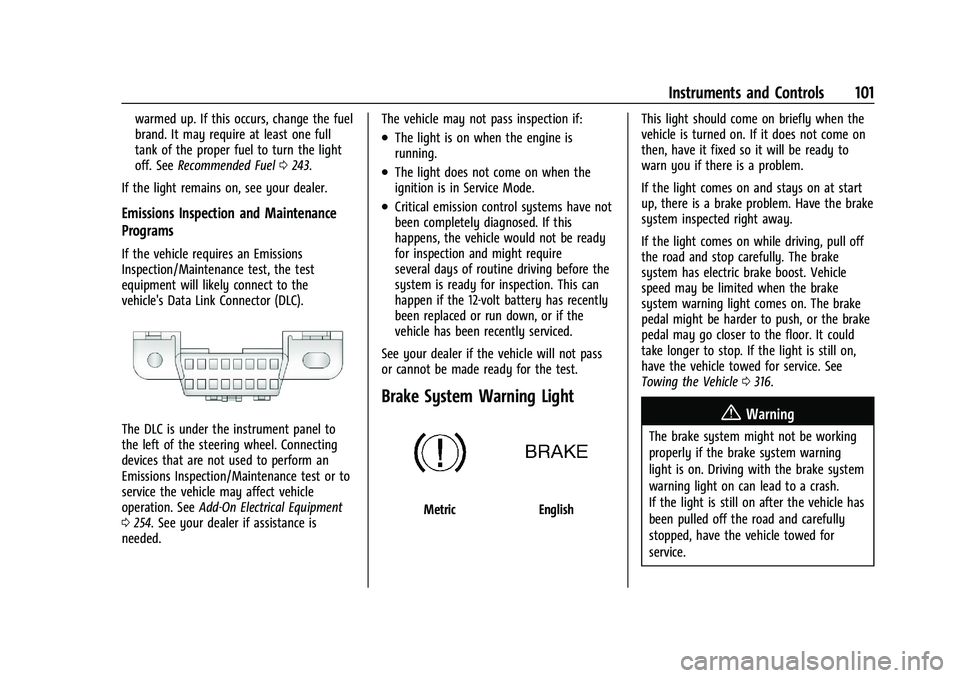
vehicle's Data Link Connector (DLC).
The DLC is under the instrument panel to
the left of the steering wheel. Connecting
devices that are not used to perform an
Emissions Inspection/Maintenance test or to
service the vehicle may affect vehicle
operation. See Add-On Electrical Equipment
0 254. See your dealer if assistance is
needed. The vehicle may not pass inspection if:
.The light is on when the engine is
running.
.The light does not come on when the
ignition is in Service Mode.
.Critical emission control systems have not
been completely diagnosed. If this
happens, the vehicle would not be ready
for inspection and might require
several days of routine driving before the
system is ready for inspection. This can
happen if the 12-volt battery has recently
been replaced or run down, or if the
vehicle has been recently serviced.
See your dealer if the vehicle will not pass
or cannot be made ready for the test.
Brake System Warning Light
MetricEnglish This light should come on briefly when the
vehicle is turned on. If it does not come on
then, have it fixed so it will be ready to
warn you if there is a problem.
If the light comes on and stays on at start
up, there is a brake problem. Have the brake
system inspected right away.
If the light comes on while driving, pull off
the road and stop carefully. The brake
system has electric brake boost. Vehicle
speed may be limited when the brake
system warning light comes on. The brake
pedal might be harder to push, or the brake
pedal may go closer to the floor. It could
take longer to stop. If the light is still on,
have the vehicle towed for service. See
Towing the Vehicle
0316.
{Warning
The brake system might not be working
properly if the brake system warning
light is on. Driving with the brake system
warning light on can lead to a crash.
If the light is still on after the vehicle has
been pulled off the road and carefully
stopped, have the vehicle towed for
service.
Page 106 of 376
Buick Encore GX Owner Manual (GMNA-Localizing-U.S./Canada/Mexico-
15481080) - 2022 - CRC - 6/1/21
Instruments and Controls 105
the light will come on at every ignition
cycle. SeeTire Pressure Monitor Operation
0 299.
Engine Oil Pressure Light
Oil pressure can vary with engine speed,
outside temperature, and oil viscosity.
On some models, the oil pump will vary
engine oil pressure according to engine
needs. Oil pressure may change quickly as
the engine speed or load varies. This is
normal. If the oil pressure warning light or
Driver Information Center (DIC) message
indicates oil pressure outside the normal
operating range, check the vehicle's oil as
soon as possible.
Caution
Lack of proper engine oil maintenance
can damage the engine. Driving with the
engine oil low can also damage the
engine. The repairs would not be covered
by the vehicle warranty. Check the oil
level as soon as possible. Add oil if
required, but if the oil level is within the
operating range and the oil pressure is
(Continued)
Caution (Continued)
still low, have the vehicle serviced.
Always follow the maintenance schedule
for changing engine oil.
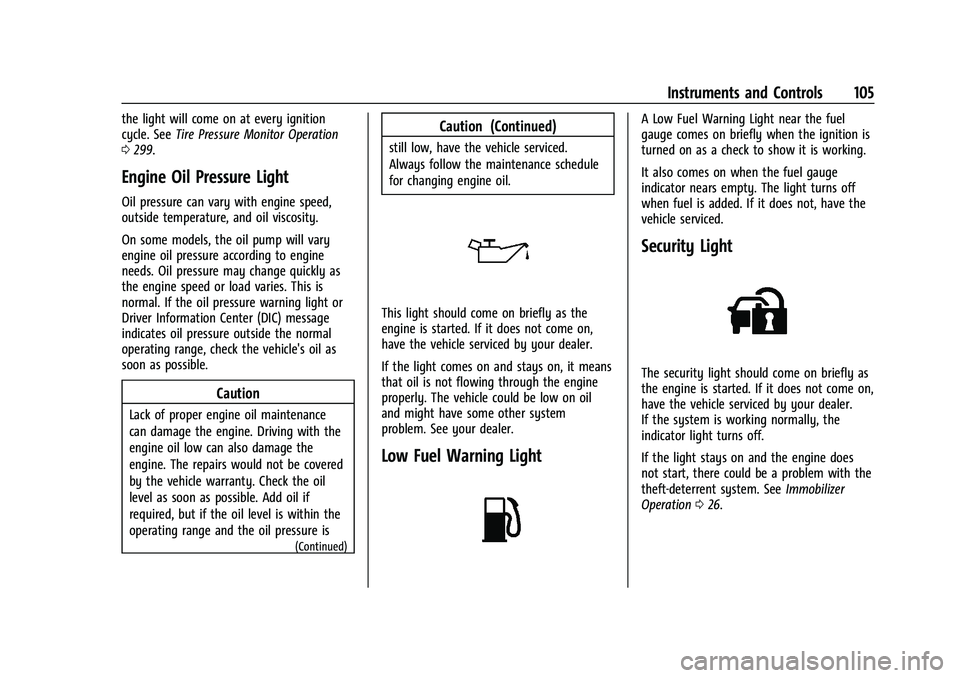
This light should come on briefly as the
engine is started. If it does not come on,
have the vehicle serviced by your dealer.
If the light comes on and stays on, it means
that oil is not flowing through the engine
properly. The vehicle could be low on oil
and might have some other system
problem. See your dealer.
Low Fuel Warning Light
A Low Fuel Warning Light near the fuel
gauge comes on briefly when the ignition is
turned on as a check to show it is working.
It also comes on when the fuel gauge
indicator nears empty. The light turns off
when fuel is added. If it does not, have the
vehicle serviced.
Security Light
The security light should come on briefly as
the engine is started. If it does not come on,
have the vehicle serviced by your dealer.
If the system is working normally, the
indicator light turns off.
If the light stays on and the engine does
not start, there could be a problem with the
theft-deterrent system. See Immobilizer
Operation 026.
Page 108 of 376

Buick Encore GX Owner Manual (GMNA-Localizing-U.S./Canada/Mexico-
15481080) - 2022 - CRC - 6/1/21
Instruments and Controls 107
Door Ajar Light
This light comes on when a door is open or
not securely latched. Before driving, check
that all doors are properly closed.
Information Displays
Driver Information Center (DIC)
(Base Level)
The DIC displays information about your
vehicle. It also displays warning messages if
a system problem is detected. SeeVehicle
Messages 0115. All messages appear in the
DIC display in the center of the instrument
cluster.
DIC Operation and Displays
Some of the displayed functions differ
between vehicle driving and standstill and
some functions are only active when the
vehicle is driving. See Vehicle Personalization
0 116.
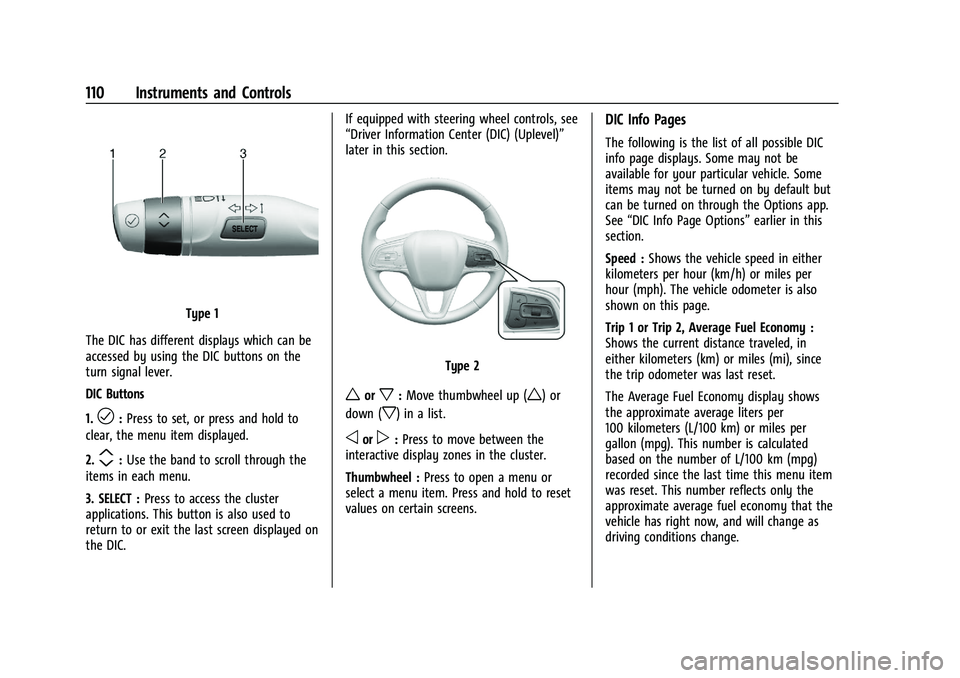
Type 1
The DIC has different displays which can be
accessed by using the DIC buttons on the
turn signal lever.
DIC Buttons
1.
l: Press to set, or press and hold to
clear, the menu item displayed.
2.
m: Use the band to scroll through the
items in each menu.
3. SELECT : Press to access the cluster
applications. This button is also used to
return to or exit the last screen displayed on
the DIC.
Type 2
worx: Move thumbwheel up (w) or
down (
x) in a list.
oorp: Press to move between the
interactive display zones in the cluster.
Thumbwheel : Press to open a menu or
select a menu item. Press and hold to reset
values on certain screens.
Trip/Fuel Menu (TRIP) Items
Press SELECT on the turn signal lever until
the VEHICLE menu is displayed. Use
mor
thumbwheel up/down to scroll through the
Page 109 of 376
Buick Encore GX Owner Manual (GMNA-Localizing-U.S./Canada/Mexico-
15481080) - 2022 - CRC - 6/1/21
108 Instruments and Controls
menu items. Not all items are available on
every vehicle. The following is a list of all
possible menu items:
Speed :Shows the vehicle speed in either
kilometers per hour (km/h) or miles per
hour (mph).
Trip 1/2 or A/B : Shows the current distance
traveled, in either kilometers (km) or
miles (mi), since the trip odometer was last
reset.
This also shows the approximate average
liters per 100 kilometers (L/100 km) or miles
per gallon (mpg). This number is calculated
based on the number of L/100 km (mpg)
recorded since the last time this menu item
was reset. This number reflects only the
approximate average fuel economy that the
vehicle has right now, and will change as
driving conditions change.
Fuel Range : Shows the approximate
distance the vehicle can be driven without
refueling. LOW will be displayed when the
vehicle is low on fuel. The fuel range
estimate is based on an average of the
vehicle's fuel economy over recent driving
history and the amount of fuel remaining in
the fuel tank. Instantaneous Fuel Economy :
Displays the
current fuel economy in liters per
100 kilometers (L/100 km) or miles per
gallon (mpg). This number reflects only the
approximate fuel economy that the vehicle
has right now and changes frequently as
driving conditions change. This display
cannot be reset.
Vehicle Information Menu (VEHICLE)
Items
Press MENU on the turn signal lever until
the VEHICLE menu is displayed. Use
mor
thumbwheel up/down to scroll through the
menu items. Not all items are available on
every vehicle. The following is a list of all
possible menu items:
Remaining Oil Life : Shows an estimate of
the oil's remaining useful life. If REMAINING
OIL LIFE 99% is displayed, that means 99%
of the current oil life remains.
When the remaining oil life is low, the
CHANGE ENGINE OIL SOON message will
appear on the display. The oil should be
changed as soon as possible. See Engine Oil
0 262. In addition to the engine oil life
system monitoring the oil life, additional
maintenance is recommended. See
Maintenance Schedule 0329. The Oil Life display must be reset after each
oil change. It will not reset itself. Do not
reset the Oil Life display at any time other
than when the oil has just been changed.
It cannot be reset accurately until the next
oil change. To reset, see
Engine Oil Life
System 0264.
Air Filter Life : Shows an estimate of the
engine air filter’s remaining useful life and
the state of the system. Engine Air Filter Life
95% means 95% of the current air filter life
remains. Messages will display based on the
engine air filter life and the state of the
system. When the REPLACE AT NEXT OIL
CHANGE message displays, the engine air
filter should be replaced at the time of the
next oil change. When the REPLACE SOON
message displays, the engine air filter
should be replaced at the earliest
convenience.
The Air Filter Life display must be reset after
the engine air filter replacement. To reset,
see Engine Air Filter Life System 0265.
Tire Pressure : Shows the approximate
pressures of all four tires. Tire pressure is
displayed in either kilopascal (kPa) or in
pounds per square inch (psi). If the pressure
is low, the value for that tire is shown in
Page 110 of 376
Buick Encore GX Owner Manual (GMNA-Localizing-U.S./Canada/Mexico-
15481080) - 2022 - CRC - 6/1/21
Instruments and Controls 109
amber. SeeTire Pressure Monitor System
0 298 and
Tire Pressure Monitor Operation 0299.
Following Distance : When Adaptive Cruise
Control (ACC) is not engaged, the current
follow time to the vehicle ahead is displayed
as a time value on this page. If equipped
and when ACC has been engaged, the
display switches to the gap setting page.
This page shows the current gap setting
along with the vehicle ahead indicator.
Brake Pad Life : This displays an estimate of
the remaining life of the front and rear
brake pads. Messages will display based on
brake pad wear and the state of the system.
Reset the Brake Pad Life display after
replacing the brake pads. See Brake Pad Life
System 0273
Units : Choose US, Imperial, or metric units
by pressing
lor the thumbwheel while
the desired item is highlighted.
ECO Drive Assist Menu (ECO) Items
This menu is only available on some
vehicles. Press MENU on the turn signal
lever until the ECO menu is displayed. Use
mor thumbwheel up/down to scroll through the menu items. Not all items are
available on every vehicle. The following is a
list of all possible menu items:
Fuel Economy :
The center displays the
approximate instantaneous fuel economy as
a number and bar graph. Displayed above
the bar graph is a running average of fuel
economy for the most recently traveled
selected distance. Displayed below the bar
graph is the best average fuel economy that
has been achieved for the selected distance.
The selected distance is displayed at the top
of the page as “last xxx mi/km.”
Top Consumers : List of top comfort
consumers currently switched on is
displayed in descending order. Fuel saving
potential is indicated.
During sporadic driving conditions, the
engine will activate the heated rear window
automatically. In this event, the heated rear
window is indicated as one of the top
consumers, without activation by the driver.
Economy Trend : Shows history of the
Average Fuel Economy from the last 50 km
(30 mi). Each bar represents about 5 km
(3 mi) of driving. During driving the bars will
shift to always reflect the most recent distance on the right side. Press and
hold
lor thumbwheel to clear the graph.
ECO Index : Provides feedback on the
efficiency of current driving behavior. The
bar graph shows a value that is based on
current fuel consumption compared to what
is expected from the vehicle with good and
bad driving habits.
Driver Information Center (DIC)
(Uplevel)
The DIC displays are shown in the center of
the instrument cluster in the Info app. See
Instrument Cluster 093. The displays show
the status of many vehicle systems. The
controls for the DIC are on the right steering
wheel control.
Page 111 of 376
Buick Encore GX Owner Manual (GMNA-Localizing-U.S./Canada/Mexico-
15481080) - 2022 - CRC - 6/1/21
110 Instruments and Controls
Type 1
The DIC has different displays which can be
accessed by using the DIC buttons on the
turn signal lever.
DIC Buttons
1.
l: Press to set, or press and hold to
clear, the menu item displayed.
2.
m: Use the band to scroll through the
items in each menu.
3. SELECT : Press to access the cluster
applications. This button is also used to
return to or exit the last screen displayed on
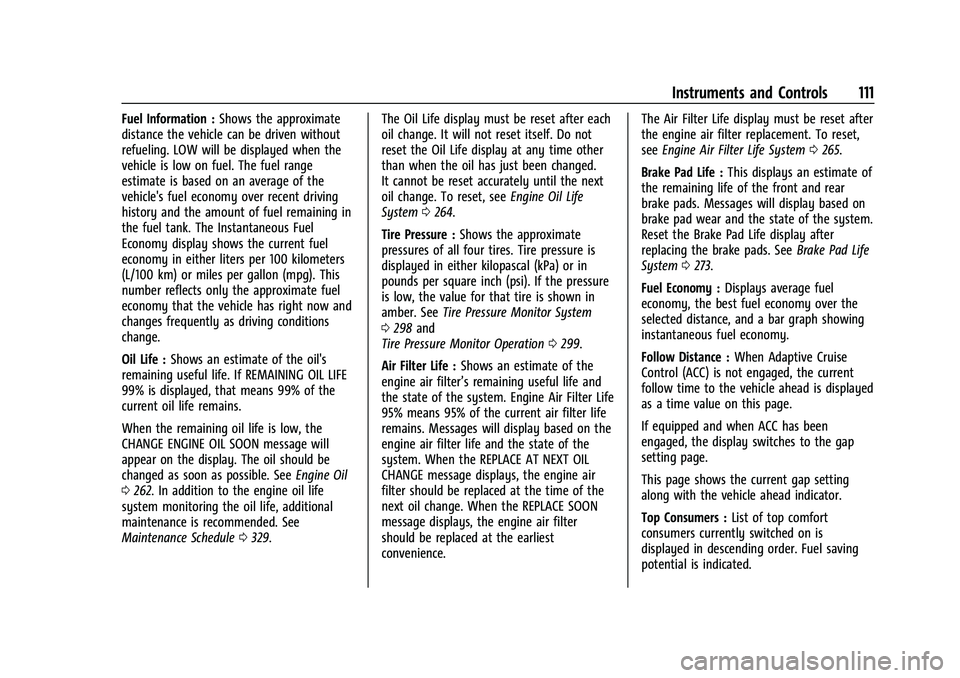
the DIC. If equipped with steering wheel controls, see
“Driver Information Center (DIC) (Uplevel)”
later in this section.
Type 2
worx:
Move thumbwheel up (w) or
down (
x) in a list.
oorp: Press to move between the
interactive display zones in the cluster.
Thumbwheel : Press to open a menu or
select a menu item. Press and hold to reset
values on certain screens.
DIC Info Pages
The following is the list of all possible DIC
info page displays. Some may not be
available for your particular vehicle. Some
items may not be turned on by default but
can be turned on through the Options app.
See “DIC Info Page Options” earlier in this
section.
Speed : Shows the vehicle speed in either
kilometers per hour (km/h) or miles per
hour (mph). The vehicle odometer is also
shown on this page.
Trip 1 or Trip 2, Average Fuel Economy :
Shows the current distance traveled, in
either kilometers (km) or miles (mi), since
the trip odometer was last reset.
The Average Fuel Economy display shows
the approximate average liters per
100 kilometers (L/100 km) or miles per
gallon (mpg). This number is calculated
based on the number of L/100 km (mpg)
recorded since the last time this menu item
was reset. This number reflects only the
approximate average fuel economy that the
vehicle has right now, and will change as
driving conditions change.
Page 112 of 376
Buick Encore GX Owner Manual (GMNA-Localizing-U.S./Canada/Mexico-
15481080) - 2022 - CRC - 6/1/21
Instruments and Controls 111
Fuel Information :Shows the approximate
distance the vehicle can be driven without
refueling. LOW will be displayed when the
vehicle is low on fuel. The fuel range
estimate is based on an average of the
vehicle's fuel economy over recent driving
history and the amount of fuel remaining in
the fuel tank. The Instantaneous Fuel
Economy display shows the current fuel
economy in either liters per 100 kilometers
(L/100 km) or miles per gallon (mpg). This
number reflects only the approximate fuel
economy that the vehicle has right now and
changes frequently as driving conditions
change.
Oil Life : Shows an estimate of the oil's
remaining useful life. If REMAINING OIL LIFE
99% is displayed, that means 99% of the
current oil life remains.
When the remaining oil life is low, the
CHANGE ENGINE OIL SOON message will
appear on the display. The oil should be
changed as soon as possible. See Engine Oil
0 262. In addition to the engine oil life
system monitoring the oil life, additional
maintenance is recommended. See
Maintenance Schedule 0329. The Oil Life display must be reset after each
oil change. It will not reset itself. Do not
reset the Oil Life display at any time other
than when the oil has just been changed.
It cannot be reset accurately until the next
oil change. To reset, see
Engine Oil Life
System 0264.
Tire Pressure : Shows the approximate
pressures of all four tires. Tire pressure is
displayed in either kilopascal (kPa) or in
pounds per square inch (psi). If the pressure
is low, the value for that tire is shown in
amber. See Tire Pressure Monitor System
0 298 and
Tire Pressure Monitor Operation 0299.
Air Filter Life : Shows an estimate of the
engine air filter’s remaining useful life and
the state of the system. Engine Air Filter Life
95% means 95% of the current air filter life
remains. Messages will display based on the
engine air filter life and the state of the
system. When the REPLACE AT NEXT OIL
CHANGE message displays, the engine air
filter should be replaced at the time of the
next oil change. When the REPLACE SOON
message displays, the engine air filter
should be replaced at the earliest
convenience. The Air Filter Life display must be reset after
the engine air filter replacement. To reset,
see
Engine Air Filter Life System 0265.
Brake Pad Life : This displays an estimate of
the remaining life of the front and rear
brake pads. Messages will display based on
brake pad wear and the state of the system.
Reset the Brake Pad Life display after
replacing the brake pads. See Brake Pad Life
System 0273.
Fuel Economy : Displays average fuel
economy, the best fuel economy over the
selected distance, and a bar graph showing
instantaneous fuel economy.
Follow Distance : When Adaptive Cruise
Control (ACC) is not engaged, the current
follow time to the vehicle ahead is displayed
as a time value on this page.
If equipped and when ACC has been
engaged, the display switches to the gap
setting page.
This page shows the current gap setting
along with the vehicle ahead indicator.
Top Consumers : List of top comfort
consumers currently switched on is
displayed in descending order. Fuel saving
potential is indicated.
Page 113 of 376
Buick Encore GX Owner Manual (GMNA-Localizing-U.S./Canada/Mexico-
15481080) - 2022 - CRC - 6/1/21
112 Instruments and Controls
During sporadic driving conditions, the
engine will activate the heated rear window
automatically. In this event, the heated rear
window is indicated as one of the top
consumers, without activation by the driver.
Economy Trend :Shows history of the
Average Fuel Economy from the last 50 km
(30 mi). Each bar represents about 5 km
(3 mi) of driving. During driving the bars will
shift to always reflect the most recent
distance on the right side. Press and hold
the center toggle switch to clear the graph
or press
pto reset through the menu.
ECO Index : Provides feedback on the
efficiency of current driving behavior. The
bar graph shows a value that is based on
current fuel consumption compared to what
is expected from the vehicle with good and
bad driving habits.
Head-Up Display (HUD)
{Warning
If the HUD image is too bright or too
high in your field of view, it may take
you more time to see things you need to
(Continued)
Warning (Continued)
see when it is dark outside. Be sure to
keep the HUD image dim and placed low
in your field of view.
{Warning
.Do not attach any stickers, decals,
or accessories on the Head-Up
Display (HUD).
.Do not attempt to adjust or move the
HUD screen or the mechanical door on
top of the instrument panel by hand.
.Do not place any objects near the
HUD. Objects may obstruct the image
display, and/or interference from the
objects during activation may
influence the operation or could
damage the display.
.Do not put any drinks near the HUD.
If liquid flows into the display, the
unit could be damaged.
.Use caution when opening or closing
the HUD screen to prevent objects
from falling inside the
mechanical door.(Continued)
Warning (Continued)
.Use only a soft cloth to clean the HUD
screen. Do not use any organic
solvents, detergents, or polishing
materials to prevent damage to the
HUD display.
If equipped with HUD, some information
concerning the operation of the vehicle is
projected onto the screen on top of the
instrument panel. The information is
projected through the HUD lens on the
driver side of the instrument panel and
focused out toward the front of the vehicle.
Caution
If you try to use the HUD image as a
parking aid, you may misjudge the
distance and damage your vehicle. Do not
use the HUD image as a parking aid.
The HUD information can be displayed in
various languages. The speedometer reading
and other numerical values can be displayed
in either English or metric units.
Page 145 of 376
Buick Encore GX Owner Manual (GMNA-Localizing-U.S./Canada/Mexico-
15481080) - 2022 - CRC - 6/1/21
144 Infotainment System
.Edit Destination (if a route has been set)
.Avoid on Route (if a route has been set)
Touch Settings to view Map and Navigation
Settings. The following may display:
.Destination Card Preferences
.Map Preferences
.Route Preferences
.Navigation Voice Control
.Traffic Preferences
.Alert Preferences
.Fuel Grade Preferences
.Manage History
.Predictive Navigation: See “Predictive
Navigation (If Equipped)” previously in
this section.
.About
To exit a list, touch
zin the top right
corner to return to the main map view.
Make sure to set up preferences before
setting a destination and starting active
guidance. Map Preferences
Touch to choose between basic map feature
configurations:
Map Colors
.Auto
–Touch to automatically change
modes based on lighting conditions.
.Day (Light)
.Night (Dark)
3D Landmark (Default is On) : Touch On or
Off. When turned on, the system will
display all 3D Landmarks on the map
depending on the zoom level.
3D Building (Default is Off) : Touch On or
Off. When turned on, the system will
display all of the possible 3D building shapes
on the map depending on the zoom level.
Show Terrain in 3D (Default is Off) :
If equipped, touch On or Off. When turned
on, the system will display terrain
information on the map in 3D view.
Auto-Zoom (Default is On) : Touch On or
Off. When turned on, the system will
automatically adjust the zoom level when
the vehicle is approaching a turn. After the
turn is completed, the system automatically
brings the zoom back to the originally set
level. If the vehicle is approaching a turn with the next turn occurring shortly after,
the Auto-Zoom will remain on until both
turns are completed.
Route Preferences
Touch to access the Route Preferences. The
choices are:
.Preferred Route
–Choose from two
different route options: Fastest or
Eco-Friendly.
‐ Fastest would be the route with the
shortest drive time.
‐ Eco-Friendly would be the most
fuel-efficient route.
.Avoid on Current Route –Choose any of
the road features to avoid while on route:
‐ Highways
‐ Unpaved Roads
‐ Ferries
‐ Carpool Lanes
‐ Toll Roads
‐ Tunnels
‐ Country Borders
Navigation Voice Control
Touch to access the voice control setting
display.
Page 152 of 376
Buick Encore GX Owner Manual (GMNA-Localizing-U.S./Canada/Mexico-
15481080) - 2022 - CRC - 6/1/21
Infotainment System 151
3. Touch a saved Navigation favorite toaccess the edit icon. Touch the edit icon
to rename the favorite.
4. Touch Save to store the renamed favorite.
Recents
TouchHto access a list of recent
destinations.
Recenter Position Icon
Touch the Recenter Position arrow in the
middle of the map view to reset the map to
the current location.
Last Parked Location
The Last Parked Location is the last location
the vehicle engine was turned off. That
location is displayed in the first row of the
Recents list. Touching the last Parked
Location shows the Address Details view to
either save the address or drive to it. The
Last Parked Location can be deleted by
entering the Edit display. Once the Last
Parked Location is deleted, it no longer
appears in the Recents list, unless the
vehicle is started at that location again.
Show POI Icons
To see the POI categories, touch Options,
then touch Show on Map. Up to eight
categories of icons can be selected.
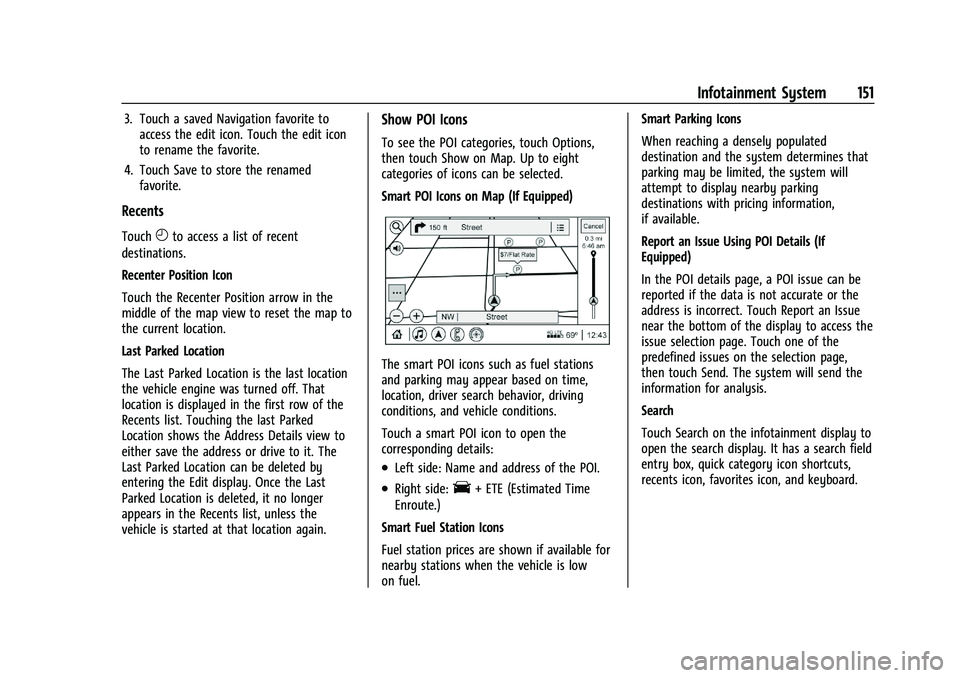
Smart POI Icons on Map (If Equipped)
The smart POI icons such as fuel stations
and parking may appear based on time,
location, driver search behavior, driving
conditions, and vehicle conditions.
Touch a smart POI icon to open the
corresponding details:
.Left side: Name and address of the POI.
.Right side:E+ ETE (Estimated Time
Enroute.)
Smart Fuel Station Icons
Fuel station prices are shown if available for
nearby stations when the vehicle is low
on fuel. Smart Parking Icons
When reaching a densely populated
destination and the system determines that
parking may be limited, the system will
attempt to display nearby parking
destinations with pricing information,
if available.
Report an Issue Using POI Details (If
Equipped)
In the POI details page, a POI issue can be
reported if the data is not accurate or the
address is incorrect. Touch Report an Issue
near the bottom of the display to access the
issue selection page. Touch one of the
predefined issues on the selection page,
then touch Send. The system will send the
information for analysis.
Search
Touch Search on the infotainment display to
open the search display. It has a search field
entry box, quick category icon shortcuts,
recents icon, favorites icon, and keyboard.