remote control BUICK ENVISION 2018 User Guide
[x] Cancel search | Manufacturer: BUICK, Model Year: 2018, Model line: ENVISION, Model: BUICK ENVISION 2018Pages: 365, PDF Size: 5.56 MB
Page 147 of 365

Buick Envision Owner Manual (GMNA-Localizing-U.S./Canada/Mexico-
11434432) - 2018 - CRC - 10/25/17
146 Instruments and Controls
Easy Exit Options
This feature automatically recalls
the previously stored exit button
position when exiting the vehicle.
SeeMemory Seats 057.
Select Off or On.
Chime Volume
This allows the selection of the
chime volume level.
Touch + or −to adjust the volume.
Hands Free Liftgate Control
The liftgate may be operated with a
kicking motion under the rear
bumper. See Liftgate040.
Select Off, On-Open and Close,
or On-Open Only.
Reverse Tilt Mirror
When on, the driver, passenger,
or both driver and passenger mirrors
will tilt downward when the vehicle
is shifted to R (Reverse). See
Reverse Tilt Mirrors 048.
Select Off, On-Driver and
Passenger, On-Driver,
or On-Passenger. Rainsense Wipers
This allows the Rainsense Wipers
feature to be disabled or enabled.
Select On or Off.
Auto Wipe in Reverse Gear
This allows this feature to be turned
on or off. When on and the front
wipers are on, the rear window
wiper will turn on automatically
when the vehicle is shifted into
R (Reverse).
Select Off or On.
Lighting
Select and the following may
display:
.
Vehicle Locator Lights
. Exit Lighting
Vehicle Locator Lights
This feature will flash the exterior
lamps when
Kon the Remote
Keyless Entry (RKE) transmitter is
pressed to locate the vehicle.
Select Off or On. Exit Lighting
This allows the selection of how
long the exterior lamps stay on
when leaving the vehicle when it is
dark outside.
Select Off, 30 Seconds, 60 Seconds,
or 120 Seconds.
Power Door Locks
Select and the following may
display:
.
Unlocked Door Anti Lock Out
. Auto Door Unlock
. Delayed Door Lock
Unlocked Door Anti Lock Out
When on, this feature will keep the
driver door from locking when the
door is open. If Off is selected, the
Delayed Door Lock menu will be
available.
Select Off or On.
Page 148 of 365

Buick Envision Owner Manual (GMNA-Localizing-U.S./Canada/Mexico-
11434432) - 2018 - CRC - 10/25/17
Instruments and Controls 147
Auto Door Unlock
This allows selection of which of the
doors will automatically unlock when
the vehicle is shifted into P (Park).
Select Off, All Doors, or Driver Door.
Delayed Door Lock
When on, this feature will delay the
locking of the doors. To override the
delay, press the power door lock
switch on the door.
Select Off or On.
Remote Lock, Unlock, Start
Select and the following may
display:
.Remote Unlock Light Feedback
. Remote Lock Feedback
. Remote Door Unlock
. Remote Start Auto Cool Seats
. Remote Start Auto Heat Seats
. Auto Heated Seats
. Passive Door Unlock
. Passive Door Lock
. Remote Left in Vehicle Alert Remote Unlock Light Feedback
When on, the exterior lamps will
flash when unlocking the vehicle
with the RKE transmitter.
Select Off or Flash Lights.
Remote Lock Feedback
This allows selection of what type of
feedback is given when locking the
vehicle with the RKE transmitter.
Select Off, Lights and Horn, Lights
Only, or Horn Only.
Remote Door Unlock
This allows selection of which doors
will unlock when pressing
Kon the
RKE transmitter.
Select All Doors or Driver Door.
Remote Start Auto Cool Seats
If equipped and turned on, this
feature will turn the ventilated seats
on when using remote start on
warm days.
Select Off, On-Driver and
Passenger, or On-Driver. Remote Start Auto Heat Seats
If equipped and turned on, this
feature will turn the heated seats on
when using remote start on
cold days.
Select Off or On.
Auto Heated Seats
This feature will enable the heated
seats to turn on after pressing
ENGINE START/STOP when it is
cold outside.
Select Off or On.
Passive Door Unlock
This allows selection of which doors
will unlock when using the button on
the driver door to unlock the vehicle.
Select All Doors or Driver Door .
Passive Door Lock
This feature can be turned on or off,
or can be used to select feedback.
See
Remote Keyless Entry (RKE)
System Operation 028.
Select Off, On with Horn
Chirp, or On.
Page 149 of 365
Buick Envision Owner Manual (GMNA-Localizing-U.S./Canada/Mexico-
11434432) - 2018 - CRC - 10/25/17
148 Instruments and Controls
Remote Left in Vehicle Alert
This feature sounds an alert when
the RKE transmitter is left in the
vehicle. This menu also enables
Remote No Longer in Vehicle Alert.
Select Off or On.
Bluetooth
Select and the following may
display:
.Pair New Device
. Device Management
. Ringtones
. Voice Mail Numbers
. Text Message Alerts
Pair New Device
Select to pair a new device. See
“Pairing” under“Bluetooth” in the
infotainment manual.
Device Management
Select to connect to a different
phone source, disconnect a phone,
or delete a phone. Ringtones
Press to change the ring tone for
the specific phone. The phone does
not need to be connected to change
the ring tone.
Voice Mail Numbers
This feature displays the voice mail
number for all connected phones.
To change the voice mail number,
select EDIT or press the EDIT
button. Type a new number, then
select SAVE or press the SAVE
button.
Text Message Alerts
This feature allows text messages
to be received. See
“Text
Messaging” under“Phone” in the
infotainment manual.
Select Off or On.
Apple CarPlay
Select and the following may
display:
. Apple CarPlay
. Manage Apple CarPlay Devices Apple CarPlay
This feature allows Apple devices to
be connected to the infotainment
system through a USB port. See
“Apple CarPlay and Android Auto”
in
the infotainment manual.
Select Off or On.
Manage Apple CarPlay Devices
Select to manage Apple devices.
Apple CarPlay must be on for this
feature to be accessed. See “Apple
CarPlay and Android Auto” in the
infotainment manual.
Android Auto
Select and the following may
display:
. Android Auto
. Manage Android Auto Devices
Android Auto
This feature allows Android devices
to be connected to the infotainment
system through a USB port. See
“Apple CarPlay and Android Auto” in
the infotainment manual.
Select Off or On.
Page 151 of 365
Buick Envision Owner Manual (GMNA-Localizing-U.S./Canada/Mexico-
11434432) - 2018 - CRC - 10/25/17
150 Instruments and Controls
Software Information
Select to view the infotainment
system current software information.
Wi-Fi
Select and the following may
display:
.Wi-Fi
. Manage Wi-Fi Networks
Wi-Fi
This feature allows Wi-Fi networks
to be turned off or on.
Select Off or On.
Manage Wi-Fi Networks
Select to manage Wi-Fi networks.
Wi-Fi must be on for this feature to
be accessed.
Universal Remote
System
See Radio Frequency Statement
0 337.
Universal Remote System
Programming
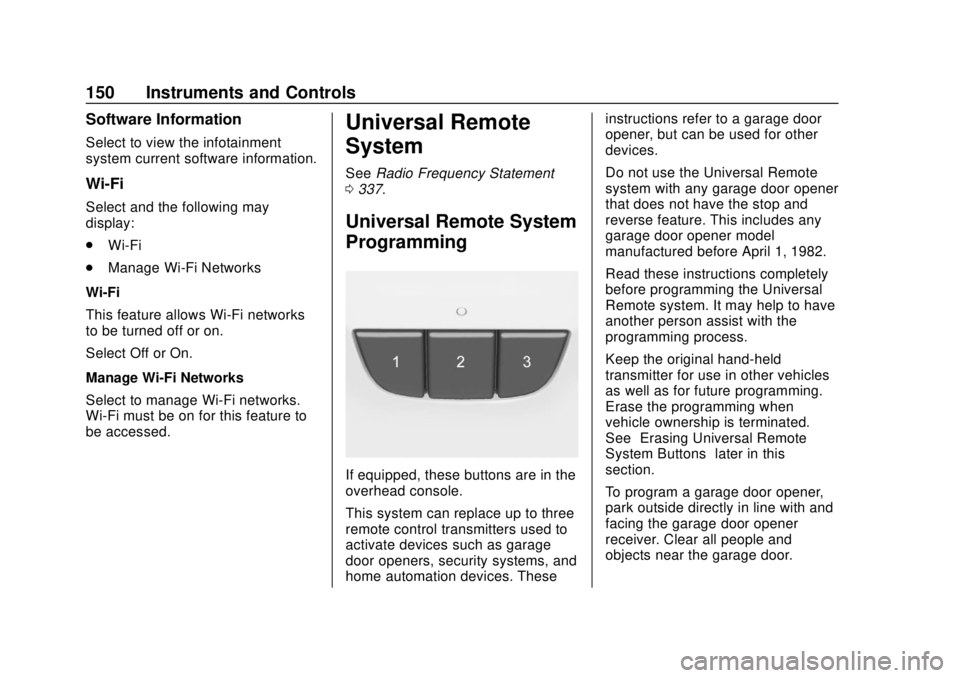
If equipped, these buttons are in the
overhead console.
This system can replace up to three
remote control transmitters used to
activate devices such as garage
door openers, security systems, and
home automation devices. These instructions refer to a garage door
opener, but can be used for other
devices.
Do not use the Universal Remote
system with any garage door opener
that does not have the stop and
reverse feature. This includes any
garage door opener model
manufactured before April 1, 1982.
Read these instructions completely
before programming the Universal
Remote system. It may help to have
another person assist with the
programming process.
Keep the original hand-held
transmitter for use in other vehicles
as well as for future programming.
Erase the programming when
vehicle ownership is terminated.
See
“Erasing Universal Remote
System Buttons” later in this
section.
To program a garage door opener,
park outside directly in line with and
facing the garage door opener
receiver. Clear all people and
objects near the garage door.
Page 152 of 365
Buick Envision Owner Manual (GMNA-Localizing-U.S./Canada/Mexico-
11434432) - 2018 - CRC - 10/25/17
Instruments and Controls 151
Make sure the hand-held transmitter
has a new battery for quick and
accurate transmission of the
radio-frequency signal.
Programming the Universal
Remote System
For questions or programming help,
see www.homelink.com/gm or call
1-800-355-3515.
Programming involves
time-sensitive actions, and may time
out causing the procedure to be
repeated.
To program up to three devices:1. Hold the end of the hand-held transmitter about 3 to 8 cm (1
to 3 in) away from the
Universal Remote system
buttons with the indicator light
in view. The hand-held
transmitter was supplied by the
manufacturer of the garage
door opener receiver.
2. At the same time, press and hold both the hand-held
transmitter button and one of
the three Universal Remote system buttons to be used to
operate the garage door. Do
not release either button until
the indicator light changes from
a slow to a rapid flash. Then
release both buttons.
Some garage door openers
may require substitution of
Step 2 with the procedure
under
“Radio Signals for
Canada and Some Gate
Operators” later in this section.
3. Press and hold the newly programmed Universal Remote
system button for five seconds
while watching the indicator
light and garage door
activation.
.If the indicator light stays on
continuously or the garage
door moves when the
button is pressed, then
programming is complete.
There is no need to
complete Steps 4–6.
. If the indicator light does
not come on or the garage
door does not move, a second button press may
be required. For a second
time, press and hold the
newly programmed button
for five seconds. If the light
stays on or the garage door
moves, programming is
complete.
. If the indicator light blinks
rapidly for two seconds,
then changes to a solid light
and the garage door does
not move, continue with
programming Steps 4–6.
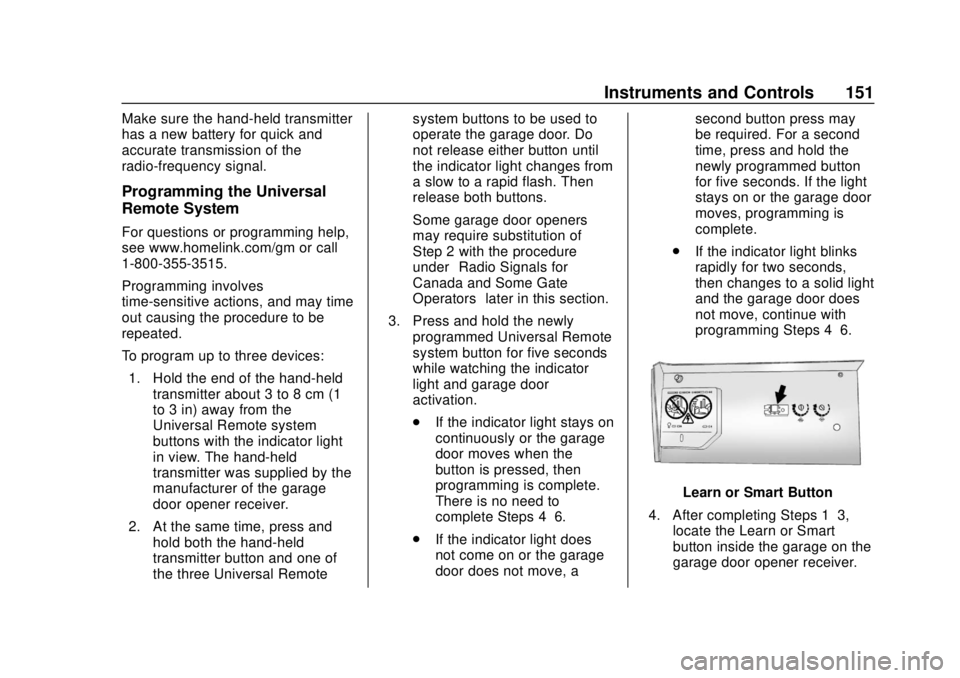
Learn or Smart Button
4. After completing Steps 1–3, locate the Learn or Smart
button inside the garage on the
garage door opener receiver.
Page 153 of 365
Buick Envision Owner Manual (GMNA-Localizing-U.S./Canada/Mexico-
11434432) - 2018 - CRC - 10/25/17
152 Instruments and Controls
The name and color of the
button may vary by
manufacturer.
5. Press and release the Learn or Smart button. Step 6 must be
completed within 30 seconds of
pressing this button.
6. Inside the vehicle, press and hold the newly programmed
Universal Remote system
button for two seconds and
then release it. If the garage
door does not move or the
lamp on the garage door
opener receiver does not flash,
press and hold the same
button a second time for
two seconds, then release it.
Again, if the door does not
move or the garage door lamp
does not flash, press and hold
the same button a third time for
two seconds, then release it.
The Universal Remote system
should now activate the
garage door. Repeat the process for
programming the two remaining
buttons.
Radio Signals for Canada and
Some Gate Operators
For questions or programming help,
see www.homelink.com/gm or call
1-800-355-3515.
Canadian radio-frequency laws and
some U.S. gate operators require
transmitter signals to time out or
quit after several seconds of
transmission. This may not be long
enough for the Universal Remote
system to pick up the signal during
programming.
If the programming did not work,
replace Step 2 under
“Programming
the Universal Remote System” with
the following:
Press and hold the Universal
Remote system button while
pressing and releasing the
hand-held transmitter button every
two seconds until the signal has
been successfully accepted by the
Universal Remote system. The
Universal Remote system indicator light will flash slowly at first and then
rapidly. Proceed with Step 3 under
“Programming the Universal Remote
System”
to complete.
Universal Remote System
Operation
Using the Universal Remote
System
Press and hold the appropriate
Universal Remote system button for
at least one-half second. The
indicator light will come on while the
signal is being transmitted.
Erasing Universal Remote
System Buttons
Erase all programmed buttons when
vehicle ownership is terminated.
To erase:
1. Press and hold the two outside buttons until the indicator light
begins to flash. This should
take about 10 seconds.
2. Release both buttons.
Page 154 of 365
Buick Envision Owner Manual (GMNA-Localizing-U.S./Canada/Mexico-
11434432) - 2018 - CRC - 10/25/17
Instruments and Controls 153
Reprogramming a Single
Universal Remote System
Button
To reprogram any of the system
buttons:1. Press and hold any one of the buttons. Do not release the
button.
2. The indicator light will begin to flash after 20 seconds. Without
releasing the button, proceed
with Step 1 under
“Programming the Universal
Remote System.”
Page 161 of 365

Buick Envision Owner Manual (GMNA-Localizing-U.S./Canada/Mexico-
11434432) - 2018 - CRC - 10/25/17
160 Lighting
Reading Lamps
There are reading lamps on the
overhead console and over the rear
passenger doors. These lamps
come on when any door is opened.
Front Reading Lamps
The reading lamps in the overhead
console are operated by touch.
Touch the lamp for dim light, touch
again for bright light, and touch
again to turn the light off.
Rear Reading Lamps
Press the lamp lens to turn the rear
passenger reading lamps on or off.
Lighting Features
Entry Lighting
Some exterior lamps and most of
the interior lights turn on briefly at
night, or in areas of limited lighting
when
Kis pressed on the Remote
Keyless Entry (RKE) transmitter.
See Remote Keyless Entry (RKE)
System Operation 028. When the
driver door is opened, all control
lights, Driver Information Center
(DIC) lights, and door pocket lights
turn on. After about 30 seconds the
exterior lamps turn off, then the
remaining interior lights dim to off.
Entry lighting can be disabled
manually by turning the ignition on
or to ACC/ACCESSORY, or by
pressing
Qon the RKE transmitter.
This feature can be changed. See
“Vehicle Locator Lights” under
Vehicle Personalization 0143.
Page 206 of 365
Buick Envision Owner Manual (GMNA-Localizing-U.S./Canada/Mexico-
11434432) - 2018 - CRC - 10/25/17
Driving and Operating 205
or both sides of the Safety Alert
Seat will pulse five times. See
“Collision/Detection Systems”under
Vehicle Personalization 0143.
See Defensive Driving 0172.
Approaching and Following a
Vehicle
The vehicle ahead indicator is in the
instrument cluster and HUD,
if equipped.
The vehicle ahead indicator only
displays when a vehicle is detected
in your vehicle’s path moving in the
same direction.
If this symbol is not displaying, ACC
will not respond to or brake for
vehicles ahead.
ACC automatically slows the vehicle
down and adjusts vehicle speed to
follow the vehicle in front at the selected follow gap. The vehicle
speed increases or decreases to
follow the vehicle in front of you, but
will not exceed the set speed. It may
apply limited braking, if necessary.
When braking is active, the brake
lamps will come on. The automatic
braking may feel or sound different
than if the brakes were applied
manually. This is normal.
Stationary or Very Slow-Moving
Objects
{Warning
ACC may not detect and react to
stopped or slow-moving vehicles
ahead of you. For example, the
system may not brake for a
vehicle it has never detected
moving. This can occur in
stop-and-go traffic or when a
vehicle suddenly appears due to
a vehicle ahead changing lanes.
Your vehicle may not stop and
could cause a crash. Use caution
when using ACC. Your complete
(Continued)
Warning (Continued)
attention is always required while
driving and you should be ready
to take action and apply the
brakes.
ACC Automatically Disengages
ACC may automatically disengage
and the driver will need to manually
apply the brakes to slow the
vehicle if:
. The sensors are blocked.
. The Traction Control System
(TCS) or electronic stability
control system has activated or
been disabled.
. There is a fault in the system.
. The radar falsely reports a
blockage when driving in a
desert or remote area with no
other vehicles or roadside
objects. A DIC message may
display to indicate that ACC is
temporarily unavailable.
Page 237 of 365

Buick Envision Owner Manual (GMNA-Localizing-U.S./Canada/Mexico-
11434432) - 2018 - CRC - 10/25/17
236 Vehicle Care
California Perchlorate
Materials Requirements
Certain types of automotive
applications, such as airbag
initiators, seat belt pretensioners,
and lithium batteries contained in
Remote Keyless Entry transmitters,
may contain perchlorate materials.
Special handling may be necessary.
For additional information, see
www.dtsc.ca.gov/hazardouswaste/
perchlorate.
Accessories and
Modifications
Adding non-dealer accessories or
making modifications to the vehicle
can affect vehicle performance and
safety, including such things as
airbags, braking, stability, ride and
handling, emissions systems,
aerodynamics, durability, and
electronic systems like antilock
brakes, traction control, and stability
control. These accessories or
modifications could even cause
malfunction or damage not covered
by the vehicle warranty.Damage to suspension components
caused by modifying vehicle height
outside of factory settings will not be
covered by the vehicle warranty.
Damage to vehicle components
resulting from modifications or the
installation or use of non-GM
certified parts, including control
module or software modifications, is
not covered under the terms of the
vehicle warranty and may affect
remaining warranty coverage for
affected parts.
GM Accessories are designed to
complement and function with other
systems on the vehicle. See your
dealer to accessorize the vehicle
using genuine GM Accessories
installed by a dealer technician.
Also, see
Adding Equipment to the
Airbag-Equipped Vehicle 083.
Vehicle Checks
Doing Your Own
Service Work
{Warning
It can be dangerous to work on
your vehicle if you do not have
the proper knowledge, service
manual, tools, or parts. Always
follow owner ’s manual procedures
and consult the service manual
for your vehicle before doing any
service work.
If doing some of your own service
work, use the proper service
manual. It tells you much more
about how to service the vehicle
than this manual can. To order the
proper service manual, see Service
Publications Ordering Information
0 336.