Change phone name BUICK ENVISION 2019 Infotainment System Guide
[x] Cancel search | Manufacturer: BUICK, Model Year: 2019, Model line: ENVISION, Model: BUICK ENVISION 2019Pages: 86, PDF Size: 1.01 MB
Page 36 of 86
Buick Infotainment System (GMNA-Localizing-U.S./Canada-12690019) -
2019 - crc - 6/26/18
Navigation 35
.Audio Feedback: Touch to turn
Audio Feedback On or Off.
Audio feedback is an audible
response to an action that has
occurred while using the
Character Recognition.
. ABC/abc: Select from the
infotainment display to view the
available character sets. Select
a character set to change.
Multiple character sets may not
be supported by some regions.
This button also displays the
sentence case of upper or lower
case characters that are
currently active in a mixed case
mode. If only one character set
is available for the desired
region, touching the character
recognition will only open and
close the character recognition
window.
If mixed case character mode is
supported, the last characters of
character recognition will be
upper and lower case. One-Shot Search
Enter a full or partial Address,
Contact, or POI into the search bar
and the system will search and
display all of the matches.
The contacts that are searched
include both the connected phone’s
contacts list and the vehicle’s
contacts list.
Search Process
The process of prioritizing the
search is to help shorten the length
of time at finding the results. If there
is a 100% match found when a
search type is carried out, the
remaining searches abort.
The system conducts the search in
the following order:
1. Vehicle Contacts List
2. Connected Phone Contacts List
3. POIs
4. Addresses
The Contacts are done first because
the list will be relatively short and
can be done quickly. POIs are done next because the
amount of time it takes to search for
the average POI is consistent. The
less deviation during a search would
mean an average of less time taken.
The Addresses are last because the
standard deviation for an address
search is very large. Some address
searches are very quick, but others
may take very long. Because of this,
the address search would not be
conducted unless a good match
could not be found in either
Contacts or POIs.
Autocomplete
The autocomplete is preloaded with
all recent destinations and POI
category names. Previous POI
name searches are remembered.
If only one type of result is found,
the single type result screen is
shown. Within each group, they are
listed in confidence order. This
means the highest confidence result
will be at the top.
If multiple types of matches are
found, the result list with the highest
confidence match displays.
Page 40 of 86
Buick Infotainment System (GMNA-Localizing-U.S./Canada-12690019) -
2019 - crc - 6/26/18
Navigation 39
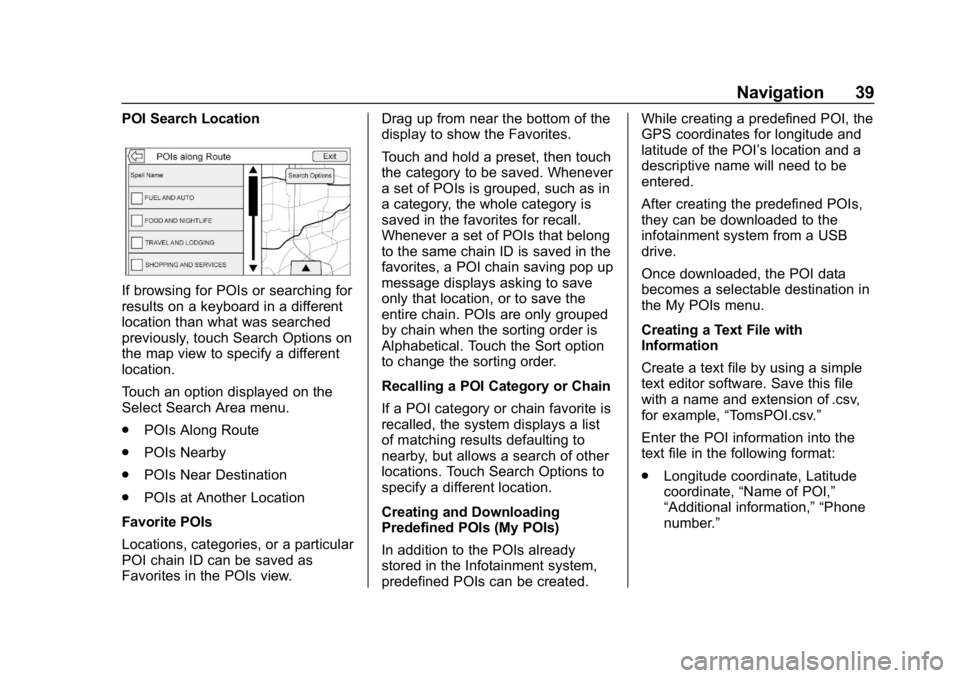
POI Search Location
If browsing for POIs or searching for
results on a keyboard in a different
location than what was searched
previously, touch Search Options on
the map view to specify a different
location.
Touch an option displayed on the
Select Search Area menu.
.POIs Along Route
. POIs Nearby
. POIs Near Destination
. POIs at Another Location
Favorite POIs
Locations, categories, or a particular
POI chain ID can be saved as
Favorites in the POIs view. Drag up from near the bottom of the
display to show the Favorites.
Touch and hold a preset, then touch
the category to be saved. Whenever
a set of POIs is grouped, such as in
a category, the whole category is
saved in the favorites for recall.
Whenever a set of POIs that belong
to the same chain ID is saved in the
favorites, a POI chain saving pop up
message displays asking to save
only that location, or to save the
entire chain. POIs are only grouped
by chain when the sorting order is
Alphabetical. Touch the Sort option
to change the sorting order.
Recalling a POI Category or Chain
If a POI category or chain favorite is
recalled, the system displays a list
of matching results defaulting to
nearby, but allows a search of other
locations. Touch Search Options to
specify a different location.
Creating and Downloading
Predefined POIs (My POIs)
In addition to the POIs already
stored in the Infotainment system,
predefined POIs can be created.While creating a predefined POI, the
GPS coordinates for longitude and
latitude of the POI’s location and a
descriptive name will need to be
entered.
After creating the predefined POIs,
they can be downloaded to the
infotainment system from a USB
drive.
Once downloaded, the POI data
becomes a selectable destination in
the My POIs menu.
Creating a Text File with
Information
Create a text file by using a simple
text editor software. Save this file
with a name and extension of .csv,
for example,
“TomsPOI.csv.”
Enter the POI information into the
text file in the following format:
. Longitude coordinate, Latitude
coordinate, “Name of POI,”
“Additional information,” “Phone
number.”
Page 49 of 86
Buick Infotainment System (GMNA-Localizing-U.S./Canada-12690019) -
2019 - crc - 6/26/18
48 Navigation
.This is the first navigation use
after the map data is updated.
. The 12-volt battery is
disconnected for several days.
. The vehicle is driving in heavy
traffic where driving is at low
speeds, and the vehicle is
stopped and started repeatedly.
Problems with Route
Guidance
Inappropriate route guidance can
occur under one or more of the
following conditions:
.The turn was not made on the
road indicated.
. Route guidance might not be
available when using automatic
rerouting for the next right or
left turn.
. The route might not be changed
when using automatic rerouting.
. There is no route guidance when
turning at an intersection.
. Plural names of places might be
announced occasionally. .
It could take a long time to
operate automatic rerouting
during high-speed driving.
. Automatic rerouting might
display a route returning to the
set waypoint if heading for a
destination without passing
through a set waypoint.
. The route prohibits the entry of a
vehicle due to a regulation by
time or season or any other
regulation which may be given.
. Some routes might not be
searched.
. The route to the destination
might not be shown if there are
new roads, if roads have
recently changed, or if certain
roads are not listed in the map
data. See Maps030.
To recalibrate the vehicle's position
on the map, park with the vehicle
running for two to five minutes, until
the vehicle position updates. Make
sure the vehicle is parked in a
location that is safe and has a clear
view of the sky and away from large
obstructions.
If the System Needs
Service
If the navigation system needs
service and the steps listed here
have been followed but there are
still problems, see your dealer.
Map Data Updates
The map data in the vehicle is the
most up-to-date information
available when the vehicle was
produced. The map data is updated
periodically, provided that the map
information has changed.
For questions about the operation of
the navigation system or the update
process, contact the GM Nav Disc
Center toll-free phone number,
1-877-NAV-DISC (1-877-628-3472)
or go to the center ’s website,
www.gmnavdisc.com. If updates are
needed, call the GM Nav Disc
Center or order online.
Page 59 of 86
Buick Infotainment System (GMNA-Localizing-U.S./Canada-12690019) -
2019 - crc - 6/26/18
58 Phone
Bluetooth (Infotainment
Controls)
For information about how to
navigate the menu system using the
infotainment features, see
Infotainment02.
Pairing
A Bluetooth-enabled cell phone
must be paired to the Bluetooth
system and then connected to the
vehicle before it can be used. See
the cell phone manufacturer's user
guide for Bluetooth functions before
pairing the cell phone.
Pairing Information
.
A Bluetooth phone with music
capability can be paired to the
vehicle as a phone and a music
player at the same time.
. Up to 10 devices can be paired
to the Bluetooth system.
. The pairing process is disabled
when the vehicle is moving. .
Pairing only needs to be
completed once, unless the
pairing information on the cell
phone changes or the cell phone
is deleted from the system.
. One Bluetooth device can be
connected to the Bluetooth
system at a time.
. If multiple paired cell phones are
within range of the system, the
system connects to the paired
cell phone in the order that they
were last used in the system. To
link to a different paired phone,
see “Connecting to a Different
Phone” later in this section.
Pairing a Phone 1. Touch Phone on the Home Page.
2. Select Phones and select Pair New Device.
3. A four-digit Personal Identification Number (PIN)
appears on the display. The
PIN, if required, may be used
in Step 5. 4. Start the pairing process on the
cell phone to be paired to the
vehicle. See the cell phone
manufacturer's user guide for
information on this process.
5. Locate “Buick”on the display.
Follow the instructions
provided in Step 3, to enter the
PIN. After the PIN is
successfully entered or the
code is confirmed, the system
responds with “
has been successfully paired”
when the pairing process is
complete.
6. If “Buick” does not appear, turn
the phone off or remove the
phone battery and retry.
7. If the phone prompts to accept connection or allow phone
book download, select Always
Accept and Allow. The phone
book may not be available if
not accepted.
8. Repeat Steps 1−5 to pair additional phones.
Page 61 of 86
Buick Infotainment System (GMNA-Localizing-U.S./Canada-12690019) -
2019 - crc - 6/26/18
60 Phone
2. Touch Contacts.
3. Touch the name to call.
4. Touch the desired contactnumber to call.
To make a call using the Recent
Calls menu: 1. Touch Phone on the Home Page.
2. Touch Recent.
3. Touch the name or number to call.
4. If necessary, select between Missed, Recent, and Sent calls
by touching View in the top
right corner of the list.
Making a Call Using the
Keypad
To make a call by dialing the
numbers:
1. Touch Phone on the Home Page.
2. Touch Keypad and enter a phone number.
3. Touch Call to start dialing the number.
Accepting or Declining a Call
When an incoming call is received,
the infotainment system mutes and
a ring tone is heard in the vehicle.
Accepting a Call
To accept a call:
.Press
gon the steering wheel
controls.
. Touch Answer on the
infotainment display.
Declining a Call
To decline a call:
. Press
con the steering wheel
controls.
. Touch Ignore on the infotainment
display.
Call Waiting
Call waiting must be supported on
the Bluetooth phone and enabled by
the wireless service carrier to work. Accepting a Call
To accept a call-waiting call:
.
Press
gon the steering wheel
controls.
. Touch Switch on the
infotainment display.
Declining a Call
To decline a call-waiting call:
. Press
con the steering wheel
controls.
. Touch Ignore on the infotainment
display.
Switching Between Calls (Call
Waiting Calls Only)
To switch between calls, touch
Phone on the Home Page to display
“Call View.” While in Call View,
touch the call information of the call
on hold to change calls.
Three-Way Calling
Three-way calling must be
supported on the Bluetooth phone
and enabled by the wireless service
carrier to work.
Page 64 of 86
Buick Infotainment System (GMNA-Localizing-U.S./Canada-12690019) -
2019 - crc - 6/26/18
Phone 63
To view compatible phones in U.S.,
see my.buick.com.
Text Menu
Inbox :Touch to display incoming
messages. To view a message,
touch the name of the sender.
Touch
>to listen to the text
message. Press
qBACK orS
BACK on the center stack or touch
the Back icon on the infotainment
display to go back to the
previous menu.
Settings : See“Text Settings” later
in this section.
Reply : Touch to reply using a
predefined text message. See “Text
Settings.”
Call : Touch to place a call to the
sender of the text message.
Viewing a Text Message
While viewing a text message:
. Touch Reply to reply using a
predefined text message.
. Touch Call to place a call to the
sender of the text message.
Viewing Sender Information
If equipped, touch the name of the
sender to view sender information if
this information matches contact
information already stored.
Select a Predefined Message :
Touch to select from a set of quick
messages. Touch the message
to send.
Predefined Messages
These are short text messages that
can be used to send so responses
will not have to be typed.
The messages can be deleted or a
new message can be added.
To add a new message:
1. Touch Text Settings, then touch Manage Predefined Messages.
2. While in the predefined messages list view, select Add
New Predefined Message and
a keyboard displays. 3. Type a new message and
touch NEW MSG when done to
add the message. Pressq
BACK orSBACK on the
center stack or touch the Back
icon on the infotainment
display to go back to the
predefined messages list.
Touch
zto delete one
character at a time.
Memory Full
This message may display if there is
no more room on the phone to store
messages.
Text Settings
Text Alerts : When on, this feature
will display an alert when a new text
message has been received. Touch
to turn on or off.
Manage Predefined Messages :
Touch to add, change, or delete
predefined messages.
Page 73 of 86
Buick Infotainment System (GMNA-Localizing-U.S./Canada-12690019) -
2019 - crc - 6/26/18
72 Trademarks and License Agreements
Trademarks and
License Agreements
FCC Information
See“Radio Frequency Statement”
in the owner ’s manual.
"Made for iPod," and "Made for
iPhone," mean that an electronic
accessory has been designed to
connect specifically to iPod or
iPhone, respectively, and has been
certified by the developer to meet
Apple performance standards.
Apple is not responsible for the
operation of this device or its
compliance with safety and
regulatory standards. Please note
that the use of this accessory with
iPod or iPhone may affect wireless
performance. iPhone, iPod, iPod
classic, iPod nano, iPod shuffle, and iPod touch are trademarks of Apple
Inc., registered in the U.S. and other
countries.
Fees and Taxes: Subscription fee,
taxes, one time activation fee, and
other fees may apply. Subscription
fee is consumer only. All fees and
programming subject to change.
Subscriptions subject to Customer
Agreement available at
www.siriusxm.com. SiriusX service
only available in the 48 contiguous
United States and Canada.
In Canada: Some deterioration of
service may occur in extreme
northern latitudes. This is beyond
the control of SiriusXM Satellite
Radio.
Explicit Language Notice: Channels
with frequent explicit language are
indicated with an
“XL”preceding the channel name. Channel blocking is
available for SiriusXM Satellite
Radio receivers by notifying
SiriusXM:
.
USA Customers —See
www.siriusxm.com or call
1-888-601–6296.
. Canadian Customers —See
www.siriusxm.ca or call
1-877-438-9677.
It is prohibited to copy, decompile,
disassemble, reverse engineer,
hack, manipulate, or otherwise
make available any technology or
software incorporated in receivers
compatible with the SiriusXM
®
Satellite Radio System or that
support the SiriusXM website, the
Online Service or any of its content.
Furthermore, the AMBER voice
compression software included in
this product is protected by
intellectual property rights including
patent rights, copyrights, and trade
secrets of Digital Voice
Systems, Inc.