Name phone after pairing BUICK ENVISION 2019 Infotainment System Guide
[x] Cancel search | Manufacturer: BUICK, Model Year: 2019, Model line: ENVISION, Model: BUICK ENVISION 2019Pages: 86, PDF Size: 1.01 MB
Page 59 of 86
Buick Infotainment System (GMNA-Localizing-U.S./Canada-12690019) -
2019 - crc - 6/26/18
58 Phone
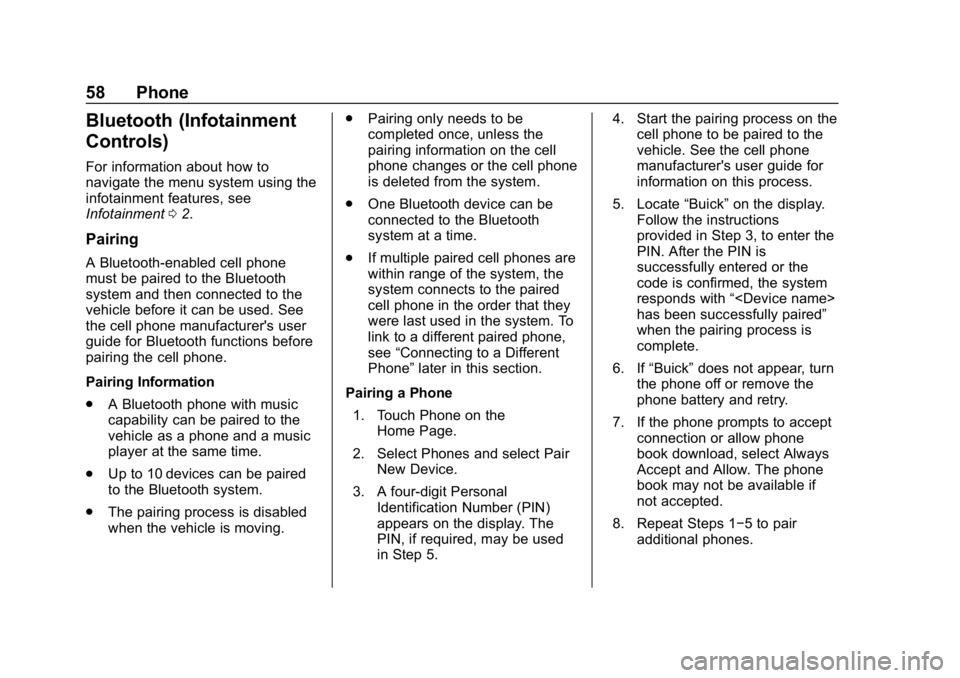
Bluetooth (Infotainment
Controls)
For information about how to
navigate the menu system using the
infotainment features, see
Infotainment02.
Pairing
A Bluetooth-enabled cell phone
must be paired to the Bluetooth
system and then connected to the
vehicle before it can be used. See
the cell phone manufacturer's user
guide for Bluetooth functions before
pairing the cell phone.
Pairing Information
.
A Bluetooth phone with music
capability can be paired to the
vehicle as a phone and a music
player at the same time.
. Up to 10 devices can be paired
to the Bluetooth system.
. The pairing process is disabled
when the vehicle is moving. .
Pairing only needs to be
completed once, unless the
pairing information on the cell
phone changes or the cell phone
is deleted from the system.
. One Bluetooth device can be
connected to the Bluetooth
system at a time.
. If multiple paired cell phones are
within range of the system, the
system connects to the paired
cell phone in the order that they
were last used in the system. To
link to a different paired phone,
see “Connecting to a Different
Phone” later in this section.
Pairing a Phone 1. Touch Phone on the Home Page.
2. Select Phones and select Pair New Device.
3. A four-digit Personal Identification Number (PIN)
appears on the display. The
PIN, if required, may be used
in Step 5. 4. Start the pairing process on the
cell phone to be paired to the
vehicle. See the cell phone
manufacturer's user guide for
information on this process.
5. Locate “Buick”on the display.
Follow the instructions
provided in Step 3, to enter the
PIN. After the PIN is
successfully entered or the
code is confirmed, the system
responds with “
has been successfully paired”
when the pairing process is
complete.
6. If “Buick” does not appear, turn
the phone off or remove the
phone battery and retry.
7. If the phone prompts to accept connection or allow phone
book download, select Always
Accept and Allow. The phone
book may not be available if
not accepted.
8. Repeat Steps 1−5 to pair additional phones.
Page 63 of 86
Buick Infotainment System (GMNA-Localizing-U.S./Canada-12690019) -
2019 - crc - 6/26/18
62 Phone
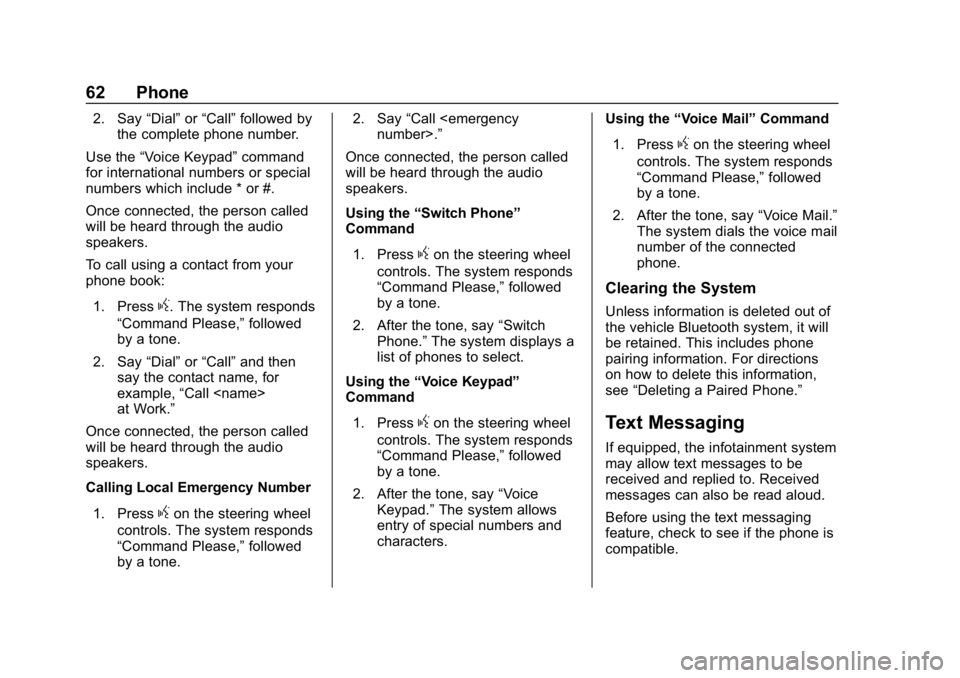
2. Say“Dial”or“Call” followed by
the complete phone number.
Use the “Voice Keypad” command
for international numbers or special
numbers which include * or #.
Once connected, the person called
will be heard through the audio
speakers.
To call using a contact from your
phone book:
1. Press
g. The system responds
“Command Please,” followed
by a tone.
2. Say “Dial”or“Call” and then
say the contact name, for
example, “Call
at Work.”
Once connected, the person called
will be heard through the audio
speakers.
Calling Local Emergency Number
1. Press
gon the steering wheel
controls. The system responds
“Command Please,” followed
by a tone. 2. Say
“Call
Once connected, the person called
will be heard through the audio
speakers.
Using the “Switch Phone”
Command
1. Press
gon the steering wheel
controls. The system responds
“Command Please,” followed
by a tone.
2. After the tone, say “Switch
Phone.” The system displays a
list of phones to select.
Using the “Voice Keypad”
Command
1. Press
gon the steering wheel
controls. The system responds
“Command Please,” followed
by a tone.
2. After the tone, say “Voice
Keypad.” The system allows
entry of special numbers and
characters. Using the
“Voice Mail” Command
1. Press
gon the steering wheel
controls. The system responds
“Command Please,” followed
by a tone.
2. After the tone, say “Voice Mail.”
The system dials the voice mail
number of the connected
phone.
Clearing the System
Unless information is deleted out of
the vehicle Bluetooth system, it will
be retained. This includes phone
pairing information. For directions
on how to delete this information,
see “Deleting a Paired Phone.”
Text Messaging
If equipped, the infotainment system
may allow text messages to be
received and replied to. Received
messages can also be read aloud.
Before using the text messaging
feature, check to see if the phone is
compatible.