infotainment BUICK ENVISION 2019 User Guide
[x] Cancel search | Manufacturer: BUICK, Model Year: 2019, Model line: ENVISION, Model: BUICK ENVISION 2019Pages: 377, PDF Size: 6.03 MB
Page 156 of 377
Buick Envision Owner Manual (GMNA-Localizing-U.S./Canada/Mexico-
12032235) - 2019 - CRC - 6/27/18
Instruments and Controls 155
Text Message Alerts
This feature allows text messages
to be received. See“Text
Messaging” under“Phone” in the
infotainment manual.
Select Off or On.
Apple CarPlay
Select and the following may
display:
. Apple CarPlay
. Manage Apple CarPlay Devices
Apple CarPlay
This feature allows Apple devices to
be connected to the infotainment
system through a USB port. See
“Apple CarPlay and Android Auto” in
the infotainment manual.
Select Off or On.
Manage Apple CarPlay Devices
Select to manage Apple devices.
Apple CarPlay must be on for this
feature to be accessed. See “Apple
CarPlay and Android Auto” in the
infotainment manual.
Android Auto
Select and the following may
display:
. Android Auto
. Manage Android Auto Devices
Android Auto
This feature allows Android devices
to be connected to the infotainment
system through a USB port. See
“Apple CarPlay and Android Auto” in
the infotainment manual.
Select Off or On.
Manage Android Auto Devices
Select to manage Android devices.
Android Auto must be on for this
feature to be accessed. See “Apple
CarPlay and Android Auto” in the
infotainment manual.
Voice
See “Voice” under“Settings” in the
infotainment manual.
Display
Select and the following may
display:
. Theme
. Calibrate Touchscreen
. Turn Display Off
Theme
Select to change the color, font, and
art of the display.
Select Contemporary, Mainstreet,
Edge, or Velocity.
Calibrate Touchscreen
Select to calibrate the touchscreen,
then follow the prompts.
Turn Display Off
Select to turn the display off. Touch
anywhere on the infotainment
display or press any button on the
center stack to turn the infotainment
display on.
Page 157 of 377
Buick Envision Owner Manual (GMNA-Localizing-U.S./Canada/Mexico-
12032235) - 2019 - CRC - 6/27/18
156 Instruments and Controls
Rear Camera
Select and the following may
display:
.Guidance Lines
. Rear Park Assist Symbols
Guidance Lines
Select to turn Off or On. See
Assistance Systems for Parking or
Backing 0217.
Rear Park Assist Symbols
Select to turn Off or On. See
Assistance Systems for Parking or
Backing 0217.
Return to Factory Settings
Select and the following may
display:
.
Restore Vehicle Settings
. Clear All Private Data
. Restore Radio Settings Restore Vehicle Settings
This allows vehicle settings to be
restored.
Select Restore or Cancel.
Clear All Private Data
This allows all private information to
be cleared from the vehicle.
Select Delete or Cancel.
Restore Radio Settings
This allows radio settings to be
restored.
Select Restore or Cancel.
Software Information
Select to view or update the
infotainment system current
software information.
Wi-Fi
Select and the following may
display:
.
Wi-Fi
. Manage Wi-Fi Networks
Wi-Fi
This feature allows Wi-Fi networks
to be turned off or on.
Select Off or On.
Manage Wi-Fi Networks
Select to manage Wi-Fi networks.
Wi-Fi must be on for this feature to
be accessed.
Page 169 of 377
Buick Envision Owner Manual (GMNA-Localizing-U.S./Canada/Mexico-
12032235) - 2019 - CRC - 6/27/18
168 Infotainment System
Infotainment
System
Introduction
Infotainment . . . . . . . . . . . . . . . . . . 168
Introduction
Infotainment
See the infotainment manual for
information on the radio, audio
players, phone, navigation system,
and voice or speech recognition.
It also includes information on
settings.
Active Noise Cancellation (ANC)
If equipped, ANC reduces engine
noise in the vehicle’s interior. ANC
requires the factory-installed audio
system, radio, speakers, amplifier (if
equipped), induction system, and
exhaust system to work properly.
Deactivation is required by your
dealer if related aftermarket
equipment is installed.
Page 179 of 377

Buick Envision Owner Manual (GMNA-Localizing-U.S./Canada/Mexico-
12032235) - 2019 - CRC - 6/27/18
178 Driving and Operating
Safe driver behavior and
understanding of the environment
can help avoid a rollover crash in
any type of vehicle, including utility
vehicles.
Distracted Driving
Distraction comes in many forms
and can take your focus from the
task of driving. Exercise good
judgment and do not let other
activities divert your attention away
from the road. Many local
governments have enacted laws
regarding driver distraction. Become
familiar with the local laws in
your area.
To avoid distracted driving, keep
your eyes on the road, keep your
hands on the steering wheel, and
focus your attention on driving.
.Do not use a phone in
demanding driving situations.
Use a hands-free method to
place or receive necessary
phone calls. .
Watch the road. Do not read,
take notes, or look up
information on phones or other
electronic devices.
. Designate a front seat
passenger to handle potential
distractions.
. Become familiar with vehicle
features before driving, such as
programming favorite radio
stations and adjusting climate
control and seat settings.
Program all trip information into
any navigation device prior to
driving.
. Wait until the vehicle is parked
to retrieve items that have fallen
to the floor.
. Stop or park the vehicle to tend
to children.
. Keep pets in an appropriate
carrier or restraint.
. Avoid stressful conversations
while driving, whether with a
passenger or on a cell phone.
{Warning
Taking your eyes off the road too
long or too often could cause a
crash resulting in injury or death.
Focus your attention on driving.
Refer to the infotainment section for
more information on using that
system and the navigation system,
if equipped, including pairing and
using a cell phone.
Defensive Driving
Defensive driving means “always
expect the unexpected.” The first
step in driving defensively is to wear
the seat belt. See Seat Belts065.
. Assume that other road users
(pedestrians, bicyclists, and
other drivers) are going to be
careless and make mistakes.
Anticipate what they might do
and be ready.
. Allow enough following distance
between you and the driver in
front of you.
Page 218 of 377

Buick Envision Owner Manual (GMNA-Localizing-U.S./Canada/Mexico-
12032235) - 2019 - CRC - 6/27/18
Driving and Operating 217
.Front and rear bumpers and the
area below the bumpers
. Front grille and headlamps
. Front camera lens in the front
grille or near the front emblem
. Front side and rear side panels
. Outside of the windshield in front
of the rearview mirror
. Side camera lens on the bottom
of the outside mirrors
. Rear side corner bumpers
. Rear Vision Camera above the
license plate
Assistance Systems for
Parking or Backing
If equipped, the Rear Vision Camera
(RVC), Rear Park Assist (RPA),
Front Park Assist (FPA), Surround
Vision, Front Vision Camera, Rear
Cross Traffic Alert (RCTA), and
Automatic Parking Assist (APA) may
help the driver park or avoid objects.
Always check around the vehicle
when parking or backing.
Rear Vision Camera (RVC)
When the vehicle is shifted into
R (Reverse), the RVC displays an
image of the area behind the vehicle
in the infotainment display. The
previous screen displays when the
vehicle is shifted out of R (Reverse)
after a short delay. To return to the
previous screen sooner, press any
button on the infotainment system,
shift into P (Park), or reach a vehicle
speed of approximately 12 km/h
(8 mph).
1. View Displayed by the
Camera
1. View Displayed by theCamera
2. Corners of the Rear Bumper
Page 219 of 377
Buick Envision Owner Manual (GMNA-Localizing-U.S./Canada/Mexico-
12032235) - 2019 - CRC - 6/27/18
218 Driving and Operating
Displayed images may be farther or
closer than they appear. The area
displayed is limited and objects that
are close to either corner of the
bumper or under the bumper do not
display.
A warning triangle may appear on
the infotainment display to show
that it has detected an object. This
triangle changes from amber to red
and increases in size the closer the
object.
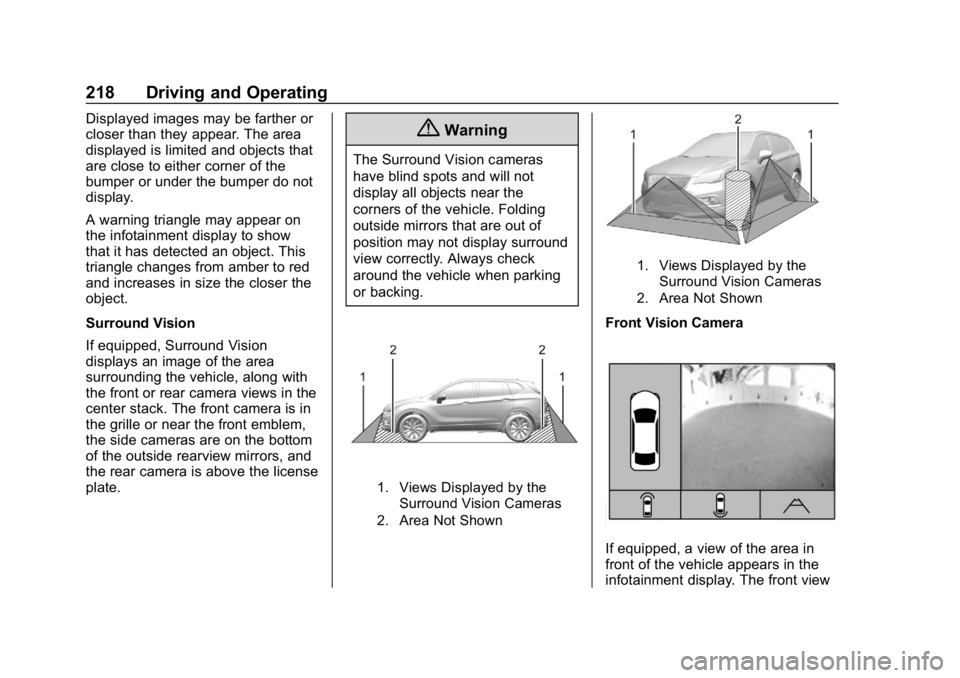
Surround Vision
If equipped, Surround Vision
displays an image of the area
surrounding the vehicle, along with
the front or rear camera views in the
center stack. The front camera is in
the grille or near the front emblem,
the side cameras are on the bottom
of the outside rearview mirrors, and
the rear camera is above the license
plate.{Warning
The Surround Vision cameras
have blind spots and will not
display all objects near the
corners of the vehicle. Folding
outside mirrors that are out of
position may not display surround
view correctly. Always check
around the vehicle when parking
or backing.
1. Views Displayed by theSurround Vision Cameras
2. Area Not Shown
1. Views Displayed by the Surround Vision Cameras
2. Area Not Shown
Front Vision Camera
If equipped, a view of the area in
front of the vehicle appears in the
infotainment display. The front view
Page 221 of 377
Buick Envision Owner Manual (GMNA-Localizing-U.S./Canada/Mexico-
12032235) - 2019 - CRC - 6/27/18
220 Driving and Operating
location, or both sides of the Safety
Alert Seat will pulse five times.
Beeps for FPA are higher pitched
than for RPA.
Rear Cross Traffic Alert (RCTA)
If equipped, when the vehicle is
shifted into R (Reverse), RCTA
displays a red warning triangle with
a left or right pointing arrow on the
infotainment display to warn of
traffic coming from the left or right.
This system detects objects coming
from up to 20 m (65 ft) from the left
or right side of the vehicle. When an
object is detected, either three
beeps sound from the left or right,
or three Safety Alert Seat pulses
occur on the left or right side,
depending on the direction of the
detected vehicle.
Turning the Features On or Off
PressXon the center stack to
turn on or off the Front and Rear
Park Assist and the Rear Cross
Traffic Alert (RCTA). The indicator
light in the button comes on when the features are on and turns off
when the features have been
disabled.
RCTA can also be turned off
through vehicle personalization. See
“Collision/Detection Systems”
under
Vehicle Personalization 0150.
To turn the RPA symbols or
guidance lines on or off, select the
guidance lines button on the
infotainment display, or on some
models, see “Rear Camera” under
Vehicle Personalization 0150.
Automatic Parking
Assist (APA)
If equipped, APA searches for and
steers the vehicle into parallel and
perpendicular parking spots. When
using APA, you must still shift gears,
and control the brakes and
accelerator. A display and audible
beeps help to guide parking
maneuvers.
{Warning
APA does not apply the brakes.
APA may not detect objects in the
parking space, objects that are
soft or narrow, objects high off the
ground such as flatbed trucks,
or objects below ground level
such as large potholes. Always
verify that the parking space is
appropriate for parking a vehicle.
APA does not respond to changes
in the parking space, such as
movement of an adjacent vehicle,
or a person or object entering the
parking space. APA does not
detect or avoid traffic that is
behind or alongside of the
vehicle. Always be prepared to
stop the vehicle during the
parking maneuver.
Press
Oon the center stack to
enable the system to search for a
parking space that is large enough
and within 1.5 m (5 ft) of the vehicle.
Page 340 of 377
Buick Envision Owner Manual (GMNA-Localizing-U.S./Canada/Mexico-
12032235) - 2019 - CRC - 6/27/18
Customer Information 339
Customer
Information
Customer Information
Customer SatisfactionProcedure . . . . . . . . . . . . . . . . . . . 339
Customer Assistance Offices . . . . . . . . . . . . . . . . . . . . . . 341
Customer Assistance for Text Telephone (TTY) Users . . . . . 342
Online Owner Center . . . . . . . . . 342
GM Mobility Reimbursement Program . . . . . . . . . . . . . . . . . . . . 343
Roadside Assistance Program . . . . . . . . . . . . . . . . . . . . 343
Scheduling Service Appointments . . . . . . . . . . . . . . . 345
Courtesy Transportation Program . . . . . . . . . . . . . . . . . . . . 345
Collision Damage Repair . . . . . 346
Publication Ordering Information . . . . . . . . . . . . . . . . . . 349
Radio Frequency Statement . . . . . . . . . . . . . . . . . . . 349
Reporting Safety Defects
Reporting Safety Defects tothe United States
Government . . . . . . . . . . . . . . . . . 350
Reporting Safety Defects to the Canadian
Government . . . . . . . . . . . . . . . . . 350
Reporting Safety Defects to General Motors . . . . . . . . . . . . . 351
Vehicle Data Recording and
Privacy
Vehicle Data Recording andPrivacy . . . . . . . . . . . . . . . . . . . . . . 351
Event Data Recorders . . . . . . . . 351
OnStar . . . . . . . . . . . . . . . . . . . . . . . 352
Infotainment System . . . . . . . . . . 352
Customer Information
Customer Satisfaction
Procedure
Your satisfaction and goodwill are
important to your dealer and to
Buick. Normally, any concerns with
the sales transaction or the
operation of the vehicle will be
resolved by your dealer's sales or
service departments. Sometimes,
however, despite the best intentions
of all concerned, misunderstandings
can occur. If your concern has not
been resolved to your satisfaction,
the following steps should be taken:
STEP ONE : Discuss your concern
with a member of dealership
management. Normally, concerns
can be quickly resolved at that level.
If the matter has already been
reviewed with the sales, service,
or parts manager, contact the owner
of your dealership or the general
manager.
Page 350 of 377
Buick Envision Owner Manual (GMNA-Localizing-U.S./Canada/Mexico-
12032235) - 2019 - CRC - 6/27/18
Customer Information 349
Publication Ordering
Information
Service Manuals
Service manuals have the diagnosis
and repair information on the
engine, transmission, axle,
suspension, brakes, electrical
system, steering system, body, etc.
Customer Literature
Owner’s manuals are written
specifically for owners and are
intended to provide basic
operational information about the
vehicle. The owner ’s manual
includes the Maintenance Schedule
for all models.
Customer literature publications
available for purchase include
owner ’s manuals, warranty
manuals, infotainment manuals, and
portfolios. Portfolios include an
owner ’s manual, warranty manual,
infotainment manual, if applicable,
and zip lock bag or pouch.
Current and Past Models
Service manuals and customer
literature are available for many
current and past model year GM
vehicles.
To order, call 1-800-551-4123
Monday–Friday, 8:00 a.m.–6:00 p.m.
eastern time
For credit card orders only (VISA,
MasterCard, or Discover), see
Helm, Inc. at: www.helminc.com.
To order by mail, write to:
Helm, Incorporated
Attention: Customer Service
47911 Halyard Drive
Plymouth, MI 48170
Make checks payable in U.S. funds.
Radio Frequency
Statement
This vehicle has systems that
operate on a radio frequency that
complies with Part 15/Part 18 of the
Federal Communications
Commission (FCC) rules and with
Innovation, Science and Economic
Development (ISED) Canada's
RSP-100 / license-exempt RSS's /
ICES-001.
Operation is subject to the following
two conditions:
1. The device may not cause harmful interference.
2. The device must accept any interference received, including
interference that may cause
undesired operation of the
device.
Changes or modifications to any of
these systems by other than an
authorized service facility could void
authorization to use this equipment.
Page 353 of 377
Buick Envision Owner Manual (GMNA-Localizing-U.S./Canada/Mexico-
12032235) - 2019 - CRC - 6/27/18
352 Customer Information
These data can help provide a
better understanding of the
circumstances in which crashes and
injuries occur.
Note
EDR data are recorded by your
vehicle only if a non-trivial crash
situation occurs; no data are
recorded by the EDR under normal
driving conditions and no personal
data (e.g., name, gender, age, and
crash location) are recorded.
However, other parties, such as law
enforcement, could combine the
EDR data with the type of
personally identifying data routinely
acquired during a crash
investigation.
To read data recorded by an EDR,
special equipment is required, and
access to the vehicle or the EDR is
needed. In addition to the vehicle
manufacturer, other parties, such as
law enforcement, that have the
special equipment, can read the
information if they have access to
the vehicle or the EDR.GM will not access these data or
share it with others except: with the
consent of the vehicle owner or,
if the vehicle is leased, with the
consent of the lessee; in response
to an official request by police or
similar government office; as part of
GM's defense of litigation through
the discovery process; or, as
required by law. Data that GM
collects or receives may also be
used for GM research needs or may
be made available to others for
research purposes, where a need is
shown and the data is not tied to a
specific vehicle or vehicle owner.
OnStar
If the vehicle is equipped with
OnStar and has an active service
plan, additional data may be
collected through the OnStar
system. This includes information
about the vehicle’s operation;
collisions involving the vehicle; the
use of the vehicle and its features;
and, in certain situations, the
location and approximate GPS
speed of the vehicle. Refer to the
OnStar Terms and Conditions and
Privacy Statement on the OnStar
website.
See
OnStar Additional Information
0 355.
Infotainment System
If the vehicle is equipped with a
navigation system as part of the
infotainment system, use of the
system may result in the storage of
destinations, addresses, telephone
numbers, and other trip information.
See the infotainment manual for
information on stored data and for
deletion instructions.