phone BUICK ENVISION 2020 Owners Manual
[x] Cancel search | Manufacturer: BUICK, Model Year: 2020, Model line: ENVISION, Model: BUICK ENVISION 2020Pages: 363, PDF Size: 7.26 MB
Page 100 of 363
Buick Envision Owner Manual (GMNA-Localizing-U.S./Canada/Mexico-
13555857) - 2020 - CRC - 2/25/19
Instruments and Controls 99
Clock Setting the Digital Clock The infotainment system controls
are used to access the time and
date settings through the menu
system. See “ Using the System ” in
the infotainment manual.
To set the time:
1. Touch SETTINGS from the
Home Page, then touch Time
and Date.
2. Touch Set Time and touch
«or
ª to increase or decrease
hours, minutes, and AM or PM.
Touch 12 – 24 Hr for 12 or
24 hour clock.
3. Touch
S to go back to the
previous menu.
Auto Set requires an active OnStar
or connected service plan.
If auto timing is set, the time
displayed on the clock may not
update immediately when driving
into a new time zone. To set the date:
1. Touch SETTINGS from the
Home Page, then touch Time
and Date.
2. Touch Set Date and touch
«or
ª to increase or decrease
month, day, or year.
3. Touch
S to go back to the
previous menu.
To set the clock display:
1. Touch SETTINGS and touch
Time and Date.
2. Touch Clock Display and touch
Off or On to turn the clock
display off or on.
3. Touch
S to go back to the
previous menu.
Setting the Analog Clock
The clock on the center stack is not
connected to any other vehicle
system. To adjust the time:
1. Press and hold the button next
to the clock to quickly advance
the time. 2. Press and release the button to
increase the time by
one-minute intervals.
Power Outlets The vehicle has four 12-volt
accessory power outlets, which can
be used to plug in electrical
equipment, such as a cell phone or
MP3 player.
There are power outlets:
.
On the center floor console.
.
Inside the center floor console.
.
On the rear of the center floor
console.
.
In the rear cargo area.
To use the outlet, remove the cover.
Caution
Leaving electrical equipment
plugged in for an extended period
of time while the vehicle is off will
drain the battery. Always unplug
electrical equipment when not in
(Continued)
Page 101 of 363
Buick Envision Owner Manual (GMNA-Localizing-U.S./Canada/Mexico-
13555857) - 2020 - CRC - 2/25/19
100 Instruments and Controls Caution (Continued)use and do not plug in equipment
that exceeds the maximum
20 amp rating.
{ WarningPower is always supplied to the
rear cargo power outlet. Do not
leave electrical equipment
plugged in when the vehicle is not
in use because the vehicle could
catch fire and cause injury or
death.
Certain accessory plugs may not be
compatible with the accessory
power outlet and could overload
vehicle and adapter fuses. If a
problem is experienced, see your
dealer. When adding electrical equipment,
be sure to follow the proper
installation instructions included with
the equipment. See Add-On
Electrical Equipment 0 228 .
CautionHanging heavy equipment from
the power outlet can cause
damage not covered by the
vehicle warranty. The power
outlets are designed for
accessory power plugs only, such
as cell phone charge cords.
Power Outlet 110/120 Volt
Alternating Current If equipped, this power outlet can be
used to plug in electrical equipment
that uses a maximum limit of 400
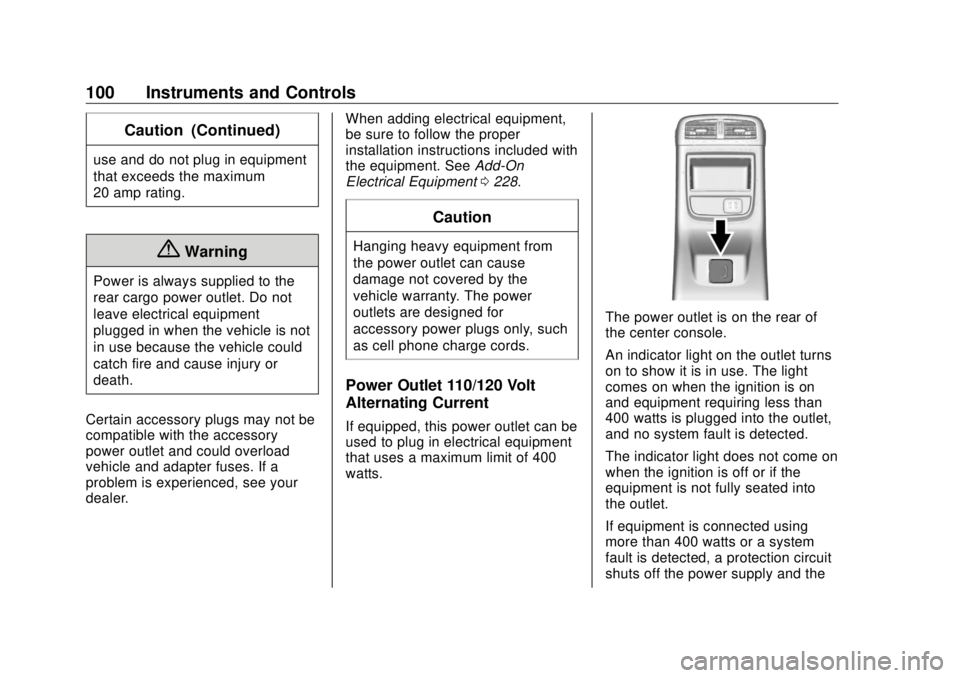
watts. The power outlet is on the rear of
the center console.
An indicator light on the outlet turns
on to show it is in use. The light
comes on when the ignition is on
and equipment requiring less than
400 watts is plugged into the outlet,
and no system fault is detected.
The indicator light does not come on
when the ignition is off or if the
equipment is not fully seated into
the outlet.
If equipment is connected using
more than 400 watts or a system
fault is detected, a protection circuit
shuts off the power supply and the
Page 102 of 363
Buick Envision Owner Manual (GMNA-Localizing-U.S./Canada/Mexico-
13555857) - 2020 - CRC - 2/25/19
Instruments and Controls 101indicator light turns off. To reset the
circuit, unplug the item and plug it
back in or turn the Retained
Accessory Power (RAP) off and
then back on. See Retained
Accessory Power (RAP) 0 179 . The
power restarts when equipment
using 400 watts or less is plugged
into the outlet and a system fault is
not detected.
The power outlet is not designed for
the following and may not work
properly if they are plugged in:
.
Equipment with high initial peak
wattage, such as
compressor-driven refrigerators
and electric power tools
.
Other equipment requiring an
extremely stable power supply,
such as
microcomputer-controlled
electric blankets and touch
sensor lamps
.
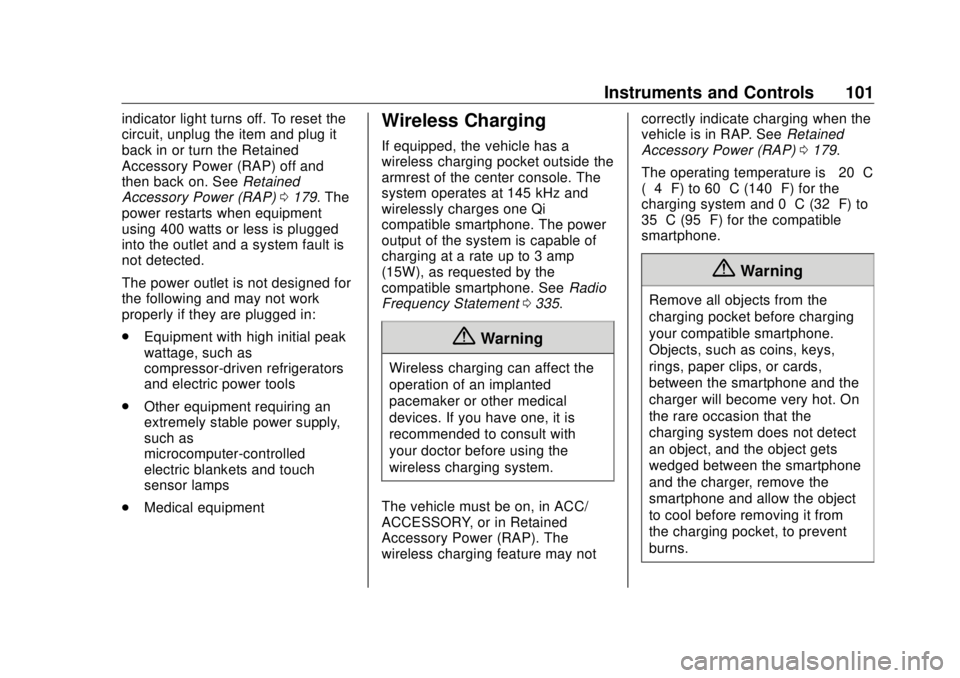
Medical equipment Wireless Charging If equipped, the vehicle has a
wireless charging pocket outside the
armrest of the center console. The
system operates at 145 kHz and
wirelessly charges one Qi
compatible smartphone. The power
output of the system is capable of
charging at a rate up to 3 amp
(15W), as requested by the
compatible smartphone. See Radio
Frequency Statement 0 335 .
{ WarningWireless charging can affect the
operation of an implanted
pacemaker or other medical
devices. If you have one, it is
recommended to consult with
your doctor before using the
wireless charging system.
The vehicle must be on, in ACC/
ACCESSORY, or in Retained
Accessory Power (RAP). The
wireless charging feature may not correctly indicate charging when the
vehicle is in RAP. See Retained
Accessory Power (RAP) 0 179 .
The operating temperature is − 20 °C
( − 4 °F) to 60 °C (140 °F) for the
charging system and 0 °C (32 °F) to
35 °C (95 °F) for the compatible
smartphone.
{ WarningRemove all objects from the
charging pocket before charging
your compatible smartphone.
Objects, such as coins, keys,
rings, paper clips, or cards,
between the smartphone and the
charger will become very hot. On
the rare occasion that the
charging system does not detect
an object, and the object gets
wedged between the smartphone
and the charger, remove the
smartphone and allow the object
to cool before removing it from
the charging pocket, to prevent
burns.
Page 103 of 363
Buick Envision Owner Manual (GMNA-Localizing-U.S./Canada/Mexico-
13555857) - 2020 - CRC - 2/25/19
102 Instruments and Controls
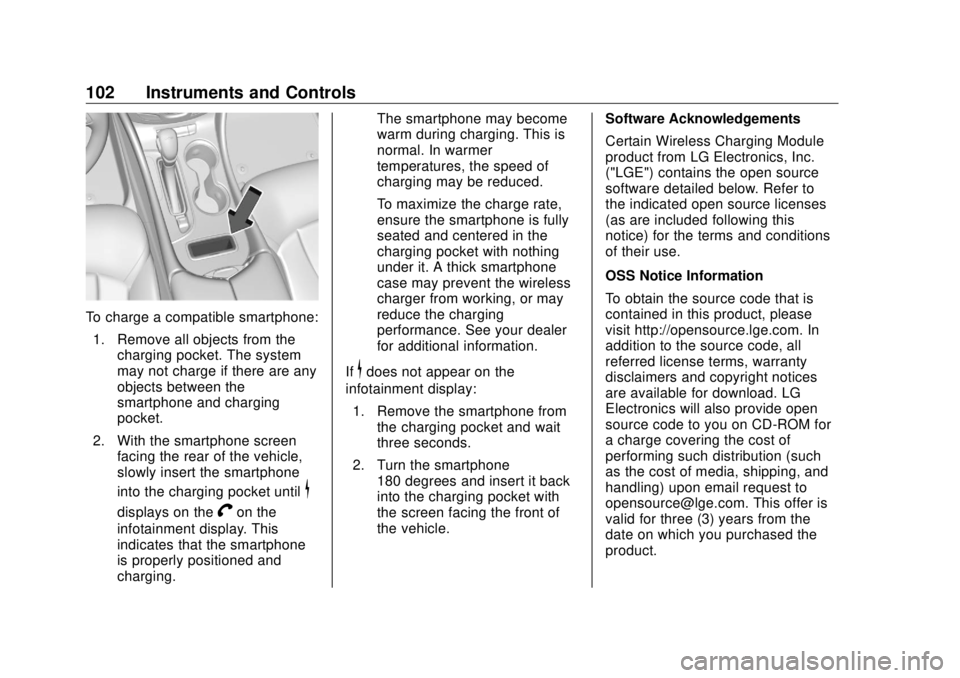
To charge a compatible smartphone:
1. Remove all objects from the
charging pocket. The system
may not charge if there are any
objects between the
smartphone and charging
pocket.
2. With the smartphone screen
facing the rear of the vehicle,
slowly insert the smartphone
into the charging pocket until
$displays on the
V on the
infotainment display. This
indicates that the smartphone
is properly positioned and
charging. The smartphone may become
warm during charging. This is
normal. In warmer
temperatures, the speed of
charging may be reduced.
To maximize the charge rate,
ensure the smartphone is fully
seated and centered in the
charging pocket with nothing
under it. A thick smartphone
case may prevent the wireless
charger from working, or may
reduce the charging
performance. See your dealer
for additional information.
If
$ does not appear on the
infotainment display:
1. Remove the smartphone from
the charging pocket and wait
three seconds.
2. Turn the smartphone
180 degrees and insert it back
into the charging pocket with
the screen facing the front of
the vehicle. Software Acknowledgements
Certain Wireless Charging Module
product from LG Electronics, Inc.
("LGE") contains the open source
software detailed below. Refer to
the indicated open source licenses
(as are included following this
notice) for the terms and conditions
of their use.
OSS Notice Information
To obtain the source code that is
contained in this product, please
visit http://opensource.lge.com. In
addition to the source code, all
referred license terms, warranty
disclaimers and copyright notices
are available for download. LG
Electronics will also provide open
source code to you on CD-ROM for
a charge covering the cost of
performing such distribution (such
as the cost of media, shipping, and
handling) upon email request to
[email protected]. This offer is
valid for three (3) years from the
date on which you purchased the
product.
Page 108 of 363
Buick Envision Owner Manual (GMNA-Localizing-U.S./Canada/Mexico-
13555857) - 2020 - CRC - 2/25/19
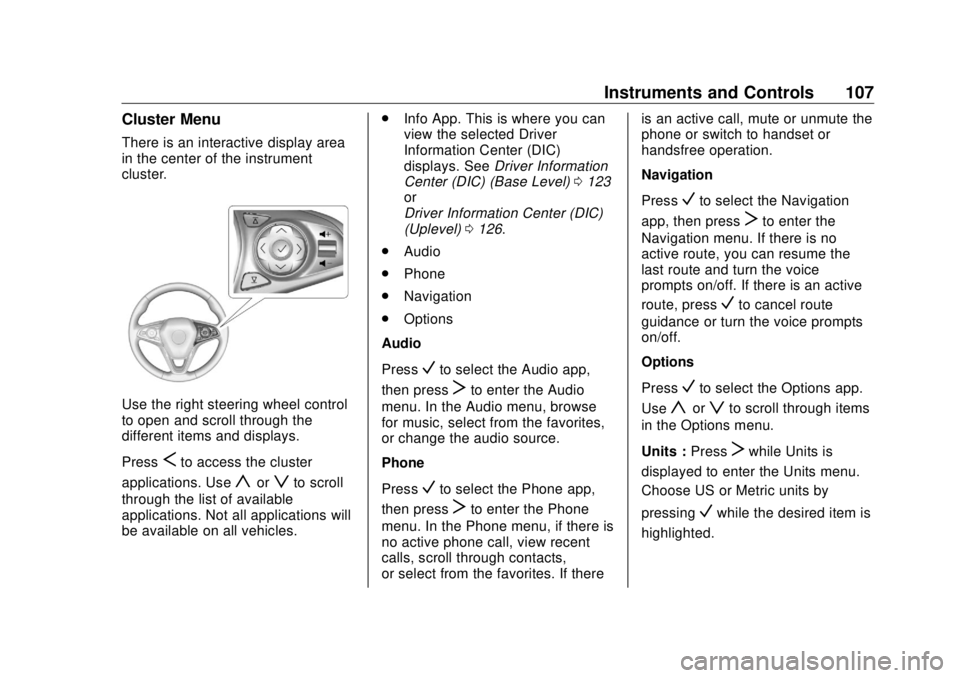
Instruments and Controls 107Cluster Menu There is an interactive display area
in the center of the instrument
cluster.
Use the right steering wheel control
to open and scroll through the
different items and displays.
Press
S to access the cluster
applications. Use
y or
z to scroll
through the list of available
applications. Not all applications will
be available on all vehicles. .
Info App. This is where you can
view the selected Driver
Information Center (DIC)
displays. See Driver Information
Center (DIC) (Base Level) 0 123
or
Driver Information Center (DIC)
(Uplevel) 0 126 .
.
Audio
.
Phone
.
Navigation
.
Options
Audio
Press
V to select the Audio app,
then press
T to enter the Audio
menu. In the Audio menu, browse
for music, select from the favorites,
or change the audio source.
Phone
Press
V to select the Phone app,
then press
T to enter the Phone
menu. In the Phone menu, if there is
no active phone call, view recent
calls, scroll through contacts,
or select from the favorites. If there is an active call, mute or unmute the
phone or switch to handset or
handsfree operation.
Navigation
Press
V to select the Navigation
app, then press
T to enter the
Navigation menu. If there is no
active route, you can resume the
last route and turn the voice
prompts on/off. If there is an active
route, press
V to cancel route
guidance or turn the voice prompts
on/off.
Options
Press
V to select the Options app.
Use
y or
z to scroll through items
in the Options menu.
Units : Press
T while Units is
displayed to enter the Units menu.
Choose US or Metric units by
pressing
V while the desired item is
highlighted.
Page 130 of 363
Buick Envision Owner Manual (GMNA-Localizing-U.S./Canada/Mexico-
13555857) - 2020 - CRC - 2/25/19
Instruments and Controls 129current fuel consumption compared
to what is expected from the vehicle
with good and bad driving habits.
Each box represents 10%, with all
boxes filled being 100%. More
economical driving will result in
being in the ECO box.
Instantaneous Fuel Economy is also
shown on the right side. This display
cannot be reset.
Blank Page : This page shows no
information.
Head-Up Display (HUD)
{ WarningIf the HUD image is too bright or
too high in your field of view, it
may take you more time to see
things you need to see when it is
dark outside. Be sure to keep the
HUD image dim and placed low in
your field of view.
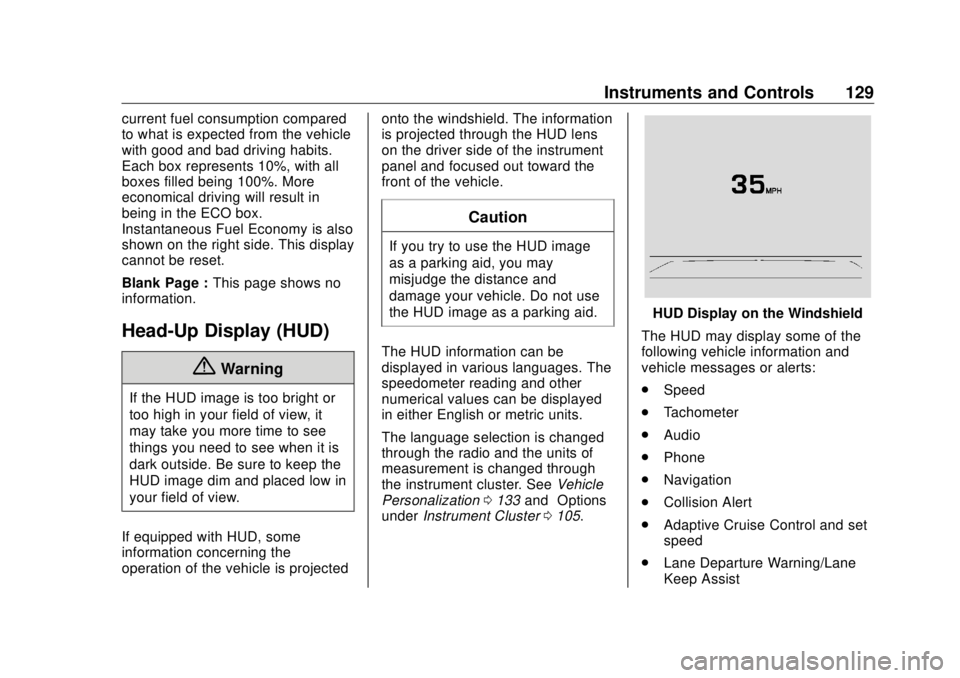
If equipped with HUD, some
information concerning the
operation of the vehicle is projected onto the windshield. The information
is projected through the HUD lens
on the driver side of the instrument
panel and focused out toward the
front of the vehicle.
CautionIf you try to use the HUD image
as a parking aid, you may
misjudge the distance and
damage your vehicle. Do not use
the HUD image as a parking aid.
The HUD information can be
displayed in various languages. The
speedometer reading and other
numerical values can be displayed
in either English or metric units.
The language selection is changed
through the radio and the units of
measurement is changed through
the instrument cluster. See Vehicle
Personalization 0 133 and “ Options ”
under Instrument Cluster 0 105 . HUD Display on the Windshield
The HUD may display some of the
following vehicle information and
vehicle messages or alerts:
.
Speed
.
Tachometer
.
Audio
.
Phone
.
Navigation
.
Collision Alert
.
Adaptive Cruise Control and set
speed
.
Lane Departure Warning/Lane
Keep Assist
Page 132 of 363
Buick Envision Owner Manual (GMNA-Localizing-U.S./Canada/Mexico-
13555857) - 2020 - CRC - 2/25/19
Instruments and Controls 131
English
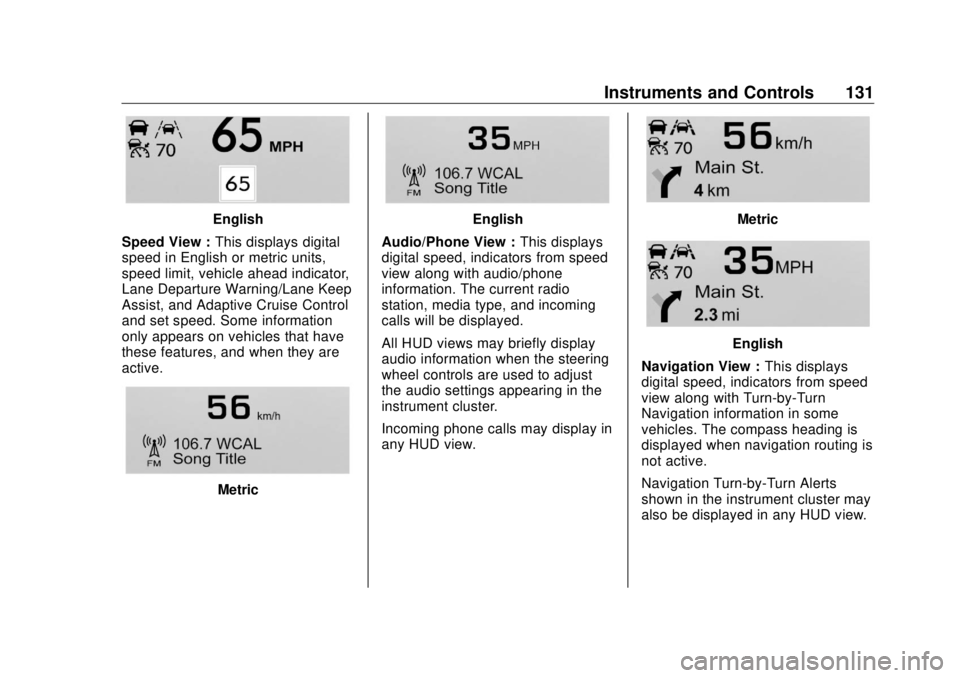
Speed View : This displays digital
speed in English or metric units,
speed limit, vehicle ahead indicator,
Lane Departure Warning/Lane Keep
Assist, and Adaptive Cruise Control
and set speed. Some information
only appears on vehicles that have
these features, and when they are
active.
Metric English
Audio/Phone View : This displays
digital speed, indicators from speed
view along with audio/phone
information. The current radio
station, media type, and incoming
calls will be displayed.
All HUD views may briefly display
audio information when the steering
wheel controls are used to adjust
the audio settings appearing in the
instrument cluster.
Incoming phone calls may display in
any HUD view. Metric
English
Navigation View : This displays
digital speed, indicators from speed
view along with Turn-by-Turn
Navigation information in some
vehicles. The compass heading is
displayed when navigation routing is
not active.
Navigation Turn-by-Turn Alerts
shown in the instrument cluster may
also be displayed in any HUD view.
Page 139 of 363
Buick Envision Owner Manual (GMNA-Localizing-U.S./Canada/Mexico-
13555857) - 2020 - CRC - 2/25/19
138 Instruments and Controls Passive Door Unlock
This allows selection of which doors
will unlock when using the button on
the driver door to unlock the vehicle.
Select All Doors or Driver Door.
Passive Door Lock
This feature can be turned on or off,
or can be used to select feedback.
See Remote Keyless Entry (RKE)
System Operation 0 8 .
Select Off, On with Horn
Chirp, or On.
Remote Left in Vehicle Alert
This feature sounds an alert when
the RKE transmitter is left in the
vehicle. This menu also enables
Remote No Longer in Vehicle Alert.
Select Off or On.
Bluetooth
Select and the following may
display:
.
Pair New Device
.
Device Management
.
Ringtones .
Voice Mail Numbers
.
Text Message Alerts
Pair New Device
Select to pair a new device. See
“ Pairing ” under “ Bluetooth ” in the
infotainment manual.
Device Management
Select to connect to a different
phone source, disconnect a phone,
or delete a phone.
Ringtones
Press to change the ring tone for
the specific phone. The phone does
not need to be connected to change
the ring tone.
Voice Mail Numbers
This feature displays the voice mail
number for all connected phones.
To change the voice mail number,
select EDIT or press the EDIT
button. Type a new number, then
select SAVE or press the SAVE
button. Text Message Alerts
This feature allows text messages
to be received. See “ Text
Messaging ” under “ Phone ” in the
infotainment manual.
Select Off or On.
Apple CarPlay Select and the following may
display:
.
Apple CarPlay
.
Manage Apple CarPlay Devices
Apple CarPlay
This feature allows Apple devices to
be connected to the infotainment
system through a USB port. See
“ Apple CarPlay and Android Auto ” in
the infotainment manual.
Select Off or On.
Manage Apple CarPlay Devices
Select to manage Apple devices.
Apple CarPlay must be on for this
feature to be accessed. See “ Apple
CarPlay and Android Auto ” in the
infotainment manual.
Page 142 of 363
Buick Envision Owner Manual (GMNA-Localizing-U.S./Canada/Mexico-
13555857) - 2020 - CRC - 2/25/19
Instruments and Controls 141Make sure the hand-held transmitter
has a new battery for quick and
accurate transmission of the
radio-frequency signal.
Programming the Universal
Remote System For questions or programming help,
see www.homelink.com/gm or call
1-800-355-3515. For calls placed
outside the U.S., Canada, or Puerto
Rico, international rates will apply
and may differ based on landline or
mobile phone.
Programming involves
time-sensitive actions, and may time
out causing the procedure to be
repeated.
To program up to three devices:
1. Hold the end of the hand-held
transmitter about 3 to 8 cm (1
to 3 in) away from the
Universal Remote system
buttons with the indicator light
in view. The hand-held
transmitter was supplied by the
manufacturer of the garage
door opener receiver. 2. At the same time, press and
hold both the hand-held
transmitter button and one of
the three Universal Remote
system buttons to be used to
operate the garage door. Do
not release either button until
the indicator light changes from
a slow to a rapid flash. Then
release both buttons.
Some garage door openers
may require substitution of
Step 2 with the procedure
under “ Radio Signals for Some
Gate Operators ” later in this
section.
3. Press and hold the newly
programmed Universal Remote
system button for five seconds
while watching the indicator
light and garage door
activation.
.
If the indicator light stays on
continuously or the garage
door moves when the
button is pressed, then
programming is complete.
There is no need to
complete Steps 4 – 6. .
If the indicator light does
not come on or the garage
door does not move, a
second button press may
be required. For a second
time, press and hold the
newly programmed button
for five seconds. If the light
stays on or the garage door
moves, programming is
complete.
.
If the indicator light blinks
rapidly for two seconds,
then changes to a solid light
and the garage door does
not move, continue with
programming Steps 4 – 6.
Page 143 of 363
Buick Envision Owner Manual (GMNA-Localizing-U.S./Canada/Mexico-
13555857) - 2020 - CRC - 2/25/19
142 Instruments and Controls
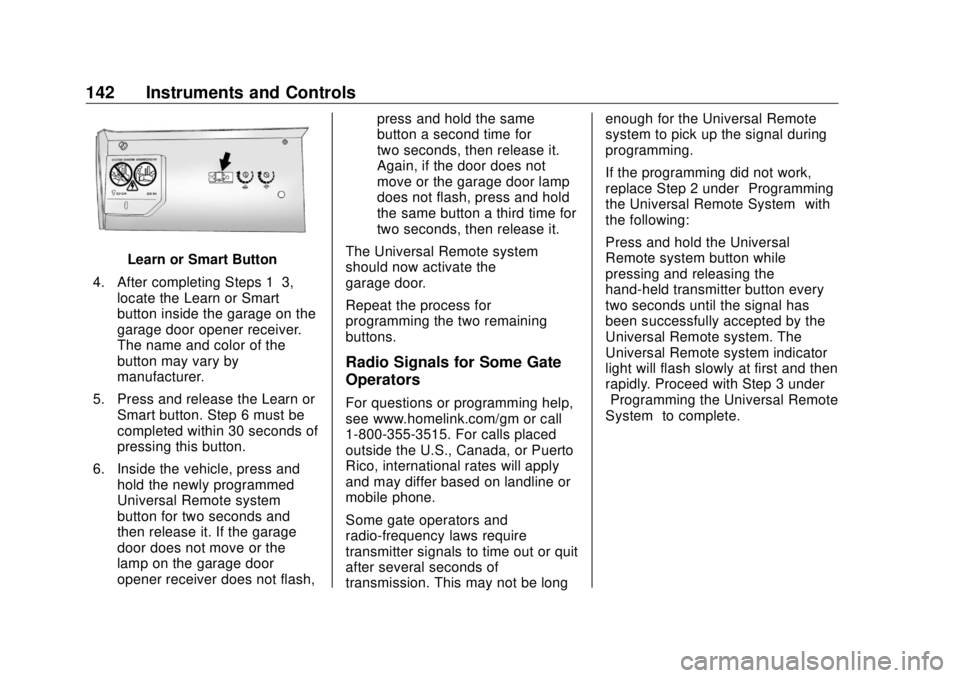
Learn or Smart Button
4. After completing Steps 1 – 3,
locate the Learn or Smart
button inside the garage on the
garage door opener receiver.
The name and color of the
button may vary by
manufacturer.
5. Press and release the Learn or
Smart button. Step 6 must be
completed within 30 seconds of
pressing this button.
6. Inside the vehicle, press and
hold the newly programmed
Universal Remote system
button for two seconds and
then release it. If the garage
door does not move or the
lamp on the garage door
opener receiver does not flash, press and hold the same
button a second time for
two seconds, then release it.
Again, if the door does not
move or the garage door lamp
does not flash, press and hold
the same button a third time for
two seconds, then release it.
The Universal Remote system
should now activate the
garage door.
Repeat the process for
programming the two remaining
buttons.
Radio Signals for Some Gate
Operators For questions or programming help,
see www.homelink.com/gm or call
1-800-355-3515. For calls placed
outside the U.S., Canada, or Puerto
Rico, international rates will apply
and may differ based on landline or
mobile phone.
Some gate operators and
radio-frequency laws require
transmitter signals to time out or quit
after several seconds of
transmission. This may not be long enough for the Universal Remote
system to pick up the signal during
programming.
If the programming did not work,
replace Step 2 under “ Programming
the Universal Remote System ” with
the following:
Press and hold the Universal
Remote system button while
pressing and releasing the
hand-held transmitter button every
two seconds until the signal has
been successfully accepted by the
Universal Remote system. The
Universal Remote system indicator
light will flash slowly at first and then
rapidly. Proceed with Step 3 under
“ Programming the Universal Remote
System ” to complete.