change wheel BUICK ENVISION 2022 User Guide
[x] Cancel search | Manufacturer: BUICK, Model Year: 2022, Model line: ENVISION, Model: BUICK ENVISION 2022Pages: 369, PDF Size: 14.04 MB
Page 151 of 369
Buick Envision Owner Manual (GMNA-Localizing-U.S./Canada/Mexico-
15218978) - 2022 - CRC - 5/12/21
150 Infotainment System
.It could take a long time to operate
automatic rerouting during high-speed
driving.
.Automatic rerouting might display a route
returning to the set waypoint if heading
for a destination without passing through
a set waypoint.
.The route prohibits the entry of a vehicle
due to a regulation by time or season or
any other regulation which may be given.
.Some routes might not be searched.
.The route to the destination might not be
shown if there are new roads, if roads
have recently changed, or if certain roads
are not listed in the map data. SeeMaps
0 142.
To recalibrate the vehicle's position on the
map, park with the vehicle running for two
to five minutes, until the vehicle position
updates. Make sure the vehicle is parked in
a location that is safe and has a clear view
of the sky and away from large
obstructions.
If the System Needs Service
If the navigation system needs service, see
your dealer.
Map Data Updates
The map data in the vehicle is the most
up-to-date information available when the
vehicle was produced. The map data is
updated periodically, provided that the map
information has changed.
For questions about the operation of the
navigation system or the update process,
see your dealer.
Database Coverage Explanations
Coverage areas vary with respect to the
level of map detail available for any given
area. Some areas feature greater levels of
detail than others. If this happens, it does
not mean there is a problem with the
system. As the map data is updated, more
detail can become available for areas that
previously had limited detail. See Map Data
Updates 0150.
Voice Recognition
If equipped, voice recognition allows for
hands-free operation within the navigation,
audio, phone, and weather applications. This feature can be started by pressing either
g
on the steering wheel or touchinggon the
infotainment display.
However, not all features within these areas
are supported by voice commands.
Generally, only complex tasks that require
multiple manual interactions to complete
are supported by voice commands.
For example, tasks that take more than one
or two touches such as selecting a song or
artist to play from a media device would be
supported by voice commands. Other tasks,
like adjusting the volume or seeking up or
down are audio features that are easily
performed by pressing one or two controls
are not supported by voice commands.
In general there are flexible ways to speak
commands for completing the tasks. Most of
them, except destination entry and voice
keypad, can be completed in a single
command. If the task takes more than one
command to complete, the first command
should be to indicate the kind of task to be
performed, like “Navigation Destination
Entry.” The system replies with prompts
that lead you through a dialog to enter the
necessary information. For example, if a
destination for route guidance is needed,
say “Navigation” or“Destination Entry.”
Page 161 of 369
Buick Envision Owner Manual (GMNA-Localizing-U.S./Canada/Mexico-
15218978) - 2022 - CRC - 5/12/21
160 Infotainment System
Switching Between Calls (Call Waiting
Calls Only)
To switch between calls, touch Phone on the
Home Page to display Call View. While in
Call View, touch the call information of the
call on hold to change calls.
Three-Way Calling
Three-way calling must be supported on the
Bluetooth cell phone and enabled by the
wireless service carrier to work.
To start a three-way call while in a
current call:1. In the Call View, touch Add Call to add another call.
2. Initiate the second call by selecting from Recents, Contacts, or Keypad.
3. When the second call is active, touch the merge icon to conference the three-way
call together.
Ending a Call
.Pression the steering wheel controls.
.Touch#on the infotainment display,
next to a call, to end only that call.
Dual Tone Multi-Frequency (DTMF) Tones
The in-vehicle Bluetooth system can send
numbers during a call. This is used when
calling a menu-driven phone system. Use the
Keypad to enter the number.
Apple CarPlay and Android Auto
If equipped, Android Auto and/or Apple
CarPlay capability may be available through
a compatible smartphone. If available, the
Android Auto and Apple CarPlay icons will
change from gray to color on the Home
Page of the infotainment display.
To use Android Auto and/or Apple CarPlay:
For Wired Phone Projection
1. Download the Android Auto app to your smartphone from the Google Play store.
There is no app required for Apple
CarPlay.
2. Connect your Android phone or Apple iPhone by using the factory-provided
phone USB cable and plugging into a
USB data port. For best performance, it is
highly recommended to use the device’s
factory-provided USB cable, which should
be replaced after significant wear to
maintain connection quality. Aftermarket
or third-party cables may not work. 3. When the phone is first connected to
activate Apple CarPlay or Android Auto,
accept the terms and conditions on both
the infotainment system and the phone.
4. Follow the instructions on the phone.
The Android Auto and Apple CarPlay icons
on the Home Page will illuminate depending
on the smartphone. Android Auto and/or
Apple CarPlay may automatically launch
upon USB connection. If not, touch the
Android Auto or Apple CarPlay icon on the
Home Page to launch.
Press
{on the center stack to return to the
Home Page.
For Wireless Phone Projection
Verify your phone is wireless compatible by
visiting the Google Android Auto or Apple
CarPlay support page.
1. Download the Android Auto app to your smartphone from the Google Play store.
There is no app required for Apple
CarPlay.
2. For first time connection, there are two ways to set up wireless projection:
.Connect your Android phone or Apple
iPhone by using the factory-provided
phone USB cable and plugging into a
Page 187 of 369
Buick Envision Owner Manual (GMNA-Localizing-U.S./Canada/Mexico-
15218978) - 2022 - CRC - 5/12/21
186 Climate Controls
equipped with a cabin filter which cleans the
air and reduces this pollution anytime the
HVAC is on.
The displayed value is updated every few
seconds by a sensor in the vehicle’s interior.
Higher numbers indicate a higher level of
pollution in the air while lower numbers
indicate cleaner air. A reading of zero
indicates the pollution level is too low to be
read by the sensor.
The interior air quality level is displayed in
the application which can be opened from
the home screen. The interior air quality
level may also be continually displayed in
the lower right corner of the screen. This
can be turned on or off by selecting the
Settings menu, then Applications, and then
Air Quality.
The number scaling, colors, and categories
are set according to regional standards.
More information is available by touching
the screen within the Interior Air Quality
application. For more information on the
pollution scale in your region visit:
https://www.epa.gov/pm-pollutionAfterblow Feature
If equipped, under certain conditions, the
fan may stay on or may turn on and off
several times after you turn off and lock the
vehicle. This is normal.
Air Vents
Move the slider knobs to change the
direction of the airflow and to shut off the
air flow.
Use the thumbwheel near the air vents to
control the amount of airflow or to shut off
the airflow.
Operation Tips
.Clear away any ice, snow, or leaves from
the air inlets at the base of the
windshield that can block the flow of air
into the vehicle.
.Clear snow off the hood to improve
visibility and help decrease moisture
drawn into the vehicle.
.Keep all outlets open whenever possible
for best system performance.
.Keep the path under all seats clear of
objects to help circulate the air inside the
vehicle more effectively.
Page 189 of 369
Buick Envision Owner Manual (GMNA-Localizing-U.S./Canada/Mexico-
15218978) - 2022 - CRC - 5/12/21
188 Driving and Operating
Driving and Operating
Driving Information
Driver Behavior . . . . . . . . . . . . . . . . . . . . . . . . 189
Driving Environment . . . . . . . . . . . . . . . . . . . 189
Vehicle Design . . . . . . . . . . . . . . . . . . . . . . . . . 189
Driving for Better Fuel Economy . . . . . . 190
Distracted Driving . . . . . . . . . . . . . . . . . . . . . 190
Defensive Driving . . . . . . . . . . . . . . . . . . . . . 190
Impaired Driving . . . . . . . . . . . . . . . . . . . . . . . 191
Control of a Vehicle . . . . . . . . . . . . . . . . . . . . 191
Braking . . . . . . . . . . . . . . . . . . . . . . . . . . . . . . . . 191
Steering . . . . . . . . . . . . . . . . . . . . . . . . . . . . . . . 191
Off-Road Recovery . . . . . . . . . . . . . . . . . . . . . 192
Loss of Control . . . . . . . . . . . . . . . . . . . . . . . . 192
Driving on Wet Roads . . . . . . . . . . . . . . . . . 193
Hill and Mountain Roads . . . . . . . . . . . . . . 194
Winter Driving . . . . . . . . . . . . . . . . . . . . . . . . 194
If the Vehicle Is Stuck . . . . . . . . . . . . . . . . . 195
Vehicle Load Limits . . . . . . . . . . . . . . . . . . . . 196
Starting and Operating
New Vehicle Break-In . . . . . . . . . . . . . . . . . . 199
Ignition Positions . . . . . . . . . . . . . . . . . . . . . . 199
Starting the Engine . . . . . . . . . . . . . . . . . . . . 201
Stop/Start System . . . . . . . . . . . . . . . . . . . . . 201
Engine Heater . . . . . . . . . . . . . . . . . . . . . . . . . 202
Retained Accessory Power (RAP) . . . . . . . 203Shifting Into Park . . . . . . . . . . . . . . . . . . . . . 204
Shifting out of Park . . . . . . . . . . . . . . . . . . . 204
Parking over Things That Burn . . . . . . . . 205
Active Fuel Management . . . . . . . . . . . . . . 205
Extended Parking . . . . . . . . . . . . . . . . . . . . . . 205
Engine Exhaust
Engine Exhaust . . . . . . . . . . . . . . . . . . . . . . . . 205
Running the Vehicle While Parked . . . . 206
Automatic Transmission
Automatic Transmission . . . . . . . . . . . . . . . 206
Manual Mode . . . . . . . . . . . . . . . . . . . . . . . . . 209
Drive Systems
All-Wheel Drive . . . . . . . . . . . . . . . . . . . . . . . . 210
Brakes
Antilock Brake System (ABS) . . . . . . . . . . . 210
Electric Parking Brake . . . . . . . . . . . . . . . . . . 211
Brake Assist . . . . . . . . . . . . . . . . . . . . . . . . . . . . 212
Hill Start Assist (HSA) . . . . . . . . . . . . . . . . . . 212
Ride Control Systems
Traction Control/Electronic Stability
Control . . . . . . . . . . . . . . . . . . . . . . . . . . . . . . . 212
Hill Descent Control (HDC) . . . . . . . . . . . . . 216
Driver Mode Control . . . . . . . . . . . . . . . . . . . 216
Cruise Control
Cruise Control . . . . . . . . . . . . . . . . . . . . . . . . . . 217
Adaptive Cruise Control (Advanced) . . . . 219
Driver Assistance Systems
Driver Assistance Systems . . . . . . . . . . . . . 227
Assistance Systems for Parking or Backing . . . . . . . . . . . . . . . . . . . . . . . . . . . . . . 228
Rear Vision Camera (RVC) . . . . . . . . . . . . . 228
Surround Vision System . . . . . . . . . . . . . . . 229
Park Assist . . . . . . . . . . . . . . . . . . . . . . . . . . . . . 231
Automatic Parking Assist (APA) . . . . . . . . 232
Reverse Automatic Braking (RAB) . . . . . . 235
Rear Pedestrian Alert . . . . . . . . . . . . . . . . . . 236
Rear Cross Traffic Alert (RCTA) System . . . . . . . . . . . . . . . . . . . . . . . . . . . . . . 236
Assistance Systems for Driving . . . . . . . . 237
Forward Collision Alert (FCA) System . . . . . . . . . . . . . . . . . . . . . . . . . . . . . . 237
Automatic Emergency Braking (AEB) . . . . . . . . . . . . . . . . . . . . . . . . 239
Front Pedestrian Braking (FPB) System . . . . . . . . . . . . . . . . . . . . . . . . . . . . . . 240
Side Blind Zone Alert (SBZA) . . . . . . . . . . . 242
Lane Change Alert (LCA) . . . . . . . . . . . . . . . 242
Lane Keep Assist (LKA) . . . . . . . . . . . . . . . . 244
Page 211 of 369
Buick Envision Owner Manual (GMNA-Localizing-U.S./Canada/Mexico-
15218978) - 2022 - CRC - 5/12/21
210 Driving and Operating
The transmission will only allow shifting
into gears appropriate for the vehicle speed
and engine revolutions per minute (rpm).
If shifting is prevented for any reason, the
M or D will flash in the instrument cluster.
The transmission will not automatically shift
to the next higher gear if the engine rpm is
too high. It will only automatically shift to
the next lower gear if the engine rpm is
much too low.
Drive Systems
All-Wheel Drive
Vehicles with this feature can operate in
All-Wheel Drive (AWD) Mode. When the
AWD feature is active, the system transfers
engine power, if required, to all four wheels.
The system is fully automatic and adjusts to
road conditions for improved traction and
control. In FWD Mode engine power is
transferred to the front wheels only, and
the AWD feature is off.
The AWD feature is automatically activated
when certain modes are selected using the
Driver Mode Control switch. When an AWD
mode change is requested the light will
flash briefly while the system is engaging
and the AWD light will be displayed whenthe system is active. When a non-AWD
Mode is selected, the light will flash briefly
while the system disengages and a 2WD
light will be displayed when the AWD
system is off. See
Driver Mode Control
0 216.
When a compact spare tire is installed on an
AWD vehicle, the system will automatically
detect the compact spare and reduce AWD
performance to protect the system. To
restore AWD operation and prevent
excessive wear on the system, replace the
compact spare with a full-size tire as soon as
possible. See Compact Spare Tire 0307.Brakes
Antilock Brake System (ABS)
The Antilock Brake System (ABS) helps
prevent a braking skid and maintain steering
while braking hard.
ABS performs a system check when the
vehicle is first driven. A momentary motor
or clicking noise may be heard while this
test is going on, and the brake pedal may
move slightly. This is normal.
If there is a problem with ABS, this warning
light stays on. See Antilock Brake System
(ABS) Warning Light 098.
ABS does not change the time needed to
get a foot on the brake pedal and does not
always decrease stopping distance. If you
get too close to the vehicle ahead, there will
not be enough time to apply the brakes if
that vehicle suddenly slows or stops. Always
leave enough room ahead to stop, even
with ABS.
Using ABS
Do not pump the brakes. Just hold the brake
pedal down firmly. Hearing or feeling ABS
operate is normal.
Braking in Emergencies
ABS allows steering and braking at the same
time. In many emergencies, steering can
help even more than braking.
Page 218 of 369

Buick Envision Owner Manual (GMNA-Localizing-U.S./Canada/Mexico-
15218978) - 2022 - CRC - 5/12/21
Driving and Operating 217
standard/default mode. There is no
persistent indicator in the instrument cluster
for this mode.
AWD Mode :AWD Mode provides drive
torque to all four wheels. Select AWD Mode
to improve traction and control on slippery
road surfaces, such as gravel, sand, wet
pavement, snow, and ice. When in AWD
Mode, the AWD Mode indicator light will be
on. For more information on AWD Mode,
see All-Wheel Drive 0210.
Sport Mode : Use where road conditions or
personal preference demand a more
controlled response.
Sport Mode improves vehicle handling and
acceleration on dry pavement. When active,
Sport Mode modifies steering efforts,
transmission shifting, AWD torque and
suspension tuning, if equipped.
Off-Road Mode : Use this mode for off-road
recreational driving. Off-Road Mode should
be used to improve driving at moderate
speeds, on grass, gravel, dirt, unpaved roads,
or snow-covered roads. The accelerator pedal
is tuned for off-road use. This mode modifies
pedal mapping, AWD, ABS, ESC, and TCS
Performance. Snow/Ice Mode :
Snow/Ice Mode improves
vehicle acceleration on snow and ice covered
roads. When active, Snow/Ice Mode will
adjust acceleration to optimize traction on
slippery surfaces. This can compromise the
acceleration on dry asphalt.
This feature is not intended for use when
the vehicle is stuck in sand, mud, ice, snow,
or gravel. If the vehicle becomes stuck, see If
the Vehicle Is Stuck 0195.
Cruise Control
With cruise control the vehicle can maintain
a speed of about 40 km/h (25 mph) or more
without keeping your foot on the
accelerator. Cruise control does not work at
speeds below 40 km/h (25 mph).
{Warning
Cruise control can be dangerous where
you cannot drive safely at a steady
speed. Do not use cruise control on
winding roads or in heavy traffic.
Cruise control can be dangerous on
slippery roads. On such roads, fast
changes in tire traction can cause
(Continued)
Warning (Continued)
excessive wheel slip, and you could lose
control. Do not use cruise control on
slippery roads.
With the Traction Control System (TCS), the
system may begin to limit wheel spin while
you are using cruise control. If this happens,
the cruise control will automatically
disengage. See Traction Control/Electronic
Stability Control 0212. If a collision alert
occurs when cruise control is activated,
cruise control is disengaged. See Forward
Collision Alert (FCA) System 0237. When
road conditions allow you to safely use it
again, cruise control can be turned back on.
If the brakes are applied, cruise control
disengages.
Page 221 of 369
Buick Envision Owner Manual (GMNA-Localizing-U.S./Canada/Mexico-
15218978) - 2022 - CRC - 5/12/21
220 Driving and Operating
{Warning
ACC will not detect or brake for children,
pedestrians, animals, or other objects.
Do not use ACC when:
.On winding and hilly roads or when
the sensors are blocked by snow, ice,
or dirt. The system may not detect a
vehicle ahead. Keep the entire front of
the vehicle clean.
.Visibility is low, such as in fog, rain,
or snow conditions. ACC performance
is limited under these conditions.
.On slippery roads where fast changes
in tire traction can cause excessive
wheel slip.
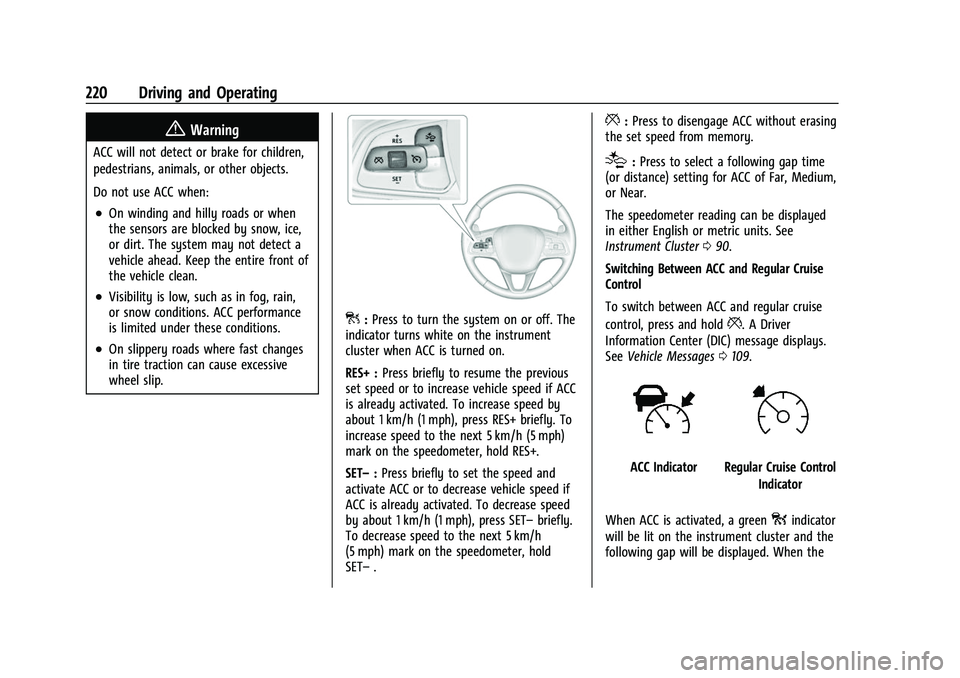
]:Press to turn the system on or off. The
indicator turns white on the instrument
cluster when ACC is turned on.
RES+ : Press briefly to resume the previous
set speed or to increase vehicle speed if ACC
is already activated. To increase speed by
about 1 km/h (1 mph), press RES+ briefly. To
increase speed to the next 5 km/h (5 mph)
mark on the speedometer, hold RES+.
SET– :Press briefly to set the speed and
activate ACC or to decrease vehicle speed if
ACC is already activated. To decrease speed
by about 1 km/h (1 mph), press SET– briefly.
To decrease speed to the next 5 km/h
(5 mph) mark on the speedometer, hold
SET– .
*:Press to disengage ACC without erasing
the set speed from memory.
[: Press to select a following gap time
(or distance) setting for ACC of Far, Medium,
or Near.
The speedometer reading can be displayed
in either English or metric units. See
Instrument Cluster 090.
Switching Between ACC and Regular Cruise
Control
To switch between ACC and regular cruise
control, press and hold
*. A Driver
Information Center (DIC) message displays.
See Vehicle Messages 0109.
ACC IndicatorRegular Cruise Control
Indicator
When ACC is activated, a green
oindicator
will be lit on the instrument cluster and the
following gap will be displayed. When the
Page 223 of 369
Buick Envision Owner Manual (GMNA-Localizing-U.S./Canada/Mexico-
15218978) - 2022 - CRC - 5/12/21
222 Driving and Operating
.The vehicle ahead is beyond the selected
following gap.
.The vehicle speed is not being limited
because of a sharp turn.
Increasing Speed While ACC is at a Set Speed
If ACC is already activated, do one of the
following:
.Use the accelerator to get to the higher
speed. Briefly press and release SET– and
release the accelerator pedal. The vehicle
will now cruise at the higher speed.
When the accelerator pedal is pressed,
ACC will not brake because it is
overridden. While overridden, the ACC
indicator will turn blue on the instrument
cluster and HUD, if equipped.
.Press and hold RES+ up until the desired
set speed is displayed, then release it.
.To increase vehicle speed in small
increments, press RES+ up briefly. For
each press, the vehicle goes 1 km/h or
(1 mph) faster.
.To increase vehicle speed in larger
increments, hold RES+. While holding
RES+, the vehicle speed increases to the
next 5 km/h (5 mph) step, then continues
to increase by 5 km/h (5 mph) at a time. The set speed can also be increased while
the vehicle is stopped.
.If stopped with the brake applied, press
RES+ until the desired set speed is
displayed.
.If ACC is holding the vehicle at a stop and
there is another vehicle directly ahead,
pressing RES+ will increase the set speed.
.Pressing RES+ when there is no longer a
vehicle ahead or the vehicle ahead is
pulling away and the brake is not applied
will cause the ACC to resume.
When it is determined that there is no
vehicle ahead or the vehicle ahead is beyond
the selected following gap, then the vehicle
speed will increase to the set speed.
Reducing Speed While ACC is at a Set Speed
If ACC is already activated, do one of the
following:
.Use the brake to get to the desired lower
speed. Release the brake and press SET–.
The vehicle will now cruise at the lower
speed.
.Press and hold SET– down until the
desired lower speed is reached, then
release it.
.To decrease the vehicle speed in smaller
increments, press SET− down briefly. For
each press, the vehicle goes about 1 km/h
or (1 mph) slower.
.To decrease the vehicle speed in larger
increments, hold SET−. While holding
SET−, the vehicle speed decreases to the
next 5 km/h (5 mph) step, then continues
to decrease by 5 km/h (5 mph) at a time.
The set speed can also be decreased while
the vehicle is stopped.
.If stopped with the brake applied, press
or hold SET− until the desired set speed is
displayed.
Selecting the Follow Distance
When a slower moving vehicle is detected
ahead within the selected following gap,
ACC will adjust the vehicle's speed and
attempt to maintain the follow distance gap
selected.
Press
[on the steering wheel to adjust
the following gap. Each press cycles the gap
button through three settings: Far, Medium,
or Near.
When pressed, the current gap setting
displays briefly on the instrument cluster
and HUD (if equipped). The gap setting will
be maintained until it is changed.
Page 224 of 369
Buick Envision Owner Manual (GMNA-Localizing-U.S./Canada/Mexico-
15218978) - 2022 - CRC - 5/12/21
Driving and Operating 223
Since each gap setting corresponds to a
following time (Far, Medium, or Near), the
following distance will vary based on vehicle
speed. The faster the vehicle speed, the
further back your vehicle will follow a
vehicle detected ahead. Consider traffic and
weather conditions when selecting the
following gap. The range of selectable gaps
may not be appropriate for all drivers and
driving conditions.
Changing the gap setting automatically
changes the alert timing sensitivity (Far,
Medium, or Near) for the Forward Collision
Alert (FCA) feature. SeeForward Collision
Alert (FCA) System 0237.
Courtesy Gap
Press and hold
[on the steering wheel
when vehicle is moving to temporarily
increase the gap with the vehicle ahead to
allow for merging traffic.
Press and hold
[when stopped to cancel
ACC from resuming automatically (if the
stop is brief) and remain stationary. This can
be used to allow traffic to merge between
you and the vehicle ahead. Press RES+ or
the accelerator pedal to resume ACC.
Following distance gap will return to the
original selection after hold. Alerting the Driver
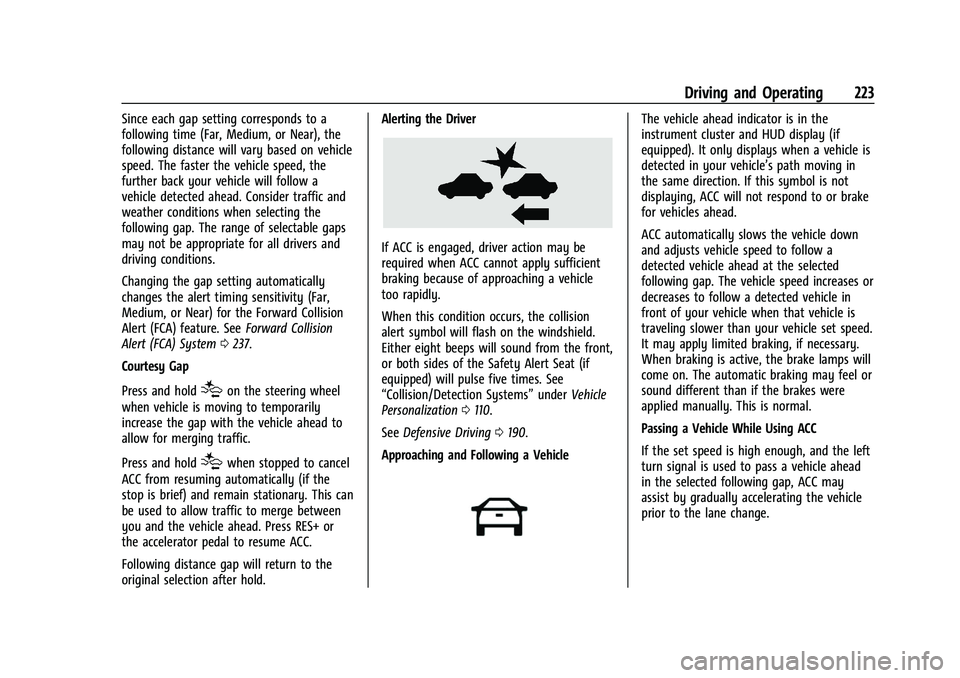
If ACC is engaged, driver action may be
required when ACC cannot apply sufficient
braking because of approaching a vehicle
too rapidly.
When this condition occurs, the collision
alert symbol will flash on the windshield.
Either eight beeps will sound from the front,
or both sides of the Safety Alert Seat (if
equipped) will pulse five times. See
“Collision/Detection Systems”
underVehicle
Personalization 0110.
See Defensive Driving 0190.
Approaching and Following a Vehicle
The vehicle ahead indicator is in the
instrument cluster and HUD display (if
equipped). It only displays when a vehicle is
detected in your vehicle’s path moving in
the same direction. If this symbol is not
displaying, ACC will not respond to or brake
for vehicles ahead.
ACC automatically slows the vehicle down
and adjusts vehicle speed to follow a
detected vehicle ahead at the selected
following gap. The vehicle speed increases or
decreases to follow a detected vehicle in
front of your vehicle when that vehicle is
traveling slower than your vehicle set speed.
It may apply limited braking, if necessary.
When braking is active, the brake lamps will
come on. The automatic braking may feel or
sound different than if the brakes were
applied manually. This is normal.
Passing a Vehicle While Using ACC
If the set speed is high enough, and the left
turn signal is used to pass a vehicle ahead
in the selected following gap, ACC may
assist by gradually accelerating the vehicle
prior to the lane change.
Page 234 of 369
Buick Envision Owner Manual (GMNA-Localizing-U.S./Canada/Mexico-
15218978) - 2022 - CRC - 5/12/21
Driving and Operating 233
Warning (Continued)
may not respond to changes in the
parking space, such as movement of an
adjacent vehicle, or a person or object
entering the parking space. APA does not
detect or avoid traffic that is behind or
alongside of the vehicle. Always be
prepared to stop the vehicle during the
parking maneuver.
How to Activate Automatic Parking
To activate APA, press the soft-touch button
or hard switch
Ofor the system to begin
searching for a parking space while driving
forward at no greater than
30 km/h (18 mph). By default, APA searches
for parallel parking spaces to the right of
the vehicle up to the sensors’ range of 1.5 m
(5 ft). To search for a parking space to the
left, turn on the left turn signal or,
if available, change the side selection in the
infotainment display. To switch the parking
mode between parallel and perpendicular
press and hold
Owhile searching for a
valid parking spot or, if available, change the
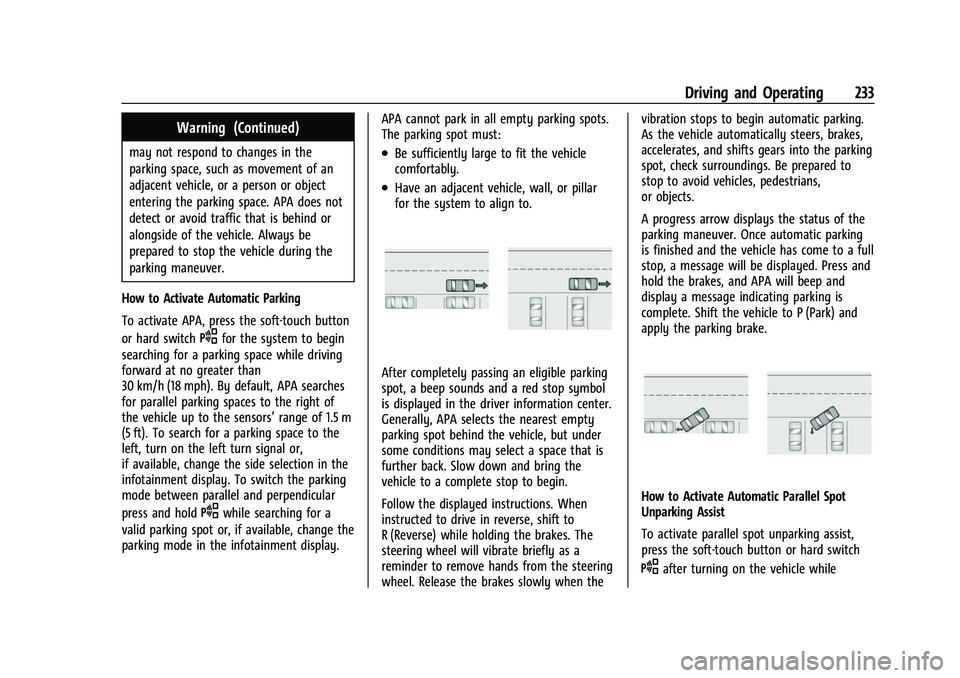
parking mode in the infotainment display. APA cannot park in all empty parking spots.
The parking spot must:
.Be sufficiently large to fit the vehicle
comfortably.
.Have an adjacent vehicle, wall, or pillar
for the system to align to.
After completely passing an eligible parking
spot, a beep sounds and a red stop symbol
is displayed in the driver information center.
Generally, APA selects the nearest empty
parking spot behind the vehicle, but under
some conditions may select a space that is
further back. Slow down and bring the
vehicle to a complete stop to begin.
Follow the displayed instructions. When
instructed to drive in reverse, shift to
R (Reverse) while holding the brakes. The
steering wheel will vibrate briefly as a
reminder to remove hands from the steering
wheel. Release the brakes slowly when thevibration stops to begin automatic parking.
As the vehicle automatically steers, brakes,
accelerates, and shifts gears into the parking
spot, check surroundings. Be prepared to
stop to avoid vehicles, pedestrians,
or objects.
A progress arrow displays the status of the
parking maneuver. Once automatic parking
is finished and the vehicle has come to a full
stop, a message will be displayed. Press and
hold the brakes, and APA will beep and
display a message indicating parking is
complete. Shift the vehicle to P (Park) and
apply the parking brake.
How to Activate Automatic Parallel Spot
Unparking Assist
To activate parallel spot unparking assist,
press the soft-touch button or hard switch
Oafter turning on the vehicle while