radio BUICK ENVISION 2022 User Guide
[x] Cancel search | Manufacturer: BUICK, Model Year: 2022, Model line: ENVISION, Model: BUICK ENVISION 2022Pages: 369, PDF Size: 14.04 MB
Page 133 of 369
Buick Envision Owner Manual (GMNA-Localizing-U.S./Canada/Mexico-
15218978) - 2022 - CRC - 5/12/21
132 Infotainment System
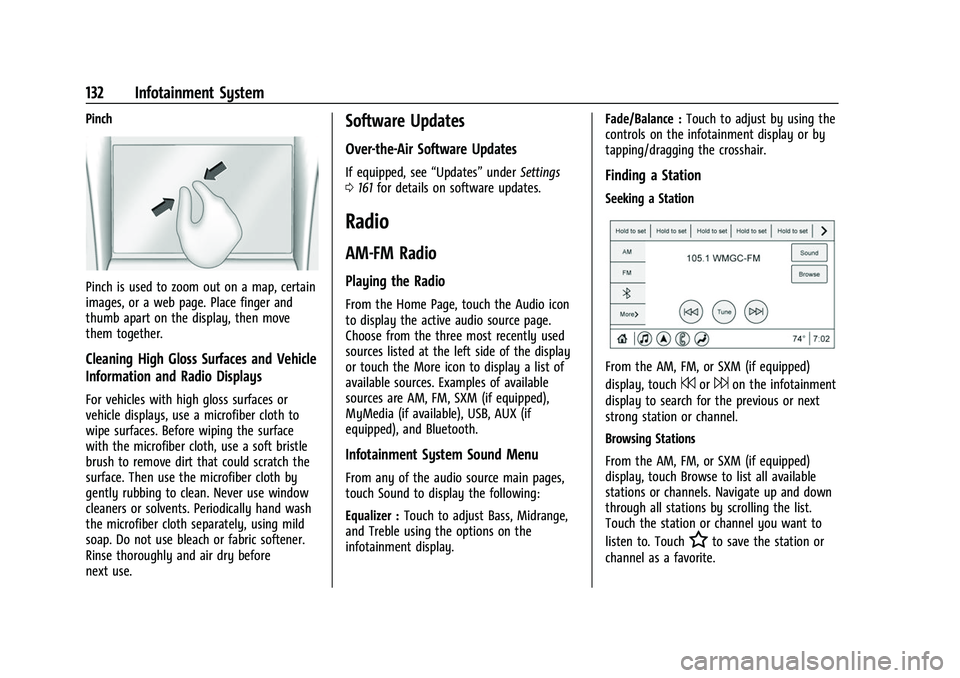
Pinch
Pinch is used to zoom out on a map, certain
images, or a web page. Place finger and
thumb apart on the display, then move
them together.
Cleaning High Gloss Surfaces and Vehicle
Information and Radio Displays
For vehicles with high gloss surfaces or
vehicle displays, use a microfiber cloth to
wipe surfaces. Before wiping the surface
with the microfiber cloth, use a soft bristle
brush to remove dirt that could scratch the
surface. Then use the microfiber cloth by
gently rubbing to clean. Never use window
cleaners or solvents. Periodically hand wash
the microfiber cloth separately, using mild
soap. Do not use bleach or fabric softener.
Rinse thoroughly and air dry before
next use.
Software Updates
Over-the-Air Software Updates
If equipped, see“Updates”underSettings
0 161 for details on software updates.
Radio
AM-FM Radio
Playing the Radio
From the Home Page, touch the Audio icon
to display the active audio source page.
Choose from the three most recently used
sources listed at the left side of the display
or touch the More icon to display a list of
available sources. Examples of available
sources are AM, FM, SXM (if equipped),
MyMedia (if available), USB, AUX (if
equipped), and Bluetooth.
Infotainment System Sound Menu
From any of the audio source main pages,
touch Sound to display the following:
Equalizer : Touch to adjust Bass, Midrange,
and Treble using the options on the
infotainment display. Fade/Balance :
Touch to adjust by using the
controls on the infotainment display or by
tapping/dragging the crosshair.
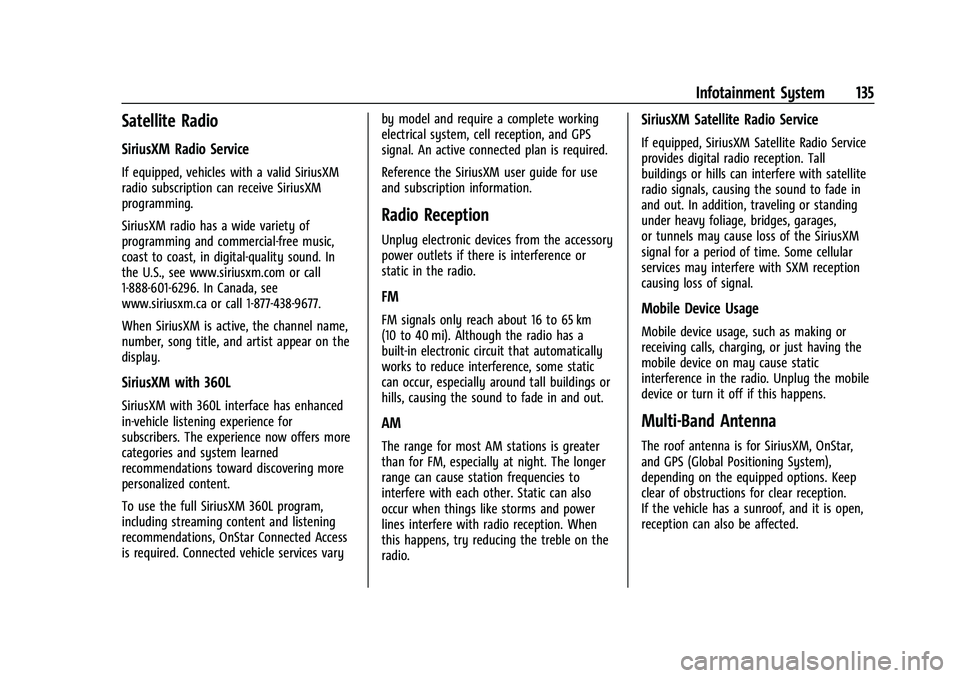
Finding a Station
Seeking a Station
From the AM, FM, or SXM (if equipped)
display, touch
7or6on the infotainment
display to search for the previous or next
strong station or channel.
Browsing Stations
From the AM, FM, or SXM (if equipped)
display, touch Browse to list all available
stations or channels. Navigate up and down
through all stations by scrolling the list.
Touch the station or channel you want to
listen to. Touch
Hto save the station or
channel as a favorite.
Page 134 of 369
Buick Envision Owner Manual (GMNA-Localizing-U.S./Canada/Mexico-
15218978) - 2022 - CRC - 5/12/21
Infotainment System 133
If equipped, touch Update Station List to
update the active stations in your area.
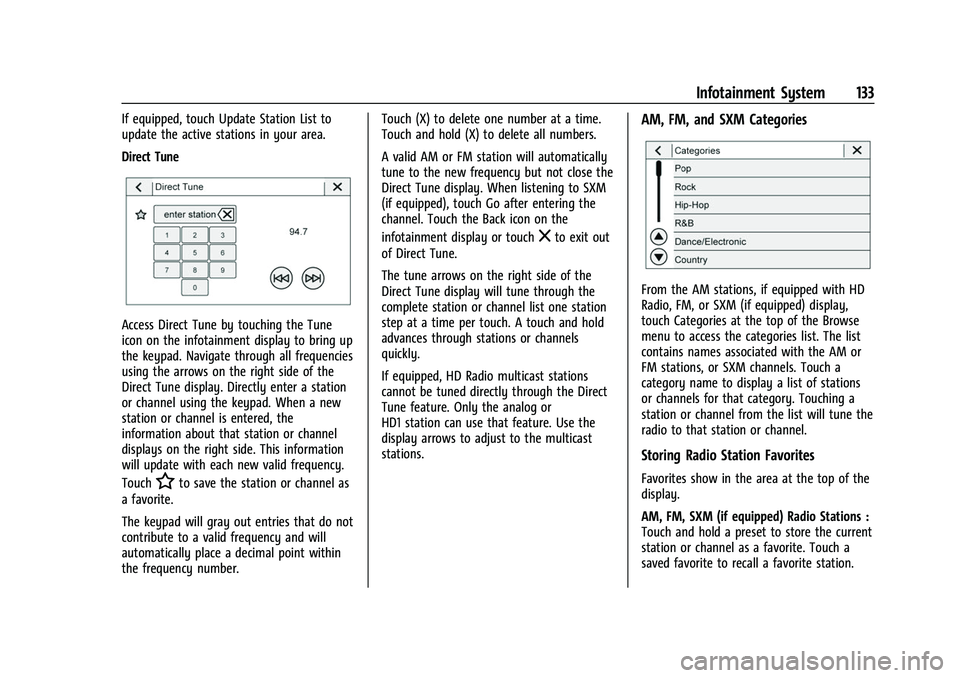
Direct Tune
Access Direct Tune by touching the Tune
icon on the infotainment display to bring up
the keypad. Navigate through all frequencies
using the arrows on the right side of the
Direct Tune display. Directly enter a station
or channel using the keypad. When a new
station or channel is entered, the
information about that station or channel
displays on the right side. This information
will update with each new valid frequency.
Touch
Hto save the station or channel as
a favorite.
The keypad will gray out entries that do not
contribute to a valid frequency and will
automatically place a decimal point within
the frequency number. Touch (X) to delete one number at a time.
Touch and hold (X) to delete all numbers.
A valid AM or FM station will automatically
tune to the new frequency but not close the
Direct Tune display. When listening to SXM
(if equipped), touch Go after entering the
channel. Touch the Back icon on the
infotainment display or touch
zto exit out
of Direct Tune.
The tune arrows on the right side of the
Direct Tune display will tune through the
complete station or channel list one station
step at a time per touch. A touch and hold
advances through stations or channels
quickly.
If equipped, HD Radio multicast stations
cannot be tuned directly through the Direct
Tune feature. Only the analog or
HD1 station can use that feature. Use the
display arrows to adjust to the multicast
stations.
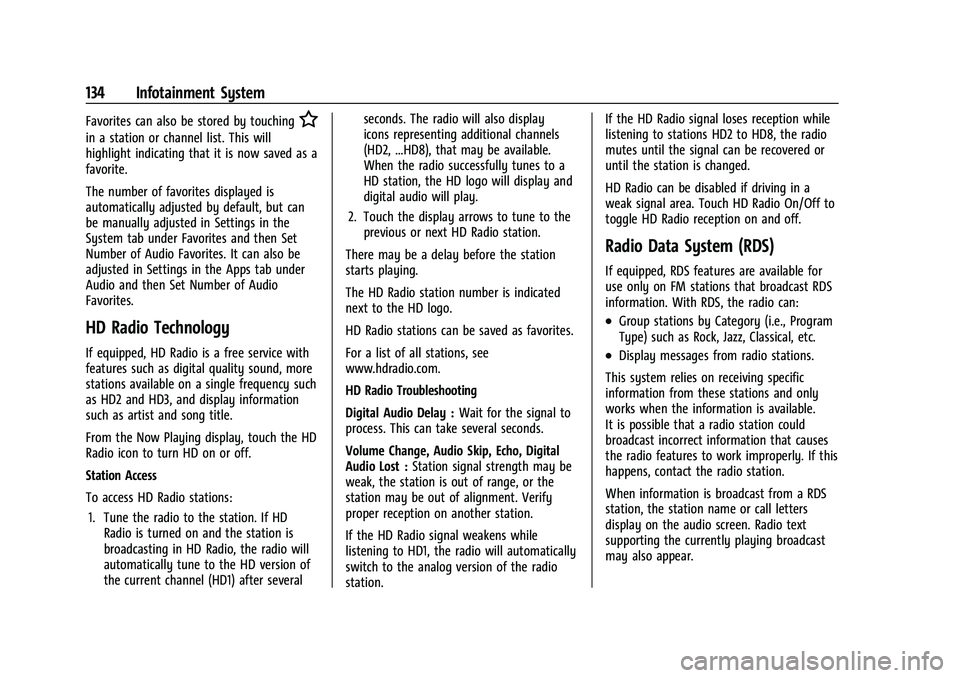
AM, FM, and SXM Categories
From the AM stations, if equipped with HD
Radio, FM, or SXM (if equipped) display,
touch Categories at the top of the Browse
menu to access the categories list. The list
contains names associated with the AM or
FM stations, or SXM channels. Touch a
category name to display a list of stations
or channels for that category. Touching a
station or channel from the list will tune the
radio to that station or channel.
Storing Radio Station Favorites
Favorites show in the area at the top of the
display.
AM, FM, SXM (if equipped) Radio Stations :
Touch and hold a preset to store the current
station or channel as a favorite. Touch a
saved favorite to recall a favorite station.
Page 135 of 369
Buick Envision Owner Manual (GMNA-Localizing-U.S./Canada/Mexico-
15218978) - 2022 - CRC - 5/12/21
134 Infotainment System
Favorites can also be stored by touchingH
in a station or channel list. This will
highlight indicating that it is now saved as a
favorite.
The number of favorites displayed is
automatically adjusted by default, but can
be manually adjusted in Settings in the
System tab under Favorites and then Set
Number of Audio Favorites. It can also be
adjusted in Settings in the Apps tab under
Audio and then Set Number of Audio
Favorites.
HD Radio Technology
If equipped, HD Radio is a free service with
features such as digital quality sound, more
stations available on a single frequency such
as HD2 and HD3, and display information
such as artist and song title.
From the Now Playing display, touch the HD
Radio icon to turn HD on or off.
Station Access
To access HD Radio stations:1. Tune the radio to the station. If HD Radio is turned on and the station is
broadcasting in HD Radio, the radio will
automatically tune to the HD version of
the current channel (HD1) after several seconds. The radio will also display
icons representing additional channels
(HD2, ...HD8), that may be available.
When the radio successfully tunes to a
HD station, the HD logo will display and
digital audio will play.
2. Touch the display arrows to tune to the previous or next HD Radio station.
There may be a delay before the station
starts playing.
The HD Radio station number is indicated
next to the HD logo.
HD Radio stations can be saved as favorites.
For a list of all stations, see
www.hdradio.com.
HD Radio Troubleshooting
Digital Audio Delay : Wait for the signal to
process. This can take several seconds.
Volume Change, Audio Skip, Echo, Digital
Audio Lost : Station signal strength may be
weak, the station is out of range, or the
station may be out of alignment. Verify
proper reception on another station.
If the HD Radio signal weakens while
listening to HD1, the radio will automatically
switch to the analog version of the radio
station. If the HD Radio signal loses reception while
listening to stations HD2 to HD8, the radio
mutes until the signal can be recovered or
until the station is changed.
HD Radio can be disabled if driving in a
weak signal area. Touch HD Radio On/Off to
toggle HD Radio reception on and off.
Radio Data System (RDS)
If equipped, RDS features are available for
use only on FM stations that broadcast RDS
information. With RDS, the radio can:
.Group stations by Category (i.e., Program
Type) such as Rock, Jazz, Classical, etc.
.Display messages from radio stations.
This system relies on receiving specific
information from these stations and only
works when the information is available.
It is possible that a radio station could
broadcast incorrect information that causes
the radio features to work improperly. If this
happens, contact the radio station.
When information is broadcast from a RDS
station, the station name or call letters
display on the audio screen. Radio text
supporting the currently playing broadcast
may also appear.
Page 136 of 369
Buick Envision Owner Manual (GMNA-Localizing-U.S./Canada/Mexico-
15218978) - 2022 - CRC - 5/12/21
Infotainment System 135
Satellite Radio
SiriusXM Radio Service
If equipped, vehicles with a valid SiriusXM
radio subscription can receive SiriusXM
programming.
SiriusXM radio has a wide variety of
programming and commercial-free music,
coast to coast, in digital-quality sound. In
the U.S., see www.siriusxm.com or call
1-888-601-6296. In Canada, see
www.siriusxm.ca or call 1-877-438-9677.
When SiriusXM is active, the channel name,
number, song title, and artist appear on the
display.
SiriusXM with 360L
SiriusXM with 360L interface has enhanced
in-vehicle listening experience for
subscribers. The experience now offers more
categories and system learned
recommendations toward discovering more
personalized content.
To use the full SiriusXM 360L program,
including streaming content and listening
recommendations, OnStar Connected Access
is required. Connected vehicle services varyby model and require a complete working
electrical system, cell reception, and GPS
signal. An active connected plan is required.
Reference the SiriusXM user guide for use
and subscription information.
Radio Reception
Unplug electronic devices from the accessory
power outlets if there is interference or
static in the radio.
FM
FM signals only reach about 16 to 65 km
(10 to 40 mi). Although the radio has a
built-in electronic circuit that automatically
works to reduce interference, some static
can occur, especially around tall buildings or
hills, causing the sound to fade in and out.
AM
The range for most AM stations is greater
than for FM, especially at night. The longer
range can cause station frequencies to
interfere with each other. Static can also
occur when things like storms and power
lines interfere with radio reception. When
this happens, try reducing the treble on the
radio.
SiriusXM Satellite Radio Service
If equipped, SiriusXM Satellite Radio Service
provides digital radio reception. Tall
buildings or hills can interfere with satellite
radio signals, causing the sound to fade in
and out. In addition, traveling or standing
under heavy foliage, bridges, garages,
or tunnels may cause loss of the SiriusXM
signal for a period of time. Some cellular
services may interfere with SXM reception
causing loss of signal.
Mobile Device Usage
Mobile device usage, such as making or
receiving calls, charging, or just having the
mobile device on may cause static
interference in the radio. Unplug the mobile
device or turn it off if this happens.
Multi-Band Antenna
The roof antenna is for SiriusXM, OnStar,
and GPS (Global Positioning System),
depending on the equipped options. Keep
clear of obstructions for clear reception.
If the vehicle has a sunroof, and it is open,
reception can also be affected.
Page 138 of 369
Buick Envision Owner Manual (GMNA-Localizing-U.S./Canada/Mexico-
15218978) - 2022 - CRC - 5/12/21
Infotainment System 137
.Touch and hold to reverse quickly
through playback. Release to return to
playing speed. Elapsed time displays.
6:
.Touch to seek the next track.
.Touch and hold to advance quickly
through playback. Release to return to
playing speed. Elapsed time displays.
Shuffle : Touch the shuffle icon to play
music in random order.
USB Sound Menu
See “Infotainment System Sound Menu”
under AM-FM Radio 0132.
USB Browse Menu
When a list of songs, albums, artists,
or other types of media displays, the up and
down arrows and A-Z appear on the left
side. Select A-Z to view a display that will
show all letters of the alphabet and select
the letter to go to.
Touch the up and down arrows to move the
list up and down. Touch Browse and the following may
display:
Playlists:
1. Touch to view the playlists stored on the USB.
2. Touch a playlist to view the list of all songs in that playlist.
3. Touch a song from the list to begin playback.
Supported playlist extensions are m3u
and pls.
Artists: 1. Touch to view the list of artists stored on the USB.
2. Touch an artist name to view a list of all albums by the artist.
3. To select a song, touch All Songs or touch an album and then touch a song
from the list.
Songs: 1. Touch to display a list of all songs on the USB.
2. To begin playback, touch a song from the list. Albums:
1. Touch to view the albums on the USB.
2. Touch the album to view a list of all songs on the album.
3. Touch a song from the list to begin playback.
Genres: 1. Touch to view the genres on the USB.
2. Touch a genre to view a list of artists.
3. Touch an artist to view albums by that artist.
4. Touch an album to view songs on the album.
5. Touch a song to start playback.
Composers: 1. Touch to view the composers on the USB.
2. Touch a Composer to view a list of albums by that composer.
3. Touch an album or All Songs to view a list of songs.
4. Touch a song from the list to begin playback.
Page 139 of 369
Buick Envision Owner Manual (GMNA-Localizing-U.S./Canada/Mexico-
15218978) - 2022 - CRC - 5/12/21
138 Infotainment System
Folders:1. Touch to view the directories on the USB.
2. Touch a folder to view a list of all files.
3. Touch a file from the list to begin playback.
Podcasts : Touch to view the podcasts on
the connected Apple device and get a list of
podcast episodes.
Audiobooks:
1. Touch to view the audiobooks stored on the Apple device.
2. Touch an audiobook to get a list of chapters.
3. Touch the chapter from the list to begin playback.
File System and Naming
File systems supported by the USB may
include:
.FAT32
.NTFS
.HFS+ The songs, artists, albums, and genres are
taken from the file’s song information and
are only displayed if present. The radio
displays the file name as the track name if
the song information is not available.
Supported Apple Devices
To view supported devices, see
my.buick.com/learn.
Storing and Recalling Media Favorites
To store media favorites, touch Browse to
display a list of media types.
Touch one of the following Browse options
to save a favorite:
Playlists :
Touch
Hnext to any playlist to
store the playlist as a favorite. Touch a
saved favorite to recall a favorite playlist.
The first song in the playlist begins to play.
Artists : Touch
Hnext to any artist to
store the artist as a favorite. Touch a saved
favorite to recall a favorite artist. The first
song in the artist list begins to play.
Songs : Touch
Hnext to any song to store
the song as a favorite. Touch a saved
favorite to recall a favorite song. Albums :
Touch
Hnext to any album to
store the album as a favorite. Touch a saved
favorite to recall a favorite album. The first
song in the album list begins to play.
Genres : Touch
Hnext to any genre to
store the genre as a favorite. Touch a saved
favorite to recall a favorite genre. The first
song of the genre begins to play.
Podcasts : Touch
Hnext to any podcast to
store the podcast as a favorite. Touch a
saved favorite to recall a favorite podcast.
The podcast begins to play.
Audiobooks : Touch
Hnext to any
audiobook to store the audiobook as a
favorite. Touch a saved favorite to recall a
favorite audiobook. The first chapter in the
audiobook begins to play.
Media Playback and Mute
USB playback will be paused if the system is
muted. If the steering wheel mute control is
pressed again, playback will resume.
If the source is changed while in mute,
playback resumes and audio will unmute.
Page 140 of 369
Buick Envision Owner Manual (GMNA-Localizing-U.S./Canada/Mexico-
15218978) - 2022 - CRC - 5/12/21
Infotainment System 139
Bluetooth Audio
If equipped, music may be played from a
paired Bluetooth device. SeeBluetooth
(Pairing and Using a Phone) 0156 or
Bluetooth (Overview) 0156 for help pairing
a device.
Volume and song selection may be
controlled by using the infotainment
controls. If Bluetooth is selected and no
volume is present, check the volume setting
on the mobile device.
Music can be launched by touching
Bluetooth from the recent sources list on
the left of the display or by touching the
More option and then touching the
Bluetooth device.
To play music via Bluetooth:
1. Power on the device, and pair to connect the device.
2. Once paired, touch Audio from the Home Page, then touch Bluetooth from the
recent sources list on the left of the
display.
Bluetooth Sound Menu
See “Infotainment System Sound Menu”
under AM-FM Radio 0132. Manage Bluetooth Devices
From the Home Page:
1. Touch Audio.
2. Touch Devices to add or delete devices.
When using the Bluetooth audio source, the
radio may not be able to launch specific
applications on your device. Use the device
to start audio playback when it is safe to
do so.
All devices launch audio differently. When
selecting Bluetooth audio as a source, the
radio may show as paused on the display.
Touch
rto begin playback.
Browse functionality will be provided where
supported by the Bluetooth device. This
media content will not be part of the
MyMedia source mode.
Some smartphones support sending
Bluetooth music information to display on
the radio. When the radio receives this
information, it will check to see if any is
available and display it. For more
information about supported Bluetooth
features, see your dealer.
Navigation
Using the Navigation System
If equipped, launch the Nav application by
touching the Nav icon on the Home Page or
on the shortcut tray near the bottom of the
infotainment display.
When the Nav application is launched for
the first time, a product walkthrough is
available. Use of the feature requires the
Terms and Conditions and the Privacy
statement to be confirmed. If available and
signed into a profile, it is also suggested to
enable and confirm Predictive Navigation.
Predictive Navigation (If Equipped)
If Predictive Navigation is available and
confirmed, this feature learns preferences by
remembering where the vehicle has been.
It uses the locations and navigation history
to personalize routes and results.
Predictive Navigation may learn elements
such as:
.Personalized routes based on preferred
streets.
.Search results that provide best matches
at the top of the list.
Page 153 of 369
Buick Envision Owner Manual (GMNA-Localizing-U.S./Canada/Mexico-
15218978) - 2022 - CRC - 5/12/21
152 Infotainment System
Most languages do not support natural
language commands in sentence form. For
those languages, use direct commands like
the examples shown on the display.
For best results:
.Listen for the prompt before saying a
command or reply.
.Say“Help” or look at the screen display
for example commands.
.A voice recognition system prompt can be
interrupted while it is playing by
pressing
g.
For example, if the prompt seems to be
taking too long to finish, to speak the
command without waiting for the prompt
to complete, press
g.
.Speak the command naturally, not too
fast, not too slow. Use direct commands
without a lot of extra words.
.Usually Phone and Audio commands can
be spoken in a single command.
For example say, “Call
“Play” followed by the artist or song
name, or “Tune”followed by the radio
station number.
.Navigation destinations are too complex
for a single command. First, say a
command that explains the type of destination needed, such as I want
directions to an
“Address,” “Navigate to
an Intersection,” “I need to find a Place of
Interest or POI,” or“Directions to a
Contact.” The system responds by
requesting more details. For other POIs,
say the name of a category like
“Restaurants,” “Shopping Malls,” or
“Hospitals.”
Most languages do not support natural
language commands in sentence form. For
those languages, use direct commands like
the examples shown on the display.
There is no need to memorize specific
command words. Direct commands might be
more clearly understood by the system. An
example of a direct command would be “Call
commands are displayed on most of the
displays while a voice session is active.
If “Phone” or“Phone Commands,” is stated,
the system understands that a phone call is
requested and will respond with questions
until enough details are gathered.
If the phone number has been saved with a
name and a place, the direct command
should include both, for example “Call
Using Voice Recognition for List Options
When a list is displayed, a voice prompt will
ask to confirm or select an option from that
list. A selection can be made by manually
selecting the item, or by speaking the line
number for the item to select.
When a display contains a list, there may be
options that are available but not displayed.
The list on a voice recognition display
functions the same as a list on other
displays. Scrolling or flinging can be used to
help display other entries from the list.
Manually scrolling or paging the list on a
display during a voice recognition session
suspends the current voice recognition event
and plays the prompt “Make your selection
from the list using the manual controls or
touch the Back icon on the infotainment
display to try again.”
If manual selection takes more than
15 seconds, the session terminates and
prompts that it has timed out. The display
returns back to where voice recognition was
initiated.
The Back Command
Say “Back” or touch the Back icon on the
infotainment display to go to the
previous menu.
Page 154 of 369
Buick Envision Owner Manual (GMNA-Localizing-U.S./Canada/Mexico-
15218978) - 2022 - CRC - 5/12/21
Infotainment System 153
If in voice recognition, and“Back”is stated
all the way through to the initial display,
then “Back” is stated one more time, the
voice recognition session will cancel.
Help
Say “Help” on any voice recognition display
and the help prompt for the display is
played. Additionally, a pop-up displays a
text version of the help prompt. Depending
on how voice recognition was initiated, the
Help pop-up will either display on the
instrument cluster or the infotainment
display. Touch Dismiss to make the pop-up
go away.
Pressing
gwhile the help prompt is playing
will terminate the prompt. Doing this will
stop the help prompt so that a voice
command can be used.
Voice Recognition for the Radio
Some audio displays have a voice
recognition icon (
g) to launch audio voice
recognition. If the voice icon is touched in a
radio display, the voice commands for radio
and media features are available.
“Switch to AM” :Switch bands to AM and
tune to the last AM radio station. “Switch to FM”
:Switch bands to FM and
tune to the last FM radio station.
“Switch to SXM” :Switch bands to SiriusXM
and tune to the last SiriusXM channel.
“Tune to
the radio station whose frequency is
identified in the command (like “nine fifty”).
“Tune to
radio station whose frequency is identified
in the command (like “one o one
point one”).
“Tune to SXM
Tune to the SiriusXM radio station whose
channel number is identified in the
command.
“Tune to SXM
to the SiriusXM radio station whose channel
name is identified in the command.
Voice Recognition for Audio My Media
If browsing MyMedia when the voice icon is
selected, the voice recognition commands
for MyMedia features are available.
“Play Artist” :Begin a dialog to enter a
specific artist name. “Play Artist
:Begin playback
of the media selection identified in the
command.
“Play Album” :Begin a dialog to enter a
specific album name.
“Play Album
playback of the identified album name in
the command.
“Play Song” :Begin a dialog to enter a
specific song name.
“Play Song
of the identified song name in the
command.
“Play Genre” :Begin a dialog to enter a
specific genre.
“Play Genre
playback of the media selection identified in
the command.
“Play Playlist” :Begin a dialog to enter a
specific playlist name.
“Play Playlist
playback of the identified playlist in the
command.
Page 156 of 369
Buick Envision Owner Manual (GMNA-Localizing-U.S./Canada/Mexico-
15218978) - 2022 - CRC - 5/12/21
Infotainment System 155
Voice Recognition for Navigation (if
equipped)
“Navigation”:Begin a dialog to enter
specific destination information.
“Navigation Commands” :Begin a dialog to
enter specific destination information.
“Destination Address” :Begin a dialog to
enter a specific destination address, which
includes the entire address consisting of the
house number, street name, and city and
country.
“Destination Intersection” :Begin a dialog
to enter a specific destination intersection.
“Destination Place of Interest” :Begin a
dialog to enter a destination Place of
Interest category or major brand name (if
equipped).
Not all brand names of businesses are
available for voice entry. Most major chains,
such as chains with more than 20 locations,
should be available to search for by name,
but the name must be precisely spoken.
Nicknames or short names for the
businesses will not likely be found. Lesser
known businesses might have to be located
by category, such as fast food, hotels,
or banks. “Destination Contact”
:Begin a dialog to
enter a specific destination contact name.
“Cancel Route” :End route guidance.
Voice Recognition for the Phone
“Call
entered contact. The command may include
location if the contact has location numbers
stored.
“Call
“On Mobile,” or“On Other” :Initiate a call
to an entered contact and location at home,
at work, on mobile device, or on another
phone.
“Call
standard phone number or emergency
number.
Say “Call
system reads back the number, repeat the
“Call” command to initiate the call. If the
number is not correct, “Delete”will delete
the number and allow it to be entered
again. If the number is not complete, speak
the remaining digits.
“Pair Phone” :Begin the Bluetooth pairing
process. Follow instructions on the radio
display. “Switch Phone”
:Select a different phone
for outgoing calls.
“Voice Keypad” :Begins a dialog to enter
special numbers like international numbers.
The numbers can be entered in groups of
digits with each group of digits being
repeated back by the system. If the group
of digits is not correct, the command
“Delete” will remove the last group of digits
and allow them to be re-entered. Once the
entire number has been entered, the
command “Call”will start dialing the
number.
“Voice Mail” :Initiate a call to voice mail
numbers.
Phone Assistant Voice Recognition
Press and holdgon the steering wheel
controls to pass through and launch Google
phone assistant or Siri.
For the low radio, whether connected by
Bluetooth or phone projection, the only
available voice recognition is either Siri
(iPhone) or the Google Assistant (Android).