brakes BUICK ENVISION 2022 Owner's Manual
[x] Cancel search | Manufacturer: BUICK, Model Year: 2022, Model line: ENVISION, Model: BUICK ENVISION 2022Pages: 369, PDF Size: 14.04 MB
Page 224 of 369
Buick Envision Owner Manual (GMNA-Localizing-U.S./Canada/Mexico-
15218978) - 2022 - CRC - 5/12/21
Driving and Operating 223
Since each gap setting corresponds to a
following time (Far, Medium, or Near), the
following distance will vary based on vehicle
speed. The faster the vehicle speed, the
further back your vehicle will follow a
vehicle detected ahead. Consider traffic and
weather conditions when selecting the
following gap. The range of selectable gaps
may not be appropriate for all drivers and
driving conditions.
Changing the gap setting automatically
changes the alert timing sensitivity (Far,
Medium, or Near) for the Forward Collision
Alert (FCA) feature. SeeForward Collision
Alert (FCA) System 0237.
Courtesy Gap
Press and hold
[on the steering wheel
when vehicle is moving to temporarily
increase the gap with the vehicle ahead to
allow for merging traffic.
Press and hold
[when stopped to cancel
ACC from resuming automatically (if the
stop is brief) and remain stationary. This can
be used to allow traffic to merge between
you and the vehicle ahead. Press RES+ or
the accelerator pedal to resume ACC.
Following distance gap will return to the
original selection after hold. Alerting the Driver
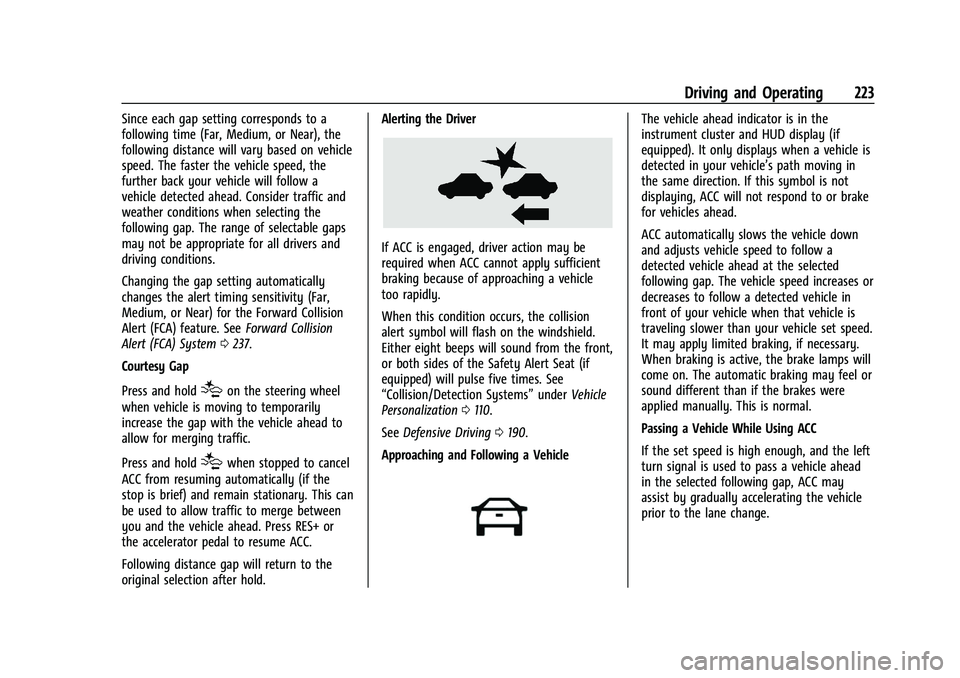
If ACC is engaged, driver action may be
required when ACC cannot apply sufficient
braking because of approaching a vehicle
too rapidly.
When this condition occurs, the collision
alert symbol will flash on the windshield.
Either eight beeps will sound from the front,
or both sides of the Safety Alert Seat (if
equipped) will pulse five times. See
“Collision/Detection Systems”
underVehicle
Personalization 0110.
See Defensive Driving 0190.
Approaching and Following a Vehicle
The vehicle ahead indicator is in the
instrument cluster and HUD display (if
equipped). It only displays when a vehicle is
detected in your vehicle’s path moving in
the same direction. If this symbol is not
displaying, ACC will not respond to or brake
for vehicles ahead.
ACC automatically slows the vehicle down
and adjusts vehicle speed to follow a
detected vehicle ahead at the selected
following gap. The vehicle speed increases or
decreases to follow a detected vehicle in
front of your vehicle when that vehicle is
traveling slower than your vehicle set speed.
It may apply limited braking, if necessary.
When braking is active, the brake lamps will
come on. The automatic braking may feel or
sound different than if the brakes were
applied manually. This is normal.
Passing a Vehicle While Using ACC
If the set speed is high enough, and the left
turn signal is used to pass a vehicle ahead
in the selected following gap, ACC may
assist by gradually accelerating the vehicle
prior to the lane change.
Page 225 of 369
Buick Envision Owner Manual (GMNA-Localizing-U.S./Canada/Mexico-
15218978) - 2022 - CRC - 5/12/21
224 Driving and Operating
{Warning
When using ACC to pass a vehicle or
perform a lane change, the following
distance to the vehicle being passed may
be reduced. ACC may not apply sufficient
acceleration or braking when passing a
vehicle or performing a lane change.
Always be ready to manually accelerate
or brake to complete the pass or lane
change.
Stationary or Very Slow-Moving Objects
{Warning
ACC may not detect and react to stopped
or slow-moving vehicles ahead of you. For
example, the system may not brake for a
vehicle it has never detected moving. This
can occur in stop-and-go traffic or when a
vehicle suddenly appears due to a vehicle
ahead changing lanes. Your vehicle may
not stop and could cause a crash. Use
caution when using ACC. Your complete
attention is always required while driving
and you should be ready to take action
and apply the brakes. Irregular Objects Affecting ACC
ACC may have difficulty detecting the
following objects:
.Vehicles with cargo extending from the
back end.
.Non-standard shaped vehicles, such as
vehicle transport, vehicles with a side car
fitted, or horse carriages.
.Objects that are close to the front of your
vehicle.
ACC Automatically Disengages
ACC may automatically disengage and the
driver will need to manually apply the
brakes to slow the vehicle if:
.The sensors are blocked.
.The Traction Control System (TCS) or
StabiliTrak/ESC system has activated or
been disabled.
.There is a fault in the system.
.The radar falsely reports blockage when
driving in a desert or remote area with
no other vehicles or roadside objects.
.A DIC message may display to indicate
that ACC is temporarily unavailable.
The ACC indicator will turn white when ACC
is no longer active. In some cases, when ACC is temporarily
unavailable, regular cruise control may be
used. See
“Switching Between ACC and
Regular Cruise Control” in this section.
Always consider driving conditions before
using either cruise control system.
Notification to Resume ACC
ACC will maintain a follow gap behind a
detected vehicle and slow your vehicle to a
stop behind that vehicle.
If the stopped vehicle ahead has driven
away and ACC has not resumed, the vehicle
ahead indicator will flash as a reminder to
check traffic before proceeding. In addition,
the left and right sides of the Safety Alert
Seat will pulse three times, or three beeps
will sound. See “Alert Type”and“Adaptive
Cruise Go Notifier” in“Collision/Detection
Systems” underVehicle Personalization
0 110.
When the vehicle ahead drives away, ACC
resumes automatically if the stop was brief.
If necessary, press RES+ or the accelerator
pedal to resume ACC. If stopped for more
than two minutes or if the driver door is
opened and the driver seat belt is
unbuckled, the ACC automatically applies the
Electric Parking Brake (EPB) to hold the
Page 226 of 369
Buick Envision Owner Manual (GMNA-Localizing-U.S./Canada/Mexico-
15218978) - 2022 - CRC - 5/12/21
Driving and Operating 225
vehicle. The EPB status light will turn on.
SeeElectric Parking Brake 0211. To release
the EPB, press the accelerator pedal.
A DIC warning message may display
indicating to shift to P (Park) before exiting
the vehicle.
{Warning
If ACC has stopped the vehicle, and if ACC
is disengaged, turned off, or canceled, the
vehicle will no longer be held at a stop.
The vehicle can move. When ACC is
holding the vehicle at a stop, always be
prepared to manually apply the brakes.
{Warning
Leaving the vehicle without placing it in
P (Park) can be dangerous. Do not leave
the vehicle while it is being held at a
stop by ACC. Always place the vehicle in
P (Park) and turn off the ignition before
leaving the vehicle. ACC Override
If using the accelerator pedal while ACC is
active, the ACC indicator turns blue on the
instrument cluster and in the HUD,
if equipped, to indicate that automatic
braking will not occur. ACC will resume
operation when the accelerator pedal is not
being pressed.
{Warning
The ACC will not automatically apply the
brakes if your foot is resting on the
accelerator pedal. You could crash into a
vehicle ahead of you.
Curves in the Road
{Warning
On curves, ACC may not detect a vehicle
ahead in your lane. You could be startled
if the vehicle accelerates up to the set
speed, especially when following a vehicle
exiting or entering exit ramps. You could
lose control of the vehicle or crash. Do
not use ACC while driving on an entrance
or exit ramp. Always be ready to use the
brakes if necessary.
{Warning
On curves, ACC may respond to a vehicle
in another lane, or may not have time to
react to a vehicle in your lane. You could
crash into a vehicle ahead of you, or lose
control of your vehicle. Give extra
attention in curves and be ready to use
the brakes if necessary. Select an
appropriate speed while driving in curves.
ACC may operate differently in a sharp
curve. It may reduce the vehicle speed if the
curve is too sharp.
If equipped, the curve speed control
indicator
bmay illuminate green when
ACC is actively controlling the vehicle speed
and detects a sharp curve on the road
ahead.
ACC automatically slows the vehicle down
while navigating the curve and may increase
speed out of the curve, but will not exceed
the set speed.
Page 227 of 369

Buick Envision Owner Manual (GMNA-Localizing-U.S./Canada/Mexico-
15218978) - 2022 - CRC - 5/12/21
226 Driving and Operating
When following a vehicle and entering a
curve, ACC may not detect the vehicle ahead
and accelerate to the set speed. When this
happens the vehicle ahead indicator will not
appear.
ACC may detect a vehicle that is not in your
lane and apply the brakes.
ACC may occasionally provide an alert
and/or braking that is considered
unnecessary. It could respond to vehicles indifferent lanes or stationary objects when
entering or exiting a curve. This is normal
operation. The vehicle does not need service.
Other Vehicle Lane Changes
ACC will not detect a vehicle ahead until it
is completely in the lane. The brake may
need to be manually applied.
Objects Not Directly in Front of Your Vehicle
The detection of objects in front of the
vehicle may not be possible if:
.The vehicle or object ahead is not within
your lane.
.The vehicle ahead is shifted, not centered,
or is shifted to one side of the lane.
Driving in Narrow Lanes
Vehicles in adjacent traffic lanes or roadside
objects may be incorrectly detected when
located along the roadway. Do Not Use ACC on Hills
Do not use ACC when driving on steep hills
as ACC may not detect a vehicle ahead.
Do Not Use ACC When Towing a Trailer
ACC should not be used when towing a
trailer.
Disengaging ACC
There are three ways to disengage ACC:
.Step lightly on the brake pedal.
.Press*.
.PressJ.
Erasing Speed Memory
The ACC set speed is erased from memory if
Jis pressed or if the ignition is turned off.
Page 229 of 369
Buick Envision Owner Manual (GMNA-Localizing-U.S./Canada/Mexico-
15218978) - 2022 - CRC - 5/12/21
228 Driving and Operating
Warning (Continued)
Complete attention is always required
while driving, and you should be ready to
take action and apply the brakes and/or
steer the vehicle to avoid crashes.
Audible or Safety Alert Seat
Some driver assistance features alert the
driver of obstacles by beeping. To change
the volume of the warning chime, see
“Comfort and Convenience” underVehicle
Personalization 0110.
If equipped with the Safety Alert Seat, the
driver seat cushion may provide a vibrating
pulse alert instead of beeping. To change
this, see “Collision/Detection Systems” under
Vehicle Personalization 0110.
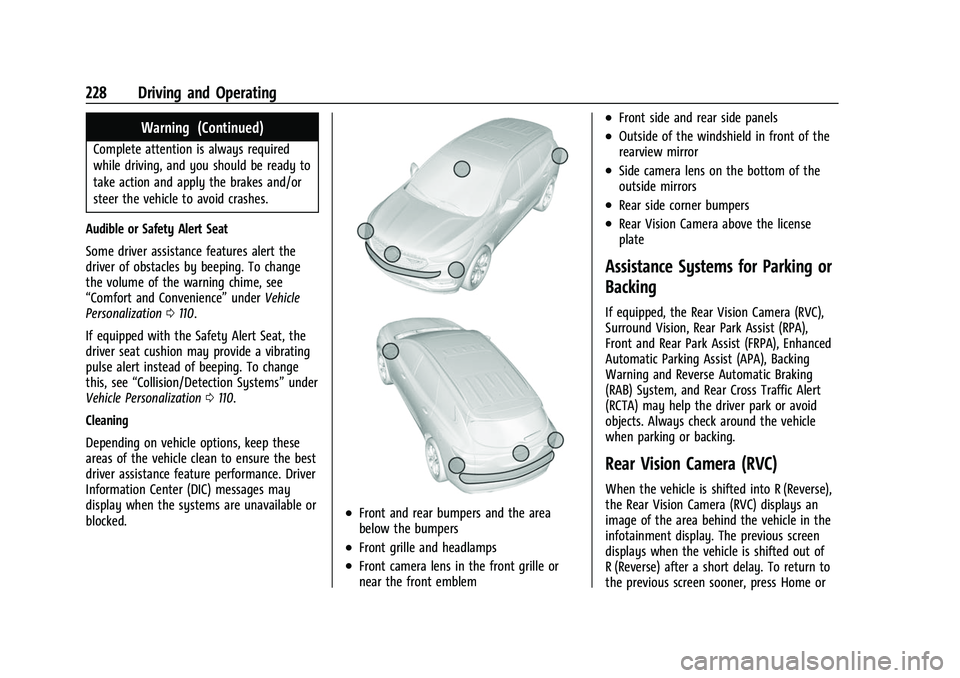
Cleaning
Depending on vehicle options, keep these
areas of the vehicle clean to ensure the best
driver assistance feature performance. Driver
Information Center (DIC) messages may
display when the systems are unavailable or
blocked.
.Front and rear bumpers and the area
below the bumpers
.Front grille and headlamps
.Front camera lens in the front grille or
near the front emblem
.Front side and rear side panels
.Outside of the windshield in front of the
rearview mirror
.Side camera lens on the bottom of the
outside mirrors
.Rear side corner bumpers
.Rear Vision Camera above the license
plate
Assistance Systems for Parking or
Backing
If equipped, the Rear Vision Camera (RVC),
Surround Vision, Rear Park Assist (RPA),
Front and Rear Park Assist (FRPA), Enhanced
Automatic Parking Assist (APA), Backing
Warning and Reverse Automatic Braking
(RAB) System, and Rear Cross Traffic Alert
(RCTA) may help the driver park or avoid
objects. Always check around the vehicle
when parking or backing.
Rear Vision Camera (RVC)
When the vehicle is shifted into R (Reverse),
the Rear Vision Camera (RVC) displays an
image of the area behind the vehicle in the
infotainment display. The previous screen
displays when the vehicle is shifted out of
R (Reverse) after a short delay. To return to
the previous screen sooner, press Home or
Page 233 of 369
Buick Envision Owner Manual (GMNA-Localizing-U.S./Canada/Mexico-
15218978) - 2022 - CRC - 5/12/21
232 Driving and Operating
system is turned off, a system off message
is shown on the display. This message
disappears after a short period of time.
If the vehicle has a trailer hitch attached,
select ON - ATTACHED using the
infotainment system menus to allow Park
Assist to function properly. Park Assist is
able to compensate for a trailer hitch up to
0.3 m (1 ft) in length and width. Park Assist
may not function properly with larger trailer
hitches and provide inaccurate information
of objects in the rear.
Turn off Park Assist when towing a trailer to
prevent unwanted beeps and when a bike
rack is attached to ensure proper operation.
The Park Assist System can also be turned
on or off using the infotainment system.
SeeVehicle Personalization 0110.
When the System Does Not Seem to Work
Properly
If a service message displays, check the
following conditions:
.The sensors may not be clean. Keep the
vehicle's front and rear bumpers free of
mud, dirt, snow, ice, and slush. For
cleaning instructions, see Exterior Care
0 311.
.The Park Assist sensors may be covered
by frost or ice. Frost or ice can form
around and behind the sensors and may
not always be seen; this can occur after
washing the vehicle in cold weather. The
message may not clear until the frost or
ice has melted.
If a service message displays and the above
conditions do not exist, take the vehicle to
your dealer for repairs.
If the Park Assist System does not activate
due to a temporary condition, a system off
message is shown on the display. This can
occur under the following conditions:
.The driver has disabled the system.
.An object is currently blocking the rear
sensors (for example, bike rack, tailgate,
trailer hitch, etc.). Once the object is
removed, Park Assist will return to normal
operation.
.The bumper is damaged. Take the vehicle
to your dealer for repairs.
.Other conditions, such as vibrations from
a jackhammer or the compression of air
brakes on a very large truck, are affecting
system performance.
Automatic Parking Assist (APA)
Enhanced Automatic Parking Assist (APA)
If equipped, under certain conditions
Enhanced Automatic Parking Assist (APA) can
use sensors based on sonar technology
along the vehicle’s front, rear and sides to
detect a parking spot and automatically park
the vehicle. The vehicle will automatically
maneuver into a detected spot moving at or
near idle speed. It does this by
automatically steering, braking, accelerating,
and gear shifting. The driver must always be
prepared to apply braking if necessary. A
display and beeps help to guide the parking
maneuvers.
{Warning
APA may not always detect objects in the
parking space, objects that are not rigid
(e.g. shrubs and chain-link fences), objects
below the bumper, objects high off the
ground (e.g. flatbed trucks), hanging
objects, objects below ground level such
(e.g. large potholes), or moving objects
(e.g. pedestrians, cyclists, vehicles).
Always verify that the parking space is
appropriate for parking a vehicle. APA (Continued)
Page 234 of 369
Buick Envision Owner Manual (GMNA-Localizing-U.S./Canada/Mexico-
15218978) - 2022 - CRC - 5/12/21
Driving and Operating 233
Warning (Continued)
may not respond to changes in the
parking space, such as movement of an
adjacent vehicle, or a person or object
entering the parking space. APA does not
detect or avoid traffic that is behind or
alongside of the vehicle. Always be
prepared to stop the vehicle during the
parking maneuver.
How to Activate Automatic Parking
To activate APA, press the soft-touch button
or hard switch
Ofor the system to begin
searching for a parking space while driving
forward at no greater than
30 km/h (18 mph). By default, APA searches
for parallel parking spaces to the right of
the vehicle up to the sensors’ range of 1.5 m
(5 ft). To search for a parking space to the
left, turn on the left turn signal or,
if available, change the side selection in the
infotainment display. To switch the parking
mode between parallel and perpendicular
press and hold
Owhile searching for a
valid parking spot or, if available, change the
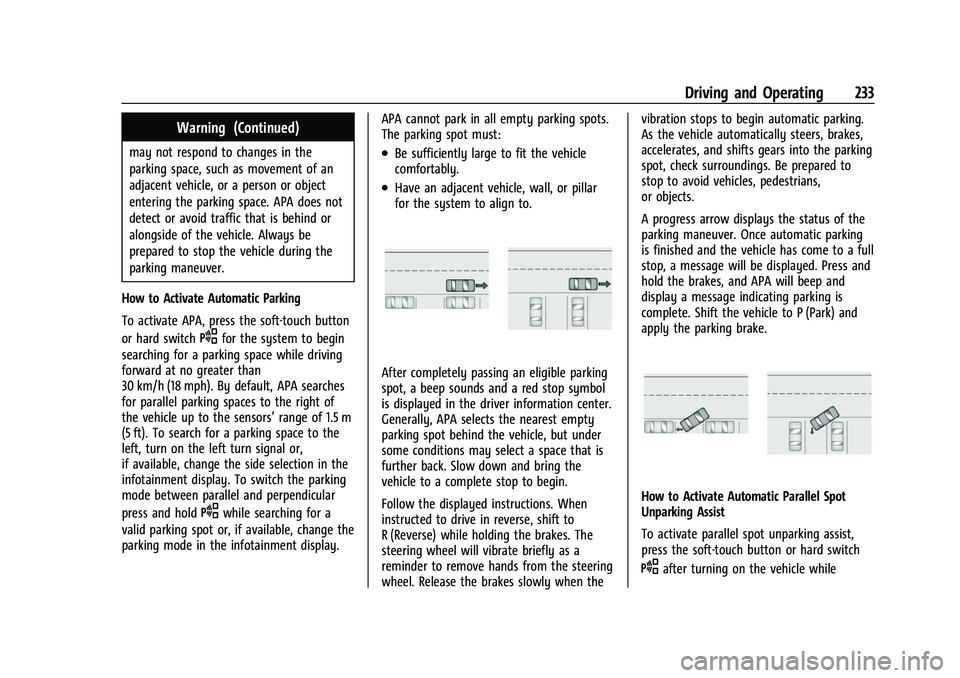
parking mode in the infotainment display. APA cannot park in all empty parking spots.
The parking spot must:
.Be sufficiently large to fit the vehicle
comfortably.
.Have an adjacent vehicle, wall, or pillar
for the system to align to.
After completely passing an eligible parking
spot, a beep sounds and a red stop symbol
is displayed in the driver information center.
Generally, APA selects the nearest empty
parking spot behind the vehicle, but under
some conditions may select a space that is
further back. Slow down and bring the
vehicle to a complete stop to begin.
Follow the displayed instructions. When
instructed to drive in reverse, shift to
R (Reverse) while holding the brakes. The
steering wheel will vibrate briefly as a
reminder to remove hands from the steering
wheel. Release the brakes slowly when thevibration stops to begin automatic parking.
As the vehicle automatically steers, brakes,
accelerates, and shifts gears into the parking
spot, check surroundings. Be prepared to
stop to avoid vehicles, pedestrians,
or objects.
A progress arrow displays the status of the
parking maneuver. Once automatic parking
is finished and the vehicle has come to a full
stop, a message will be displayed. Press and
hold the brakes, and APA will beep and
display a message indicating parking is
complete. Shift the vehicle to P (Park) and
apply the parking brake.
How to Activate Automatic Parallel Spot
Unparking Assist
To activate parallel spot unparking assist,
press the soft-touch button or hard switch
Oafter turning on the vehicle while
Page 235 of 369
Buick Envision Owner Manual (GMNA-Localizing-U.S./Canada/Mexico-
15218978) - 2022 - CRC - 5/12/21
234 Driving and Operating
leaving it in P (Park) and the parking brake
is off. If the system is able to determine a
path out of the parking spot, a screen will
be displayed for unparking options. Similar
to automatic parking, follow the displayed
instructions and check surroundings as the
vehicle unparks.
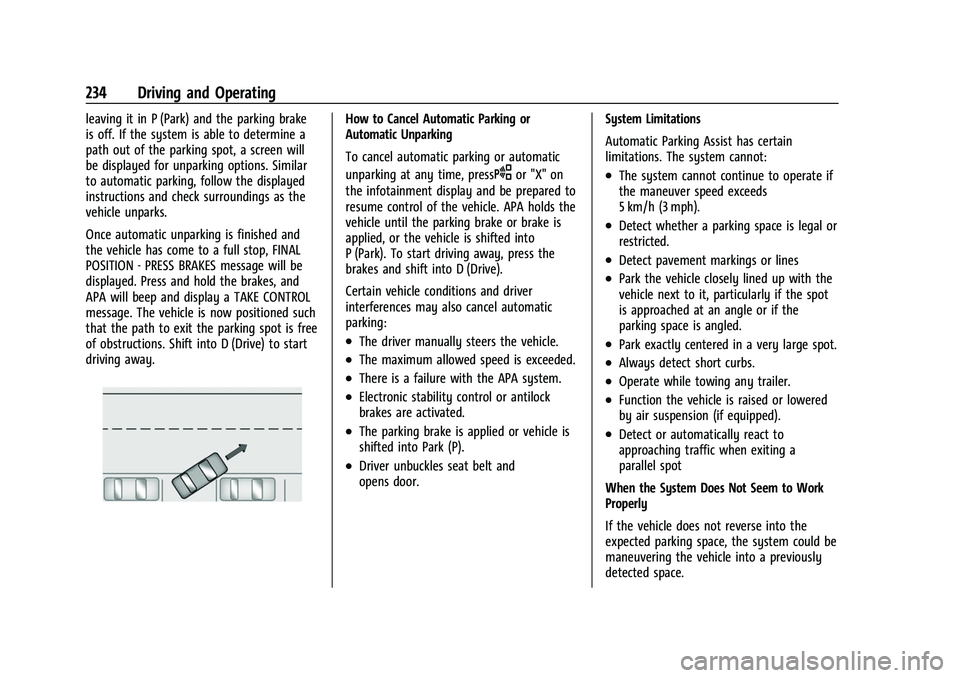
Once automatic unparking is finished and
the vehicle has come to a full stop, FINAL
POSITION - PRESS BRAKES message will be
displayed. Press and hold the brakes, and
APA will beep and display a TAKE CONTROL
message. The vehicle is now positioned such
that the path to exit the parking spot is free
of obstructions. Shift into D (Drive) to start
driving away.How to Cancel Automatic Parking or
Automatic Unparking
To cancel automatic parking or automatic
unparking at any time, press
Oor "X" on
the infotainment display and be prepared to
resume control of the vehicle. APA holds the
vehicle until the parking brake or brake is
applied, or the vehicle is shifted into
P (Park). To start driving away, press the
brakes and shift into D (Drive).
Certain vehicle conditions and driver
interferences may also cancel automatic
parking:
.The driver manually steers the vehicle.
.The maximum allowed speed is exceeded.
.There is a failure with the APA system.
.Electronic stability control or antilock
brakes are activated.
.The parking brake is applied or vehicle is
shifted into Park (P).
.Driver unbuckles seat belt and
opens door. System Limitations
Automatic Parking Assist has certain
limitations. The system cannot:
.The system cannot continue to operate if
the maneuver speed exceeds
5 km/h (3 mph).
.Detect whether a parking space is legal or
restricted.
.Detect pavement markings or lines
.Park the vehicle closely lined up with the
vehicle next to it, particularly if the spot
is approached at an angle or if the
parking space is angled.
.Park exactly centered in a very large spot.
.Always detect short curbs.
.Operate while towing any trailer.
.Function the vehicle is raised or lowered
by air suspension (if equipped).
.Detect or automatically react to
approaching traffic when exiting a
parallel spot
When the System Does Not Seem to Work
Properly
If the vehicle does not reverse into the
expected parking space, the system could be
maneuvering the vehicle into a previously
detected space.
Page 236 of 369

Buick Envision Owner Manual (GMNA-Localizing-U.S./Canada/Mexico-
15218978) - 2022 - CRC - 5/12/21
Driving and Operating 235
Reverse Automatic Braking (RAB)
Backing Warning and Reverse Automatic
Braking (RAB)
Vehicles with Adaptive Cruise Control (ACC)
have the Backing Warning System and
Reverse Automatic Braking (RAB) system.
When in R (Reverse), Backing Warning alerts
of rear objects at vehicle speeds greater
than 8 km/h (5 mph), and RAB may
automatically brake hard at speeds between
1–32 km/h (0.5–20 mph).
The Backing Warning System will beep once
from the rear when an object is first
detected, or pulse twice on both sides of the
Safety Alert Seat. When the system detects
a potential crash, beeps will be heard from
the rear, or five pulses will be felt on both
sides of the Safety Alert Seat. There may
also be a brief, sharp application of the
brakes.
{Warning
The Backing Warning System only
operates at speeds greater than 8 km/h
(5 mph). It does not detect children,
pedestrians, bicyclists, animals, or objects(Continued)
Warning (Continued)
below the bumper or that are too close
or too far from the vehicle. In some
situations, such as at higher backing
speeds, there may not be enough time
for the short, sharp application of the
vehicle brake system to occur. To prevent
injury, death, or vehicle damage, even
with the Backing Warning System, always
check the area around the vehicle and
check all mirrors before backing.
When the vehicle is in R (Reverse), if the
system detects the vehicle is backing too
fast to avoid a crash with a detected object
behind your vehicle in your path, it may
automatically brake hard to a stop to help
avoid or reduce the harm caused by a
backing crash.
{Warning
RAB may not avoid many types of
backing crashes. Do not wait for the
automatic braking to apply. This system
is not designed to replace driver braking
and only works in R (Reverse) when an
object is detected directly behind the (Continued)
Warning (Continued)
vehicle. It may not brake or stop in time
to avoid a crash. It will not brake for
objects when the vehicle is moving at
very low speeds. It does not detect
children, pedestrians, bicyclists, animals,
or objects below the bumper or that are
too close or too far from the vehicle. To
prevent injury, death, or vehicle damage,
even with RAB, always check the area
around the vehicle before and while
backing.
Pressing the brake pedal after the vehicle
comes to a stop will release RAB. If the
brake pedal is not pressed soon after the
stop, the Electric Parking Brake (EPB) may be
set. When it is safe, press the accelerator
pedal firmly at any time to override RAB.
{Warning
There may be instances where
unexpected or undesired automatic
braking occurs. If this happens, either
press the brake pedal or firmly press the
accelerator pedal to release the brakes
from the RAB system. Before releasing (Continued)
Page 237 of 369
Buick Envision Owner Manual (GMNA-Localizing-U.S./Canada/Mexico-
15218978) - 2022 - CRC - 5/12/21
236 Driving and Operating
Warning (Continued)
the brakes, check the RVC and check the
area around the vehicle to make sure it is
safe to proceed.
Rear Pedestrian Alert
Under certain conditions, this feature can
provide alerts for a pedestrian within the
system’s range directly behind the vehicle.
This feature only works in R (Reverse) below
12 km/h (8 mph), and detects pedestrians up
to 8 m (26 ft) away during daytime driving.
During nighttime driving, feature
performance is very limited.
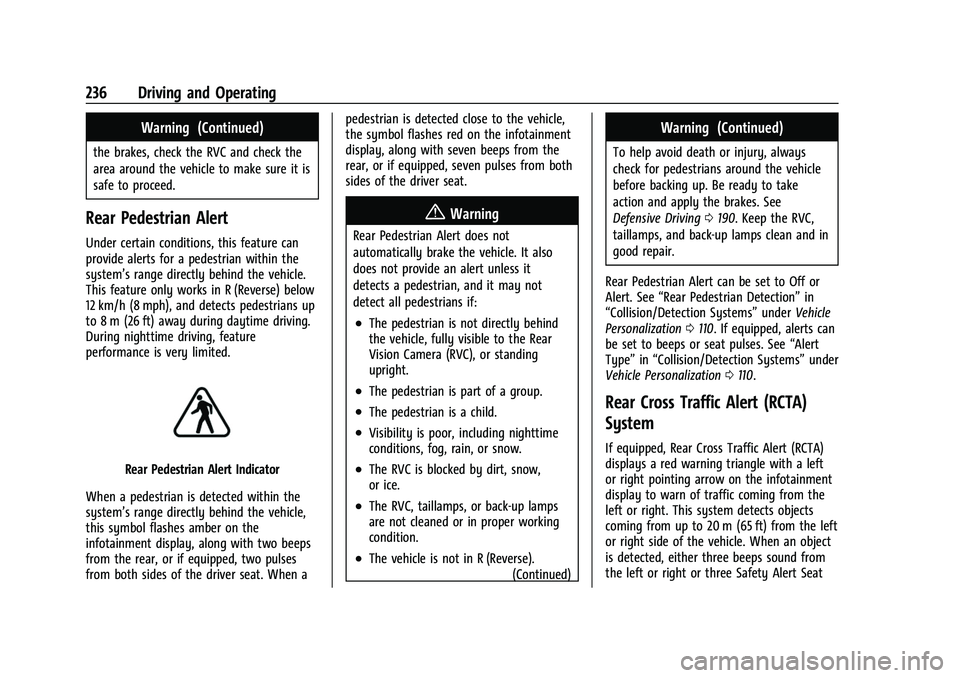
Rear Pedestrian Alert Indicator
When a pedestrian is detected within the
system’s range directly behind the vehicle,
this symbol flashes amber on the
infotainment display, along with two beeps
from the rear, or if equipped, two pulses
from both sides of the driver seat. When a pedestrian is detected close to the vehicle,
the symbol flashes red on the infotainment
display, along with seven beeps from the
rear, or if equipped, seven pulses from both
sides of the driver seat.
{Warning
Rear Pedestrian Alert does not
automatically brake the vehicle. It also
does not provide an alert unless it
detects a pedestrian, and it may not
detect all pedestrians if:
.The pedestrian is not directly behind
the vehicle, fully visible to the Rear
Vision Camera (RVC), or standing
upright.
.The pedestrian is part of a group.
.The pedestrian is a child.
.Visibility is poor, including nighttime
conditions, fog, rain, or snow.
.The RVC is blocked by dirt, snow,
or ice.
.The RVC, taillamps, or back-up lamps
are not cleaned or in proper working
condition.
.The vehicle is not in R (Reverse).
(Continued)
Warning (Continued)
To help avoid death or injury, always
check for pedestrians around the vehicle
before backing up. Be ready to take
action and apply the brakes. See
Defensive Driving0190. Keep the RVC,
taillamps, and back-up lamps clean and in
good repair.
Rear Pedestrian Alert can be set to Off or
Alert. See “Rear Pedestrian Detection” in
“Collision/Detection Systems” underVehicle
Personalization 0110. If equipped, alerts can
be set to beeps or seat pulses. See “Alert
Type” in“Collision/Detection Systems” under
Vehicle Personalization 0110.
Rear Cross Traffic Alert (RCTA)
System
If equipped, Rear Cross Traffic Alert (RCTA)
displays a red warning triangle with a left
or right pointing arrow on the infotainment
display to warn of traffic coming from the
left or right. This system detects objects
coming from up to 20 m (65 ft) from the left
or right side of the vehicle. When an object
is detected, either three beeps sound from
the left or right or three Safety Alert Seat