infotainment BUICK ENVISION 2022 Manual PDF
[x] Cancel search | Manufacturer: BUICK, Model Year: 2022, Model line: ENVISION, Model: BUICK ENVISION 2022Pages: 369, PDF Size: 14.04 MB
Page 233 of 369
Buick Envision Owner Manual (GMNA-Localizing-U.S./Canada/Mexico-
15218978) - 2022 - CRC - 5/12/21
232 Driving and Operating
system is turned off, a system off message
is shown on the display. This message
disappears after a short period of time.
If the vehicle has a trailer hitch attached,
select ON - ATTACHED using the
infotainment system menus to allow Park
Assist to function properly. Park Assist is
able to compensate for a trailer hitch up to
0.3 m (1 ft) in length and width. Park Assist
may not function properly with larger trailer
hitches and provide inaccurate information
of objects in the rear.
Turn off Park Assist when towing a trailer to
prevent unwanted beeps and when a bike
rack is attached to ensure proper operation.
The Park Assist System can also be turned
on or off using the infotainment system.
SeeVehicle Personalization 0110.
When the System Does Not Seem to Work
Properly
If a service message displays, check the
following conditions:
.The sensors may not be clean. Keep the
vehicle's front and rear bumpers free of
mud, dirt, snow, ice, and slush. For
cleaning instructions, see Exterior Care
0 311.
.The Park Assist sensors may be covered
by frost or ice. Frost or ice can form
around and behind the sensors and may
not always be seen; this can occur after
washing the vehicle in cold weather. The
message may not clear until the frost or
ice has melted.
If a service message displays and the above
conditions do not exist, take the vehicle to
your dealer for repairs.
If the Park Assist System does not activate
due to a temporary condition, a system off
message is shown on the display. This can
occur under the following conditions:
.The driver has disabled the system.
.An object is currently blocking the rear
sensors (for example, bike rack, tailgate,
trailer hitch, etc.). Once the object is
removed, Park Assist will return to normal
operation.
.The bumper is damaged. Take the vehicle
to your dealer for repairs.
.Other conditions, such as vibrations from
a jackhammer or the compression of air
brakes on a very large truck, are affecting
system performance.
Automatic Parking Assist (APA)
Enhanced Automatic Parking Assist (APA)
If equipped, under certain conditions
Enhanced Automatic Parking Assist (APA) can
use sensors based on sonar technology
along the vehicle’s front, rear and sides to
detect a parking spot and automatically park
the vehicle. The vehicle will automatically
maneuver into a detected spot moving at or
near idle speed. It does this by
automatically steering, braking, accelerating,
and gear shifting. The driver must always be
prepared to apply braking if necessary. A
display and beeps help to guide the parking
maneuvers.
{Warning
APA may not always detect objects in the
parking space, objects that are not rigid
(e.g. shrubs and chain-link fences), objects
below the bumper, objects high off the
ground (e.g. flatbed trucks), hanging
objects, objects below ground level such
(e.g. large potholes), or moving objects
(e.g. pedestrians, cyclists, vehicles).
Always verify that the parking space is
appropriate for parking a vehicle. APA (Continued)
Page 234 of 369
Buick Envision Owner Manual (GMNA-Localizing-U.S./Canada/Mexico-
15218978) - 2022 - CRC - 5/12/21
Driving and Operating 233
Warning (Continued)
may not respond to changes in the
parking space, such as movement of an
adjacent vehicle, or a person or object
entering the parking space. APA does not
detect or avoid traffic that is behind or
alongside of the vehicle. Always be
prepared to stop the vehicle during the
parking maneuver.
How to Activate Automatic Parking
To activate APA, press the soft-touch button
or hard switch
Ofor the system to begin
searching for a parking space while driving
forward at no greater than
30 km/h (18 mph). By default, APA searches
for parallel parking spaces to the right of
the vehicle up to the sensors’ range of 1.5 m
(5 ft). To search for a parking space to the
left, turn on the left turn signal or,
if available, change the side selection in the
infotainment display. To switch the parking
mode between parallel and perpendicular
press and hold
Owhile searching for a
valid parking spot or, if available, change the
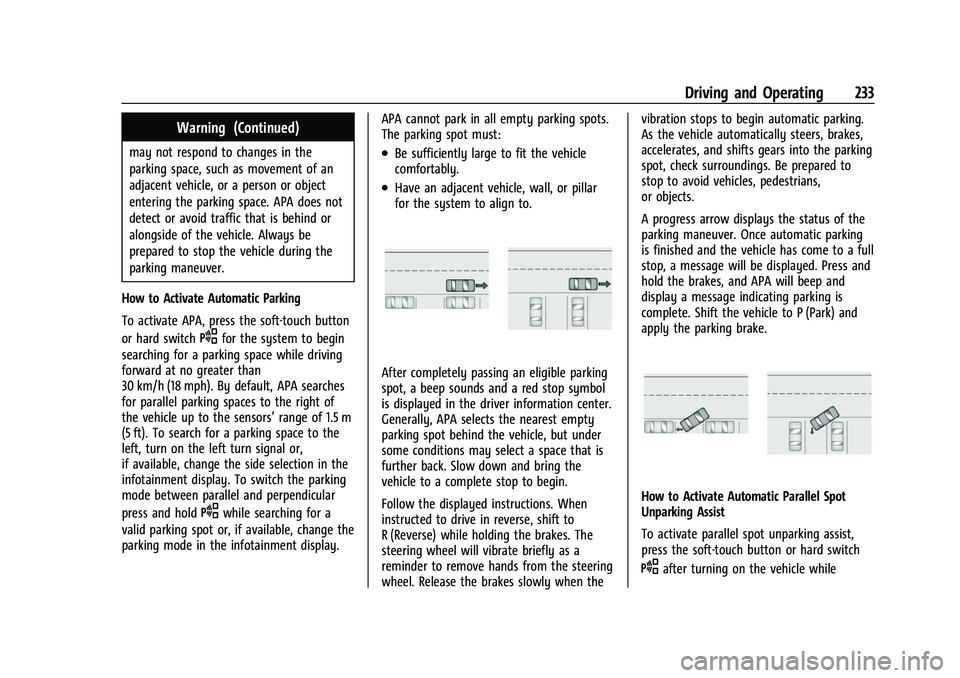
parking mode in the infotainment display. APA cannot park in all empty parking spots.
The parking spot must:
.Be sufficiently large to fit the vehicle
comfortably.
.Have an adjacent vehicle, wall, or pillar
for the system to align to.
After completely passing an eligible parking
spot, a beep sounds and a red stop symbol
is displayed in the driver information center.
Generally, APA selects the nearest empty
parking spot behind the vehicle, but under
some conditions may select a space that is
further back. Slow down and bring the
vehicle to a complete stop to begin.
Follow the displayed instructions. When
instructed to drive in reverse, shift to
R (Reverse) while holding the brakes. The
steering wheel will vibrate briefly as a
reminder to remove hands from the steering
wheel. Release the brakes slowly when thevibration stops to begin automatic parking.
As the vehicle automatically steers, brakes,
accelerates, and shifts gears into the parking
spot, check surroundings. Be prepared to
stop to avoid vehicles, pedestrians,
or objects.
A progress arrow displays the status of the
parking maneuver. Once automatic parking
is finished and the vehicle has come to a full
stop, a message will be displayed. Press and
hold the brakes, and APA will beep and
display a message indicating parking is
complete. Shift the vehicle to P (Park) and
apply the parking brake.
How to Activate Automatic Parallel Spot
Unparking Assist
To activate parallel spot unparking assist,
press the soft-touch button or hard switch
Oafter turning on the vehicle while
Page 235 of 369
Buick Envision Owner Manual (GMNA-Localizing-U.S./Canada/Mexico-
15218978) - 2022 - CRC - 5/12/21
234 Driving and Operating
leaving it in P (Park) and the parking brake
is off. If the system is able to determine a
path out of the parking spot, a screen will
be displayed for unparking options. Similar
to automatic parking, follow the displayed
instructions and check surroundings as the
vehicle unparks.
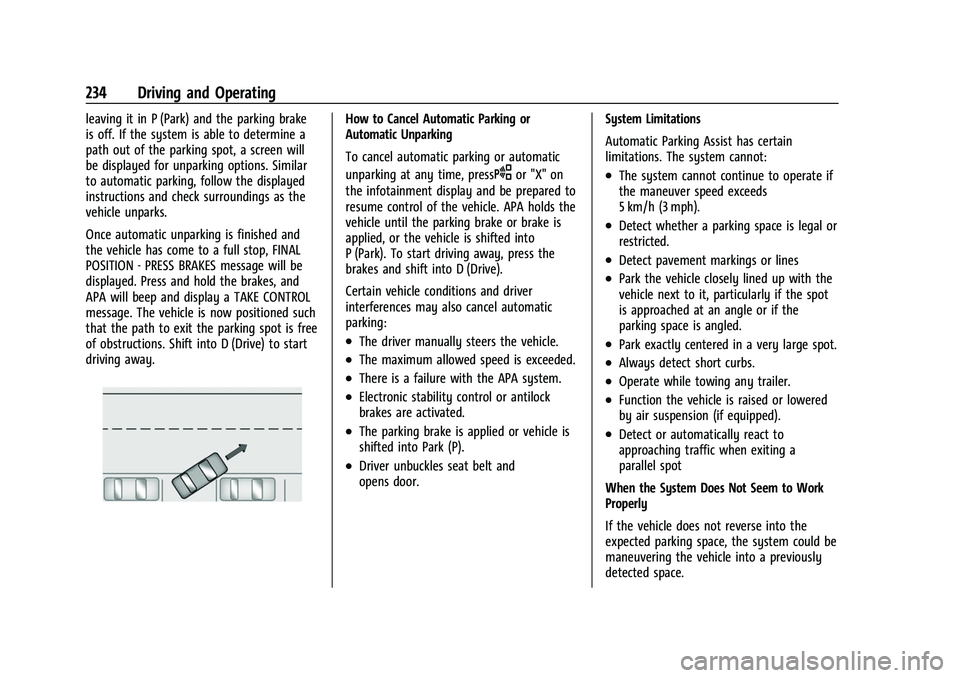
Once automatic unparking is finished and
the vehicle has come to a full stop, FINAL
POSITION - PRESS BRAKES message will be
displayed. Press and hold the brakes, and
APA will beep and display a TAKE CONTROL
message. The vehicle is now positioned such
that the path to exit the parking spot is free
of obstructions. Shift into D (Drive) to start
driving away.How to Cancel Automatic Parking or
Automatic Unparking
To cancel automatic parking or automatic
unparking at any time, press
Oor "X" on
the infotainment display and be prepared to
resume control of the vehicle. APA holds the
vehicle until the parking brake or brake is
applied, or the vehicle is shifted into
P (Park). To start driving away, press the
brakes and shift into D (Drive).
Certain vehicle conditions and driver
interferences may also cancel automatic
parking:
.The driver manually steers the vehicle.
.The maximum allowed speed is exceeded.
.There is a failure with the APA system.
.Electronic stability control or antilock
brakes are activated.
.The parking brake is applied or vehicle is
shifted into Park (P).
.Driver unbuckles seat belt and
opens door. System Limitations
Automatic Parking Assist has certain
limitations. The system cannot:
.The system cannot continue to operate if
the maneuver speed exceeds
5 km/h (3 mph).
.Detect whether a parking space is legal or
restricted.
.Detect pavement markings or lines
.Park the vehicle closely lined up with the
vehicle next to it, particularly if the spot
is approached at an angle or if the
parking space is angled.
.Park exactly centered in a very large spot.
.Always detect short curbs.
.Operate while towing any trailer.
.Function the vehicle is raised or lowered
by air suspension (if equipped).
.Detect or automatically react to
approaching traffic when exiting a
parallel spot
When the System Does Not Seem to Work
Properly
If the vehicle does not reverse into the
expected parking space, the system could be
maneuvering the vehicle into a previously
detected space.
Page 237 of 369
Buick Envision Owner Manual (GMNA-Localizing-U.S./Canada/Mexico-
15218978) - 2022 - CRC - 5/12/21
236 Driving and Operating
Warning (Continued)
the brakes, check the RVC and check the
area around the vehicle to make sure it is
safe to proceed.
Rear Pedestrian Alert
Under certain conditions, this feature can
provide alerts for a pedestrian within the
system’s range directly behind the vehicle.
This feature only works in R (Reverse) below
12 km/h (8 mph), and detects pedestrians up
to 8 m (26 ft) away during daytime driving.
During nighttime driving, feature
performance is very limited.
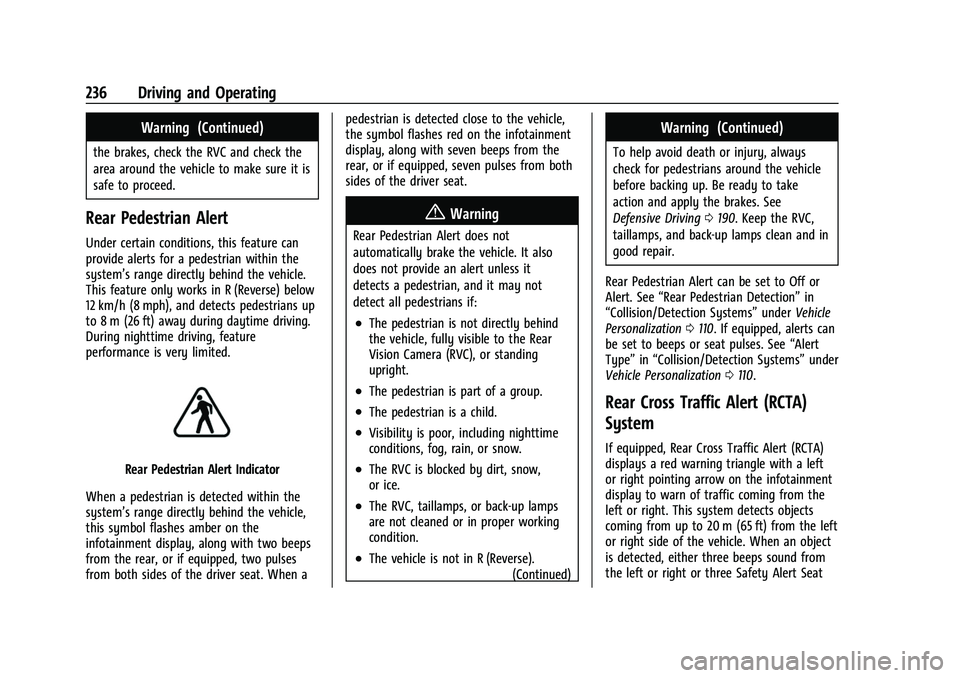
Rear Pedestrian Alert Indicator
When a pedestrian is detected within the
system’s range directly behind the vehicle,
this symbol flashes amber on the
infotainment display, along with two beeps
from the rear, or if equipped, two pulses
from both sides of the driver seat. When a pedestrian is detected close to the vehicle,
the symbol flashes red on the infotainment
display, along with seven beeps from the
rear, or if equipped, seven pulses from both
sides of the driver seat.
{Warning
Rear Pedestrian Alert does not
automatically brake the vehicle. It also
does not provide an alert unless it
detects a pedestrian, and it may not
detect all pedestrians if:
.The pedestrian is not directly behind
the vehicle, fully visible to the Rear
Vision Camera (RVC), or standing
upright.
.The pedestrian is part of a group.
.The pedestrian is a child.
.Visibility is poor, including nighttime
conditions, fog, rain, or snow.
.The RVC is blocked by dirt, snow,
or ice.
.The RVC, taillamps, or back-up lamps
are not cleaned or in proper working
condition.
.The vehicle is not in R (Reverse).
(Continued)
Warning (Continued)
To help avoid death or injury, always
check for pedestrians around the vehicle
before backing up. Be ready to take
action and apply the brakes. See
Defensive Driving0190. Keep the RVC,
taillamps, and back-up lamps clean and in
good repair.
Rear Pedestrian Alert can be set to Off or
Alert. See “Rear Pedestrian Detection” in
“Collision/Detection Systems” underVehicle
Personalization 0110. If equipped, alerts can
be set to beeps or seat pulses. See “Alert
Type” in“Collision/Detection Systems” under
Vehicle Personalization 0110.
Rear Cross Traffic Alert (RCTA)
System
If equipped, Rear Cross Traffic Alert (RCTA)
displays a red warning triangle with a left
or right pointing arrow on the infotainment
display to warn of traffic coming from the
left or right. This system detects objects
coming from up to 20 m (65 ft) from the left
or right side of the vehicle. When an object
is detected, either three beeps sound from
the left or right or three Safety Alert Seat
Page 238 of 369
Buick Envision Owner Manual (GMNA-Localizing-U.S./Canada/Mexico-
15218978) - 2022 - CRC - 5/12/21
Driving and Operating 237
pulses occur on the left or right side,
depending on the direction of the detected
vehicle.
Driving With a Trailer
Use caution while backing up when towing
a trailer. The RCTA feature is automatically
disabled when a trailer is attached to the
vehicle.
Turning the Features On or Off
RCTA can be turned on or off using the
infotainment system. See“Collision/
Detection Systems” underVehicle
Personalization 0110.
Assistance Systems for Driving
If equipped, when driving the vehicle in a
forward gear, Forward Collision Alert (FCA),
Lane Keep Assist (LKA), Lane Change Alert
(LCA), Automatic Emergency Braking (AEB),
and/or the Front Pedestrian Braking (FPB)
System can help to avoid a crash or reduce
crash damage.
Forward Collision Alert (FCA)
System
If equipped, the FCA system may help to
avoid or reduce the harm caused by
front-end crashes. When approaching a vehicle ahead too quickly, FCA provides a
red flashing alert on the windshield and
rapidly beeps or pulses the driver seat. FCA
also lights an amber visual alert if following
another vehicle much too closely.
FCA detects vehicles within a distance of
approximately 60 m (197 ft) and operates at
speeds above 8 km/h (5 mph). If the vehicle
has Adaptive Cruise Control (ACC), it can
detect vehicles to distances of approximately
110 m (360 ft) and operates at all speeds.
See
Adaptive Cruise Control (Advanced)
0 219.
{Warning
FCA is a warning system and does not
apply the brakes. When approaching a
slower-moving or stopped vehicle ahead
too rapidly, or when following a vehicle
too closely, FCA may not provide a
warning with enough time to help avoid
a crash. It also may not provide any
warning at all. FCA does not warn of
pedestrians, animals, signs, guardrails,
bridges, construction barrels, or other
objects. Be ready to take action and
apply the brakes. See Defensive Driving
0 190. FCA can be disabled. See
“Collision/Detection
Systems” underVehicle Personalization
0 110.
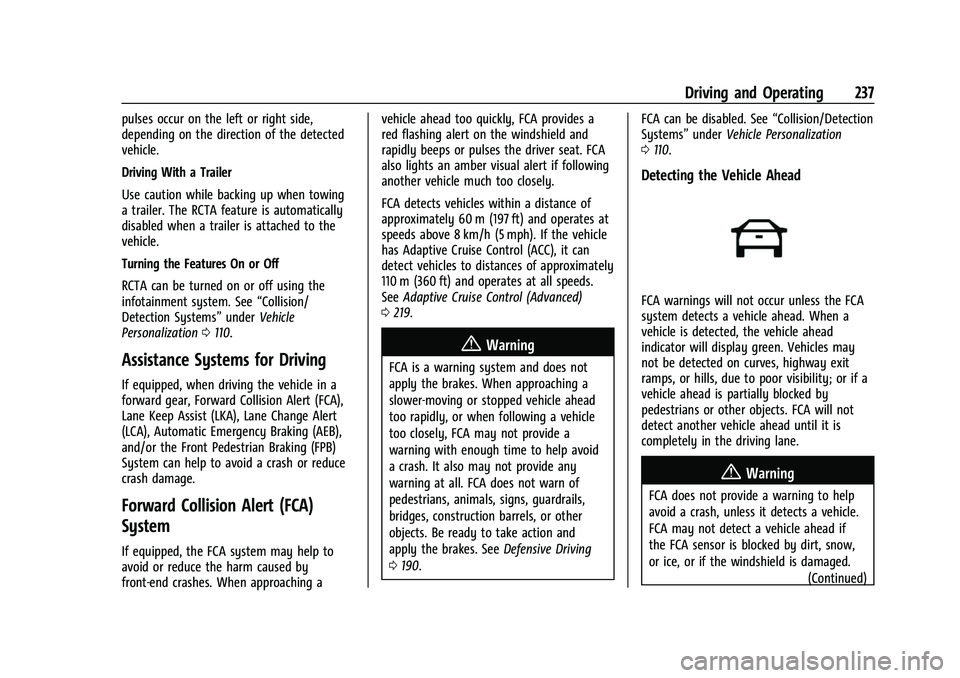
Detecting the Vehicle Ahead
FCA warnings will not occur unless the FCA
system detects a vehicle ahead. When a
vehicle is detected, the vehicle ahead
indicator will display green. Vehicles may
not be detected on curves, highway exit
ramps, or hills, due to poor visibility; or if a
vehicle ahead is partially blocked by
pedestrians or other objects. FCA will not
detect another vehicle ahead until it is
completely in the driving lane.
{Warning
FCA does not provide a warning to help
avoid a crash, unless it detects a vehicle.
FCA may not detect a vehicle ahead if
the FCA sensor is blocked by dirt, snow,
or ice, or if the windshield is damaged.
(Continued)
Page 337 of 369

Buick Envision Owner Manual (GMNA-Localizing-U.S./Canada/Mexico-
15218978) - 2022 - CRC - 5/12/21
336 Customer Information
Customer Information
Customer Information
Customer Satisfaction Procedure . . . . . . 336
Customer Assistance Offices . . . . . . . . . . . 338
Customer Assistance for Text Telephone(TTY) Users . . . . . . . . . . . . . . . . . . . . . . . . . . 338
Online Owner Center . . . . . . . . . . . . . . . . . . 338
GM Mobility Reimbursement Program . . . . . . . . . . . . . . . . . . . . . . . . . . . . . 339
Roadside Assistance Program . . . . . . . . . . 339
Scheduling Service Appointments . . . . . . 341
Courtesy Transportation Program . . . . . . 341
Collision Damage Repair . . . . . . . . . . . . . . . 342
Publication Ordering Information . . . . . . 343
Radio Frequency Statement . . . . . . . . . . . 344
Reporting Safety Defects
Reporting Safety Defects to the United States Government . . . . . . . . . . . . . . . . . . 344
Reporting Safety Defects to the Canadian Government . . . . . . . . . . . . . . . 345
Reporting Safety Defects to General Motors . . . . . . . . . . . . . . . . . . . . . . . . . . . . . . 345
Vehicle Data Recording and Privacy
Vehicle Data Recording and Privacy . . . 345
Cybersecurity . . . . . . . . . . . . . . . . . . . . . . . . . . 345
Event Data Recorders . . . . . . . . . . . . . . . . . 346
OnStar . . . . . . . . . . . . . . . . . . . . . . . . . . . . . . . . 347
Infotainment System . . . . . . . . . . . . . . . . . . 347Customer Information
Customer Satisfaction Procedure
Your satisfaction and goodwill are important
to your dealer and to Buick. Normally, any
concerns with the sales transaction or the
operation of the vehicle will be resolved by
your dealer's sales or service departments.
Sometimes, however, despite the best
intentions of all concerned,
misunderstandings can occur. If your concern
has not been resolved to your satisfaction,
the following steps should be taken:
STEP ONE : Discuss your concern with a
member of dealership management.
Normally, concerns can be quickly resolved
at that level. If the matter has already been
reviewed with the sales, service, or parts
manager, contact the owner of your
dealership or the general manager.
STEP TWO : If after contacting a member of
dealership management, it appears your
concern cannot be resolved by your
dealership without further help, in the U.S.,
call 1-800-521-7300. In Canada, contact
General Motors of Canada Customer Care
Centre at 1-800-263-3777 (English) or
1-800-263-7854 (French).
Page 348 of 369
Buick Envision Owner Manual (GMNA-Localizing-U.S./Canada/Mexico-
15218978) - 2022 - CRC - 5/12/21
Customer Information 347
others for research purposes, where a need
is shown and the data is not tied to a
specific vehicle or vehicle owner.
OnStar
If the vehicle is equipped with OnStar and
has an active service plan, additional data
may be collected and transmitted through
the OnStar system. This includes information
about the vehicle’s operation; collisions
involving the vehicle; the use of the vehicle
and its features, including infotainment; and
the location and approximate GPS speed of
the vehicle. Refer to the OnStar Terms and
Conditions and Privacy Statement on the
OnStar website.
SeeOnStar Additional Information 0350.
Infotainment System
If the vehicle is equipped with a navigation
system as part of the infotainment system,
use of the system may result in the storage
of destinations, addresses, telephone
numbers, and other trip information. See the
infotainment section for information on
stored data and for deletion instructions.
Page 349 of 369
Buick Envision Owner Manual (GMNA-Localizing-U.S./Canada/Mexico-
15218978) - 2022 - CRC - 5/12/21
348 OnStar
OnStar
OnStar Overview
OnStar Overview . . . . . . . . . . . . . . . . . . . . . . 348
OnStar Services
Emergency . . . . . . . . . . . . . . . . . . . . . . . . . . . . 349
Security . . . . . . . . . . . . . . . . . . . . . . . . . . . . . . . 349
OnStar Additional Information
OnStar Additional Information . . . . . . . . 350
OnStar Overview
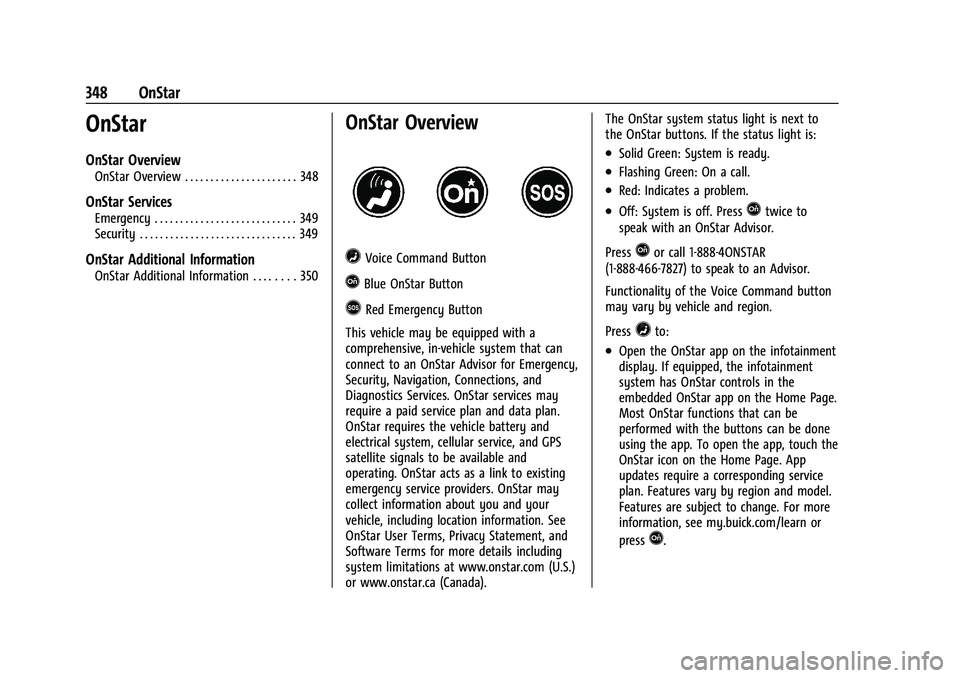
=Voice Command Button
QBlue OnStar Button
>Red Emergency Button
This vehicle may be equipped with a
comprehensive, in-vehicle system that can
connect to an OnStar Advisor for Emergency,
Security, Navigation, Connections, and
Diagnostics Services. OnStar services may
require a paid service plan and data plan.
OnStar requires the vehicle battery and
electrical system, cellular service, and GPS
satellite signals to be available and
operating. OnStar acts as a link to existing
emergency service providers. OnStar may
collect information about you and your
vehicle, including location information. See
OnStar User Terms, Privacy Statement, and
Software Terms for more details including
system limitations at www.onstar.com (U.S.)
or www.onstar.ca (Canada). The OnStar system status light is next to
the OnStar buttons. If the status light is:
.Solid Green: System is ready.
.Flashing Green: On a call.
.Red: Indicates a problem.
.Off: System is off. PressQtwice to
speak with an OnStar Advisor.
Press
Qor call 1-888-4ONSTAR
(1-888-466-7827) to speak to an Advisor.
Functionality of the Voice Command button
may vary by vehicle and region.
Press
=to:
.Open the OnStar app on the infotainment
display. If equipped, the infotainment
system has OnStar controls in the
embedded OnStar app on the Home Page.
Most OnStar functions that can be
performed with the buttons can be done
using the app. To open the app, touch the
OnStar icon on the Home Page. App
updates require a corresponding service
plan. Features vary by region and model.
Features are subject to change. For more
information, see my.buick.com/learn or
press
Q.
Page 352 of 369
Buick Envision Owner Manual (GMNA-Localizing-U.S./Canada/Mexico-
15218978) - 2022 - CRC - 5/12/21
OnStar 351
TTY Users
OnStar has the ability to communicate to
deaf, hard-of-hearing, or speech-impaired
customers while in the vehicle. The available
TTY system can provide in-vehicle access to
all OnStar services, except Virtual Advisor
and OnStar Turn-by-Turn Navigation.
If equipped, TTY mode can be turned on or
off by touching Settings, then Apps, and
then Phone. When TTY mode is on, phone
calls can be made or received with OnStar
using the infotainment display.
OnStar Personal Identification
Number (PIN)
A PIN is needed to access some OnStar
services. The PIN will need to be changed
the first time when speaking with an
Advisor. To change the OnStar PIN, contact
an OnStar Advisor by pressing
Qor calling
1-888-4ONSTAR.
Warranty
OnStar equipment may be warranted as part
of the vehicle warranty.
Languages
The vehicle can be programmed to respond
in multiple languages. Press
Qand ask for
an Advisor. Advisors are available in English,
Spanish, and French. Available languages
may vary by country.
Potential Issues
OnStar cannot perform Remote Door Unlock
or Stolen Vehicle Assistance after the vehicle
has been off continuously for an extended
period of time without an ignition cycle. To
find out the duration of time that applies
for the vehicle, contact an OnStar Advisor by
pressing
Qor calling 1-888-4ONSTAR. If the
vehicle has not been started for an extended
period of time, OnStar can contact Roadside
Assistance or a locksmith to help gain access
to the vehicle.
Global Positioning System (GPS)
.Obstruction of the GPS can occur in a
large city with tall buildings; in parking
garages; around airports; in tunnels and
underpasses; or in an area with very
dense trees. If GPS signals are not
available, the OnStar system should still operate to call OnStar. However, OnStar
could have difficulty identifying the exact
location.
.In emergency situations, OnStar can use
the last stored GPS location to send to
emergency responders.
A temporary loss of GPS can cause loss of
the ability to send a Turn-by-Turn
Navigation route. The Advisor may give a
verbal route or may ask for a call back after
the vehicle is driven into an open area.
Cellular and GPS Antennas
Cellular reception is required for OnStar to
send remote signals to the vehicle. Do not
place items over or near the antenna to
prevent blocking cellular and GPS signal
reception.
Unable to Connect to OnStar Message
If there is limited cellular coverage or the
cellular network has reached maximum
capacity, this message may come on. Press
Qto try the call again or try again after
driving a few miles into another
cellular area.
Page 354 of 369
Buick Envision Owner Manual (GMNA-Localizing-U.S./Canada/Mexico-
15218978) - 2022 - CRC - 5/12/21
Connected Services 353
Connected Services
Connected Services
Navigation . . . . . . . . . . . . . . . . . . . . . . . . . . . . . 353
Connections . . . . . . . . . . . . . . . . . . . . . . . . . . . 353
Diagnostics . . . . . . . . . . . . . . . . . . . . . . . . . . . . 355
Connected Services
Navigation
Navigation requires a specific OnStar or
connected service plan.
Press
Qto receive Turn-by-Turn directions
or have them sent to the vehicle’s
navigation screen, if equipped. Select
Turn-by-Turn Directions from the Services
tab of the OnStar app to call an Advisor or
select a recent or favorite destination. Touch
the navigation icons to select home, address,
or place. A destination transfer from OnStar
will show the detail view of the destination
when it is transferred from OnStar to the
Navigation application. See www.onstar.com
for a coverage map. Services vary by model.
Map coverage is available in the United
States and Canada.
Turn-by-Turn Navigation
1. PressQto connect to an Advisor.
2. Request directions to be downloaded to the vehicle.
3. Follow the voice-guided commands.
Using Voice Commands During a
Planned Route
Functionality of the Voice Command button,
if equipped, may vary by vehicle and region.
For some vehicles, press
=to open the
OnStar app on the infotainment display.
Send Destination to Vehicle
Directions can be sent to the vehicle’s
navigation screen, if equipped.
Press
Q, then ask the Advisor to download
directions to the vehicle’s navigation system,
if equipped. After the call ends, the
navigation screen will provide prompts to
begin driving directions. Routes that are sent
to the navigation screen can only be
canceled through the navigation system.
See www.onstar.com (U.S.) or www.onstar.ca
(Canada).
Connections
The following services help with staying
connected.
For coverage maps, see www.onstar.com
(U.S.) or www.onstar.ca (Canada).