collision warning BUICK ENVISION 2022 Owners Manual
[x] Cancel search | Manufacturer: BUICK, Model Year: 2022, Model line: ENVISION, Model: BUICK ENVISION 2022Pages: 369, PDF Size: 14.04 MB
Page 4 of 369

Buick Envision Owner Manual (GMNA-Localizing-U.S./Canada/Mexico-
15218978) - 2022 - CRC - 5/12/21
Introduction 3
[:Forward Collision Alert
R:Fuse Block Cover Lock Location
+:Fuses
j:ISOFIX/LATCH System Child Restraints
Q:Keep Fuse Block Covers Properly
Installed
|: Lane Change Alert
@:Lane Departure Warning
A:Lane Keep Assist
*: Malfunction Indicator Lamp
::Oil Pressure
X:Park Assist
~:Pedestrian Ahead Indicator
O:Power
7:Rear Cross Traffic Alert
I:Registered Technician
/:Remote Vehicle Start
h:Risk of Electrical Fire
>:Seat Belt Reminders
I:Side Blind Zone Alert
h:Stop/Start
7:Tire Pressure Monitor
d:Traction Control/StabiliTrak/Electronic
Stability Control (ESC)
a: Under Pressure
k: Vehicle Ahead Indicator
Page 43 of 369

Buick Envision Owner Manual (GMNA-Localizing-U.S./Canada/Mexico-
15218978) - 2022 - CRC - 5/12/21
42 Seats and Restraints
With the engine running, pressMorLto
heat the left or right outboard seat cushion.
On vehicles without rear climate controls, an
indicator light on the button will turn on
when the heated seat is on. On vehicles
with rear climate controls, an indicator on
the climate control display appears when
this feature is on.
On vehicles without rear climate controls
but equipped with heated rear seats, press
the button again to turn this feature off.
The light on the button will turn off. If the
heated seats are on for 30 minutes, they
may automatically turn off.
On vehicles with rear climate controls, this
feature turns on at the highest setting. With
each press of the button, the heated seat
changes to the next lower setting, and then
the off setting. Three lights indicate the
highest setting, and one light indicates the
lowest. If the heated seats are on high, the
level may automatically be lowered after
approximately 30 minutes.
Seat Belts
This section describes how to use seat belts
properly, and some things not to do.
{Warning
Do not let anyone ride where a seat belt
cannot be worn properly. In a crash,
if you or your passenger(s) are not
wearing seat belts, injuries can be much
worse than if you are wearing seat belts.
You can be seriously injured or killed by
hitting things inside the vehicle harder or
by being ejected from the vehicle. In
addition, anyone who is not buckled up
can strike other passengers in the vehicle.
It is extremely dangerous to ride in a
cargo area, inside or outside of a vehicle.
In a collision, passengers riding in these
areas are more likely to be seriously
injured or killed. Do not allow passengers
to ride in any area of the vehicle that is
not equipped with seats and seat belts.
Always wear a seat belt, and check that
all passenger(s) are restrained
properly too.
This vehicle has indicators as a reminder to
buckle the seat belts. See Seat Belt
Reminders 094.
Why Seat Belts Work
When riding in a vehicle, you travel as fast
as the vehicle does. If the vehicle stops
suddenly, you keep going until something
stops you. It could be the windshield, the
instrument panel, or the seat belts!
When you wear a seat belt, you and the
vehicle slow down together. There is more
time to stop because you stop over a longer
distance and, when worn properly, your
strongest bones take the forces from the
seat belts. That is why wearing seat belts
makes such good sense.
Page 65 of 369

Buick Envision Owner Manual (GMNA-Localizing-U.S./Canada/Mexico-
15218978) - 2022 - CRC - 5/12/21
64 Seats and Restraints
Securing an Add-On Child Restraint in
the Vehicle
{Warning
A child can be seriously injured or killed
in a crash if the child restraint is not
properly secured in the vehicle. Secure
the child restraint properly in the vehicle
using the vehicle seat belt or LATCH
system, following the instructions that
came with that child restraint and the
instructions in this manual.
To help reduce the chance of injury, the
child restraint must be secured in the
vehicle. Child restraints must be secured in
vehicle seats by lap belts or the lap belt
portion of a lap-shoulder belt, or by the
LATCH system. See Lower Anchors and
Tethers for Children (LATCH System) 065 for
more information. Never use a seat belt
extender when installing a child restraint.
Use only seats and related equipment that
are certified to comply with US Federal or
Canadian Motor Vehicle Safety Standards to
secure a child restraint. Children can be
endangered in a crash if the child restraint is
not properly secured in the vehicle. When securing an add-on child restraint,
refer to the following:
1. Instruction labels provided on the child restraint
2. Instruction manual provided with the child restraint
3. This vehicle owner's manual
The child restraint instructions are
important, so if they are not available,
obtain a replacement copy from the
manufacturer.
Keep in mind that an unsecured child
restraint can move around in a collision or
sudden stop and injure people in the vehicle.
Be sure to properly secure any child
restraint in the vehicle —even when no
child is in it.
In some areas Certified Child Passenger
Safety Technicians (CPSTs) are available to
inspect and demonstrate how to correctly
use and install child restraints. In the U.S.,
refer to the National Highway Traffic Safety
Administration (NHTSA) website to locate
the nearest child safety seat inspection
station. For CPST availability in Canada,
check with Transport Canada or the
Provincial Ministry of Transportation office.
Securing the Child Within the Child
Restraint
{Warning
A child can be seriously injured or killed
in a crash if the child is not properly
secured in the child restraint. Secure the
child properly following the instructions
that came with that child restraint.
Where to Put the Restraint
According to accident statistics, children and
infants are safer when properly restrained in
an appropriate child restraint secured in a
rear seating position.
Whenever possible, children aged 12 and
under should be secured in a rear seating
position.
Never put a rear-facing child restraint in the
front. This is because the risk to the
rear-facing child is so great if the airbag
deploys.
Page 66 of 369

Buick Envision Owner Manual (GMNA-Localizing-U.S./Canada/Mexico-
15218978) - 2022 - CRC - 5/12/21
Seats and Restraints 65
{Warning
A child in a rear-facing child restraint can
be seriously injured or killed if the front
passenger airbag inflates. This is because
the back of the rear-facing child restraint
would be very close to the inflating
airbag. A child in a forward-facing child
restraint can be seriously injured or killed
if the front passenger airbag inflates and
the passenger seat is in a forward
position.
Even if the passenger sensing system has
turned off the front passenger frontal
airbag, no system is fail-safe. No one can
guarantee that an airbag will not deploy
under some unusual circumstance, even
though it is turned off.
Secure rear-facing child restraints in a
rear seat, even if the airbag is off. If you
secure a forward-facing child restraint in
the front seat, always move the front
passenger seat as far back as it will go.
It is better to secure the child restraint in
a rear seat.
SeePassenger Sensing System 054 for
additional information. When securing a child restraint with the
seat belts in a rear seat position, study the
instructions that came with the child
restraint to make sure it is compatible with
this vehicle.
Child restraints and booster seats vary
considerably in size, and some may fit in
certain seating positions better than others.
Do not install a child restraint in any rear
seating position where it cannot be installed
securely.
Depending on where you place the child
restraint and the size of the child restraint,
you may not be able to access adjacent seat
belts or LATCH anchors for additional
passengers or child restraints. Adjacent
seating positions should not be used if the
child restraint prevents access to or
interferes with the routing of the seat belt.
The seat in front of an installed child
restraint should be adjusted to ensure
proper installation according to the child
restraint manual.
Wherever a child restraint is installed, be
sure to follow the instructions that came
with the child restraint and secure the child
restraint properly.
Keep in mind that an unsecured child
restraint can move around in a collision or
sudden stop and injure people in the vehicle.
Be sure to properly secure any child
restraint in the vehicle
—even when no
child is in it.
Lower Anchors and Tethers for
Children (LATCH System)
The LATCH system secures a child restraint
during driving or in a crash. LATCH
attachments on the child restraint are used
to attach the child restraint to the anchors
in the vehicle. This system is designed to
make installation of a child restraint easier.
In order to use the LATCH system in your
vehicle, you need a child restraint that has
LATCH attachments. LATCH-compatible
rear-facing and forward-facing child seats can
be properly installed using either the LATCH
anchors or the vehicle’s seat belts. Do not
use both the seat belts and the LATCH
anchorage system to secure a rear-facing or
forward-facing child restraint.
Page 93 of 369
Buick Envision Owner Manual (GMNA-Localizing-U.S./Canada/Mexico-
15218978) - 2022 - CRC - 5/12/21
92 Instruments and Controls
.Home Page
.Info App. This is where the selected Driver
Information Center (DIC) displays can be
viewed. SeeDriver Information Center
(DIC) 0104.
.Audio
.Navigation
.Phone
.Options
Home
Information Displayed here can be
customized from the Options menu. See
“Options” below.
Speedometer : Displays how fast the vehicle
is moving in either kilometers per hour
(km/h) or miles per hour (mph).
Speed Sign : Shows sign information, which
comes from a roadway database in the
onboard navigation system, if equipped.
Time : Displays the current time.
Temperature : Displays the current outside
air temperature.
Active Safety : If equipped, displays
information for Lane Keep Assist (LKA) and
Forward Collision Alert (FCA). Fuel Range :
Displays the approximate
distance the vehicle can be driven without
refueling. The fuel range estimate is based
on an average of the vehicle’s fuel economy
over recent driving history and the amount
of fuel remaining in the fuel tank. The Fuel
Range cannot be reset.
Audio
In the Audio menu browse for music, select
from the favorites, or change the audio
source. Use the thumbwheel to change the
station or go to the next or previous track.
Navigation
If there is an active route, press the
thumbwheel to cancel or resume route
guidance, or turn the voice prompts on
or off.
Phone
In the Phone menu, if there is no active
phone call, view recent calls, or scroll
through contacts. If there is an active call,
mute the phone or switch to handset
operation.
Options
Use the thumbwheel to scroll through items
in the Options menu. Head-up Display (HUD) (Uplevel) :
If equipped, this feature allows for adjusting
the angle of the HUD image and changing
or turning off the Speed Limit Sign.
HUD Rotation (Uplevel): Press the
thumbwheel while Adjust Rotation is
highlighted to enter Adjust Mode. Scroll to
adjust the angle of the HUD display. Press
the thumbwheel to confirm and save the
setting. This feature may only be available
in P (Park).
Speed Sign: If equipped, press the
thumbwheel while Speed Sign is highlighted
to turn it on or off.
Units :
Choose English, Imperial, or metric
units by pressing the thumbwheel while the
desired item is highlighted.
Info Page Options : Press the thumbwheel
to select the items to be displayed in the
Info app. See Driver Information Center (DIC)
0 104.
Home Page Options : Press the thumbwheel
to enter the Display menu. Select to turn on
or off the speedometer, time, fuel range, or,
if equipped, compass or speed sign.
Speed Warning : The Speed Warning display
allows the driver to set a warning at a
speed that they do not want to exceed. To
Page 107 of 369
Buick Envision Owner Manual (GMNA-Localizing-U.S./Canada/Mexico-
15218978) - 2022 - CRC - 5/12/21
106 Instruments and Controls
Average Speed :Displays the average
vehicle speed of the vehicle in kilometers
per hour (km/h) or miles per hour (mph).
This average is based on the various vehicle
speeds recorded since the last reset. Reset
the average speed by pressing the
thumbwheel while this display is active to
show a confirmation window to select yes
or no.
Timer : This display can be used as a timer.
To start the timer, press the thumbwheel
while this display is active. The display will
show the amount of time that has passed
since the timer was last reset. To stop the
timer, press the thumbwheel briefly while
this display is active and the timer is
running.
Press the thumbwheel while this display is
active to reset the timer.
Follow Distance/Gap Setting : When
Adaptive Cruise Control (ACC) is not
engaged, the current follow time to the
vehicle ahead is displayed as a time value
on this page. When ACC has been engaged,
the display switches to the gap setting
page. This page shows the current gap
setting along with the vehicle ahead telltale. Driver Assistance :
If equipped, shows
information for Lane Keep Assist (LKA) and
Forward Collision Alert (FCA).
Battery Voltage : Shows the current battery
voltage.
Economy Trend : Shows history of the
Average Fuel Economy from the last 50 km
(30 mi). Each bar represents about 5 km
(3 mi) of driving. During driving the bars will
shift to always reflect the most recent
distance on the right side. Press the
thumbwheel to open the menu while this
display is active to clear the graph. Select
yes or no and press the thumbwheel.
Off Road : If equipped, displays vehicle pitch
and roll information, road wheel angle, and
All-Wheel Drive (AWD) status.
Blank Page : Allows for no information to
be displayed in the cluster info display
areas.
Info Page Options : Scroll to choose which
info pages appear on the DIC. Press the
thumbwheel to select or deselect.Head-Up Display (HUD)
{Warning
If the HUD image is too bright or too
high in your field of view, it may take
you more time to see things you need to
see when it is dark outside. Be sure to
keep the HUD image dim and placed low
in your field of view.
If equipped with HUD, some information
concerning the operation of the vehicle is
projected onto the windshield. The image is
projected through the HUD lens on top of
the instrument panel. The information
appears as an image focused out toward the
front of the vehicle.
Caution
If you try to use the HUD image as a
parking aid, you may misjudge the
distance and damage your vehicle. Do not
use the HUD image as a parking aid.
The HUD information can be displayed in
various languages in some vehicles. The
speedometer reading and other numerical
values can be displayed in either English or
metric units.
Page 171 of 369
Buick Envision Owner Manual (GMNA-Localizing-U.S./Canada/Mexico-
15218978) - 2022 - CRC - 5/12/21
170 Infotainment System
2. For automatic transmissions, the vehiclemust be in P (Park). For manual
transmissions, the vehicle must be
stopped with the parking brake set.
3. From the Settings menu, touch Vehicle and then Teen Driver.
4. Enter the PIN.
5. Touch Setup Keys. The system displays instructions for registering or
unregistering a key. A confirmation
message displays.
Manage Settings
Buckle To Drive : When turned ON, Buckle
to Drive prevents the driver from shifting
out of P (Park) for a period of time if driver
seat belt, and on some vehicles, the
passenger seat belt, is not buckled. See
Buckle To Drive 043 and
Vehicle Personalization 0110.
Audio Volume Limit : Allows the audio
volume limit to be turned on or off. Touch
Set Audio Volume Limit to choose the
maximum allowable audio volume level.
Set Audio Volume Limit : Allows a
maximum radio volume to be set. Use the
arrows to choose the maximum allowable
level for the audio volume. Teen Driver Speed Limiter :
Limits the
maximum speed of the vehicle. When the
speed limiter is turned on and the vehicle is
started with a Teen Driver key, the DIC
displays a message that the top speed is
limited.
On certain vehicles, when the Speed Limiter
is turned ON, the vehicle’s maximum
acceleration will be limited. The DIC will
display a message that the acceleration is
limited.
Teen Driver Speed Warning : Allows the
speed warning to be turned on or off. Touch
Set Teen Driver Speed Warning to set the
warning speed.
Set Teen Driver Speed Warning : Displays a
warning in the DIC when exceeding a
selectable speed. Choose the desired speed
warning level. The speed warning does not
limit the speed of the vehicle.
SiriusXM Explicit Content Filter (if
equipped) : Allows the SiriusXM Explicit
Content Filter to be turned ON or OFF.
When ON, the teen driver will not be able
to listen to SiriusXM stations that contain
explicit content, and the Explicit Content
Filter selection in the Audio Settings will be
unavailable for change. When Teen Driver is Active:
.The radio will mute when the driver, or in
some vehicles, the front passenger seat
belt, is not buckled. The audio from any
device paired to the vehicle will also be
muted.
.If an object, such as a briefcase, handbag,
grocery bag, laptop, or other electronic
device, is on the front passenger seat, it
could cause the radio to mute. If this
happens, remove the object from the
seat. See
Passenger Sensing System 054.
.Some safety systems, such as Forward
Collision Alert, if equipped, cannot be
turned off.
.The gap setting for the Forward Collision
Alert and Adaptive Cruise Control,
if equipped, cannot be changed.
.When trying to change a safety feature
that is not configurable in Teen Driver,
the DIC displays a message indicating
that Teen Driver is active and the action
is not available.
.Super Cruise, if equipped, is not available.
.Enhanced Low Fuel Warning (if equipped)
–When the vehicle is low on fuel, the
low fuel light on the instrument cluster
flashes and the DIC low fuel warning
cannot be dismissed.
Page 172 of 369
Buick Envision Owner Manual (GMNA-Localizing-U.S./Canada/Mexico-
15218978) - 2022 - CRC - 5/12/21
Infotainment System 171
.Do not tow a trailer.
Report Card
The vehicle owner must secure the driver’s
consent to record certain vehicle data when
the vehicle is driven with a registered Teen
Driver key. There is one Report Card per
vehicle. Data is only recorded when a
registered Teen Driver key is used to
operate the vehicle.
The Report Card data is collected from the
time Teen Driver is activated or the last
time the Report Card was reset. The
following items may be recorded:
.Distance Driven –the total distance
driven.
.Maximum Speed –the maximum vehicle
speed detected.
.Overspeed Warnings –the number of
times the speed warning setting was
exceeded.
.Wide Open Throttle –the number of
times the accelerator pedal was pressed
nearly all the way down.
.Forward Collision Alerts –the number of
times the driver was notified when
approaching a vehicle ahead too quickly
and at potential risk for a crash.
.Forward Automatic Braking, also called
Automatic Emergency Braking (if
equipped) –the number of times the
vehicle detected that a forward collision
was imminent and applied the brakes.
.Reverse Automatic Braking (if equipped) –
the number of times the vehicle detected
that a rearward collision was imminent
and applied the brakes.
.Traction Control –the number of times
the Traction Control System activated to
reduce wheel spin or loss of traction.
.Stability Control –the number of events
which required the use of electronic
stability control.
.Antilock Braking System Active –The
number of Antilock Brake System
activations.
.Tailgating Alerts –the number of times
the driver was alerted for following a
vehicle ahead too closely.
Report Card Data
Cumulative Data is saved for all trips until
the Report Card is reset or until the
maximum count is exceeded. If the
maximum count is exceeded for a Report
Card line item, that item will no longer be
updated in the Report Card until it is reset. Each item will report a maximum of
1,000 counts. The distance driven will report
a maximum of 64,374 km (40,000 mi).
To delete Report Card data, do one of the
following:
.From the Report Card display, touch
Reset.
.Touch Clear All Teen Keys and PIN from
the Teen Driver menu. This will also
unregister any Teen Driver keys and
delete the PIN.
Forgotten PIN
See your dealer to reset the PIN.
Trademarks and License
Agreements
FCC Information
See Radio Frequency Statement 0344.
Page 192 of 369
Buick Envision Owner Manual (GMNA-Localizing-U.S./Canada/Mexico-
15218978) - 2022 - CRC - 5/12/21
Driving and Operating 191
.Assume that other road users
(pedestrians, bicyclists, and other drivers)
are going to be careless and make
mistakes. Anticipate what they may do
and be ready.
.Allow enough following distance between
you and the driver in front of you.
.Focus on the task of driving.
Impaired Driving
Death and injury associated with impaired
driving is a global tragedy.
{Warning
Drinking alcohol or taking drugs and then
driving is very dangerous. Your reflexes,
perceptions, attentiveness, and judgment
can be affected by even a small amount
of alcohol or drugs. You can have a
serious—or even fatal —collision if you
drive after drinking or taking drugs.
Do not drive while under the influence of
alcohol or drugs, or ride with a driver
who has been drinking or is impaired by
drugs. Find alternate transportation
home; or if you are with a group,
designate a driver who will remain sober.
Control of a Vehicle
Braking, steering, and accelerating are
important factors in helping to control a
vehicle while driving.
Braking
Braking action involves perception time and
reaction time. Deciding to push the brake
pedal is perception time. Actually doing it is
reaction time.
Average driver reaction time is about
three-quarters of a second. In that time, a
vehicle moving at 100 km/h (60 mph) travels
20 m (66 ft), which could be a lot of
distance in an emergency.
Helpful braking tips to keep in mind include:
.Keep enough distance between you and
the vehicle in front of you.
.Avoid needless heavy braking.
.Keep pace with traffic.
If the engine ever stops while the vehicle is
being driven, brake normally but do not
pump the brakes. Doing so could make the
pedal harder to push down. If the engine
stops, there will be some power brake assist
but it will be used when the brake is applied. Once the power assist is used up, it
can take longer to stop and the brake pedal
will be harder to push.
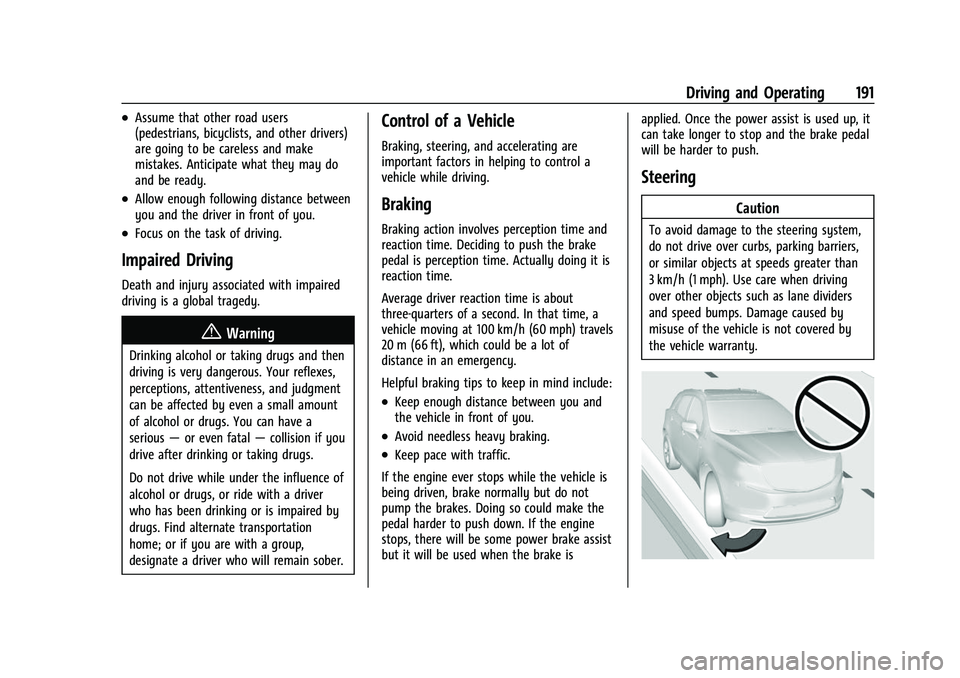
Steering
Caution
To avoid damage to the steering system,
do not drive over curbs, parking barriers,
or similar objects at speeds greater than
3 km/h (1 mph). Use care when driving
over other objects such as lane dividers
and speed bumps. Damage caused by
misuse of the vehicle is not covered by
the vehicle warranty.
Page 218 of 369

Buick Envision Owner Manual (GMNA-Localizing-U.S./Canada/Mexico-
15218978) - 2022 - CRC - 5/12/21
Driving and Operating 217
standard/default mode. There is no
persistent indicator in the instrument cluster
for this mode.
AWD Mode :AWD Mode provides drive
torque to all four wheels. Select AWD Mode
to improve traction and control on slippery
road surfaces, such as gravel, sand, wet
pavement, snow, and ice. When in AWD
Mode, the AWD Mode indicator light will be
on. For more information on AWD Mode,
see All-Wheel Drive 0210.
Sport Mode : Use where road conditions or
personal preference demand a more
controlled response.
Sport Mode improves vehicle handling and
acceleration on dry pavement. When active,
Sport Mode modifies steering efforts,
transmission shifting, AWD torque and
suspension tuning, if equipped.
Off-Road Mode : Use this mode for off-road
recreational driving. Off-Road Mode should
be used to improve driving at moderate
speeds, on grass, gravel, dirt, unpaved roads,
or snow-covered roads. The accelerator pedal
is tuned for off-road use. This mode modifies
pedal mapping, AWD, ABS, ESC, and TCS
Performance. Snow/Ice Mode :
Snow/Ice Mode improves
vehicle acceleration on snow and ice covered
roads. When active, Snow/Ice Mode will
adjust acceleration to optimize traction on
slippery surfaces. This can compromise the
acceleration on dry asphalt.
This feature is not intended for use when
the vehicle is stuck in sand, mud, ice, snow,
or gravel. If the vehicle becomes stuck, see If
the Vehicle Is Stuck 0195.
Cruise Control
With cruise control the vehicle can maintain
a speed of about 40 km/h (25 mph) or more
without keeping your foot on the
accelerator. Cruise control does not work at
speeds below 40 km/h (25 mph).
{Warning
Cruise control can be dangerous where
you cannot drive safely at a steady
speed. Do not use cruise control on
winding roads or in heavy traffic.
Cruise control can be dangerous on
slippery roads. On such roads, fast
changes in tire traction can cause
(Continued)
Warning (Continued)
excessive wheel slip, and you could lose
control. Do not use cruise control on
slippery roads.
With the Traction Control System (TCS), the
system may begin to limit wheel spin while
you are using cruise control. If this happens,
the cruise control will automatically
disengage. See Traction Control/Electronic
Stability Control 0212. If a collision alert
occurs when cruise control is activated,
cruise control is disengaged. See Forward
Collision Alert (FCA) System 0237. When
road conditions allow you to safely use it
again, cruise control can be turned back on.
If the brakes are applied, cruise control
disengages.