infotainment BUICK ENVISION 2023 User Guide
[x] Cancel search | Manufacturer: BUICK, Model Year: 2023, Model line: ENVISION, Model: BUICK ENVISION 2023Pages: 356, PDF Size: 7.42 MB
Page 39 of 356
Buick Envision Owner Manual (GMNA-Localizing-U.S./Canada/Mexico-
16060855) - 2023 - CRC - 2/9/22
38 Seats and Restraints
Lumbar Adjustment
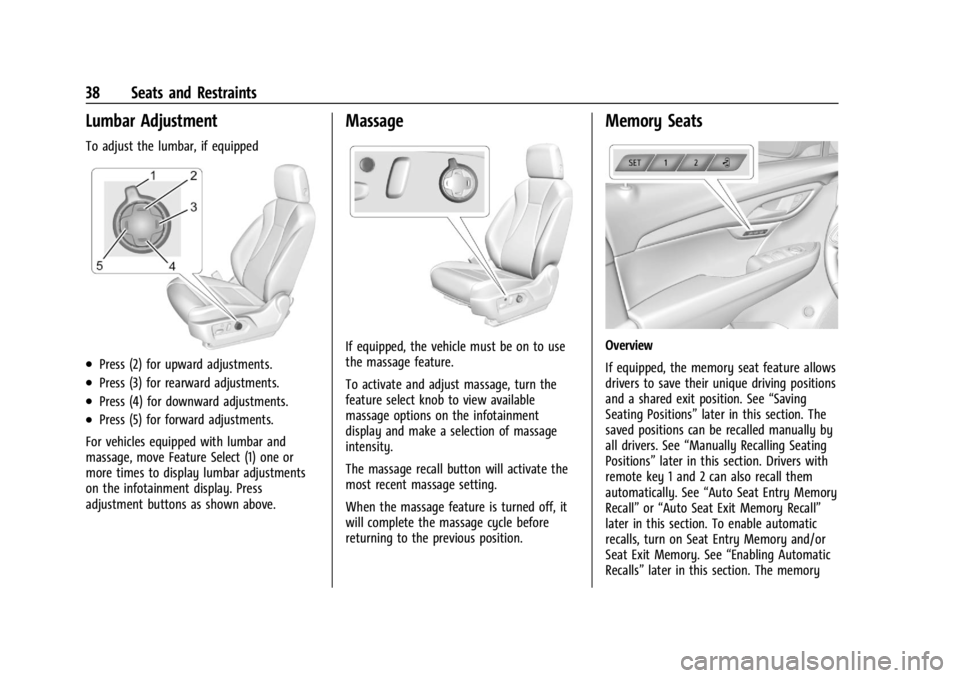
To adjust the lumbar, if equipped
.Press (2) for upward adjustments.
.Press (3) for rearward adjustments.
.Press (4) for downward adjustments.
.Press (5) for forward adjustments.
For vehicles equipped with lumbar and
massage, move Feature Select (1) one or
more times to display lumbar adjustments
on the infotainment display. Press
adjustment buttons as shown above.
Massage
If equipped, the vehicle must be on to use
the massage feature.
To activate and adjust massage, turn the
feature select knob to view available
massage options on the infotainment
display and make a selection of massage
intensity.
The massage recall button will activate the
most recent massage setting.
When the massage feature is turned off, it
will complete the massage cycle before
returning to the previous position.
Memory Seats
Overview
If equipped, the memory seat feature allows
drivers to save their unique driving positions
and a shared exit position. See “Saving
Seating Positions” later in this section. The
saved positions can be recalled manually by
all drivers. See “Manually Recalling Seating
Positions” later in this section. Drivers with
remote key 1 and 2 can also recall them
automatically. See “Auto Seat Entry Memory
Recall” or“Auto Seat Exit Memory Recall”
later in this section. To enable automatic
recalls, turn on Seat Entry Memory and/or
Seat Exit Memory. See “Enabling Automatic
Recalls” later in this section. The memory
Page 46 of 356
Buick Envision Owner Manual (GMNA-Localizing-U.S./Canada/Mexico-
16060855) - 2023 - CRC - 2/9/22
Seats and Restraints 45
Questions and Answers About Seat Belts
Q: Will I be trapped in the vehicle after acrash if I am wearing a seat belt?
A: You could be— whether you are
wearing a seat belt or not. Your chance
of being conscious during and after a
crash, so you canunbuckle and get out,
is much greater if you are belted.
Q: If my vehicle has airbags, why should I have to wear seat belts?
A: Airbags are supplemental systems only.
They work withseat belts —not instead
of them. Whether or not an airbag is
provided, all occupants still have to
buckle up to get the most protection.
Also, in nearly all states and in all
Canadian provinces, the law requires
wearing seat belts.
Buckle To Drive
If equipped, this feature prevents the vehicle
from shifting out of P (Park) when the driver
seat belt is not buckled. The Buckle to Drive
feature must be turned ON in the
infotainment system to work. To turn the
Buckle to Drive feature on or off, select
Settings > Vehicle > Buckle to Drive. See
Teen Driver 0162, if equipped. If the vehicle is on and the brake pedal is
pressed with the vehicle in P (Park) but the
driver seat belt is not buckled, a message
displays in the Driver Information
Center (DIC) and the vehicle will be
prevented from shifting out of P (Park).
Buckle the driver seat belt to clear the
message and shift out of P (Park). Shifting
from P (Park) will be prevented once for
each time the vehicle is started.
For some fleet vehicles, the feature is
always ON and cannot be turned OFF in the
infotainment system. The vehicle will be
prevented from shifting from P (Park) each
time the driver attempts to do so while the
driver seat belt is not buckled. Turning the
vehicle off then on will not change this
condition.
On some models, Buckle to Drive may also
prevent shifting out of P (Park) if a front
passenger seat belt is unbuckled. A message
displays in the DIC. Buckle the front
passenger seat belt to shift out of P (Park).
This feature may not allow the vehicle to
shift out of P (Park) if an object, such as a
briefcase, handbag, grocery bag, laptop,
or other electronic device, is on the front
passenger seat. If this happens, remove the
object from the seat or buckle the seat belt
to shift out of P (Park).
If the driver, or on some vehicles, the
present front passenger remains unbuckled,
the DIC message will turn off after several
seconds and the vehicle can be shifted out
of P (Park). See
“Seat Belts”and“Child
Restraints” in the Index for information
about the importance of proper
restraint use.
If the driver seat belt or the front passenger
seat belt is unbuckled when driving, the seat
belt reminder chime and light(s) will come
on. See Seat Belt Reminders 096. This
feature may not function properly if the
airbag readiness light is on. See Airbag
Readiness Light 097.
How to Wear Seat Belts Properly
Follow these rules for everyone's protection.
There are additional things to know about
seat belts and children, including smaller
children and infants. If a child will be riding
in the vehicle, see Older Children061 or
Infants and Young Children 063. Review
and follow the rules for children in addition
to the following rules.
Page 89 of 356
Buick Envision Owner Manual (GMNA-Localizing-U.S./Canada/Mexico-
16060855) - 2023 - CRC - 2/9/22
88 Instruments and Controls
lever is in R (Reverse), and the front
windshield wiper is performing interval
wipes, then the rear wiper automatically
performs interval wipes.
This feature can be turned on or off.
The windshield washer reservoir is used for
the windshield and rear window. Check the
fluid level if either washer is not working.
SeeWasher Fluid 0263.
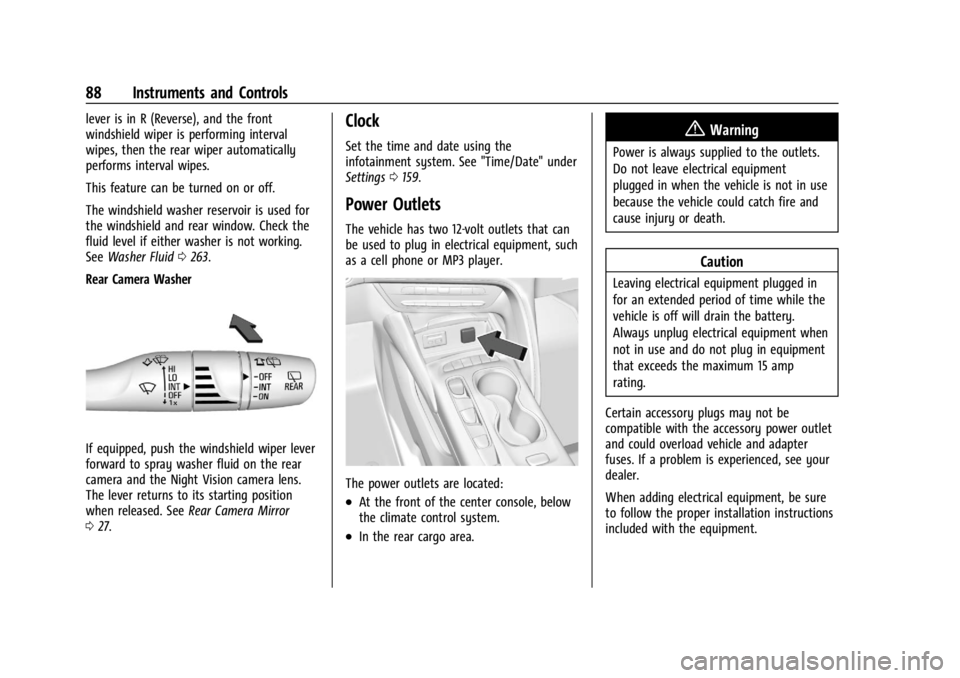
Rear Camera Washer
If equipped, push the windshield wiper lever
forward to spray washer fluid on the rear
camera and the Night Vision camera lens.
The lever returns to its starting position
when released. See Rear Camera Mirror
0 27.
Clock
Set the time and date using the
infotainment system. See "Time/Date" under
Settings 0159.
Power Outlets
The vehicle has two 12-volt outlets that can
be used to plug in electrical equipment, such
as a cell phone or MP3 player.
The power outlets are located:
.At the front of the center console, below
the climate control system.
.In the rear cargo area.
{Warning
Power is always supplied to the outlets.
Do not leave electrical equipment
plugged in when the vehicle is not in use
because the vehicle could catch fire and
cause injury or death.
Caution
Leaving electrical equipment plugged in
for an extended period of time while the
vehicle is off will drain the battery.
Always unplug electrical equipment when
not in use and do not plug in equipment
that exceeds the maximum 15 amp
rating.
Certain accessory plugs may not be
compatible with the accessory power outlet
and could overload vehicle and adapter
fuses. If a problem is experienced, see your
dealer.
When adding electrical equipment, be sure
to follow the proper installation instructions
included with the equipment.
Page 91 of 356
Buick Envision Owner Manual (GMNA-Localizing-U.S./Canada/Mexico-
16060855) - 2023 - CRC - 2/9/22
90 Instruments and Controls
The operating temperature is−40 °C (−40 °F)
to 85 °C (185 °F) for the charging system and
0 °C (32 °F) to 35 °C (95 °F) for the phone.
A charging stopped alert may be displayed
on the infotainment screen, if the wireless
charger or smartphone are outside of
normal operating temperature. Charging will
automatically resume when a normal
operating temperature is reached.
{Warning
Remove all objects from the charger
before charging your compatible
smartphone. Objects, such as coins, keys,
rings, paper clips, or cards, between the
smartphone and charger may become
very hot.
On the rare occasion that the charging
system does not detect an object, and
the object gets wedged between the
smartphone and charger, remove the
smartphone and allow the object to cool
before removing it from the charger, to
prevent burns.
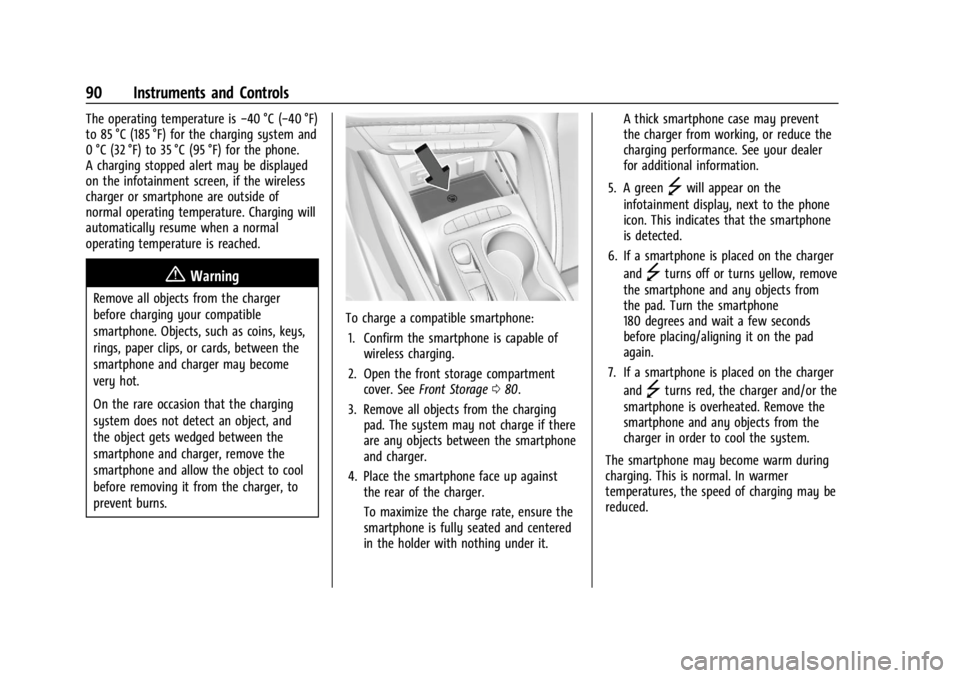
To charge a compatible smartphone:
1. Confirm the smartphone is capable of wireless charging.
2. Open the front storage compartment cover. See Front Storage 080.
3. Remove all objects from the charging pad. The system may not charge if there
are any objects between the smartphone
and charger.
4. Place the smartphone face up against the rear of the charger.
To maximize the charge rate, ensure the
smartphone is fully seated and centered
in the holder with nothing under it. A thick smartphone case may prevent
the charger from working, or reduce the
charging performance. See your dealer
for additional information.
5. A green
]will appear on the
infotainment display, next to the phone
icon. This indicates that the smartphone
is detected.
6. If a smartphone is placed on the charger and
]turns off or turns yellow, remove
the smartphone and any objects from
the pad. Turn the smartphone
180 degrees and wait a few seconds
before placing/aligning it on the pad
again.
7. If a smartphone is placed on the charger and
]turns red, the charger and/or the
smartphone is overheated. Remove the
smartphone and any objects from the
charger in order to cool the system.
The smartphone may become warm during
charging. This is normal. In warmer
temperatures, the speed of charging may be
reduced.
Page 121 of 356
Buick Envision Owner Manual (GMNA-Localizing-U.S./Canada/Mexico-
16060855) - 2023 - CRC - 2/9/22
120 Lighting
To adjust the AFL setting, go to the
infotainment home page and select
Settings > Vehicle > Lighting.
Moving the control out of the AUTO or
2
position will deactivate the system.
Headlamp high beams can move horizontally
when the vehicle speed is greater than
3 km/h (2 mph). Headlamps will not move
horizontally when the transmission is in
R (Reverse).
If equipped, the AFL system automatically
modifies the low beam lighting patterns to
the situation to enable optimal light
performance for the driver. Light distribution
and intensity of low beam light are
controlled based on exterior lighting
conditions, vehicle location, and driving
situations.
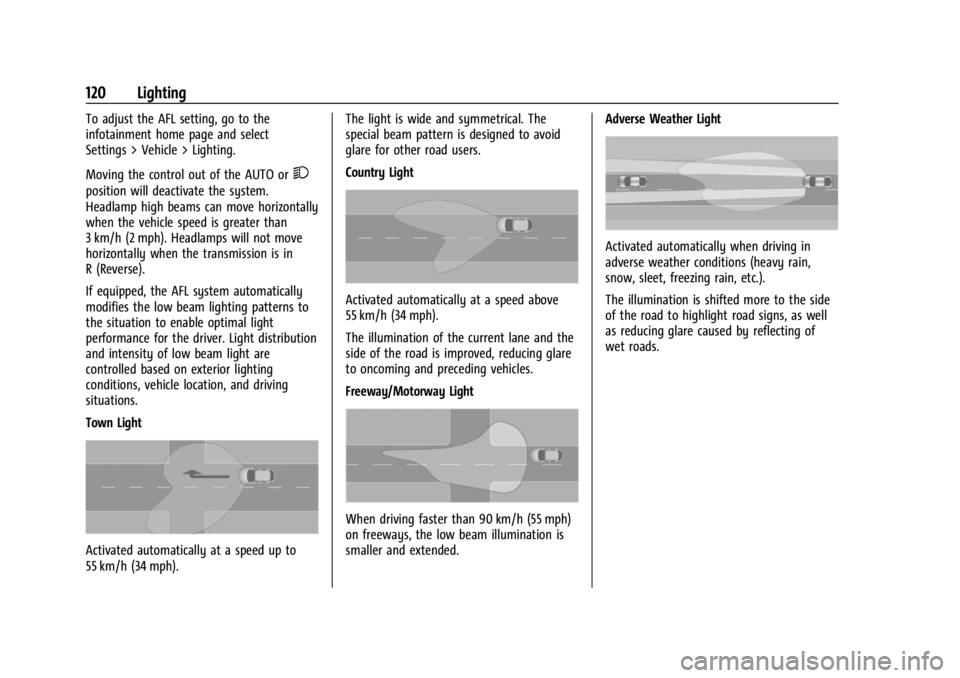
Town Light
Activated automatically at a speed up to
55 km/h (34 mph).The light is wide and symmetrical. The
special beam pattern is designed to avoid
glare for other road users.
Country Light
Activated automatically at a speed above
55 km/h (34 mph).
The illumination of the current lane and the
side of the road is improved, reducing glare
to oncoming and preceding vehicles.
Freeway/Motorway Light
When driving faster than 90 km/h (55 mph)
on freeways, the low beam illumination is
smaller and extended.
Adverse Weather Light
Activated automatically when driving in
adverse weather conditions (heavy rain,
snow, sleet, freezing rain, etc.).
The illumination is shifted more to the side
of the road to highlight road signs, as well
as reducing glare caused by reflecting of
wet roads.
Page 124 of 356
Buick Envision Owner Manual (GMNA-Localizing-U.S./Canada/Mexico-
16060855) - 2023 - CRC - 2/9/22
Lighting 123
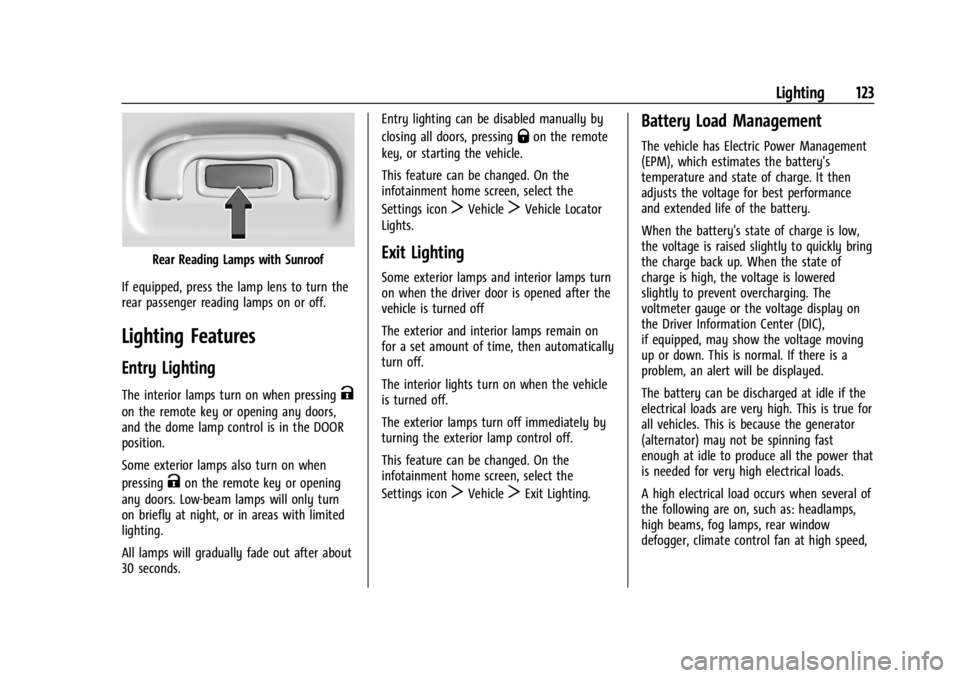
Rear Reading Lamps with Sunroof
If equipped, press the lamp lens to turn the
rear passenger reading lamps on or off.
Lighting Features
Entry Lighting
The interior lamps turn on when pressingK
on the remote key or opening any doors,
and the dome lamp control is in the DOOR
position.
Some exterior lamps also turn on when
pressing
Kon the remote key or opening
any doors. Low-beam lamps will only turn
on briefly at night, or in areas with limited
lighting.
All lamps will gradually fade out after about
30 seconds. Entry lighting can be disabled manually by
closing all doors, pressing
Qon the remote
key, or starting the vehicle.
This feature can be changed. On the
infotainment home screen, select the
Settings icon
TVehicleTVehicle Locator
Lights.
Exit Lighting
Some exterior lamps and interior lamps turn
on when the driver door is opened after the
vehicle is turned off
The exterior and interior lamps remain on
for a set amount of time, then automatically
turn off.
The interior lights turn on when the vehicle
is turned off.
The exterior lamps turn off immediately by
turning the exterior lamp control off.
This feature can be changed. On the
infotainment home screen, select the
Settings icon
TVehicleTExit Lighting.
Battery Load Management
The vehicle has Electric Power Management
(EPM), which estimates the battery's
temperature and state of charge. It then
adjusts the voltage for best performance
and extended life of the battery.
When the battery's state of charge is low,
the voltage is raised slightly to quickly bring
the charge back up. When the state of
charge is high, the voltage is lowered
slightly to prevent overcharging. The
voltmeter gauge or the voltage display on
the Driver Information Center (DIC),
if equipped, may show the voltage moving
up or down. This is normal. If there is a
problem, an alert will be displayed.
The battery can be discharged at idle if the
electrical loads are very high. This is true for
all vehicles. This is because the generator
(alternator) may not be spinning fast
enough at idle to produce all the power that
is needed for very high electrical loads.
A high electrical load occurs when several of
the following are on, such as: headlamps,
high beams, fog lamps, rear window
defogger, climate control fan at high speed,
Page 126 of 356
Buick Envision Owner Manual (GMNA-Localizing-U.S./Canada/Mexico-
16060855) - 2023 - CRC - 2/9/22
Infotainment System 125
Infotainment System
Introduction
Introduction . . . . . . . . . . . . . . . . . . . . . . . . . . . 125
Overview . . . . . . . . . . . . . . . . . . . . . . . . . . . . . . 126
Steering Wheel Controls . . . . . . . . . . . . . . . 127
Using the System . . . . . . . . . . . . . . . . . . . . . . 127
Software Updates . . . . . . . . . . . . . . . . . . . . . 130
Radio
AM-FM Radio . . . . . . . . . . . . . . . . . . . . . . . . . . 130
HD Radio Technology . . . . . . . . . . . . . . . . . . 132
Radio Data System (RDS) . . . . . . . . . . . . . . 132
Satellite Radio . . . . . . . . . . . . . . . . . . . . . . . . . 133
Radio Reception . . . . . . . . . . . . . . . . . . . . . . . . 133
Multi-Band Antenna . . . . . . . . . . . . . . . . . . . 133
Audio Players
Avoiding Untrusted Media Devices . . . . . 134
USB Port . . . . . . . . . . . . . . . . . . . . . . . . . . . . . . . 134
Bluetooth Audio . . . . . . . . . . . . . . . . . . . . . . . 136
Navigation
Using the Navigation System . . . . . . . . . . 137
Maps . . . . . . . . . . . . . . . . . . . . . . . . . . . . . . . . . . 140
Navigation Symbols . . . . . . . . . . . . . . . . . . . 140
Destination . . . . . . . . . . . . . . . . . . . . . . . . . . . . 141
Global Positioning System (GPS) . . . . . . . 146
Vehicle Positioning . . . . . . . . . . . . . . . . . . . . 147
Problems with Route Guidance . . . . . . . . 147
If the System Needs Service . . . . . . . . . . . 147Map Data Updates . . . . . . . . . . . . . . . . . . . . 148
Database Coverage Explanations . . . . . . . 148
Voice Recognition
Voice Recognition . . . . . . . . . . . . . . . . . . . . . 148
Phone
Bluetooth (Overview) . . . . . . . . . . . . . . . . . . 153
Bluetooth (Pairing and Using a
Phone) . . . . . . . . . . . . . . . . . . . . . . . . . . . . . . . 154
Apple CarPlay and Android Auto . . . . . . . 157
Settings
Settings . . . . . . . . . . . . . . . . . . . . . . . . . . . . . . . 159
Teen Driver . . . . . . . . . . . . . . . . . . . . . . . . . . . . 162
Trademarks and License Agreements
Trademarks and License Agreements . . . . . . . . . . . . . . . . . . . . . . . . . . 165
Introduction
Read the following pages to become familiar
with the features.
{Warning
Taking your eyes off the road for too
long or too often while using any
infotainment feature can cause a crash.
You or others could be injured or killed.
Do not give extended attention to
infotainment tasks while driving. Limit
your glances at the vehicle displays and
focus your attention on driving. Use voice
commands whenever possible.
The infotainment system has built-in
features intended to help avoid distraction
by disabling some features when driving.
These features may gray out when they are
unavailable. Many infotainment features are
also available through the instrument cluster
and steering wheel controls.
Before driving:
.Become familiar with the operation,
center stack controls, steering wheel
controls, and infotainment display.
Page 127 of 356
Buick Envision Owner Manual (GMNA-Localizing-U.S./Canada/Mexico-
16060855) - 2023 - CRC - 2/9/22
126 Infotainment System
.Set up the audio by presetting favorite
stations, setting the tone, and adjusting
the speakers.
.Set up phone numbers in advance so they
can be called easily by pressing a single
control or by using a single voice
command.
See Distracted Driving 0182.
Active Noise Cancellation (ANC)
If equipped, ANC reduces engine noise in the
vehicle’s interior. ANC requires the
factory-installed audio system, radio,
speakers, amplifier (if equipped), induction
system, and exhaust system to work
properly. Deactivation is required by your
dealer if related aftermarket equipment is
installed.
Overview
Infotainment System
The infotainment system is controlled by
using the infotainment display, controls on
the center stack, steering wheel controls,
and voice recognition.
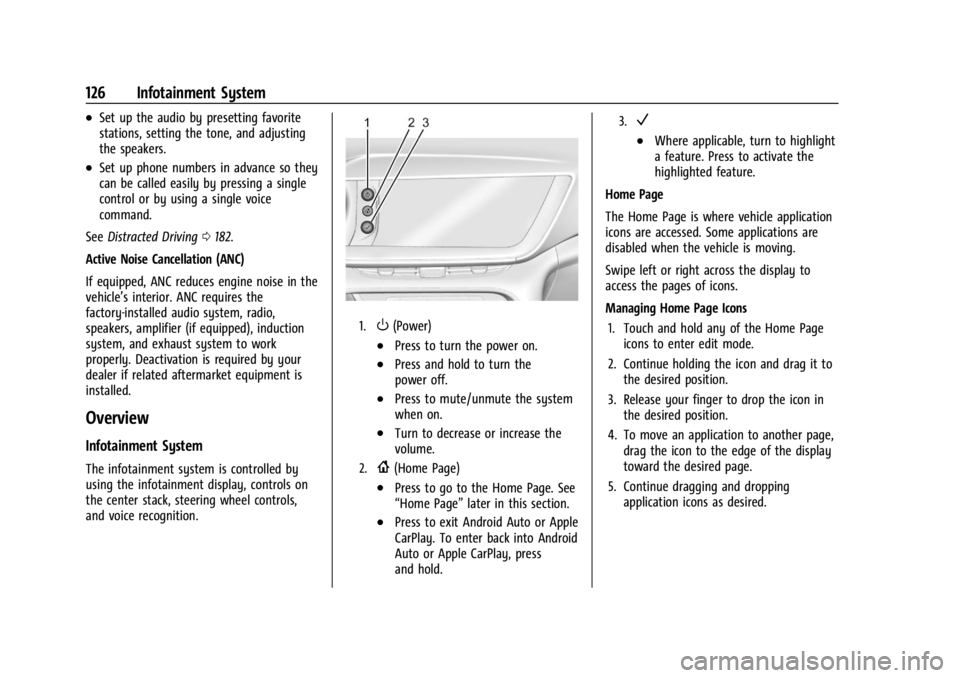
1.O(Power)
.Press to turn the power on.
.Press and hold to turn the
power off.
.Press to mute/unmute the system
when on.
.Turn to decrease or increase the
volume.
2.{(Home Page)
.Press to go to the Home Page. See
“Home Page” later in this section.
.Press to exit Android Auto or Apple
CarPlay. To enter back into Android
Auto or Apple CarPlay, press
and hold.
3.V
.Where applicable, turn to highlight
a feature. Press to activate the
highlighted feature.
Home Page
The Home Page is where vehicle application
icons are accessed. Some applications are
disabled when the vehicle is moving.
Swipe left or right across the display to
access the pages of icons.
Managing Home Page Icons 1. Touch and hold any of the Home Page icons to enter edit mode.
2. Continue holding the icon and drag it to the desired position.
3. Release your finger to drop the icon in the desired position.
4. To move an application to another page, drag the icon to the edge of the display
toward the desired page.
5. Continue dragging and dropping application icons as desired.
Page 128 of 356
Buick Envision Owner Manual (GMNA-Localizing-U.S./Canada/Mexico-
16060855) - 2023 - CRC - 2/9/22
Infotainment System 127
Steering Wheel Controls
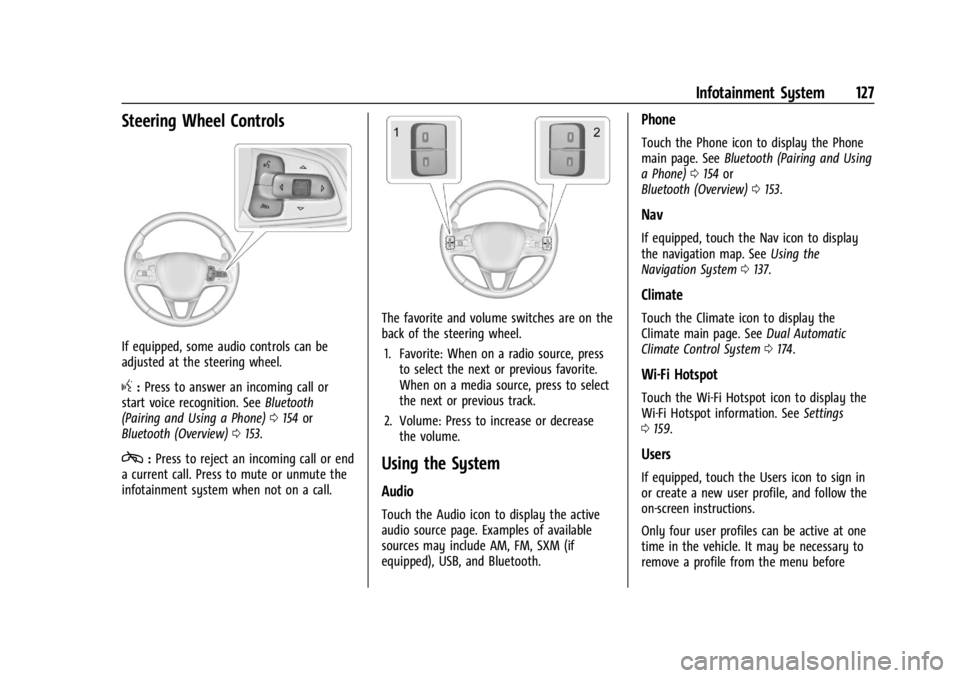
If equipped, some audio controls can be
adjusted at the steering wheel.
g:Press to answer an incoming call or
start voice recognition. See Bluetooth
(Pairing and Using a Phone) 0154 or
Bluetooth (Overview) 0153.
c:Press to reject an incoming call or end
a current call. Press to mute or unmute the
infotainment system when not on a call.
The favorite and volume switches are on the
back of the steering wheel.
1. Favorite: When on a radio source, press to select the next or previous favorite.
When on a media source, press to select
the next or previous track.
2. Volume: Press to increase or decrease the volume.
Using the System
Audio
Touch the Audio icon to display the active
audio source page. Examples of available
sources may include AM, FM, SXM (if
equipped), USB, and Bluetooth.
Phone
Touch the Phone icon to display the Phone
main page. See Bluetooth (Pairing and Using
a Phone) 0154 or
Bluetooth (Overview) 0153.
Nav
If equipped, touch the Nav icon to display
the navigation map. See Using the
Navigation System 0137.
Climate
Touch the Climate icon to display the
Climate main page. See Dual Automatic
Climate Control System 0174.
Wi-Fi Hotspot
Touch the Wi-Fi Hotspot icon to display the
Wi-Fi Hotspot information. See Settings
0 159.
Users
If equipped, touch the Users icon to sign in
or create a new user profile, and follow the
on-screen instructions.
Only four user profiles can be active at one
time in the vehicle. It may be necessary to
remove a profile from the menu before
Page 129 of 356
Buick Envision Owner Manual (GMNA-Localizing-U.S./Canada/Mexico-
16060855) - 2023 - CRC - 2/9/22
128 Infotainment System
creating or signing into an existing profile.
The removed profile can be logged into at a
later time.
Settings
Touch the Settings icon to display the
Settings menu. SeeSettings0159.
Apple CarPlay
Touch the Apple CarPlay icon to activate
Apple CarPlay (if equipped) after a
supported device is connected. See Apple
CarPlay and Android Auto 0157.
Android Auto
Touch the Android Auto icon to activate
Android Auto (if equipped) after a supported
device is connected. See Apple CarPlay and
Android Auto 0157.
Apps
If equipped, in-vehicle apps are available for
download. Touch the Apps icon on the
Home Page to begin.
Downloading and using in-vehicle apps
requires Internet connectivity which can be
accessed with a data plan through the
vehicle’s built-in 4G LTE Wi-Fi hotspot,
if equipped, or a compatible mobile device hotspot. On most mobile devices, activation
of the Wi-Fi hotspot is in the device’s
Settings menu under Mobile Network
Sharing, Personal Hotspot, Mobile Hotspot,
or similar.
Availability of apps and connectivity varies
by vehicle, conditions, and location. Data
plan rates apply. Features are subject to
change. For more information, see
www.my.buick.com/learn.
OnStar Services
If equipped, touch the OnStar Services icon
to display the OnStar Services and Account
pages. See
OnStar Overview 0335.
Camera
If equipped, touch the Camera icon to access
the camera application. See Surround Vision
System 0222.
Shortcut Tray
The shortcut tray is near the bottom of the
display. It shows up to four applications.
Infotainment Display Features
Infotainment display features show on the
display when available. When a feature is
unavailable, it may gray out. When a
feature is touched, it may highlight.
Haptic Feedback
If equipped, haptic feedback is a pulse that
occurs when an icon or option is touched on
the display or when controls on the center
stack are pressed.
Infotainment Gestures
Use the following finger gestures to control
the infotainment system.
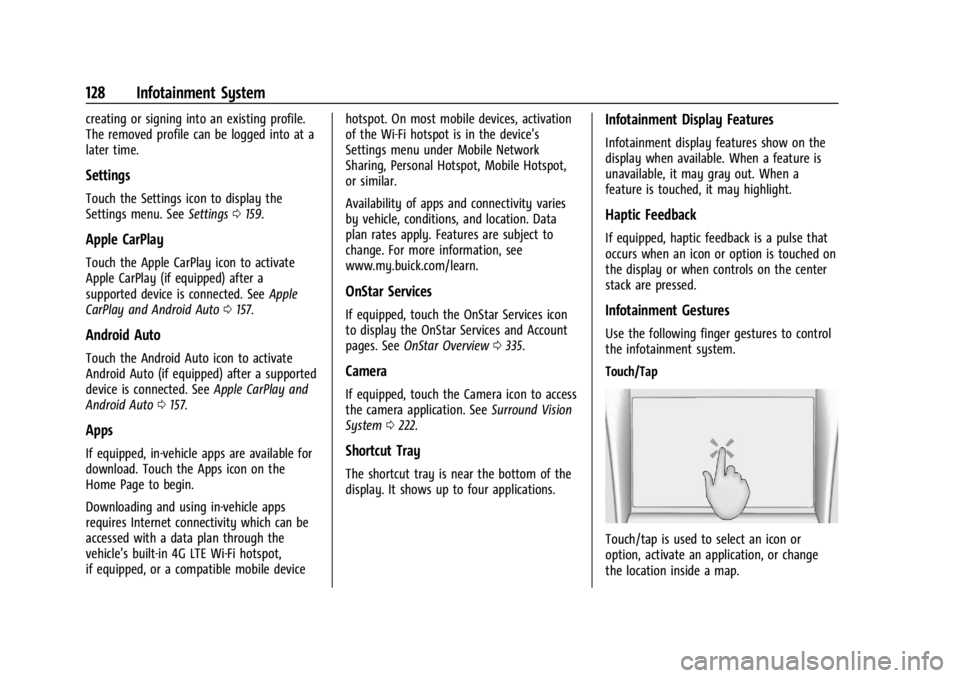
Touch/Tap
Touch/tap is used to select an icon or
option, activate an application, or change
the location inside a map.