seat settings BUICK ENVISION 2023 User Guide
[x] Cancel search | Manufacturer: BUICK, Model Year: 2023, Model line: ENVISION, Model: BUICK ENVISION 2023Pages: 356, PDF Size: 7.42 MB
Page 164 of 356
Buick Envision Owner Manual (GMNA-Localizing-U.S./Canada/Mexico-
16060855) - 2023 - CRC - 2/9/22
Infotainment System 163
The PIN is required to:
.Set up/Add or remove keys.
.Change Teen Driver settings.
.Change or clear the Teen Driver PIN.
.Access or delete Report Card data.
Set up/Add keys to activate Teen Driver and
assign restrictions to the key:
Any vehicle key can be registered, up to a
maximum of eight keys. Label the key to
tell it apart from the other keys.
For a pushbutton start system: 1. Start the vehicle.
2. For automatic transmissions, the vehicle must be in P (Park). For manual
transmissions, the vehicle must be
stopped with the parking brake set.
3. From the Settings menu, touch Vehicle and then Teen Driver.
4. Enter the PIN.
5. Place the remote key you wish to register in the transmitter pocket. The
key does not need to be the one that
started the vehicle. See Remote Key
Operation 08for transmitter pocket
location. 6. From the Teen Driver menu, touch Setup
Keys or Add/Remove Teen Driver Keys.
.If the remote key has not previously
been registered, the option to add
the key displays. Touch Add and a
confirmation message displays. Teen
Driver restrictions will be applied
whenever this remote key is used to
operate the vehicle.
.If the remote key has already been
registered, the option to remove the
key displays. If Remove is touched,
the remote key is no longer
registered. A confirmation message
displays, and Teen Driver restrictions
will not be applied if this remote key
is used to operate the vehicle.
In vehicles with a pushbutton start system,
if a Teen Driver and a non-Teen Driver key
are both present at start up, the vehicle will
recognize the non-Teen Driver key to start
the vehicle. The Teen Driver settings will not
be active.
For a keyed ignition system: 1. Start the vehicle. 2. For automatic transmissions, the vehicle
must be in P (Park). For manual
transmissions, the vehicle must be
stopped with the parking brake set.
3. From the Settings menu, touch Vehicle and then Teen Driver.
4. Enter the PIN.
5. Touch Setup Keys or Add/Remove Teen Driver Keys. The system displays
instructions for registering or
unregistering a key. A confirmation
message displays.
Manage Settings or Teen Driver Settings
Depending on the options of your vehicle,
the following menu items may be displayed:
Buckle to Drive : When turned ON, Buckle to
Drive prevents the driver from shifting out
of P (Park) for a period of time after the
brake pedal is pressed if the driver, or on
some vehicles the detected passenger, has
not buckled their seat belt. On some
vehicles, Buckle to Drive is always ON when
Teen Driver is active and is not configurable.
See Buckle To Drive 045.
Audio Volume Limit : Allows a maximum
audio volume to be set. Turn the audio
volume limit on or off. Use the arrows to
choose the maximum allowable level for the
Page 165 of 356
Buick Envision Owner Manual (GMNA-Localizing-U.S./Canada/Mexico-
16060855) - 2023 - CRC - 2/9/22
164 Infotainment System
audio volume. On some infotainment
systems, touch Set Audio Volume Limit to
choose the maximum allowable audio
volume level.
Set Audio Volume Limit :Use the arrows to
choose the maximum allowable level for the
audio volume.
Teen Driver Speed Limiter : Limits the
maximum speed of the vehicle. When the
speed limiter is turned on and the vehicle is
started with a Teen Driver key, the DIC
displays a message that the top speed is
limited.
On certain vehicles, when the Speed Limiter
is turned ON, the vehicle’s maximum
acceleration will be limited. The DIC will
display a message that the acceleration is
limited.
Teen Driver Speed Warning : Displays a
warning in the DIC when exceeding a
selectable speed. Turn the speed warning on
or off and choose the desired speed warning
level. The speed warning does not limit the
speed of the vehicle. On some infotainment
systems, touch Set Teen Driver Speed
Warning to set the warning speed. Set Teen Driver Speed Warning :
Choose the
desired speed warning level. The speed
warning does not limit the speed of the
vehicle.
SiriusXM Explicit Content Filter : Allows the
SiriusXM Explicit Content Filter to be turned
ON or OFF. When ON, the teen driver will
not be able to listen to SiriusXM stations
that contain explicit content, and the Explicit
Content Filter selection in the Audio Settings
will be unavailable for change.
When Teen Driver is Active:
.If equipped, the radio will mute when the
driver seat belt, and in some vehicles the
front passenger seat belt, is not buckled.
The audio from any device paired to the
vehicle will also be muted.
.An object placed on the front passenger
seat, such as a briefcase, handbag,
grocery bag, laptop, or other electronic
device, could cause the passenger sensing
system to falsely sense an unbuckled
front passenger and mute the radio.
If this happens, remove the object from
the seat. See Passenger Sensing System
0 56.
.Some safety systems, such as Automatic
Emergency Braking, if equipped, cannot
be turned off.
.The gap setting for Adaptive Cruise
Control and alert timing for Forward
Collision Alert, if equipped, cannot be
changed.
.When trying to change a safety feature
that is not configurable in Teen Driver,
the feature may be grayed out or
removed from the infotainment menu,
or the DIC will display a message
indicating that Teen Driver is active and
the action is not available.
.Super Cruise, if equipped, is not available.
.Enhanced Low Fuel Warning (if equipped)
–When the vehicle is low on fuel, the
low fuel light on the instrument cluster
flashes and the DIC low fuel warning
cannot be dismissed.
.Do not tow a trailer if equipped with
Automatic Emergency Braking.
Report Card
The vehicle owner must secure the driver’s
consent to record certain vehicle data when
the vehicle is driven with a registered Teen
Driver key. There is one Report Card per
vehicle. Data is only recorded when a
registered Teen Driver key is used to
operate the vehicle.
Page 177 of 356
Buick Envision Owner Manual (GMNA-Localizing-U.S./Canada/Mexico-
16060855) - 2023 - CRC - 2/9/22
176 Climate Controls
Manual Operation
ON/OFF :Press to turn the system off or
on. When off is selected, the system will
prevent outside air from entering the
vehicle. If any climate control buttons are
pressed, the system will turn on and
operate at the current setting.
Q^or^ R:Lift or press to increase or
decrease the fan speed. The fan speed
setting appears on the main display. Lifting
or pressing either button cancels automatic
fan control and the fan is controlled
manually. Press AUTO to return to
automatic operation.
Q/R: The temperature can be adjusted
separately for the driver and the passenger.
Lift or press to increase or decrease the
temperature.
SYNC : Press to link the passenger
temperature settings to the driver setting.
The SYNC indicator light will turn on. When
the passenger settings are adjusted, the
SYNC indicator light turns off.
Air Delivery Mode Controls : In the climate
control display, press
z,Y, or[to
change the direction of the airflow. The
indicator light in the button will turn on.
Any combination of the three buttons can be selected. The current mode appears in
the display. Pressing any of the three
buttons cancels automatic air delivery
control and the direction of the airflow is
controlled manually. Press AUTO to return
to automatic operation.
To change the current mode, select one or
more of the following:
z:
Clears the windows of fog or moisture.
Air is directed to the windshield.
Y: Air is directed to the instrument panel
outlets.
[: Air is directed to the floor outlets.
0MAX : Air is directed to the windshield
and the fan runs at a higher speed. Fog or
frost is cleared from the windshield more
quickly. When the button is pressed again,
the system returns to the previous mode
setting.
For best results, clear all snow and ice from
the windshield before defrosting.
A/C : Press to turn the air conditioning
system on or off. If the climate control
system is turned off or the outside
temperature falls below freezing, the air
conditioner will not run. Pressing this button cancels automatic air
conditioning and turns off the air
conditioner. Press AUTO to return to
automatic operation and the air conditioner
runs automatically as needed. When the
indicator light is on, the air conditioner runs
automatically to cool the air inside the
vehicle or to dry the air needed to defog
the windshield faster.
@:
Press to turn on recirculation. An
indicator light comes on. Air is recirculated
to quickly cool the inside of the vehicle or
to reduce the entry of outside air and odors.
xory: Liftxoryfor the highest
heated seat setting. Lifting the heated seat
button again will keep the heated seat at
the highest setting. Press the heated seat
button down to lower the heat level or turn
the heated seat off.
Press
xory, if available, for the highest
ventilated seat setting. Pressing the
ventilated seat button again will keep the
ventilated seat at the highest setting. Lift
the ventilated seat button to lower the vent
level or turn the ventilated seat off. See
Heated and Ventilated Front Seats 041.
Page 179 of 356

Buick Envision Owner Manual (GMNA-Localizing-U.S./Canada/Mexico-
16060855) - 2023 - CRC - 2/9/22
178 Climate Controls
equipped with a cabin filter which cleans the
air and reduces this pollution anytime the
HVAC is on.
The displayed value is updated every few
seconds by a sensor in the vehicle’s interior.
Higher numbers indicate a higher level of
pollution in the air while lower numbers
indicate cleaner air. A reading of zero
indicates the pollution level is too low to be
read by the sensor.
The interior air quality level is displayed in
the application which can be opened from
the home screen. The interior air quality
level may also be continually displayed in
the lower right corner of the screen. This
can be turned on or off. Select Settings >
Applications > Air Quality.
The number scaling, colors, and categories
are set according to regional standards.
More information is available by touching
the screen within the Interior Air Quality
application. For more information on the
pollution scale in your region visit:
https://www.epa.gov/pm-pollutionAfterblow Feature
If equipped, under certain conditions, the
fan may stay on or may turn on and off
several times after you turn off and lock the
vehicle. This is normal.
Air Vents
Move the slider knobs to change the
direction of the airflow and to shut off the
air flow.
Use the thumbwheel near the air vents to
control the amount of airflow or to shut off
the airflow.
Operation Tips
.Clear away any ice, snow, or leaves from
the air inlets at the base of the
windshield that can block the flow of air
into the vehicle.
.Clear snow off the hood to improve
visibility and help decrease moisture
drawn into the vehicle.
.Keep all outlets open whenever possible
for best system performance.
.Keep the path under all seats clear of
objects to help circulate the air inside the
vehicle more effectively.
Page 183 of 356
Buick Envision Owner Manual (GMNA-Localizing-U.S./Canada/Mexico-
16060855) - 2023 - CRC - 2/9/22
182 Driving and Operating
.Set the climate controls to the desired
temperature after the engine is started,
or turn them off when not required.
.Avoid fast starts and accelerate smoothly.
.Brake gradually and avoid abrupt stops.
.Avoid idling the engine for long periods
of time.
.When road and weather conditions are
appropriate, use cruise control.
.Always follow posted speed limits or
drive more slowly when conditions
require.
.Keep vehicle tires properly inflated.
.Combine several trips into a single trip.
.Replace the vehicle's tires with the same
TPC Spec number molded into the tire's
sidewall near the size.
.Follow recommended scheduled
maintenance.
Distracted Driving
Distraction comes in many forms and can
take your focus from the task of driving.
Exercise good judgment and do not let other
activities divert your attention away from
the road. Many local governments haveenacted laws regarding driver distraction.
Become familiar with the local laws in
your area.
To avoid distracted driving, keep your eyes
on the road, keep your hands on the
steering wheel, and focus your attention on
driving.
.Do not use a phone in demanding driving
situations. Use a hands-free method to
place or receive necessary phone calls.
.Watch the road. Do not read, take notes,
or look up information on phones or
other electronic devices.
.Designate a front seat passenger to
handle potential distractions.
.Become familiar with vehicle features
before driving, such as programming
favorite radio stations and adjusting
climate control and seat settings. Program
all trip information into any navigation
device prior to driving.
.Wait until the vehicle is parked to
retrieve items that have fallen to the
floor.
.Stop or park the vehicle to tend to
children.
.Keep pets in an appropriate carrier or
restraint.
.Avoid stressful conversations while
driving, whether with a passenger or on a
cell phone.
{Warning
Taking your eyes off the road too long or
too often could cause a crash resulting in
injury or death. Focus your attention on
driving.
Refer to the infotainment section for more
information on using that system and the
navigation system, if equipped, including
pairing and using a cell phone.
Defensive Driving
Defensive driving means “always expect the
unexpected.” The first step in driving
defensively is to wear the seat belt. See
Seat Belts 044.
.Assume that other road users
(pedestrians, bicyclists, and other drivers)
are going to be careless and make
mistakes. Anticipate what they may do
and be ready.
.Allow enough following distance between
you and the driver in front of you.
.Focus on the task of driving.
Page 195 of 356

Buick Envision Owner Manual (GMNA-Localizing-U.S./Canada/Mexico-
16060855) - 2023 - CRC - 2/9/22
194 Driving and Operating
Auto Stops may not occur and/or auto
restarts may occur because:
.The climate control settings require the
engine to be running to cool or heat the
vehicle interior.
.The vehicle battery needs to charge.
.The vehicle battery has recently been
disconnected.
.Minimum vehicle speed has not been
reached since the last Auto Stop.
.The accelerator pedal is pressed.
.The engine or transmission is not at the
required operating temperature.
.The outside temperature is not in the
required operating range.
.The vehicle transmission is shifted out of
D (Drive) to any gear other than P (Park).
.Certain driver modes have been selected.
SeeDriver Mode Control 0208.
.The vehicle is on a steep hill or grade.
.The driver door has been opened or the
driver seat belt has been unbuckled.
.The hood has been opened.
.The Auto Stop has reached the maximum
allowed time. Auto Stop Disable Switch
The automatic engine Stop/Start feature can
be disabled and enabled by pressing
h.
Auto Stop/Start is enabled each time you
start the vehicle.
When the
hindicator is illuminated, the
system is enabled.
Engine Heater
The engine heater, if available, can help in
cold weather conditions at or below
−18 °C (0 °F) for easier starting and better
fuel economy during engine warm-up. Plug
in the engine heater at least four hours
before starting the vehicle. An internal
thermostat in the plug end of the cord will
prevent engine heater operation at
temperatures above −18 °C (0 °F).
{Warning
Do not plug in the engine block heater
while the vehicle is parked in a garage or
under a carport. Property damage or
personal injury may result. Always park
the vehicle in a clear open area away
from buildings or structures.
To Use the Engine Heater
1. Turn off the engine.
2. Check the heater cord for damage. If it is
damaged, do not use it. See your dealer
for a replacement. Inspect the cord for
damage at each use.
Page 216 of 356
Buick Envision Owner Manual (GMNA-Localizing-U.S./Canada/Mexico-
16060855) - 2023 - CRC - 2/9/22
Driving and Operating 215
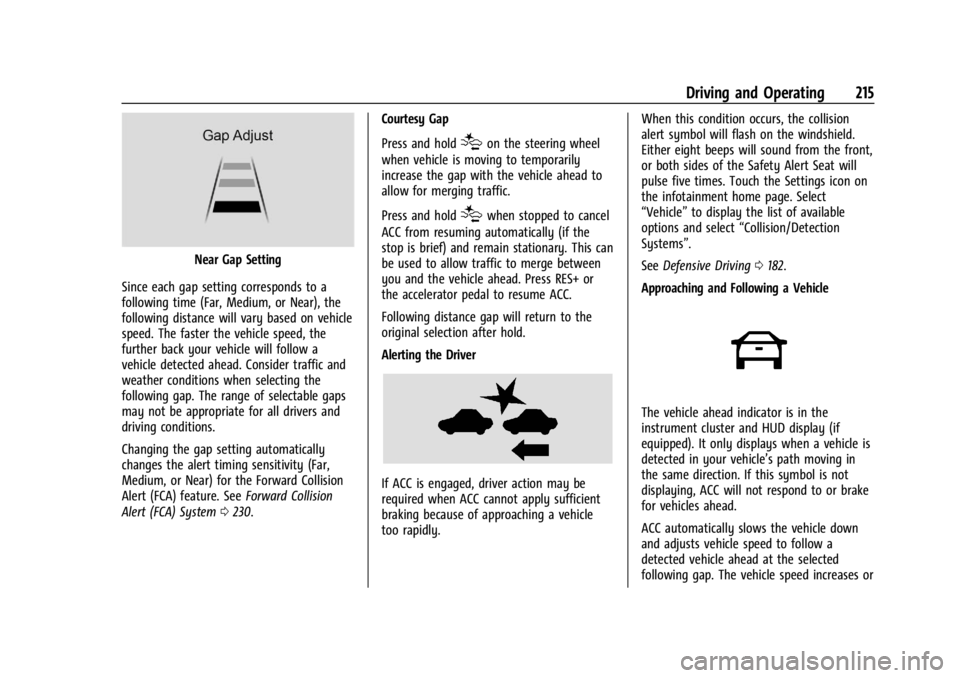
Near Gap Setting
Since each gap setting corresponds to a
following time (Far, Medium, or Near), the
following distance will vary based on vehicle
speed. The faster the vehicle speed, the
further back your vehicle will follow a
vehicle detected ahead. Consider traffic and
weather conditions when selecting the
following gap. The range of selectable gaps
may not be appropriate for all drivers and
driving conditions.
Changing the gap setting automatically
changes the alert timing sensitivity (Far,
Medium, or Near) for the Forward Collision
Alert (FCA) feature. See Forward Collision
Alert (FCA) System 0230. Courtesy Gap
Press and hold
[on the steering wheel
when vehicle is moving to temporarily
increase the gap with the vehicle ahead to
allow for merging traffic.
Press and hold
[when stopped to cancel
ACC from resuming automatically (if the
stop is brief) and remain stationary. This can
be used to allow traffic to merge between
you and the vehicle ahead. Press RES+ or
the accelerator pedal to resume ACC.
Following distance gap will return to the
original selection after hold.
Alerting the Driver
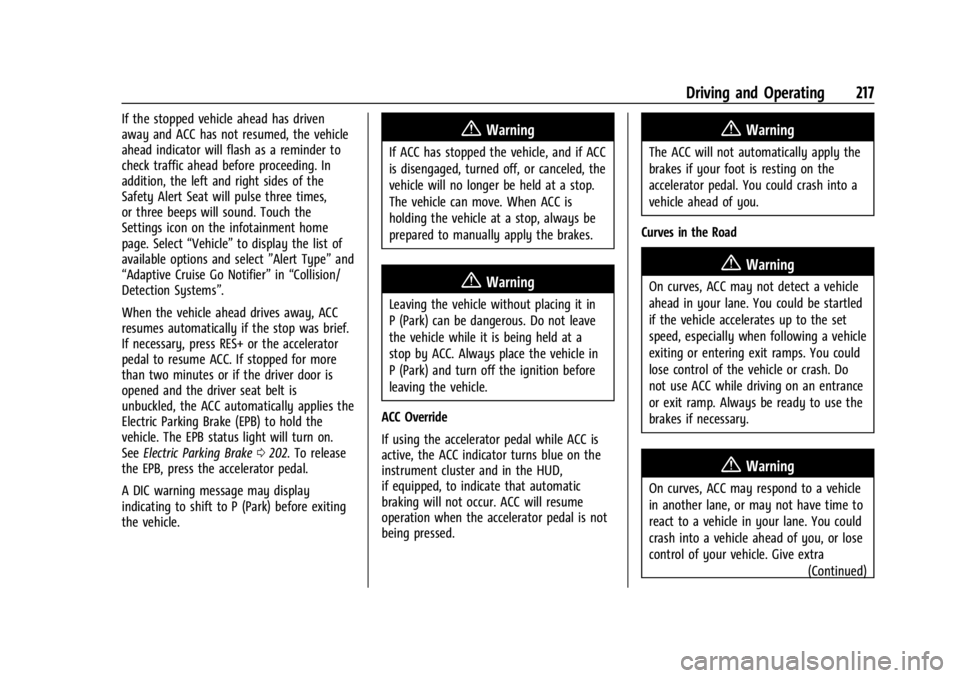
If ACC is engaged, driver action may be
required when ACC cannot apply sufficient
braking because of approaching a vehicle
too rapidly. When this condition occurs, the collision
alert symbol will flash on the windshield.
Either eight beeps will sound from the front,
or both sides of the Safety Alert Seat will
pulse five times. Touch the Settings icon on
the infotainment home page. Select
“Vehicle”
to display the list of available
options and select “Collision/Detection
Systems”.
See Defensive Driving 0182.
Approaching and Following a Vehicle
The vehicle ahead indicator is in the
instrument cluster and HUD display (if
equipped). It only displays when a vehicle is
detected in your vehicle’s path moving in
the same direction. If this symbol is not
displaying, ACC will not respond to or brake
for vehicles ahead.
ACC automatically slows the vehicle down
and adjusts vehicle speed to follow a
detected vehicle ahead at the selected
following gap. The vehicle speed increases or
Page 218 of 356
Buick Envision Owner Manual (GMNA-Localizing-U.S./Canada/Mexico-
16060855) - 2023 - CRC - 2/9/22
Driving and Operating 217
If the stopped vehicle ahead has driven
away and ACC has not resumed, the vehicle
ahead indicator will flash as a reminder to
check traffic ahead before proceeding. In
addition, the left and right sides of the
Safety Alert Seat will pulse three times,
or three beeps will sound. Touch the
Settings icon on the infotainment home
page. Select“Vehicle”to display the list of
available options and select ”Alert Type”and
“Adaptive Cruise Go Notifier” in“Collision/
Detection Systems”.
When the vehicle ahead drives away, ACC
resumes automatically if the stop was brief.
If necessary, press RES+ or the accelerator
pedal to resume ACC. If stopped for more
than two minutes or if the driver door is
opened and the driver seat belt is
unbuckled, the ACC automatically applies the
Electric Parking Brake (EPB) to hold the
vehicle. The EPB status light will turn on.
See Electric Parking Brake 0202. To release
the EPB, press the accelerator pedal.
A DIC warning message may display
indicating to shift to P (Park) before exiting
the vehicle.{Warning
If ACC has stopped the vehicle, and if ACC
is disengaged, turned off, or canceled, the
vehicle will no longer be held at a stop.
The vehicle can move. When ACC is
holding the vehicle at a stop, always be
prepared to manually apply the brakes.
{Warning
Leaving the vehicle without placing it in
P (Park) can be dangerous. Do not leave
the vehicle while it is being held at a
stop by ACC. Always place the vehicle in
P (Park) and turn off the ignition before
leaving the vehicle.
ACC Override
If using the accelerator pedal while ACC is
active, the ACC indicator turns blue on the
instrument cluster and in the HUD,
if equipped, to indicate that automatic
braking will not occur. ACC will resume
operation when the accelerator pedal is not
being pressed.
{Warning
The ACC will not automatically apply the
brakes if your foot is resting on the
accelerator pedal. You could crash into a
vehicle ahead of you.
Curves in the Road
{Warning
On curves, ACC may not detect a vehicle
ahead in your lane. You could be startled
if the vehicle accelerates up to the set
speed, especially when following a vehicle
exiting or entering exit ramps. You could
lose control of the vehicle or crash. Do
not use ACC while driving on an entrance
or exit ramp. Always be ready to use the
brakes if necessary.
{Warning
On curves, ACC may respond to a vehicle
in another lane, or may not have time to
react to a vehicle in your lane. You could
crash into a vehicle ahead of you, or lose
control of your vehicle. Give extra (Continued)
Page 221 of 356
Buick Envision Owner Manual (GMNA-Localizing-U.S./Canada/Mexico-
16060855) - 2023 - CRC - 2/9/22
220 Driving and Operating
Warning (Continued)
.Work if the detection sensor is
covered up, such as with a sticker,
magnet, or metal plate.
.Work if the area surrounding the
detection sensor is damaged or not
properly repaired.
Complete attention is always required
while driving, and you should be ready to
take action and apply the brakes and/or
steer the vehicle to avoid crashes.
Audible or Safety Alert Seat
Some driver assistance features alert the
driver of obstacles by beeping. To view
available settings for this feature, touch the
Settings icon on the infotainment home
page. Select “Vehicle”to display the list of
available options and select “Comfort and
Convenience”.
If equipped with the Safety Alert Seat, the
driver seat cushion may provide a vibrating
pulse alert instead of beeping. To view
available settings for this feature, touch the
Settings icon on the infotainment home page. Select
“Vehicle”to display the list of
available options and select “Collision/
Detection Systems”.
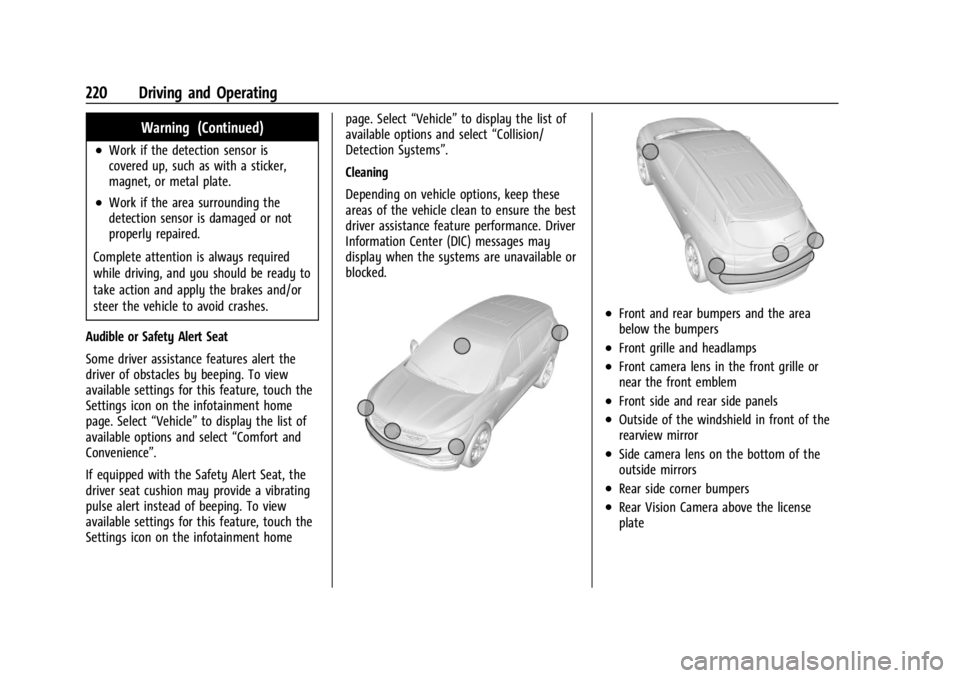
Cleaning
Depending on vehicle options, keep these
areas of the vehicle clean to ensure the best
driver assistance feature performance. Driver
Information Center (DIC) messages may
display when the systems are unavailable or
blocked.
.Front and rear bumpers and the area
below the bumpers
.Front grille and headlamps
.Front camera lens in the front grille or
near the front emblem
.Front side and rear side panels
.Outside of the windshield in front of the
rearview mirror
.Side camera lens on the bottom of the
outside mirrors
.Rear side corner bumpers
.Rear Vision Camera above the license
plate
Page 225 of 356
Buick Envision Owner Manual (GMNA-Localizing-U.S./Canada/Mexico-
16060855) - 2023 - CRC - 2/9/22
224 Driving and Operating
How the System Works
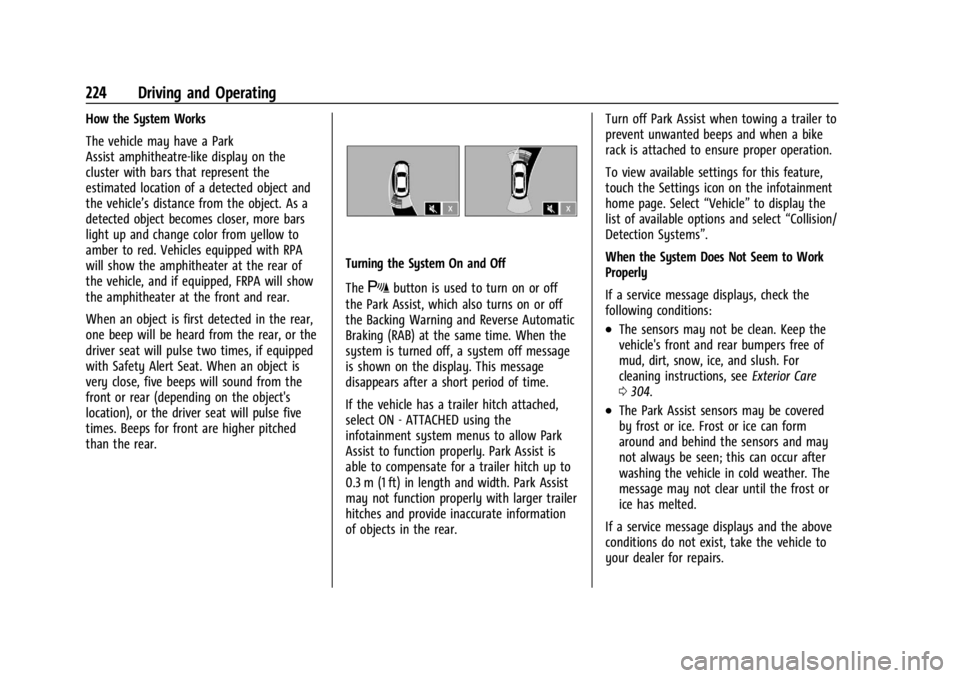
The vehicle may have a Park
Assist amphitheatre-like display on the
cluster with bars that represent the
estimated location of a detected object and
the vehicle’s distance from the object. As a
detected object becomes closer, more bars
light up and change color from yellow to
amber to red. Vehicles equipped with RPA
will show the amphitheater at the rear of
the vehicle, and if equipped, FRPA will show
the amphitheater at the front and rear.
When an object is first detected in the rear,
one beep will be heard from the rear, or the
driver seat will pulse two times, if equipped
with Safety Alert Seat. When an object is
very close, five beeps will sound from the
front or rear (depending on the object's
location), or the driver seat will pulse five
times. Beeps for front are higher pitched
than the rear.
Turning the System On and Off
The
Xbutton is used to turn on or off
the Park Assist, which also turns on or off
the Backing Warning and Reverse Automatic
Braking (RAB) at the same time. When the
system is turned off, a system off message
is shown on the display. This message
disappears after a short period of time.
If the vehicle has a trailer hitch attached,
select ON - ATTACHED using the
infotainment system menus to allow Park
Assist to function properly. Park Assist is
able to compensate for a trailer hitch up to
0.3 m (1 ft) in length and width. Park Assist
may not function properly with larger trailer
hitches and provide inaccurate information
of objects in the rear. Turn off Park Assist when towing a trailer to
prevent unwanted beeps and when a bike
rack is attached to ensure proper operation.
To view available settings for this feature,
touch the Settings icon on the infotainment
home page. Select
“Vehicle”to display the
list of available options and select “Collision/
Detection Systems”.
When the System Does Not Seem to Work
Properly
If a service message displays, check the
following conditions:
.The sensors may not be clean. Keep the
vehicle's front and rear bumpers free of
mud, dirt, snow, ice, and slush. For
cleaning instructions, see Exterior Care
0 304.
.The Park Assist sensors may be covered
by frost or ice. Frost or ice can form
around and behind the sensors and may
not always be seen; this can occur after
washing the vehicle in cold weather. The
message may not clear until the frost or
ice has melted.
If a service message displays and the above
conditions do not exist, take the vehicle to
your dealer for repairs.