instrument cluster BUICK ENVISION 2023 Owner's Manual
[x] Cancel search | Manufacturer: BUICK, Model Year: 2023, Model line: ENVISION, Model: BUICK ENVISION 2023Pages: 356, PDF Size: 7.42 MB
Page 126 of 356
Buick Envision Owner Manual (GMNA-Localizing-U.S./Canada/Mexico-
16060855) - 2023 - CRC - 2/9/22
Infotainment System 125
Infotainment System
Introduction
Introduction . . . . . . . . . . . . . . . . . . . . . . . . . . . 125
Overview . . . . . . . . . . . . . . . . . . . . . . . . . . . . . . 126
Steering Wheel Controls . . . . . . . . . . . . . . . 127
Using the System . . . . . . . . . . . . . . . . . . . . . . 127
Software Updates . . . . . . . . . . . . . . . . . . . . . 130
Radio
AM-FM Radio . . . . . . . . . . . . . . . . . . . . . . . . . . 130
HD Radio Technology . . . . . . . . . . . . . . . . . . 132
Radio Data System (RDS) . . . . . . . . . . . . . . 132
Satellite Radio . . . . . . . . . . . . . . . . . . . . . . . . . 133
Radio Reception . . . . . . . . . . . . . . . . . . . . . . . . 133
Multi-Band Antenna . . . . . . . . . . . . . . . . . . . 133
Audio Players
Avoiding Untrusted Media Devices . . . . . 134
USB Port . . . . . . . . . . . . . . . . . . . . . . . . . . . . . . . 134
Bluetooth Audio . . . . . . . . . . . . . . . . . . . . . . . 136
Navigation
Using the Navigation System . . . . . . . . . . 137
Maps . . . . . . . . . . . . . . . . . . . . . . . . . . . . . . . . . . 140
Navigation Symbols . . . . . . . . . . . . . . . . . . . 140
Destination . . . . . . . . . . . . . . . . . . . . . . . . . . . . 141
Global Positioning System (GPS) . . . . . . . 146
Vehicle Positioning . . . . . . . . . . . . . . . . . . . . 147
Problems with Route Guidance . . . . . . . . 147
If the System Needs Service . . . . . . . . . . . 147Map Data Updates . . . . . . . . . . . . . . . . . . . . 148
Database Coverage Explanations . . . . . . . 148
Voice Recognition
Voice Recognition . . . . . . . . . . . . . . . . . . . . . 148
Phone
Bluetooth (Overview) . . . . . . . . . . . . . . . . . . 153
Bluetooth (Pairing and Using a
Phone) . . . . . . . . . . . . . . . . . . . . . . . . . . . . . . . 154
Apple CarPlay and Android Auto . . . . . . . 157
Settings
Settings . . . . . . . . . . . . . . . . . . . . . . . . . . . . . . . 159
Teen Driver . . . . . . . . . . . . . . . . . . . . . . . . . . . . 162
Trademarks and License Agreements
Trademarks and License Agreements . . . . . . . . . . . . . . . . . . . . . . . . . . 165
Introduction
Read the following pages to become familiar
with the features.
{Warning
Taking your eyes off the road for too
long or too often while using any
infotainment feature can cause a crash.
You or others could be injured or killed.
Do not give extended attention to
infotainment tasks while driving. Limit
your glances at the vehicle displays and
focus your attention on driving. Use voice
commands whenever possible.
The infotainment system has built-in
features intended to help avoid distraction
by disabling some features when driving.
These features may gray out when they are
unavailable. Many infotainment features are
also available through the instrument cluster
and steering wheel controls.
Before driving:
.Become familiar with the operation,
center stack controls, steering wheel
controls, and infotainment display.
Page 150 of 356
Buick Envision Owner Manual (GMNA-Localizing-U.S./Canada/Mexico-
16060855) - 2023 - CRC - 2/9/22
Infotainment System 149
3. Clearly speak one of the commandsdescribed in this section.
A voice recognition system prompt can
be interrupted while it is playing by
pressing
gagain.
Once voice recognition is started, both the
infotainment display and instrument cluster
show the selections and visual dialog
content. These displays can be turned on or
off in the Tutorial Mode under Settings
0 159.
There are three voice prompt modes
supported:
.Informative verbal prompts: This type of
prompt will provide more information
regarding the supported actions.
.Short prompts: This type of prompt will
provide simple instructions about what
can be stated.
.Auto informative prompts: This type of
prompt plays during the first few speech
sessions, then automatically switches to
the short prompt after some experience
has been gained through using the
system.
If a command is not spoken, the voice
recognition system says a help prompt. Prompts and Infotainment Displays
While a voice recognition session is active,
there may be corresponding options
showing on the displays. A selection can be
made by manually touching the option,
or by speaking the number for the option to
select. Manual interaction in the voice
recognition session is permitted. Interaction
during a voice session may be completed
entirely using voice commands while some
manual commands may expedite a task. If a
selection is made using a manual control,
the voice recognition dialog will progress in
the same way as if the selection were made
using a voice command. Once the system
completes the task, or the session is
terminated, the voice recognition dialog
stops.
An example of this type of manual
intervention is touching an entry of a
displayed number list instead of speaking
the number associated with the entry
desired.
Canceling Voice Recognition
.Touch or say
“Cancel”or“Exit” to
terminate the voice recognition session
and show the display where voice
recognition was initiated.
.Pression the steering wheel controls
to terminate the voice recognition session
and show the display where voice
recognition was initiated.
Natural Language Commands
Most languages do not support natural
language commands in sentence form. For
those languages, use direct commands like
the examples shown on the display.
Helpful Hints for Speaking Commands
Voice recognition can understand commands
that are naturally stated in sentence form or
direct commands that state the application
and the task.
For best results:
.Listen for the prompt before saying a
command or reply.
.Speak the command naturally, not too
fast, not too slow.
.Use direct commands without a lot of
extra words. For example, “Call
at work,” “Play” followed by the artist or
song name, or “Tune”followed by the
radio station number.
Page 165 of 356
Buick Envision Owner Manual (GMNA-Localizing-U.S./Canada/Mexico-
16060855) - 2023 - CRC - 2/9/22
164 Infotainment System
audio volume. On some infotainment
systems, touch Set Audio Volume Limit to
choose the maximum allowable audio
volume level.
Set Audio Volume Limit :Use the arrows to
choose the maximum allowable level for the
audio volume.
Teen Driver Speed Limiter : Limits the
maximum speed of the vehicle. When the
speed limiter is turned on and the vehicle is
started with a Teen Driver key, the DIC
displays a message that the top speed is
limited.
On certain vehicles, when the Speed Limiter
is turned ON, the vehicle’s maximum
acceleration will be limited. The DIC will
display a message that the acceleration is
limited.
Teen Driver Speed Warning : Displays a
warning in the DIC when exceeding a
selectable speed. Turn the speed warning on
or off and choose the desired speed warning
level. The speed warning does not limit the
speed of the vehicle. On some infotainment
systems, touch Set Teen Driver Speed
Warning to set the warning speed. Set Teen Driver Speed Warning :
Choose the
desired speed warning level. The speed
warning does not limit the speed of the
vehicle.
SiriusXM Explicit Content Filter : Allows the
SiriusXM Explicit Content Filter to be turned
ON or OFF. When ON, the teen driver will
not be able to listen to SiriusXM stations
that contain explicit content, and the Explicit
Content Filter selection in the Audio Settings
will be unavailable for change.
When Teen Driver is Active:
.If equipped, the radio will mute when the
driver seat belt, and in some vehicles the
front passenger seat belt, is not buckled.
The audio from any device paired to the
vehicle will also be muted.
.An object placed on the front passenger
seat, such as a briefcase, handbag,
grocery bag, laptop, or other electronic
device, could cause the passenger sensing
system to falsely sense an unbuckled
front passenger and mute the radio.
If this happens, remove the object from
the seat. See Passenger Sensing System
0 56.
.Some safety systems, such as Automatic
Emergency Braking, if equipped, cannot
be turned off.
.The gap setting for Adaptive Cruise
Control and alert timing for Forward
Collision Alert, if equipped, cannot be
changed.
.When trying to change a safety feature
that is not configurable in Teen Driver,
the feature may be grayed out or
removed from the infotainment menu,
or the DIC will display a message
indicating that Teen Driver is active and
the action is not available.
.Super Cruise, if equipped, is not available.
.Enhanced Low Fuel Warning (if equipped)
–When the vehicle is low on fuel, the
low fuel light on the instrument cluster
flashes and the DIC low fuel warning
cannot be dismissed.
.Do not tow a trailer if equipped with
Automatic Emergency Braking.
Report Card
The vehicle owner must secure the driver’s
consent to record certain vehicle data when
the vehicle is driven with a registered Teen
Driver key. There is one Report Card per
vehicle. Data is only recorded when a
registered Teen Driver key is used to
operate the vehicle.
Page 202 of 356

Buick Envision Owner Manual (GMNA-Localizing-U.S./Canada/Mexico-
16060855) - 2023 - CRC - 2/9/22
Driving and Operating 201
Manual Mode
Tap ShiftCaution
Driving with the engine at a high rpm
without upshifting while using Tap Shift,
could damage the vehicle. Always upshift
when necessary while using Tap Shift.
Vehicles with Tap Shift have controls on the
back of the steering wheel to manually shift
the automatic transmission. Permanent Tap Shift Mode
To enter Permanent Tap Shift Mode:
1. With the vehicle in D (Drive), press the M (Manual Mode) button.
2. Pull the steering wheel control toward you to shift. Pull the left control to
downshift, and the right control to
upshift.
To exit Permanent Tap Shift Mode, pull the
D (Drive) switch on the center console.
Temporary Tap Manual Shift Mode
To enter Temporary Tap Shift Mode: 1. With the transmission in D (Drive) and not in Permanent Tap Shift Mode, the
Tap Shift controls will activate a
Temporary Tap Shift Mode, allowing the
transmission to be manually shifted.
2. To deactivate, hold the right control briefly. Automatic shifts return after no
manual shifts have been done for seven
to 10 seconds.
While using Tap Shift, the vehicle will have
firmer, quicker shifting. This can be used for
sport driving or when climbing or
descending hills, to stay in gear longer,
or to downshift for more power or engine
braking. The transmission will only allow shifting
into gears appropriate for the vehicle speed
and engine revolutions per minute (rpm).
If shifting is prevented for any reason, the
M or D will flash in the instrument cluster.
The transmission will not automatically shift
to the next higher gear if the engine rpm is
too high. It will only automatically shift to
the next lower gear if the engine rpm is
much too low.
Drive Systems
All-Wheel Drive
Vehicles with this feature can operate in
All-Wheel Drive (AWD) Mode. When the
AWD feature is active, the system transfers
engine power, if required, to all four wheels.
The system is fully automatic and adjusts to
road conditions for improved traction and
control. In FWD Mode engine power is
transferred to the front wheels only, and
the AWD feature is off.
The AWD feature is automatically activated
when certain modes are selected using the
Driver Mode Control switch. When an AWD
mode change is requested the light will
flash briefly while the system is engaging
and the AWD light will be displayed when
Page 206 of 356
Buick Envision Owner Manual (GMNA-Localizing-U.S./Canada/Mexico-
16060855) - 2023 - CRC - 2/9/22
Driving and Operating 205
The indicator light for both systems is in the
instrument cluster. This light will:
.Flash when TCS is limiting wheel spin.
.Flash when StabiliTrak/ESC is activated.
.Turn on and stay on when either system
is not working. SeeTraction Control
System (TCS)/StabiliTrak Light 0103.
If either system fails to turn on or to
activate, a message displays in the Driver
Information Center (DIC), and
dcomes on
and stays on to indicate that the system is
inactive and is not assisting the driver in
maintaining control. Adjust driving
accordingly.
If
dcomes on and stays on:
1. Stop the vehicle.
2. Turn the engine off and wait 15 seconds.
3. Start the engine.
Drive the vehicle. If
dcomes on and stays
on, see your dealer as soon as possible.
Turning the Systems Off and On
Caution
Do not repeatedly brake or accelerate
heavily when TCS is off. The vehicle
driveline could be damaged.
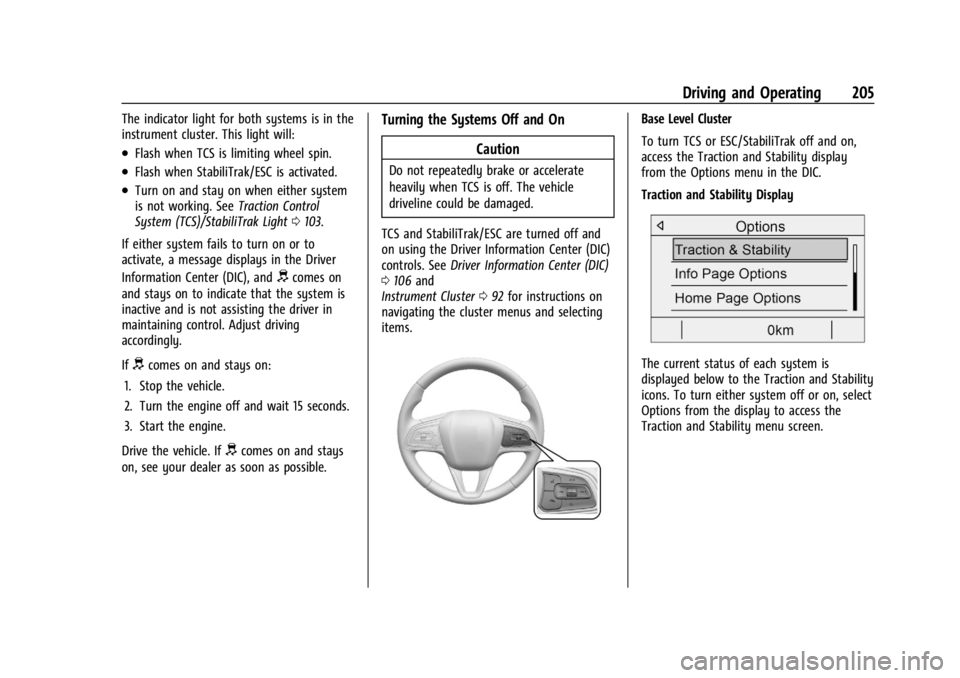
TCS and StabiliTrak/ESC are turned off and
on using the Driver Information Center (DIC)
controls. See Driver Information Center (DIC)
0 106 and
Instrument Cluster 092 for instructions on
navigating the cluster menus and selecting
items.
Base Level Cluster
To turn TCS or ESC/StabiliTrak off and on,
access the Traction and Stability display
from the Options menu in the DIC.
Traction and Stability Display
The current status of each system is
displayed below to the Traction and Stability
icons. To turn either system off or on, select
Options from the display to access the
Traction and Stability menu screen.
Page 207 of 356

Buick Envision Owner Manual (GMNA-Localizing-U.S./Canada/Mexico-
16060855) - 2023 - CRC - 2/9/22
206 Driving and Operating
Traction and Stability Menu
To turn TCS off, select Traction from the
menu. The Traction Off Light
idisplays in
the instrument cluster. See Traction Off Light
0 102.
If TCS is limiting wheel spin, the TCS will not
turn off until the wheels stop spinning.
To turn TCS back on, select Options from the
display and then select Traction from
the menu.
To turn StabiliTrak/ESC off, select Options
from the display and then select Stability
from the menu. The StabiliTrak Off Light
g
will display in the instrument cluster. See
StabiliTrak OFF Light 0102.
TCS cannot be on when StabiliTrak/ESC is
off. If TCS is on when StabiliTrak/ESC is
turned off, both systems will turn off.
To turn StabiliTrak/ESC back on, select
Options from the display and then select
Stability from the menu. StabiliTrak/ESC will
turn on, but TCS will remain off.
To turn both TCS and StabiliTrak/ESC back
on, select Options from the display and then
select Traction from the menu and both
systems will be turned back on.
Adding accessories can affect the vehicle
performance. See Accessories and
Modifications 0252. Up-Level Cluster
To turn Traction (TCS) or StabiliTrak (ESC) off
and on, access the Traction and Stability
display from the Options application.
Traction and Stability Display
The current status of each system is
displayed next to the Traction and Stability
icons. To turn either system off or on, select
Menu to access the Traction and Stability
menu screen.
Page 208 of 356

Buick Envision Owner Manual (GMNA-Localizing-U.S./Canada/Mexico-
16060855) - 2023 - CRC - 2/9/22
Driving and Operating 207
Traction and Stability Menu
To turn TCS off, select Traction Off from the
menu. The Traction Off Light
idisplays in
the instrument cluster. See Traction Off Light
0 102.
If TCS is limiting wheel spin, the TCS will not
turn off until the wheels stop spinning.
To turn TCS back on, select Traction On from
the menu.
Select Stability from the Traction and
Stability menu to access the Stability Menu. Stability Menu
To turn StabiliTrak/ESC off, select Stability
Off from the menu. The StabiliTrak Off Light
gwill display in the instrument cluster. See
StabiliTrak OFF Light 0102.
TCS cannot be on when StabiliTrak/ESC is
off. If TCS is on when StabiliTrak/ESC is
turned off, both systems will turn off.
To turn StabiliTrak/ESC back on, select
Stability On from the menu. TCS will
remain off.
To turn both TCS and StabiliTrak/ESC back
on, select Traction On from the Traction and
Stability menu and both systems will be
turned back on.
Adding accessories can affect the vehicle
performance. See Accessories and
Modifications 0252.
Hill Descent Control (HDC)
HDC can be used when driving downhill.
It sets and maintains vehicle speed while
descending a very steep incline in a forward
or reverse gear.
Press5to enable or disable HDC. Vehicle
speed must be below 50 km/h (31 mph).
The HDC light displays on the instrument
cluster when enabled.
Page 209 of 356

Buick Envision Owner Manual (GMNA-Localizing-U.S./Canada/Mexico-
16060855) - 2023 - CRC - 2/9/22
208 Driving and Operating
HDC can maintain vehicle speeds between
3 and 22 km/h (2 and 14 mph) on an incline
greater than or equal to a 10% grade.
A blinking HDC light indicates the system is
actively applying the brakes to maintain
vehicle speed.
When HDC is activated, the initial HDC
speed is set to the current driving speed.
It can be increased or decreased by pressing
+RES or–SET on the steering wheel or by
applying the accelerator or brake pedal. This
adjusted speed becomes the new set speed.
HDC will remain enabled between 22 and
60 km/h (14 and 37 mph); however vehicle
speed cannot be set or maintained in this
range. It will automatically disable if the
vehicle speed is above 80 km/h (50 mph) or
above 60 km/h (37 mph) for at least
30 seconds. Press
5again to re-enable HDC.
Driver Mode Control
Driver Mode Control (DMC) allows the driver
to adjust the overall driving experience to
better suit preference by adjusting multiple
subsystems. Driver Mode availability and
affected vehicle subsystems are dependent
upon vehicle trim level, region, and optional
features. If the vehicle is in Tour Mode or AWD
Mode, it will stay in that mode through
future ignition cycles. If the vehicle is in any
other mode, it will return to Tour Mode
when the vehicle is restarted. When a mode
is selected, an indicator will come on in the
instrument cluster.
Driver Mode Control Switch
To activate each mode, press the MODE
button on the center console.
Tour Mode : Use for normal city and
highway driving to provide a smooth ride.
This setting provides balance between
comfort and handling. This is the standard/ default mode. There is no persistent
indicator in the instrument cluster for
this mode.
AWD Mode :
AWD Mode provides drive
torque to all four wheels. Select AWD Mode
to improve traction and control on slippery
road surfaces, such as gravel, sand, wet
pavement, snow, and ice. When in AWD
Mode, the AWD Mode indicator light will be
on. For more information on AWD Mode,
see All-Wheel Drive 0201.
Sport Mode : Use where road conditions or
personal preference demand a more
controlled response.
Sport Mode improves vehicle handling and
acceleration on dry pavement. When active,
Sport Mode modifies steering efforts,
transmission shifting, AWD torque and
suspension tuning, if equipped.
Off-Road Mode : Use this mode for off-road
recreational driving. Off-Road Mode should
be used to improve driving at moderate
speeds, on grass, gravel, dirt, unpaved roads,
or snow-covered roads. The accelerator pedal
is tuned for off-road use. This mode modifies
pedal mapping, AWD, ABS, ESC, and TCS
Performance.
Page 210 of 356

Buick Envision Owner Manual (GMNA-Localizing-U.S./Canada/Mexico-
16060855) - 2023 - CRC - 2/9/22
Driving and Operating 209
Snow/Ice Mode :Snow/Ice Mode improves
vehicle acceleration on snow and ice covered
roads. When active, Snow/Ice Mode will
adjust acceleration to optimize traction on
slippery surfaces. This can compromise the
acceleration on dry asphalt.
This feature is not intended for use when
the vehicle is stuck in sand, mud, ice, snow,
or gravel. If the vehicle becomes stuck, see If
the Vehicle Is Stuck 0187.
Cruise Control
With cruise control the vehicle can maintain
a speed of about 40 km/h (25 mph) or more
without keeping your foot on the
accelerator. Cruise control does not work at
speeds below 40 km/h (25 mph).
{Warning
Cruise control can be dangerous where
you cannot drive safely at a steady
speed. Do not use cruise control on
winding roads or in heavy traffic.
(Continued)
Warning (Continued)
Cruise control can be dangerous on
slippery roads. On such roads, fast
changes in tire traction can cause
excessive wheel slip, and you could lose
control. Do not use cruise control on
slippery roads.
With the Traction Control System (TCS), the
system may begin to limit wheel spin while
you are using cruise control. If this happens,
the cruise control will automatically
disengage. See Traction Control/Electronic
Stability Control 0204. If a collision alert
occurs when cruise control is activated,
cruise control is disengaged. See Forward
Collision Alert (FCA) System 0230. When
road conditions allow you to safely use it
again, cruise control can be turned back on.
If the brakes are applied, cruise control
disengages.
5: Press to turn cruise control on or off.
A white indicator comes on in the
instrument cluster when cruise control is
turned on.
RES+ : If there is a set speed in memory,
press briefly to resume to that speed or
press and hold to accelerate. If cruise control
is already active, use to increase vehicle
speed.
SET− :Press the control down briefly to set
the speed and activate cruise control.
If cruise control is already active, use to
decrease vehicle speed.
*: Press to disengage cruise control
without erasing the set speed from memory.
Page 211 of 356

Buick Envision Owner Manual (GMNA-Localizing-U.S./Canada/Mexico-
16060855) - 2023 - CRC - 2/9/22
210 Driving and Operating
Setting Cruise Control
If the
5button is on when not in use, SET–
or RES+ could get pressed and go into cruise
when not desired. Keep the
5button off
when cruise is not being used.
1. Press
5to turn the cruise system on.
2. Get to the desired speed.
3. Press and release SET– . The desired set
speed briefly appears in the instrument
cluster.
4. Remove your foot from the accelerator pedal.
The cruise control indicator on the
instrument cluster turns green after cruise
control has been set to the desired speed.
See Instrument Cluster 092.
Resuming a Set Speed
If the cruise control is set at a desired speed
and then the brakes are applied or
*is
pressed, the cruise control is disengaged
without erasing the set speed from memory.
Once the vehicle reaches about 40 km/h
(25 mph) or more, press RES+ up briefly. The
vehicle returns to the previous set speed. Increasing Speed While Using Cruise Control
If the cruise control system is already
activated:
.Press and hold RES+ up until the vehicle
accelerates to the desired speed, then
release it.
.To increase vehicle speed in small
increments, press RES+ up briefly. For
each press, the vehicle goes about 1 km/h
(1 mph) faster.
Reducing Speed While Using Cruise Control
If the cruise control system is already
activated:
.Press and hold SET– down until the
desired lower speed is reached, then
release it.
.To decrease the vehicle speed in small
increments, press SET– down briefly. For
each press, the vehicle goes about 1 km/h
(1 mph) slower.
Passing Another Vehicle While Using Cruise
Control
Use the accelerator pedal to increase the
vehicle speed. When you take your foot off
the pedal, the vehicle will slow down to the
previously set cruise speed. While pressing
the accelerator pedal or shortly following the release to override cruise control, briefly
pressing SET−
will result in cruise set to the
current vehicle speed.
Using Cruise Control on Hills
How well the cruise control will work on
hills depends upon the vehicle speed, load,
and the steepness of the hills. When going
up steep hills, you might have to step on
the accelerator pedal to maintain your
speed. When going downhill, you might
have to brake or shift to a lower gear to
keep your speed down. If the brake pedal is
applied, cruise control will disengage.
Ending Cruise Control
There are four ways to end cruise control:
.Step lightly on the brake pedal.
.Press*.
.Shift the transmission to N (Neutral).
.To turn off cruise control, press5.
Erasing Speed Memory
The cruise control set speed is erased from
memory if
5is pressed or if the ignition is
turned off.