wheel BUICK ENVISION 2023 Workshop Manual
[x] Cancel search | Manufacturer: BUICK, Model Year: 2023, Model line: ENVISION, Model: BUICK ENVISION 2023Pages: 356, PDF Size: 7.42 MB
Page 206 of 356
Buick Envision Owner Manual (GMNA-Localizing-U.S./Canada/Mexico-
16060855) - 2023 - CRC - 2/9/22
Driving and Operating 205
The indicator light for both systems is in the
instrument cluster. This light will:
.Flash when TCS is limiting wheel spin.
.Flash when StabiliTrak/ESC is activated.
.Turn on and stay on when either system
is not working. SeeTraction Control
System (TCS)/StabiliTrak Light 0103.
If either system fails to turn on or to
activate, a message displays in the Driver
Information Center (DIC), and
dcomes on
and stays on to indicate that the system is
inactive and is not assisting the driver in
maintaining control. Adjust driving
accordingly.
If
dcomes on and stays on:
1. Stop the vehicle.
2. Turn the engine off and wait 15 seconds.
3. Start the engine.
Drive the vehicle. If
dcomes on and stays
on, see your dealer as soon as possible.
Turning the Systems Off and On
Caution
Do not repeatedly brake or accelerate
heavily when TCS is off. The vehicle
driveline could be damaged.
TCS and StabiliTrak/ESC are turned off and
on using the Driver Information Center (DIC)
controls. See Driver Information Center (DIC)
0 106 and
Instrument Cluster 092 for instructions on
navigating the cluster menus and selecting
items.
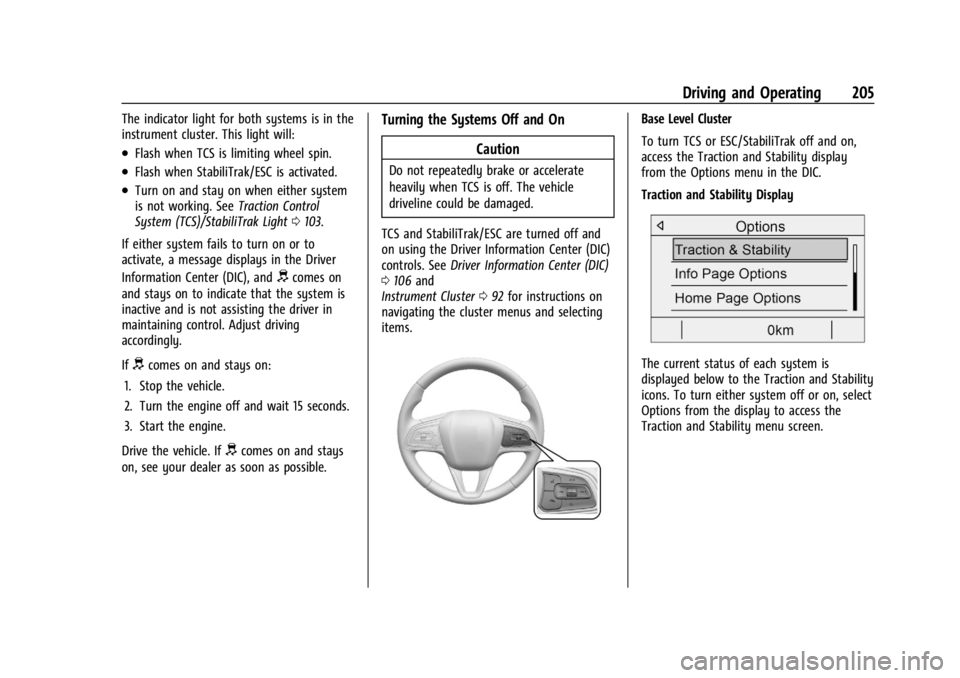
Base Level Cluster
To turn TCS or ESC/StabiliTrak off and on,
access the Traction and Stability display
from the Options menu in the DIC.
Traction and Stability Display
The current status of each system is
displayed below to the Traction and Stability
icons. To turn either system off or on, select
Options from the display to access the
Traction and Stability menu screen.
Page 207 of 356

Buick Envision Owner Manual (GMNA-Localizing-U.S./Canada/Mexico-
16060855) - 2023 - CRC - 2/9/22
206 Driving and Operating
Traction and Stability Menu
To turn TCS off, select Traction from the
menu. The Traction Off Light
idisplays in
the instrument cluster. See Traction Off Light
0 102.
If TCS is limiting wheel spin, the TCS will not
turn off until the wheels stop spinning.
To turn TCS back on, select Options from the
display and then select Traction from
the menu.
To turn StabiliTrak/ESC off, select Options
from the display and then select Stability
from the menu. The StabiliTrak Off Light
g
will display in the instrument cluster. See
StabiliTrak OFF Light 0102.
TCS cannot be on when StabiliTrak/ESC is
off. If TCS is on when StabiliTrak/ESC is
turned off, both systems will turn off.
To turn StabiliTrak/ESC back on, select
Options from the display and then select
Stability from the menu. StabiliTrak/ESC will
turn on, but TCS will remain off.
To turn both TCS and StabiliTrak/ESC back
on, select Options from the display and then
select Traction from the menu and both
systems will be turned back on.
Adding accessories can affect the vehicle
performance. See Accessories and
Modifications 0252. Up-Level Cluster
To turn Traction (TCS) or StabiliTrak (ESC) off
and on, access the Traction and Stability
display from the Options application.
Traction and Stability Display
The current status of each system is
displayed next to the Traction and Stability
icons. To turn either system off or on, select
Menu to access the Traction and Stability
menu screen.
Page 208 of 356

Buick Envision Owner Manual (GMNA-Localizing-U.S./Canada/Mexico-
16060855) - 2023 - CRC - 2/9/22
Driving and Operating 207
Traction and Stability Menu
To turn TCS off, select Traction Off from the
menu. The Traction Off Light
idisplays in
the instrument cluster. See Traction Off Light
0 102.
If TCS is limiting wheel spin, the TCS will not
turn off until the wheels stop spinning.
To turn TCS back on, select Traction On from
the menu.
Select Stability from the Traction and
Stability menu to access the Stability Menu. Stability Menu
To turn StabiliTrak/ESC off, select Stability
Off from the menu. The StabiliTrak Off Light
gwill display in the instrument cluster. See
StabiliTrak OFF Light 0102.
TCS cannot be on when StabiliTrak/ESC is
off. If TCS is on when StabiliTrak/ESC is
turned off, both systems will turn off.
To turn StabiliTrak/ESC back on, select
Stability On from the menu. TCS will
remain off.
To turn both TCS and StabiliTrak/ESC back
on, select Traction On from the Traction and
Stability menu and both systems will be
turned back on.
Adding accessories can affect the vehicle
performance. See Accessories and
Modifications 0252.
Hill Descent Control (HDC)
HDC can be used when driving downhill.
It sets and maintains vehicle speed while
descending a very steep incline in a forward
or reverse gear.
Press5to enable or disable HDC. Vehicle
speed must be below 50 km/h (31 mph).
The HDC light displays on the instrument
cluster when enabled.
Page 209 of 356

Buick Envision Owner Manual (GMNA-Localizing-U.S./Canada/Mexico-
16060855) - 2023 - CRC - 2/9/22
208 Driving and Operating
HDC can maintain vehicle speeds between
3 and 22 km/h (2 and 14 mph) on an incline
greater than or equal to a 10% grade.
A blinking HDC light indicates the system is
actively applying the brakes to maintain
vehicle speed.
When HDC is activated, the initial HDC
speed is set to the current driving speed.
It can be increased or decreased by pressing
+RES or–SET on the steering wheel or by
applying the accelerator or brake pedal. This
adjusted speed becomes the new set speed.
HDC will remain enabled between 22 and
60 km/h (14 and 37 mph); however vehicle
speed cannot be set or maintained in this
range. It will automatically disable if the
vehicle speed is above 80 km/h (50 mph) or
above 60 km/h (37 mph) for at least
30 seconds. Press
5again to re-enable HDC.
Driver Mode Control
Driver Mode Control (DMC) allows the driver
to adjust the overall driving experience to
better suit preference by adjusting multiple
subsystems. Driver Mode availability and
affected vehicle subsystems are dependent
upon vehicle trim level, region, and optional
features. If the vehicle is in Tour Mode or AWD
Mode, it will stay in that mode through
future ignition cycles. If the vehicle is in any
other mode, it will return to Tour Mode
when the vehicle is restarted. When a mode
is selected, an indicator will come on in the
instrument cluster.
Driver Mode Control Switch
To activate each mode, press the MODE
button on the center console.
Tour Mode : Use for normal city and
highway driving to provide a smooth ride.
This setting provides balance between
comfort and handling. This is the standard/ default mode. There is no persistent
indicator in the instrument cluster for
this mode.
AWD Mode :
AWD Mode provides drive
torque to all four wheels. Select AWD Mode
to improve traction and control on slippery
road surfaces, such as gravel, sand, wet
pavement, snow, and ice. When in AWD
Mode, the AWD Mode indicator light will be
on. For more information on AWD Mode,
see All-Wheel Drive 0201.
Sport Mode : Use where road conditions or
personal preference demand a more
controlled response.
Sport Mode improves vehicle handling and
acceleration on dry pavement. When active,
Sport Mode modifies steering efforts,
transmission shifting, AWD torque and
suspension tuning, if equipped.
Off-Road Mode : Use this mode for off-road
recreational driving. Off-Road Mode should
be used to improve driving at moderate
speeds, on grass, gravel, dirt, unpaved roads,
or snow-covered roads. The accelerator pedal
is tuned for off-road use. This mode modifies
pedal mapping, AWD, ABS, ESC, and TCS
Performance.
Page 210 of 356

Buick Envision Owner Manual (GMNA-Localizing-U.S./Canada/Mexico-
16060855) - 2023 - CRC - 2/9/22
Driving and Operating 209
Snow/Ice Mode :Snow/Ice Mode improves
vehicle acceleration on snow and ice covered
roads. When active, Snow/Ice Mode will
adjust acceleration to optimize traction on
slippery surfaces. This can compromise the
acceleration on dry asphalt.
This feature is not intended for use when
the vehicle is stuck in sand, mud, ice, snow,
or gravel. If the vehicle becomes stuck, see If
the Vehicle Is Stuck 0187.
Cruise Control
With cruise control the vehicle can maintain
a speed of about 40 km/h (25 mph) or more
without keeping your foot on the
accelerator. Cruise control does not work at
speeds below 40 km/h (25 mph).
{Warning
Cruise control can be dangerous where
you cannot drive safely at a steady
speed. Do not use cruise control on
winding roads or in heavy traffic.
(Continued)
Warning (Continued)
Cruise control can be dangerous on
slippery roads. On such roads, fast
changes in tire traction can cause
excessive wheel slip, and you could lose
control. Do not use cruise control on
slippery roads.
With the Traction Control System (TCS), the
system may begin to limit wheel spin while
you are using cruise control. If this happens,
the cruise control will automatically
disengage. See Traction Control/Electronic
Stability Control 0204. If a collision alert
occurs when cruise control is activated,
cruise control is disengaged. See Forward
Collision Alert (FCA) System 0230. When
road conditions allow you to safely use it
again, cruise control can be turned back on.
If the brakes are applied, cruise control
disengages.
5: Press to turn cruise control on or off.
A white indicator comes on in the
instrument cluster when cruise control is
turned on.
RES+ : If there is a set speed in memory,
press briefly to resume to that speed or
press and hold to accelerate. If cruise control
is already active, use to increase vehicle
speed.
SET− :Press the control down briefly to set
the speed and activate cruise control.
If cruise control is already active, use to
decrease vehicle speed.
*: Press to disengage cruise control
without erasing the set speed from memory.
Page 212 of 356
Buick Envision Owner Manual (GMNA-Localizing-U.S./Canada/Mexico-
16060855) - 2023 - CRC - 2/9/22
Driving and Operating 211
Adaptive Cruise Control
(Advanced)
If equipped, Adaptive Cruise Control (ACC)
allows the cruise control set speed and a
following gap to be selected. Read this
entire section before using the system. The
following gap is the following time (or
distance) between your vehicle and a vehicle
detected directly ahead in your path,
moving in the same direction. If no vehicle
is detected in your path, ACC works like
regular cruise control. ACC uses a camera
and radar sensor(s) to detect other vehicles.
SeeRadio Frequency Statement 0331.
If a vehicle is detected in your path, ACC can
apply acceleration or limited, moderate
braking to maintain the selected following
gap. To disengage ACC, apply the brake.
If ACC is controlling your vehicle speed
when the Traction Control System (TCS) or
StabiliTrak/Electronic Stability Control (ESC)
system activates, the ACC may automatically
disengage. See Traction Control/Electronic
Stability Control 0204. When road
conditions allow ACC to be safely used, ACC
can be turned back on. Disabling the TCS or StabiliTrak/ESC system
will disengage and prevent engagement
of ACC.
ACC can reduce the need for you to
frequently brake and accelerate, especially
when used on expressways, freeways, and
interstate highways. When used on other
roads, you may need to take over the
control of braking or acceleration more
often.
{Warning
ACC has limited braking ability and may
not have time to slow the vehicle down
enough to avoid a collision with another
vehicle you are following. This can occur
when vehicles suddenly slow or stop
ahead, or enter your lane. Also see
“Alerting the Driver”
in this section.
Complete attention is always required
while driving and you should be ready to
take action and apply the brakes. See
Defensive Driving 0182.
{Warning
ACC will not detect or brake for children,
pedestrians, animals, or other objects.
Do not use ACC when:
.On winding and hilly roads or when
the camera sensor is blocked by snow,
ice, or dirt. The system may not
detect a vehicle ahead. Keep the
windshield and headlamps clean.
.When visibility is poor due to rain,
snow, fog, dirt, insect residue, or dust;
when other foreign objects obscure
the camera’s view; or when the
vehicle in front or oncoming traffic
causes additional environmental
obstructions, such as road spray. ACC
performance is limited under these
conditions.
.On slippery roads where fast changes
in tire traction can cause excessive
wheel slip
.With extremely heavy cargo loaded in
the cargo area or rear seat
.When towing a trailer
Page 215 of 356
Buick Envision Owner Manual (GMNA-Localizing-U.S./Canada/Mexico-
16060855) - 2023 - CRC - 2/9/22
214 Driving and Operating
.To increase vehicle speed in larger
increments, hold RES+. While holding
RES+, the vehicle speed increases to the
next 5 km/h (5 mph) step, then continues
to increase by 5 km/h (5 mph) at a time.
The set speed can also be increased while
the vehicle is stopped.
.If stopped with the brake applied, press
RES+ until the desired set speed is
displayed.
.If ACC is holding the vehicle at a stop and
there is another vehicle directly ahead,
pressing RES+ will increase the set speed.
.Pressing RES+ when there is no longer a
vehicle ahead or the vehicle ahead is
pulling away and the brake is not applied
will cause the ACC to resume.
When it is determined that there is no
vehicle ahead or the vehicle ahead is beyond
the selected following gap, then the vehicle
speed will increase to the set speed.
Reducing Speed While ACC is at a Set Speed
If ACC is already activated, do one of the
following:
.Use the brake to get to the desired lower
speed. Release the brake and press SET–.
The vehicle will now cruise at the lower
speed.
.Press and hold SET– down until the
desired lower speed is reached, then
release it.
.To decrease the vehicle speed in smaller
increments, press SET− down briefly. For
each press, the vehicle goes about 1 km/h
or (1 mph) slower.
.To decrease the vehicle speed in larger
increments, hold SET−. While holding
SET−, the vehicle speed decreases to the
next 5 km/h (5 mph) step, then continues
to decrease by 5 km/h (5 mph) at a time.
The set speed can also be decreased while
the vehicle is stopped.
.If stopped with the brake applied, press
or hold SET− until the desired set speed is
displayed.
Selecting the Follow Distance
When a slower moving vehicle is detected
ahead within the selected following gap,
ACC will adjust the vehicle's speed and
attempt to maintain the follow distance gap
selected.
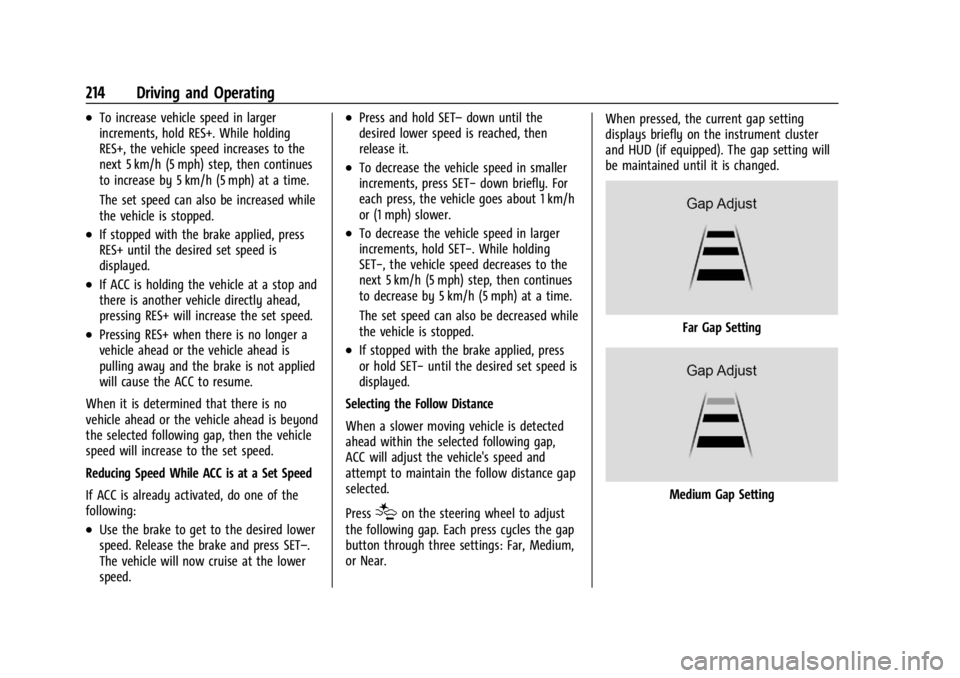
Press
[on the steering wheel to adjust
the following gap. Each press cycles the gap
button through three settings: Far, Medium,
or Near. When pressed, the current gap setting
displays briefly on the instrument cluster
and HUD (if equipped). The gap setting will
be maintained until it is changed.
Far Gap Setting
Medium Gap Setting
Page 216 of 356
Buick Envision Owner Manual (GMNA-Localizing-U.S./Canada/Mexico-
16060855) - 2023 - CRC - 2/9/22
Driving and Operating 215
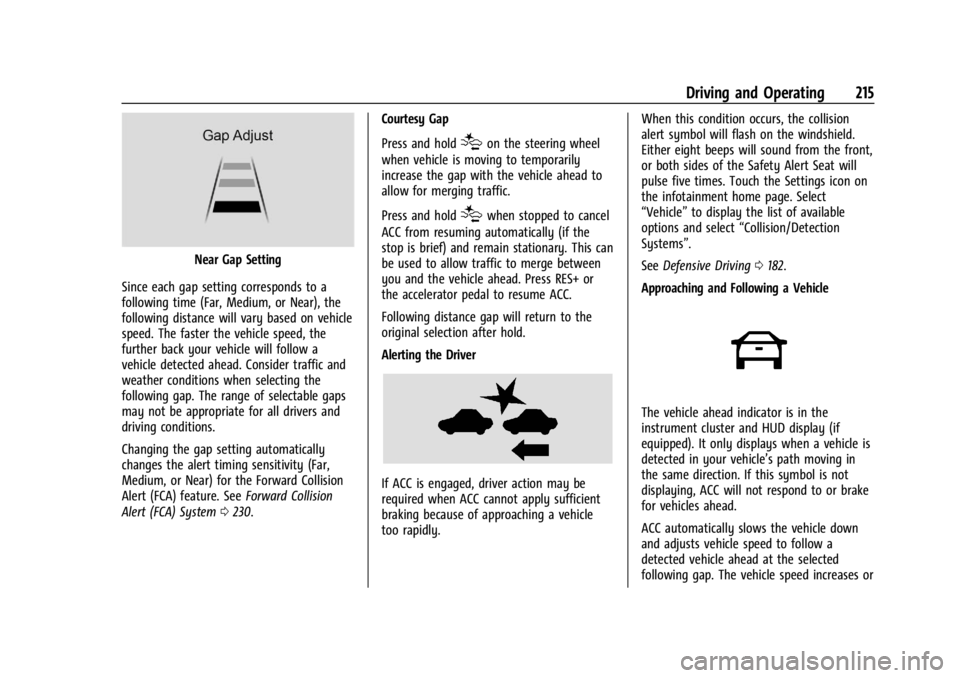
Near Gap Setting
Since each gap setting corresponds to a
following time (Far, Medium, or Near), the
following distance will vary based on vehicle
speed. The faster the vehicle speed, the
further back your vehicle will follow a
vehicle detected ahead. Consider traffic and
weather conditions when selecting the
following gap. The range of selectable gaps
may not be appropriate for all drivers and
driving conditions.
Changing the gap setting automatically
changes the alert timing sensitivity (Far,
Medium, or Near) for the Forward Collision
Alert (FCA) feature. See Forward Collision
Alert (FCA) System 0230. Courtesy Gap
Press and hold
[on the steering wheel
when vehicle is moving to temporarily
increase the gap with the vehicle ahead to
allow for merging traffic.
Press and hold
[when stopped to cancel
ACC from resuming automatically (if the
stop is brief) and remain stationary. This can
be used to allow traffic to merge between
you and the vehicle ahead. Press RES+ or
the accelerator pedal to resume ACC.
Following distance gap will return to the
original selection after hold.
Alerting the Driver
If ACC is engaged, driver action may be
required when ACC cannot apply sufficient
braking because of approaching a vehicle
too rapidly. When this condition occurs, the collision
alert symbol will flash on the windshield.
Either eight beeps will sound from the front,
or both sides of the Safety Alert Seat will
pulse five times. Touch the Settings icon on
the infotainment home page. Select
“Vehicle”
to display the list of available
options and select “Collision/Detection
Systems”.
See Defensive Driving 0182.
Approaching and Following a Vehicle
The vehicle ahead indicator is in the
instrument cluster and HUD display (if
equipped). It only displays when a vehicle is
detected in your vehicle’s path moving in
the same direction. If this symbol is not
displaying, ACC will not respond to or brake
for vehicles ahead.
ACC automatically slows the vehicle down
and adjusts vehicle speed to follow a
detected vehicle ahead at the selected
following gap. The vehicle speed increases or
Page 227 of 356
Buick Envision Owner Manual (GMNA-Localizing-U.S./Canada/Mexico-
16060855) - 2023 - CRC - 2/9/22
226 Driving and Operating
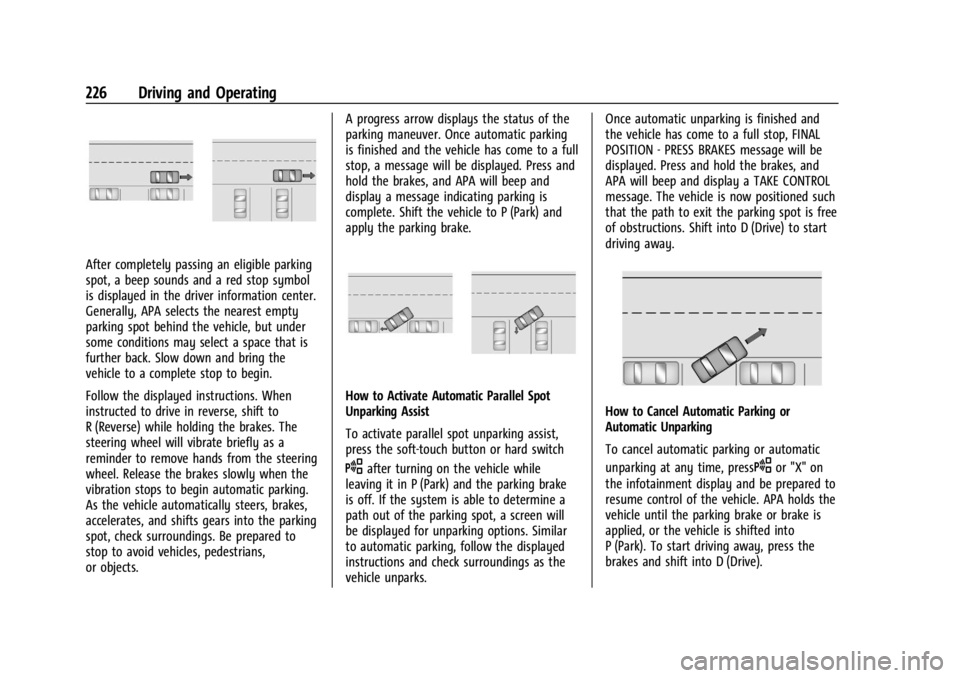
After completely passing an eligible parking
spot, a beep sounds and a red stop symbol
is displayed in the driver information center.
Generally, APA selects the nearest empty
parking spot behind the vehicle, but under
some conditions may select a space that is
further back. Slow down and bring the
vehicle to a complete stop to begin.
Follow the displayed instructions. When
instructed to drive in reverse, shift to
R (Reverse) while holding the brakes. The
steering wheel will vibrate briefly as a
reminder to remove hands from the steering
wheel. Release the brakes slowly when the
vibration stops to begin automatic parking.
As the vehicle automatically steers, brakes,
accelerates, and shifts gears into the parking
spot, check surroundings. Be prepared to
stop to avoid vehicles, pedestrians,
or objects.A progress arrow displays the status of the
parking maneuver. Once automatic parking
is finished and the vehicle has come to a full
stop, a message will be displayed. Press and
hold the brakes, and APA will beep and
display a message indicating parking is
complete. Shift the vehicle to P (Park) and
apply the parking brake.
How to Activate Automatic Parallel Spot
Unparking Assist
To activate parallel spot unparking assist,
press the soft-touch button or hard switch
Oafter turning on the vehicle while
leaving it in P (Park) and the parking brake
is off. If the system is able to determine a
path out of the parking spot, a screen will
be displayed for unparking options. Similar
to automatic parking, follow the displayed
instructions and check surroundings as the
vehicle unparks. Once automatic unparking is finished and
the vehicle has come to a full stop, FINAL
POSITION - PRESS BRAKES message will be
displayed. Press and hold the brakes, and
APA will beep and display a TAKE CONTROL
message. The vehicle is now positioned such
that the path to exit the parking spot is free
of obstructions. Shift into D (Drive) to start
driving away.
How to Cancel Automatic Parking or
Automatic Unparking
To cancel automatic parking or automatic
unparking at any time, press
Oor "X" on
the infotainment display and be prepared to
resume control of the vehicle. APA holds the
vehicle until the parking brake or brake is
applied, or the vehicle is shifted into
P (Park). To start driving away, press the
brakes and shift into D (Drive).
Page 232 of 356
Buick Envision Owner Manual (GMNA-Localizing-U.S./Canada/Mexico-
16060855) - 2023 - CRC - 2/9/22
Driving and Operating 231
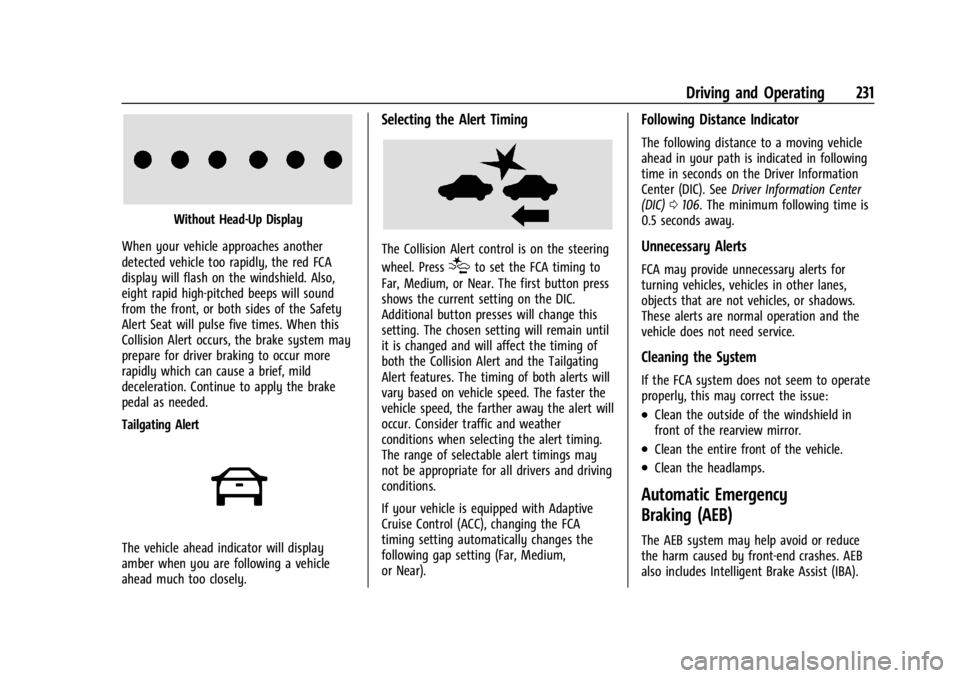
Without Head-Up Display
When your vehicle approaches another
detected vehicle too rapidly, the red FCA
display will flash on the windshield. Also,
eight rapid high-pitched beeps will sound
from the front, or both sides of the Safety
Alert Seat will pulse five times. When this
Collision Alert occurs, the brake system may
prepare for driver braking to occur more
rapidly which can cause a brief, mild
deceleration. Continue to apply the brake
pedal as needed.
Tailgating Alert
The vehicle ahead indicator will display
amber when you are following a vehicle
ahead much too closely.
Selecting the Alert Timing
The Collision Alert control is on the steering
wheel. Press
[to set the FCA timing to
Far, Medium, or Near. The first button press
shows the current setting on the DIC.
Additional button presses will change this
setting. The chosen setting will remain until
it is changed and will affect the timing of
both the Collision Alert and the Tailgating
Alert features. The timing of both alerts will
vary based on vehicle speed. The faster the
vehicle speed, the farther away the alert will
occur. Consider traffic and weather
conditions when selecting the alert timing.
The range of selectable alert timings may
not be appropriate for all drivers and driving
conditions.
If your vehicle is equipped with Adaptive
Cruise Control (ACC), changing the FCA
timing setting automatically changes the
following gap setting (Far, Medium,
or Near).
Following Distance Indicator
The following distance to a moving vehicle
ahead in your path is indicated in following
time in seconds on the Driver Information
Center (DIC). See Driver Information Center
(DIC) 0106. The minimum following time is
0.5 seconds away.
Unnecessary Alerts
FCA may provide unnecessary alerts for
turning vehicles, vehicles in other lanes,
objects that are not vehicles, or shadows.
These alerts are normal operation and the
vehicle does not need service.
Cleaning the System
If the FCA system does not seem to operate
properly, this may correct the issue:
.Clean the outside of the windshield in
front of the rearview mirror.
.Clean the entire front of the vehicle.
.Clean the headlamps.
Automatic Emergency
Braking (AEB)
The AEB system may help avoid or reduce
the harm caused by front-end crashes. AEB
also includes Intelligent Brake Assist (IBA).