infotainment BUICK ENVISION 2023 Repair Manual
[x] Cancel search | Manufacturer: BUICK, Model Year: 2023, Model line: ENVISION, Model: BUICK ENVISION 2023Pages: 356, PDF Size: 7.42 MB
Page 170 of 356

Buick Envision Owner Manual (GMNA-Localizing-U.S./Canada/Mexico-
16060855) - 2023 - CRC - 2/9/22
Infotainment System 169
Disclaimer of Warranty
THE DATABASE IS PROVIDED ON AN“AS IS”
AND “WITH ALL FAULTS BASIS” AND
HARMAN (AND THEIR LICENSORS AND
SUPPLIERS) EXPRESSLY DISCLAIM ALL OTHER
WARRANTIES, EXPRESS OR IMPLIED,
INCLUDING BUT NOT LIMITED TO,
THE IMPLIED WARRANTIES OF
NON-INFRINGEMENT, MERCHANTABILITY,
SATISFACTORY QUALITY, ACCURACY, TITLE
AND FITNESS FOR A PARTICULAR PURPOSE.
NO ORAL OR WRITTEN ADVICE OR
INFORMATION PROVIDED BY HARMAN
(OR ANY OF THEIR LICENSORS, AGENTS,
EMPLOYEES, OR THIRD PARTY PROVIDERS)
SHALL CREATE A WARRANTY, AND YOU ARE
NOT ENTITLED TO RELY ON ANY SUCH
ADVICE OR INFORMATION. THIS DISCLAIMER
OF WARRANTIES IS AN ESSENTIAL CONDITION
OF THIS AGREEMENT.
Disclaimer of Liability
HERE AND ITS LICENSORS (INCLUDING THEIR
LICENSORS AND SUPPLIERS) SHALL NOT BE
LIABLE TO YOU IN RESPECT OF ANY CLAIM,
DEMAND OR ACTION, IRRESPECTIVE OF THE
NATURE OF THE CAUSE OF THE CLAIM,
DEMAND OR ACTION ALLEGING ANY LOSS,
INJURY OR DAMAGES, DIRECT OR INDIRECT, WHICH MAY RESULT FROM THE USE OR
POSSESSION OF THIS DATA; OR FOR ANY
LOSS OF PROFIT, REVENUE, CONTRACTS OR
SAVINGS, OR ANY OTHER DIRECT, INDIRECT,
INCIDENTAL, SPECIAL OR CONSEQUENTIAL
DAMAGES ARISING OUT OF YOUR USE OF OR
INABILITY TO USE THIS DATA, ANY DEFECT IN
THIS DATA, OR THE BREACH OF THESE
TERMS OR CONDITIONS, WHETHER IN AN
ACTION IN CONTRACT OR TORT OR BASED
ON A WARRANTY, EVEN IF HERE OR ITS
LICENSORS HAVE BEEN ADVISED OF THE
POSSIBILITY OF SUCH DAMAGES. Some
States, Territories, and Countries do not
allow certain liability exclusions or damages
limitations, so to that extent the above may
not apply to you.
Export Control
You agree not to export from anywhere any
part of the Data provided to you or any
direct product thereof except in compliance
with, and with all licenses and approvals
required under, applicable export laws, rules
and regulations. Entire Agreement: These
terms and conditions constitute the entire
agreement between HERE (and its licensors,
including their licensors and suppliers) and
you pertaining to the subject matter hereof,
and supersedes in their entirety any and allwritten or oral agreements previously
existing between us with respect to such
subject matter.
Governing Law
The above terms and conditions shall be
governed by the laws of the State of Illinois,
without giving effect to (i) its conflict of
laws provisions, or (ii) the United Nations
Convention for Contracts for the
International Sale of Goods, which is
explicitly excluded. You agree to submit to
the jurisdiction of the State of Illinois for
any and all disputes, claims, and actions
arising from or in connection with the Data
provided to you hereunder.
Government End Users
If the Data is being acquired by or on behalf
of the United States government or any
other entity seeking or applying rights
similar to those customarily claimed by the
United States government, this Data is a
“commercial item”
as that term is defined at
48 C.F.R. (“FAR”) 2.101, is licensed in
accordance with this End User License
Agreement, and each copy of Data delivered
or otherwise furnished shall be marked and
embedded as appropriate with the following
“Notice of Use,” and be treated in
accordance with such Notice:
Page 171 of 356
Buick Envision Owner Manual (GMNA-Localizing-U.S./Canada/Mexico-
16060855) - 2023 - CRC - 2/9/22
170 Infotainment System
NOTICE OF USE
CONTRACTOR (MANUFACTURER/ SUPPLIER)
NAME:
HERE North America, LLC
CONTRACTOR (MANUFACTURER/SUPPLIER)
ADDRESS:
425 West Randolph Street, Chicago, IL
60606.
This Data is a commercial item as defined in
FAR 2.101 and is subject to the End User
License Agreement under which this Data
was provided.
© 2014 HERE North America, LLC. All rights
reserved.
If the Contracting Officer, federal
government agency, or any federal official
refuses to use the legend provided herein,the Contracting Officer, federal government
agency, or any federal official must notify
HERE prior to seeking additional or
alternative rights in the Data.
Unicode
Copyright © 1991-2010 Unicode, Inc. All
rights reserved. Distributed under the Terms
of Use in https://www.unicode.org/
copyright.html.
Free Type Project
Portions of this software are
copyright © 2010 The FreeType Project
(https://www.freetype.org). All rights
reserved.
Open Source SW
Further information concerning the OSS
licenses is shown in the infotainment
display.
QNX
Portions of this software are
copyright © 2008-2011, QNX Software
Systems. All rights reserved.
Part C
–EULA
Copyright © 2011, Software Systems
GmbH & Co. KG. All Rights Reserved. The product you have purchased ("Product")
contains Software (Runtime Configuration
No. 505962; "Software") which is distributed
by or on behalf of the Product manufacturer
"Manufacturer") under license from Software
Systems Co. ("QSSC"). You may only use the
Software in the Product and in compliance
with the license terms below.
Subject to the terms and conditions of this
License, QSSC hereby grants you a limited,
non-exclusive, non-transferable license to use
the Software in the Product for the purpose
intended by the Manufacturer. If permitted
by the Manufacturer, or by applicable law,
you may make one backup copy of the
Software as part of the Product software.
QSSC and its licensors reserve all license+C31
rights not expressly granted herein, and
retain all right, title and interest in and to
all copies of the Software, including all
intellectual property rights therein. Unless
required by applicable law you may not
reproduce, distribute or transfer,
or de-compile, disassemble or otherwise
attempt to unbundle, reverse engineer,
modify or create derivative works of, the
Software. You agree: (1) not to remove,
cover or alter any proprietary notices, labels
or marks in or on the Software, and to
ensure that all copies bear any notice
Page 172 of 356
Buick Envision Owner Manual (GMNA-Localizing-U.S./Canada/Mexico-
16060855) - 2023 - CRC - 2/9/22
Infotainment System 171
contained on the original; and (2) not to
export the Product or the Software in
contravention of applicable export
control laws.
EXCEPT TO THE EXTENT OTHERWISE
REQUIRED BY APPLICABLE LAW, QSSC AND
ITS LICENSORS PROVIDE THE SOFTWARE ON
AN "AS IS" BASIS, WITHOUT WARRANTIES OR
CONDITIONS OF ANY KIND, EITHER EXPRESS
OR IMPLIED INCLUDING, WITHOUT
LIMITATION, ANY WARRANTIES OR
CONDITIONS OF TITLE, NON-INFRINGEMENT,
MERCHANTABILITY OR FITNESS FOR A
PARTICULAR PURPOSE. ANY WARRANTIES OR
OTHER PROVISIONS OFFERED BY THE
MANUFACTURER OR ITS DISTRIBUTOR(S)
THAT DIFFER FROM THIS LICENSE ARE
OFFERED BY THE MANUFACTURER OR ITS
DISTRIBUTOR(S) ALONE AND NOT BY QSSC,
ITS AFFILIATES OR THEIR LICENSORS. YOU
ASSUME ANY RISKS ASSOCIATED WITH YOUR
USE OF THE SOFTWARE UNDER THIS LICENSE.
EXCEPT TO THE EXTENT OTHERWISE
REQUIRED BY APPLICABLE LAW (SUCH AS IN
THE CASE OF DELIBERATE OR GROSSLY
NEGLIGENT ACTS), IN NO EVENT SHALL QSSC,
ITS AFFILIATES OR THEIR LICENSORS BE
LIABLE TO YOU UNDER ANY LEGAL THEORY,
WHETHER IN TORT (INCLUDING NEGLIGENCE),CONTRACT OR OTHERWISE, FOR DAMAGES,
INCLUDING ANY DIRECT, INDIRECT, SPECIAL,
INCIDENTAL, OR CONSEQUENTIAL DAMAGES
OF ANY CHARACTER ARISING AS A RESULT OF
THIS LICENSE OR OUT OF THE USE OR
INABILITY TO USE THE PRODUCT (INCLUDING
BUT NOT LIMITED TO DAMAGES FOR LOSS
OF GOODWILL, WORK STOPPAGE, PRODUCT
FAILURE OR MALFUNCTION, OR ANY AND ALL
OTHER COMMERCIAL DAMAGES OR LOSSES),
EVEN IF QSSC, ITS AFFILIATES OR THEIR
LICENSORS HAVE BEEN ADVISED OF THE
POSSIBILITY OF SUCH DAMAGES.
WMA
This product is protected by certain
intellectual property rights of Microsoft. Use
or distribution of such technology outside of
this product is prohibited without a license
from Microsoft.
For more information on the Software,
including any open source software license
terms (and available source code) as well as
copyright attributions applicable to the
Runtime Configuration indicated above,
please contact the Manufacturer or contact
QSSC at 175 Terence Matthews Crescent,
Kanata, Ontario, Canada K2M 1W8
([email protected]).
Linotype
Helvetica is a trademark of Linotype Corp.
registered in the U.S. Patent and Trademark
Office and may be registered in certain
other jurisdictions in the name of Linotype
Corp. or its licensee Linotype GmbH.
Usage in text form of each of the Licensed
Trademarks is:
The trademark attribution requirements for
the Licensed Trademarks may be viewed at
https://www.linotype.com/2061-19414/
trademarks.html.
END USER NOTICE
The marks of companies displayed by this
product to indicate business locations are
the marks of their respective owners. The
use of such marks in this product does not
imply any sponsorship, approval,
or endorsement by such companies of this
product.
Page 176 of 356
Buick Envision Owner Manual (GMNA-Localizing-U.S./Canada/Mexico-
16060855) - 2023 - CRC - 2/9/22
Climate Controls 175
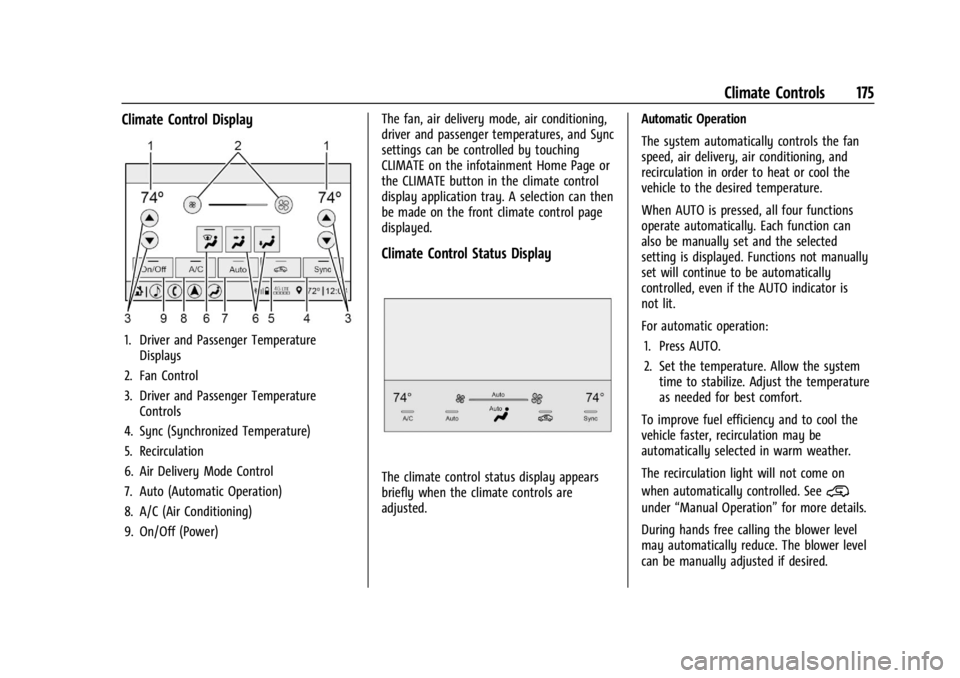
Climate Control Display
1. Driver and Passenger TemperatureDisplays
2. Fan Control
3. Driver and Passenger Temperature Controls
4. Sync (Synchronized Temperature)
5. Recirculation
6. Air Delivery Mode Control
7. Auto (Automatic Operation)
8. A/C (Air Conditioning)
9. On/Off (Power) The fan, air delivery mode, air conditioning,
driver and passenger temperatures, and Sync
settings can be controlled by touching
CLIMATE on the infotainment Home Page or
the CLIMATE button in the climate control
display application tray. A selection can then
be made on the front climate control page
displayed.
Climate Control Status Display
The climate control status display appears
briefly when the climate controls are
adjusted.
Automatic Operation
The system automatically controls the fan
speed, air delivery, air conditioning, and
recirculation in order to heat or cool the
vehicle to the desired temperature.
When AUTO is pressed, all four functions
operate automatically. Each function can
also be manually set and the selected
setting is displayed. Functions not manually
set will continue to be automatically
controlled, even if the AUTO indicator is
not lit.
For automatic operation:
1. Press AUTO.
2. Set the temperature. Allow the system time to stabilize. Adjust the temperature
as needed for best comfort.
To improve fuel efficiency and to cool the
vehicle faster, recirculation may be
automatically selected in warm weather.
The recirculation light will not come on
when automatically controlled. See@
under “Manual Operation” for more details.
During hands free calling the blower level
may automatically reduce. The blower level
can be manually adjusted if desired.
Page 183 of 356
Buick Envision Owner Manual (GMNA-Localizing-U.S./Canada/Mexico-
16060855) - 2023 - CRC - 2/9/22
182 Driving and Operating
.Set the climate controls to the desired
temperature after the engine is started,
or turn them off when not required.
.Avoid fast starts and accelerate smoothly.
.Brake gradually and avoid abrupt stops.
.Avoid idling the engine for long periods
of time.
.When road and weather conditions are
appropriate, use cruise control.
.Always follow posted speed limits or
drive more slowly when conditions
require.
.Keep vehicle tires properly inflated.
.Combine several trips into a single trip.
.Replace the vehicle's tires with the same
TPC Spec number molded into the tire's
sidewall near the size.
.Follow recommended scheduled
maintenance.
Distracted Driving
Distraction comes in many forms and can
take your focus from the task of driving.
Exercise good judgment and do not let other
activities divert your attention away from
the road. Many local governments haveenacted laws regarding driver distraction.
Become familiar with the local laws in
your area.
To avoid distracted driving, keep your eyes
on the road, keep your hands on the
steering wheel, and focus your attention on
driving.
.Do not use a phone in demanding driving
situations. Use a hands-free method to
place or receive necessary phone calls.
.Watch the road. Do not read, take notes,
or look up information on phones or
other electronic devices.
.Designate a front seat passenger to
handle potential distractions.
.Become familiar with vehicle features
before driving, such as programming
favorite radio stations and adjusting
climate control and seat settings. Program
all trip information into any navigation
device prior to driving.
.Wait until the vehicle is parked to
retrieve items that have fallen to the
floor.
.Stop or park the vehicle to tend to
children.
.Keep pets in an appropriate carrier or
restraint.
.Avoid stressful conversations while
driving, whether with a passenger or on a
cell phone.
{Warning
Taking your eyes off the road too long or
too often could cause a crash resulting in
injury or death. Focus your attention on
driving.
Refer to the infotainment section for more
information on using that system and the
navigation system, if equipped, including
pairing and using a cell phone.
Defensive Driving
Defensive driving means “always expect the
unexpected.” The first step in driving
defensively is to wear the seat belt. See
Seat Belts 044.
.Assume that other road users
(pedestrians, bicyclists, and other drivers)
are going to be careless and make
mistakes. Anticipate what they may do
and be ready.
.Allow enough following distance between
you and the driver in front of you.
.Focus on the task of driving.
Page 196 of 356

Buick Envision Owner Manual (GMNA-Localizing-U.S./Canada/Mexico-
16060855) - 2023 - CRC - 2/9/22
Driving and Operating 195
3. Remove the engine heater connectorcover by gently prying with a flat
blade tool.
4. Plug the heater cord into the connector in the front bumper.
5. Plug the cord into a grounded 110-volt AC outlet that is protected by a ground
fault detection function.
{Warning
Improper use of the heater cord or an
extension cord can damage the cord and
may result in overheating and fire.
(Continued)
Warning (Continued)
.Plug the cord into a three-prong
electrical utility receptacle that is
protected by a ground fault detection
function. An ungrounded outlet could
cause an electric shock.
.Use a weatherproof, heavy-duty,
15 amp-rated extension cord if needed.
Failure to use the recommended
extension cord in good operating
condition, or using a damaged heater
or extension cord, could make it
overheat and cause a fire, property
damage, electric shock, and injury.
.Do not operate the vehicle with the
heater cord permanently attached to
the vehicle. Possible heater cord and
thermostat damage could occur.
.While in use, do not let the heater
cord touch vehicle parts or sharp
edges. Never close the hood on the
heater cord.
.Before starting the vehicle, unplug the
cord, reattach the cover to the plug,
and securely fasten the cord. Keep the
cord away from any moving parts. Before starting the engine, be sure to
unplug and store the cord.
The length of time the heater should remain
plugged in depends on several factors. Ask a
dealer in the area where you will be parking
the vehicle for the best advice on this.
Retained Accessory Power (RAP)
When the vehicle is turned from on to off,
the following features (if equipped) will
continue to function for up to 10 minutes,
or until the driver door is opened. These
features will also work when the vehicle is
on or in accessory mode:
.Infotainment System
.Power Windows (during RAP this
functionality will be lost when any door
is opened)
.Sunroof (during RAP this functionality will
be lost when any door is opened)
.Auxiliary Power Outlet
.Audio System
.OnStar System
Page 216 of 356
Buick Envision Owner Manual (GMNA-Localizing-U.S./Canada/Mexico-
16060855) - 2023 - CRC - 2/9/22
Driving and Operating 215
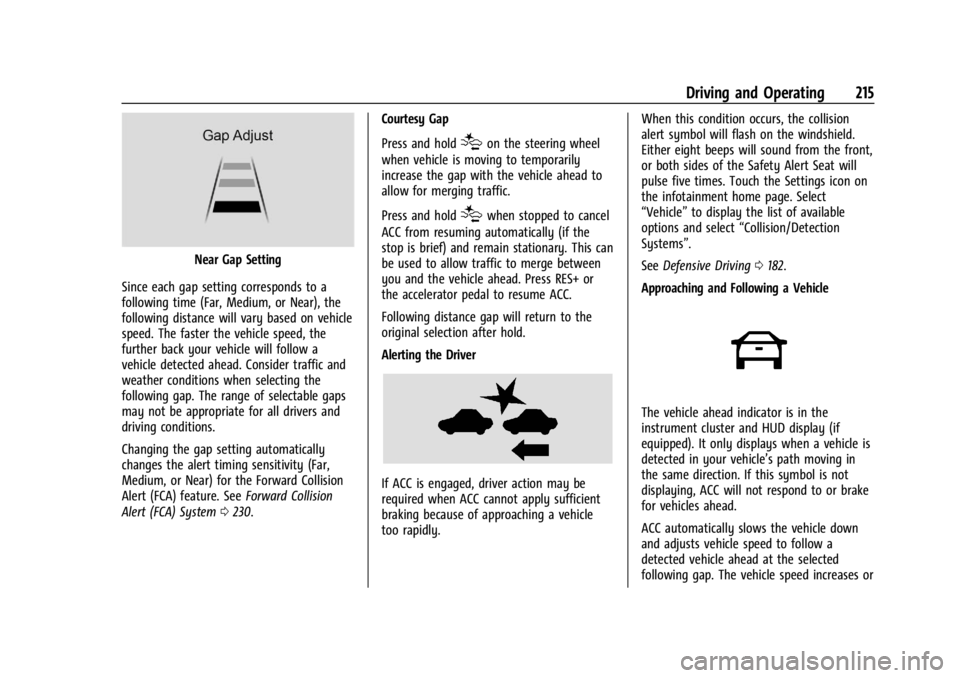
Near Gap Setting
Since each gap setting corresponds to a
following time (Far, Medium, or Near), the
following distance will vary based on vehicle
speed. The faster the vehicle speed, the
further back your vehicle will follow a
vehicle detected ahead. Consider traffic and
weather conditions when selecting the
following gap. The range of selectable gaps
may not be appropriate for all drivers and
driving conditions.
Changing the gap setting automatically
changes the alert timing sensitivity (Far,
Medium, or Near) for the Forward Collision
Alert (FCA) feature. See Forward Collision
Alert (FCA) System 0230. Courtesy Gap
Press and hold
[on the steering wheel
when vehicle is moving to temporarily
increase the gap with the vehicle ahead to
allow for merging traffic.
Press and hold
[when stopped to cancel
ACC from resuming automatically (if the
stop is brief) and remain stationary. This can
be used to allow traffic to merge between
you and the vehicle ahead. Press RES+ or
the accelerator pedal to resume ACC.
Following distance gap will return to the
original selection after hold.
Alerting the Driver
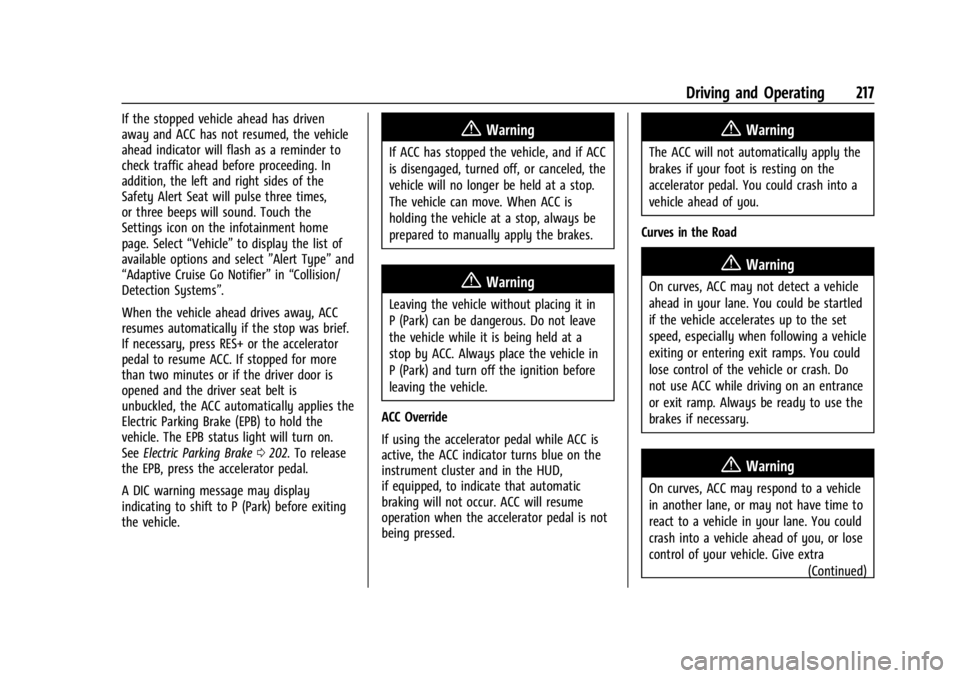
If ACC is engaged, driver action may be
required when ACC cannot apply sufficient
braking because of approaching a vehicle
too rapidly. When this condition occurs, the collision
alert symbol will flash on the windshield.
Either eight beeps will sound from the front,
or both sides of the Safety Alert Seat will
pulse five times. Touch the Settings icon on
the infotainment home page. Select
“Vehicle”
to display the list of available
options and select “Collision/Detection
Systems”.
See Defensive Driving 0182.
Approaching and Following a Vehicle
The vehicle ahead indicator is in the
instrument cluster and HUD display (if
equipped). It only displays when a vehicle is
detected in your vehicle’s path moving in
the same direction. If this symbol is not
displaying, ACC will not respond to or brake
for vehicles ahead.
ACC automatically slows the vehicle down
and adjusts vehicle speed to follow a
detected vehicle ahead at the selected
following gap. The vehicle speed increases or
Page 218 of 356
Buick Envision Owner Manual (GMNA-Localizing-U.S./Canada/Mexico-
16060855) - 2023 - CRC - 2/9/22
Driving and Operating 217
If the stopped vehicle ahead has driven
away and ACC has not resumed, the vehicle
ahead indicator will flash as a reminder to
check traffic ahead before proceeding. In
addition, the left and right sides of the
Safety Alert Seat will pulse three times,
or three beeps will sound. Touch the
Settings icon on the infotainment home
page. Select“Vehicle”to display the list of
available options and select ”Alert Type”and
“Adaptive Cruise Go Notifier” in“Collision/
Detection Systems”.
When the vehicle ahead drives away, ACC
resumes automatically if the stop was brief.
If necessary, press RES+ or the accelerator
pedal to resume ACC. If stopped for more
than two minutes or if the driver door is
opened and the driver seat belt is
unbuckled, the ACC automatically applies the
Electric Parking Brake (EPB) to hold the
vehicle. The EPB status light will turn on.
See Electric Parking Brake 0202. To release
the EPB, press the accelerator pedal.
A DIC warning message may display
indicating to shift to P (Park) before exiting
the vehicle.{Warning
If ACC has stopped the vehicle, and if ACC
is disengaged, turned off, or canceled, the
vehicle will no longer be held at a stop.
The vehicle can move. When ACC is
holding the vehicle at a stop, always be
prepared to manually apply the brakes.
{Warning
Leaving the vehicle without placing it in
P (Park) can be dangerous. Do not leave
the vehicle while it is being held at a
stop by ACC. Always place the vehicle in
P (Park) and turn off the ignition before
leaving the vehicle.
ACC Override
If using the accelerator pedal while ACC is
active, the ACC indicator turns blue on the
instrument cluster and in the HUD,
if equipped, to indicate that automatic
braking will not occur. ACC will resume
operation when the accelerator pedal is not
being pressed.
{Warning
The ACC will not automatically apply the
brakes if your foot is resting on the
accelerator pedal. You could crash into a
vehicle ahead of you.
Curves in the Road
{Warning
On curves, ACC may not detect a vehicle
ahead in your lane. You could be startled
if the vehicle accelerates up to the set
speed, especially when following a vehicle
exiting or entering exit ramps. You could
lose control of the vehicle or crash. Do
not use ACC while driving on an entrance
or exit ramp. Always be ready to use the
brakes if necessary.
{Warning
On curves, ACC may respond to a vehicle
in another lane, or may not have time to
react to a vehicle in your lane. You could
crash into a vehicle ahead of you, or lose
control of your vehicle. Give extra (Continued)
Page 221 of 356
Buick Envision Owner Manual (GMNA-Localizing-U.S./Canada/Mexico-
16060855) - 2023 - CRC - 2/9/22
220 Driving and Operating
Warning (Continued)
.Work if the detection sensor is
covered up, such as with a sticker,
magnet, or metal plate.
.Work if the area surrounding the
detection sensor is damaged or not
properly repaired.
Complete attention is always required
while driving, and you should be ready to
take action and apply the brakes and/or
steer the vehicle to avoid crashes.
Audible or Safety Alert Seat
Some driver assistance features alert the
driver of obstacles by beeping. To view
available settings for this feature, touch the
Settings icon on the infotainment home
page. Select “Vehicle”to display the list of
available options and select “Comfort and
Convenience”.
If equipped with the Safety Alert Seat, the
driver seat cushion may provide a vibrating
pulse alert instead of beeping. To view
available settings for this feature, touch the
Settings icon on the infotainment home page. Select
“Vehicle”to display the list of
available options and select “Collision/
Detection Systems”.
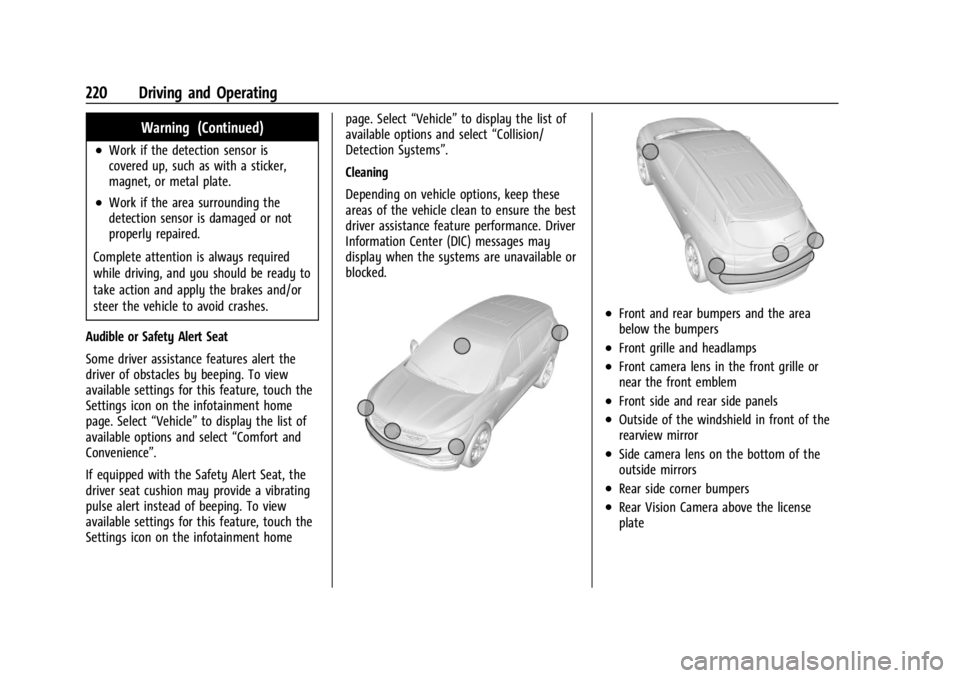
Cleaning
Depending on vehicle options, keep these
areas of the vehicle clean to ensure the best
driver assistance feature performance. Driver
Information Center (DIC) messages may
display when the systems are unavailable or
blocked.
.Front and rear bumpers and the area
below the bumpers
.Front grille and headlamps
.Front camera lens in the front grille or
near the front emblem
.Front side and rear side panels
.Outside of the windshield in front of the
rearview mirror
.Side camera lens on the bottom of the
outside mirrors
.Rear side corner bumpers
.Rear Vision Camera above the license
plate
Page 222 of 356
Buick Envision Owner Manual (GMNA-Localizing-U.S./Canada/Mexico-
16060855) - 2023 - CRC - 2/9/22
Driving and Operating 221
Radio Frequency
This vehicle may be equipped with driver
assistance systems that operate using radio
frequency. SeeRadio Frequency Statement
0 331.
Assistance Systems for Parking or
Backing
If equipped, the Rear Vision Camera (RVC),
Surround Vision, Rear Park Assist (RPA),
Front and Rear Park Assist (FRPA), Enhanced
Automatic Parking Assist (APA), Backing
Warning and Reverse Automatic Braking
(RAB) System, and Rear Cross Traffic Alert
(RCTA) may help the driver park or avoid
objects. Always check around the vehicle
when parking or backing.
Rear Vision Camera (RVC)
When the vehicle is shifted into R (Reverse),
the Rear Vision Camera (RVC) displays an
image of the area behind the vehicle in the
infotainment display. The previous screen
displays when the vehicle is shifted out of
R (Reverse) after a short delay. To return to
the previous screen sooner, press Home or
Back on the infotainment system, shift into P (Park), or reach a vehicle speed of
approximately 12 km/h (8 mph) while in
D (Drive).
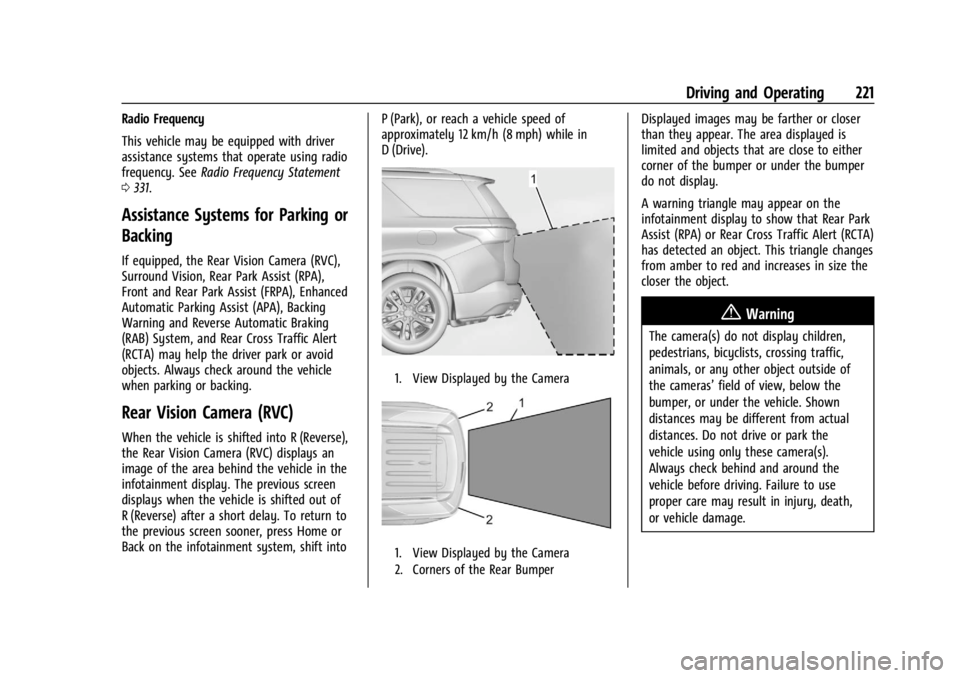
1. View Displayed by the Camera
1. View Displayed by the Camera
2. Corners of the Rear Bumper
Displayed images may be farther or closer
than they appear. The area displayed is
limited and objects that are close to either
corner of the bumper or under the bumper
do not display.
A warning triangle may appear on the
infotainment display to show that Rear Park
Assist (RPA) or Rear Cross Traffic Alert (RCTA)
has detected an object. This triangle changes
from amber to red and increases in size the
closer the object.
{Warning
The camera(s) do not display children,
pedestrians, bicyclists, crossing traffic,
animals, or any other object outside of
the cameras’
field of view, below the
bumper, or under the vehicle. Shown
distances may be different from actual
distances. Do not drive or park the
vehicle using only these camera(s).
Always check behind and around the
vehicle before driving. Failure to use
proper care may result in injury, death,
or vehicle damage.