Hud BUICK ENVISION 2023 Owners Manual
[x] Cancel search | Manufacturer: BUICK, Model Year: 2023, Model line: ENVISION, Model: BUICK ENVISION 2023Pages: 356, PDF Size: 7.42 MB
Page 7 of 356

Buick Envision Owner Manual (GMNA-Localizing-U.S./Canada/Mexico-
16060855) - 2023 - CRC - 2/9/22
6 Introduction
1.Air Vents 0178.
2. Turn Signal Lever. See Turn and
Lane-Change Signals 0121.
IntelliBeam System. See Exterior Lamp
Controls 0115.
3. Tap Shift Controls. See Automatic
Transmission 0198.
4. Instrument Cluster 092.
Driver Information Center Display. See
Driver Information Center (DIC) 0106.
5. Windshield Wiper/Washer 085.
Rear Window Wiper/Washer 087.
6. Infotainment Controls. See Overview
0 126.
7. Light Sensor. See Automatic Headlamp
System 0118.
8. Hazard Warning Flashers 0121.
9. Dual Automatic Climate Control System
0174.
Heated and Ventilated Front Seats 041.
10. Power Outlets 088.
Wireless Charger. See Wireless Charging
0 89 (If Equipped).
Front Storage 080. 11. Auto Stop Disable Switch. See
Stop/Start
System 0193.
Hill Descent Control (HDC) 0207 (If
Equipped).
Lane Keep Assist (LKA) 0237 (If
Equipped).
Traction Control/Electronic Stability
Control 0204.
Rear Park Assist (RPA). See Park Assist
0 223 (If Equipped).
Park Assist 0223.
12. MODE Button. See Driver Mode Control
0 208.
13. Electric Parking Brake 0202.
14. Shift Switches. See Automatic
Transmission 0198.
15. USB Ports. See USB Port0134.
16. ENGINE START/STOP Button. See Ignition
Positions 0191.
17. Steering Wheel Controls 0127.
Driver Information Center (DIC) Buttons.
See Driver Information Center (DIC)
0 106.
18. Horn 085 19.
Steering Wheel Adjustment 085 (Out
of View).
20. Cruise Control 0209.
Adaptive Cruise Control (Advanced) 0211
(If Equipped).
Heated Steering Wheel 085 (If
Equipped).
21. Head-Up Display (HUD) 0109.
22. Data Link Connector (DLC) (Out of View). SeeMalfunction Indicator Lamp (Check
Engine Light) 098.
23. Hood Release. See Hood0253.
24. Instrument Panel Illumination Control
0121
Page 85 of 356
Buick Envision Owner Manual (GMNA-Localizing-U.S./Canada/Mexico-
16060855) - 2023 - CRC - 2/9/22
84 Instruments and Controls
Instruments and Controls
Controls
Steering Wheel Adjustment . . . . . . . . . . . . 85
Heated Steering Wheel . . . . . . . . . . . . . . . . . 85
Horn . . . . . . . . . . . . . . . . . . . . . . . . . . . . . . . . . . . 85
Windshield Wiper/Washer . . . . . . . . . . . . . . 85
Rear Window Wiper/Washer . . . . . . . . . . . 87
Clock . . . . . . . . . . . . . . . . . . . . . . . . . . . . . . . . . . . 88
Power Outlets . . . . . . . . . . . . . . . . . . . . . . . . . . 88
Wireless Charging . . . . . . . . . . . . . . . . . . . . . . 89
Warning Lights, Gauges, and Indicators
Warning Lights, Gauges, andIndicators . . . . . . . . . . . . . . . . . . . . . . . . . . . . . 92
Instrument Cluster . . . . . . . . . . . . . . . . . . . . . 92
Speedometer . . . . . . . . . . . . . . . . . . . . . . . . . . . 95
Odometer . . . . . . . . . . . . . . . . . . . . . . . . . . . . . . 95
Trip Odometer . . . . . . . . . . . . . . . . . . . . . . . . . 95
Tachometer . . . . . . . . . . . . . . . . . . . . . . . . . . . . 95
Fuel Gauge . . . . . . . . . . . . . . . . . . . . . . . . . . . . . 95
Engine Coolant Temperature Gauge . . . . 96
Seat Belt Reminders . . . . . . . . . . . . . . . . . . . . 96
Airbag Readiness Light . . . . . . . . . . . . . . . . . 97
Passenger Airbag Status Indicator . . . . . . 97
Charging System Light . . . . . . . . . . . . . . . . . 98
Malfunction Indicator Lamp (Check Engine Light) . . . . . . . . . . . . . . . . . . . . . . . . . 98 Brake System Warning Light . . . . . . . . . . . 99
Electric Parking Brake Light . . . . . . . . . . . . 100
Service Electric Parking Brake Light . . . . 100
Antilock Brake System (ABS) Warning
Light . . . . . . . . . . . . . . . . . . . . . . . . . . . . . . . . 100
All-Wheel-Drive Light . . . . . . . . . . . . . . . . . . . 101
Hill Descent Control Light . . . . . . . . . . . . . . 101
Lane Keep Assist (LKA) Light . . . . . . . . . . . 101
Automatic Emergency Braking (AEB) Disabled Light . . . . . . . . . . . . . . . . . . . . . . . 102
Vehicle Ahead Indicator . . . . . . . . . . . . . . . 102
Pedestrian Ahead Indicator . . . . . . . . . . . . 102
Traction Off Light . . . . . . . . . . . . . . . . . . . . . . 102
StabiliTrak OFF Light . . . . . . . . . . . . . . . . . . . 102
Traction Control System (TCS)/ StabiliTrak Light . . . . . . . . . . . . . . . . . . . . . 103
Engine Coolant Temperature Warning Light . . . . . . . . . . . . . . . . . . . . . . . . . . . . . . . . . 103
Driver Mode Control Light . . . . . . . . . . . . . 103
Tire Pressure Light . . . . . . . . . . . . . . . . . . . . 104
Engine Oil Pressure Light . . . . . . . . . . . . . . 104
Low Fuel Warning Light . . . . . . . . . . . . . . . 105
Security Light . . . . . . . . . . . . . . . . . . . . . . . . . . 105
High-Beam On Light . . . . . . . . . . . . . . . . . . . 105
Lamps On Reminder . . . . . . . . . . . . . . . . . . . 106
Cruise Control Light . . . . . . . . . . . . . . . . . . . 106
Door Ajar Light . . . . . . . . . . . . . . . . . . . . . . . . 106
Information Displays
Driver Information Center (DIC) . . . . . . . 106
Head-Up Display (HUD) . . . . . . . . . . . . . . . . 109
Vehicle Messages
Vehicle Messages . . . . . . . . . . . . . . . . . . . . . . 111
Engine Power Messages . . . . . . . . . . . . . . . . 111
Vehicle Speed Messages . . . . . . . . . . . . . . . 112
Universal Remote System
Universal Remote System . . . . . . . . . . . . . . 112
Universal Remote System Programming . . . . . . . . . . . . . . . . . . . . . . . . . 112
Universal Remote System Operation . . . 114
Page 95 of 356
Buick Envision Owner Manual (GMNA-Localizing-U.S./Canada/Mexico-
16060855) - 2023 - CRC - 2/9/22
94 Instruments and Controls
.Home Page
.Info App. This is where the selected Driver
Information Center (DIC) displays can be
viewed. SeeDriver Information Center
(DIC) 0106.
.Audio
.Navigation
.Phone
.Options
Home
Information Displayed here can be
customized from the Options menu. See
“Options” below.
Speedometer : Displays how fast the vehicle
is moving in either kilometers per hour
(km/h) or miles per hour (mph).
Speed Sign : Shows sign information, which
comes from a roadway database in the
onboard navigation system, if equipped.
Time : Displays the current time.
Temperature : Displays the current outside
air temperature.
Active Safety : If equipped, displays
information for Lane Keep Assist (LKA) and
Forward Collision Alert (FCA). Fuel Range :
Displays the approximate
distance the vehicle can be driven without
refueling. The fuel range estimate is based
on an average of the vehicle’s fuel economy
over recent driving history and the amount
of fuel remaining in the fuel tank. The Fuel
Range cannot be reset.
Audio
In the Audio menu browse for music, select
from the favorites, or change the audio
source. Use the thumbwheel to change the
station or go to the next or previous track.
Navigation
If there is an active route, press the
thumbwheel to cancel or resume route
guidance, or turn the voice prompts on
or off.
Phone
In the Phone menu, if there is no active
phone call, view recent calls, or scroll
through contacts. If there is an active call,
mute the phone or switch to handset
operation. Options
Use the thumbwheel to scroll through items
in the Options menu.
Head-up Display (HUD) (Uplevel) :
If equipped, this feature allows for adjusting
the angle of the HUD image and changing
or turning off the Speed Limit Sign.
HUD Rotation (Uplevel): Press the
thumbwheel while Adjust Rotation is
highlighted to enter Adjust Mode. Scroll to
adjust the angle of the HUD display. Press
the thumbwheel to confirm and save the
setting. This feature may only be available
in P (Park).
Speed Sign: If equipped, press the
thumbwheel while Speed Sign is highlighted
to turn it on or off.
Units :
Choose English, Imperial, or metric
units by pressing the thumbwheel while the
desired item is highlighted.
Info Page Options : Press the thumbwheel
to select the items to be displayed in the
Info app. See Driver Information Center (DIC)
0 106.
Page 110 of 356
Buick Envision Owner Manual (GMNA-Localizing-U.S./Canada/Mexico-
16060855) - 2023 - CRC - 2/9/22
Instruments and Controls 109
Head-Up Display (HUD)
{Warning
If the HUD image is too bright or too
high in your field of view, it may take
you more time to see things you need to
see when it is dark outside. Be sure to
keep the HUD image dim and placed low
in your field of view.
If equipped with HUD, some information
concerning the operation of the vehicle is
projected onto the windshield. The image is
projected through the HUD lens on top of
the instrument panel. The information
appears as an image focused out toward the
front of the vehicle.
Caution
If you try to use the HUD image as a
parking aid, you may misjudge the
distance and damage your vehicle. Do not
use the HUD image as a parking aid.
The HUD information can be displayed in
various languages in some vehicles. The
speedometer reading and other numerical
values can be displayed in either English or
metric units. The language selection is changed through
the radio and the units of measurement are
changed through the instrument cluster. See
Settings
0159 and “Options” under
Instrument Cluster 092.
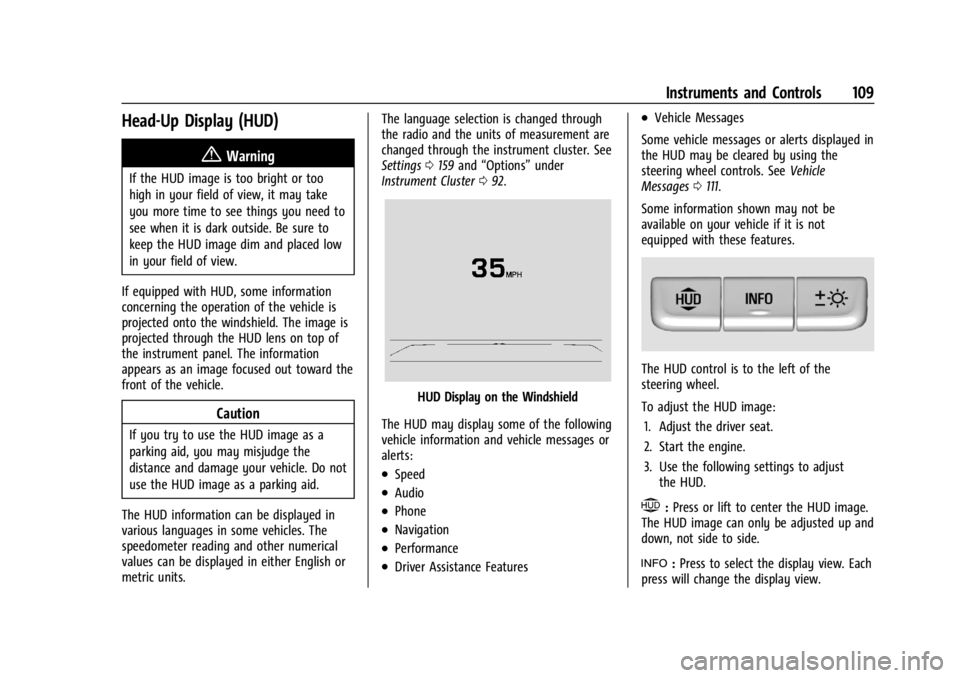
HUD Display on the Windshield
The HUD may display some of the following
vehicle information and vehicle messages or
alerts:
.Speed
.Audio
.Phone
.Navigation
.Performance
.Driver Assistance Features
.Vehicle Messages
Some vehicle messages or alerts displayed in
the HUD may be cleared by using the
steering wheel controls. See Vehicle
Messages 0111.
Some information shown may not be
available on your vehicle if it is not
equipped with these features.
The HUD control is to the left of the
steering wheel.
To adjust the HUD image: 1. Adjust the driver seat.
2. Start the engine.
3. Use the following settings to adjust the HUD.
$:Press or lift to center the HUD image.
The HUD image can only be adjusted up and
down, not side to side.
!: Press to select the display view. Each
press will change the display view.
Page 111 of 356
Buick Envision Owner Manual (GMNA-Localizing-U.S./Canada/Mexico-
16060855) - 2023 - CRC - 2/9/22
110 Instruments and Controls
D:Lift and hold to brighten the display.
Press and hold to dim the display. Continue
to hold to turn the display off.
The HUD image will automatically dim and
brighten to compensate for outside lighting.
The HUD brightness control can also be
adjusted as needed.
The HUD image can temporarily light up
depending on the angle and position of
sunlight on the HUD display. This is normal.
Polarized sunglasses could make the HUD
image harder to see.
Head-Up Display (HUD) Rotation Option
This feature allows the angle of the HUD
image to be adjusted.
Press the thumbwheel while Adjust Rotation
is highlighted to enter Adjust Mode. Scroll
to adjust the angle of the HUD display.
Press the thumbwheel to confirm and save
the setting. This feature may only be
available in P (Park). See Instrument Cluster
0 92.
HUD Views
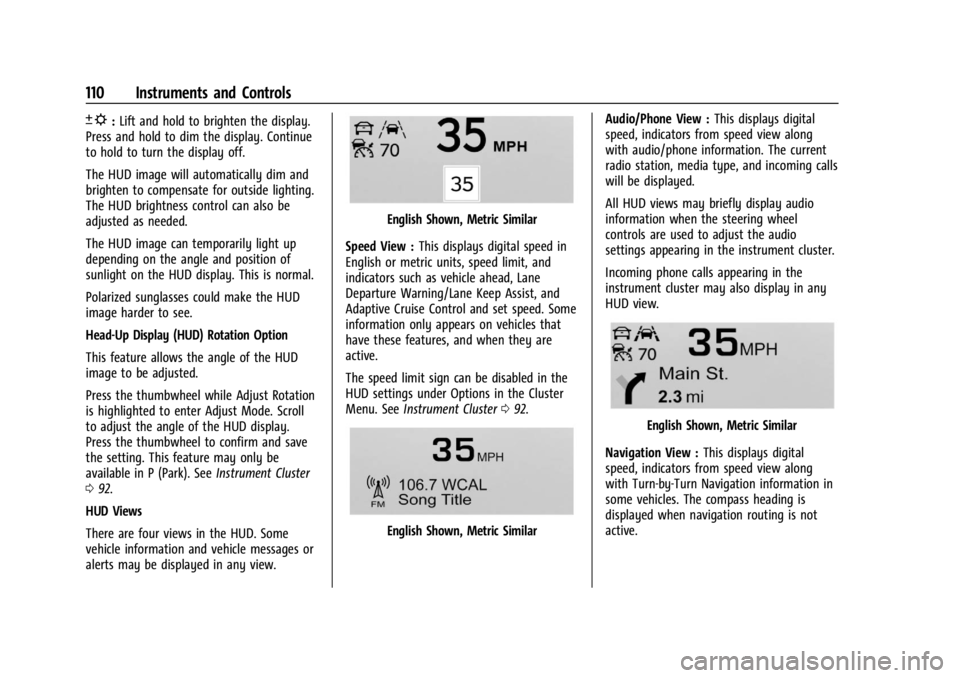
There are four views in the HUD. Some
vehicle information and vehicle messages or
alerts may be displayed in any view.
English Shown, Metric Similar
Speed View : This displays digital speed in
English or metric units, speed limit, and
indicators such as vehicle ahead, Lane
Departure Warning/Lane Keep Assist, and
Adaptive Cruise Control and set speed. Some
information only appears on vehicles that
have these features, and when they are
active.
The speed limit sign can be disabled in the
HUD settings under Options in the Cluster
Menu. See Instrument Cluster 092.
English Shown, Metric Similar Audio/Phone View :
This displays digital
speed, indicators from speed view along
with audio/phone information. The current
radio station, media type, and incoming calls
will be displayed.
All HUD views may briefly display audio
information when the steering wheel
controls are used to adjust the audio
settings appearing in the instrument cluster.
Incoming phone calls appearing in the
instrument cluster may also display in any
HUD view.
English Shown, Metric Similar
Navigation View : This displays digital
speed, indicators from speed view along
with Turn-by-Turn Navigation information in
some vehicles. The compass heading is
displayed when navigation routing is not
active.
Page 112 of 356
Buick Envision Owner Manual (GMNA-Localizing-U.S./Canada/Mexico-
16060855) - 2023 - CRC - 2/9/22
Instruments and Controls 111
Navigation Turn-by-Turn Alerts shown in the
instrument cluster may also be displayed in
any HUD view.
English Shown, Metric Similar
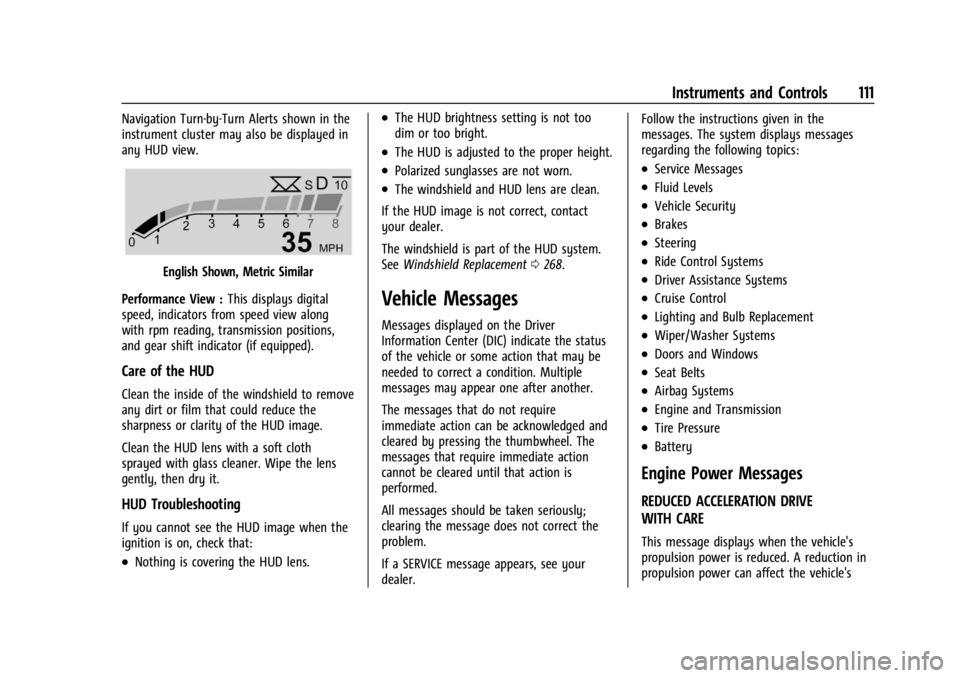
Performance View : This displays digital
speed, indicators from speed view along
with rpm reading, transmission positions,
and gear shift indicator (if equipped).
Care of the HUD
Clean the inside of the windshield to remove
any dirt or film that could reduce the
sharpness or clarity of the HUD image.
Clean the HUD lens with a soft cloth
sprayed with glass cleaner. Wipe the lens
gently, then dry it.
HUD Troubleshooting
If you cannot see the HUD image when the
ignition is on, check that:
.Nothing is covering the HUD lens.
.The HUD brightness setting is not too
dim or too bright.
.The HUD is adjusted to the proper height.
.Polarized sunglasses are not worn.
.The windshield and HUD lens are clean.
If the HUD image is not correct, contact
your dealer.
The windshield is part of the HUD system.
See Windshield Replacement 0268.
Vehicle Messages
Messages displayed on the Driver
Information Center (DIC) indicate the status
of the vehicle or some action that may be
needed to correct a condition. Multiple
messages may appear one after another.
The messages that do not require
immediate action can be acknowledged and
cleared by pressing the thumbwheel. The
messages that require immediate action
cannot be cleared until that action is
performed.
All messages should be taken seriously;
clearing the message does not correct the
problem.
If a SERVICE message appears, see your
dealer. Follow the instructions given in the
messages. The system displays messages
regarding the following topics:
.Service Messages
.Fluid Levels
.Vehicle Security
.Brakes
.Steering
.Ride Control Systems
.Driver Assistance Systems
.Cruise Control
.Lighting and Bulb Replacement
.Wiper/Washer Systems
.Doors and Windows
.Seat Belts
.Airbag Systems
.Engine and Transmission
.Tire Pressure
.Battery
Engine Power Messages
REDUCED ACCELERATION DRIVE
WITH CARE
This message displays when the vehicle's
propulsion power is reduced. A reduction in
propulsion power can affect the vehicle's
Page 214 of 356
Buick Envision Owner Manual (GMNA-Localizing-U.S./Canada/Mexico-
16060855) - 2023 - CRC - 2/9/22
Driving and Operating 213
Select the set speed desired for ACC. This is
the vehicle speed when no vehicle is
detected in its path.
While the vehicle is moving, ACC will not set
at a speed less than 5 km/h (3 mph),
although it can be resumed. The minimum
allowable set speed is 25 km/h (15 mph).
To set ACC:1. Press
J.
2. Get up to the desired speed.
3. Press and release SET– .
4. Remove your foot from the accelerator pedal.
After ACC is set, it may immediately apply
the brakes if a vehicle ahead is detected
closer than the selected following gap.
ACC can also be set while the vehicle is
stopped if ACC is on and the brake pedal is
applied.
The ACC indicator displays in the instrument
cluster and Head-Up Display (HUD),
if equipped. When ACC is turned on, the
indicator will be lit white. When ACC is
active, the indicator will turn green.
Be mindful of speed limits, surrounding
traffic speeds, and weather conditions when
selecting the set speed.
Resuming a Set Speed
If the ACC is set at a desired speed and then
the brakes are applied, ACC is disengaged
without erasing the set speed from memory.
To begin using ACC again, press RES+ up
briefly.
.If the vehicle is moving more than 5 km/h
(3 mph), it returns to the previous set
speed.
.If the vehicle is stopped with the brake
pedal applied, press RES+ and release the
brake pedal. ACC will hold the vehicle
until RES+ or the accelerator pedal is
pressed.
A green ACC indicator and the set speed
display on the instrument cluster. The
vehicle ahead indicator may be flashing if a
vehicle ahead was present and moved. See
“Approaching and Following a Vehicle” later
in this section. Once ACC has resumed, the vehicle speed
will increase to the set speed under the
following conditions:
.There is no vehicle ahead.
.The vehicle ahead is beyond the selected
following gap.
.The vehicle speed is not being limited
because of a sharp turn.
Increasing Speed While ACC is at a Set Speed
If ACC is already activated, do one of the
following:
.Use the accelerator to get to the higher
speed. Briefly press and release SET– and
release the accelerator pedal. The vehicle
will now cruise at the higher speed.
When the accelerator pedal is pressed,
ACC will not brake because it is
overridden. While overridden, the ACC
indicator will turn blue on the instrument
cluster and HUD, if equipped.
.Press and hold RES+ up until the desired
set speed is displayed, then release it.
.To increase vehicle speed in small
increments, press RES+ up briefly. For
each press, the vehicle goes 1 km/h or
(1 mph) faster.
Page 215 of 356
Buick Envision Owner Manual (GMNA-Localizing-U.S./Canada/Mexico-
16060855) - 2023 - CRC - 2/9/22
214 Driving and Operating
.To increase vehicle speed in larger
increments, hold RES+. While holding
RES+, the vehicle speed increases to the
next 5 km/h (5 mph) step, then continues
to increase by 5 km/h (5 mph) at a time.
The set speed can also be increased while
the vehicle is stopped.
.If stopped with the brake applied, press
RES+ until the desired set speed is
displayed.
.If ACC is holding the vehicle at a stop and
there is another vehicle directly ahead,
pressing RES+ will increase the set speed.
.Pressing RES+ when there is no longer a
vehicle ahead or the vehicle ahead is
pulling away and the brake is not applied
will cause the ACC to resume.
When it is determined that there is no
vehicle ahead or the vehicle ahead is beyond
the selected following gap, then the vehicle
speed will increase to the set speed.
Reducing Speed While ACC is at a Set Speed
If ACC is already activated, do one of the
following:
.Use the brake to get to the desired lower
speed. Release the brake and press SET–.
The vehicle will now cruise at the lower
speed.
.Press and hold SET– down until the
desired lower speed is reached, then
release it.
.To decrease the vehicle speed in smaller
increments, press SET− down briefly. For
each press, the vehicle goes about 1 km/h
or (1 mph) slower.
.To decrease the vehicle speed in larger
increments, hold SET−. While holding
SET−, the vehicle speed decreases to the
next 5 km/h (5 mph) step, then continues
to decrease by 5 km/h (5 mph) at a time.
The set speed can also be decreased while
the vehicle is stopped.
.If stopped with the brake applied, press
or hold SET− until the desired set speed is
displayed.
Selecting the Follow Distance
When a slower moving vehicle is detected
ahead within the selected following gap,
ACC will adjust the vehicle's speed and
attempt to maintain the follow distance gap
selected.
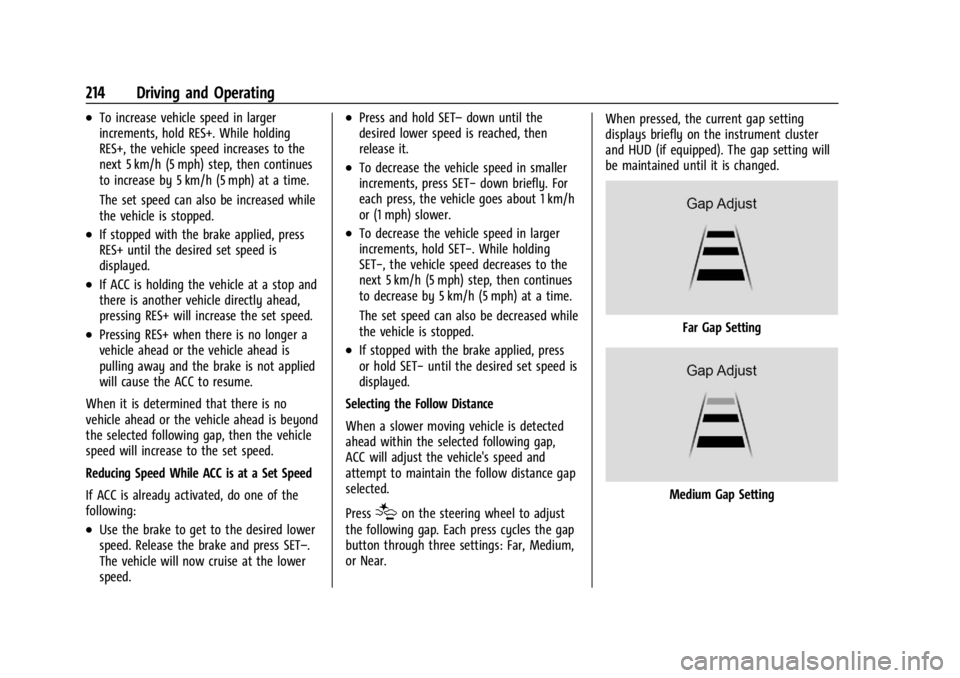
Press
[on the steering wheel to adjust
the following gap. Each press cycles the gap
button through three settings: Far, Medium,
or Near. When pressed, the current gap setting
displays briefly on the instrument cluster
and HUD (if equipped). The gap setting will
be maintained until it is changed.
Far Gap Setting
Medium Gap Setting
Page 216 of 356
Buick Envision Owner Manual (GMNA-Localizing-U.S./Canada/Mexico-
16060855) - 2023 - CRC - 2/9/22
Driving and Operating 215
Near Gap Setting
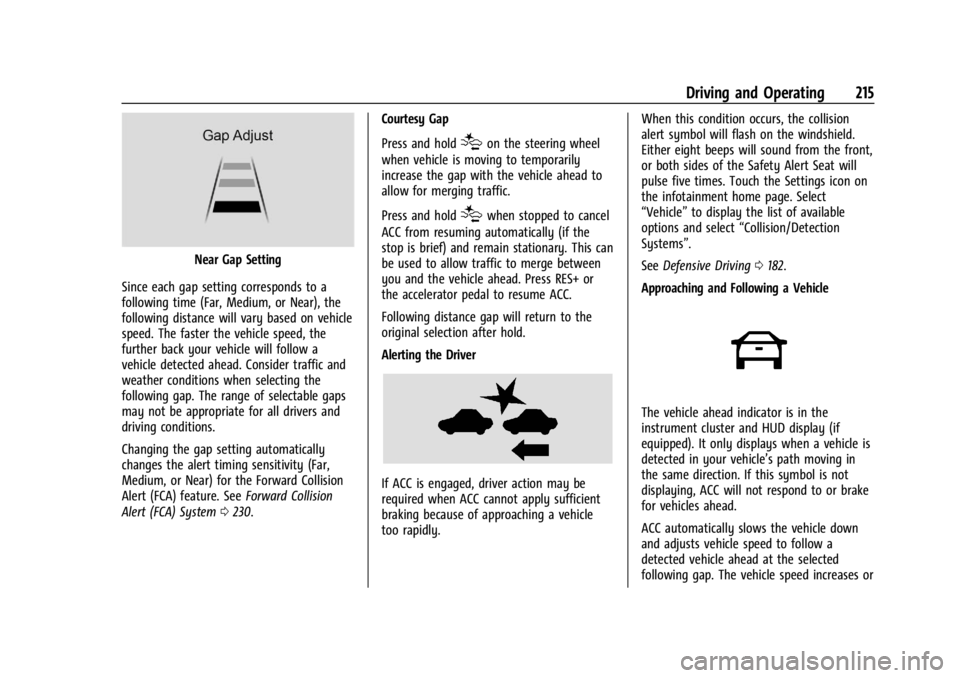
Since each gap setting corresponds to a
following time (Far, Medium, or Near), the
following distance will vary based on vehicle
speed. The faster the vehicle speed, the
further back your vehicle will follow a
vehicle detected ahead. Consider traffic and
weather conditions when selecting the
following gap. The range of selectable gaps
may not be appropriate for all drivers and
driving conditions.
Changing the gap setting automatically
changes the alert timing sensitivity (Far,
Medium, or Near) for the Forward Collision
Alert (FCA) feature. See Forward Collision
Alert (FCA) System 0230. Courtesy Gap
Press and hold
[on the steering wheel
when vehicle is moving to temporarily
increase the gap with the vehicle ahead to
allow for merging traffic.
Press and hold
[when stopped to cancel
ACC from resuming automatically (if the
stop is brief) and remain stationary. This can
be used to allow traffic to merge between
you and the vehicle ahead. Press RES+ or
the accelerator pedal to resume ACC.
Following distance gap will return to the
original selection after hold.
Alerting the Driver
If ACC is engaged, driver action may be
required when ACC cannot apply sufficient
braking because of approaching a vehicle
too rapidly. When this condition occurs, the collision
alert symbol will flash on the windshield.
Either eight beeps will sound from the front,
or both sides of the Safety Alert Seat will
pulse five times. Touch the Settings icon on
the infotainment home page. Select
“Vehicle”
to display the list of available
options and select “Collision/Detection
Systems”.
See Defensive Driving 0182.
Approaching and Following a Vehicle
The vehicle ahead indicator is in the
instrument cluster and HUD display (if
equipped). It only displays when a vehicle is
detected in your vehicle’s path moving in
the same direction. If this symbol is not
displaying, ACC will not respond to or brake
for vehicles ahead.
ACC automatically slows the vehicle down
and adjusts vehicle speed to follow a
detected vehicle ahead at the selected
following gap. The vehicle speed increases or
Page 218 of 356
Buick Envision Owner Manual (GMNA-Localizing-U.S./Canada/Mexico-
16060855) - 2023 - CRC - 2/9/22
Driving and Operating 217
If the stopped vehicle ahead has driven
away and ACC has not resumed, the vehicle
ahead indicator will flash as a reminder to
check traffic ahead before proceeding. In
addition, the left and right sides of the
Safety Alert Seat will pulse three times,
or three beeps will sound. Touch the
Settings icon on the infotainment home
page. Select“Vehicle”to display the list of
available options and select ”Alert Type”and
“Adaptive Cruise Go Notifier” in“Collision/
Detection Systems”.
When the vehicle ahead drives away, ACC
resumes automatically if the stop was brief.
If necessary, press RES+ or the accelerator
pedal to resume ACC. If stopped for more
than two minutes or if the driver door is
opened and the driver seat belt is
unbuckled, the ACC automatically applies the
Electric Parking Brake (EPB) to hold the
vehicle. The EPB status light will turn on.
See Electric Parking Brake 0202. To release
the EPB, press the accelerator pedal.
A DIC warning message may display
indicating to shift to P (Park) before exiting
the vehicle.{Warning
If ACC has stopped the vehicle, and if ACC
is disengaged, turned off, or canceled, the
vehicle will no longer be held at a stop.
The vehicle can move. When ACC is
holding the vehicle at a stop, always be
prepared to manually apply the brakes.
{Warning
Leaving the vehicle without placing it in
P (Park) can be dangerous. Do not leave
the vehicle while it is being held at a
stop by ACC. Always place the vehicle in
P (Park) and turn off the ignition before
leaving the vehicle.
ACC Override
If using the accelerator pedal while ACC is
active, the ACC indicator turns blue on the
instrument cluster and in the HUD,
if equipped, to indicate that automatic
braking will not occur. ACC will resume
operation when the accelerator pedal is not
being pressed.
{Warning
The ACC will not automatically apply the
brakes if your foot is resting on the
accelerator pedal. You could crash into a
vehicle ahead of you.
Curves in the Road
{Warning
On curves, ACC may not detect a vehicle
ahead in your lane. You could be startled
if the vehicle accelerates up to the set
speed, especially when following a vehicle
exiting or entering exit ramps. You could
lose control of the vehicle or crash. Do
not use ACC while driving on an entrance
or exit ramp. Always be ready to use the
brakes if necessary.
{Warning
On curves, ACC may respond to a vehicle
in another lane, or may not have time to
react to a vehicle in your lane. You could
crash into a vehicle ahead of you, or lose
control of your vehicle. Give extra (Continued)