center console BUICK ENVISION 2023 Owners Manual
[x] Cancel search | Manufacturer: BUICK, Model Year: 2023, Model line: ENVISION, Model: BUICK ENVISION 2023Pages: 356, PDF Size: 7.42 MB
Page 12 of 356
Buick Envision Owner Manual (GMNA-Localizing-U.S./Canada/Mexico-
16060855) - 2023 - CRC - 2/9/22
Keys, Doors, and Windows 11
Passive locking will then remain disabled
until
Qon the interior door is pressed,
or until the vehicle is turned on.
Remote Key Left in Vehicle Alert
When the vehicle is turned off and a remote
key is left in the vehicle, the horn will chirp
three times after all doors are closed. To
view available settings for this feature
from the infotainment screen, touch
Settings > Vehicle > Remote Lock, Unlock,
Start.
Remote Removed From Vehicle Alert
If the vehicle is on, with a door open, and
then all doors are closed, the vehicle will
check for remote key(s) inside. If a remote
key is not detected, the Driver Information
Center (DIC) will display NO KEY FOUND and
the horn will chirp three times.
This occurs only once each time the vehicle
is started.
To view available settings for this feature
from the infotainment screen, touch
Settings > Vehicle > Remote Lock, Unlock,
Start. Keyless Liftgate Opening
Press the touchpad on the liftgate handle to
open the liftgate. The remote key must be
within 1 m (3 ft).
Key Access
To access a vehicle with a weak remote key
battery, see
Door Locks014.
Programming Remote Keys to the
Vehicle
Only remote keys programmed to this
vehicle will work. If a remote key is lost or
stolen, a replacement can be purchased and
programmed through your dealer. When the
replacement remote key is programmed to
this vehicle, all remaining remote keys must
also be reprogrammed. Any lost or stolen
remote keys will no longer work once the
new remote key is programmed.
Starting the Vehicle with a Low Remote
Key Battery
For improved vehicle security, the remote
key is equipped with a motion sensor. When
starting the vehicle, if the remote key has
been idle for an extended period of time,
the DIC may display KEY IN SLEEP MODE,
MOVE KEY, THEN START. Move the remote
key slightly and try starting the vehicle. If the remote key battery is weak or if there
is interference with the signal, the DIC may
display NO KEY FOUND, REPLACE BATTERY IN
KEY or NO REMOTE KEY WAS DETECTED
PLACE KEY IN KEY POCKET THEN START YOUR
VEHICLE when starting the vehicle.
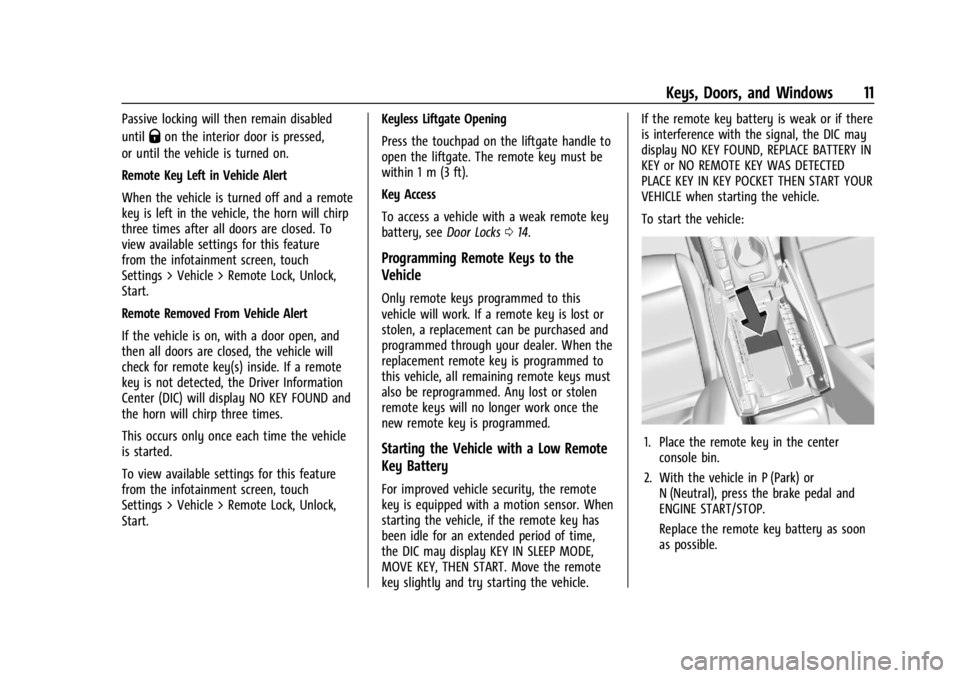
To start the vehicle:
1. Place the remote key in the center
console bin.
2. With the vehicle in P (Park) or N (Neutral), press the brake pedal and
ENGINE START/STOP.
Replace the remote key battery as soon
as possible.
Page 27 of 356
Buick Envision Owner Manual (GMNA-Localizing-U.S./Canada/Mexico-
16060855) - 2023 - CRC - 2/9/22
26 Keys, Doors, and Windows
When trying to start the vehicle, the
security light may come on briefly when the
ignition is turned on.
If the engine does not start and the security
light stays on, there is a problem with the
system. Turn the ignition off and try again.
If the vehicle will not change ignition modes
(accessory mode, on, off), and the remote
key appears to be undamaged, try another
remote key. Or, you may try placing the
remote key in the front cupholder located in
the center console. SeeRemote Key
Operation 08.
If the ignition mode will not change with
the other remote key or in the front
cupholder, your vehicle needs service. If the
ignition does change modes, the first
remote key may be faulty. See your dealer
who can service the theft-deterrent system
and have a new remote key programmed to
the vehicle.
It is possible for the immobilizer system to
learn new or replacement remote keys. Up
to eight remote keys can be programmed
for the vehicle. To program additional
remote keys, see “Programming Remote
Keys to the Vehicle” underRemote Key
Operation 08. Do not leave the remote key or device that
disarms or deactivates the theft-deterrent
system in the vehicle.
Exterior Mirrors
Convex Mirrors
{Warning
A convex mirror can make things, like
other vehicles, look farther away than
they really are. If you cut too sharply
into the right lane, you could hit a
vehicle on the right. Check the inside
mirror or glance over your shoulder
before changing lanes.
The passenger side mirror is convex shaped.
A convex mirror's surface is curved so more
can be seen from the driver seat.
Power Mirrors
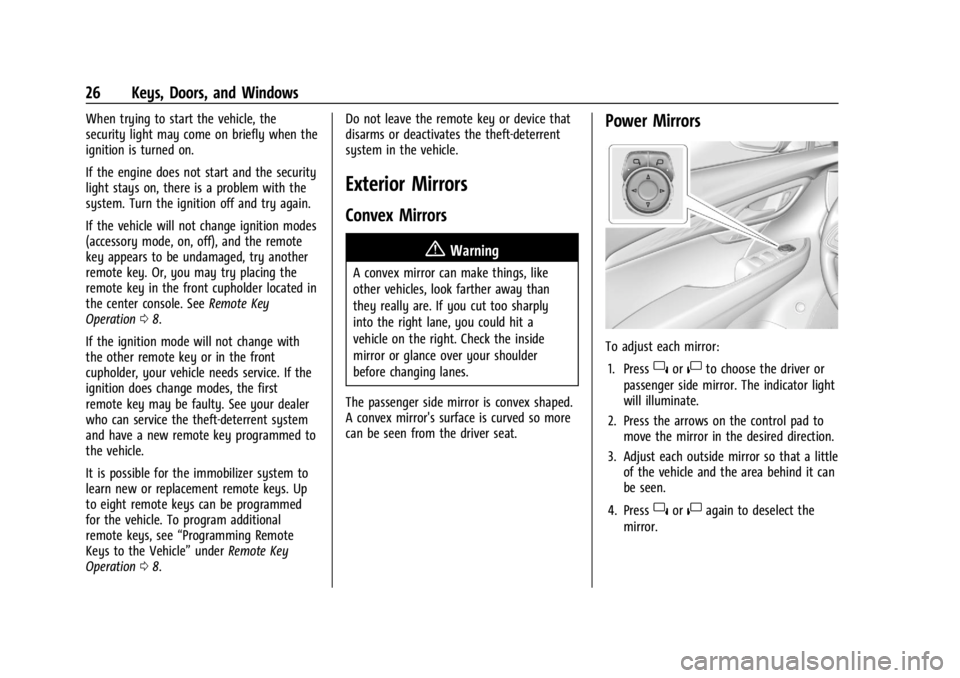
To adjust each mirror: 1. Press
}or|to choose the driver or
passenger side mirror. The indicator light
will illuminate.
2. Press the arrows on the control pad to move the mirror in the desired direction.
3. Adjust each outside mirror so that a little of the vehicle and the area behind it can
be seen.
4. Press
}or|again to deselect the
mirror.
Page 44 of 356
Buick Envision Owner Manual (GMNA-Localizing-U.S./Canada/Mexico-
16060855) - 2023 - CRC - 2/9/22
Seats and Restraints 43
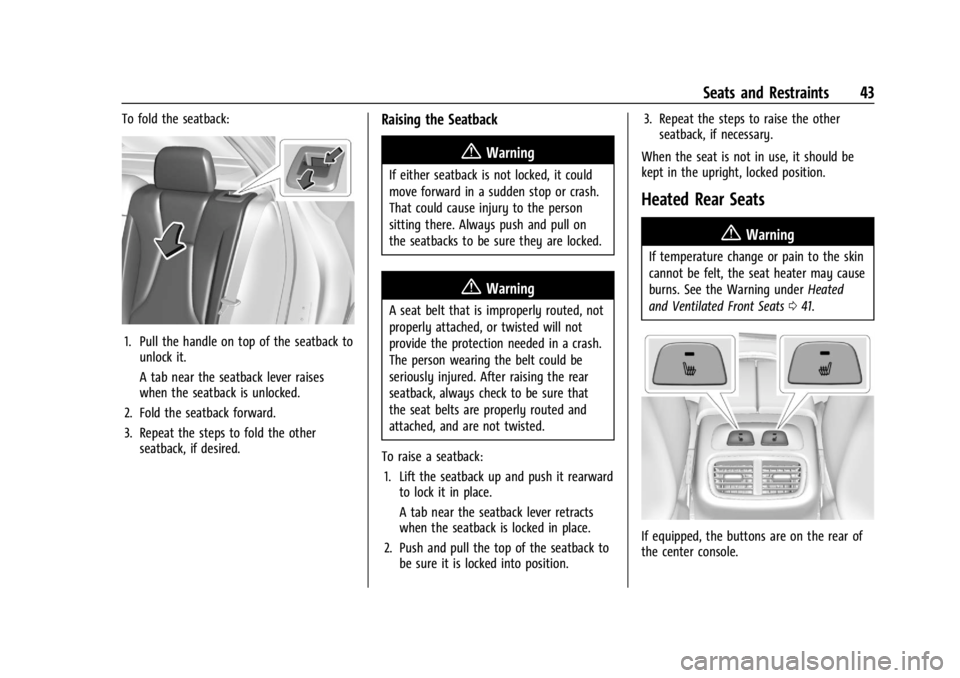
To fold the seatback:
1. Pull the handle on top of the seatback tounlock it.
A tab near the seatback lever raises
when the seatback is unlocked.
2. Fold the seatback forward.
3. Repeat the steps to fold the other seatback, if desired.
Raising the Seatback
{Warning
If either seatback is not locked, it could
move forward in a sudden stop or crash.
That could cause injury to the person
sitting there. Always push and pull on
the seatbacks to be sure they are locked.
{Warning
A seat belt that is improperly routed, not
properly attached, or twisted will not
provide the protection needed in a crash.
The person wearing the belt could be
seriously injured. After raising the rear
seatback, always check to be sure that
the seat belts are properly routed and
attached, and are not twisted.
To raise a seatback: 1. Lift the seatback up and push it rearward to lock it in place.
A tab near the seatback lever retracts
when the seatback is locked in place.
2. Push and pull the top of the seatback to be sure it is locked into position. 3. Repeat the steps to raise the other
seatback, if necessary.
When the seat is not in use, it should be
kept in the upright, locked position.
Heated Rear Seats
{Warning
If temperature change or pain to the skin
cannot be felt, the seat heater may cause
burns. See the Warning under Heated
and Ventilated Front Seats 041.
If equipped, the buttons are on the rear of
the center console.
Page 80 of 356

Buick Envision Owner Manual (GMNA-Localizing-U.S./Canada/Mexico-
16060855) - 2023 - CRC - 2/9/22
Storage 79
Storage
Storage Compartments
Storage Compartments . . . . . . . . . . . . . . . . . 79
Glove Box . . . . . . . . . . . . . . . . . . . . . . . . . . . . . . 79
Cupholders . . . . . . . . . . . . . . . . . . . . . . . . . . . . . 79
Front Storage . . . . . . . . . . . . . . . . . . . . . . . . . . 80
Center Console Storage . . . . . . . . . . . . . . . . 80
Additional Storage Features
Cargo Cover . . . . . . . . . . . . . . . . . . . . . . . . . . . . 81
Cargo Tie-Downs . . . . . . . . . . . . . . . . . . . . . . . . 81
Cargo Management System . . . . . . . . . . . . 82
Convenience Net . . . . . . . . . . . . . . . . . . . . . . . 82
Roof Rack System
Roof Rack System . . . . . . . . . . . . . . . . . . . . . . 82
Storage Compartments{
Warning
Do not store heavy or sharp objects in
storage compartments. In a crash, these
objects may cause the cover to open and
could result in injury.
Glove Box
Lift the handle to open the glove box. Close
until it latches.
Cupholders
Front
There are two cupholders in the center
console.
Page 81 of 356
Buick Envision Owner Manual (GMNA-Localizing-U.S./Canada/Mexico-
16060855) - 2023 - CRC - 2/9/22
80 Storage
Rear
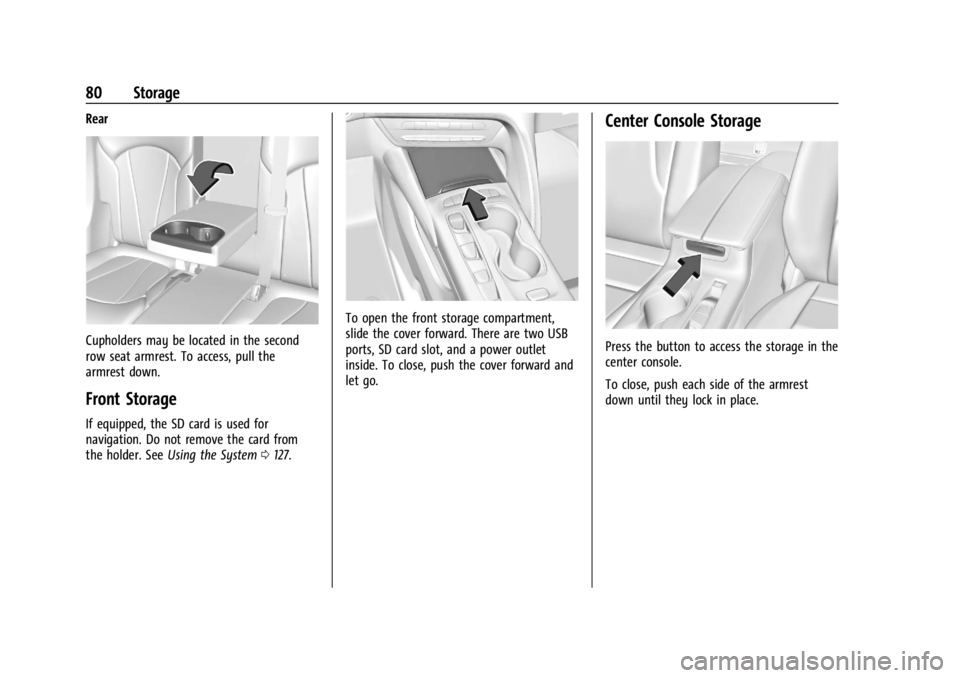
Cupholders may be located in the second
row seat armrest. To access, pull the
armrest down.
Front Storage
If equipped, the SD card is used for
navigation. Do not remove the card from
the holder. SeeUsing the System 0127.
To open the front storage compartment,
slide the cover forward. There are two USB
ports, SD card slot, and a power outlet
inside. To close, push the cover forward and
let go.
Center Console Storage
Press the button to access the storage in the
center console.
To close, push each side of the armrest
down until they lock in place.
Page 89 of 356
Buick Envision Owner Manual (GMNA-Localizing-U.S./Canada/Mexico-
16060855) - 2023 - CRC - 2/9/22
88 Instruments and Controls
lever is in R (Reverse), and the front
windshield wiper is performing interval
wipes, then the rear wiper automatically
performs interval wipes.
This feature can be turned on or off.
The windshield washer reservoir is used for
the windshield and rear window. Check the
fluid level if either washer is not working.
SeeWasher Fluid 0263.
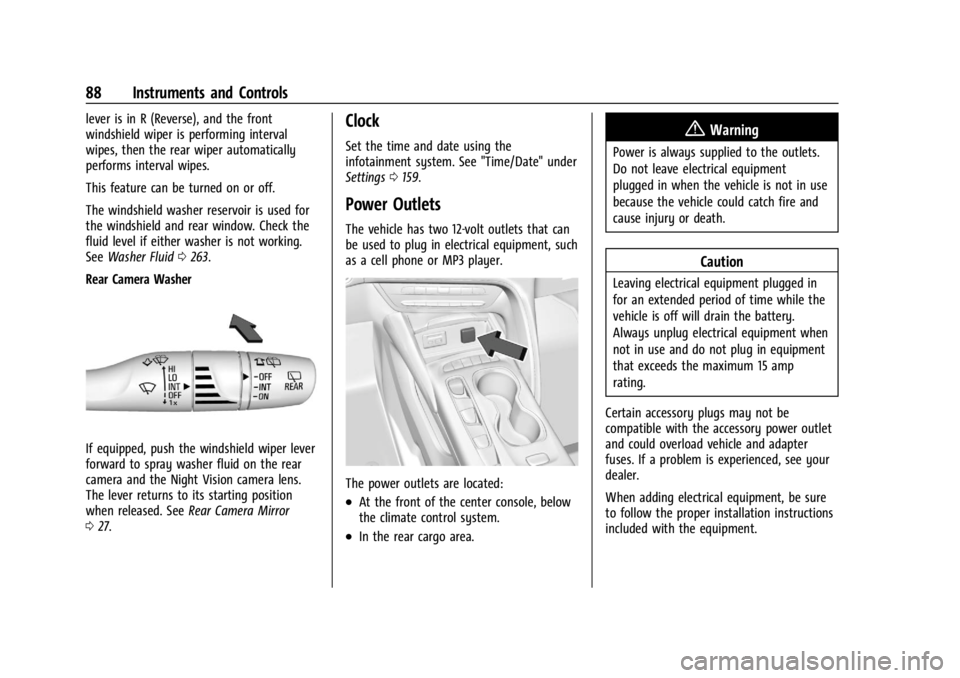
Rear Camera Washer
If equipped, push the windshield wiper lever
forward to spray washer fluid on the rear
camera and the Night Vision camera lens.
The lever returns to its starting position
when released. See Rear Camera Mirror
0 27.
Clock
Set the time and date using the
infotainment system. See "Time/Date" under
Settings 0159.
Power Outlets
The vehicle has two 12-volt outlets that can
be used to plug in electrical equipment, such
as a cell phone or MP3 player.
The power outlets are located:
.At the front of the center console, below
the climate control system.
.In the rear cargo area.
{Warning
Power is always supplied to the outlets.
Do not leave electrical equipment
plugged in when the vehicle is not in use
because the vehicle could catch fire and
cause injury or death.
Caution
Leaving electrical equipment plugged in
for an extended period of time while the
vehicle is off will drain the battery.
Always unplug electrical equipment when
not in use and do not plug in equipment
that exceeds the maximum 15 amp
rating.
Certain accessory plugs may not be
compatible with the accessory power outlet
and could overload vehicle and adapter
fuses. If a problem is experienced, see your
dealer.
When adding electrical equipment, be sure
to follow the proper installation instructions
included with the equipment.
Page 90 of 356
Buick Envision Owner Manual (GMNA-Localizing-U.S./Canada/Mexico-
16060855) - 2023 - CRC - 2/9/22
Instruments and Controls 89
Caution
Hanging heavy equipment from the
power outlet can cause damage not
covered by the vehicle warranty. The
power outlets are designed for accessory
power plugs only, such as cell phone
charge cords.
Power Outlet 110 Volt Alternating
Current
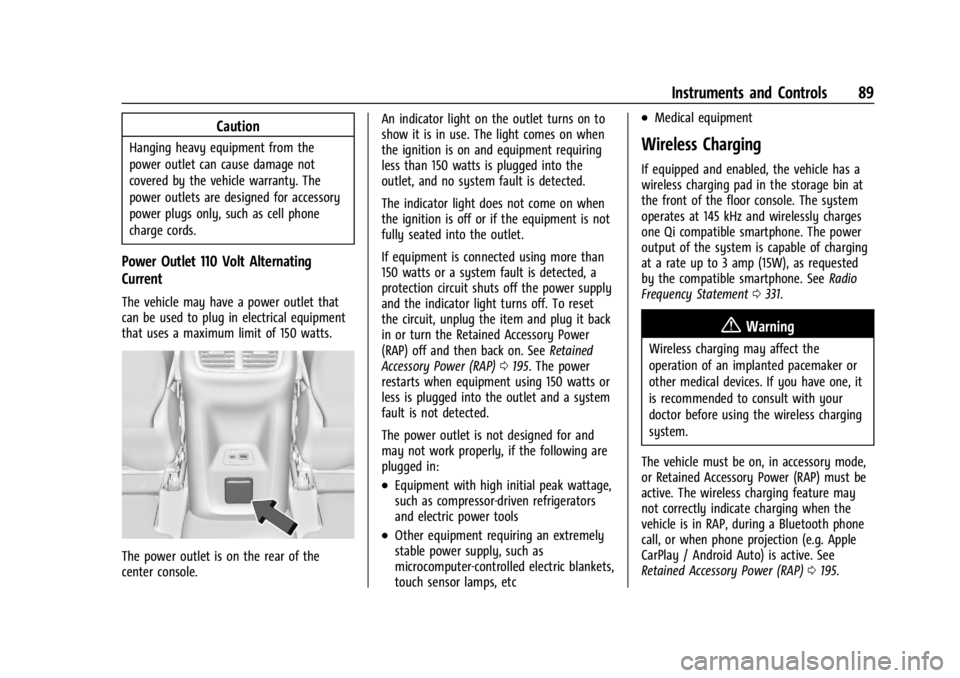
The vehicle may have a power outlet that
can be used to plug in electrical equipment
that uses a maximum limit of 150 watts.
The power outlet is on the rear of the
center console.An indicator light on the outlet turns on to
show it is in use. The light comes on when
the ignition is on and equipment requiring
less than 150 watts is plugged into the
outlet, and no system fault is detected.
The indicator light does not come on when
the ignition is off or if the equipment is not
fully seated into the outlet.
If equipment is connected using more than
150 watts or a system fault is detected, a
protection circuit shuts off the power supply
and the indicator light turns off. To reset
the circuit, unplug the item and plug it back
in or turn the Retained Accessory Power
(RAP) off and then back on. See
Retained
Accessory Power (RAP) 0195. The power
restarts when equipment using 150 watts or
less is plugged into the outlet and a system
fault is not detected.
The power outlet is not designed for and
may not work properly, if the following are
plugged in:
.Equipment with high initial peak wattage,
such as compressor-driven refrigerators
and electric power tools
.Other equipment requiring an extremely
stable power supply, such as
microcomputer-controlled electric blankets,
touch sensor lamps, etc
.Medical equipment
Wireless Charging
If equipped and enabled, the vehicle has a
wireless charging pad in the storage bin at
the front of the floor console. The system
operates at 145 kHz and wirelessly charges
one Qi compatible smartphone. The power
output of the system is capable of charging
at a rate up to 3 amp (15W), as requested
by the compatible smartphone. See Radio
Frequency Statement 0331.
{Warning
Wireless charging may affect the
operation of an implanted pacemaker or
other medical devices. If you have one, it
is recommended to consult with your
doctor before using the wireless charging
system.
The vehicle must be on, in accessory mode,
or Retained Accessory Power (RAP) must be
active. The wireless charging feature may
not correctly indicate charging when the
vehicle is in RAP, during a Bluetooth phone
call, or when phone projection (e.g. Apple
CarPlay / Android Auto) is active. See
Retained Accessory Power (RAP) 0195.
Page 98 of 356
Buick Envision Owner Manual (GMNA-Localizing-U.S./Canada/Mexico-
16060855) - 2023 - CRC - 2/9/22
Instruments and Controls 97
device. To turn off the reminder light and/or
chime, remove the object from the seat or
buckle the seat belt.
Airbag Readiness Light
This light shows if there is an electrical
problem with the airbag system. It is
located in the instrument cluster. The
system check includes the airbag sensor(s),
the passenger sensing system, the
pretensioners, the airbag modules, the
wiring, and the crash sensing and diagnostic
module. For more information on the airbag
system, seeAirbag System 051.
The airbag readiness light comes on for
several seconds when the vehicle is started.
If the light does not come on then, have it
fixed immediately.
{Warning
If the airbag readiness light stays on
after the vehicle is started or comes on
while driving, it means the airbag system
might not be working properly. The
airbags in the vehicle might not inflate in
a crash, or they could even inflate
without a crash. To help avoid injury,
have the vehicle serviced right away.
If there is a problem with the airbag
system, a Driver Information Center (DIC)
message may also come on.
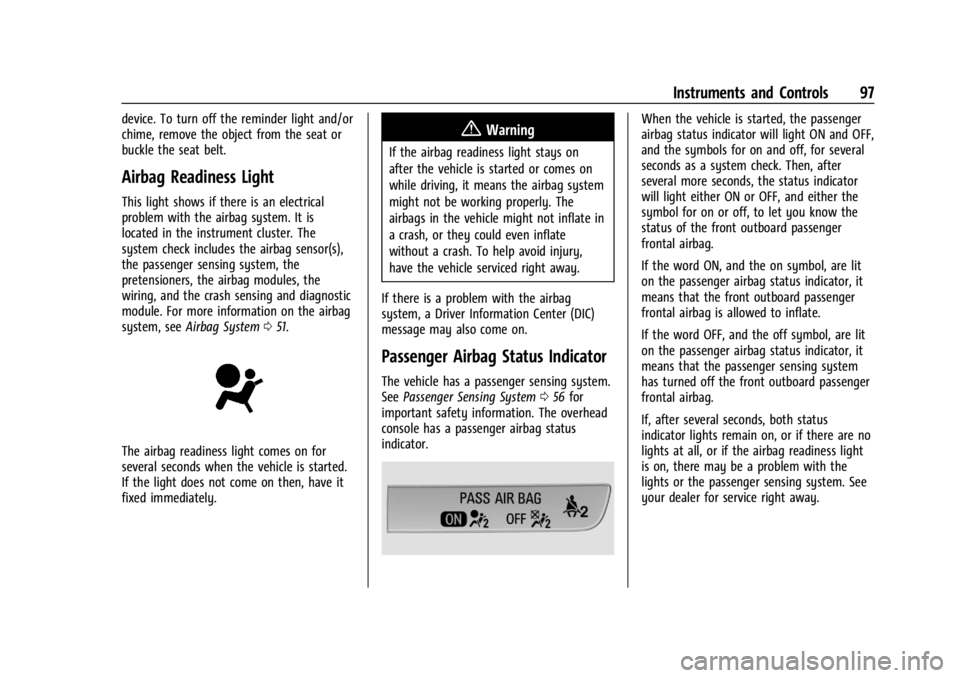
Passenger Airbag Status Indicator
The vehicle has a passenger sensing system.
See Passenger Sensing System 056 for
important safety information. The overhead
console has a passenger airbag status
indicator.
When the vehicle is started, the passenger
airbag status indicator will light ON and OFF,
and the symbols for on and off, for several
seconds as a system check. Then, after
several more seconds, the status indicator
will light either ON or OFF, and either the
symbol for on or off, to let you know the
status of the front outboard passenger
frontal airbag.
If the word ON, and the on symbol, are lit
on the passenger airbag status indicator, it
means that the front outboard passenger
frontal airbag is allowed to inflate.
If the word OFF, and the off symbol, are lit
on the passenger airbag status indicator, it
means that the passenger sensing system
has turned off the front outboard passenger
frontal airbag.
If, after several seconds, both status
indicator lights remain on, or if there are no
lights at all, or if the airbag readiness light
is on, there may be a problem with the
lights or the passenger sensing system. See
your dealer for service right away.
Page 123 of 356
Buick Envision Owner Manual (GMNA-Localizing-U.S./Canada/Mexico-
16060855) - 2023 - CRC - 2/9/22
122 Lighting
Courtesy Lamps
The courtesy lamps come on when any door
is opened,
Kon the remote key is pressed,
or when the vehicle is turned off. See Dome
Lamps 0122.
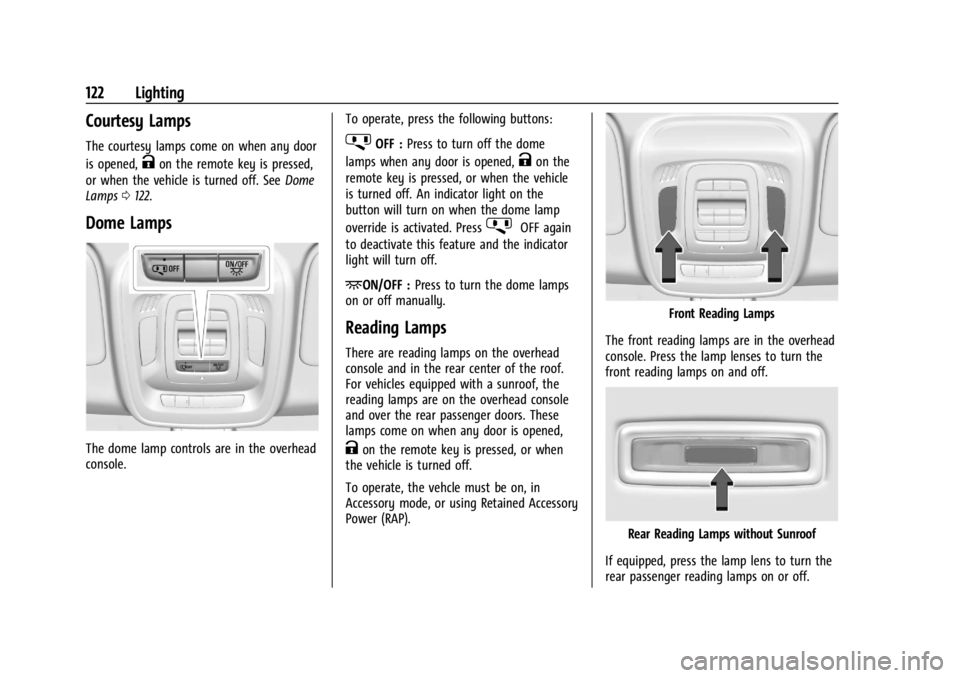
Dome Lamps
The dome lamp controls are in the overhead
console. To operate, press the following buttons:
jOFF :
Press to turn off the dome
lamps when any door is opened,
Kon the
remote key is pressed, or when the vehicle
is turned off. An indicator light on the
button will turn on when the dome lamp
override is activated. Press
jOFF again
to deactivate this feature and the indicator
light will turn off.
+ON/OFF : Press to turn the dome lamps
on or off manually.
Reading Lamps
There are reading lamps on the overhead
console and in the rear center of the roof.
For vehicles equipped with a sunroof, the
reading lamps are on the overhead console
and over the rear passenger doors. These
lamps come on when any door is opened,
Kon the remote key is pressed, or when
the vehicle is turned off.
To operate, the vehcle must be on, in
Accessory mode, or using Retained Accessory
Power (RAP).
Front Reading Lamps
The front reading lamps are in the overhead
console. Press the lamp lenses to turn the
front reading lamps on and off.
Rear Reading Lamps without Sunroof
If equipped, press the lamp lens to turn the
rear passenger reading lamps on or off.
Page 135 of 356
Buick Envision Owner Manual (GMNA-Localizing-U.S./Canada/Mexico-
16060855) - 2023 - CRC - 2/9/22
134 Infotainment System
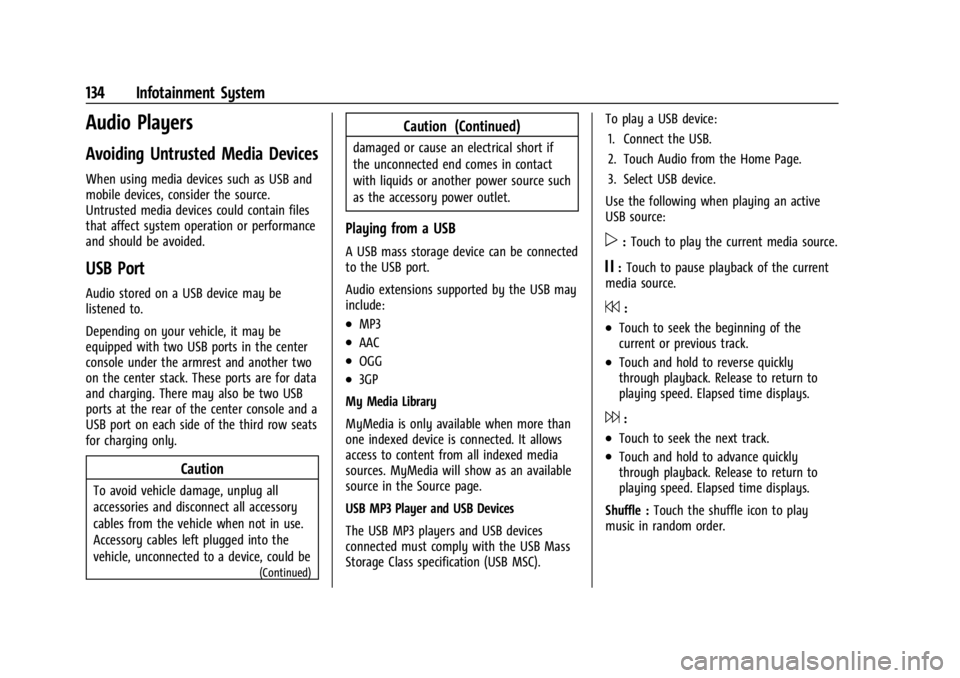
Audio Players
Avoiding Untrusted Media Devices
When using media devices such as USB and
mobile devices, consider the source.
Untrusted media devices could contain files
that affect system operation or performance
and should be avoided.
USB Port
Audio stored on a USB device may be
listened to.
Depending on your vehicle, it may be
equipped with two USB ports in the center
console under the armrest and another two
on the center stack. These ports are for data
and charging. There may also be two USB
ports at the rear of the center console and a
USB port on each side of the third row seats
for charging only.
Caution
To avoid vehicle damage, unplug all
accessories and disconnect all accessory
cables from the vehicle when not in use.
Accessory cables left plugged into the
vehicle, unconnected to a device, could be
(Continued)
Caution (Continued)
damaged or cause an electrical short if
the unconnected end comes in contact
with liquids or another power source such
as the accessory power outlet.
Playing from a USB
A USB mass storage device can be connected
to the USB port.
Audio extensions supported by the USB may
include:
.MP3
.AAC
.OGG
.3GP
My Media Library
MyMedia is only available when more than
one indexed device is connected. It allows
access to content from all indexed media
sources. MyMedia will show as an available
source in the Source page.
USB MP3 Player and USB Devices
The USB MP3 players and USB devices
connected must comply with the USB Mass
Storage Class specification (USB MSC). To play a USB device:
1. Connect the USB.
2. Touch Audio from the Home Page.
3. Select USB device.
Use the following when playing an active
USB source:
p: Touch to play the current media source.
j: Touch to pause playback of the current
media source.
7:
.Touch to seek the beginning of the
current or previous track.
.Touch and hold to reverse quickly
through playback. Release to return to
playing speed. Elapsed time displays.
6:
.Touch to seek the next track.
.Touch and hold to advance quickly
through playback. Release to return to
playing speed. Elapsed time displays.
Shuffle : Touch the shuffle icon to play
music in random order.