service BUICK LACROSSE 2006 Workshop Manual
[x] Cancel search | Manufacturer: BUICK, Model Year: 2006, Model line: LACROSSE, Model: BUICK LACROSSE 2006Pages: 444, PDF Size: 2.66 MB
Page 231 of 444
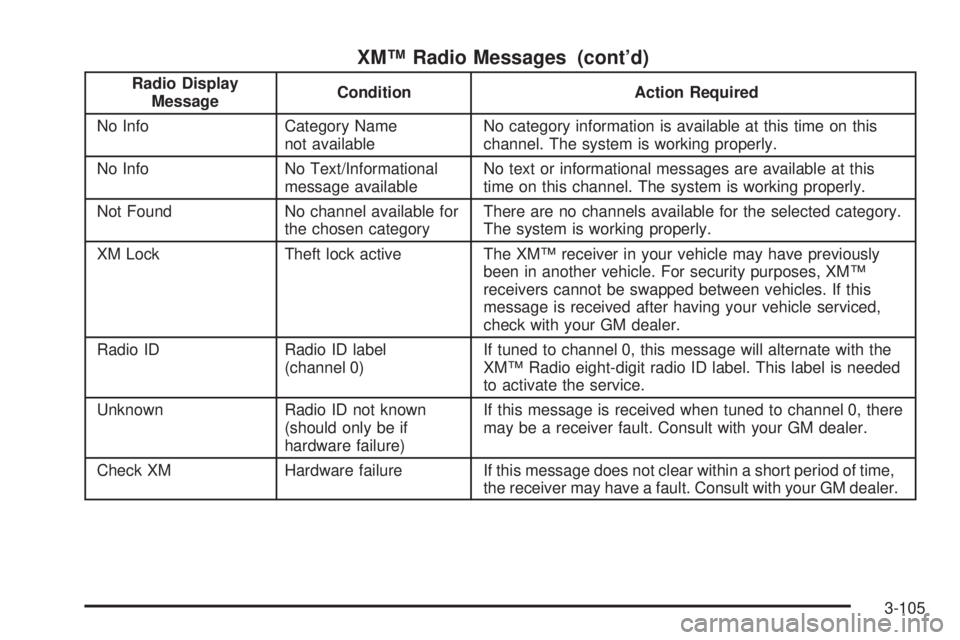
XM™ Radio Messages (cont’d)
Radio Display
MessageCondition Action Required
No Info Category Name
not availableNo category information is available at this time on this
channel. The system is working properly.
No Info No Text/Informational
message availableNo text or informational messages are available at this
time on this channel. The system is working properly.
Not Found No channel available for
the chosen categoryThere are no channels available for the selected category.
The system is working properly.
XM Lock Theft lock active The XM™ receiver in your vehicle may have previously
been in another vehicle. For security purposes, XM™
receivers cannot be swapped between vehicles. If this
message is received after having your vehicle serviced,
check with your GM dealer.
Radio ID Radio ID label
(channel 0)If tuned to channel 0, this message will alternate with the
XM™ Radio eight-digit radio ID label. This label is needed
to activate the service.
Unknown Radio ID not known
(should only be if
hardware failure)If this message is received when tuned to channel 0, there
may be a receiver fault. Consult with your GM dealer.
Check XM Hardware failure If this message does not clear within a short period of time,
the receiver may have a fault. Consult with your GM dealer.
3-105
Page 239 of 444
Radio with Six-Disc CD
XM™ Satellite Radio Service
XM™ is a satellite radio service that is based in the
48 contiguous Untied States and in Canada (if available).
XM™ offers over 100 coast-to-coast channels including
music, news, sports, talk, and children’s programming.
XM™ provides digital quality audio and text information
that includes song title and artist name. A service fee is
required in order to receive the XM™ service. For more
information, contact XM™ at www.xmradio.com or
call 1-800-852-XMXM (9696).
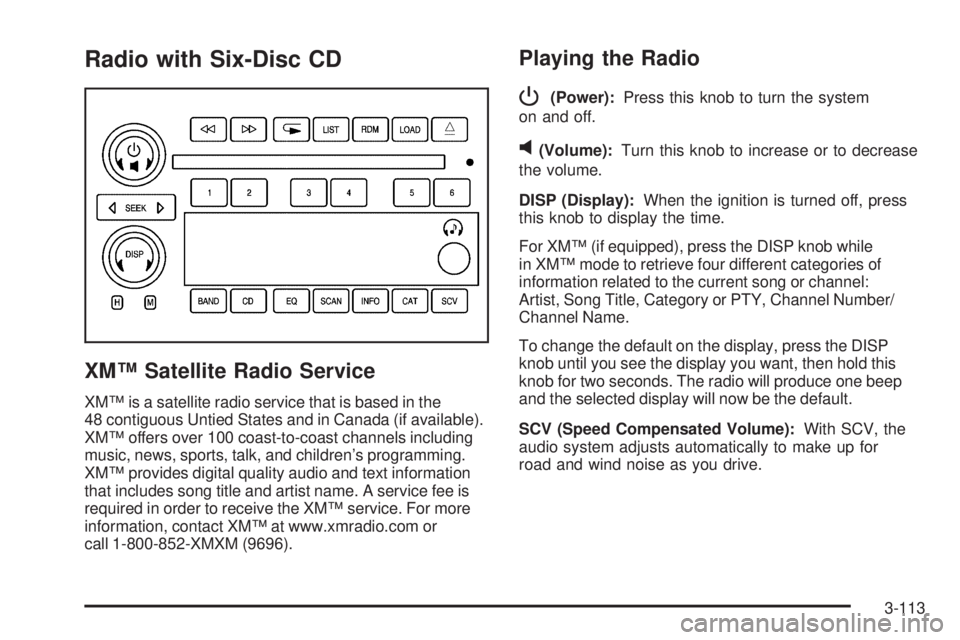
Playing the Radio
P
(Power):Press this knob to turn the system
on and off.
v(Volume):Turn this knob to increase or to decrease
the volume.
DISP (Display):When the ignition is turned off, press
this knob to display the time.
For XM™ (if equipped), press the DISP knob while
in XM™ mode to retrieve four different categories of
information related to the current song or channel:
Artist, Song Title, Category or PTY, Channel Number/
Channel Name.
To change the default on the display, press the DISP
knob until you see the display you want, then hold this
knob for two seconds. The radio will produce one beep
and the selected display will now be the default.
SCV (Speed Compensated Volume):With SCV, the
audio system adjusts automatically to make up for
road and wind noise as you drive.
3-113
Page 240 of 444
Set the volume at the desired level. Press this button to
select LOW, MEDIUM, or HIGH. Each higher setting will
allow for more volume compensation at faster vehicle
speeds. Then as you drive, SCV increases the volume,
as necessary, to overcome noise at any speed. The
volume level should always sound the same to you as
you drive. To turn SCV off, press this button until OFF
appears on the display.
Finding a Station
BAND:Press this button to switch between FM1, FM2,
AM, or XM1 or XM2 (if equipped). The display will show
the selection.
e(Tune):Turn this knob to select radio stations.
oSEEKp:Press and release the right or the left
arrow to go to the next or to the previous station and
stay there.
To scan radio stations, press and hold either arrow for
more than two seconds. SCAN will appear on the display
and the radio will produce one beep. The radio will go to
a station, play for a few seconds, then go on to the next
station. Press either arrow again or one of the
pushbuttons to stop scanning presets.To scan the preset stations, press and hold either arrow
for more than four seconds. PSC will appear on the
display and the radio will produce two beeps. The radio
will go to a preset station, play for a few seconds, then go
on to the next preset station. Press either arrow again or
one of the pushbuttons to stop scanning presets.
The radio will only seek and scan stations with a strong
signal that are in the selected band.
SCAN:Press this button until SC appears on the display.
The radio will go to a station, play for a few seconds, then
go on to the next station. Press this button again to stop
scanning stations.
The radio will only scan stations with a strong signal that
are in the selected band.
INFO (Information) (XM™ Satellite Radio Service
Only):If the current station has a message, the
information symbol will appear on the display. Press this
button to see the message. The message may display
the artist, song title, call in phone numbers, etc.
If the entire message is not displayed, parts of the
message will appear every three seconds. To scroll
through the message, press and release the INFO
button. A new group of words will appear on the
display after every press of this button.
3-114
Page 242 of 444
Adjusting the Speakers (Balance/Fade)
e
(Balance/Fade):To adjust the balance between
the right and the left speakers, push and release
this knob until BAL appears on the display. Turn the
knob to move the sound toward the right or the
left speakers.
To adjust the fade between the front and the rear
speakers, push and release the speaker knob until
FADE appears on the display. Turn the knob to move
the sound toward the front or the rear speakers.
To adjust the balance and the fade to the middle
position, push the speaker knob, then push it again
and hold it until you hear one beep.
To adjust all tone and speaker controls to the middle
position, push and hold the speaker knob when no tone
or speaker control is displayed. CEN will appear on
the display and you will hear a beep.
Finding a Category (CAT) Station
(XM™ Satellite Radio Service Only)
To select and nd a desired category perform the
following:
1. Press the CAT button to activate category select
mode. The current category will appear on the
display.
2. Turn the tune knob to select a category.
3. Once the desired category is displayed, press either
SEEK arrow to take you to the categories rst
station.
4. To go to another station within that category
and the category is displayed, press either SEEK
arrow again. If CAT times out and is no longer on the
display, go back to Step 1.
5. Press CAT to exit category select mode or wait for
CAT to time out.
If the radio cannot nd the desired category, NOT
FOUND will appear on the display and the radio
will return to the last station you were listening to.
3-116
Page 243 of 444
Scanning Categories (CAT)
(XM™ Satellite Radio Service Only)
To scan a desired category perform the following:
1. Press the CAT button to activate category select
mode. The current category will appear on the
display.
2. Turn the tune knob to select a category.
3. Once the desired category is displayed, press either
SEEK arrow for two seconds to scan the stations in
the category.
4. Press either SEEK arrow again to stop scanning.
If the radio cannot nd the desired category, NOT
FOUND will appear on the display and the radio will
return to the last station you were listening to.
Radio Messages
CALIBRATE:The audio system has been calibrated for
your vehicle from the factory. If CALIBRATE appears
on the display it means that the radio has not been
congured properly for your vehicle and it must
be returned to your GM dealer for service.
LOCKED:This message is displayed when the
THEFTLOCK
®system has locked up. Take your vehicle
to your GM dealer for service.
If any error occurs repeatedly or if an error cannot be
corrected, contact your GM dealer.
3-117
Page 244 of 444
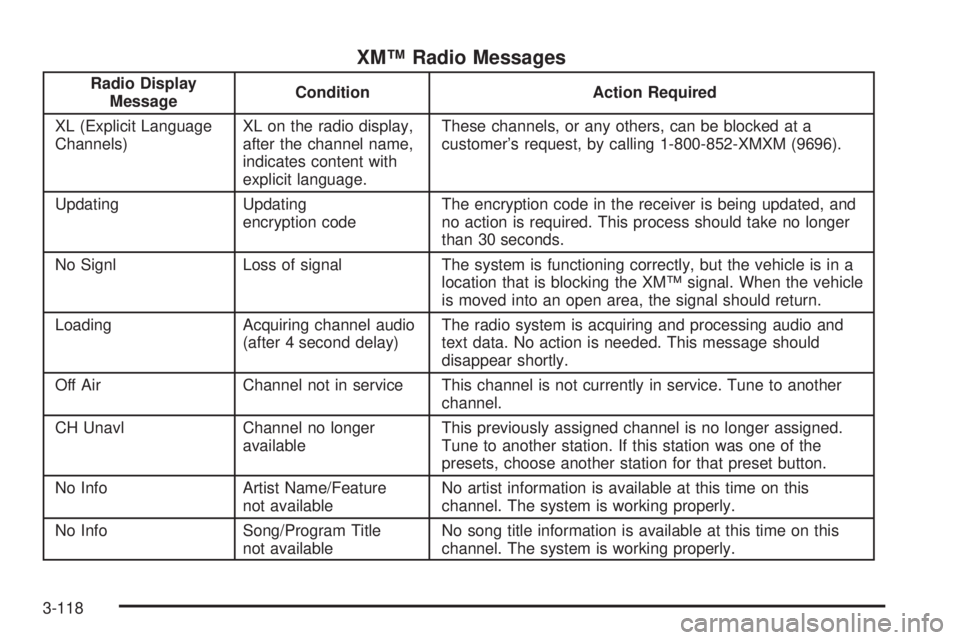
XM™ Radio Messages
Radio Display
MessageCondition Action Required
XL (Explicit Language
Channels)XL on the radio display,
after the channel name,
indicates content with
explicit language.These channels, or any others, can be blocked at a
customer’s request, by calling 1-800-852-XMXM (9696).
Updating Updating
encryption codeThe encryption code in the receiver is being updated, and
no action is required. This process should take no longer
than 30 seconds.
No Signl Loss of signal The system is functioning correctly, but the vehicle is in a
location that is blocking the XM™ signal. When the vehicle
is moved into an open area, the signal should return.
Loading Acquiring channel audio
(after 4 second delay)The radio system is acquiring and processing audio and
text data. No action is needed. This message should
disappear shortly.
Off Air Channel not in service This channel is not currently in service. Tune to another
channel.
CH Unavl Channel no longer
availableThis previously assigned channel is no longer assigned.
Tune to another station. If this station was one of the
presets, choose another station for that preset button.
No Info Artist Name/Feature
not availableNo artist information is available at this time on this
channel. The system is working properly.
No Info Song/Program Title
not availableNo song title information is available at this time on this
channel. The system is working properly.
3-118
Page 245 of 444
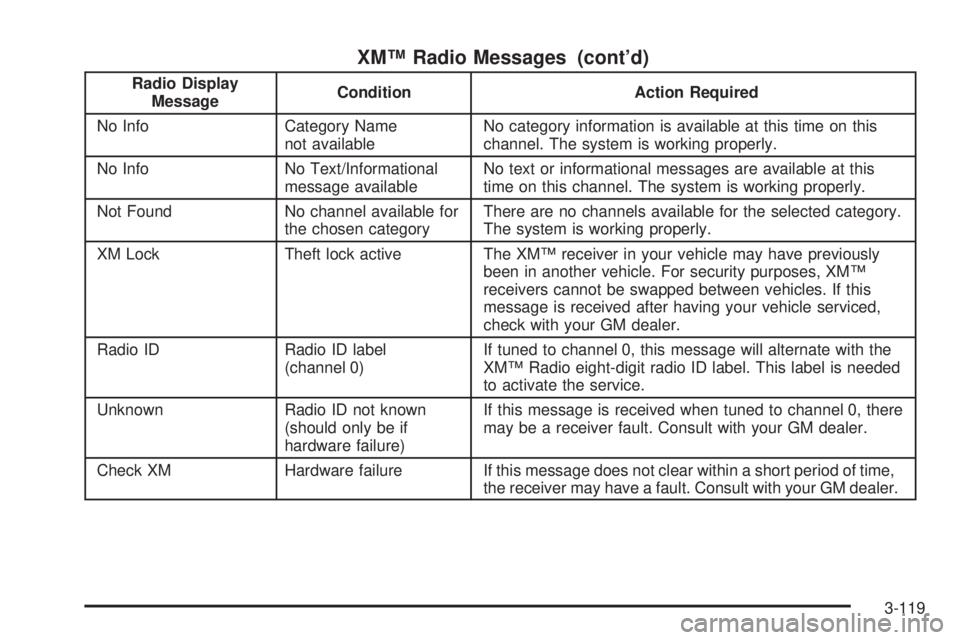
XM™ Radio Messages (cont’d)
Radio Display
MessageCondition Action Required
No Info Category Name
not availableNo category information is available at this time on this
channel. The system is working properly.
No Info No Text/Informational
message availableNo text or informational messages are available at this
time on this channel. The system is working properly.
Not Found No channel available for
the chosen categoryThere are no channels available for the selected category.
The system is working properly.
XM Lock Theft lock active The XM™ receiver in your vehicle may have previously
been in another vehicle. For security purposes, XM™
receivers cannot be swapped between vehicles. If this
message is received after having your vehicle serviced,
check with your GM dealer.
Radio ID Radio ID label
(channel 0)If tuned to channel 0, this message will alternate with the
XM™ Radio eight-digit radio ID label. This label is needed
to activate the service.
Unknown Radio ID not known
(should only be if
hardware failure)If this message is received when tuned to channel 0, there
may be a receiver fault. Consult with your GM dealer.
Check XM Hardware failure If this message does not clear within a short period of time,
the receiver may have a fault. Consult with your GM dealer.
3-119
Page 254 of 444
Radio Reception
You may experience frequency interference and static
during normal radio reception if items such as cellphone
chargers, vehicle convenience accessories, and external
electronic devices are plugged into the accessory power
outlet. If there is interference or static, unplug the item
from the accessory power outlet.
AM
The range for most AM stations is greater than for FM,
especially at night. The longer range can cause station
frequencies to interfere with each other. For better radio
reception, most AM radio stations will boost the power
levels during the day, and then reduce these levels during
the night. Static can also occur when things like storms
and power lines interfere with radio reception. When this
happens, try reducing the treble on your radio.
FM Stereo
FM stereo will give the best sound, but FM signals
will reach only about 10 to 40 miles (16 to 65 km). Tall
buildings or hills can interfere with FM signals, causing
the sound to fade in and out.
XM™ Satellite Radio Service
XM™ Satellite Radio Service gives digital radio
reception from coast-to-coast in the 48 contiguous
United States, and in Canada (if available). Just as
with FM, tall buildings or hills can interfere with satellite
radio signals, causing the sound to fade in and out.
In addition, traveling or standing under heavy foliage,
bridges, garages, or tunnels may cause loss of the XM™
signal for a period of time. The radio may display NO
SIGNAL to indicate interference.
Care of Your CDs
Handle CDs carefully. Store them in their original
cases or other protective cases and away from direct
sunlight and dust. The CD player scans the bottom
surface of the disc. If the surface of a CD is damaged,
such as cracked, broken, or scratched, the CD will not
play properly or not at all. If the surface of a CD is soiled,
take a soft, lint free cloth or dampen a clean, soft cloth in
a mild, neutral detergent solution mixed with water, and
clean it. Make sure the wiping process starts from the
center to the edge.
Do not touch the bottom side of a CD while handling
it; this could damage the surface. Pick up CDs by
grasping the outer edges or the edge of the hole and
the outer edge.
3-128
Page 267 of 444
StabiliTrak®System
Your vehicle may be equipped with a vehicle stability
enhancement system called StabiliTrak®.Itisan
advanced computer controlled system that assists
you with directional control of the vehicle in difficult
driving conditions.
StabiliTrak
®activates when the computer senses a
discrepancy between your intended path and the
direction the vehicle is actually traveling. StabiliTrak
®
selectively applies braking pressure at any one of
the vehicle’s brakes to help steer the vehicle in the
direction which you are steering.
When the system activates, a STABILITY CONTROL
ACTIVE message will be displayed on the Driver
Information Center (DIC). SeeDIC Warnings and
Messages on page 3-59. You may also hear a noise
or feel vibration in the brake pedal. This is normal.
Continue to steer the vehicle in the direction you
want it to go.
If there is a problem detected with StabiliTrak
®,a
SERVICE STABILITY SYSTEM message will be
displayed on the Driver Information Center (DIC).
SeeDIC Warnings and Messages on page 3-59.
When this message is displayed, the system is not
operational. Driving should be adjusted accordingly.If your vehicle is in cruise control when the StabiliTrak
®
activates, the cruise control will automatically
disengage. When road conditions allow you to safely
use it again, you may reengage the cruise control.
SeeCruise Control on page 3-10for more information.
Steering
Power Steering
If you lose power steering assist because the engine
stops or the system is not functioning, you can steer
but it will take much more effort.
Steering Tips
It is important to take curves at a reasonable speed.
A lot of the “driver lost control” accidents mentioned on
the news happen on curves. Here is why:
Experienced driver or beginner, each of us is subject
to the same laws of physics when driving on curves.
The traction of the tires against the road surface makes
it possible for the vehicle to change its path when
you turn the front wheels. If there is no traction, inertia
will keep the vehicle going in the same direction.
If you have ever tried to steer a vehicle on wet ice,
you will understand this.
4-11
Page 278 of 444
When you want to leave the freeway, move to the
proper lane well in advance. If you miss your exit, do
not, under any circumstances, stop and back up. Drive
on to the next exit.
The exit ramp can be curved, sometimes quite sharply.
The exit speed is usually posted. Reduce your speed
according to your speedometer, not to your sense
of motion. After driving for any distance at higher
speeds, you may tend to think you are going slower
than you actually are.
Before Leaving on a Long Trip
Make sure you are ready. Try to be well rested. If you
must start when you are not fresh — such as after
a day’s work — do not plan to make too many miles
that rst part of the journey. Wear comfortable clothing
and shoes you can easily drive in.
Is your vehicle ready for a long trip? If you keep it
serviced and maintained, it is ready to go. If it needs
service, have it done before starting out. Of course,
you will nd experienced and able service experts in
GM dealerships all across North America. They will
be ready and willing to help if you need it.Here are some things you can check before a trip:
Windshield Washer Fluid:Is the reservoir full? Are
all windows clean inside and outside?
Wiper Blades:Are they in good shape?
Fuel, Engine Oil, Other Fluids:Have you checked
all levels?
Lamps:Are they all working? Are the lenses clean?
Tires:They are vitally important to a safe,
trouble-free trip. Is the tread good enough for
long-distance driving? Are the tires all inated to the
recommended pressure?
Weather Forecasts:What is the weather outlook
along your route? Should you delay your trip a
short time to avoid a major storm system?
Maps:Do you have up-to-date maps?
4-22