display BUICK LACROSSE 2007 Owners Manual
[x] Cancel search | Manufacturer: BUICK, Model Year: 2007, Model line: LACROSSE, Model: BUICK LACROSSE 2007Pages: 512
Page 275 of 512
If the ignition or radio is turned off with a CD in
the player it will stay in the player. When the
ignition or radio is turned on, the CD will start to
play where it stopped, if it was the last selected
audio source.
The CD player can play the smaller 3 inch (8 cm)
single CDs with an adapter ring. Full-size CDs
and the smaller CDs are loaded in the same
manner.
If playing a CD-R, the sound quality may be
reduced due to CD-R quality, the method of
recording, the quality of the music that has been
recorded, and the way the CD-R has been
handled. There may be an increase in skipping,
difficulty in nding tracks, and/or difficulty in loading
and ejecting. If these problems occur, check the
bottom surface of the CD. If the surface of the CD
is damaged, such as cracked, broken, or
scratched, the CD will not play properly. If the
surface of the CD is soiled, seeCare of Your CDs
on page 282for more information.
If there is no apparent damage, try a known
good CD.Do not add any label to a CD, it could get caught
in the CD player. If a CD is recorded on a
personal computer and a description label is
needed, try labeling the top of the recorded CD
with a marking pen instead.
Notice:If you add any label to a CD, insert
more than one CD into the slot at a time, or
attempt to play scratched or damaged CDs, you
could damage the CD player. When using the
CD player, use only CDs in good condition
without any label, load one CD at a time, and
keep the CD player and the loading slot free of
foreign materials, liquids, and debris.
If an error appears on the display, see “CD
Messages” later in this section.
1
s(Reverse):Press this button to reverse
within the current track.
2
\(Fast Forward):Press this button to fast
forward within the current track.
275
Page 276 of 512
3N(Repeat):With repeat, one track, the entire
folder, or playlist can be repeated.
Press and release this pushbutton until REPEAT
TRACK, REPEAT FOLDER, or REPEAT
P-LIST appears on the display. The current track,
folder or playlist will continue to repeat. Press
and release this pushbutton until REPEAT OFF
appears on the display to turn off repeated play.
4 RDM (Random):Press this pushbutton to
hear tracks in random, rather than sequential
order. You can random the entire folder, playlist,
or CD.
Press and release this pushbutton until RANDOM
FOLDER, RANDOM P-LIST (play list), or
RANDOM DISC appears on the display. Once all
of the tracks in the current folder or playlist
have been played the system will move on to the
next folder or playlist and play all of the tracks
in random order.
When in random, pressing and releasing either
SEEK arrow will take you to the next or previous
random track.Press and release this pushbutton until
RANDOM OFF appears on the display, to
turn off random play.
5
!(Previous Folder):Press this pushbutton
to go to the rst track in the previous folder.
Pressing this button while in folder random mode
will take you to the previous folder and random
the tracks in that folder.
6
#(Next Folder):Press this pushbutton to go
to the rst track in the next folder. Pressing this
button while in folder random mode will take you to
the next folder and random the tracks in that folder.
oSEEKp:Press the left arrow to go to the
start of the previous track. Press the right arrow to
go to the start of the next track.
To scan tracks, press either arrow for more than
two seconds until SCAN appears on the
display. The radio will go to the next track, play
10 seconds, then go on to the next track.
276
Page 277 of 512
DISP (Display):Press this button to switch
between track mode, folder/playlist mode, and ID3
tag. The display will show only eight characters,
but there can be up to four pages of text. If
there are more than eight characters in the song,
folder, or playlist name, pressing this knob
within two seconds will take you to the next page
of text. If there are no other pages to be shown,
pressing this button within two seconds will
take you to the next display mode.
Song name and time of day mode will display
the current song name and time of day.
Folder/playlist mode will display the current
folder or playlist number the track number
and the elapsed time of the track.
Song name and track number mode
will display the current song name and
track number.
ID3 Tag and folder mode will display the ID3
tag information and the folder number.
Song and folder mode will display the number
of songs in the folder and the folder number.To change the default on the display, press the
DISP knob until you see the display you want, then
hold this knob for two seconds. The radio will
produce one beep and the selected display will
now be the default.
INFO (Information):INFO will appear on the
display whenever a current track has ID3
tag information. Press this button to display the
artist name and album contained in the tag.
BAND:Press this button to listen to the radio
when a CD is playing. The inactive CD will remain
safely inside the radio for future listening.
CD:Press this button to play a CD when listening
to the radio. The CD symbol will appear on the
display when a CD is loaded.
EQ (Equalization):Press EQ to select an
equalization setting while playing a CD. The
equalization will be set whenever a CD is played.
See “EQ” listed previously for more information.
If you select an EQ setting for your CD, it will
be activated each time you play a CD.
Z(Eject):Press this button to eject a CD. Eject
may be activated with either the ignition or radio
off. CDs may be loaded with the ignition and radio
off if this button is pressed rst.
277
Page 278 of 512
XM Radio Messages
If you have a radio with CD (MP3), or a radio with a Six-Disc CD, you will receive these radio messages.
Radio Display Message Condition Action Required
XL (Explicit Language
Channels)XL on the radio display,
after the channel name,
indicates content with
explicit language.These channels, or any others, can be blocked at a
customer’s request, by calling 1-800-852-XMXM (9696).
Updating Updating encryption code The encryption code in the receiver is being updated, and
no action is required. This process should take no longer
than 30 seconds.
No Signal Loss of signal The system is functioning correctly, but the vehicle is in a
location that is blocking the XM™ signal. When the vehicle
is moved into an open area, the signal should return.
Loading XM Acquiring channel audio
(after 4 second delay)The radio system is acquiring and processing audio and
text data. No action is needed. This message should
disappear shortly.
CH Off Air Channel not in service This channel is not currently in service. Tune to
another channel.
CH Unavail Channel no
longer availableThis previously assigned channel is no longer assigned.
Tune to another station. If this station was one of the
presets, choose another station for that preset button.
No Info Artist Name/Feature
not availableNo artist information is available at this time on this channel.
The system is working properly.
278
Page 279 of 512
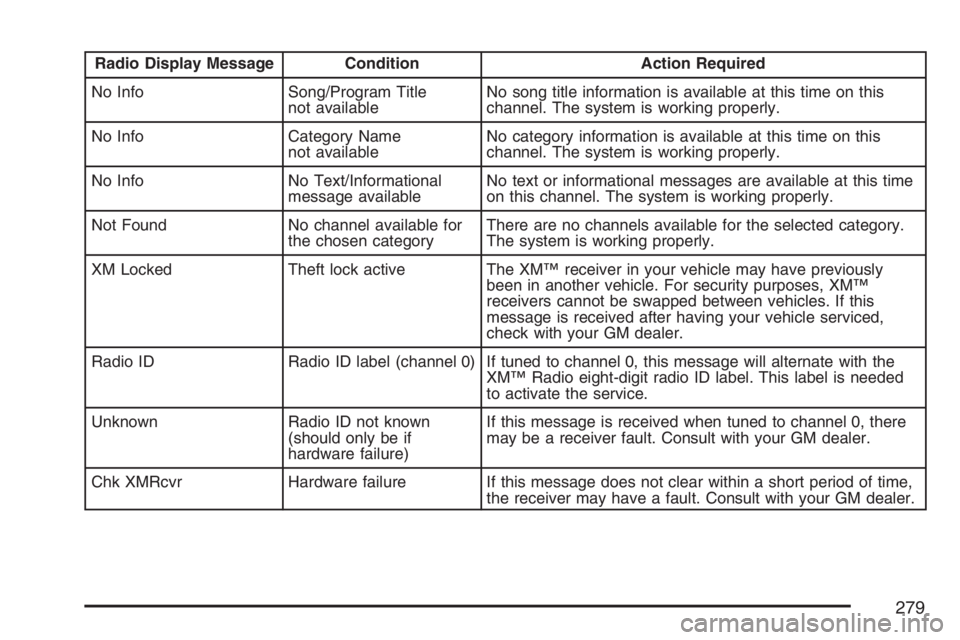
Radio Display Message Condition Action Required
No Info Song/Program Title
not availableNo song title information is available at this time on this
channel. The system is working properly.
No Info Category Name
not availableNo category information is available at this time on this
channel. The system is working properly.
No Info No Text/Informational
message availableNo text or informational messages are available at this time
on this channel. The system is working properly.
Not Found No channel available for
the chosen categoryThere are no channels available for the selected category.
The system is working properly.
XM Locked Theft lock active The XM™ receiver in your vehicle may have previously
been in another vehicle. For security purposes, XM™
receivers cannot be swapped between vehicles. If this
message is received after having your vehicle serviced,
check with your GM dealer.
Radio ID Radio ID label (channel 0) If tuned to channel 0, this message will alternate with the
XM™ Radio eight-digit radio ID label. This label is needed
to activate the service.
Unknown Radio ID not known
(should only be if
hardware failure)If this message is received when tuned to channel 0, there
may be a receiver fault. Consult with your GM dealer.
Chk XMRcvr Hardware failure If this message does not clear within a short period of time,
the receiver may have a fault. Consult with your GM dealer.
279
Page 280 of 512
Theft-Deterrent Feature
THEFTLOCK®is designed to discourage theft of
your vehicle’s radio. The feature works
automatically by learning a portion of the Vehicle
Identication Number (VIN). If the radio is
moved to a different vehicle, it will not operate and
LOC or LOCKED will appear on the display.
With THEFTLOCK
®activated, the radio will not
operate if stolen.
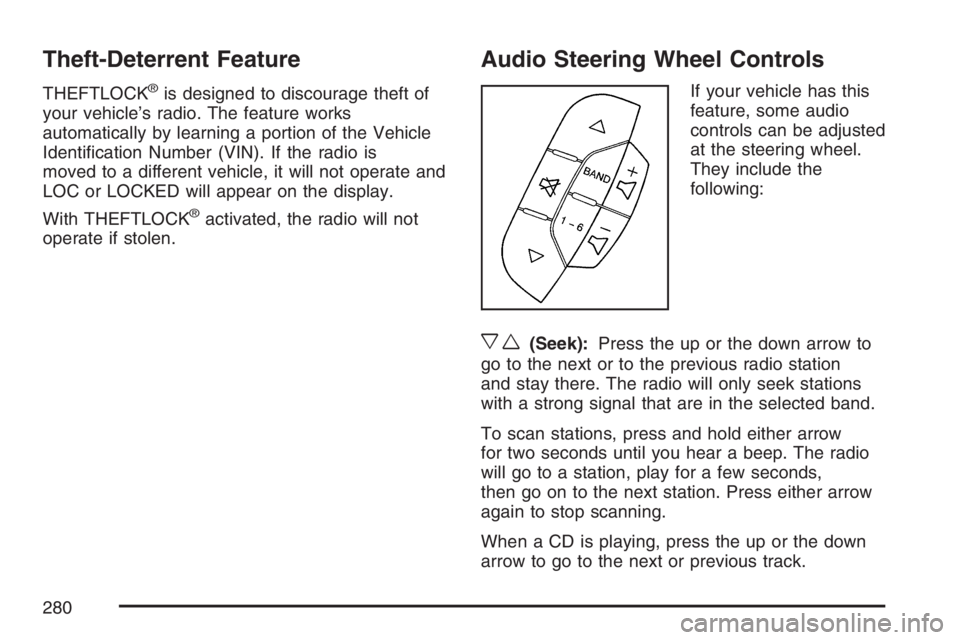
Audio Steering Wheel Controls
If your vehicle has this
feature, some audio
controls can be adjusted
at the steering wheel.
They include the
following:
xw(Seek):Press the up or the down arrow to
go to the next or to the previous radio station
and stay there. The radio will only seek stations
with a strong signal that are in the selected band.
To scan stations, press and hold either arrow
for two seconds until you hear a beep. The radio
will go to a station, play for a few seconds,
then go on to the next station. Press either arrow
again to stop scanning.
When a CD is playing, press the up or the down
arrow to go to the next or previous track.
280
Page 282 of 512
FM Stereo
FM stereo will give the best sound, but FM signals
will reach only about 10 to 40 miles (16 to 65 km).
Tall buildings or hills can interfere with FM
signals, causing the sound to fade in and out.
XM™ Satellite Radio Service
XM™ Satellite Radio Service gives digital radio
reception from coast-to-coast in the 48 contiguous
United States, and in Canada. Just as with FM,
tall buildings or hills can interfere with satellite
radio signals, causing the sound to fade in and out.
In addition, traveling or standing under heavy
foliage, bridges, garages, or tunnels may cause
loss of the XM™ signal for a period of time.
The radio may display NO SIGNAL to indicate
interference.
Care of Your CDs
Handle CDs carefully. Store them in their original
cases or other protective cases and away from
direct sunlight and dust. The CD player scans the
bottom surface of the disc. If the surface of a
CD is damaged, such as cracked, broken,
or scratched, the CD will not play properly or not
at all. If the surface of a CD is soiled, take a
soft, lint free cloth or dampen a clean, soft cloth in
a mild, neutral detergent solution mixed with
water, and clean it. Make sure the wiping process
starts from the center to the edge.
Do not touch the bottom side of a CD while
handling it; this could damage the surface. Pick up
CDs by grasping the outer edges or the edge of
the hole and the outer edge.
Care of the CD Player
Do not use CD lens cleaners for CD players
because the lens of the CD optics can become
contaminated by lubricants.
282
Page 284 of 512
XM™ Satellite Radio
Antenna System
The XM™ Satellite Radio antenna is located on
the roof of your vehicle. Keep this antenna clear of
snow and ice build up for clear radio reception.
If your vehicle has a sunroof, the performance of
the XM™ system may be affected if the sunroof
is open.
Loading items onto the roof of your vehicle can
interfere with the performance of the XM™ system.
Make sure the XM™ Satellite Radio antenna is
not obstructed.
Chime Level Adjustment
The radio is used to adjust the vehicle’s chime
level. To change the volume level of the chime,
press and hold pushbutton 6 with the ignition
on and the radio power off. The volume level
will change from the normal level to loud,
and LOUD will appear on the radio display.
To change back to the default or normal setting,
press and hold pushbutton 6 again. The volume
level will change from the loud level to normal,
and NORMAL will appear on the radio display.
Removing the radio and not replacing it with
a factory radio or chime module will disable
vehicle chimes.
284
Page 294 of 512
Traction Control System (TCS)
Your vehicle may have a Traction Control System
(TCS) that limits wheel spin. This is especially
useful in slippery road conditions. The system
operates only if it senses that one or both of the
front wheels are spinning or beginning to lose
traction. When this happens, the system works the
front brakes and reduces engine power to limit
wheel spin. It may also upshift the transaxle to limit
wheel spin. You may feel or hear the system
working, but this is normal.
The TRACTION CONTROL ACTIVE message on
the Driver Information Center (DIC) will be
displayed when the system is limiting wheel spin.
If the vehicle is in cruise control when the TCS
begins to limit wheel spin, the cruise control will
automatically disengage. When road conditions
allow safe use of the cruise control, it can be used
again. SeeCruise Control on page 154.The TCS operates in all transaxle shift lever
positions. But the system can upshift the transaxle
only as high as the shift lever position that was
chosen, so use the lower gears only when
necessary. SeeAutomatic Transaxle Operation
on page 114.
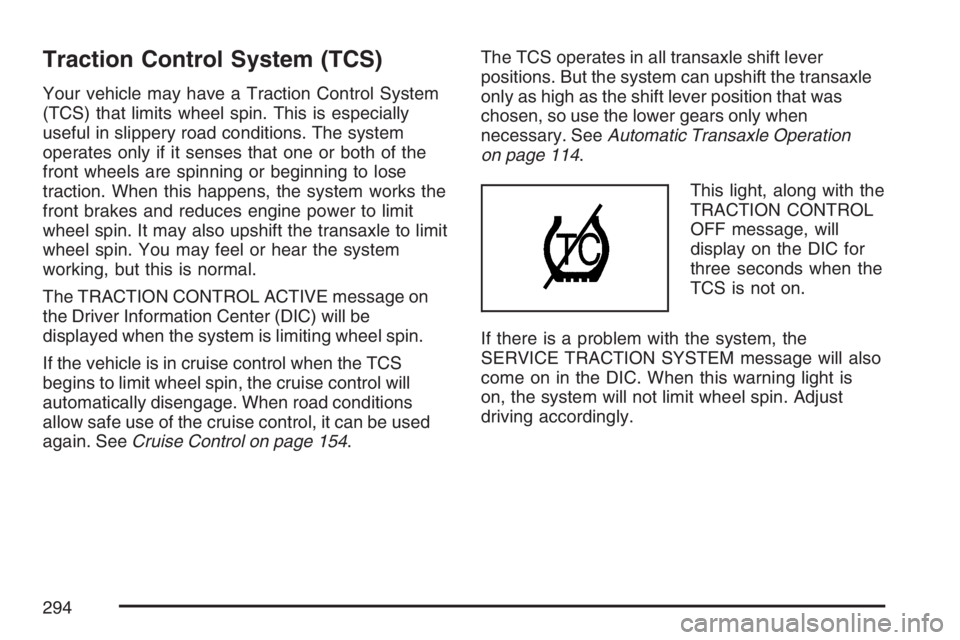
This light, along with the
TRACTION CONTROL
OFF message, will
display on the DIC for
three seconds when the
TCS is not on.
If there is a problem with the system, the
SERVICE TRACTION SYSTEM message will also
come on in the DIC. When this warning light is
on, the system will not limit wheel spin. Adjust
driving accordingly.
294
Page 295 of 512
To limit wheel spin, especially in slippery road
conditions, you should always leave the TCS on.
But you can turn the system off if you ever
need to. The TCS should be turned off if the
vehicle ever gets stuck in sand, mud or snow and
rocking the vehicle is required. SeeRocking
Your Vehicle to Get It Out on page 319andIf Your
Vehicle is Stuck in Sand, Mud, Ice, or Snow on
page 318.
To turn the TCS on or off, press the TCS button
located above the radio.
When the TCS is turned off, the TCS warning light
will come on along with the TRACTION CONTROL
OFF message on the DIC. It will disappear when
the TCS is turned back on. If the TCS is limiting
wheel spin when the TCS button is pressed, the
TCS warning light will come on and the TCS will
turn off right away.
Adding non-GM accessories can affect your
vehicle’s performance. SeeAccessories and
Modications on page 341for more information.Enhanced Traction System (ETS)
Your vehicle may have an Enhanced Traction
System (ETS) that limits wheel spin. This is
especially useful in slippery road conditions. The
system operates only if it senses that one or
both of the front wheels are spinning or beginning
to lose traction. When this happens, the system
reduces engine power and may also upshift
the transaxle to limit wheel spin. You may feel or
hear the system working, but this is normal.
The TRACTION CONTROL ACTIVE message on
the Driver Information Center (DIC) will be
displayed when the system is limiting wheel spin.
If the vehicle is in cruise control when ETS
begins to limit wheel spin, the cruise control will
automatically disengage. When road conditions
allow safe use of it, the cruise control can be used
again. SeeCruise Control on page 154.
295