radio BUICK LACROSSE 2010 User Guide
[x] Cancel search | Manufacturer: BUICK, Model Year: 2010, Model line: LACROSSE, Model: BUICK LACROSSE 2010Pages: 414
Page 118 of 414
4-30 Instruments and Controls
is reduced when radio,
CD information, warnings,
or turn-by-turn navigation
information are displayed on
the HUD.
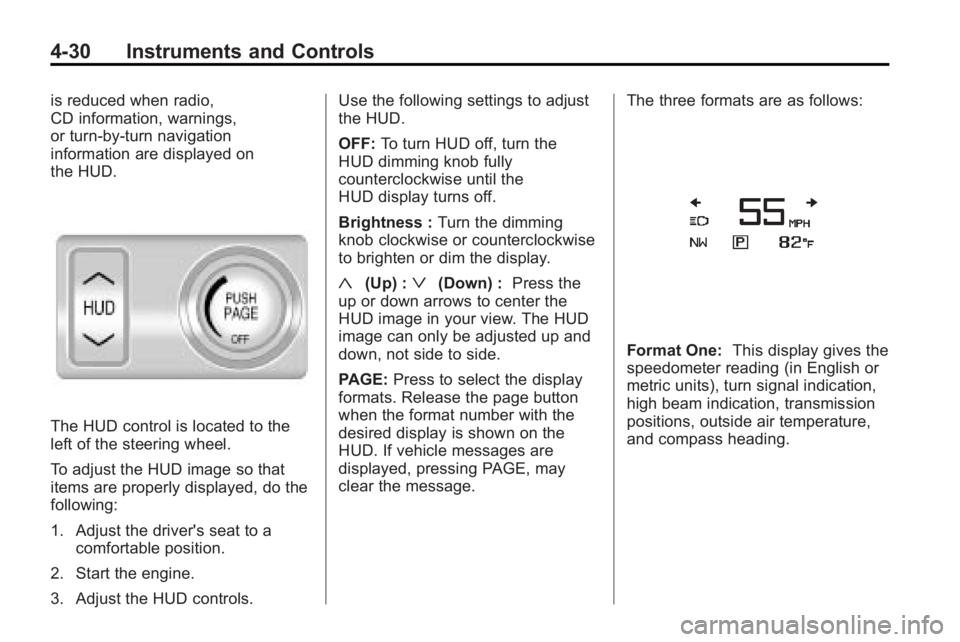
The HUD control is located to the
left of the steering wheel.
To adjust the HUD image so that
items are properly displayed, do the
following:
1. Adjust the driver's seat to acomfortable position.
2. Start the engine.
3. Adjust the HUD controls. Use the following settings to adjust
the HUD.
OFF:
To turn HUD off, turn the
HUD dimming knob fully
counterclockwise until the
HUD display turns off.
Brightness : Turn the dimming
knob clockwise or counterclockwise
to brighten or dim the display.
«(Up) :ª(Down) : Press the
up or down arrows to center the
HUD image in your view. The HUD
image can only be adjusted up and
down, not side to side.
PAGE: Press to select the display
formats. Release the page button
when the format number with the
desired display is shown on the
HUD. If vehicle messages are
displayed, pressing PAGE, may
clear the message. The three formats are as follows:
Format One:
This display gives the
speedometer reading (in English or
metric units), turn signal indication,
high beam indication, transmission
positions, outside air temperature,
and compass heading.
Page 119 of 414
Instruments and Controls 4-31
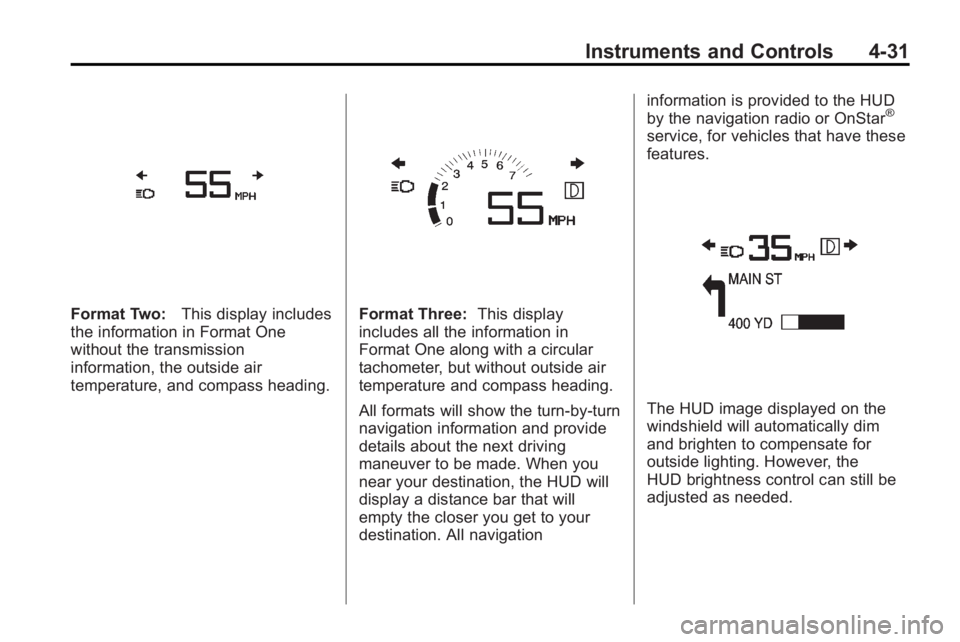
Format Two:This display includes
the information in Format One
without the transmission
information, the outside air
temperature, and compass heading.Format Three: This display
includes all the information in
Format One along with a circular
tachometer, but without outside air
temperature and compass heading.
All formats will show the turn-by-turn
navigation information and provide
details about the next driving
maneuver to be made. When you
near your destination, the HUD will
display a distance bar that will
empty the closer you get to your
destination. All navigation information is provided to the HUD
by the navigation radio or OnStar
®
service, for vehicles that have these
features.
The HUD image displayed on the
windshield will automatically dim
and brighten to compensate for
outside lighting. However, the
HUD brightness control can still be
adjusted as needed.
Page 133 of 414
Instruments and Controls 4-45
Your Responsibility
Increase the volume of the radio if
the OnStar advisor cannot be heard.
If the light next to the OnStar
buttons is red, the system may not
be functioning properly. Press
Q
and request a vehicle diagnostic.
If the light appears clear (no light is
appearing), your OnStar
subscription has expired and all
services have been deactivated.
Press
Qto confirm that the OnStar
equipment is active.
Universal Remote
System
See Radio Frequency Statement
(US, Can)on page 12‑16for
information regarding Part 15 of
the Federal Communications
Commission (FCC) Rules and
RSS-210/211 of Industry and
Science Canada.
Universal Remote System
Programming
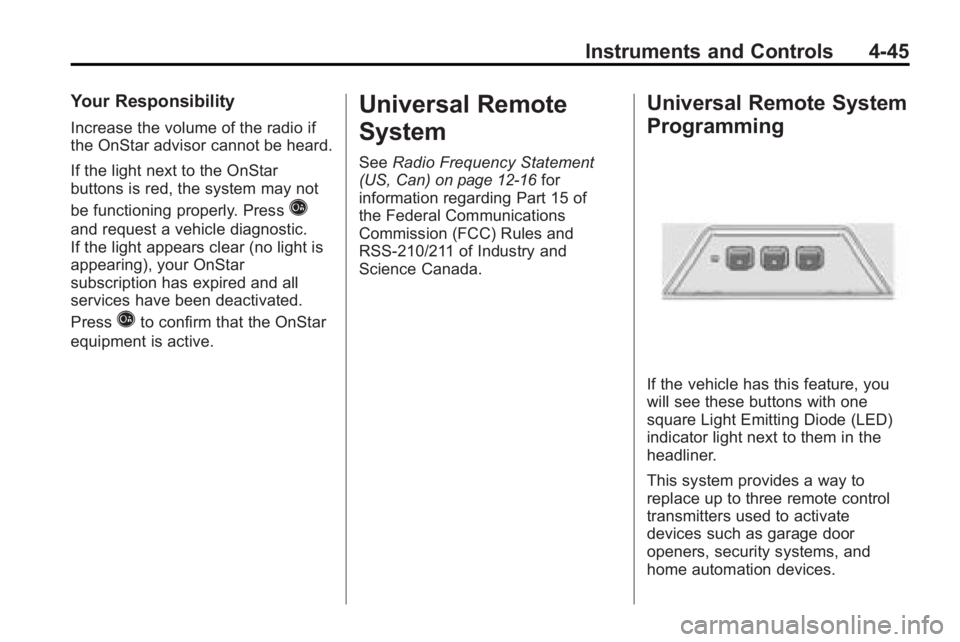
If the vehicle has this feature, you
will see these buttons with one
square Light Emitting Diode (LED)
indicator light next to them in the
headliner.
This system provides a way to
replace up to three remote control
transmitters used to activate
devices such as garage door
openers, security systems, and
home automation devices.
Page 134 of 414
4-46 Instruments and Controls
Do not use the Universal Home
Remote with any garage door
opener that does not have the stop
and reverse feature. This includes
any garage door opener model
manufactured before April 1, 1982.
Read the instructions completely
before attempting to program the
Universal Home Remote. Because
of the steps involved, it may be
helpful to have another person
available to assist you with
programming the Universal Home
Remote.
Keep the original hand-held
transmitter for use in other vehicles
as well as for future Universal Home
Remote programming. It is also
recommended that upon the sale of
the vehicle, the programmed
Universal Home Remote buttons
should be erased for security
purposes. See“Erasing Universal
Home Remote Buttons” later in this
section. When programming a garage door,
park outside of the garage. Park
directly in line with and facing the
garage door opener motor-head or
gate motor-head. Be sure that
people and objects are clear of the
garage door or gate that is being
programmed.
It is recommended that a new
battery be installed in your
hand-held transmitter for quicker
and more accurate transmission of
the radio-frequency signal.
Programming the Universal
Home Remote System
For questions or help programming
the Universal Home Remote
System, call 1-800-355-3515 or go
to www.homelink.com.
Programming a garage door opener
involves time-sensitive actions, so
read the entire procedure before
starting. Otherwise, the device will
time out and the procedure will have
to be repeated.To program up to three devices:
1. Hold the end of your hand-held
transmitter about 3 to 8 cm
(1 to 3 inches) away from the
Universal Home Remote buttons
while keeping the indicator light
in view. The hand-held
transmitter was supplied by the
manufacturer of your garage
door opener receiver
(motor-head unit).
2. At the same time, press and hold both the hand-held
transmitter button and one of the
three Universal Home Remote
buttons to be used to operate
the garage door. Do not release
the Universal Home Remote
button or the hand-held
transmitter button until the
indicator light changes from a
slow to a rapidly flashing light.
You now may release both
buttons.
Page 136 of 414
4-48 Instruments and Controls
The Universal Home Remote should
now activate the garage door.
To program the remaining two
Universal Home Remote buttons,
begin with Step 1 of“Programming
the Universal Home Remote
System”.
Gate Operator and Canadian
Programming
If you have questions or need help
programming the Universal Home
Remote System, call
1-800-355-3515 or go to
www.homelink.com.
Canadian radio-frequency laws
require transmitter signals to time
out or quit after several seconds of
transmission. This may not be long
enough for Universal Home Remote
to pick up the signal during
programming. Similarly, some U.S.
gate operators are manufactured to
time out in the same manner. If you live in Canada, or you are
having difficulty programming a gate
operator or garage door opener by
using the
“Programming Universal
Home Remote” procedures,
regardless of where you live,
replace Step 2 under “Programming
Universal Home Remote” with the
following:
2. Continue to press and hold the
Universal Home Remote button
while you press and release every
two seconds (cycle) the hand-held
transmitter button until the
frequency signal has been
successfully accepted by the
Universal Home Remote. The
Universal Home Remote indicator
light will flash slowly at first and then
rapidly. Proceed with Step 3 under
“Programming Universal Home
Remote” to complete.
Universal Remote System
Operation
Using Universal Home Remote
Press and hold the appropriate
Universal Home Remote button for
at least half of a second. The
indicator light will come on while the
signal is being transmitted.
Erasing Universal Home
Remote Buttons
All programmed buttons should be
erased when the vehicle is sold or
the lease ends.
To erase all programmed buttons on
the Universal Home Remote device:
1. Press and hold down the two
outside buttons until the
indicator light begins to flash,
after 10 seconds.
2. Release both buttons.
Page 147 of 414
Infotainment System 6-1
Infotainment
System
Introduction
Introduction . . . . . . . . . . . . . . . . . . . 6-2
Theft-Deterrent Feature . . . . . . . 6-2
Overview (Radio with CD) . . . . . 6-3
Overview(Radio with CD/DVD
and MEM) . . . . . . . . . . . . . . . . . . . 6-5
Operation . . . . . . . . . . . . . . . . . . . . . 6-7
Radio
AM-FM Radio . . . . . . . . . . . . . . . . 6-12
Satellite Radio . . . . . . . . . . . . . . . 6-14
Radio Reception . . . . . . . . . . . . . 6-18
Backglass Antenna . . . . . . . . . . 6-19
Satellite Radio Antenna . . . . . . 6-19
Audio Players
CD Player . . . . . . . . . . . . . . . . . . . 6-20
CD/DVD Player . . . . . . . . . . . . . . 6-22
Mass Storage Media (MEM) . . . . . . . . . . . . . . . 6-25
Auxiliary Devices
(Radio with CD) . . . . . . . . . . . . 6-28
Auxiliary Devices (Radio with CD/DVD
and MEM) . . . . . . . . . . . . . . . . . . 6-31
Rear Seat Infotainment
Rear Seat Entertainment(RSE) System . . . . . . . . . . . . . . 6-34
Phone
Bluetooth (Overview) . . . . . . . . 6-42
Bluetooth(Infotainment Controls) . . . . . 6-43
Bluetooth (Voice Recognition) . . . . . . . . 6-46
Bluetooth (Navigation) . . . . . . . 6-57
Page 148 of 414
6-2 Infotainment System
Introduction
Read the following pages to
become familiar with the audio
system's features.
{WARNING
Taking your eyes off the road for
extended periods could cause a
crash resulting in injury or death
to you or others. Do not give
extended attention to
entertainment tasks while driving.
This system provides access to
many audio and non audio listings. To minimize taking your eyes off the
road while driving, do the following
while the vehicle is parked:
.Become familiar with the
operation and controls of the
audio system.
.Set up the tone, speaker
adjustments, and preset radio
stations.
For more information, see Defensive
Driving on page 8‑3.
Notice: Contact your dealer/
retailer before adding any
equipment.
Adding audio or communication
equipment could interfere with
the operation of the vehicle's
engine, radio, or other systems,
and could damage them. Follow
federal rules covering mobile
radio and telephone equipment. The vehicle has Retained
Accessory Power (RAP). With RAP,
the audio system can be played
even after the ignition is turned off.
See
Retained Accessory Power
(RAP)
on page 8‑20for more
information.
Navigation/Radio System
For vehicles with a navigation radio
system, see the separate Navigation
System manual.
Theft-Deterrent Feature
The theft-deterrent feature works by
learning a portion of the Vehicle
Identification Number (VIN) to the
infotainment system. The
infotainment system does not
operate if it is stolen or moved to a
different vehicle.
Page 149 of 414
Infotainment System 6-3
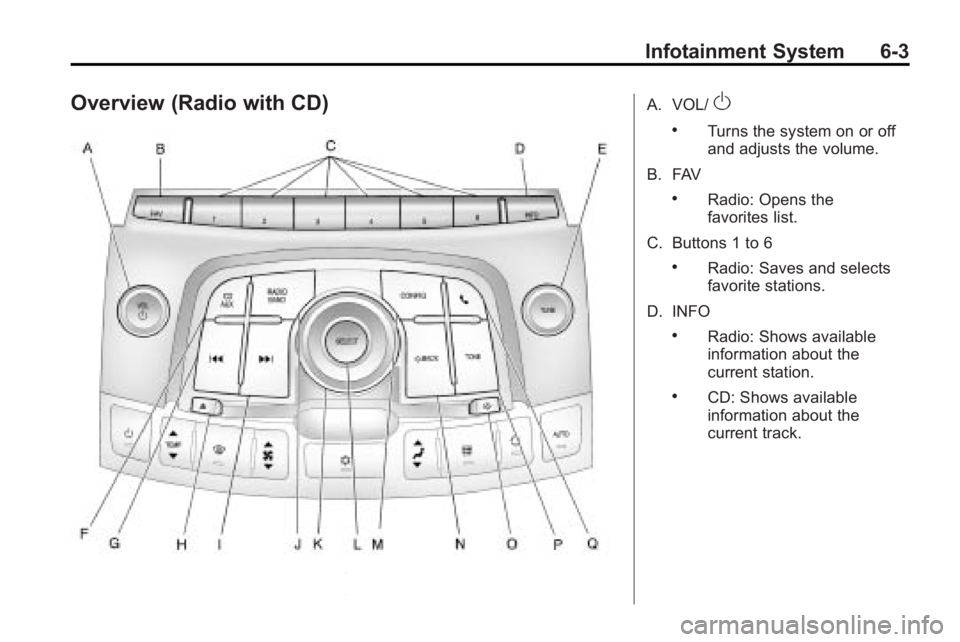
Overview (Radio with CD)A. VOL/O
.Turns the system on or off
and adjusts the volume.
B. FAV
.Radio: Opens the
favorites list.
C. Buttons 1 to 6
.Radio: Saves and selects
favorite stations.
D. INFO
.Radio: Shows available
information about the
current station.
.CD: Shows available
information about the
current track.
Page 150 of 414
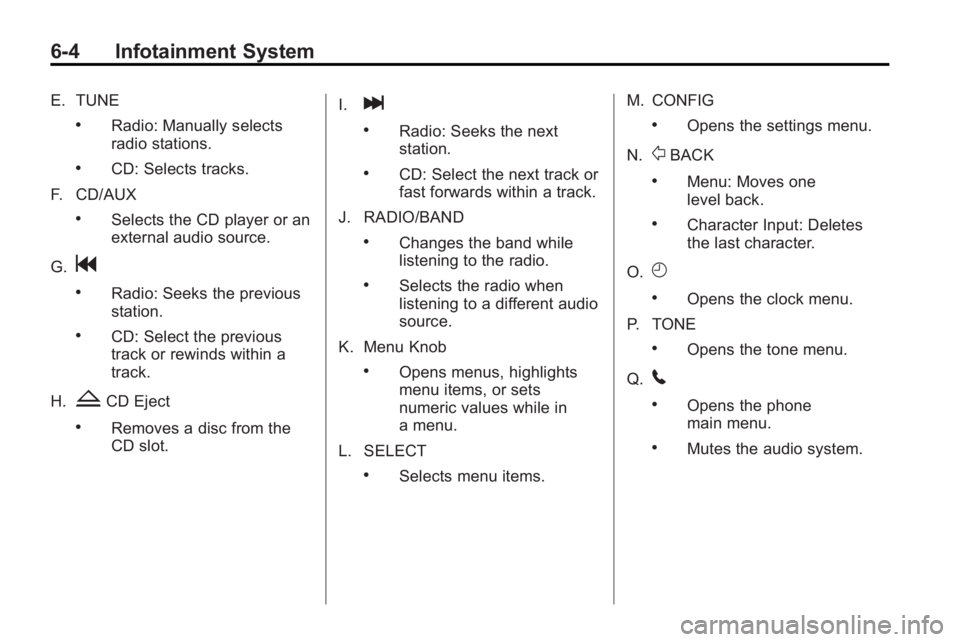
6-4 Infotainment System
E. TUNE
.Radio: Manually selects
radio stations.
.CD: Selects tracks.
F. CD/AUX
.Selects the CD player or an
external audio source.
G.
g
.Radio: Seeks the previous
station.
.CD: Select the previous
track or rewinds within a
track.
H.
ZCD Eject
.Removes a disc from the
CD slot. I.
l
.Radio: Seeks the next
station.
.CD: Select the next track or
fast forwards within a track.
J. RADIO/BAND
.Changes the band while
listening to the radio.
.Selects the radio when
listening to a different audio
source.
K. Menu Knob
.Opens menus, highlights
menu items, or sets
numeric values while in
a menu.
L. SELECT
.Selects menu items. M. CONFIG
.Opens the settings menu.
N.
0BACK
.Menu: Moves one
level back.
.Character Input: Deletes
the last character.
O.
H
.Opens the clock menu.
P. TONE
.Opens the tone menu.
Q.
5
.Opens the phone
main menu.
.Mutes the audio system.
Page 151 of 414
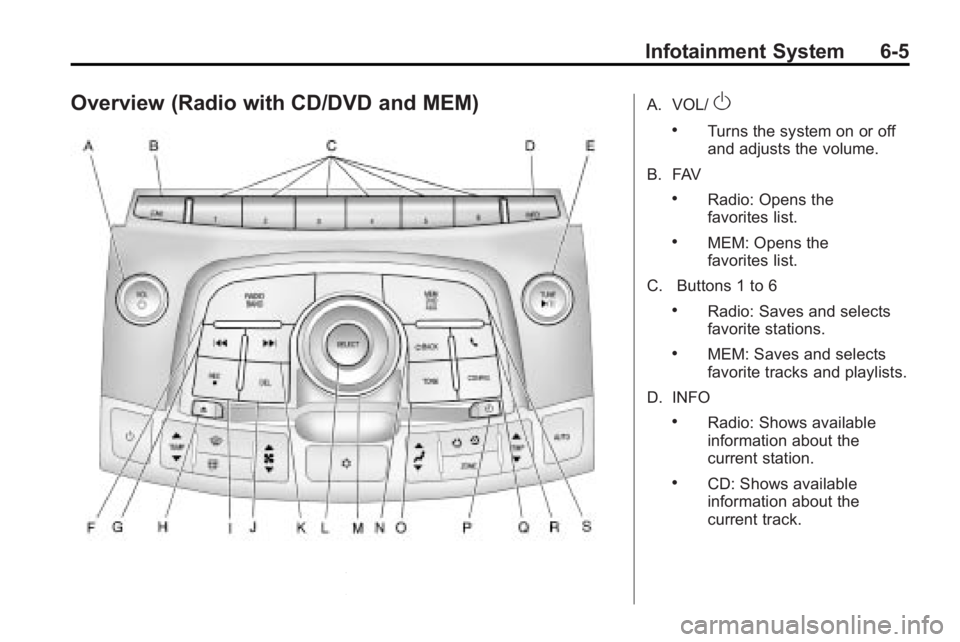
Infotainment System 6-5
Overview (Radio with CD/DVD and MEM)A. VOL/O
.Turns the system on or off
and adjusts the volume.
B. FAV
.Radio: Opens the
favorites list.
.MEM: Opens the
favorites list.
C. Buttons 1 to 6
.Radio: Saves and selects
favorite stations.
.MEM: Saves and selects
favorite tracks and playlists.
D. INFO
.Radio: Shows available
information about the
current station.
.CD: Shows available
information about the
current track.