light BUICK LACROSSE 2010 Repair Manual
[x] Cancel search | Manufacturer: BUICK, Model Year: 2010, Model line: LACROSSE, Model: BUICK LACROSSE 2010Pages: 414
Page 154 of 414
6-8 Infotainment System
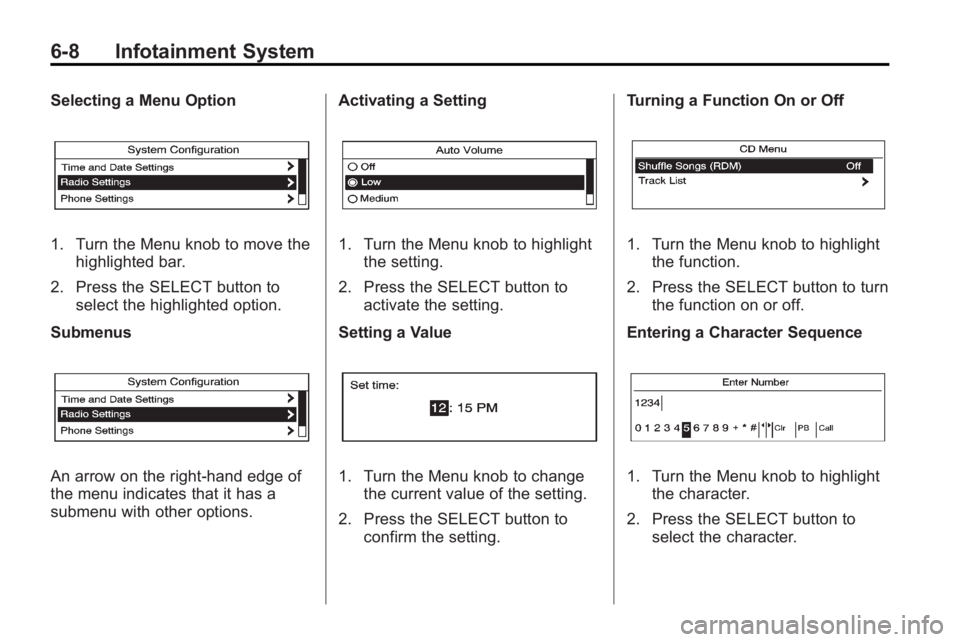
Selecting a Menu Option
1. Turn the Menu knob to move thehighlighted bar.
2. Press the SELECT button to select the highlighted option.
Submenus
An arrow on the right-hand edge of
the menu indicates that it has a
submenu with other options. Activating a Setting
1. Turn the Menu knob to highlight
the setting.
2. Press the SELECT button to activate the setting.
Setting a Value
1. Turn the Menu knob to change the current value of the setting.
2. Press the SELECT button to confirm the setting. Turning a Function On or Off
1. Turn the Menu knob to highlight
the function.
2. Press the SELECT button to turn the function on or off.
Entering a Character Sequence
1. Turn the Menu knob to highlight the character.
2. Press the SELECT button to select the character.
Page 161 of 414
Infotainment System 6-15
Control Buttons
The buttons used to control the
XM radio are:
RADIO/BAND:Press to turn the
radio on and choose between AM,
FM, and XM™, if equipped.
g/l: Press to go to the
previous or next channel.
FAV: Press to open the
favorites list.
1 to 6: Press to select a favorite.
TUNE: Turn to select channel.
INFO: Press to display additional
information that may be available
about the current song.
k(Play/Pause): Press to pause
time shifted content, if equipped.
Selecting the XM Band
Press the RADIO/BAND button to
choose between the AM, FM and
XM bands. The last channel played
in that band begins to play when
that band is selected.
XM Categories
XM channels are organized in
categories.
Removing or Adding Categories
Channels in a category that have
been removed can still be accessed
by using the
gorlbuttons,
or the TUNE knob.
To add or remove categories:
1. Press the CONFIG button.
2. Select Radio Settings.
3. Select XM Categories.
4. Turn the Menu knob to highlight the category.
5. Press the SELECT button to remove or add the category.
Selecting an XM Channel
XM channels can be selected by
using
g,l, the TUNE knob,
or the menu system. Selecting a Channel Using
gor
l(Radio with CD)
.Press and releasegorlto
go to the previous or next
channel.
.Press and holdgorlto
scroll through the previous or
next channel until the channel is
reached.
Selecting a Channel Using
gor
l(Radio with CD/DVD and MEM)
Press and release
gorlto go to
the previous or next channel.
Selecting a Channel Using the
TUNE Knob
To select an XM channel using the
TUNE knob:
Turn the TUNE knob to highlight an
XM channel, the channel is selected
after a short delay.
Page 166 of 414
6-20 Infotainment System
Audio Players
CD Player
The CD player can play audio CDs
and MP3 CDs.
The CD player will not play
8 cm (3 in.) CDs.
Care of CDs
Sound quality can be reduced due
to disc quality, recording method,
quality of the music recorded, and
how the disc has been handled.
Handle discs carefully and store
them in their original cases or other
protective cases away from direct
sunlight and dust. If the bottom
surface of a disc is damaged, the
disc may not play properly or at all.
Do not touch the bottom surface of
a disc while handling it; this could
damage the surface. Pick up discs
by grasping the outer edges or the
edge of the hole and the outer edge.
If the bottom surface of a disc is
dirty, take a soft lint free cloth,
or dampen a clean soft cloth in amild neutral detergent solution
mixed with water, and clean it. Wipe
the disc from the center to the
outer edge.
Care of the CD Player
Do not add a label to a disc, as it
could get caught in the CD player.
If a label is needed, label the top of
the recorded disc with a
marking pen.
Do not use disc lens cleaners
because they could contaminate the
lens of the disc optics and damage
the CD player.
Notice:
If a label is added to a
CD, or more than one CD is
inserted into the slot at a time,
or an attempt is made to play
scratched or damaged CDs, the
CD player could be damaged.
While using the CD player, use
only CDs in good condition
without any label, load one CD at
a time, and keep the CD player
and the loading slot free of
foreign materials, liquids, and
debris.
Control Buttons
The buttons used to control the
CD player are:
CD / AUX: Press to use the
CD player.
l/g: Press to select tracks or
to fast forward or rewind within a
track.
INFO: Press to display additional
information about the current track
that may be available.
TUNE: Turn to select tracks.
Menu Knob: Turn to enter
the menu.
SELECT: Press to select an item.
Z(Eject):Press to eject the disc.
Inserting a CD
With the printed side facing up,
insert a disc into the CD slot until it
is drawn in.
Page 168 of 414
6-22 Infotainment System
CD/DVD Player
The CD/DVD player can play CDs,
DVD-As, MP3/WMA CDs, MP3/
WMA DVDs, and DVD-Vs.
The CD/DVD player will not play
8 cm (3 in.) discs.
Care of CDs and DVDs
Sound quality can be reduced due
to disc quality, recording method,
quality of the music recorded, and
how the disc has been handled.
Handle discs carefully and store
them in their original cases or other
protective cases away from direct
sunlight and dust. If the bottom
surface of a disc is damaged, the
disc may not play properly or at all.
Do not touch the bottom surface of
a disc while handling it; this could
damage the surface. Pick up discs
by grasping the outer edges or the
edge of the hole and the outer edge.
If the bottom surface of a disc is
dirty, take a soft lint free cloth,
or dampen a clean soft cloth in a
mild neutral detergent solutionmixed with water, and clean it. Wipe
the disc from the center to the
outer edge.
Care of the CD/DVD Player
Do not add a label to a disc, as it
could get caught in the CD/DVD
player. If a label is needed, label the
top of the recorded disc with a
marking pen.
Do not use disc lens cleaners
because they could contaminate the
lens of the disc optics and damage
the CD/DVD player.
Notice:
If a label is added to a
CD, or more than one CD is
inserted into the slot at a time,
or an attempt is made to play
scratched or damaged CDs, the
CD player could be damaged.
While using the CD player, use
only CDs in good condition
without any label, load one CD at
a time, and keep the CD player
and the loading slot free of
foreign materials, liquids, and
debris.
Control Buttons
The buttons used to control the
CD/DVD player are:
MEM/DVD/AUX: Press to choose
between the MEM, CD/DVD,
and AUX.
l/g: Press to select tracks or
to fast forward or rewind within
a track.
INFO: Press to display additional
information about the disc that may
be available.
TUNE: Turn to select tracks.
Menu Knob: Turn to enter
the menu.
SELECT: Press to select an item.
Z(Eject):Press to eject the disc.
k:Press to pause a CD, DVD-A,
or DVD-V, press again to resume
playback. Press and hold to stop a
DVD-V disc.
Page 172 of 414
6-26 Infotainment System
starts and disappears when the
process has ended. Copy protected
CDs cannot be recorded to MEM.
Recording to MEM
Press
OREC, then select Record
Current Song or Record All Songs
on Disc. If the track has started
playing, the system will restart the
track and begin recording from the
beginning of the track. When the
song recording is completed, the
message Song Recorded to MEM
displays, and there may be a slight
pause.
Songs recorded to MEM are stored
as the current date, disc and track
number.
Re-recording a Previously
Recorded Disc
If the disc or track has already been
recorded to MEM, the message The
Song(s) is Already Recorded
displays. Stopping the Recording
Press the
OREC button while
recording from an audio CD to
display the stop recording option.
Select Stop Recording Song
to MEM.
Renaming Recorded Discs
Discs that have been recorded to
MEM can be renamed.
1. Turn the menu knob.
2. Select Rename Recorded Discs.
3. Select the disc.
4. Select Album or Artist to rename either one.
5. Use the menu knob to enter the character sequence. See
Operation
on page 6‑7for
more information.
Recording From MP3/WMA
Discs or USB Storage Devices
USB Host Support
The USB connector uses the USB
standards, 1.1 and 2.0. USB Supported Devices
.USB Flash Drives
.Portable USB Hard Drives
Recording to MEM
Press
OREC, then select Record
Current Song or Record Current
Folder.
The information stored by MEM is
titled according to the ID3 tag
associated with it.
Re-recording a Previously
Recorded Disc
If the disc or track has already been
recorded to MEM, the message The
Song(s) is Already Recorded
displays.
Stopping the Recording
Press the
OREC button while
recording from an MP3/WMA CD or
USB storage device to display the
stop recording option. Select Stop
Recording Song to MEM.
Page 181 of 414
Infotainment System 6-35
Push the On/Off button to turn on
the headphones. A light on the
headphones comes on. If the light
does not come on, check the
batteries. Intermittent sound or static
can also indicate weak batteries.
See“Battery Replacement” later in
this section for more information.
Infrared transmitters are on the top
of the left seatback video screen.
The headphones shut off
automatically to save the battery
power if the RSE system is shut off
or if the headphones are out of
range of the transmitters for more
than three minutes. Moving too far
forward or stepping out of the
vehicle, can cause the headphones
to lose the signal or have static.
The headphones automatically turn
off after four hours of
continuous use.
To adjust the volume on the
headphones, use the volume
control. For best audio performance, the
headphones must be worn correctly,
with the headband over the top of
the head. L (Left) and R (Right) are
above the ear pads and are
indicators as to how the
headphones should be placed on
the head.
Notice:
Do not store the
headphones in heat or direct
sunlight. This could damage the
headphones and repairs will not
be covered by the warranty.
Storage in extreme cold can
weaken the batteries. Keep the
headphones stored in a cool, dry
place.
If the foam ear pads become worn
or damaged, they can be replaced
separately from the headphones.
See your dealer/retailer for more
information. Battery Replacement
To change the batteries:
1. Loosen the screw to the battery
door located on the left side of
the headphones.
2. Slide the battery door open.
3. Replace the two AAA batteries.
4. Replace the battery door and tighten the screw.
Remove the batteries if the
headphones are not going to be
used for a long period of time.
Audio/Video (A/V) Jacks
The A/V jacks may be located on
the rear of the floor console. They
allow audio or video cables to be
connected from an auxiliary device
such as a camcorder or a video
game system.
The A/V jacks are color coded:
.Yellow for video input.
.White for left audio input.
.Red for right audio input.
Page 183 of 414
Infotainment System 6-37
To use the video screen:
1. Push the release button locatedon the seatback console.
2. Move the screen to the desired viewing position.
Push the video screen down into its
locked position when it is not in use,
the screen turns off automatically.
Only the left RSE seatback console
contains the infrared transmitters for
the wireless headphones, they may
be visible as eight illuminated LEDs.
These LEDs are not on the right
video screen. Both seatback
consoles contain an infrared
receiver for the remote control. They
are located at the top of each
console.
Notice: Avoid directly touching
the video screen, as damage may
occur. See “Cleaning the Video
Screen” later in this section for
more information.Video Screen Input Jack
Each video screen is equipped with
a video input jack to allow video
cables to be connected from an
auxiliary device such as a
camcorder or a video game system.
This signal will override any video
provided by the RSE system; either
the DVD or Auxiliary A/V jack
source. The RSE system must be
on for this input to operate.
Remote Control
To use the remote control, aim it at
the transmitter window at either
seatback console and press the
button. Direct sunlight or very bright
light could affect the ability of the
RSE transmitter to receive signals
from the remote control. Check the
batteries if the remote control does
not seem to be working. See
“Battery Replacement” later in this
section. Objects blocking the line of
sight could also affect the function
of the remote control. If a CD, DVD, or MP3 disc is in the
Radio DVD slot, the remote control
Obutton can be used to turn on the
video screen display and start the
disc. The infotainment system can
also turn on the video screen
display. See CD/DVD Player
on
page 6‑22or the separate
navigation system manual for more
information.
Notice: Storing the remote
control in a hot area or in direct
sunlight can damage it, and the
repairs will not be covered by the
warranty. Storage in extreme cold
can weaken the batteries. Keep
the remote control stored in a
cool, dry place.
Page 184 of 414
6-38 Infotainment System
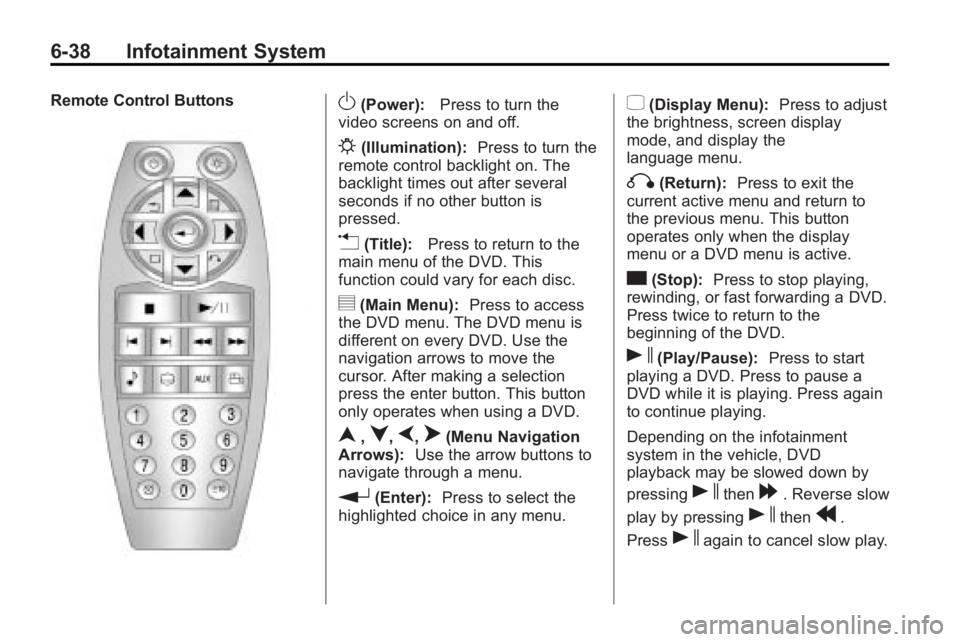
Remote Control ButtonsO(Power):Press to turn the
video screens on and off.
P(Illumination): Press to turn the
remote control backlight on. The
backlight times out after several
seconds if no other button is
pressed.
v(Title): Press to return to the
main menu of the DVD. This
function could vary for each disc.
y(Main Menu): Press to access
the DVD menu. The DVD menu is
different on every DVD. Use the
navigation arrows to move the
cursor. After making a selection
press the enter button. This button
only operates when using a DVD.
n,q,p,o(Menu Navigation
Arrows): Use the arrow buttons to
navigate through a menu.
r(Enter): Press to select the
highlighted choice in any menu.
z(Display Menu): Press to adjust
the brightness, screen display
mode, and display the
language menu.
q(Return): Press to exit the
current active menu and return to
the previous menu. This button
operates only when the display
menu or a DVD menu is active.
c(Stop): Press to stop playing,
rewinding, or fast forwarding a DVD.
Press twice to return to the
beginning of the DVD.
s(Play/Pause): Press to start
playing a DVD. Press to pause a
DVD while it is playing. Press again
to continue playing.
Depending on the infotainment
system in the vehicle, DVD
playback may be slowed down by
pressing
sthen[. Reverse slow
play by pressing
sthenr.
Press
sagain to cancel slow play.
Page 190 of 414
6-44 Infotainment System
To link to a different paired phone,
see“Linking to a Different Phone”
later in this section.
Pairing a Phone
1. Press the CONFIG button.
2. Select Phone Settings.
3. Select Bluetooth.
4. Select Pair Device (Phone). A four digit PIN number appears
on the display.
5. Start the pairing process on the cell phone that will be paired to
the vehicle. Reference the cell
phone manufacturers user guide
for information on this process.
Locate the device named
“General Motors” in the list on
the cell phone and follow the
instructions on the cell phone to
enter the four digit PIN number
provided by the system. 6. The system prompts for a name
for the phone and confirms the
name provided. This name is
used to indicate which phone is
connected.
7. The system responds with “
successfully paired” after the
pairing process is complete.
8. Repeat Steps 1 through 7 to pair additional phones.
Listing All Paired and Connected
Phones
1. Press the CONFIG button.
2. Select Phone Settings.
3. Select Bluetooth.
4. Select Device List.
Deleting a Paired Phone
1. Press the CONFIG button.
2. Select Phone Settings.
3. Select Bluetooth. 4. Select Device List.
5. Select the phone to delete and
follow the on screen prompts.
Linking to a Different Phone
To link to a different phone, the new
phone must be in the vehicle and
available to be connected to the
bluetooth system before the process
is started.
1. Press the CONFIG button.
2. Select Phone Settings.
3. Select Bluetooth.
4. Select Device List.
5. Select the new phone to link to and follow the on screen
prompts.
If delete is selected, the
highlighted phone will be
deleted.
Page 214 of 414
7-2 Climate Controls
Automatic Operation
The system automatically controls
the fan speed, air delivery, air
conditioning and recirculation in
order to heat or cool the vehicle to
the desired temperature.
When the AUTO indicator light is
on, the system is in full automatic
operation. If the air delivery mode,
fan speed, recirculation or air
conditioning setting is adjusted, the
AUTO indicator turns off and the
selected settings will appear on the
display.
To place the system in automatic
mode do the following:
1. Press AUTO.
2. Set the temperature. Allow thesystem time to stabilize. Adjust
the temperature as needed for
best comfort.
Q/R(Temperature Control):
Press to increase or decrease the
temperature. Manual Operation
O(Power):
Press to turn the fan
on or off.
D C(Fan Control): Press to
increase or decrease the fan speed.
The fan speed setting appears on
the main display. Pressing either
button cancels automatic fan control
and the fan can be controlled
manually. Press AUTO to return to
automatic operation.
e *(Air Delivery Mode
Control): Press to change the
direction of the airflow. The current
mode appears in the display screen.
Pressing either button cancels
automatic air delivery control and
the direction of the airflow can be
controlled manually. Press AUTO to
return to automatic operation.
To change the current mode, select
one of the following:
Y(Vent): Air is directed to the
instrument panel outlets.
\(Bi-Level): Air is divided
between the instrument panel
outlets and the floor outlets.
C(Tri-Level): Air is divided
between the windshield, instrument
panel, and floor outlets.
[(Floor): Air is directed to the
floor outlets.
-(Defog): Clears the windows of
fog or moisture. Air is directed to the
windshield and floor outlets.
0(Defrost): Clears the
windshield of fog or frost more
quickly. Air is directed to the
windshield. Selecting defrost will
disable automatic control.
For best results, clear all snow and
ice from windshield before
defrosting.
#(Air Conditioning): Press to
turn the air conditioning system on
or off. If the fan is turned off or the
outside temperature falls below
freezing, the air conditioning system
will not run.