AUX BUICK LACROSSE 2012 User Guide
[x] Cancel search | Manufacturer: BUICK, Model Year: 2012, Model line: LACROSSE, Model: BUICK LACROSSE 2012Pages: 512, PDF Size: 6.21 MB
Page 203 of 512
Black plate (23,1)Buick LaCrosse Owner Manual - 2012
Infotainment System 7-23
FM
1. Press the FM screen button onthe Home Page or select FM
from the source pop-up to
display the FM main page.
2. From the FM screen, press the Menu screen button to display
the FM stations.
3. Press to select the desired option. To update the station list,
touch Refresh.
XM (If Equipped)
1. Press the XM screen button on the Home Page or select XM
from the source pop-up to
display the XM main page.
2. From the XM screen, press the Menu screen button to display
the XM categories.
3. Touch a desired category and then turn the TUNE/MENU knob
to scroll the station list. Changing the Sources
To change audio sources from any
of the audio main pages (AM, FM,
XM, CD, USB/iPod, or AUX), press
the SOURCE button on the
faceplate or the Source screen
button to display a pop-up of
available audio sources. Touch-tap
or press the SOURCE button on the
faceplate repeatedly to change the
desired source.
Storing Radio Station Presets
There are a few ways to store
presets.
Up to 36 preset stations can be
stored. AM, FM, and XM,
if equipped, can be mixed.
1. From the AM, FM, or XM main
page, press and hold one of the
preset screen buttons located at
the bottom of the screen. After a
few seconds, a beep will be
heard and the new preset
information will display on that
screen button. 2. Touch and hold a preset button
to store the currently active
station. After a few seconds, a
beep will be heard and the new
preset information will display on
a small pop-up display at the
bottom of the screen.
3. Repeat the steps for each preset.
To change the number of preset
pages, see “Mixed-Band Presets”
following for more information.
Recalling a Preset Station
To recall a preset station from a FAV
page, do the following:
.Press the FAV button on the
faceplate to display the FAV
pop-up. Select the desired
preset from the pop-up.
.Press the FAV screen button at
the top bar to display the preset
pop-up that appears at the
bottom of the page. Press one of
the preset screen buttons to go
to the selected preset station.
Page 208 of 512
Black plate (28,1)Buick LaCrosse Owner Manual - 2012
7-28 Infotainment System
Audio Players
CD Player
For vehicles equipped with the
MyLink or IntelliLink infotainment
system, see the separate MyLink/
IntelliLink Features and Functions
Guide for more information.
The player can be used for CD
and MP3s.
With the ignition on, insert a CD into
the slot, label side up. The player
pulls it in and begins playing.
The vehicle must be in P (Park) for
video to display.
The system is capable of playing:
.Most audio CDs
.CD-R
.CD-RW
.MP3 or unprotected WMA
formatsWhen playing any compatible
recordable disc, the sound quality
can be reduced due to disc quality,
the method of recording, the quality
of the music or video that has been
recorded, or the way the disc has
been handled.
To avoid damage to the CD player:
.Do not use scratched or
damaged discs
.Do not apply labels to discs. The
labels could get caught in the
player.
.Insert only one disc at a time.
.Keep the loading slot free of
foreign materials, liquids and
debris.
If a description label is needed, try
labeling the top of the disc using a
marking pen.
Loading and Ejecting Discs
To load a disc:
1. Turn the ignition on.
2. Insert a disc into the slot. The player pulls it in the rest of the
way. If the disc is damaged or
improperly loaded, there is an
error and the disc ejects.
The disc automatically plays once
loaded.
Press
Xto eject a disc from the
CD player.
Playing a CD
A disc must be loaded to select the
source.
When a disc is loaded, the disc icon
displays.
There are two ways to play a CD:
.Insert the disc and playback
starts automatically.
.Press CD/AUX, MEM/DVD/AUX,
or SOURCE repeatedly to select
the disc source.
Page 210 of 512
Black plate (30,1)Buick LaCrosse Owner Manual - 2012
7-30 Infotainment System
If the CD is not playing correctly, for
any other reason, try a known
good CD.
If any error continues, contact your
dealer.
CD/DVD Player
The CD/DVD player can play CDs,
DVD‐As, MP3/WMA CDs, MP3/
WMA DVDs, and DVD‐Vs.
The CD/DVD player will not play
8 cm (3 in) discs.
Care of CDs and DVDs
Sound quality can be reduced due
to disc quality, recording method,
quality of the music recorded, and
how the disc has been handled.
Handle discs carefully and store
them in their original cases or other
protective cases away from direct
sunlight and dust. If the bottom
surface of a disc is damaged, the
disc may not play properly or at all.Do not touch the bottom surface of
a disc while handling it; this could
damage the surface. Pick up discs
by grasping the outer edges or the
edge of the hole and the outer edge.
If the bottom surface of a disc is
dirty, take a soft, lint‐free cloth,
or dampen a clean, soft cloth in a
mild neutral detergent solution
mixed with water, and clean it. Wipe
the disc from the center to the
outer edge.
Care of the CD/DVD Player
Do not add a label to a disc, as it
could get caught in the CD/DVD
player. If a label is needed, label the
top of the recorded disc with a
marking pen.
Do not use disc lens cleaners
because they could contaminate the
lens of the disc optics and damage
the CD/DVD player.
Notice:
If a label is added to a
CD, more than one CD is inserted
into the slot at a time, or an
attempt is made to play scratched
or damaged CDs, the CD player
could be damaged. While using
the CD player, use only CDs in
good condition without any label,
load one CD at a time, and keep
the CD player and the loading slot
free of foreign materials, liquids,
and debris.
Control Buttons
The buttons used to control the CD/
DVD player are:
MEM/DVD/AUX: Press to choose
between the MEM, CD/DVD,
and AUX.
l/g: Press to select tracks or
to fast forward or rewind within a
track.
INFO: Press to display additional
information about the disc that may
be available.
Page 211 of 512
Black plate (31,1)Buick LaCrosse Owner Manual - 2012
Infotainment System 7-31
TUNE:Turn to select tracks.
Menu Knob: Turn to enter
the menu.
SELECT: Press to select an item.
X(Eject):Press to eject the disc.
k:Press to pause a CD, DVD‐A,
or DVD‐V; press again to resume
playback. Press and hold to stop a
DVD‐V disc.
Inserting a CD or DVD
With the printed side facing up,
insert a disc into the slot until it is
drawn in.
Removing a CD or DVD
PressX.
The disc is pushed out of the CD/
DVD slot.
If the disc is not removed after it is
ejected, it is pulled back in after a
few seconds.
Playing a CD or DVD‐A Disc
Press the MEM/DVD/AUX button if
there is a disc in the player.
It begins playing.
Information about the disc and
current track is shown on the
display depending on the data
stored.
Selecting CD or DVD‐A Tracks
Using the control buttons:
.Pressgorlto select the
previous or next track.
.Turn the TUNE knob.
Using the menu:
1. Turn the Menu knob.
2. Select Tracks List.
3. Select the track. Pausing a CD or DVD‐A Track
Press
kto pause a CD or DVD‐A
track. Press
kagain to continue
playing the track.
Playing CD or DVD‐A Tracks in
Random Order
Turn the Menu knob and set Shuffle
Songs to On.
Fast Forward and Rewind
Press and hold
lorgto fast
forward or rewind within the current
track.
Playing an MP3 CD or DVD
Files that are not stored in folders
are displayed in the root
directory (disc).
The search rate increases if the
Menu knob is continuously turned
while searching in a list.
Page 213 of 512
Black plate (33,1)Buick LaCrosse Owner Manual - 2012
Infotainment System 7-33
Selecting a Title
1. Turn the Menu knob.
2. Select Title List.
3. Select the title.
Changing the Audio Stream
1. Turn the Menu knob.
2. Select Audio Stream.
3. Select Change Audio Stream.
4. Press SELECT to change theselection.
Select Cancel to exit the menu.
Pausing a DVD
1. Turn the Menu knob.
2. Select Pause to pause the disc. Select Unpause to start
playback. Navigating the DVD‐V Disc Menu
Use the following actions to
navigate the title menu on a DVD‐
V Disc.
.Select/Enter
.Cursor UP
.Cursor DOWN
.Cursor RIGHT
.Cursor LEFT
.Up Menu
Use the following actions to
navigate the menu on a DVD‐V Disc
while playing chapters.
.Pause (Play)
.Chapter List
.Title List
.DVD/DVD
.DVD/AUX
.AUX/DVD
.AUX/AUX To navigate the menu:
1. Turn the Menu knob.
2. Select the action.
MP3
Playing an MP3, CD, and DVD
For vehicles equipped with the
MyLink or IntelliLink infotainment
system, see the separate MyLink/
IntelliLink Features and Functions
Guide for more information.
MP3 Format
There are guidelines that must be
met, when creating an MP3 disc or
the CD might not play.
The guidelines are:
.Sampling rate: 8 kHz, 16 kHz,
22.05 kHz, 24 kHz, 32 kHz,
44.1 kHz, and 48 kHz.
.Bit rates supported: 8, 16, 24,
32, 40, 48, 56, 64, 80, 96, 112,
128, 144, 160, 192, 224, 256,
and 320 kbps.
Page 216 of 512
Black plate (36,1)Buick LaCrosse Owner Manual - 2012
7-36 Infotainment System
No Folder
When the CD only contains
compressed audio files without any
folders or playlists, all files are
located under the root folder.
File System and Naming
The displayed song title is taken
from the file's ID3 tag. If a song title
is not present in the ID3 tag, the
radio displays the file name as the
track name.
Mass Storage
Media (MEM)
Infotainment systems with MEM
storage are able to record up to
1.1 GB (gigabyte) of music from
audio CDs, MP3/WMA/AAC discs,
and USB storage devices. The MEM
player can also time shift audio from
AM, FM, and XM radio.
Music or content stored in MEM that
you did not create, or have the right
to distribute, must be deleted before
the sale or end of lease of the
vehicle.
Control Buttons
The buttons used to control the
MEM player are:
MEM/DVD/AUX:Press to select
the MEM player.
gorl: Press to select tracks or
to rewind or fast forward within a
track.
INFO: Press to display additional
information about the MEM track
that may be available.
TUNE/
k: Press to pause the
track currently playing; press again
to resume playback. Turn to select
tracks.
REC
O: Press to record music
from a CD or USB drive.
DEL: Press to delete the current
track from MEM.
FAV (Favorites): Press to display
MEM favorites.
1 to 6: Press to select a track or
playlist stored in that numeric
position.
Recording from Audio CDs
The infotainment system can record
the current song playing or all songs
from an audio CD to MEM. A status
bar appears on the top of the
display when the recording process
starts and disappears when the
process has ended. Copy protected
CDs cannot be recorded to MEM.
Recording to MEM
Press REC
O, then select Record
Current Song or Record All Songs
on Disc. If the track has started
playing, the system will restart the
track and begin recording from the
beginning of the track. When the
song recording is completed, the
message Song Recorded to MEM
displays, and there may be a slight
pause.
Songs recorded to MEM are stored
as the current date, disc, and track
number.
Page 219 of 512
Black plate (39,1)Buick LaCrosse Owner Manual - 2012
Infotainment System 7-39
Album:Saves the album
associated with the currently playing
track in the indicated favorites
position.
Genre: Saves the genre associated
with the currently playing track in
the indicated favorites position.
Creating Playlists
To create a playlist using tracks
stored in MEM:
1. Select Playlist from the MEM
favorites.
2. Select the track to be stored in the playlist.
3. Press and hold one of the 1 to 6 buttons until the track can be
heard again to store the track.
4. Repeat Steps 1 through 3 to store additional tracks in the
playlist.Auxiliary Devices (Radio
with CD and
Touchscreen)
For vehicles equipped with the
MyLink or IntelliLink infotainment
system, see the separate MyLink/
IntelliLink Features and Functions
Guide for more information.
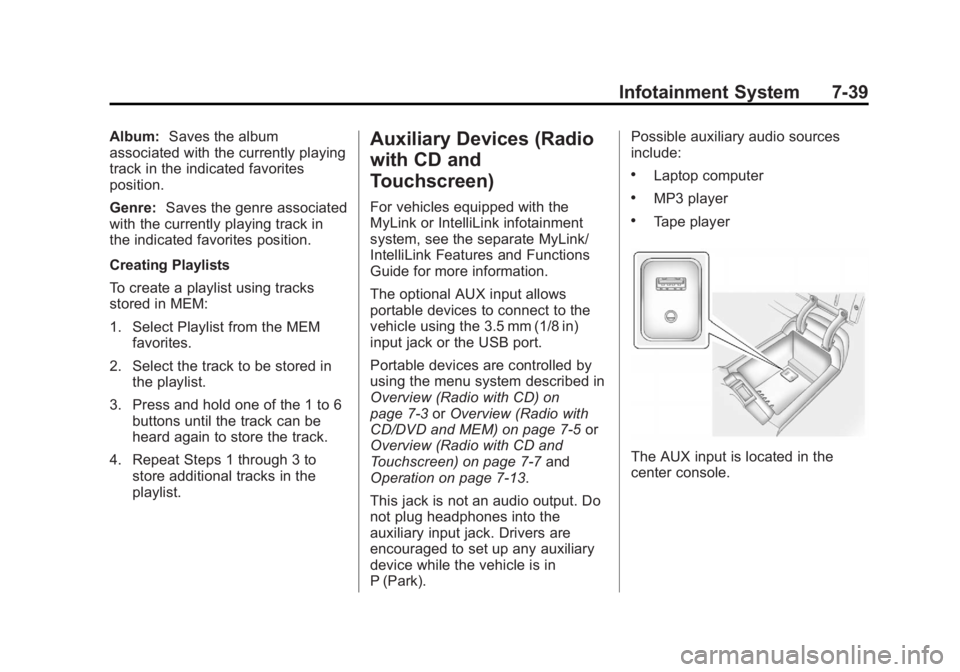
The optional AUX input allows
portable devices to connect to the
vehicle using the 3.5 mm (1/8 in)
input jack or the USB port.
Portable devices are controlled by
using the menu system described in
Overview (Radio with CD) on
page 7‑3 orOverview (Radio with
CD/DVD and MEM) on page 7‑5 or
Overview (Radio with CD and
Touchscreen) on page 7‑7 and
Operation on page 7‑13.
This jack is not an audio output. Do
not plug headphones into the
auxiliary input jack. Drivers are
encouraged to set up any auxiliary
device while the vehicle is in
P (Park). Possible auxiliary audio sources
include:
.Laptop computer
.MP3 player
.Tape player
The AUX input is located in the
center console.
Page 220 of 512
Black plate (40,1)Buick LaCrosse Owner Manual - 2012
7-40 Infotainment System
3.5 mm Jack
Connect a 3.5 mm (1/8 in) cable to
the auxiliary input jack to use a
portable audio player.
Playback of an audio device that is
connected to the 3.5 mm jack can
only be controlled using the controls
on the device.
If an auxiliary device has already
been connected on vehicles with a
touchscreen, but a different source
is currently active, press the Now
Playing screen button on the Home
Page, then press Source repeatedly
to cycle through all of the available
audio source screens, until the AUX
source screen is selected.
Adjusting the Volume
Turn the VOL/
Oknob to adjust the
volume of the infotainment system
after the volume level has been set
on the portable audio device.
USB Port
For vehicles with a USB port, the
following devices may be connected
and controlled by the infotainment
system.
.iPods
.PlaysForSure Devices (PFDs)
.USB Drives
.Zunes™
.USB mass storage device
.Microsoft Transfer
Protocal (MTP)
Not all iPods, PFDs, USB Drives,
and Zunes are compatible with the
infotainment system.
Connecting and Controlling an
iPod®(Radio with CD and
Radio with CD/DVD/MEM)
Not all iPods can be controlled by
the infotainment system.
Connecting an iPod
Connect the iPod to the USB port.
Selecting a Track
Using the control buttons:
.Pressgorlto select the
previous or next track.
.Turn the TUNE knob to select a
track in the current submenu.
The track will start to play.
Page 226 of 512
Black plate (46,1)Buick LaCrosse Owner Manual - 2012
7-46 Infotainment System
There may be problems with
operation and function in the
following situations:
.When connecting an iPod on
which a more recent version of
the firmware is installed than is
supported by the infotainment
system.
.When connecting an iPod on
which firmware from other
providers is installed.
To connect and control an iPod,
connect one end of the standard
iPod USB cable to the iPod's dock
connector. Connect the other end to
the USB port in the center console.
iPod music information displays on
the radio’s display and begins
playing through the vehicle’s audio
system.
The iPod battery recharges
automatically while the vehicle is on.
When the vehicle is off while an
iPod is connected using the iPod USB cable, the iPod battery stops
charging and the iPod automatically
turns off.
If the iPod is an unsupported model,
it can still be listened to in the
vehicle by connecting to the
auxiliary input jack using a standard
3.5 mm (1/8 in) stereo cable.
Shuffle Songs:
Press to play the
tracks randomly. Press again to stop
shuffle.
Press any of the following buttons
on the iPod Menu:
Playlists:
1. Press to view the playlists stored on the iPod.
2. Select a playlist name to view a list of all songs in the playlist.
3. Select the desired song from the list to begin playback. Artists:
1. Press to view the artists stored
on the iPod.
2. Select an artist name to view a list of all songs by the artist.
3. Select the desired song from the list to begin playback.
Albums:
1. Press to view the albums stored on the iPod.
2. Select an album name to view a list of all songs on the album or
select All Songs to view all
songs by the artist.
3. Select the desired song from the list to begin playback.
Song Titles:
1. Press to view a list of all songs stored on the iPod.
2. Select the desired song from the list to begin playback.
Page 228 of 512
Black plate (48,1)Buick LaCrosse Owner Manual - 2012
7-48 Infotainment System
Before Driving
The RSE is for rear seat
passengers only. The driver cannot
safely view the video screen while
driving.
In severe or extreme weather
conditions, the RSE system may not
work until the temperature is within
the operating range. The operating
range is above−20°C (−4°F) and
below 60°C (140°F). If the
temperature is outside of this range,
heat or cool the vehicle until it is
within the operating range.
Global Off
Depending on the infotainment
system, the RSE system may have
a Global Off feature. The Global Off
feature disables all RSE system
features. Press and hold the radio
power button for more than
three seconds for Global Off to disable the RSE features. On some
infotainment systems, the Global Off
feature can be turned off by
performing one of the following:
.Press and hold the radio power
button for more than
three seconds.
.Insert or eject any disc.
.Insert a DVD video disc.
.Press the remote control power
button.
.Press the MEM/DVD/AUX button
or
kwhen a DVD video disc is
in the player.
.Press the SRC button on the
steering wheel when a DVD
video disc is in the player.
.Cycle the ignition.
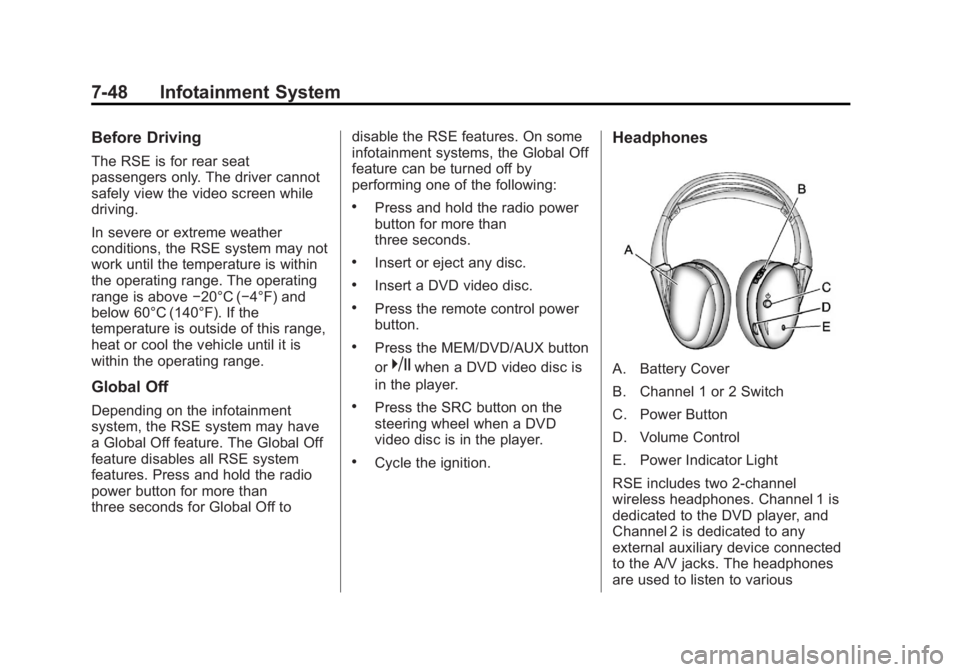
Headphones
A. Battery Cover
B. Channel 1 or 2 Switch
C. Power Button
D. Volume Control
E. Power Indicator Light
RSE includes two 2-channel
wireless headphones. Channel 1 is
dedicated to the DVD player, and
Channel 2 is dedicated to any
external auxiliary device connected
to the A/V jacks. The headphones
are used to listen to various