infotainment BUICK LACROSSE 2012 Service Manual
[x] Cancel search | Manufacturer: BUICK, Model Year: 2012, Model line: LACROSSE, Model: BUICK LACROSSE 2012Pages: 512, PDF Size: 6.21 MB
Page 216 of 512
Black plate (36,1)Buick LaCrosse Owner Manual - 2012
7-36 Infotainment System
No Folder
When the CD only contains
compressed audio files without any
folders or playlists, all files are
located under the root folder.
File System and Naming
The displayed song title is taken
from the file's ID3 tag. If a song title
is not present in the ID3 tag, the
radio displays the file name as the
track name.
Mass Storage
Media (MEM)
Infotainment systems with MEM
storage are able to record up to
1.1 GB (gigabyte) of music from
audio CDs, MP3/WMA/AAC discs,
and USB storage devices. The MEM
player can also time shift audio from
AM, FM, and XM radio.
Music or content stored in MEM that
you did not create, or have the right
to distribute, must be deleted before
the sale or end of lease of the
vehicle.
Control Buttons
The buttons used to control the
MEM player are:
MEM/DVD/AUX:Press to select
the MEM player.
gorl: Press to select tracks or
to rewind or fast forward within a
track.
INFO: Press to display additional
information about the MEM track
that may be available.
TUNE/
k: Press to pause the
track currently playing; press again
to resume playback. Turn to select
tracks.
REC
O: Press to record music
from a CD or USB drive.
DEL: Press to delete the current
track from MEM.
FAV (Favorites): Press to display
MEM favorites.
1 to 6: Press to select a track or
playlist stored in that numeric
position.
Recording from Audio CDs
The infotainment system can record
the current song playing or all songs
from an audio CD to MEM. A status
bar appears on the top of the
display when the recording process
starts and disappears when the
process has ended. Copy protected
CDs cannot be recorded to MEM.
Recording to MEM
Press REC
O, then select Record
Current Song or Record All Songs
on Disc. If the track has started
playing, the system will restart the
track and begin recording from the
beginning of the track. When the
song recording is completed, the
message Song Recorded to MEM
displays, and there may be a slight
pause.
Songs recorded to MEM are stored
as the current date, disc, and track
number.
Page 217 of 512
Black plate (37,1)Buick LaCrosse Owner Manual - 2012
Infotainment System 7-37
Re-recording a Previously
Recorded Disc
If the disc or track has already been
recorded to MEM, the message The
Song(s) is Already Recorded
displays.
Stopping the Recording
Press REC
Owhile recording from
an audio CD to display the stop
recording option. Select Stop
Recording Song to MEM.
Renaming Recorded Discs
Discs that have been recorded to
MEM can be renamed.
1. Turn the Menu knob.
2. Select Rename Recorded Discs.
3. Select the disc.
4. Select Album or Artist to rename either one.
5. Use the Menu knob to enter the character sequence. See
Operation on page 7‑13 for more
information.
Recording from MP3/WMA
Discs or USB Storage Devices
USB Host Support
The USB connector uses the USB
standards, 1.1 and 2.0.
USB Supported Devices
.USB Flash Drives
.Portable USB Hard Drives
Recording to MEM
Press REC
O, then select Record
Current Song or Record Current
Folder.
The information stored by MEM is
titled according to the ID3 tag
associated with it. Re-recording a Previously
Recorded Disc
If the disc or track has already been
recorded to MEM, the message The
Song(s) is Already Recorded
displays.
Stopping the Recording
Press REC
Owhile recording from
an MP3/WMA CD or USB storage
device to display the stop recording
option. Select Stop Recording Song
to MEM.
Deleting Tracks from MEM
Individual tracks and all tracks can
be deleted from MEM.
To delete individual tracks, press
and release the DEL button while
the track is playing.
To delete all tracks from MEM,
press and hold the DEL button while
a track is playing.
Page 218 of 512

Black plate (38,1)Buick LaCrosse Owner Manual - 2012
7-38 Infotainment System
Playing from MEM
Playing Back a Previously
Recorded CD
Turn the TUNE knob to select a
track if MEM is already playing from
the previously recorded disc.
1. Select Recorded Disc List.
2. Select the disc.
3. Select the track.
Searching for a Track
Tracks can be searched for by:
.Playlists
.Artists
.Albums
.Song Titles
.Genres
The number of objects in each
category is shown in parentheses
after the category. To search for tracks:
1. Turn the Menu knob.
2. Select Search.
3. Select: Playlists, Artists, Albums,
Song Titles, or Genres.
4. Select the track. The search rate increases if the Menu knob is
continuously turned while
searching in a list.
Shuffle Songs
Select the Shuffle Songs option
from the MEM menu to randomly
play back tracks stored in MEM.
Configuring MEM Favorites
During MEM playback, press the
FAV button to change between
favorite categories. The favorite
categories are:
.Playlists
.Artists
.Albums
.Genres To remove MEM favorites
categories:
1. Press the CONFIG button.
2. Select Radio Settings.
3. Select MEM Favorites.
4. Remove the checkmark from the
box to remove that MEM
favorites category.
Replace the checkmark to re-add
the removed category.
Saving MEM Tracks as
Favorites
Favorites can be saved by pressing
and holding one of the 1 to
6 buttons. Favorites can be stored
according to the following list:
Playlist: Adds the currently playing
track to the playlist selected.
Artist: Saves the artist associated
with the currently playing track in
the indicated favorites position.
Page 219 of 512
Black plate (39,1)Buick LaCrosse Owner Manual - 2012
Infotainment System 7-39
Album:Saves the album
associated with the currently playing
track in the indicated favorites
position.
Genre: Saves the genre associated
with the currently playing track in
the indicated favorites position.
Creating Playlists
To create a playlist using tracks
stored in MEM:
1. Select Playlist from the MEM
favorites.
2. Select the track to be stored in the playlist.
3. Press and hold one of the 1 to 6 buttons until the track can be
heard again to store the track.
4. Repeat Steps 1 through 3 to store additional tracks in the
playlist.Auxiliary Devices (Radio
with CD and
Touchscreen)
For vehicles equipped with the
MyLink or IntelliLink infotainment
system, see the separate MyLink/
IntelliLink Features and Functions
Guide for more information.
The optional AUX input allows
portable devices to connect to the
vehicle using the 3.5 mm (1/8 in)
input jack or the USB port.
Portable devices are controlled by
using the menu system described in
Overview (Radio with CD) on
page 7‑3 orOverview (Radio with
CD/DVD and MEM) on page 7‑5 or
Overview (Radio with CD and
Touchscreen) on page 7‑7 and
Operation on page 7‑13.
This jack is not an audio output. Do
not plug headphones into the
auxiliary input jack. Drivers are
encouraged to set up any auxiliary
device while the vehicle is in
P (Park). Possible auxiliary audio sources
include:
.Laptop computer
.MP3 player
.Tape player
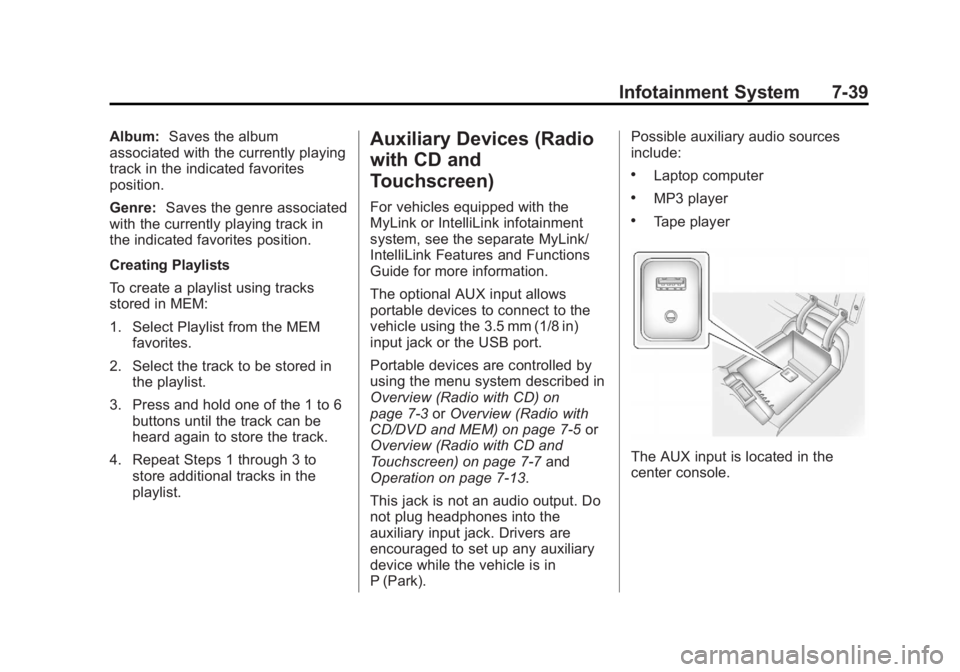
The AUX input is located in the
center console.
Page 220 of 512
Black plate (40,1)Buick LaCrosse Owner Manual - 2012
7-40 Infotainment System
3.5 mm Jack
Connect a 3.5 mm (1/8 in) cable to
the auxiliary input jack to use a
portable audio player.
Playback of an audio device that is
connected to the 3.5 mm jack can
only be controlled using the controls
on the device.
If an auxiliary device has already
been connected on vehicles with a
touchscreen, but a different source
is currently active, press the Now
Playing screen button on the Home
Page, then press Source repeatedly
to cycle through all of the available
audio source screens, until the AUX
source screen is selected.
Adjusting the Volume
Turn the VOL/
Oknob to adjust the
volume of the infotainment system
after the volume level has been set
on the portable audio device.
USB Port
For vehicles with a USB port, the
following devices may be connected
and controlled by the infotainment
system.
.iPods
.PlaysForSure Devices (PFDs)
.USB Drives
.Zunes™
.USB mass storage device
.Microsoft Transfer
Protocal (MTP)
Not all iPods, PFDs, USB Drives,
and Zunes are compatible with the
infotainment system.
Connecting and Controlling an
iPod®(Radio with CD and
Radio with CD/DVD/MEM)
Not all iPods can be controlled by
the infotainment system.
Connecting an iPod
Connect the iPod to the USB port.
Selecting a Track
Using the control buttons:
.Pressgorlto select the
previous or next track.
.Turn the TUNE knob to select a
track in the current submenu.
The track will start to play.
Page 221 of 512
Black plate (41,1)Buick LaCrosse Owner Manual - 2012
Infotainment System 7-41
Searching for a Track
Tracks can be searched for by:
.Playlists
.Artists
.Albums
.Song Titles
.Podcasts
.Genres
.Audiobooks
.Composers
To search for tracks:
1. Turn the Menu knob.
2. Select Search.
3. Select: Playlists, Artists, Albums, Song Titles, Podcasts, Genres,
Audiobooks, or Composers.
4. Select the track.
Shuffle (Radio with CD)
Turn the Menu knob and set Shuffle
Songs (Random) to On or Off, then
press the
/BACK button to return
the main screen.
On: Plays tracks in the current
folder in random order.
Off: Plays tracks in the current
folder in sequential order.
Repeat
Turn the Menu knob and set Repeat
to On or Off, then press the
/
BACK button to return the main
screen.
On: Repeats the current track.
Off: Playback starts from the
beginning of the current track after
the last track finishes.
Shuffle (Radio with CD/
DVD/MEM)
Turn the Menu knob and set Shuffle
Songs to On or Off.
Shuffle On: Plays current tracks in
random order.
Shuffle Off: Plays current tracks in
sequential order.
Connecting and Controlling a
PlaysForSure Device (PFD) or
Zune (Radio with CD)
Connecting a PFD or Zune
Connect the PFD or Zune to the
USB port.
Page 222 of 512
Black plate (42,1)Buick LaCrosse Owner Manual - 2012
7-42 Infotainment System
Searching for a Track
Tracks can be searched for by:
.Playlists
.Artists
.Albums
.Song Titles
.Podcasts
.Genres
To search for tracks:
1. Turn the Menu knob.
2. Select Search.
3. Select: Playlists, Artists, Albums, Song Titles, Podcasts,
or Genres.
4. Select the track. Shuffle Functionality
Turn the Menu knob and set Shuffle
Songs (Random) to On or Off.
On:
Plays current tracks in random
order.
Off: Plays current tracks in
sequential order.
Repeat Functionality
Turn the Menu knob and set Repeat
to On or Off.
Repeat On: Repeats the current
track.
Repeat Off: Playback starts from
the beginning of the current track
after the last track finishes.
Connecting and Controlling a
USB Drive (Radio with CD and
Radio with CD/DVD/MEM)
The infotainment system can only
play back .mp3 and .wma files from
a USB drive.
Only the first 2,500 songs are
recognized on the device.
When a device is not supported, the
message “No supported data found.
You can safely disconnect the
device” appears.
Connecting a USB Drive
Connect the USB drive to the
USB port.
Searching for a Track
It is normal for the search feature to
take some time to display the
information after reading the device
due to the amount of information
stored.
Page 223 of 512
Black plate (43,1)Buick LaCrosse Owner Manual - 2012
Infotainment System 7-43
Files that do not have any meta
data stored in the ID3 tag display as
Unknown.
Tracks can be searched for by:
.Playlists*
.Artists
.Albums
.Song Titles
.Genres
.Folder View
*This only displays if a playlist is
found on the device.
To search for tracks:
1. Turn the Menu knob.
2. Select Search.
3. Select: Playlists, Artists, Albums, Song Titles, Genres,
or Folder View.
4. Select the track. Shuffle Functionality
Turn the Menu knob and set Shuffle
Songs (Random) to On or Off.
On:
Plays current tracks in random
order.
Off: Plays current tracks in
sequential order.
Repeat Functionality
Turn the Menu knob and set Repeat
to On or Off.
Repeat On: Repeats the current
track.
Repeat Off: Playback starts from
the beginning of the current track
after the last track finishes.
Recording Tracks to MEM
(Radio with CD/DVD/MEM)
See Mass Storage Media (MEM) on
page 7‑36 for more information.
Playing from a USB (Radio
with CD and Touchscreen)
A USB mass storage device or
Microsoft Transfer Protocal (MTP)
device can be connected to the
USB port.
The USB port is in the center
console.
The USB icon displays when the
USB device is connected.
USB MP3 Player and USB Drives
.The USB MP3 players and USB
drives connected must comply
with the USB Mass Storage
Class specification (USB MSC).
.Only USB MP3 players and USB
drives with a sector size or
512 bytes and a cluster size
smaller or equal to 32 kbytes in
the FAT32 file system are
supported.
.Hard disk drives are not
supported.
Page 224 of 512
Black plate (44,1)Buick LaCrosse Owner Manual - 2012
7-44 Infotainment System
.The following restrictions apply
for the data stored on a USB
MP3 player or USB device:
‐Maximum folder structure
depth: 11 levels.
‐ Maximum number of MP3/
WMA files that can be
displayed: 1,000
.WMA with Digital Rights
Management (DRM) from online
music shops cannot be played.
WMA files can only be played
back safely if they were created
with Windows Media Player
version 8 or later.
‐Applicable playlist extensions
are: .m3u, .pls.
‐ Playlist entries must be in the
form of relative paths.
‐ The system attribute for
folders/files that contain audio
data must not be set. To play a USB device, do one of the
following:
.Connect the USB and it begins
to play.
.Press the Now Playing screen
button on the Home Page, then
press the SOURCE button on
the faceplate repeatedly to cycle
through all of the available audio
source screens, until the USB
source screen is selected.
While the USB source is active, use
the following to operate USB
function:
TUNE/
k(Play/Pause): Press to
start, pause, or resume play of the
current media source.
g(Seek Down):
1. Press to seek to the beginning of the current or previous track.
If the track has been playing for
less than five seconds, the
previous track plays. If playing
longer than five seconds, the
current track restarts.
2. Press and hold to reverse quickly through playback.
3. Release to return to playing speed. Elapsed time displays.
l(Seek Up):
1. Press to seek to the next track.
2. Press and hold to advance quickly through playback.
Release to return to playing
speed. Elapsed time displays.
Page 225 of 512
Black plate (45,1)Buick LaCrosse Owner Manual - 2012
Infotainment System 7-45
USB Menu
Press any of the following buttons
on the USB Menu:
Shuffle Songs:Press to play the
tracks randomly. Press again to stop
shuffle.
Playlists: Press to view the
playlists stored on the USB. Select
a playlist to view the list of all songs
in that playlist. There might be a
delay before the list displays. Select
a song from the list to begin
playback.
Artists: Press to view the list of
artists stored on the USB. Select an
artist name to view a list of all
albums by the artist. There might be
a delay before the list displays. To
select a song, touch All Songs then
select a song or touch an album
then select a song from the list to
begin playback. Albums:
Press to view the albums
on the USB. Select the album to
view a list of all songs on the album.
There might be a delay before the
list displays. Select a song from the
list to begin playback.
Song Titles: Press to display a list
of all songs on the USB. Songs are
displayed as stored on the disc.
There might be a delay before the
list displays. To begin playback,
select a song from the list.
Genres: Press to view the genres
on the USB. Select a genre to view
a list of all songs of that genre.
Select a song from the list to begin
playback.
Folders: Press to open a folder list
to access the files within the folder
structure. File System and Naming
The song titles, artists, albums, and
genres are taken from the file's ID3
tag and are only displayed if present
in the tag. If a song title is not
present in the ID3 tag, the radio
displays the file name as the
track name.
Playing from an iPod®(Radio
with CD and Touchscreen)
This feature supports the following
iPod models:
.iPod nano (1st, 2nd, 3rd, and 4th
generation)
.iPod with video (5.0 and
5.5 generation). Video is not
shown; only audio is supported.
.iPod classic (6th generation)
.iPod touch (1st and 2nd
generation)