Infotainment BUICK LACROSSE 2013 Owner's Guide
[x] Cancel search | Manufacturer: BUICK, Model Year: 2013, Model line: LACROSSE, Model: BUICK LACROSSE 2013Pages: 422, PDF Size: 5.74 MB
Page 174 of 422
Black plate (12,1)Buick LaCrosse Owner Manual - 2013 - crc - 9/7/12
7-12 Infotainment System
Loading XM:The audio system is
acquiring and processing audio and
text data. No action is needed. This
message should disappear shortly.
Channel Off Air: This channel is
not currently in service. Tune in to
another channel.
Channel Unauth: This channel is
blocked or cannot be received with
your SiriusXM subscription package.
Channel Unavailable: This
previously assigned channel is no
longer assigned. Tune to another
station.
No Artist Info: The system is
working properly. No artist
information is available at this time
on this channel.
No Title Info: The system is
working properly. No song title
information is available at this time
on this channel.
No CAT Info: The system is
working properly. No category
information is available at this time
on this channel. No Information:
The system is
working properly. No text or
informational messages are
available at this time on this
channel.
No XM Signal: The system is
working properly. The vehicle may
be in a location where the SiriusXM
signal is being blocked. When the
vehicle is moved into an open area,
the signal should return.
CAT Not Found: The system is
working properly. There are no
channels available for the selected
category.
XM Radio ID: If tuned to channel 0,
this message alternates with the
SiriusXM radio eight-digit radio ID
label. This label is needed to
activate the service.
Unknown: If this message is
received when tuned to channel 0,
there could be a receiver fault.
Consult with your dealer. Check Antenna:
If this message
does not clear within a short period
of time, the receiver could have a
fault. Consult with your dealer.
XM Not Available: If this message
does not clear within a short period
of time, the receiver could have a
fault. Consult with your dealer.
Radio Reception
Frequency interference and static
can occur during normal radio
reception if items such as cellular
phone chargers, vehicle
convenience accessories, and
external electronic devices are
plugged into the accessory power
outlet. If there is interference or
static, unplug the item from the
accessory power outlet.
FM
FM signals only reach about
16 to 65 km (10 to 40 mi). Although
the radio has a built-in electronic
circuit that automatically works to
reduce interference, some static can
Page 175 of 422
Black plate (13,1)Buick LaCrosse Owner Manual - 2013 - crc - 9/7/12
Infotainment System 7-13
occur, especially around tall
buildings or hills, causing the sound
to fade in and out.
AM
The range for most AM stations is
greater than for FM, especially at
night. The longer range can cause
station frequencies to interfere with
each other. For better radio
reception, most AM radio stations
boost the power levels during the
day, and then reduce these levels
during the night. Static can also
occur when things like storms and
power lines interfere with radio
reception. When this happens, try
reducing the treble on the radio.
SiriusXM®Satellite Radio
Service
SiriusXM satellite radio service
gives digital radio reception from
coast to coast in the 48 contiguous
United States, and in Canada. Just
as with FM, tall buildings or hills can
interfere with satellite radio signals,
causing the sound to fade in and out. In addition, traveling or standing
under heavy foliage, bridges,
garages, or tunnels may cause loss
of the SiriusXM signal for a period
of time.
Cellular Phone Usage
Cellular phone usage may cause
interference with the vehicle's radio.
This interference may occur when
making or receiving phone calls,
charging the phone's battery,
or simply having the phone on. This
interference can cause an increased
level of static while listening to the
radio. If static is received while
listening to the radio, unplug the
cellular phone and turn it off.
Backglass Antenna
The AM-FM antenna is integrated
with the rear window defogger in the
rear window. Do not scratch the
inside surface or damage the lines
in the glass. If the inside surface is
damaged, it could interfere with
radio reception. For proper radio
reception, the antenna connector
needs to be properly attached to the
post on the glass.
If attaching a cell phone antenna to
the glass, attach it between the grid
lines.
Notice:
Using a razor blade or
sharp object to clear the inside
rear window can damage the rear
window antenna and/or the rear
window defogger. Repairs would
not be covered by the vehicle
warranty. Do not clear the inside
rear window with sharp objects.
Notice: Do not apply aftermarket
glass tinting with metallic film.
The metallic film in some tinting
materials will interfere with or
distort the incoming radio
reception. Any damage caused to
the backglass antenna due to
metallic tinting materials will not
be covered by the vehicle
warranty.
Page 176 of 422
Black plate (14,1)Buick LaCrosse Owner Manual - 2013 - crc - 9/7/12
7-14 Infotainment System
Satellite Radio Antenna
For vehicles with SiriusXM satellite
radio service, the antenna is on the
roof of the vehicle. Keep the
antenna clear of obstructions for
clear radio reception.
Audio Players
CD Player
The player can be used for CD
and MP3s.
With the ignition on, insert a CD into
the slot, label side up. The player
pulls it in and begins playing.
The vehicle must be in P (Park) for
video to display.
The system is capable of playing:
.Most audio CDs
.CD-R
.CD-RW
.MP3 or unprotected WMA
formats
When playing any compatible
recordable disc, the sound quality
can be reduced due to disc quality,
the method of recording, the quality
of the music that has been
recorded, or the way the disc has
been handled. To avoid damage to the CD player:
.Do not use scratched or
damaged discs.
.Do not apply labels to discs. The
labels could get caught in the
player.
.Insert only one disc at a time.
.Keep the loading slot free of
foreign materials, liquids, and
debris.
If a description label is needed, try
labeling the top of the disc using a
marking pen.
Loading and Ejecting Discs
To load a disc:
1. Turn the ignition on.
2. Insert a disc into the slot. The player pulls it in the rest of the
way. If the disc is damaged or
improperly loaded, there is an
error and the disc ejects.
The disc automatically plays once
loaded.
Page 177 of 422
Black plate (15,1)Buick LaCrosse Owner Manual - 2013 - crc - 9/7/12
Infotainment System 7-15
PressXto eject a disc from the
CD player.
Playing a CD
A disc must be loaded to select the
source.
When a disc is loaded, the disc icon
displays.
There are two ways to play a CD:
.Insert the disc and playback
starts automatically.
.Press CD/AUX or RADIO/BAND
repeatedly to select the disc
source.
Playing an Audio CD
1. Press the CD screen button on the Home Page or select CD
from the source pop-up to
display the CD main page.
2. From the CD screen, press the Menu screen button to display
the menu options.
3. Press to select the desired option. On the CD main page a track
number displays at the beginning of
each track. Song, Artist, and Album
information displays when available.
Use the following controls to play
the disc:
TUNE:
Turn to select tracks.
g(Seek Down):
.Press to seek to the beginning of
the current or previous track.
If the track has been playing for
less than five seconds, it seeks
to the previous track. If longer
than five seconds, the current
track starts from the beginning.
.Press and hold to fast reverse
through a track. Release the
button to return to playing
speed. Elapsed time displays.
l(Seek Up):
.Press to seek to the next track.
.Press and hold to fast forward
through a track. Release the
button to return to playing
speed. Elapsed time displays. SELECT:
Select menu items.
Error Messages
If Disc Read Error displays and/or
the disc comes out, it could be for
one of the following reasons:
.The disc has an invalid or
unknown format.
.The disc is not from a correct
region.
.The disc is very hot. Try the disc
again when the temperature
returns to normal.
.The road is very rough. Try the
disc again when the road is
smoother.
.The disc is dirty, scratched, wet,
or upside down.
.The air is very humid. Try the
disc again later.
.There was a problem while
burning the disc.
.The label is caught in the CD
player.
Page 178 of 422
Black plate (16,1)Buick LaCrosse Owner Manual - 2013 - crc - 9/7/12
7-16 Infotainment System
If the CD is not playing correctly, for
any other reason, try a known
good CD.
If any error continues, contact your
dealer.
MP3
Playing an MP3
MP3 Format
There are guidelines that must be
met, when creating an MP3.
The guidelines are:
.Sampling rate: 8 kHz, 16 kHz,
22.05 kHz, 24 kHz, 32 kHz,
44.1 kHz, and 48 kHz.
.Bit rates supported: 8, 16, 24,
32, 40, 48, 56, 64, 80, 96, 112,
128, 144, 160, 192, 224, 256,
and 320 kbps.
.Maximum number of folders is
255 with a maximum hierarchy
of eight folders.
.Maximum of 1024 files on a disc.
.Recorded on a CD-R or CD-RW
with a maximum capacity of
700 MB.
.The Artist/Album/Song Titles/
Genre information requires a
disc to be fully scanned before
the music navigator works with
these menus. Disc scanning
does not occur when the disc is
being played.
When an MP3 is loaded in the
player, MP3 displays.
If a disc is already loaded, but you
are currently listening to a different
audio source, press CD/AUX to
switch to the disc source. A track
number appears on the display
when each track starts to play.
To play a disc:
TUNE/
k(Play/Pause): Use to
start, pause, or resume play of a
loaded disc.
l(Next/Forward): Press to seek
to the next track. Press again to
continue moving forward through
the disc. Press and hold to advance quickly
through playback. Release the
button to return to playing speed.
Elapsed time displays.
g(Previous/Reverse):
Press to
seek to the beginning of the current
or previous track. If the track has
played for less than five seconds, it
goes to the previous track. If longer
than five seconds, the current track
restarts. Press again to continue
moving back through the disc.
Press and hold this button to
reverse quickly through playback.
Release the button to return to
playing speed. Elapsed time
displays.
Multifunction Knob:
Turn to:
.Enter the menu system.
.Highlight a menu option.
.Select a value.
Page 179 of 422
Black plate (17,1)Buick LaCrosse Owner Manual - 2013 - crc - 9/7/12
Infotainment System 7-17
SELECT:
Press to:
.Select or activate the highlighted
menu option.
.Confirm a set value.
.Turn a system setting on or off.
Disc Music Menu
Press the SELECT knob to access
the Disc music menu.
Turn the SELECT knob to scroll,
then press it to select any of the
following category buttons on the
MP3 music menu to display the
corresponding category screen:
.Folders/Playlists
Select to view the folders stored
on the disc. Select a folder to
view the list of all the songs in
that folder. There might be a
delay before the list displays.
Select the song from the list and
it begins to play.
.Track List (All Songs)
Select to view a list of all songs
on the disc. There might be a
delay before the list displays.
Select a song from the list and it
begins to play. Songs are
displayed based on the CD
burning application folder and
file structure used.
.Artists
Select to view the list of artists
that have been stored on the
disc. Select an artist name to
view a list of all songs by the
artist. There might be a delay
before the list displays. Select
the desired song from the list
and it begins to play.
.Albums
Select to view the albums on the
disc. Select the album to view a
list of all songs on the album.
There might be a delay before
the list displays. Select a song
from the list and it begins to play.
.Genres
Select to view the genres on the
disc. Select a genre to view a list
of all songs of that genre. There
might be a delay before the list
displays. Select a song from the
list and it begins to play.
.Song Titles
Select to display a list of all
songs on the disc. There might
be a delay before the list
displays. Select a song from the
list and it begins to play. Songs
are displayed in alphabetical
order based on the Song Title
ID3 tag, if available.
Root Directory
The root directory is treated as a
folder. All files contained directly
under the root directory are
accessed prior to any root directory
folders.
Empty Directory or Folder
If a root directory or folder is empty
or contains only folders, the player
advances to the next folder in the
Page 180 of 422
Black plate (18,1)Buick LaCrosse Owner Manual - 2013 - crc - 9/7/12
7-18 Infotainment System
file structure that contains a
compressed audio file. The empty
folder(s) are not displayed or
numbered.
No Folder
When the CD only contains
compressed audio files without any
folders or playlists, all files are
located under the root folder.
File System and Naming
The displayed song title is taken
from the file's ID3 tag. If a song title
is not present in the ID3 tag, the
radio displays the file name as the
track name.
Auxiliary Devices
The optional AUX input allows
portable devices to connect to the
vehicle using the 3.5 mm (1/8 in)
input jack or the USB port.
Portable devices are controlled by
using the menu system described in
Overview on page 7‑3and
Operation on page 7‑4. This jack is not an audio output. Do
not plug headphones into the
auxiliary input jack. Drivers are
encouraged to set up any auxiliary
device while the vehicle is in
P (Park).
Possible auxiliary audio sources
include:
.Laptop computer
.MP3 player
.Tape player
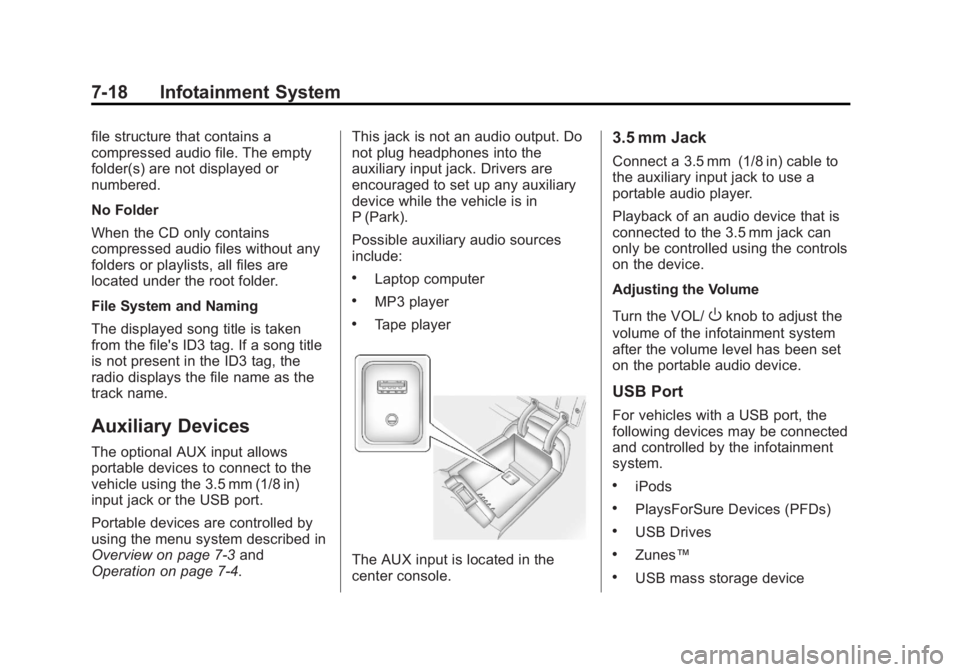
The AUX input is located in the
center console.
3.5 mm Jack
Connect a 3.5 mm (1/8 in) cable to
the auxiliary input jack to use a
portable audio player.
Playback of an audio device that is
connected to the 3.5 mm jack can
only be controlled using the controls
on the device.
Adjusting the Volume
Turn the VOL/
Oknob to adjust the
volume of the infotainment system
after the volume level has been set
on the portable audio device.
USB Port
For vehicles with a USB port, the
following devices may be connected
and controlled by the infotainment
system.
.iPods
.PlaysForSure Devices (PFDs)
.USB Drives
.Zunes™
.USB mass storage device
Page 181 of 422
Black plate (19,1)Buick LaCrosse Owner Manual - 2013 - crc - 9/7/12
Infotainment System 7-19
.Microsoft Transfer
Protocal (MTP)
Not all iPods, PFDs, USB Drives,
and Zunes are compatible with the
infotainment system.
Connecting and Controlling
an iPod®
Not all iPods can be controlled by
the infotainment system.
Connecting an iPod
Connect the iPod to the USB port.
Selecting a Track
Using the control buttons:
.Pressgorlto select the
previous or next track.
.Turn the TUNE knob to select a
track in the current submenu.
The track will start to play. Searching for a Track
Tracks can be searched for by:
.Playlists
.Artists
.Albums
.Song Titles
.Podcasts
.Genres
.Audiobooks
.Composers
To search for tracks:
1. Turn the Multifunction knob.
2. Select Search.
3. Select: Playlists, Artists, Albums, Song Titles, Podcasts, Genres,
Audiobooks, or Composers.
4. Select the track.
Shuffle
Turn the Multifunction knob and set
Shuffle Songs (Random) to On or
Off, then press the
/BACK button
to return the main screen.
On: Plays tracks in the current
folder in random order.
Off: Plays tracks in the current
folder in sequential order.
Repeat
Turn the Multifunction knob and set
Repeat to On or Off, then press the
/BACK button to return the main
screen.
On: Repeats the current track.
Off: Playback starts from the
beginning of the current track after
the last track finishes.
Page 182 of 422
Black plate (20,1)Buick LaCrosse Owner Manual - 2013 - crc - 9/7/12
7-20 Infotainment System
Connecting and Controlling a
PlaysForSure Device (PFD)
or Zune
Connecting a PFD or Zune
Connect the PFD or Zune to the
USB port.
Searching for a Track
Tracks can be searched for by:
.Playlists
.Artists
.Albums
.Song Titles
.Podcasts
.Genres
To search for tracks:
1. Turn the Multifunction knob.
2. Select Search.
3. Select: Playlists, Artists, Albums, Song Titles, Podcasts,
or Genres.
4. Select the track. Shuffle Functionality
Turn the Multifunction knob and set
Shuffle Songs (Random) to On
or Off.
On:
Plays current tracks in random
order.
Off: Plays current tracks in
sequential order.
Repeat Functionality
Turn the Multifunction knob and set
Repeat to On or Off.
Repeat On: Repeats the current
track.
Repeat Off: Playback starts from
the beginning of the current track
after the last track finishes.
Phone
Bluetooth (Overview)
For vehicles equipped with
Bluetooth capability, the system can
interact with many cell phones,
allowing:
.Placement and receipt of calls in
a hands-free mode.
.Sharing of the cell phone’s
address book or contact list with
the vehicle.
To minimize driver distraction,
before driving, and with the vehicle
parked:
.Become familiar with the
features of the cell phone.
Organize the phone book and
contact lists clearly and delete
duplicate or rarely used entries.
If possible, program speed dial
or other shortcuts.
.Review the controls and
operation of the infotainment
system.
Page 183 of 422
Black plate (21,1)Buick LaCrosse Owner Manual - 2013 - crc - 9/7/12
Infotainment System 7-21
.Pair cell phone(s) to the vehicle.
The system may not work with
all cell phones. See“Pairing”in
this section for more information.
.If the cell phone has voice
dialing capability, learn to use
that feature to access the
address book or contact list. See
“Voice Pass-Thru” in this section
for more information.
.See “Storing and Deleting Phone
Numbers” in this section for
more information.
{WARNING
When using a cell phone, it can
be distracting to look too long or
too often at the screen of the
phone or the infotainment
(navigation) system. Taking your
eyes off the road too long or too
often could cause a crash
resulting in injury or death. Focus
your attention on driving. Vehicles with a Bluetooth system
can use a Bluetooth-capable cell
phone with a Hands-Free Profile to
make and receive phone calls. The
infotainment system and voice
recognition are used to control the
system. The system can be used
while in ON/RUN or ACC/
ACCESSORY. The range of the
Bluetooth system can be up to 9.1 m
(30 ft). Not all phones support all
functions and not all phones work
with the Bluetooth system. See
www.gm.com/bluetooth for more
information about compatible
phones.Bluetooth Controls
Use the buttons located on the
infotainment system and the
steering wheel to operate the
Bluetooth system.
Steering Wheel Controls
b/g(Push To Talk):
Press to
answer incoming calls, confirm
system information, and start voice
recognition.
$/i(End Call): Press to end a
call, reject a call, or cancel an
operation.
Infotainment System Controls
If equipped, the infotainment system
allows certain controls to be
selected on the infotainment display.
For information about how to
navigate the menu system using the
infotainment controls, see Overview
on page 7‑3 orAM-FM Radio on
page 7‑9.
5(Phone): Press to enter the
Phone main menu.
Voice Recognition
The voice recognition system uses
commands to control the system
and dial phone numbers.
Noise: The system may not
recognize voice commands if there
is too much background noise.
When to Speak: A tone sounds to
indicate that the system is ready for
a voice command. Wait for the tone
and then speak.