buttons BUICK LACROSSE 2013 Owner's Guide
[x] Cancel search | Manufacturer: BUICK, Model Year: 2013, Model line: LACROSSE, Model: BUICK LACROSSE 2013Pages: 422, PDF Size: 5.74 MB
Page 165 of 422
Black plate (3,1)Buick LaCrosse Owner Manual - 2013 - crc - 9/7/12
Infotainment System 7-3
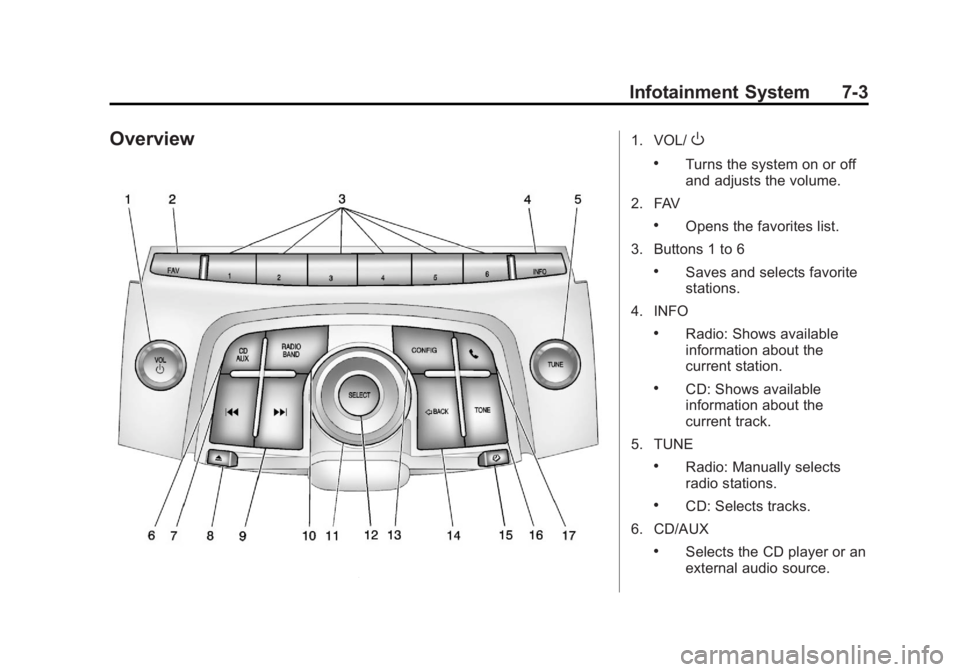
Overview1. VOL/O
.Turns the system on or off
and adjusts the volume.
2. FAV
.Opens the favorites list.
3. Buttons 1 to 6
.Saves and selects favorite
stations.
4. INFO
.Radio: Shows available
information about the
current station.
.CD: Shows available
information about the
current track.
5. TUNE
.Radio: Manually selects
radio stations.
.CD: Selects tracks.
6. CD/AUX
.Selects the CD player or an
external audio source.
Page 166 of 422
Black plate (4,1)Buick LaCrosse Owner Manual - 2013 - crc - 9/7/12
7-4 Infotainment System
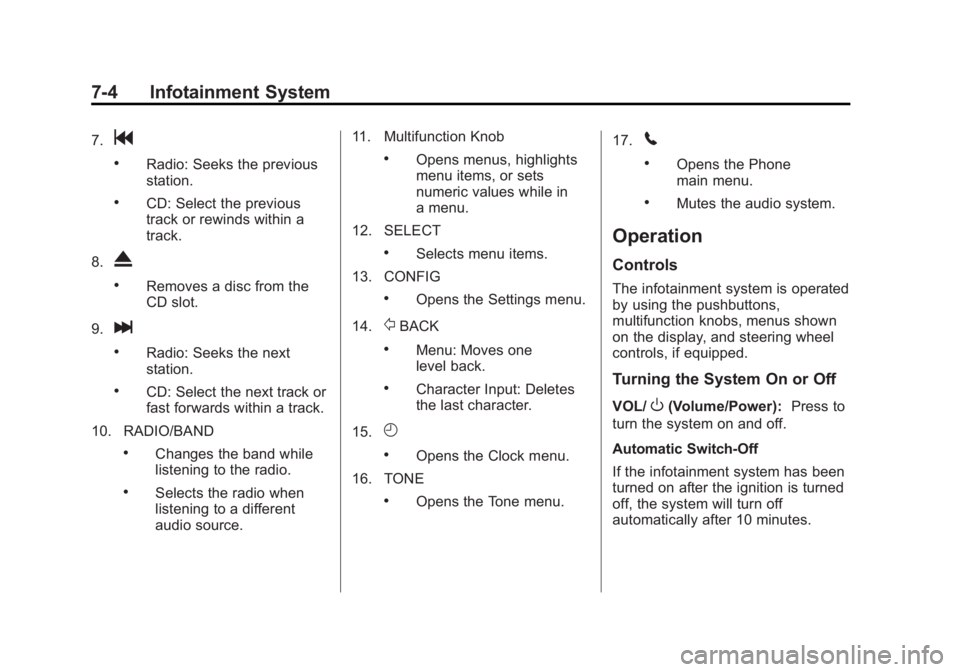
7.g
.Radio: Seeks the previous
station.
.CD: Select the previous
track or rewinds within a
track.
8.
X
.Removes a disc from the
CD slot.
9.
l
.Radio: Seeks the next
station.
.CD: Select the next track or
fast forwards within a track.
10. RADIO/BAND
.Changes the band while
listening to the radio.
.Selects the radio when
listening to a different
audio source. 11. Multifunction Knob
.Opens menus, highlights
menu items, or sets
numeric values while in
a menu.
12. SELECT
.Selects menu items.
13. CONFIG
.Opens the Settings menu.
14.
/BACK
.Menu: Moves one
level back.
.Character Input: Deletes
the last character.
15.
H
.Opens the Clock menu.
16. TONE
.Opens the Tone menu. 17.
5
.Opens the Phone
main menu.
.Mutes the audio system.
Operation
Controls
The infotainment system is operated
by using the pushbuttons,
multifunction knobs, menus shown
on the display, and steering wheel
controls, if equipped.
Turning the System On or Off
VOL/O(Volume/Power):
Press to
turn the system on and off.
Automatic Switch-Off
If the infotainment system has been
turned on after the ignition is turned
off, the system will turn off
automatically after 10 minutes.
Page 172 of 422
Black plate (10,1)Buick LaCrosse Owner Manual - 2013 - crc - 9/7/12
7-10 Infotainment System
Changing the Sources
Press the RADIO/BAND button on
the faceplate to change (AM, FM,
SiriusXM
®, CD, or AUX) audio
sources.
Storing Radio Station Presets
There are a few ways to store
presets.
Up to 36 preset stations can be
stored. AM, FM, and SiriusXM,
if equipped, can be mixed.
1. From the AM, FM, or SiriusXM main page, press and hold one
of the preset screen buttons at
the bottom of the screen. After a
few seconds, a beep will be
heard and the new preset
information will display on that
screen button.
2. Touch and hold a preset button to store the currently active
station. After a few seconds, a
beep will be heard and the new
preset information will display on
a small pop-up display at the
bottom of the screen. 3. Repeat the steps for each
preset.
To change the number of preset
pages, see “Mixed-Band Presets”
following.
Recalling a Preset Station
To recall a preset station, do the
following:
.Press the FAV button on the
faceplate to display the FAV
pop-up. Select the desired
preset from the pop-up.
.Press the FAV screen button at
the top bar to display the preset
pop-up that appears at the
bottom of the page. Press one of
the preset screen buttons to go
to the selected preset station.
.In the AM, FM, or SiriusXM (if
equipped) main page, press one
of the preset screen buttons to
go to the selected preset station.
Mixed-Band Presets
Each page can store six preset
stations. The presets within a page
can be from different radio bands.
To scroll through the pages, press
the FAV button on the faceplate or
the FAV screen button on the top
bar. The current page number
displays above the preset buttons.
The stored stations for each FAV
page display on the preset buttons
at the bottom of the screen. The
number of FAV pages displayed can
be changed in the Radio Settings in
the Configuration Menu.
Satellite Radio
SiriusXM®Satellite Radio
Service
Vehicles with an SiriusXM satellite
radio tuner and an SiriusXM satellite
radio subscription can receive
SiriusXM programming.
SiriusXM is a satellite radio service
based in the 48 contiguous United
States and 10 Canadian provinces.
Page 173 of 422
Black plate (11,1)Buick LaCrosse Owner Manual - 2013 - crc - 9/7/12
Infotainment System 7-11
SiriusXM satellite radio has a wide
variety of programming and
commercial-free music, coast to
coast, and in digital-quality sound.
A service fee is required to receive
the SiriusXM service. For more
information, see www.siriusxm.com
or call 1-866-635-2349 (U.S) and
www.xmradio.ca or call
1-877-209-0079 (Canada).
When SiriusXM is active, the
channel name and number,
category name, song title, and artist
display on the screen.
SiriusXM Categories (Radio
with CD)
SiriusXM stations are organized in
categories.
Removing or Adding Categories
1. Press the CONFIG button. Turnthe Multifunction knob until
Radio displays. Press SELECT
or press Radio to display the
radio settings menu.
2. Select the Show/Hide XM Categories screen button. 3. Press the category buttons on
the screen to show or hide the
category.
SiriusXM Categories (Radio
with CD and Touchscreen)
Adding or Removing Categories
1. From the Home Page press the
Config screen button or the
CONFIG button on the
infotainment system.
2. Select Radio Settings from the Config Menu list.
3. Select Add/Remove XM Categories.
4. From the Add/Remove XM Categories screen, select or
deselect any category to be
used in XM mode. A checkmark
will indicate that the category is
selected. Turning SiriusXM Album Art On
or Off
1. From the Home Page press the
Config screen button or the
CONFIG button on the
infotainment system.
2. Select Radio Settings from the Config Menu list.
3. Select XM Album Art to turn on or off.
SiriusXM Messages
XL (Explicit Language
Channels): These channels, or any
others, can be blocked by request,
by calling 1-800-929-2100 in the
U.S., and 1-877-438-9677 in
Canada.
XM Updating: The encryption code
in the receiver is being updated. No
action is required. This process
should take no longer than
30 seconds.
Page 179 of 422
Black plate (17,1)Buick LaCrosse Owner Manual - 2013 - crc - 9/7/12
Infotainment System 7-17
SELECT:
Press to:
.Select or activate the highlighted
menu option.
.Confirm a set value.
.Turn a system setting on or off.
Disc Music Menu
Press the SELECT knob to access
the Disc music menu.
Turn the SELECT knob to scroll,
then press it to select any of the
following category buttons on the
MP3 music menu to display the
corresponding category screen:
.Folders/Playlists
Select to view the folders stored
on the disc. Select a folder to
view the list of all the songs in
that folder. There might be a
delay before the list displays.
Select the song from the list and
it begins to play.
.Track List (All Songs)
Select to view a list of all songs
on the disc. There might be a
delay before the list displays.
Select a song from the list and it
begins to play. Songs are
displayed based on the CD
burning application folder and
file structure used.
.Artists
Select to view the list of artists
that have been stored on the
disc. Select an artist name to
view a list of all songs by the
artist. There might be a delay
before the list displays. Select
the desired song from the list
and it begins to play.
.Albums
Select to view the albums on the
disc. Select the album to view a
list of all songs on the album.
There might be a delay before
the list displays. Select a song
from the list and it begins to play.
.Genres
Select to view the genres on the
disc. Select a genre to view a list
of all songs of that genre. There
might be a delay before the list
displays. Select a song from the
list and it begins to play.
.Song Titles
Select to display a list of all
songs on the disc. There might
be a delay before the list
displays. Select a song from the
list and it begins to play. Songs
are displayed in alphabetical
order based on the Song Title
ID3 tag, if available.
Root Directory
The root directory is treated as a
folder. All files contained directly
under the root directory are
accessed prior to any root directory
folders.
Empty Directory or Folder
If a root directory or folder is empty
or contains only folders, the player
advances to the next folder in the
Page 181 of 422
Black plate (19,1)Buick LaCrosse Owner Manual - 2013 - crc - 9/7/12
Infotainment System 7-19
.Microsoft Transfer
Protocal (MTP)
Not all iPods, PFDs, USB Drives,
and Zunes are compatible with the
infotainment system.
Connecting and Controlling
an iPod®
Not all iPods can be controlled by
the infotainment system.
Connecting an iPod
Connect the iPod to the USB port.
Selecting a Track
Using the control buttons:
.Pressgorlto select the
previous or next track.
.Turn the TUNE knob to select a
track in the current submenu.
The track will start to play. Searching for a Track
Tracks can be searched for by:
.Playlists
.Artists
.Albums
.Song Titles
.Podcasts
.Genres
.Audiobooks
.Composers
To search for tracks:
1. Turn the Multifunction knob.
2. Select Search.
3. Select: Playlists, Artists, Albums, Song Titles, Podcasts, Genres,
Audiobooks, or Composers.
4. Select the track.
Shuffle
Turn the Multifunction knob and set
Shuffle Songs (Random) to On or
Off, then press the
/BACK button
to return the main screen.
On: Plays tracks in the current
folder in random order.
Off: Plays tracks in the current
folder in sequential order.
Repeat
Turn the Multifunction knob and set
Repeat to On or Off, then press the
/BACK button to return the main
screen.
On: Repeats the current track.
Off: Playback starts from the
beginning of the current track after
the last track finishes.
Page 183 of 422
Black plate (21,1)Buick LaCrosse Owner Manual - 2013 - crc - 9/7/12
Infotainment System 7-21
.Pair cell phone(s) to the vehicle.
The system may not work with
all cell phones. See“Pairing”in
this section for more information.
.If the cell phone has voice
dialing capability, learn to use
that feature to access the
address book or contact list. See
“Voice Pass-Thru” in this section
for more information.
.See “Storing and Deleting Phone
Numbers” in this section for
more information.
{WARNING
When using a cell phone, it can
be distracting to look too long or
too often at the screen of the
phone or the infotainment
(navigation) system. Taking your
eyes off the road too long or too
often could cause a crash
resulting in injury or death. Focus
your attention on driving. Vehicles with a Bluetooth system
can use a Bluetooth-capable cell
phone with a Hands-Free Profile to
make and receive phone calls. The
infotainment system and voice
recognition are used to control the
system. The system can be used
while in ON/RUN or ACC/
ACCESSORY. The range of the
Bluetooth system can be up to 9.1 m
(30 ft). Not all phones support all
functions and not all phones work
with the Bluetooth system. See
www.gm.com/bluetooth for more
information about compatible
phones.Bluetooth Controls
Use the buttons located on the
infotainment system and the
steering wheel to operate the
Bluetooth system.
Steering Wheel Controls
b/g(Push To Talk):
Press to
answer incoming calls, confirm
system information, and start voice
recognition.
$/i(End Call): Press to end a
call, reject a call, or cancel an
operation.
Infotainment System Controls
If equipped, the infotainment system
allows certain controls to be
selected on the infotainment display.
For information about how to
navigate the menu system using the
infotainment controls, see Overview
on page 7‑3 orAM-FM Radio on
page 7‑9.
5(Phone): Press to enter the
Phone main menu.
Voice Recognition
The voice recognition system uses
commands to control the system
and dial phone numbers.
Noise: The system may not
recognize voice commands if there
is too much background noise.
When to Speak: A tone sounds to
indicate that the system is ready for
a voice command. Wait for the tone
and then speak.
Page 240 of 422
Black plate (38,1)Buick LaCrosse Owner Manual - 2013 - crc - 9/7/12
9-38 Driving and Operating
WARNING (Continued)
Cruise control can be dangerous
on slippery roads. On such roads,
fast changes in tire traction can
cause excessive wheel slip, and
you could lose control. Do not use
cruise control on slippery roads.
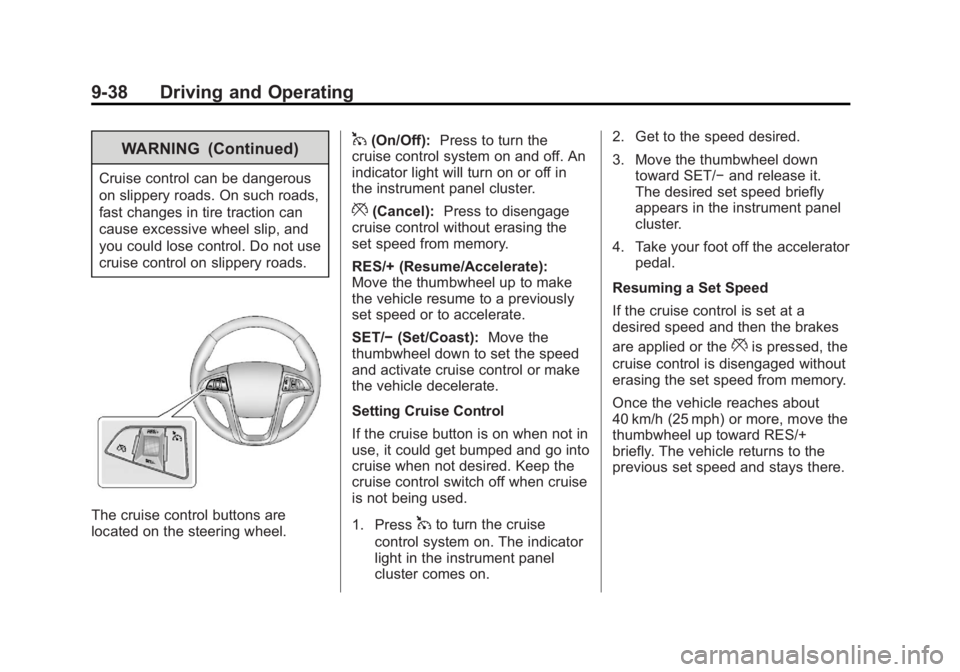
The cruise control buttons are
located on the steering wheel.
1(On/Off):Press to turn the
cruise control system on and off. An
indicator light will turn on or off in
the instrument panel cluster.
*(Cancel): Press to disengage
cruise control without erasing the
set speed from memory.
RES/+ (Resume/Accelerate):
Move the thumbwheel up to make
the vehicle resume to a previously
set speed or to accelerate.
SET/− (Set/Coast): Move the
thumbwheel down to set the speed
and activate cruise control or make
the vehicle decelerate.
Setting Cruise Control
If the cruise button is on when not in
use, it could get bumped and go into
cruise when not desired. Keep the
cruise control switch off when cruise
is not being used.
1. Press
1to turn the cruise
control system on. The indicator
light in the instrument panel
cluster comes on. 2. Get to the speed desired.
3. Move the thumbwheel down
toward SET/− and release it.
The desired set speed briefly
appears in the instrument panel
cluster.
4. Take your foot off the accelerator pedal.
Resuming a Set Speed
If the cruise control is set at a
desired speed and then the brakes
are applied or the
*is pressed, the
cruise control is disengaged without
erasing the set speed from memory.
Once the vehicle reaches about
40 km/h (25 mph) or more, move the
thumbwheel up toward RES/+
briefly. The vehicle returns to the
previous set speed and stays there.
Page 347 of 422
Black plate (87,1)Buick LaCrosse Owner Manual - 2013 - crc - 9/7/12
Vehicle Care 10-87
Jump Starting
Jump Starting (On-board
with eAssist Only)
If the vehicle fails to crank, it may
be jump started by using the eAssist
battery to charge the 12-volt battery.
Use the following procedure to
activate the on-board jump start
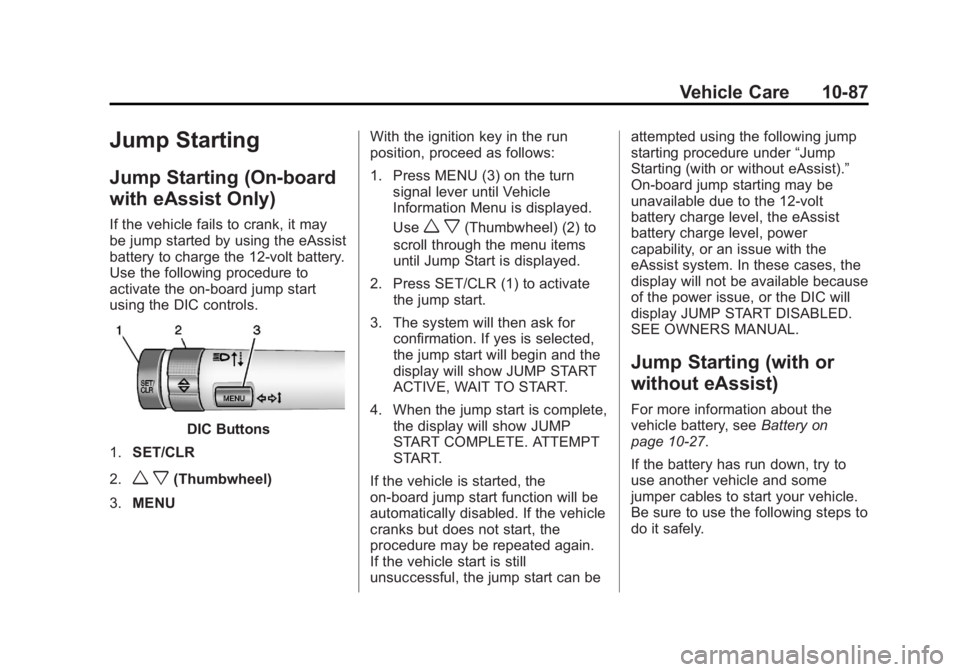
using the DIC controls.
DIC Buttons
1. SET/CLR
2.
w x(Thumbwheel)
3. MENU With the ignition key in the run
position, proceed as follows:
1. Press MENU (3) on the turn
signal lever until Vehicle
Information Menu is displayed.
Use
w x(Thumbwheel) (2) to
scroll through the menu items
until Jump Start is displayed.
2. Press SET/CLR (1) to activate the jump start.
3. The system will then ask for confirmation. If yes is selected,
the jump start will begin and the
display will show JUMP START
ACTIVE, WAIT TO START.
4. When the jump start is complete, the display will show JUMP
START COMPLETE. ATTEMPT
START.
If the vehicle is started, the
on-board jump start function will be
automatically disabled. If the vehicle
cranks but does not start, the
procedure may be repeated again.
If the vehicle start is still
unsuccessful, the jump start can be attempted using the following jump
starting procedure under
“Jump
Starting (with or without eAssist).”
On-board jump starting may be
unavailable due to the 12-volt
battery charge level, the eAssist
battery charge level, power
capability, or an issue with the
eAssist system. In these cases, the
display will not be available because
of the power issue, or the DIC will
display JUMP START DISABLED.
SEE OWNERS MANUAL.
Jump Starting (with or
without eAssist)
For more information about the
vehicle battery, see Battery on
page 10‑27.
If the battery has run down, try to
use another vehicle and some
jumper cables to start your vehicle.
Be sure to use the following steps to
do it safely.
Page 401 of 422
Black plate (1,1)Buick LaCrosse Owner Manual - 2013 - crc - 9/7/12
OnStar 14-1
OnStar
OnStar Overview
OnStar Overview . . . . . . . . . . . . 14-1
OnStar Services
Emergency . . . . . . . . . . . . . . . . . . 14-2
Security . . . . . . . . . . . . . . . . . . . . . . 14-2
Navigation . . . . . . . . . . . . . . . . . . . 14-2
Connections . . . . . . . . . . . . . . . . . 14-3
Diagnostics . . . . . . . . . . . . . . . . . . 14-5
OnStar Additional Information
OnStar AdditionalInformation . . . . . . . . . . . . . . . . . 14-5
OnStar Overview
If equipped, this vehicle has a
comprehensive, in-vehicle system
that can connect to a live Advisor
for Emergency, Security, Navigation,
Connection, and Diagnostic
Services.
The OnStar system status light is
next to the OnStar buttons. If the
status light is:
.Solid Green: System is ready.
.Flashing Green: On a call.
.Red: Indicates a problem.
Press
Qor call 1-888-4ONSTAR
(1-888-466-7827) to speak to an
Advisor. Press
=to:
.Make a call, end a call,
or answer an incoming call.
.Give OnStar Hands-Free Calling
voice commands.
.Give OnStar Turn-by-Turn
Navigation voice commands.
Requires the available Directions
and Connections service plan.
Press
Qto connect to a live
Advisor to:
.Verify account information or
update contact information.
.Get driving directions. Requires
the available Directions and
Connections service plan.
.Receive On-Demand
Diagnostics for a check of the
vehicle’s key operating systems.
.Receive Roadside Assistance.