Set BUICK LACROSSE 2016 Owner's Guide
[x] Cancel search | Manufacturer: BUICK, Model Year: 2016, Model line: LACROSSE, Model: BUICK LACROSSE 2016Pages: 367, PDF Size: 5.33 MB
Page 109 of 367
Buick LaCrosse Owner Manual (GMNA-Localizing-U.S./Canada/Mexico-
9159288) - 2016 - CRC - 10/5/15
108 Instruments and Controls
Cluster Menu
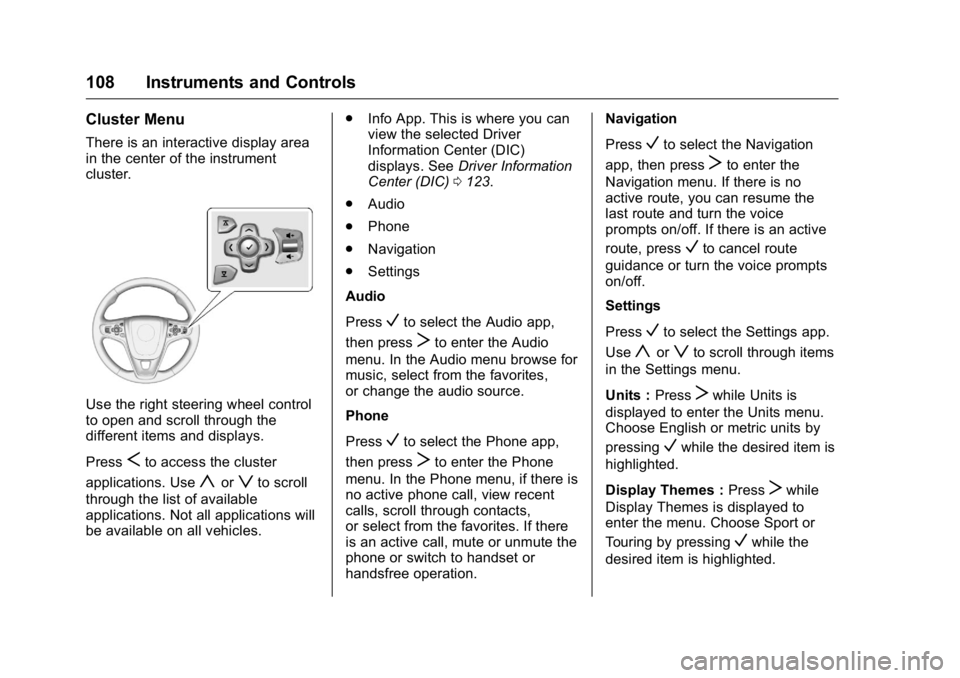
There is an interactive display area
in the center of the instrument
cluster.
Use the right steering wheel control
to open and scroll through the
different items and displays.
Press
Sto access the cluster
applications. Use
yorzto scroll
through the list of available
applications. Not all applications will
be available on all vehicles. .
Info App. This is where you can
view the selected Driver
Information Center (DIC)
displays. See Driver Information
Center (DIC) 0123.
. Audio
. Phone
. Navigation
. Settings
Audio
Press
Vto select the Audio app,
then press
Tto enter the Audio
menu. In the Audio menu browse for
music, select from the favorites,
or change the audio source.
Phone
Press
Vto select the Phone app,
then press
Tto enter the Phone
menu. In the Phone menu, if there is
no active phone call, view recent
calls, scroll through contacts,
or select from the favorites. If there
is an active call, mute or unmute the
phone or switch to handset or
handsfree operation. Navigation
Press
Vto select the Navigation
app, then press
Tto enter the
Navigation menu. If there is no
active route, you can resume the
last route and turn the voice
prompts on/off. If there is an active
route, press
Vto cancel route
guidance or turn the voice prompts
on/off.
Settings
Press
Vto select the Settings app.
Use
yorzto scroll through items
in the Settings menu.
Units : Press
Twhile Units is
displayed to enter the Units menu.
Choose English or metric units by
pressing
Vwhile the desired item is
highlighted.
Display Themes : Press
Twhile
Display Themes is displayed to
enter the menu. Choose Sport or
Touring by pressing
Vwhile the
desired item is highlighted.
Page 110 of 367
Buick LaCrosse Owner Manual (GMNA-Localizing-U.S./Canada/Mexico-
9159288) - 2016 - CRC - 10/5/15
Instruments and Controls 109
Info Pages :PressTwhile Info
Pages is displayed to enter the Info
Pages menu and select the items to
be displayed in the Info App. See
Driver Information Center
(DIC) 0123.
Adaptive Cruise Control : Allows
the driver to select the Auto or
Manual setting for Adaptive Cruise
Control (ACC). When the Auto
setting is on, ACC will adjust the
vehicle speed based on the
detected road speed.
Speed Warning : The Speed
Warning display allows the driver to
set a speed that they do not want to
exceed. To set the Speed Warning,
press
Twhen Speed Warning is
displayed. Press
yorzto adjust
the value. Press
Vto set the speed.
Once the speed is set, this feature
can be turned off by pressing
V
while viewing this page. If the
selected speed limit is exceeded, a
pop-up warning is displayed with a
chime. Software Information :
Displays
the open source software
information.
Compass : In certain vehicles the
compass setting will allow for
manually setting the compass. The
user can set the zone and calibrate
the compass. This setting page is
only available on vehicles that are
equipped with Remote Compass
Module.
Jump Start : The Jump Start
display is used to perform an
on-board jump start for eAssist
vehicles. See “Jump Starting
(On-board with eAssist Only)” in the
Index.
Speedometer
The speedometer shows the
vehicle's speed in either kilometers
per hour (km/h) or miles per
hour (mph).
Odometer
The odometer shows how far the
vehicle has been driven, in either
kilometers or miles.
Tachometer
The tachometer displays the engine
speed in revolutions per
minute (rpm).
For eAssist vehicles, when the
ignition is in ON/RUN, the
tachometer indicates the vehicle
status. When pointing to AUTO
STOP, the engine is off but the
vehicle is on and can move. The
engine could auto start at any time.
When the indicator points to OFF,
the vehicle is off.
When the engine is on, the
tachometer will indicate the engine’s
revolutions per minute (rpm). The
tachometer may vary by several
hundred rpm’s, during auto stop
mode, when the engine is shutting
off and restarting.
A slight bump may be felt when the
transmission is determining the
most fuel efficient operating range.
Page 118 of 367
Buick LaCrosse Owner Manual (GMNA-Localizing-U.S./Canada/Mexico-
9159288) - 2016 - CRC - 10/5/15
Instruments and Controls 117
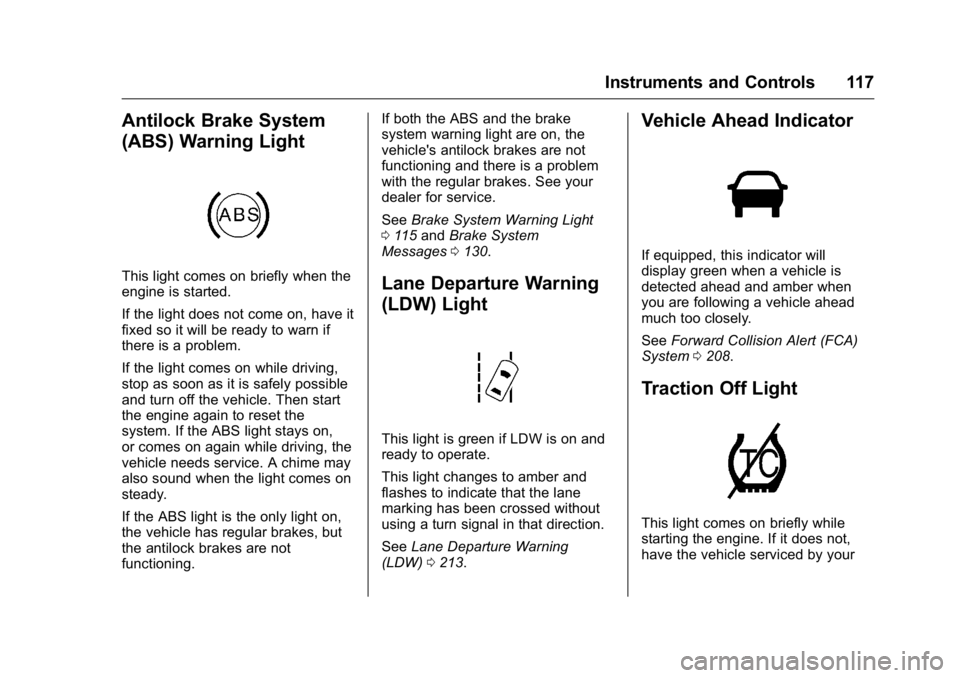
Antilock Brake System
(ABS) Warning Light
This light comes on briefly when the
engine is started.
If the light does not come on, have it
fixed so it will be ready to warn if
there is a problem.
If the light comes on while driving,
stop as soon as it is safely possible
and turn off the vehicle. Then start
the engine again to reset the
system. If the ABS light stays on,
or comes on again while driving, the
vehicle needs service. A chime may
also sound when the light comes on
steady.
If the ABS light is the only light on,
the vehicle has regular brakes, but
the antilock brakes are not
functioning.If both the ABS and the brake
system warning light are on, the
vehicle's antilock brakes are not
functioning and there is a problem
with the regular brakes. See your
dealer for service.
See
Brake System Warning Light
0 115 and Brake System
Messages 0130.Lane Departure Warning
(LDW) Light
This light is green if LDW is on and
ready to operate.
This light changes to amber and
flashes to indicate that the lane
marking has been crossed without
using a turn signal in that direction.
See Lane Departure Warning
(LDW) 0213.
Vehicle Ahead Indicator
If equipped, this indicator will
display green when a vehicle is
detected ahead and amber when
you are following a vehicle ahead
much too closely.
See Forward Collision Alert (FCA)
System 0208.
Traction Off Light
This light comes on briefly while
starting the engine. If it does not,
have the vehicle serviced by your
Page 122 of 367
Buick LaCrosse Owner Manual (GMNA-Localizing-U.S./Canada/Mexico-
9159288) - 2016 - CRC - 10/5/15
Instruments and Controls 121
This light comes on solid when
there is a problem with the AFL
system. It flashes when the system
is switching between lighting
modes. SeeAdaptive Forward
Lighting (AFL) 0150.
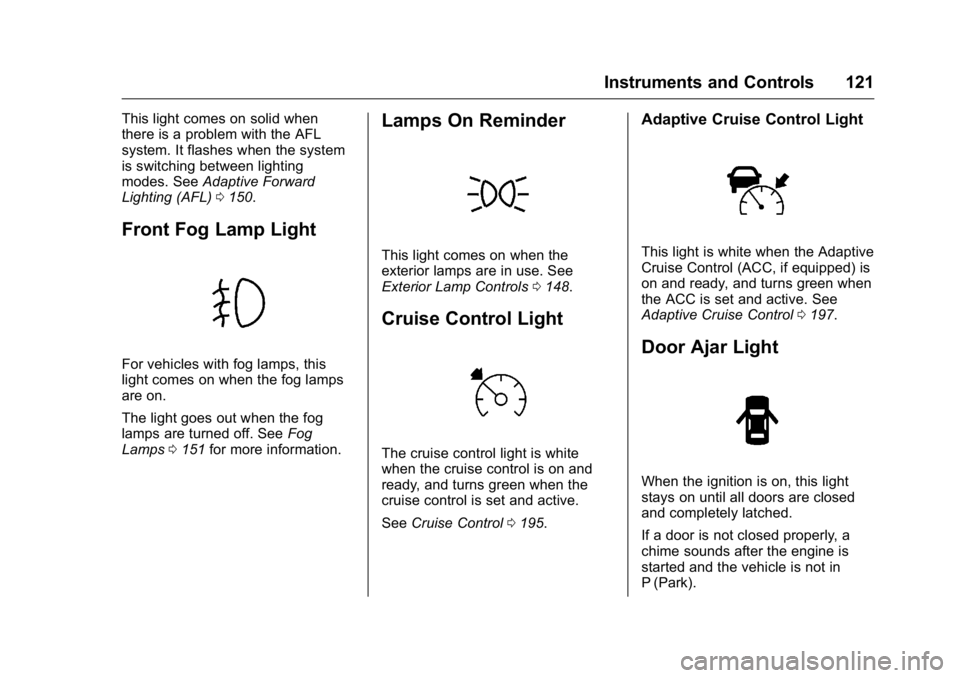
Front Fog Lamp Light
For vehicles with fog lamps, this
light comes on when the fog lamps
are on.
The light goes out when the fog
lamps are turned off. See Fog
Lamps 0151 for more information.
Lamps On Reminder
This light comes on when the
exterior lamps are in use. See
Exterior Lamp Controls 0148.
Cruise Control Light
The cruise control light is white
when the cruise control is on and
ready, and turns green when the
cruise control is set and active.
See Cruise Control 0195.
Adaptive Cruise Control Light
This light is white when the Adaptive
Cruise Control (ACC, if equipped) is
on and ready, and turns green when
the ACC is set and active. See
Adaptive Cruise Control 0197.
Door Ajar Light
When the ignition is on, this light
stays on until all doors are closed
and completely latched.
If a door is not closed properly, a
chime sounds after the engine is
started and the vehicle is not in
P (Park).
Page 124 of 367
Buick LaCrosse Owner Manual (GMNA-Localizing-U.S./Canada/Mexico-
9159288) - 2016 - CRC - 10/5/15
Instruments and Controls 123
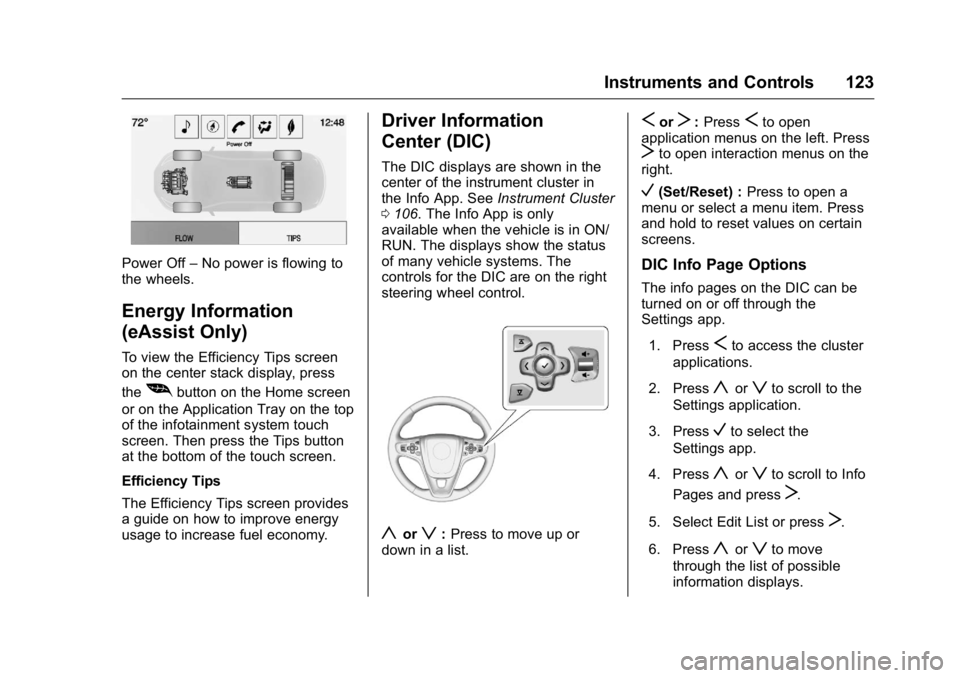
Power Off–No power is flowing to
the wheels.
Energy Information
(eAssist Only)
To view the Efficiency Tips screen
on the center stack display, press
the
[button on the Home screen
or on the Application Tray on the top
of the infotainment system touch
screen. Then press the Tips button
at the bottom of the touch screen.
Efficiency Tips
The Efficiency Tips screen provides
a guide on how to improve energy
usage to increase fuel economy.
Driver Information
Center (DIC)
The DIC displays are shown in the
center of the instrument cluster in
the Info App. See Instrument Cluster
0 106. The Info App is only
available when the vehicle is in ON/
RUN. The displays show the status
of many vehicle systems. The
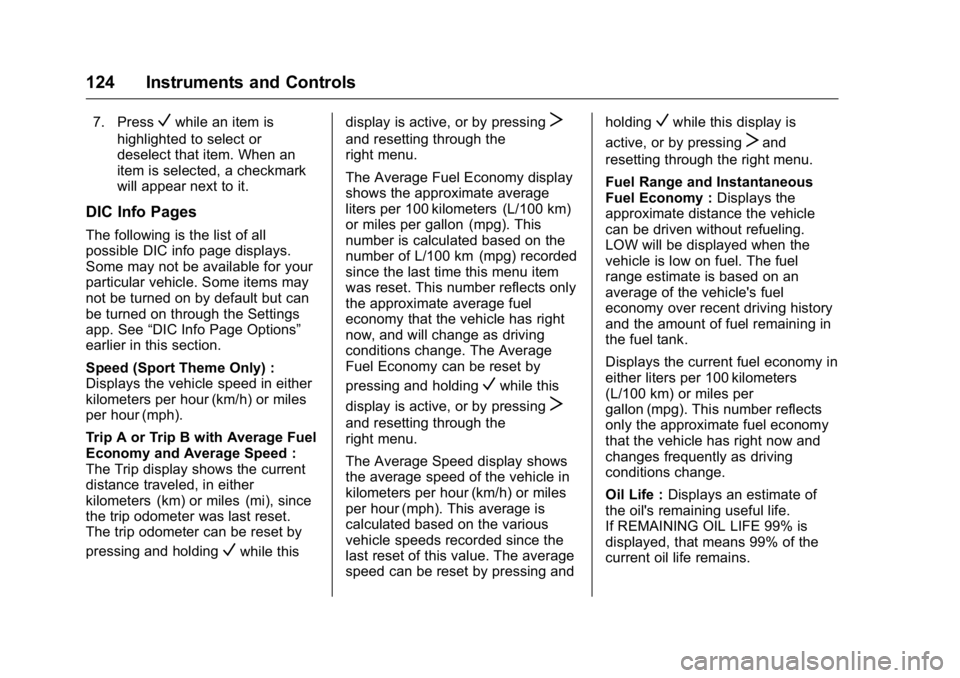
controls for the DIC are on the right
steering wheel control.
yorz: Press to move up or
down in a list.
SorT: PressSto open
application menus on the left. Press
Tto open interaction menus on the
right.
V(Set/Reset) : Press to open a
menu or select a menu item. Press
and hold to reset values on certain
screens.
DIC Info Page Options
The info pages on the DIC can be
turned on or off through the
Settings app.
1. Press
Sto access the cluster
applications.
2. Press
yorzto scroll to the
Settings application.
3. Press
Vto select the
Settings app.
4. Press
yorzto scroll to Info
Pages and press
T.
5. Select Edit List or press
T.
6. Press
yorzto move
through the list of possible
information displays.
Page 125 of 367
Buick LaCrosse Owner Manual (GMNA-Localizing-U.S./Canada/Mexico-
9159288) - 2016 - CRC - 10/5/15
124 Instruments and Controls
7. PressVwhile an item is
highlighted to select or
deselect that item. When an
item is selected, a checkmark
will appear next to it.
DIC Info Pages
The following is the list of all
possible DIC info page displays.
Some may not be available for your
particular vehicle. Some items may
not be turned on by default but can
be turned on through the Settings
app. See “DIC Info Page Options”
earlier in this section.
Speed (Sport Theme Only) :
Displays the vehicle speed in either
kilometers per hour (km/h) or miles
per hour (mph).
Trip A or Trip B with Average Fuel
Economy and Average Speed :
The Trip display shows the current
distance traveled, in either
kilometers (km) or miles (mi), since
the trip odometer was last reset.
The trip odometer can be reset by
pressing and holding
Vwhile this display is active, or by pressing
T
and resetting through the
right menu.
The Average Fuel Economy display
shows the approximate average
liters per 100 kilometers (L/100 km)
or miles per gallon (mpg). This
number is calculated based on the
number of L/100 km (mpg) recorded
since the last time this menu item
was reset. This number reflects only
the approximate average fuel
economy that the vehicle has right
now, and will change as driving
conditions change. The Average
Fuel Economy can be reset by
pressing and holding
Vwhile this
display is active, or by pressing
T
and resetting through the
right menu.
The Average Speed display shows
the average speed of the vehicle in
kilometers per hour (km/h) or miles
per hour (mph). This average is
calculated based on the various
vehicle speeds recorded since the
last reset of this value. The average
speed can be reset by pressing and holding
Vwhile this display is
active, or by pressing
Tand
resetting through the right menu.
Fuel Range and Instantaneous
Fuel Economy : Displays the
approximate distance the vehicle
can be driven without refueling.
LOW will be displayed when the
vehicle is low on fuel. The fuel
range estimate is based on an
average of the vehicle's fuel
economy over recent driving history
and the amount of fuel remaining in
the fuel tank.
Displays the current fuel economy in
either liters per 100 kilometers
(L/100 km) or miles per
gallon (mpg). This number reflects
only the approximate fuel economy
that the vehicle has right now and
changes frequently as driving
conditions change.
Oil Life : Displays an estimate of
the oil's remaining useful life.
If REMAINING OIL LIFE 99% is
displayed, that means 99% of the
current oil life remains.
Page 126 of 367
Buick LaCrosse Owner Manual (GMNA-Localizing-U.S./Canada/Mexico-
9159288) - 2016 - CRC - 10/5/15
Instruments and Controls 125
When the remaining oil life is low,
the CHANGE ENGINE OIL SOON
message will appear on the display.
SeeEngine Oil Messages 0133.
The oil should be changed as soon
as possible. See Engine Oil0236.
In addition to the engine oil life
system monitoring the oil life,
additional maintenance is
recommended in the Maintenance
Schedule. See Maintenance
Schedule 0314.
The Oil Life display must be reset
after each oil change. It will not
reset itself. Do not reset the Oil Life
display accidentally at any time
other than when the oil has just
been changed. It cannot be reset
accurately until the next oil change.
To reset the engine oil life system,
press and hold
Vfor several
seconds while the Oil Life display is
active. See Engine Oil Life
System 0238. Tire Pressure :
Displays the
approximate pressures of all four
tires. Tire pressure is displayed in
either kilopascal (kPa) or in pounds
per square inch (psi). If the pressure
is low, the value for that tire is
shown in amber. See Tire Pressure
Monitor System 0273 andTire
Pressure Monitor Operation 0274.
Fuel Economy : The right hand
side displays the best average fuel
economy (AFE) that is achieved for
a selected distance. The left hand
side displays a running average of
fuel economy for the most recently
traveled selected distance. The
center bar graph displays the
instantaneous fuel economy. Press
the
Tbutton to display a page for
selecting one of the distance
options. Move the up/down arrow to
choose the selection, and
Vto
change the setting. When viewing
best AFE, a several second press
and hold of
Vwill reset the best
value. The best value will show
“- - -“ until the selected distance has
been traveled. The display provides
feedback on how current driving behavior in the bar graph affects the
running average in the left display
and how well recent driving
compares to the best that has been
achieved.
Fuel Used and Timer :
Displays
the approximate liters (L) or
gallons (gal) of fuel that have been
used since last reset. The fuel used
can be reset by pressing the
T
button while the Fuel Used display
is showing.
To start the timer, press
Vwhile this
display is active. The display will
show the amount of time that has
passed since the timer was last
reset. To stop the timer, press
V
briefly while this display is active
and the timer is running. To reset
the timer to zero, press
Twhile this
display is active and select Reset
from the timer menu.
Speed Limit : Displays sign
information, which comes from a
roadway database in the onboard
navigation.
Page 127 of 367
Buick LaCrosse Owner Manual (GMNA-Localizing-U.S./Canada/Mexico-
9159288) - 2016 - CRC - 10/5/15
126 Instruments and Controls
Following Distance Indicator/Gap
Setting :The current follow time to
the vehicle ahead is displayed as a
time value on this page when
Adaptive Cruise Control (ACC) is
not engaged. When ACC has been
engaged, the Follow Distance
Indicator page switches to the Gap
Setting page. This page shows the
current gap setting. See Forward
Collision Alert (FCA) System 0208
and Adaptive Cruise Control 0197.
Driver Efficiency Gauge (eAssist
Only) : Assists in driving efficiently
and will vary based on driver input.
To maximize efficiency, keep the
leaf in the solid green zone in the
center of the gauge. The gauge
moves down when braking and up
when accelerating. When either is
done aggressively, the vehicle is
being driven less efficiently and the
gauge will move further from the
center.
Drive Cycle Summary (eAssist
Only) : Displays the distance
traveled and the fuel economy for
that trip. Top Consumers :
Displays the top
four vehicle energy consumers,
along with their total fuel
consumption.
Economy Trend : Displays history
of the Average Fuel Economy from
the last 50 km (30 miles). Each bar
represents about 5 km (3 miles) of
driving. The fuel economy will range
from 0 –15 L/100 km (0 –50 mpg).
During driving the bars will shift to
always reflect the most recent
distance on the right side. This
display cannot be reset.
ECO Index : The bar graph on the
left hand side provides feedback on
the efficiency of current driving
behavior. The graph shows
a percentage value that is based on
current fuel consumption compared
to what is expected from the vehicle
with good and bad driving habits.
Each box represents 10%, with all
boxes filled being 100%. More
economical driving will result in
being in the ECO box.
Instantaneous Fuel Economy is also
shown on right hand side. This
display cannot be reset.Head-Up Display (HUD)
{Warning
If the HUD image is too bright or
too high in your field of view, it
may take you more time to see
things you need to see when it is
dark outside. Be sure to keep the
HUD image dim and placed low in
your field of view.
If equipped with HUD, some
information concerning the
operation of the vehicle is projected
onto the windshield. The information
is projected through the HUD lens
on the driver side of the instrument
panel and focused out toward the
front of the vehicle.
Caution
If you try to use the HUD image
as a parking aid, you may
misjudge the distance and
damage your vehicle. Do not use
the HUD image as a parking aid.
Page 128 of 367
Buick LaCrosse Owner Manual (GMNA-Localizing-U.S./Canada/Mexico-
9159288) - 2016 - CRC - 10/5/15
Instruments and Controls 127
The HUD information can be
displayed in various languages. The
speedometer reading and other
numerical values can be displayed
in either English or metric units.
The language selection is changed
through the radio and the units of
measurement is changed through
the instrument cluster. SeeVehicle
Personalization 0139 and“Settings”
under Instrument Cluster 0106.
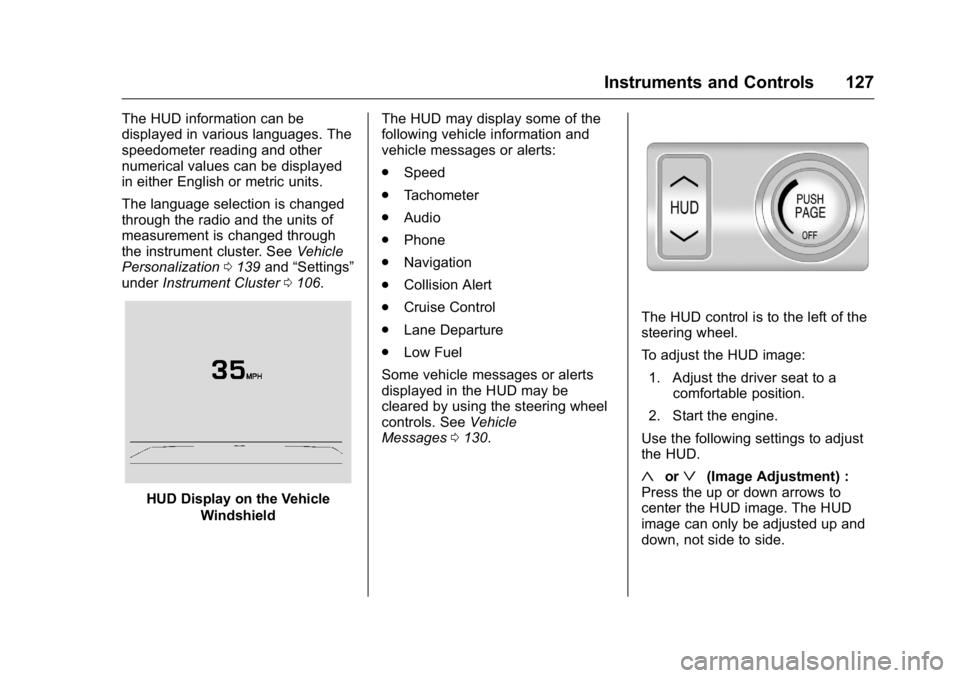
HUD Display on the Vehicle
Windshield The HUD may display some of the
following vehicle information and
vehicle messages or alerts:
.
Speed
. Tachometer
. Audio
. Phone
. Navigation
. Collision Alert
. Cruise Control
. Lane Departure
. Low Fuel
Some vehicle messages or alerts
displayed in the HUD may be
cleared by using the steering wheel
controls. See Vehicle
Messages 0130.
The HUD control is to the left of the
steering wheel.
To adjust the HUD image:
1. Adjust the driver seat to a comfortable position.
2. Start the engine.
Use the following settings to adjust
the HUD.
«orª(Image Adjustment) :
Press the up or down arrows to
center the HUD image. The HUD
image can only be adjusted up and
down, not side to side.
Page 129 of 367
Buick LaCrosse Owner Manual (GMNA-Localizing-U.S./Canada/Mexico-
9159288) - 2016 - CRC - 10/5/15
128 Instruments and Controls
Image Brightness :Turn the
dimming knob clockwise or
counterclockwise to brighten or dim
the display.
The HUD image will automatically
dim and brighten to compensate for
outside lighting. The HUD
brightness control can also be
adjusted as needed.
The HUD image can temporarily
light up depending on the angle and
position of the sunlight on the HUD
display. This is normal.
Polarized sunglasses could make
the HUD image harder to see.
PAGE : Press to select the display
view. Release the PAGE button
when the desired display is shown
on the HUD. If vehicle messages
are displayed, pressing PAGE may
clear the message.
OFF : To turn HUD off, turn the
HUD dimming knob fully
counterclockwise until the HUD
display turns off. HUD Views
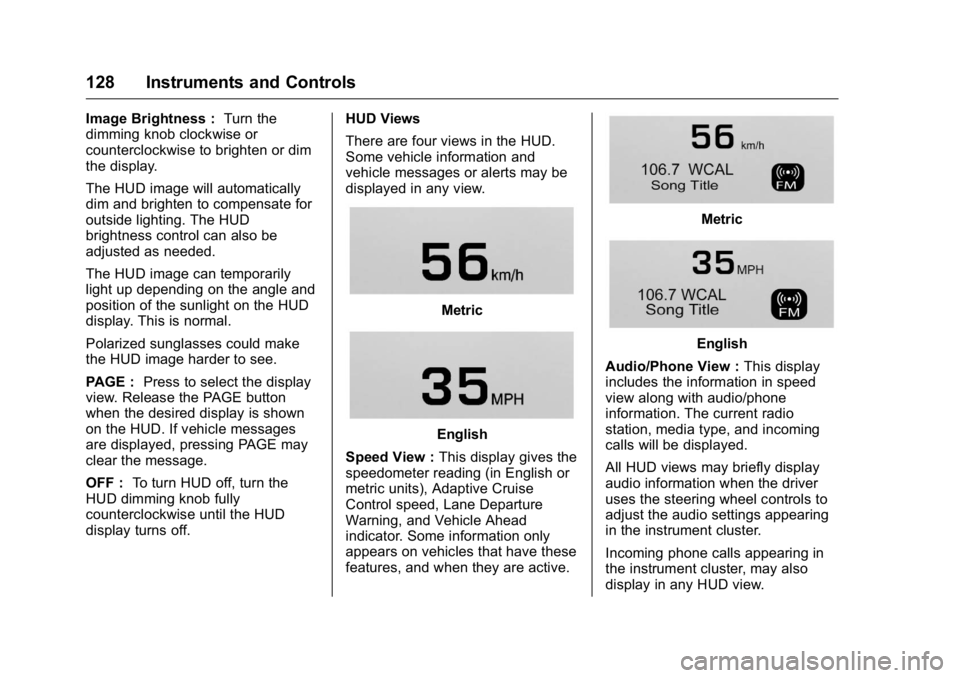
There are four views in the HUD.
Some vehicle information and
vehicle messages or alerts may be
displayed in any view.
Metric
English
Speed View : This display gives the
speedometer reading (in English or
metric units), Adaptive Cruise
Control speed, Lane Departure
Warning, and Vehicle Ahead
indicator. Some information only
appears on vehicles that have these
features, and when they are active.
Metric
English
Audio/Phone View : This display
includes the information in speed
view along with audio/phone
information. The current radio
station, media type, and incoming
calls will be displayed.
All HUD views may briefly display
audio information when the driver
uses the steering wheel controls to
adjust the audio settings appearing
in the instrument cluster.
Incoming phone calls appearing in
the instrument cluster, may also
display in any HUD view.