Reset button BUICK LESABRE 2003 User Guide
[x] Cancel search | Manufacturer: BUICK, Model Year: 2003, Model line: LESABRE, Model: BUICK LESABRE 2003Pages: 380, PDF Size: 2.75 MB
Page 160 of 380

Window Lock Out
The number of passenger windows locked out by the
window LOCK switch can be programmed through
the DIC.
If you choose R + PASS, all three passenger window
switches will be inactive when the window LOCK switch
is enabled.
If you choose REAR, only the two rear passenger
window switches will be locked out when the window
LOCK switch is enabled.
To change modes, do the following:
1. Move the arrow on the display between R + PASS
and REAR by pressing the ENG/MET button.
2. Once you have made your selection, press the
RESET button. Your choice will be retained in
memory.
For more information on this feature, see ªWindow Lock
Outº under
Power Windows on page 2-17.
Security Feedback
By choosing different combinations of these selections,
you can choose the type of transmitter activated
feedback when locking and unlocking your vehicle with
your transmitter. Each time you make a selection by
pressing the ENG/MET button, press the RESET button
to record your choice.
·KEYLESS FEEDBACK ± OFF/ON
·LIGHTS FEEDBACK ± OFF/ON
·HORN FEEDBACK ± OFF/ON
If you choose ON for KEYLESS FEEDBACK you will
also need to choose LIGHTS and/or HORN FEEDBACK.
You can select the following modes:
·If you choose OFF for KEYLESS FEEDBACK, you
will receive no security feedback when locking or
unlocking your vehicle.
·If you choose ON for KEYLESS FEEDBACK and
ON for LIGHTS FEEDBACK, the exterior lamps
will ¯ash twice when unlocking your vehicle
and once when locking your vehicle.
3-52
Page 161 of 380

·If you choose ON for KEYLESS FEEDBACK and
ON for HORN FEEDBACK, your horn will chirp
when all doors are unlocked and when locking your
vehicle.
·If you choose ON for KEYLESS, LIGHTS and
HORN FEEDBACK, your exterior lamps will
¯ash twice at the ®rst unlock button press, your
exterior lamps will ¯ash twice and the horn will chirp
once at the second unlock button press, and the
exterior lamps will ¯ash and the horn will chirp once
when locking your vehicle.
For more information on this feature, see ªSecurity
Feedbackº under
Remote Keyless Entry System
Operation on page 2-5.
Delayed Locking
This feature, which delays the actual locking of the
vehicle, can be made active or inactive through the DIC.
When DELAYED LOCKING ± OFF/ON appears on
the display, use the ENG/MET button to toggle the arrow
between OFF and ON. When you have made your
choice, press the RESET button to record your
selection.
For more information on this feature, see
Delayed
Locking on page 2-11.
Perimeter Lighting
Press the unlock button on the remote keyless entry
transmitter to turn on the DRL (high-beams at reduced
intensity), parking lamps and back-up lamps if it is
dark enough according to the Twilight Sentinel
ž.
You can control activation of this feature by choosing
OFF or ON when the PERIMETER LIGHTS choice
is displayed on the DIC. Make your choice by pressing
the ENG/MET button and record your choice by
pressing the RESET button. You will then be prompted
to choose a TIMEOUT period. See ªExterior Lightsº
following for more information.
For more information on this feature, see ªPerimeter
Lightingº under
Interior Lamps on page 3-17.
Exterior Lights
The EXTERIOR LIGHTS/TIMEOUT feature can be
changed to a desired setting by using the ENG/MET to
toggle from 5 to 30 seconds. Each toggle will increase
the time by ®ve seconds. Once the desired timeout
is displayed, press RESET to record your choice and
move on to the next personal choice feature.
Memory Seats
If your vehicle has this feature, the memory seat and
mirror positions will be recalled for the identi®ed
driver when the remote keyless entry transmitter is used
to enter the vehicle.
3-53
Page 162 of 380

You can program this feature to be active by choosing
ON when the SEAT RECALL choice appears, or
inactive by choosing OFF when the SEAT RECALL
choice appears on the DIC. Make your choices
by pressing the ENG/MET button and store them to
memory by pressing the RESET button.
You can also program this feature to recall your
memory seat position or the exit seat position.
MEMORY:Choose ON when the SEAT RECALL
choice appears, and then choose MEMORY when the
RECALL POSITION choice appears.
EXIT:Choose ON when the SEAT RECALL choice
appears, and then choose EXIT when the RECALL
POSITION choice appears. The seat will move when
you enter the vehicle after unlocking it with a remote
keyless entry transmitter. This will allow for easy entry.
For more information on this feature, see
Memory
Seat and Mirrors on page 2-44.
Outside Curb View Assist Mirror
If your vehicle has the outside curb view assist mirror,
which tips the passenger mirror down while the
vehicle is in REVERSE (R), it can be made active
or inactive through the DIC. When TILTMIRRORS ± OFF/ON appears on the display, use the
ENG/MET button to toggle the arrow between OFF
and ON. When you have made your choice, press the
RESET button to record your selection. For more
information on this feature, see
Outside Curb View
Assist Mirror on page 2-36.
Driver ID
This feature displays the DRIVER ID, as identi®ed by
the DIC. If this feature is ON, the DRIVER ID will
be displayed every time the ignition is turned on. If the
DRIVER ID is OFF, the DRIVER ID can be displayed
by pressing either a button on the remote keyless entry
transmitter or a memory seat button.
Language Selection
After DRIVER ID has been selected, ªLanguage
Englishº will be displayed. Pressing the RESET button
selects English as the DIC language and ends
programming. If you prefer the language to be French
or Spanish, press the ENG/MET button when ªLanguage
Englishº appears on the display. Hold the ENG/MET
button until the desired language is displayed, then
press the RESET button to select that language.
3-54
Page 165 of 380
To scan preset stations, press and hold one of the
SEEK arrows for more than four seconds until PSCAN
and the preset number appear on the display. You
will hear a double beep. The radio will go to the ®rst
preset station stored on your pushbuttons, play for a few
seconds, then go on to the next preset station. Press
one of the SEEK arrows again to stop scanning presets.
The radio will seek and scan only to stations that are
in the selected band and only to those with a strong
signal.
Setting Preset Stations
The six numbered pushbuttons let you return to your
favorite stations. You can set up to 18 stations (six FM1,
six FM2 and six AM) by performing the following
steps:
1. Turn the radio on.
2. Press BAND to select FM1, FM2, or AM.
3. Tune in the desired station.
4. Press EQ to select the EQ setting. It will be stored
with the preset station.
5. Press and hold one of the six numbered
pushbuttons. When you hear the radio produce one
beep, release the pushbutton. Whenever you
press that numbered pushbutton, the station you
set will return.
6. Repeat the steps for each pushbutton.
Setting the Tone (Bass/Treble)
AUDIO:Push and release AUDIO until BASS, MID, or
TREBLE appears on the display. Then turn the
AUDIO knob to increase or to decrease. If a station is
weak or noisy, you may want to decrease the treble.
To adjust bass, midrange or treble to the middle
position, select BASS, MID, or TREBLE. Then push and
hold AUDIO for more than two seconds until you hear
a beep. BASS and a zero, MID and a zero or TREBLE
and a zero will appear on the display.
To adjust both tone controls and both speaker controls
to the middle position, end out of audio mode by
waiting ®ve seconds without making any changes. Then
push and hold AUDIO for more than two seconds
until you hear a beep. ALL CENTERED will appear on
the display.
Adjusting the Speakers (Balance/Fade)
AUDIO:To adjust the balance between the right
and the left speakers, push and release AUDIO until
BAL appears on the display. Then turn the AUDIO knob
to move the sound toward the right or the left speakers.
A bar graph with indicators will show how the sound
is balanced between the right and the left speakers.
3-57
Page 172 of 380
Finding a Station
BAND:Press this button to switch between FM1, FM2,
or AM, XM1 or XM2 (USA only, if equipped). The
display will show your selection.
TUNE:Turn this knob to choose a radio station.
©SEEK¨:Press the right or the left arrow to go to
the next or to the previous station and stay there.
To scan stations, press and hold one of the SEEK
arrows for two seconds until SCAN appears on
the display. The radio will go to a station, play for a few
seconds, then go on to the next station. Press one of
the SEEK arrows again to stop scanning.
To scan preset stations, press and hold one of the
SEEK arrows for more than four seconds until SCAN
and the preset number appear on the display. You
will hear a double beep. The radio will go to the ®rst
preset station stored on your pushbuttons, play for a few
seconds, then go on to the next preset station. Press
one of the SEEK arrows again to stop scanning presets.
The radio will seek and scan only to the stations that
are in the selected band and only to those with a strong
signal.
Setting Preset Stations
The six numbered pushbuttons let you return to your
favorite stations. You can set up to 30 stations (six FM1,
six FM2, and six AM, six XM1 and six XM2 (USA
only, if equipped), by performing the following steps:
1. Turn the radio on.
2. Press BAND to select FM1, FM2, or AM, XM1
or XM2.
3. Tune in the desired station.
4. Press EQ to select the EQ setting. It will be stored
with the preset station.
5. Press and hold one of the six numbered
pushbuttons. When you hear the radio produce one
beep, release the pushbutton. Whenever you
press that numbered pushbutton, the station you
set will return.
6. Repeat the steps for each pushbutton.
3-64
Page 176 of 380
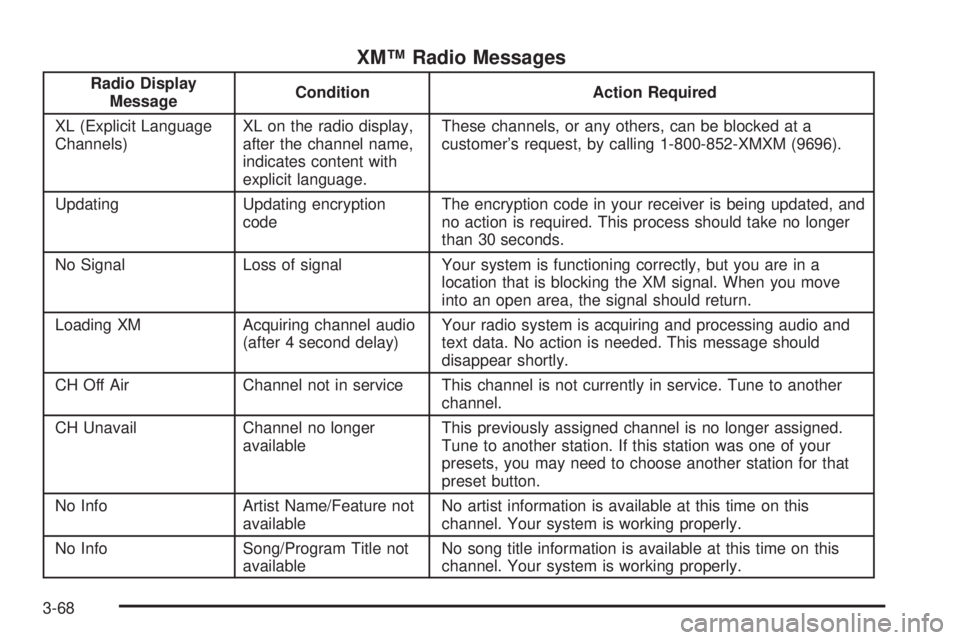
XMŸ Radio Messages
Radio Display
MessageCondition Action Required
XL (Explicit Language
Channels)XL on the radio display,
after the channel name,
indicates content with
explicit language.These channels, or any others, can be blocked at a
customer's request, by calling 1-800-852-XMXM (9696).
Updating Updating encryption
codeThe encryption code in your receiver is being updated, and
no action is required. This process should take no longer
than 30 seconds.
No Signal Loss of signal Your system is functioning correctly, but you are in a
location that is blocking the XM signal. When you move
into an open area, the signal should return.
Loading XM Acquiring channel audio
(after 4 second delay)Your radio system is acquiring and processing audio and
text data. No action is needed. This message should
disappear shortly.
CH Off Air Channel not in service This channel is not currently in service. Tune to another
channel.
CH Unavail Channel no longer
availableThis previously assigned channel is no longer assigned.
Tune to another station. If this station was one of your
presets, you may need to choose another station for that
preset button.
No Info Artist Name/Feature not
availableNo artist information is available at this time on this
channel. Your system is working properly.
No Info Song/Program Title not
availableNo song title information is available at this time on this
channel. Your system is working properly.
3-68
Page 185 of 380

·E34:The CD changer door is open. Completely
close the door to restore normal operation.
·E35:An empty magazine is inserted in the CD
changer. Try the magazine again with a disc loaded
on one of the trays.
If any error occurs repeatedly or if an error cannot be
corrected, contact your dealership. If your radio displays
an error number other than the error codes listed
previously, write it down and provide it to your dealership
when reporting the problem.
Personal Choice Radio Controls
If your vehicle has this feature it will enable two drivers
to store and recall personal settings for radio presets,
last tuned station, volume, tone, and audio source
(radio, cassette, or CD).
The memory buttons 1 and 2 for this feature are located
on the driver's door panel and correspond to the
numbers 1 and 2 found on the back of each remote
keyless entry transmitter.
To recall audio sources, press the unlock button on the
remote keyless entry transmitter and turn the ignition
on. The source last listened to will be recalled for
the identi®ed driver 1 or 2.To program this feature, do the following:
1. Set all radio preferences. For more information see
ªSetting Preset Stationsº and ªSetting the Toneº
listed for your particular radio.
2. Locate the memory buttons on the driver's
door panel.
3. Press one of the memory buttons 1 or 2 until you
hear two beeps. The beeps con®rm that your
selection has been saved and can now be recalled.
Follow these steps each time you want to change the
stored settings.Theft-Deterrent Feature
THEFTLOCKžis designed to discourage theft of your
radio. It works by using a secret code to disable all radio
functions whenever battery power is removed and the
radio is placed in a different vehicle. This feature
requires no user input to be activated. It is automatically
armed when it is put into the vehicle for the ®rst time.
When the ignition is turned off, the blinking red light
indicates that THEFTLOCK
žis armed.
If THEFTLOCK
žis activated, your radio will not operate
if stolen. The radio will display LOCKED and a red
LED indicator light will come on above the key symbol
to indicate a locked condition. If this occurs, the radio will
need to be returned to the dealer.
3-77
Page 186 of 380
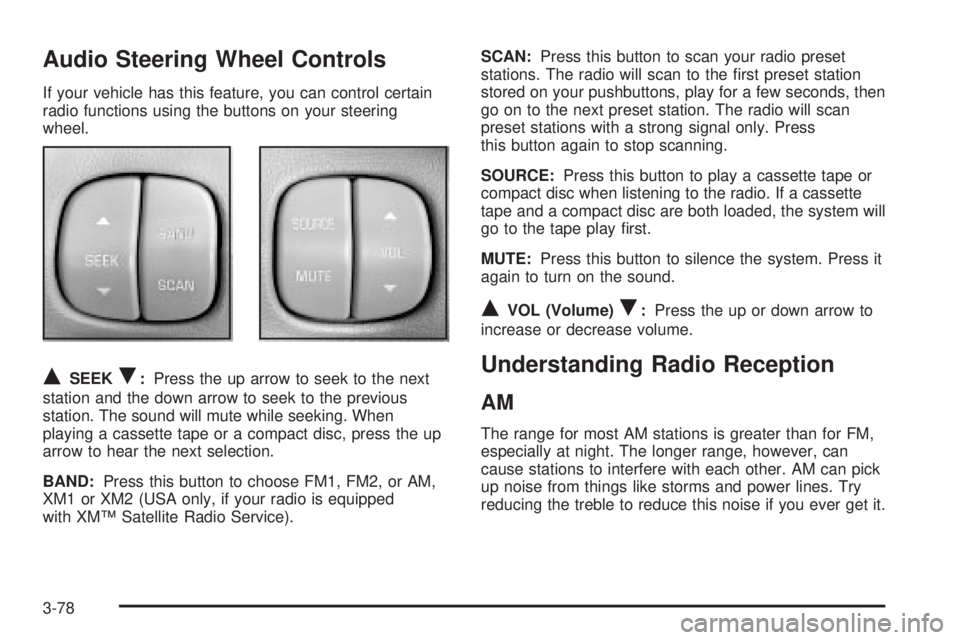
Audio Steering Wheel Controls
If your vehicle has this feature, you can control certain
radio functions using the buttons on your steering
wheel.
QSEEKR:Press the up arrow to seek to the next
station and the down arrow to seek to the previous
station. The sound will mute while seeking. When
playing a cassette tape or a compact disc, press the up
arrow to hear the next selection.
BAND:Press this button to choose FM1, FM2, or AM,
XM1 or XM2 (USA only, if your radio is equipped
with XMŸ Satellite Radio Service).SCAN:Press this button to scan your radio preset
stations. The radio will scan to the ®rst preset station
stored on your pushbuttons, play for a few seconds, then
go on to the next preset station. The radio will scan
preset stations with a strong signal only. Press
this button again to stop scanning.
SOURCE:Press this button to play a cassette tape or
compact disc when listening to the radio. If a cassette
tape and a compact disc are both loaded, the system will
go to the tape play ®rst.
MUTE:Press this button to silence the system. Press it
again to turn on the sound.
QVOL (Volume)R:Press the up or down arrow to
increase or decrease volume.
Understanding Radio Reception
AM
The range for most AM stations is greater than for FM,
especially at night. The longer range, however, can
cause stations to interfere with each other. AM can pick
up noise from things like storms and power lines. Try
reducing the treble to reduce this noise if you ever get it.
3-78
Page 188 of 380
You may also choose a non-scrubbing action, wet-type
cleaner which uses a cassette with a fabric belt to
clean the tape head. This type of cleaning cassette will
not eject on its own. A non-scrubbing action cleaner
may not clean as thoroughly as the scrubbing type
cleaner. The use of a non-scrubbing action, dry-type
cleaning cassette is not recommended.
After you clean the player, press and hold the eject
button for ®ve seconds to reset the CLEAN PLAYER
indicator. The radio will display --- to show the indicator
was reset.
Cassettes are subject to wear and the sound quality
may degrade over time. Always make sure the cassette
tape is in good condition before you have your tape
player serviced.Care of Your CDs
Handle discs carefully. Store them in their original cases
or other protective cases and away from direct sunlight
and dust. If the surface of a disc is soiled, dampen
a clean, soft cloth in a mild, neutral detergent solution
and clean it, wiping from the center to the edge.
Be sure never to touch the side without writing when
handling discs. Pick up discs by grasping the outer
edges or the edge of the hole and the outer edge.
Care of Your CD Player
The use of CD lens cleaner discs is not advised, due to
the risk of contaminating the lens of the CD optics
with lubricants internal to the CD mechanism.
3-80
Page 249 of 380

When the system has calculated that oil life has been
diminished, it will indicate that an oil change is
necessary. A CHANGE ENGINE OIL SOON message
will come on. Change your oil as soon as possible within
the next two times you stop for fuel. It is possible that,
if you are driving under the best conditions, the oil
life system may not indicate that an oil change is
necessary for over a year. However, your engine oil and
®lter must be changed at least once a year and at
this time the system must be reset. Your dealer has
GM-trained service people who will perform this
work using genuine GM parts and reset the system. It is
also important to check your oil regularly and keep it
at the proper level.
If the system is ever reset accidentally, you must
change your oil at 3,000 miles (5 000 km) since your
last oil change. Remember to reset the oil life system
whenever the oil is changed.
How to Reset the Oil Life System
The GM Oil Life System calculates when to change
your engine oil and ®lter based on vehicle use. Anytime
your oil is changed, reset the system so it can
calculate when the next oil change is required. If a
situation occurs where you change your oil prior to a
CHANGE ENGINE OIL SOON message being
turned on, reset the system.To reset the Oil Life System, do the following:
1. Display the OIL LIFE INDEX on the DIC.
2. Press and hold the RESET button on the DIC for
more than ®ve seconds. The oil life will change
to 100%.
What to Do with Used Oil
Used engine oil contains certain elements that may be
unhealthy for your skin and could even cause cancer.
Don't let used oil stay on your skin for very long. Clean
your skin and nails with soap and water, or a good
hand cleaner. Wash or properly dispose of clothing or
rags containing used engine oil. See the manufacturer's
warnings about the use and disposal of oil products.
Used oil can be a threat to the environment. If you
change your own oil, be sure to drain all the oil from the
®lter before disposal. Never dispose of oil by putting it
in the trash, pouring it on the ground, into sewers, or into
streams or bodies of water. Instead, recycle it by
taking it to a place that collects used oil. If you have a
problem properly disposing of your used oil, ask
your dealer, a service station or a local recycling center
for help.
5-17