ECO mode BUICK LESABRE 2005 User Guide
[x] Cancel search | Manufacturer: BUICK, Model Year: 2005, Model line: LESABRE, Model: BUICK LESABRE 2005Pages: 392, PDF Size: 2.45 MB
Page 158 of 392
If a problem is detected, a diagnostic message will
appear in the display. The following pages will show the
messages you may see on the DIC display.
The message center is continuously updated with the
vehicle’s performance status.
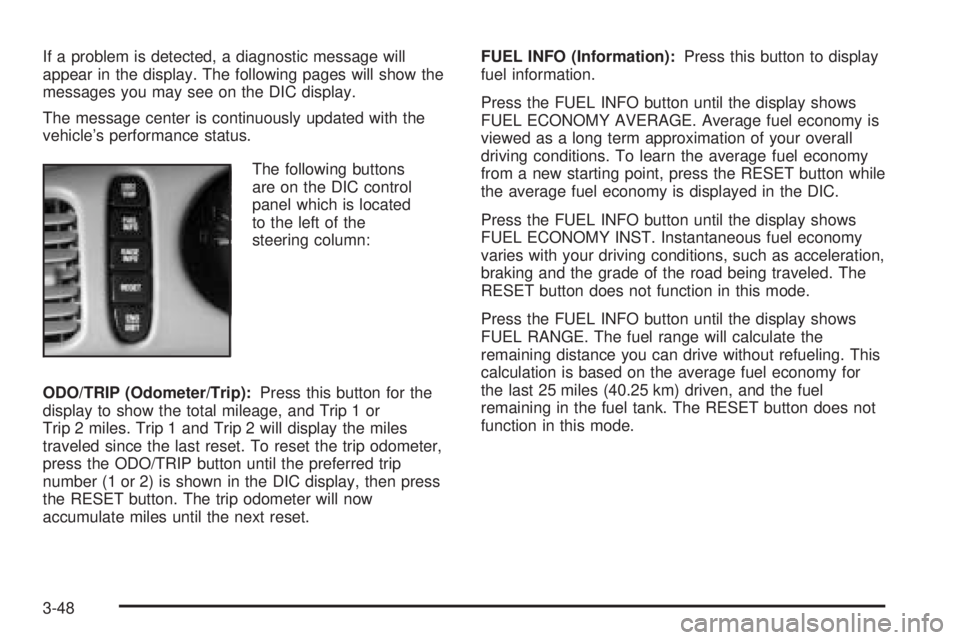
The following buttons
are on the DIC control
panel which is located
to the left of the
steering column:
ODO/TRIP (Odometer/Trip):Press this button for the
display to show the total mileage, and Trip 1 or
Trip 2 miles. Trip 1 and Trip 2 will display the miles
traveled since the last reset. To reset the trip odometer,
press the ODO/TRIP button until the preferred trip
number (1 or 2) is shown in the DIC display, then press
the RESET button. The trip odometer will now
accumulate miles until the next reset.FUEL INFO (Information):Press this button to display
fuel information.
Press the FUEL INFO button until the display shows
FUEL ECONOMY AVERAGE. Average fuel economy is
viewed as a long term approximation of your overall
driving conditions. To learn the average fuel economy
from a new starting point, press the RESET button while
the average fuel economy is displayed in the DIC.
Press the FUEL INFO button until the display shows
FUEL ECONOMY INST. Instantaneous fuel economy
varies with your driving conditions, such as acceleration,
braking and the grade of the road being traveled. The
RESET button does not function in this mode.
Press the FUEL INFO button until the display shows
FUEL RANGE. The fuel range will calculate the
remaining distance you can drive without refueling. This
calculation is based on the average fuel economy for
the last 25 miles (40.25 km) driven, and the fuel
remaining in the fuel tank. The RESET button does not
function in this mode.
3-48
Page 162 of 392

If you unlock the vehicle using your door key instead of
your transmitter, the DIC will not change drivers and
will recall the information from the last transmitter used
or the last driver using the memory seat controls. If
this happens and you were not the last driver of
the vehicle, simply press your correct driver number on
the memory seat controls or press the unlock button
on your remote keyless entry transmitter.
Use the following steps for personalization programming
instructions.
1. Turn the ignition on and keep the transaxle
in PARK (P).
2. Inform the DIC which driver you are by pressing the
unlock button on your remote keyless entry
transmitter or the appropriate memory seat control.
3. Press and hold the ENG/MET button for
ve seconds. WELCOME TO BUICK OPTION
FEATURE will appear in the display.
4. The rst choice to be made will be DRIVER
ID 1 or 2. Press the ENG/MET button to toggle
between your selections within a display and
RESET to choose the current selection and move
on to the next personal choice feature.
If you would like to exit the selection mode without
moving through each of the personal choice features,
simply press a different button on the DIC or turn off the
ignition. Whatever personal choices you made willstill be retained, even without passing through each of
the features. In order for your personal choices to save,
you must press RESET after making your selections.
If you happen to move past a selection you would like to
make a personal choice for, press the unlock button
on your remote keyless entry transmitter or press
the appropriate driver number on the seat control. This
will return you to the beginning of the option feature
programming mode.
Automatic Door Locks
The door lock modes when shifting in and out of
PARK (P), can be changed through the DIC. You can
change these modes by different selections of the
following DIC displays:
AUTO DOOR LOCKS – OFF/ON
UNLOCK – OFF/ON
UNLOCK – KEY OFF/PARK
DOOR TO UNLOCK – DRIVER/ALL
If you choose OFF for AUTO DOOR LOCKS, your door
locks will operate normally with no automatic feature.
If you choose ON for AUTO DOOR LOCKS, ON
for UNLOCK and KEY OFF, your doors will lock every
time you shift out of PARK (P), and the doors will unlock
every time you stop and turn the ignition to OFF.
3-52
Page 164 of 392
Security Feedback
By choosing different combinations of these selections,
you can choose the type of transmitter activated
feedback when locking and unlocking your vehicle with
your transmitter. Each time you make a selection by
pressing the ENG/MET button, press the RESET button
to record your choice.
KEYLESS FEEDBACK – OFF/ON
LIGHTS FEEDBACK – OFF/ON
HORN FEEDBACK – OFF/ON
If you choose ON for KEYLESS FEEDBACK you will
also need to choose LIGHTS and/or HORN FEEDBACK.
You can select the following modes:
If you choose OFF for KEYLESS FEEDBACK, you will
receive no security feedback when locking or
unlocking your vehicle.
If you choose ON for KEYLESS FEEDBACK and ON for
LIGHTS FEEDBACK, the exterior lamps will ash
twice when unlocking your vehicle and once when
locking your vehicle.If you choose ON for KEYLESS FEEDBACK and ON for
HORN FEEDBACK, your horn will chirp when all
doors are unlocked and when locking your vehicle.
If you choose ON for KEYLESS, LIGHTS and HORN
FEEDBACK, your exterior lamps will ash twice at
the rst unlock button press, your exterior lamps will
ash twice and the horn will chirp once at the second
unlock button press, and the exterior lamps will ash and
the horn will chirp once when locking your vehicle.
For more information on this feature, see “Security
Feedback” underRemote Keyless Entry System
Operation on page 2-6.
Delayed Locking
This feature, which delays the locking of the vehicle,
can be made active or inactive through the DIC. When
DELAYED LOCKING – OFF/ON appears on the
display, use the ENG/MET button to toggle the
arrow between OFF and ON. When you have made
your choice, press the RESET button to record
your selection.
For more information on this feature, seeDelayed
Locking on page 2-11.
3-54
Page 169 of 392

Setting the Tone (Bass/Treble)
AUDIO:Push and release this knob until BASS, MID,
or TREBLE appears on the display. Then turn the
AUDIO knob to increase or to decrease. If a station is
weak or noisy, decrease the treble.
To adjust bass, midrange, or treble to the middle
position, select BASS, MID, or TREBLE. Then push and
hold the AUDIO knob for more than two seconds until
you hear a beep. BASS and a zero, MID and a zero, or
TREBLE and a zero will appear on the display.
To adjust both tone controls and both speaker controls
to the middle position, rst end out of audio mode
by waiting ve seconds without making any changes.
Then push and hold the AUDIO knob for more than
two seconds until you hear a beep. ALL CENTERED
will appear on the display.
EQ (Equalizer):Press this button to select customized
equalization settings designed for country/western,
jazz, talk, pop, rock, and classical.
Adjusting the Speakers (Balance/Fade)
AUDIO:To adjust the balance between the right
and the left speakers, push and release the AUDIO
knob until BAL appears on the display. Then turn the
AUDIO knob to move the sound toward the right or
the left speakers. A bar graph with indicators will show
how the sound is balanced.
To adjust the fade between the front and the rear
speakers, push and release the AUDIO knob until FADE
appears on the display. Then turn the AUDIO knob to
move the sound toward the front or the rear speakers.
A bar graph with indicators will show how the sound
is balanced.
To adjust balance or fade to the middle position, select
BAL or FADE. Then push and hold the AUDIO knob
for more than two seconds until you hear a beep. The
indicator will be centered on the display.
To adjust both tone controls and both speaker controls
to the middle position, rst end out of audio mode
by waiting ve seconds without making any changes.
Then push and hold the AUDIO knob for more than
two seconds until you hear a beep. ALL CENTERED
will appear on the display.
3-59
Page 171 of 392
SCAN:Scan the stations within a PTY by performing
the following:
1. Press P-TYP to activate program type select mode.
The PTY symbol will appear on the display.
2. Turn the AUDIO knob to select a PTY.
3. Once the desired PTY is displayed, press and hold
either SEEK arrow, and the radio will begin
scanning the stations in the PTY.
4. Press either SEEK arrow to stop at a station.
If both PTY and TRAF are on, the radio will scan for
stations with the selected PTY and traffic
announcements.
BAND (Alternate Frequency):Alternate frequency
allows the radio to switch to a stronger station with the
same program type. To turn alternate frequency on,
press and hold BAND for two seconds. AF ON will
appear on the display. The radio may switch to stations
with a stronger frequency.
To turn alternate frequency off, press and hold BAND
again for two seconds. AF OFF will appear on the
display. The radio will not switch to other stations.RDS Messages
ALERT!:Alert warns of local or national emergencies.
When an alert announcement comes on the current
radio station, ALERT! will appear on the display. You will
hear the announcement, even if the volume is low or
a CD is playing. If a CD is playing, play will stop during
the announcement. Alert announcements cannot be
turned off.
ALERT! will not be affected by tests of the emergency
broadcast system. This feature is not supported by
all RDS stations.
INFO (Information):If the current station has a
message, INFO will appear on the display. Press this
button to see the message. The message may display
the artist, song title, call in phone numbers, etc.
If the entire message is not displayed, parts of the
message will appear every three seconds. To scroll
through the message, press and release the INFO button.
A new group of words will appear on the display after
every press of the button. Once the complete message
has been displayed, INFO will disappear from the display
until another new message is received. The last message
can be displayed by pressing the INFO button. You can
view the last message until a new message is received or
a different station is tuned to.
3-61
Page 176 of 392
Playing the Radio
PWR (Power):Push this knob to turn the system on
and off.
VOL (Volume):Turn this knob to increase or to
decrease the volume.
DISP (Display):Press this button to display the time
when the ignition is turned off.
For XM™ (if equipped), press the DISP button while in
XM™ mode to retrieve four different categories of
information related to the current song or channel:
Artist, Song Title, Category or PTY, Channel
Number/Channel Name.
To change the default on the display, press the DISP
button until you see the display you want, then hold the
button until the display ashes. The selected display
will now be the default.
SCV (Speed-Compensated Volume):With SCV, the
audio system adjusts automatically to make up for
road and wind noise as you drive.To use SCV, press the TUNE/AUDIO knob repeatedly
until SPEED VOL appears on the display. Turn the
TUNE/AUDIO knob to select MIN, MED, or MAX. Each
higher setting will provide more volume compensation
at faster vehicle speeds.
To turn SCV off, press the TUNE/AUDIO knob
repeatedly until SPEED VOL appears on the display.
Turn the TUNE AUDIO knob until OFF appears on
the display.
Finding a Station
BAND:Press this button to switch between FM1, FM2,
AM, or XM1 or XM2 (if equipped). The display will
show the selection.
TUNE:Turn this knob to select radio stations.
©SEEK¨:Press the right or the left arrow to go to
the next or to the previous station and stay there.
To scan stations, press and hold either SEEK arrow for
two seconds until SCAN appears on the display. The
radio will go to a station, play for a few seconds, then go
on to the next station. Press either SEEK arrow again
to stop scanning.
3-66
Page 177 of 392
To scan preset stations, press and hold either SEEK
arrow for more than four seconds until SCAN and
the preset number appear on the display and you hear
a double beep. The radio will go to the rst preset
station, play for a few seconds, then go on to the next
preset station. Press either SEEK arrow again to
stop scanning presets.
The radio will only seek and scan stations with a strong
signal that are in the selected band.
Setting Preset Stations
Up to 30 stations (six FM1, six FM2, and six AM,
six XM1 and six XM2 (if equipped), can be programmed
on the six numbered pushbuttons, by performing the
following steps:
1. Turn the radio on.
2. Press BAND to select FM1, FM2, AM, or XM1,
or XM2.
3. Tune in the desired station.
4. Press EQ to select the equalization.
5. Press and hold one of the six numbered
pushbuttons until you hear a beep. Whenever that
numbered pushbutton is pressed, the station
that was set will return and the equalization that
was selected will be stored for that pushbutton.
6. Repeat the steps for each pushbutton.
Setting the Tone (Bass/Treble)
AUDIO:Push and release AUDIO until BASS, MID, or
TREBLE appears on the display. Then turn the
AUDIO knob to increase or to decrease. If a station is
weak or noisy, decrease the treble.
To adjust bass, midrange, or treble to the middle
position, select BASS, MID, or TREBLE. Then push and
hold AUDIO for more than two seconds until you hear
a beep. BASS and a zero, MID and a zero, or TREBLE
and a zero will appear on the display.
To adjust both tone controls and both speaker controls
to the middle position, end out of audio mode by
waiting ve seconds without making any changes. Then
push and hold AUDIO for more than two seconds
until you hear a beep. ALL CENTERED will appear on
the display.
EQ (Equalizer):Press this button to select customized
equalization settings designed for country/western,
jazz, talk, pop, rock, and classical.
3-67
Page 178 of 392

Adjusting the Speakers (Balance/Fade)
AUDIO:To adjust the balance between the right
and the left speakers, push and release AUDIO until
BAL appears on the display. Then turn the AUDIO knob
to move the sound toward the right or the left speakers.
A bar graph with indicators will appear on the display.
To adjust the fade between the front and the rear
speakers, push and release AUDIO until FADE appears
on the display. Then turn the AUDIO knob to move
the sound toward the front or the rear speakers. A bar
graph with indicators will appear on the display.
To adjust balance or fade to the middle position, select
BAL or FADE. Then push and hold AUDIO for more
than two seconds until you hear a beep. The indicator
will be centered on the display.
To adjust both tone controls and both speaker controls
to the middle position, end out of audio mode by
waiting ve seconds without making any changes. Then
push and hold AUDIO for more than two seconds
until you hear a beep. ALL CENTERED will appear on
the display.
Finding a Program Type (PTY) Station
To select and nd a desired PTY perform
the following:
1. Press P-TYP to activate program type select mode.
P-TYPE will appear on the display.
2. Turn the AUDIO knob to select a PTY.
3. Once the desired PTY is displayed, press either
SEEK arrow to select the PTY and to take you to
the PTY’s rst station.
4. To go to another station within that PTY and the
PTY is displayed, press either SEEK arrow once.
If the PTY is not displayed, press either SEEK
arrow twice to display the PTY and then to go to
another station.
5. Press P-TYP to exit program type select mode.
If PTY times out and is no longer on the display,
go back to Step 1.
If both PTY and TRAF are on, the radio will search for
the selected PTY and traffic announcements.
3-68
Page 179 of 392
SCAN:Scan the stations within a PTY by performing
the following:
1. Press P-TYP to activate program type select mode.
P-TYPE will appear on the display.
2. Turn the AUDIO knob to select a PTY.
3. Once the desired PTY is displayed, press and hold
either SEEK arrow, and the radio will begin
scanning the stations in the PTY.
4. Press and hold either SEEK arrow to stop at
a station.
If both PTY and TRAF are on, the radio will scan for the
selected PTY and traffic announcements.
BAND (Alternate Frequency):Alternate frequency
allows the radio to switch to a stronger station with the
same program type. To turn alternate frequency on,
press and hold BAND for two seconds. AF ON will
appear on the display. The radio may switch to stations
with a stronger frequency.
To turn alternate frequency off, press and hold BAND
again for two seconds. AF OFF will appear on the
display. The radio will not switch to other stations.
This function does not apply to XM™ Satellite
Radio Service.RDS Messages
ALERT!:Alert warns of local or national emergencies.
When an alert announcement comes on the current radio
station, ALERT! will appear on the display. You will hear
the announcement, even if the volume is low or a
cassette tape or CD is playing. If a cassette tape or CD is
playing, play will stop during the announcement. Alert
announcements cannot be turned off.
ALERT! will not be affected by tests of the emergency
broadcast system. This feature is not supported by all
RDS stations.
INFO (Information):If the current station has a
message, INFO will appear on the display. Press this
button to see the message. The message may display
the artist, song title, call in phone numbers, etc.
If the entire message is not displayed, parts of the
message will appear every three seconds. To scroll
through the message, press the INFO button. A
new group of words will appear on the display after
every press of this button. Once the complete message
has been displayed, INFO will disappear from the
display until another new message is received. The last
message can be displayed by pressing the INFO
button. You can view the last message until a new
message is received or a different station is tuned to.
3-69
Page 299 of 392
Normal Occupant Weight:The number of occupants a
vehicle is designed to seat multiplied by 150 lbs (68 kg).
SeeLoading Your Vehicle on page 4-31.
Occupant Distribution:Designated seating positions.
Outward Facing Sidewall:The side of an
asymmetrical tire that has a particular side that faces
outward when mounted on a vehicle. The side of the tire
that contains a whitewall, bears white lettering or
bears manufacturer, brand, and/or model name molding
that is higher or deeper than the same moldings on
the other sidewall of the tire.
Passenger (P-Metric) Tire:A tire used on
passenger cars and some light duty trucks and
multipurpose vehicles.
Recommended Ination Pressure:Vehicle
manufacturer’s recommended tire ination pressure and
shown on the tire placard. SeeInation - Tire Pressure
on page 5-60andLoading Your Vehicle on page 4-31.
Radial Ply Tire:A pneumatic tire in which the ply cords
that extend to the beads are laid at 90 degrees to the
centerline of the tread.Rim:A metal support for a tire and upon which the tire
beads are seated.
Sidewall:The portion of a tire between the tread and
the bead.
Speed Rating:An alphanumeric code assigned to a
tire indicating the maximum speed at which a tire
can operate.
Traction:The friction between the tire and the road
surface. The amount of grip provided.
Tread:The portion of a tire that comes into contact
with the road.
Treadwear Indicators:Narrow bands, sometimes
called “wear bars,” that show across the tread of a tire
when only 1/16 inch (1.6 mm) of tread remains. See
When It Is Time for New Tires on page 5-64.
UTQGS (Uniform Tire Quality Grading Standards):A
tire information system that provides consumers with
ratings for a tire’s traction, temperature, and treadwear.
Ratings are determined by tire manufacturers using
government testing procedures. The ratings are molded
into the sidewall of the tire. SeeUniform Tire Quality
Grading on page 5-66.
5-59