fuel BUICK LUCERNE 2006 User Guide
[x] Cancel search | Manufacturer: BUICK, Model Year: 2006, Model line: LUCERNE, Model: BUICK LUCERNE 2006Pages: 416, PDF Size: 2.6 MB
Page 174 of 416
Driver Information Center (DIC)
Your vehicle has a Driver Information Center (DIC).
All messages will appear in the DIC display located
below the speedometer in the instrument panel cluster.
The DIC buttons are located on the instrument panel,
to the left of the instrument panel cluster.
The DIC comes on when the ignition is on. After a short
delay, the DIC will display the information that was
last displayed before the engine was turned off.
The DIC displays trip, fuel, and vehicle system
information, and warning messages if a system problem
is detected. The bottom line of the DIC shows the
shift lever position indicator. SeeAutomatic Transaxle
Operation on page 2-25for more information.
If your vehicle’s DIC has these features, the compass
direction and the outside air temperature may also
display on the DIC when viewing the trip and fuel
information. The compass direction appears on the
top right corner of the DIC display. The outside
air temperature automatically appears in the bottom
right corner of the DIC display. If there is a problem with
the system that controls the temperature display, the
numbers will be replaced with dashes. If this occurs,
have the vehicle serviced by your GM dealer.
The DIC also allows some features to be customized.
SeeDIC Vehicle Customization on page 3-65for
more information.
DIC Controls and Displays
The DIC has different displays which can be accessed
by pressing the DIC buttons located on the instrument
panel, to the left of the instrument panel cluster.
DIC Buttons
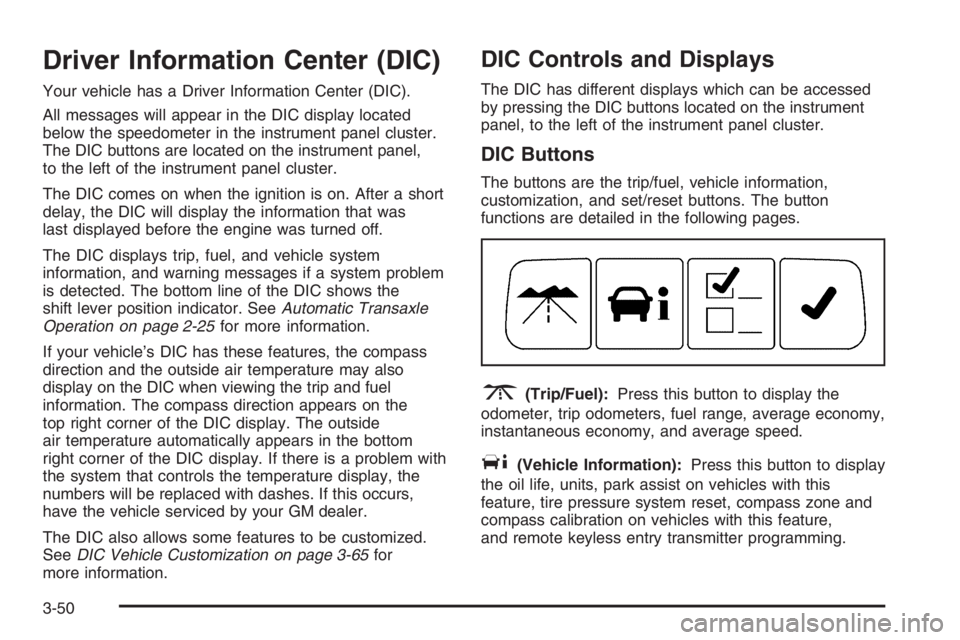
The buttons are the trip/fuel, vehicle information,
customization, and set/reset buttons. The button
functions are detailed in the following pages.
3(Trip/Fuel):Press this button to display the
odometer, trip odometers, fuel range, average economy,
instantaneous economy, and average speed.
T(Vehicle Information):Press this button to display
the oil life, units, park assist on vehicles with this
feature, tire pressure system reset, compass zone and
compass calibration on vehicles with this feature,
and remote keyless entry transmitter programming.
3-50
Page 175 of 416
U(Customization):Press this button to customize the
feature settings on your vehicle. SeeDIC Vehicle
Customization on page 3-65for more information.
V(Set/Reset):Press this button to set or reset certain
functions and to turn off or acknowledge messages
on the DIC.
Trip/Fuel Menu Items
3
(Trip/Fuel):Press this button to scroll through
the following menu items:
Odometer
Press the trip/fuel button until ODOMETER displays.
This display shows the distance the vehicle has
been driven in either miles (mi) or kilometers (km).
Trip A and Trip B
Press the trip/fuel button until TRIP A or TRIP B
displays. This display shows the current distance
traveled in either miles (mi) or kilometers (km) since the
last reset for each trip odometer. Both trip odometers
can be used at the same time.
Each trip odometer can be reset to zero separately by
pressing the set/reset button while the desired trip
odometer is displayed.The trip odometer has a feature called the retro-active
reset. This can be used to set the trip odometer to
the number of miles (kilometers) driven since the
ignition was last turned on. This can be used if the
trip odometer is not reset at the beginning of the trip.
To use the retro-active reset feature, press and hold
the set/reset button for at least two seconds. The trip
odometer will display the number of miles (mi) or
kilometers (km) driven since the ignition was last turned
on and the vehicle was moving. Once the vehicle
begins moving, the trip odometer will accumulate
mileage. For example, if the vehicle was driven
5 miles (8 km) before it is started again, and then the
retro-active reset feature is activated, the display will
show 5 miles (8 km). As the vehicle begins moving,
the display will then increase to 5.1 miles (8.2 km),
5.2 miles (8.4 km), etc.
If the retro-active reset feature is activated after the
vehicle is started, but before it begins moving, the display
will show the number of miles (mi) or kilometers (km) that
were driven during the last ignition cycle.
3-51
Page 176 of 416

Fuel Range
Press the trip/fuel button until FUEL RANGE displays.
This display shows the approximate number of
remaining miles (mi) or kilometers (km) the vehicle can
be driven without refueling.
The fuel range estimate is based on an average of the
vehicle’s fuel economy over recent driving history
and the amount of fuel remaining in the fuel tank.
This estimate will change if driving conditions change.
For example, if driving in traffic and making frequent
stops, this display may read one number, but if
the vehicle is driven on a freeway, the number may
change even though the same amount of fuel is in the
fuel tank. This is because different driving conditions
produce different fuel economies. Generally, freeway
driving produces better fuel economy than city driving.
If your vehicle is low on fuel, the FUEL LEVEL LOW
message will be displayed. See “FUEL LEVEL LOW”
underDIC Warnings and Messages on page 3-56
for more information.
Average Economy
Press the trip/fuel button until AVG ECONOMY displays.
This display shows the approximate average miles
per gallon (mpg) or liters per 100 kilometers (L/100 km).This number is calculated based on the number of
mpg (L/100 km) recorded since the last time this menu
item was reset. To reset AVG ECONOMY, press and
hold the set/reset button. The display will return to zero.
Instantaneous Economy
Press the trip/fuel button until INST ECONOMY displays.
This display shows the current fuel economy at a
particular moment and will change frequently as driving
conditions change. This display shows the instantaneous
fuel economy in miles per gallon (mpg) or liters per
100 kilometers (L/100 km). Unlike average economy,
this screen cannot be reset.
Average Speed
Press the trip/fuel button until AVERAGE SPEED
displays. This display shows the average speed of the
vehicle in miles per hour (mph) or kilometers per
hour (km/h). This average is calculated based on the
various vehicle speeds recorded since the last reset of
this value. To reset the value, press and hold the
set/reset button. The display will return to zero.
Blank Display
This display shows no information.
3-52
Page 179 of 416

Navigate to one of the trip/fuel menu screens to
view the direction the vehicle is moving. This will be
shown in the top right corner of the DIC display.
4. If you need to calibrate the compass, use the
compass calibration procedure. See “Compass
Calibration Procedure” following.
Compass Calibration
The compass can be manually calibrated. Only calibrate
the compass in a safe location where driving the vehicle
in circles is not a problem.
To calibrate the compass, use the following procedure:
Compass Calibration Procedure
1. Before calibrating the compass, make sure the
compass zone is set to the variance zone in
which the vehicle is traveling. See “Compass
Variance Procedure” earlier in this section.
2. Press the vehicle information button until the
PRESS
VTO CALIBRATE COMPASS screen
is displayed.
3. Press the set/reset button to start the compass
calibration.
4. The DIC will display CALIBRATING: DRIVE IN
CIRCLES. Drive the vehicle in circles at less
than 5 mph (8 km/h) to complete the calibration.
The DIC will display CALIBRATION COMPLETE
when the calibration is complete.
Remote Key
This display allows you to match the remote keyless
entry transmitter to your vehicle. To match a remote
keyless entry transmitter to your vehicle, do the
following:
1. Press the vehicle information button until PRESS
VTO RELEARN REMOTE KEY displays.
2. Press the set/reset button.
The message REMOTE KEY LEARNING ACTIVE
will display.
3. Press and hold the lock and unlock buttons on the
rst transmitter at the same time for approximately
15 seconds.
A chime will sound indicating that the transmitter is
matched.
4. To match additional transmitters at this time,
repeat Step 3.
Each vehicle can have a maximum of eight
transmitters matched to it.
5. To exit the programming mode, you must cycle
the key to OFF.
Blank Display
This display shows no information.
3-55
Page 182 of 416
ENGINE OVERHEATED IDLE ENGINE
Notice:If you drive your vehicle while the engine is
overheating, severe engine damage may occur.
If an overheat warning appears on the instrument
panel cluster and/or DIC, stop the vehicle as soon as
possible. Do not increase the engine speed above
normal idling speed. SeeEngine Overheating
on page 5-27for more information.
This message will display when the engine coolant
temperature is too hot. Stop and allow the vehicle to idle
until it cools down.
ENGINE OVERHEATED STOP ENGINE
Notice:If you drive your vehicle while the engine
is overheating, severe engine damage may occur.
If an overheat warning appears on the instrument
panel cluster and/or DIC, stop the vehicle as soon as
possible. Do not increase the engine speed above
normal idling speed. SeeEngine Overheating
on page 5-27for more information.
This message will display along with a continuous
chime when the engine has overheated. Stop and turn
the engine off immediately to avoid severe engine
damage. SeeEngine Overheating on page 5-27.
ENGINE POWER IS REDUCED
This message will display when the vehicle’s engine
power is reduced. Reduced engine power can affect the
vehicle’s ability to accelerate. If this message is on,
but there is no reduction in performance, proceed
to your destination. The performance may be reduced
the next time the vehicle is driven. The vehicle may
be driven at a reduced speed while this message is on,
but acceleration and speed may be reduced. Anytime
this message stays on, the vehicle should be taken
to your GM dealer for service as soon as possible.
ERROR
This message will display when viewing the odometer or
trip odometers if there is a problem with the instrument
panel cluster. See your GM dealer for service.
FUEL LEVEL LOW
This message will display when your vehicle is low on
fuel. You should rell the fuel tank as soon as possible.
SeeFuel Gage on page 3-49andFilling the Tank on
page 5-8for more information.
3-58
Page 197 of 416
FACTORY SETTINGS
This feature allows you to set all of the customization
features back to their factory default settings.
Press the customization button until FACTORY
SETTINGS appears on the DIC display. Press the
set/reset button to access the settings for this feature.
Then press the customization button to scroll through
the following choices:
RESTORE ALL (default):The customization features
will be set to their factory default settings.
DO NOT RESTORE:The customization features will
not be set to their factory default settings.
Select one of the available choices and press the
set/reset button while it is displayed on the DIC to
select it.
EXIT FEATURE SETTINGS
This feature allows you to exit the FEATURE
SETTINGS menu.
Press the customization button until FEATURE
SETTINGS PRESS
VTO EXIT appears in the DIC
display. Press the set/reset button to exit the menu.
If you do not exit, pressing the customization button
again will return you to the beginning of the FEATURE
SETTINGS menu.
Exiting the Feature Settings Menu
The feature settings menu will be exited when any of
the following occurs:
The vehicle is shifted out of PARK (P).
The vehicle is no longer in RUN.
The trip/fuel or vehicle information DIC buttons are
pressed.
The end of the feature settings menu is reached
and exited.
A 40 second time period has elapsed with no
selection made.
3-73
Page 247 of 416

When you want to leave the freeway, move to the
proper lane well in advance. If you miss your exit, do
not, under any circumstances, stop and back up. Drive
on to the next exit.
The exit ramp can be curved, sometimes quite sharply.
The exit speed is usually posted. Reduce your speed
according to your speedometer, not to your sense
of motion. After driving for any distance at higher
speeds, you may tend to think you are going slower
than you actually are.
Before Leaving on a Long Trip
Make sure you are ready. Try to be well rested. If you
must start when you are not fresh — such as after
a day’s work — do not plan to make too many miles that
rst part of the journey. Wear comfortable clothing
and shoes you can easily drive in.
Is your vehicle ready for a long trip? If you keep it
serviced and maintained, it is ready to go. If it needs
service, have it done before starting out. Of course, you
will nd experienced and able service experts in GM
dealerships all across North America. They will be ready
and willing to help if you need it.Here are some things you can check before a trip:
Windshield Washer Fluid:Is the reservoir full? Are
all windows clean inside and outside?
Wiper Blades:Are they in good shape?
Fuel, Engine Oil, Other Fluids:Have you checked
all levels?
Lamps:Are they all working? Are the lenses clean?
Tires:They are vitally important to a safe,
trouble-free trip. Is the tread good enough for
long-distance driving? Are the tires all inated to the
recommended pressure?
Weather Forecasts:What is the weather outlook
along your route? Should you delay your trip a
short time to avoid a major storm system?
Maps:Do you have up-to-date maps?
4-21
Page 253 of 416

{CAUTION:
Snow can trap exhaust gases under your
vehicle. This can cause deadly CO (carbon
monoxide) gas to get inside. CO could
overcome you and kill you. You cannot see it
or smell it, so you might not know it is in your
vehicle. Clear away snow from around the
base of your vehicle, especially any that is
blocking your exhaust pipe. And check around
again from time to time to be sure snow does
not collect there.
Open a window just a little on the side of the
vehicle that is away from the wind. This will
help keep CO out.Run your engine only as long as you must. This saves
fuel. When you run the engine, make it go a little
faster than just idle. That is, push the accelerator
slightly. This uses less fuel for the heat that you get
and it keeps the battery charged. You will need a
well-charged battery to restart the vehicle, and possibly
for signaling later on with your headlamps. Let the
heater run for a while.
Then, shut the engine off and close the window almost
all the way to preserve the heat. Start the engine
again and repeat this only when you feel really
uncomfortable from the cold. But do it as little as
possible. Preserve the fuel as long as you can. To help
keep warm, you can get out of the vehicle and do
some fairly vigorous exercises every half hour or so
until help comes.
4-27
Page 258 of 416
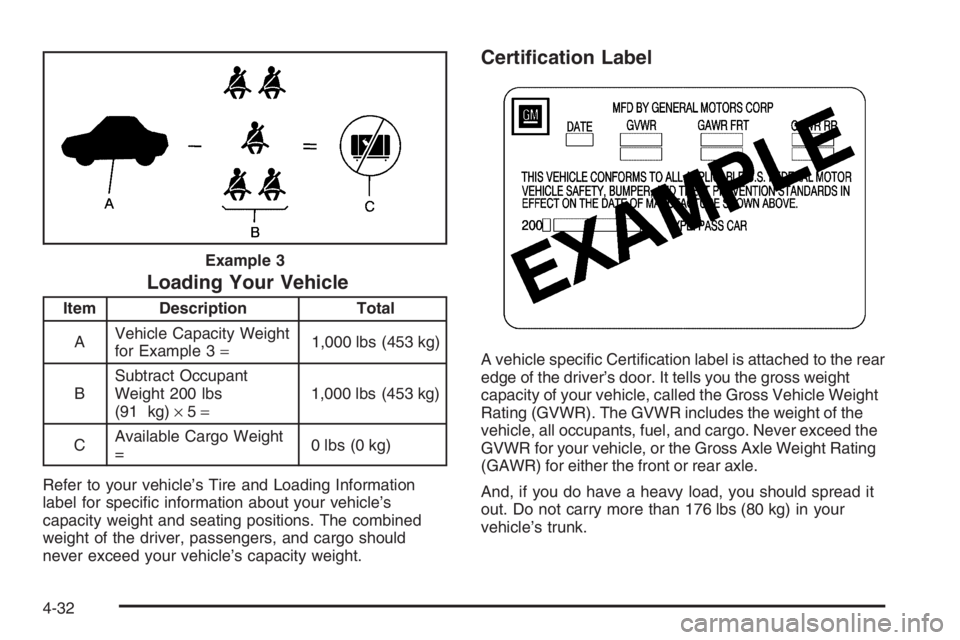
Loading Your Vehicle
Item Description Total
AVehicle Capacity Weight
for Example 3=1,000 lbs (453 kg)
BSubtract Occupant
Weight 200 lbs
(91 kg)×5=1,000 lbs (453 kg)
CAvailable Cargo Weight
=0 lbs (0 kg)
Refer to your vehicle’s Tire and Loading Information
label for specic information about your vehicle’s
capacity weight and seating positions. The combined
weight of the driver, passengers, and cargo should
never exceed your vehicle’s capacity weight.
Certication Label
A vehicle specic Certication label is attached to the rear
edge of the driver’s door. It tells you the gross weight
capacity of your vehicle, called the Gross Vehicle Weight
Rating (GVWR). The GVWR includes the weight of the
vehicle, all occupants, fuel, and cargo. Never exceed the
GVWR for your vehicle, or the Gross Axle Weight Rating
(GAWR) for either the front or rear axle.
And, if you do have a heavy load, you should spread it
out. Do not carry more than 176 lbs (80 kg) in your
vehicle’s trunk. Example 3
4-32
Page 262 of 416

Towing a Trailer
{CAUTION:
If you do not use the correct equipment and
drive properly, you can lose control when you
pull a trailer. For example, if the trailer is too
heavy, the brakes may not work well — or even
at all. You and your passengers could be
seriously injured. You may also damage your
vehicle; the resulting repairs would not be
covered by your warranty. Pull a trailer only if
you have followed all the steps in this section.
Ask your dealer for advice and information
about towing a trailer with your vehicle.Your vehicle can tow a trailer if it is equipped with the
proper trailer towing equipment. To identify the trailering
capacity of your vehicle, you should read the information
in “Weight of the Trailer” that appears later in this
section. Trailering is different than just driving your
vehicle by itself. Trailering means changes in handling,
acceleration, braking, durability and fuel economy.
Successful, safe trailering takes correct equipment, and
it has to be used properly.
That is the reason for this part. In it are many
time-tested, important trailering tips and safety rules.
Many of these are important for your safety and that of
your passengers. So please read this section carefully
before you pull a trailer.
Load-pulling components such as the engine, transaxle,
wheel assemblies and tires are forced to work harder
against the drag of the added weight. The engine
is required to operate at relatively higher speeds and
under greater loads, generating extra heat. Also,
the trailer adds considerably to wind resistance,
increasing the pulling requirements.
4-36