audio BUICK LUCERNE 2011 User Guide
[x] Cancel search | Manufacturer: BUICK, Model Year: 2011, Model line: LUCERNE, Model: BUICK LUCERNE 2011Pages: 450, PDF Size: 3.63 MB
Page 223 of 450
Black plate (67,1)Buick Lucerne Owner Manual - 2011
Exiting the Feature Settings Menu
The feature settings menu will be exited when any of
the following occurs:
.The vehicle is shifted out of P (Park).
.The vehicle is no longer in ON/RUN.
.The trip/fuel or vehicle information DIC buttons are
pressed.
.The end of the feature settings menu is reached
and exited.
.A 40 second time period has elapsed with no
selection made.
Audio System(s)
Determine which radio the vehicle has and read the
following pages to become familiar with its features.
{WARNING:
Taking your eyes off the road for extended periods
could cause a crash resulting in injury or death to
you or others. Do not give extended attention to
entertainment tasks while driving.This system provides access to many audio and non
audio listings.
To minimize taking your eyes off the road while driving,
do the following while the vehicle is parked:
.Become familiar with the operation and controls of
the audio system.
.Set up the tone, speaker adjustments, and preset
radio stations.
For more information, see Defensive Driving
on
page 5‑2.
Notice: Contact your dealer before adding any
equipment.
Adding audio or communication equipment could
interfere with the operation of the engine, radio,
or other systems, and could damage them. Follow
federal rules covering mobile radio and telephone
equipment.
The vehicle has Retained Accessory Power (RAP). With
RAP, the audio system can be played even after the
ignition is turned off. See Retained Accessory Power
(RAP)
on page 3‑21for more information.
4-67
Page 225 of 450
Black plate (69,1)Buick Lucerne Owner Manual - 2011
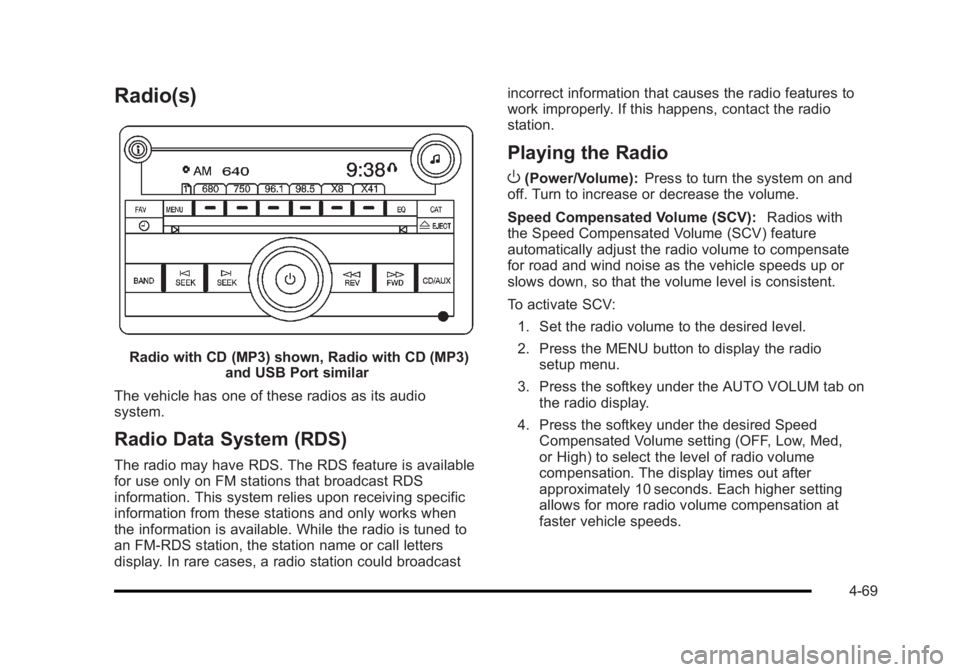
Radio(s)
Radio with CD (MP3) shown, Radio with CD (MP3)and USB Port similar
The vehicle has one of these radios as its audio
system.
Radio Data System (RDS)
The radio may have RDS. The RDS feature is available
for use only on FM stations that broadcast RDS
information. This system relies upon receiving specific
information from these stations and only works when
the information is available. While the radio is tuned to
an FM-RDS station, the station name or call letters
display. In rare cases, a radio station could broadcast incorrect information that causes the radio features to
work improperly. If this happens, contact the radio
station.
Playing the Radio
O
(Power/Volume):
Press to turn the system on and
off. Turn to increase or decrease the volume.
Speed Compensated Volume (SCV): Radios with
the Speed Compensated Volume (SCV) feature
automatically adjust the radio volume to compensate
for road and wind noise as the vehicle speeds up or
slows down, so that the volume level is consistent.
To activate SCV:
1. Set the radio volume to the desired level.
2. Press the MENU button to display the radio setup menu.
3. Press the softkey under the AUTO VOLUM tab on the radio display.
4. Press the softkey under the desired Speed Compensated Volume setting (OFF, Low, Med,
or High) to select the level of radio volume
compensation. The display times out after
approximately 10 seconds. Each higher setting
allows for more radio volume compensation at
faster vehicle speeds.
4-69
Page 231 of 450
Black plate (75,1)Buick Lucerne Owner Manual - 2011
Playing a CD
If the ignition or radio is turned off with a CD in the
player, the CD stays in the player. When the ignition
or radio is turned on, the CD starts to play where it
stopped, if it was the last selected audio source.
f(Tune):Turn to select tracks on the CD currently
playing.
©SEEK: Press to go to the start of the current track,
if more than ten seconds have played. Press and hold
or press multiple times to continue moving backward
through the tracks on the CD.
¨SEEK: Press to go to the next track. Press and hold
or press multiple times to continue moving forward
through the tracks on the CD.
sREV (Reverse): Press and hold to reverse playback
quickly within a track. Sound is heard at a reduced
volume and the elapsed time of the track displays.
Release to resume playing the track.
\FWD (Fast Forward): Press and hold to advance
playback quickly within a track. Sound is heard at a
reduced volume and the elapsed time of the track
displays. Release to resume playing the track.
RDM (Random): Tracks can be listened to in random,
rather than sequential order. To use random:
1. Press the softkey below RDM tab until Random Current Disc displays.
2. Press the softkey again to turn off random play.
BAND: Press to listen to the radio while a CD is
playing. The CD remains inside the radio for future
listening.
CD/AUX (CD/Auxiliary): Press to play a CD while
listening to the radio. The CD icon and a message
showing the track number displays when a CD is in
the player. Press this button again and the system
automatically searches for an auxiliary input device,
such as a portable audio player. If a portable audio
player is not connected, No Aux Input Device Found
may display.
Playing an MP3 CD-R or CD-RW Disc
For more information, see Using an MP3on page 4‑78later in this section.
4-75
Page 233 of 450
Black plate (77,1)Buick Lucerne Owner Manual - 2011
Notice:If a label is added to a CD, more than one
CD is inserted into the slot at a time, or an attempt
is made to play scratched or damaged CDs, the
CD player could be damaged. While using the CD
player, use only CDs in good condition without any
label, load one CD at a time, and keep the CD player
and the loading slot free of foreign materials,
liquids, and debris.
If an error displays, see “CD Messages”earlier in this
section.
Using the Auxiliary Input Jack
The radio system may have a 3.5 mm (1/8 in) auxiliary
input jack located on the faceplate. This is not an audio
output; do not plug the headphone set into the front
auxiliary input jack. An external audio device such as an
iPod
®, laptop computer, MP3 player, CD changer, etc.
can be connected to the auxiliary input jack for use as
another audio source.
Drivers are encouraged to set up any auxiliary device
while the vehicle is in P (Park). See Defensive Driving
on page 5‑2for more information on driver distraction. To use a portable audio player, connect a 3.5 mm
(1/8 in) cable to the radio's front auxiliary input jack.
When a device is connected, press the radio CD/AUX
button to begin playing audio from the device over the
vehicle speakers.
O(Power/Volume):
Turn to adjust the volume.
Additional volume adjustments may have to be made
from the portable device if the volume is too quiet or
too loud.
BAND: Press to listen to the radio while a portable
audio device is playing. The portable audio device
continues playing until it is stopped or turned off.
CD/AUX (CD/Auxiliary): Press to play a CD while a
portable audio device is playing. Press again and the
system begins playing audio from the connected
portable audio player. If a portable audio player is not
connected, No Aux Input Device Found may display.
Using the USB Port
Radio's with a USB port can control a USB storage
device or an iPod®using the radio buttons and knobs.
See Using an MP3on page 4‑78for information about
how to connect and control a USB storage device or
an iPod.
4-77
Page 234 of 450
Black plate (78,1)Buick Lucerne Owner Manual - 2011
USB Support
The USB connector is located on the front of the radio
and uses the USB 2.0 standard.
USB Supported Devices
.USB Flash Drives
.Portable USB Hard Drives
.Fifth generation or later iPod
.First , Second, or Third generation iPod nano
.iPod touch
.iPod classic
Make sure the iPod has the latest firmware from
Apple
®for proper operation. iPod firmware can be
updated using the latest iTunes®application. See
www.apple.com/itunes.
For help with identifying your iPod, go to
www.apple.com/support.
Using an MP3
Format
Radios that have the capability of playing MP3's can
play .mp3 files that were recorded onto a CD-R or
CD-RW disc. Radios that have a USB port can play
.mp3 and .wma files that are stored on a USB storage
device as well as AAC files that are stored on an iPod
®.
Compressed Audio
The radio can play discs that contain both
uncompressed CD audio and MP3 files.
The CD player reads all MP3 files first, then the
uncompressed CD audio files.
CD‐R or CD‐RW Supported File and Folder
Structure
The radio supports:
.Up to 50 folders.
.Up to 8 folders in depth.
.Up to 50 playlists.
.Up to 255 files.
.Playlists with an .m3u or .wpl extension.
.Files with an .mp3 or .cda file extension.
4-78
Page 236 of 450
Black plate (80,1)Buick Lucerne Owner Manual - 2011
Preprogrammed Playlists
CDs that have preprogrammed playlists that were
created using WinAmp™, MusicMatch™, or Real
Jukebox™software can be accessed, however, there
is no playlist editing capability using the radio. These
playlists are treated as special folders containing
compressed audio song files.
Playlists that have an .m3u or .pls file extension and are
stored on a USB device may be supported by the radio
with a USB port.
Playing a CD-R or CD-RW MP3
f
(Tune): Turn to select MP3 files on the CD currently
playing.
©SEEK: Press to go to the start of the track, if more
than ten seconds have played. Press and hold or press
multiple times to continue moving backward through
tracks.
¨SEEK: Press to go to the next track. Press and hold
or press multiple times to continue moving forward
through tracks.
sREV (Reverse): Press and hold to reverse playback
quickly. Sound is heard at a reduced volume and the
elapsed time of the file displays. Release
sREV to
resume playing.
\FWD (Fast Forward): Press and hold to
advance playback quickly. Sound is heard at a
reduced volume and the elapsed time of the file
displays. Release
\FWD to resume playing. The
elapsed time of the file displays.
S c(Previous Folder): Press the softkey
below
S cto go to the first track in the previous
folder.
cT (Next Folder): Press the softkey belowcTto
go to the first track in the next folder.
RDM (Random): MP3 files can be listened to on a CD
in random, rather than sequential order. To use random:
1. Press the softkey under the RDM tab until Random Current Disc displays to play songs from the
current CD in random order.
2. Press the same softkey again to turn off random play.
h(Music Navigator): Press the softkey
below
hto have the files played in order by
artist or album. The player scans the disc to sort
the files by artist and album ID3 tag information.
It can take several minutes to scan the disc depending
on the number of files on the disc. The radio may begin
playing while it is scanning in the background.
4-80
Page 240 of 450
Black plate (84,1)Buick Lucerne Owner Manual - 2011
Repeat Functionality
To use Repeat:
Press the softkey below
"or'to select between
Repeat All and Repeat Track.
"(Repeat All): Press the softkey below"to repeat
all tracks. The tab appears lowered when Repeat All is
being used. This is the default mode when a USB
storage device or iPod is first connected.
'(Repeat Track): Press the softkey below'to
repeat one track. The tab appears raised when Repeat
Track is being used.
Shuffle Functionality
To use Shuffle:
Press the softkey below
>,2,
Songs, Shuffle Album, or Shuffle Folder.
>(Shuffle Off): Press the softkey below2to
turn shuffle off. This is the default mode when a USB
storage device or iPod is first connected.
2(Shuffle All Songs / Shuffle Songs): Press the
softkey below
=or
<(Shuffle Album): Press the softkey below>to
shuffle all songs in the current album on an iPod.
=(Shuffle Folder): Press the softkey below>to
shuffle all songs in the current folder on a USB storage
device.
XM Radio Messages
XL (Explicit Language Channels): These channels,
or any others, can be blocked at a customer's
request, by calling 1-800-929-2100 in the U.S. and
1-877-438-9677 in Canada.
XM Updating: The encryption code in the receiver is
being updated, and no action is required. This process
should take no longer than 30 seconds.
No XM Signal: The system is functioning correctly, but
the vehicle is in a location that is blocking the XM™
signal. When the vehicle is moved into an open area,
the signal should return.
Loading XM: The audio system is acquiring and
processing audio and text data. No action is needed.
This message should disappear shortly.
Channel Off Air: This channel is not currently in
service. Tune in to another channel.
Channel Unauth: This channel is blocked or cannot be
received with your XM Subscription package.
4-84
Page 243 of 450
Black plate (87,1)Buick Lucerne Owner Manual - 2011
Voice Recognition
The Bluetooth system uses voice recognition to
interpret voice commands to dial phone numbers and
name tags.
For additional information say“Help”while you are in a
voice recognition menu.
Noise: Keep interior noise levels to a minimum. The
system may not recognize voice commands if there is
too much background noise.
When to Speak: A short tone sounds after the system
responds indicating when it is waiting for a voice
command. Wait until the tone and then speak.
How to Speak: Speak clearly in a calm and natural
voice.
Audio System
When using the in‐vehicle Bluetooth system, sound
comes through the vehicle's front audio system
speakers and overrides the audio system. Use the
audio system volume knob, during a call, to change the
volume level. The adjusted volume level remains in
memory for later calls. To prevent missed calls, a
minimum volume level is used if the volume is turned
down too low.
Bluetooth Controls
Use the buttons located on the steering wheel to
operate the in‐vehicle Bluetooth system. See Audio
Steering Wheel Controls
on page 4‑94for more
information.
b g(Push To Talk): Press to answer incoming calls,
to confirm system information, and to start speech
recognition.
c x(Phone On Hook): Press to end a call, reject a
call, or to cancel an operation.
Pairing
A Bluetooth cell phone must be paired to the Bluetooth
system and then connected to the vehicle before it can
be used. See your cell phone manufacturers user guide
for Bluetooth functions before pairing the cell phone. If a
Bluetooth phone is not connected, calls will be made
using OnStar
®Hands‐Free Calling, if available. Refer to
the OnStar owner's guide for more information.
4-87
Page 247 of 450
Black plate (91,1)Buick Lucerne Owner Manual - 2011
Making a Call
Calls can be made using the following commands.
Dial or Call:The dial or call command can be used
interchangeably to dial a phone number or a stored
name tag.
Digit Dial: This command allows a phone number to be
dialed by entering the digits one at a time.
Re‐dial: This command is used to dial the last number
used on the cell phone.
Using the “Dial”or“Call” Command
1. Press and holdbgfor two seconds.
2. Say “Dial”or“Call.”
3. Say the entire number without pausing or say the name tag.
Once connected, the person called will be heard
through the audio speakers.
Using the “Digit Dial” Command
The digit dial command allows a phone number to be
dialed by entering the digits one at a time. After each
digit is entered, the system repeats back the digit it
heard followed by a tone.
If an unwanted number is recognized by the system,
say“Clear” at any time to clear the last number. To hear all of the numbers recognized by the system,
say
“Verify” at any time.
1. Press and hold
b gfor two seconds.
2. Say “Digit Dial.”
3. Say each digit, one at a time, that you want to dial. After each digit is entered, the system repeats
back the digit it heard followed by a tone. After the
last digit has been entered, say “Dial.”
Once connected, the person called will be heard
through the audio speakers.
Using the “Re‐dial”Command
1. Press and holdbgfor two seconds.
2. After the tone, say “Re‐dial.”
Once connected, the person called will be heard
through the audio speakers.
Receiving a Call
When an incoming call is received, the audio system
mutes and a ring tone is heard in the vehicle.
.Pressb gto answer the call.
.Pressc xto ignore a call.
4-91
Page 248 of 450
Black plate (92,1)Buick Lucerne Owner Manual - 2011
Call Waiting
Call waiting must be supported on the cell phone and
enabled by the wireless service carrier.
.Pressbgto answer an incoming call when
another call is active. The original call is placed
on hold.
.Pressb gagain to return to the original call.
.To ignore the incoming call, no action is required.
.Pressc xto disconnect the current call and
switch to the call on hold.
Three‐Way Calling
Three‐way calling must be supported on the cell phone
and enabled by the wireless service carrier.
1. While on a call, press
b g.
2. Say “Three‐way call.”
3. Use the dial or call command to dial the number of the third party to be called.
4. Once the call is connected, press
b gto link all
the callers together.
Ending a Call
Pressc xto end a call.
Muting a Call
During a call, all sounds from inside the vehicle can be
muted so that the person on the other end of the call
cannot hear them.
To mute a call, press
bg, and then say “Mute Call.”
To cancel mute, press
b g, and then say
“Un‐mute Call.”
Transferring a Call
Audio can be transferred between the Bluetooth system
and the cell phone.
The cell phone must be paired and connected with the
Bluetooth system before a call can be transferred. The
connection process can take up to two minutes after the
ignition is turned to ON/RUN.
To Transfer Audio From the Bluetooth
System to a Cell Phone
During a call with the audio in the vehicle:
1. Press
b g.
2. Say “Transfer Call.”
4-92