ignition BUICK RAINIER 2004 Owner's Guide
[x] Cancel search | Manufacturer: BUICK, Model Year: 2004, Model line: RAINIER, Model: BUICK RAINIER 2004Pages: 452, PDF Size: 4.51 MB
Page 142 of 452

Anti-Lock Brake System Warning
Light
With the anti-lock brake
system, this light will come
on when you start your
engine and may stay on
for several seconds.
That’s normal. A chime
may also sound when
the light comes on.
If the light stays on, or comes on when you’re driving,
your vehicle needs service. If the regular brake system
warning light isn’t on, you still have brakes, but you
don’t have anti-lock brakes. If the regular brake system
warning light is also on, you don’t have anti-lock brakes
and there’s a problem with your regular brakes.
SeeBrake System Warning Light on page 3-32earlier
in this section.
The anti-lock brake system warning light should come
on briey when you turn the ignition key to RUN.
If the light doesn’t come on then, have it xed so it will
be ready to warn you if there is a problem.
Engine Coolant Temperature Gage
This gage shows the engine coolant temperature. If the
gage pointer moves into the red area, the engine
coolant has overheated.
If you have been operating your vehicle under normal
driving conditions, you should pull off the road, stop your
vehicle and turn off the engine as soon as possible.
SeeEngine Overheating on page 5-29.
United StatesCanada
3-34
Page 143 of 452
Malfunction Indicator Lamp
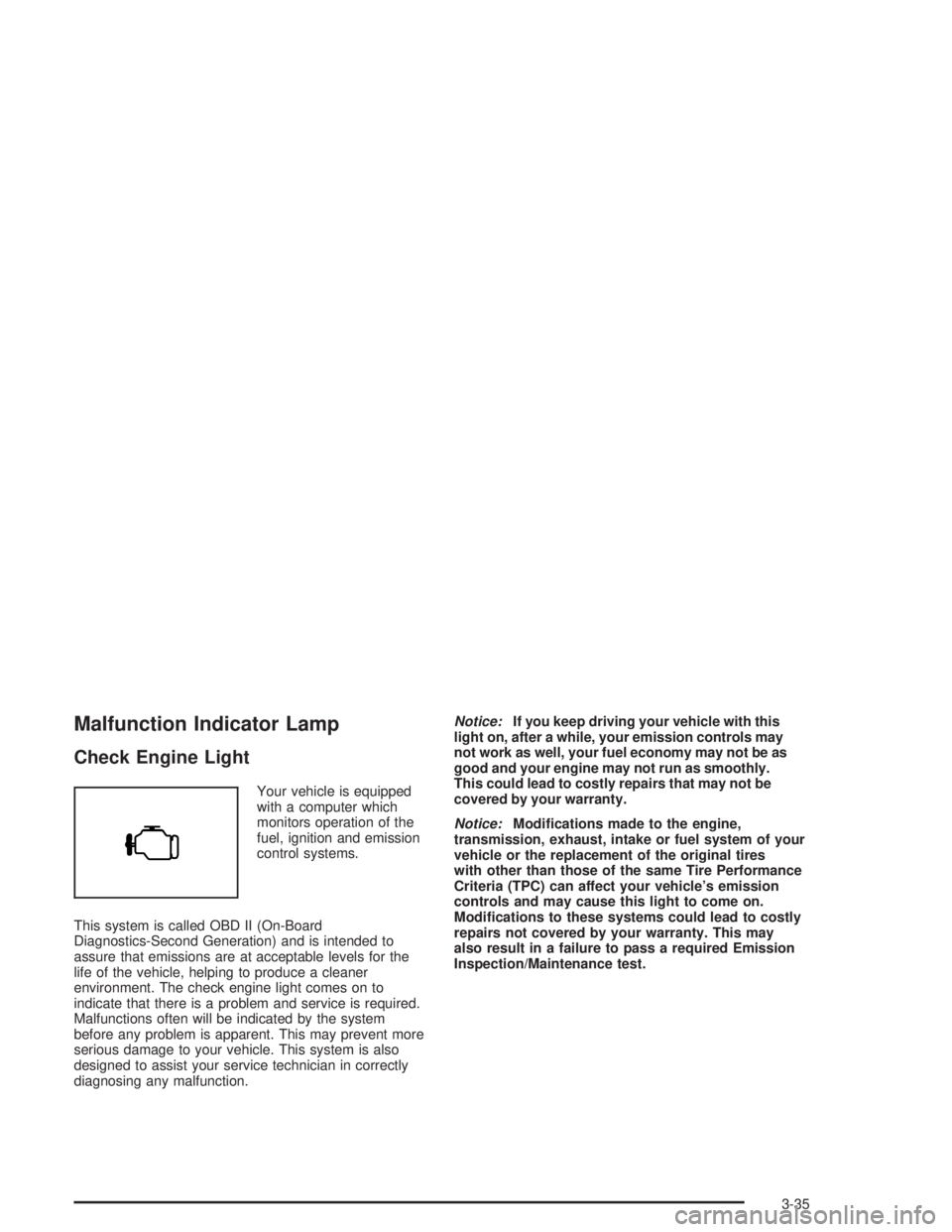
Check Engine Light
Your vehicle is equipped
with a computer which
monitors operation of the
fuel, ignition and emission
control systems.
This system is called OBD II (On-Board
Diagnostics-Second Generation) and is intended to
assure that emissions are at acceptable levels for the
life of the vehicle, helping to produce a cleaner
environment. The check engine light comes on to
indicate that there is a problem and service is required.
Malfunctions often will be indicated by the system
before any problem is apparent. This may prevent more
serious damage to your vehicle. This system is also
designed to assist your service technician in correctly
diagnosing any malfunction.Notice:If you keep driving your vehicle with this
light on, after a while, your emission controls may
not work as well, your fuel economy may not be as
good and your engine may not run as smoothly.
This could lead to costly repairs that may not be
covered by your warranty.
Notice:Modications made to the engine,
transmission, exhaust, intake or fuel system of your
vehicle or the replacement of the original tires
with other than those of the same Tire Performance
Criteria (TPC) can affect your vehicle’s emission
controls and may cause this light to come on.
Modications to these systems could lead to costly
repairs not covered by your warranty. This may
also result in a failure to pass a required Emission
Inspection/Maintenance test.
3-35
Page 144 of 452

This light should come on, as a check to show you it is
working, when the ignition is on and the engine is
not running. If the light does not come on, have it
repaired. This light will also come on during a
malfunction in one of two ways:
Light Flashing— A misre condition has been
detected. A misre increases vehicle emissions and
may damage the emission control system on your
vehicle. Diagnosis and service may be required.
Light On Steady— An emission control system
malfunction has been detected on your vehicle.
Diagnosis and service may be required.
If the Light is Flashing
The following may prevent more serious damage to
your vehicle:
Reducing vehicle speed.
Avoiding hard accelerations.
Avoiding steep uphill grades.
If you are towing a trailer, reduce the amount of
cargo being hauled as soon as it is possible.
If the light stops ashing and remains on steady,
see “If the Light Is On Steady” following.
If the light continues to ash, when it is safe to do so,
stop the vehicle.Find a safe place to park your vehicle.
Turn the key off, wait at least 10 seconds and restart the
engine. If the light remains on steady, see “If the Light Is
On Steady” following. If the light is still ashing, follow the
previous steps, and see your dealer for service as soon
as possible.
3-36
Page 149 of 452
This light may also come on if there is a problem with
the Electronic Throttle Control (ETC) system. If this
happens, take the vehicle in for service as soon
as possible.
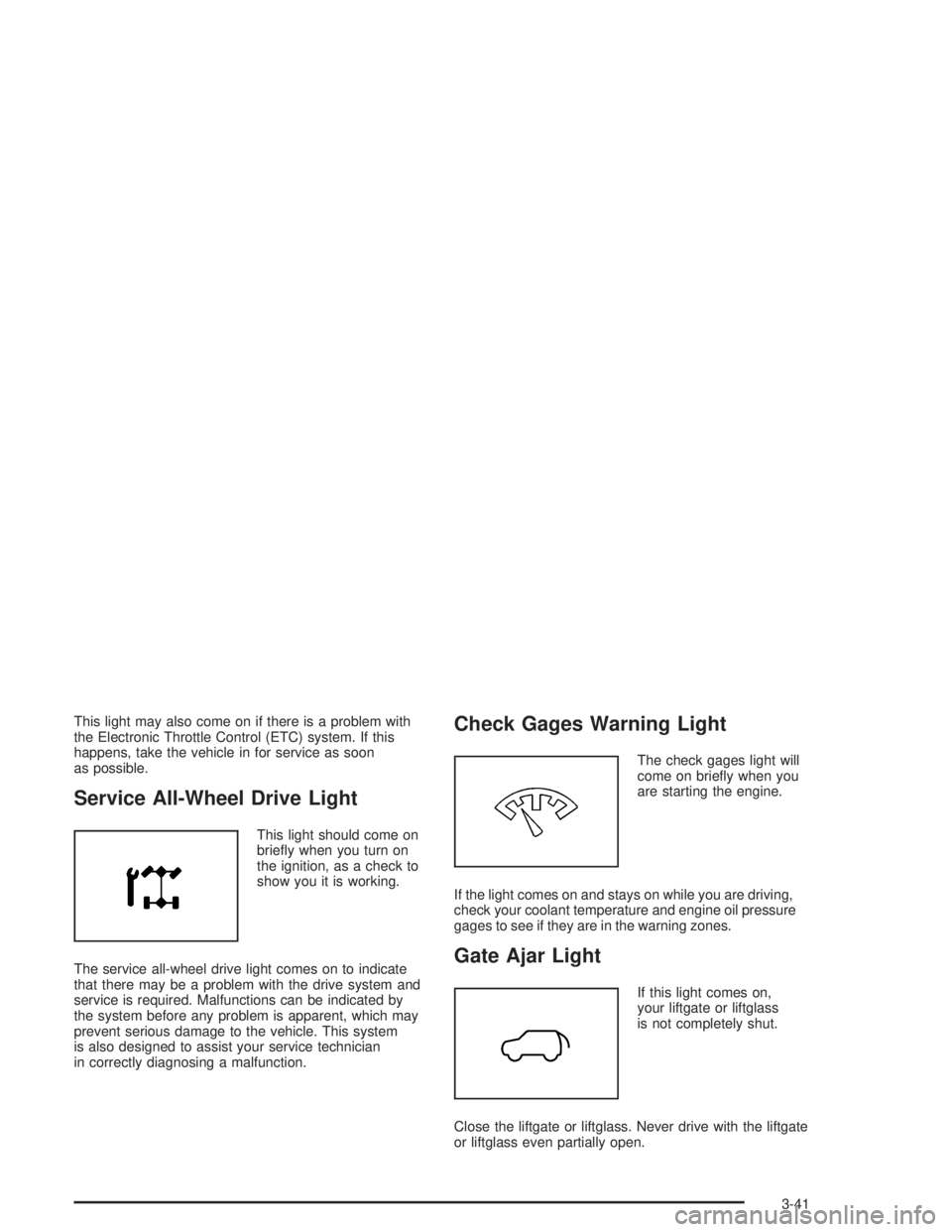
Service All-Wheel Drive Light
This light should come on
briey when you turn on
the ignition, as a check to
show you it is working.
The service all-wheel drive light comes on to indicate
that there may be a problem with the drive system and
service is required. Malfunctions can be indicated by
the system before any problem is apparent, which may
prevent serious damage to the vehicle. This system
is also designed to assist your service technician
in correctly diagnosing a malfunction.
Check Gages Warning Light
The check gages light will
come on briey when you
are starting the engine.
If the light comes on and stays on while you are driving,
check your coolant temperature and engine oil pressure
gages to see if they are in the warning zones.
Gate Ajar Light
If this light comes on,
your liftgate or liftglass
is not completely shut.
Close the liftgate or liftglass. Never drive with the liftgate
or liftglass even partially open.
3-41
Page 150 of 452
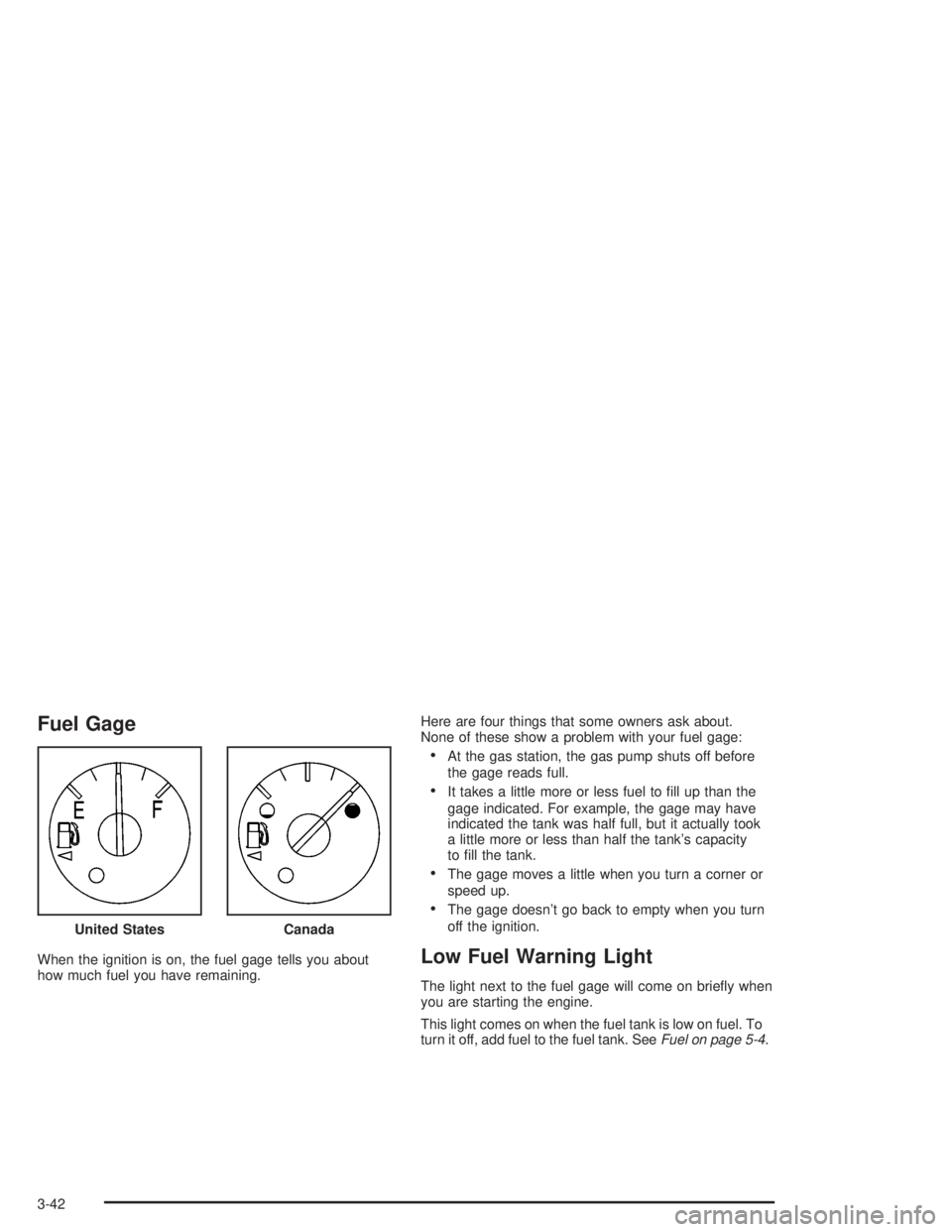
Fuel Gage
When the ignition is on, the fuel gage tells you about
how much fuel you have remaining.Here are four things that some owners ask about.
None of these show a problem with your fuel gage:
At the gas station, the gas pump shuts off before
the gage reads full.
It takes a little more or less fuel to ll up than the
gage indicated. For example, the gage may have
indicated the tank was half full, but it actually took
a little more or less than half the tank’s capacity
to ll the tank.
The gage moves a little when you turn a corner or
speed up.
The gage doesn’t go back to empty when you turn
off the ignition.
Low Fuel Warning Light
The light next to the fuel gage will come on briey when
you are starting the engine.
This light comes on when the fuel tank is low on fuel. To
turn it off, add fuel to the fuel tank. SeeFuel on page 5-4. United States
Canada
3-42
Page 151 of 452
Driver Information Center (DIC)
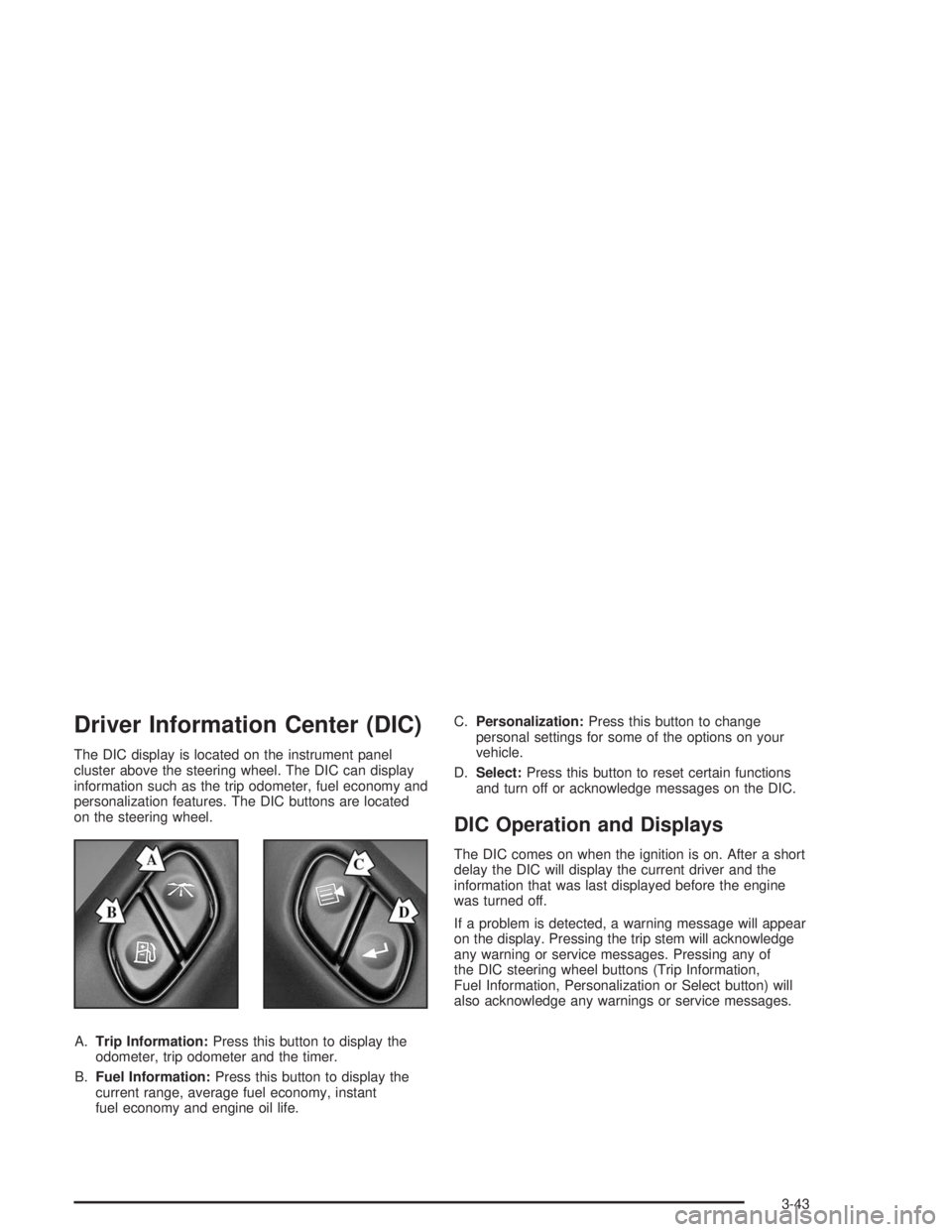
The DIC display is located on the instrument panel
cluster above the steering wheel. The DIC can display
information such as the trip odometer, fuel economy and
personalization features. The DIC buttons are located
on the steering wheel.
A.Trip Information:Press this button to display the
odometer, trip odometer and the timer.
B.Fuel Information:Press this button to display the
current range, average fuel economy, instant
fuel economy and engine oil life.C.Personalization:Press this button to change
personal settings for some of the options on your
vehicle.
D.Select:Press this button to reset certain functions
and turn off or acknowledge messages on the DIC.
DIC Operation and Displays
The DIC comes on when the ignition is on. After a short
delay the DIC will display the current driver and the
information that was last displayed before the engine
was turned off.
If a problem is detected, a warning message will appear
on the display. Pressing the trip stem will acknowledge
any warning or service messages. Pressing any of
the DIC steering wheel buttons (Trip Information,
Fuel Information, Personalization or Select button) will
also acknowledge any warnings or service messages.
3-43
Page 152 of 452
The DIC has different modes which can be accessed
by pressing the four buttons on the DIC. These buttons
are trip information, fuel information, personalization
and select. The button functions are detailed following.
Trip Information
Use the trip information button to scroll through the
odometer, TRIP A, TRIP B and TIMER.
Odometer
Press the trip information button until the odometer
appears on the display. This shows the total distance
the vehicle has been driven in either miles or kilometers.
Pressing the reset stem located on the instrument
cluster with the vehicle off will also display the odometer.
Trip A and Trip B
Press the trip information button until TRIP A or TRIP B
is displayed. This shows the current distance traveled
since the last reset for each trip odometer in either miles
or kilometers. Both odometers can be used at the
same time.Each trip odometer can be reset to zero separately by
pressing select while the desired trip odometer is
displayed. You can also reset the trip odometers with
the reset stem on the cluster. If you press and hold the
reset stem for four seconds, the display will show the
distance traveled since the last ignition cycle.
Timer
The DIC can be used as a stopwatch. Press the select
button while TIMER is displayed to start the timer.
The display will show the amount of time that has
passed since the timer was last reset (not including time
the ignition is off). Time will continue to be counted as
long as the ignition is on, even if another display is being
shown on the DIC. The timer will record up to 99 hours,
59 minutes and 59 seconds (99:59:59) after which
the display will roll back to zero.
To stop the counting of time, press the select button
briey while TIMER is displayed.
To reset the timer to zero, press and hold the select
button while TIMER is displayed.
3-44
Page 155 of 452
Automatic Locking
Press the select button while AUTOMATIC LOCKING
is displayed on the DIC to scroll through the following
choices:
LOCK DOORS OUT OF PARK (default): If you
choose for the doors to lock out of park, the
doors will lock when the vehicle is shifted out of
PARK (P).
LOCK DOORS MANUALLY: If you choose for the
doors to lock manually, the doors will not be
locked automatically.
LOCK DOORS WITH SPEED: If you choose for the
doors to lock with speed, the doors will lock when
the vehicle speed is above 8 mph (13 km/h) for
three seconds.
Press the personalization button while your choice is
displayed on the DIC to select it and move on to the next
feature. For more information on automatic door locks
seeProgrammable Automatic Door Locks on page 2-10.
Automatic Unlocking
Press the personalization button until AUTOMATIC
UNLOCKING appears in the display. To select
your personalization for automatic unlocking,press the select button while AUTOMATIC
UNLOCKING is displayed on the DIC. Pressing the
select button will scroll through the following
choices:
UNLOCK ALL IN PARK (default): If you choose
for all the doors to unlock in PARK (P), all of
the doors will unlock when the vehicle is
shifted into PARK (P).
UNLOCK ALL AT KEY OUT: If you choose for all
the doors to unlock at key out, all of the doors
will unlock when the key is taken out of
the ignition.
UNLOCK DOORS MANUALLY: If you choose for
the doors to unlock manually, the doors will
not be unlocked automatically.
UNLOCK DRIVER IN PARK: If you choose for the
driver’s door to unlock in PARK (P), the driver’s
door will be unlocked when the vehicle is
shifted into PARK (P).
Choose one of the four settings and press the
personalization button while it is displayed on the DIC to
select it and move on to the next feature. For more
information on automatic door locks seeProgrammable
Automatic Door Locks on page 2-10.
3-47
Page 156 of 452
Seat Position Recall
Press the personalization button until SEAT POSITION
RECALL appears in the display. To select your
personalization for seat position recall, press the select
button while SEAT POSITION RECALL is displayed
on the DIC. Pressing the select button will scroll through
the following choices:
SEAT POSITION RECALL OFF (default): If you
choose seat recall off, the memory seat position
you saved will only be recalled when the memory
button 1or 2 is pressed.
SEAT POSITION RECALL AT KEY IN: If you
choose seat recall at key in, the memory seat
position you saved will be recalled when you put
the key in the ignition.
SEAT POSITION RECALL ON REMOTE: If you
choose seat recall on remote, the memory seat
position you saved will be recalled when you unlock
the vehicle with the remote keyless entry
transmitter.
Choose one of the three settings and press the
personalization button while it is displayed on the DIC
to select it and move on to the next feature.
Perimeter Lighting
Press the personalization button until PERIMETER
LIGHTING appears in the display. To select your
personalization for perimeter lighting, press the select
button while PERIMETER LIGHTING is displayed on the
DIC. Pressing the select button will scroll through the
following choices:
PERIMETER LIGHTING ON (default): If you choose
for perimeter lighting to be on, the headlamps and
back-up lamps will come on for 40 seconds, if it
is dark enough outside, when you unlock the vehicle
with the remote keyless entry transmitter.
PERIMETER LIGHTING OFF: Choose one of the
two modes and press the personalization button
while it is displayed on the DIC to select it and move
on to the next feature.
3-48
Page 159 of 452
When the vehicle is placed in PARK (P) or in any
forward gear, the mirror(s) will return to normal driving
positions, following a short delay.
Choose one of the four settings and press the
personalization button while it is displayed on the DIC
to select it and move on to the next feature.
Easy Exit Driver Seat
Press the personalization button until EASY EXIT
DRIVER SEAT appears in the display. To select your
personalization for seat position exit, press the
select button while EASY EXIT DRIVER SEAT is
displayed on the DIC. Pressing the select button will
scroll through the following choices:
EASY EXIT SEAT: OFF (default): If you choose for
the easy exit seat feature to be on, the driver’s seat
will move to the exit position when the key is
removed from the ignition.
EASY EXIT SEAT: ON: If you choose for this
feature to be off, no seat exit recall will occur.
Choose one of the two settings and press the
personalization button while it is displayed on the DIC
to select it and move on to the next feature.
Display Units (U.S./MET)
Press the personalization button until DISPLAY
UNITS — U.S./MET appears in the display. To select
English or metric, press the select button while DISPLAY
UNITS — U.S./MET is displayed on the DIC. Pressing the
select button will scroll through the following choices:
UNITS: U.S. (ENGLISH): If you choose U.S.
(English), all information will be displayed in U.S.
units. For example, distance in miles and fuel
economy in miles per gallon (U.S. gallon) is
displayed.
UNITS: METRIC (KM/L): If you choose metric KM/L,
all information will be displayed in metric units. For
example, distance in kilometers and fuel economy in
KM/L is displayed.
UNITS: METRIC (L/100KM): If you choose metric
L/100KM, all information will be displayed in metric
units. For example, distance in kilometers and fuel
economy in L/100KM is displayed.
Choose one of the three settings and press the
personalization button while it is displayed on the DIC
to select it and end out of the personalization options.
3-51