steering wheel BUICK RAINIER 2005 User Guide
[x] Cancel search | Manufacturer: BUICK, Model Year: 2005, Model line: RAINIER, Model: BUICK RAINIER 2005Pages: 452, PDF Size: 2.6 MB
Page 134 of 452
Headlamps
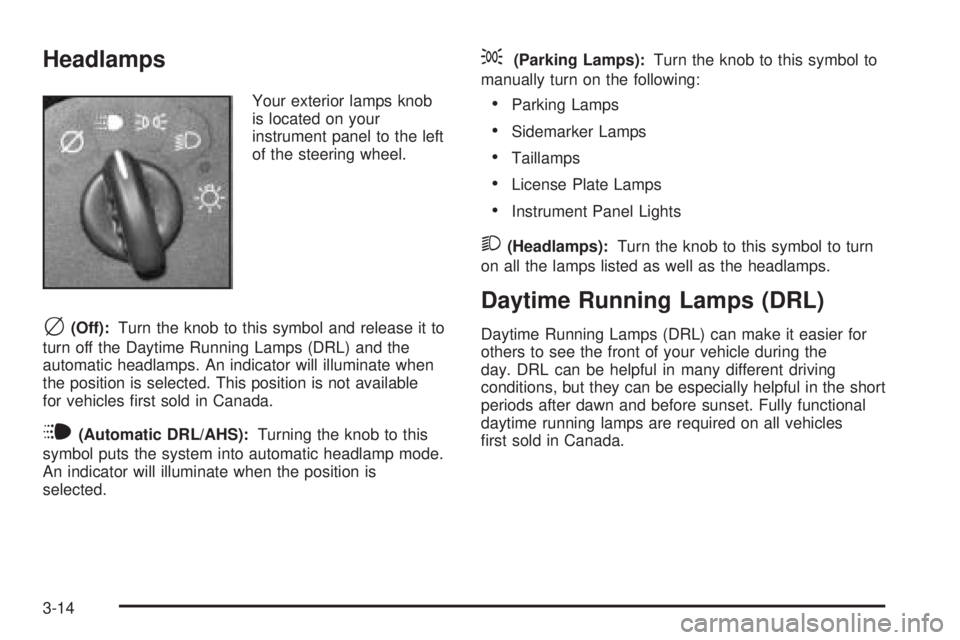
Your exterior lamps knob
is located on your
instrument panel to the left
of the steering wheel.
c(Off):Turn the knob to this symbol and release it to
turn off the Daytime Running Lamps (DRL) and the
automatic headlamps. An indicator will illuminate when
the position is selected. This position is not available
for vehicles rst sold in Canada.
i(Automatic DRL/AHS):Turning the knob to this
symbol puts the system into automatic headlamp mode.
An indicator will illuminate when the position is
selected.
;(Parking Lamps):Turn the knob to this symbol to
manually turn on the following:
Parking Lamps
Sidemarker Lamps
Taillamps
License Plate Lamps
Instrument Panel Lights
2(Headlamps):Turn the knob to this symbol to turn
on all the lamps listed as well as the headlamps.
Daytime Running Lamps (DRL)
Daytime Running Lamps (DRL) can make it easier for
others to see the front of your vehicle during the
day. DRL can be helpful in many different driving
conditions, but they can be especially helpful in the short
periods after dawn and before sunset. Fully functional
daytime running lamps are required on all vehicles
rst sold in Canada.
3-14
Page 163 of 452
Driver Information Center (DIC)
Your vehicle may have this feature. The Driver
Information Center (DIC) display is located on the
instrument panel cluster, below the speedometer. The
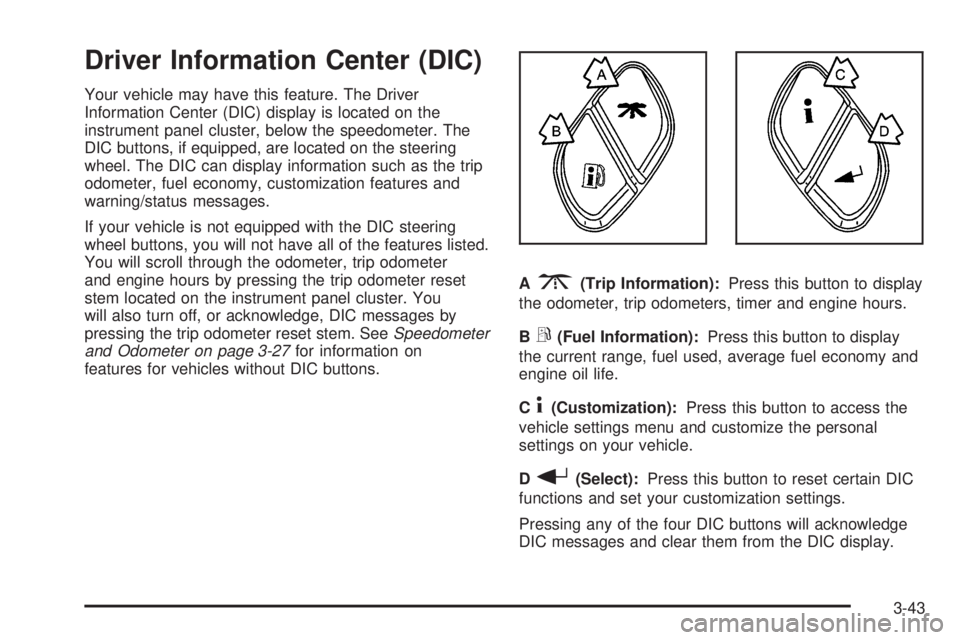
DIC buttons, if equipped, are located on the steering
wheel. The DIC can display information such as the trip
odometer, fuel economy, customization features and
warning/status messages.
If your vehicle is not equipped with the DIC steering
wheel buttons, you will not have all of the features listed.
You will scroll through the odometer, trip odometer
and engine hours by pressing the trip odometer reset
stem located on the instrument panel cluster. You
will also turn off, or acknowledge, DIC messages by
pressing the trip odometer reset stem. SeeSpeedometer
and Odometer on page 3-27for information on
features for vehicles without DIC buttons.A
3(Trip Information):Press this button to display
the odometer, trip odometers, timer and engine hours.
B
r(Fuel Information):Press this button to display
the current range, fuel used, average fuel economy and
engine oil life.
C
4(Customization):Press this button to access the
vehicle settings menu and customize the personal
settings on your vehicle.
D
r(Select):Press this button to reset certain DIC
functions and set your customization settings.
Pressing any of the four DIC buttons will acknowledge
DIC messages and clear them from the DIC display.
3-43
Page 164 of 452
DIC Operation and Displays
The DIC comes on when the ignition is on. After a short
delay the DIC will display the current driver and the
information that was last displayed before the engine
was turned off.
If a problem is detected, a warning message will appear
on the display. Pressing the trip stem will acknowledge
any warning or service messages. Pressing any of
the DIC steering wheel buttons — trip information, fuel
information, customization or select button — will
also acknowledge any warnings or service messages.
You should take any message that appears on the
display seriously and remember that clearing the
message will only make the message disappear, not
correct the problem.
The DIC has different modes which can be accessed by
pressing the four DIC buttons located on the steering
wheel. These buttons are trip information, fuel
information, customization and select. The button
functions are detailed in the following pages.
Trip Information Button
3
(Trip Information):Press the trip information
button to scroll through the ODOMETER, TRIP A,
TRIP B, TIMER and ENGINE HOURS.
Odometer:Press the trip information button until
ODOMETER appears on the display. This mode shows
the total distance the vehicle has been driven in
either miles or kilometers. Pressing the reset stem
located on the instrument cluster with the vehicle off will
also display the odometer.
Trip A:Press the trip information button until TRIP A
appears on the display. This mode shows the current
distance traveled since the last reset for TRIP A in either
miles or kilometers.
Trip B:Press the trip information button until TRIP B
appears on the display. This mode shows the current
distance traveled since the last reset for TRIP B in either
miles or kilometers.
To reset TRIP A or TRIP B information, press and hold
the select button for one second while in one of the
trip modes. This will reset the information for TRIP A or
TRIP B.
3-44
Page 167 of 452
DIC Warnings and Messages
Messages are displayed on the DIC to notify the driver
that the status of the vehicle has changed and that
some action may be needed by the driver to correct the
condition. More than one message may appear at
one time. They will appear one behind the other. Some
messages may not require immediate action but you
should press the trip stem to acknowledge that you
received the message and clear it from the display.
Pressing any of the DIC steering wheel buttons — trip
information, fuel information, customization or select
button — will also acknowledge any warnings or service
messages. Some messages cannot be cleared from
the display because they are more urgent. These
messages require action before they can be removed
from the DIC display. The following are the possible
messages that can be displayed and some information
about them.
BATTERY NOT CHARGING
If the battery is not charging during operation, this
message will appear on the DIC. Driving with this
problem could drain your battery. Have the electrical
system checked by your GM dealer as soon as possible.
SeeVoltmeter Gage on page 3-32. Press the select
button to acknowledge this message and clear it from
the DIC display.
CHECK WASHER FLUID
If the washer uid level is low, this message will appear
on the DIC. Adding washer uid will clear the message.
SeeWindshield Washer Fluid on page 5-36. Press
the select button to acknowledge this message and clear
it from the DIC display.
CURB VIEW ACTIVATED
The CURB VIEW ACTIVATED message is displayed
when the passenger outside rearview mirror moves into
the curb view position. SeeOutside Curb View Assist
Mirror on page 2-39for more information.
DRIVER DOOR AJAR
If the driver’s door is not fully closed, this message will
appear on the display and you will hear a chime.
Stop and turn off the vehicle, check the door for
obstacles, and close the door again. Check to see if the
message still appears on the DIC. Press the select
button to acknowledge this message and clear it from
the DIC display.
3-47
Page 170 of 452
SERVICE BRAKE SYSTEM
If a problem occurs with the brake system this message
will appear on the DIC. If this message appears, stop
as soon as possible and turn off the vehicle. Restart the
vehicle and check for the message on the DIC display.
If the message is still displayed, or appears again when
you begin driving, the brake system needs service.
See your GM dealer.
TIGHTEN FUEL CAP
If the vehicle’s fuel cap is not tightened properly, this
message may appear on the DIC and a chime will
sound. Fully reinstall the fuel cap. SeeFilling Your Tank
on page 5-7. The diagnostic system can determine if
the fuel cap has been left off or improperly installed. A
loose or missing fuel cap will allow fuel to evaporate
into the atmosphere. The DIC message will remain on
until the message is cancelled with the return button
on the steering wheel. The DIC message will also
be cancelled if the ignition is turned off.
The DIC message and the Service Engine Soon light
may come on again during a second trip if the fuel cap is
still not tightened properly. SeeMalfunction Indicator
Lamp on page 3-35for more information.
TURN SIGNAL ON
If a turn signal is left on for 3/4 of a mile (1.2 km), this
message will appear on the display and you will hear a
chime. Move the turn signal/multifunction lever to the
off position. Press the select button to acknowledge this
message and clear it from the DIC display.
DIC Vehicle Customization
Your vehicle may have customization capabilities that
allow you to program some features to one setting
based on your preference. All of the customizable
options listed may not be available on your vehicle. Only
the options available will be displayed on your Driver
Information Center (DIC).
The default settings for the customization features were
set when your vehicle left the factory, but may have
been changed from their default state since then.
To change feature preferences, make sure the ignition
is on and the vehicle is in PARK (P).
Press the customization button to scroll through the
available customizable options.
3-50
Page 241 of 452
To scan preset stations, press and hold the SEEK
button. The radio will go to a preset station, play for a
few seconds, then go the next preset station. The display
will show the selections. This function is inactive if the
front seat passengers are listening to the radio.
When a cassette tape is playing, press the SEEK button
to go to the next selection on the tape. Press and hold the
SEEK button to go to the other side of the tape. This
function is inactive if the front seat passengers are
listening to a cassette tape.
When a CD is playing, press the SEEK button to go to the
next track on the CD. This function is inactive if the front
seat passengers are listening to a CD.
When a CD is playing in the six-disc CD player, press and
hold the SEEK button for 2 seconds to go you to the next
CD, if multiple CDs are loaded. This function is inactive if
the front seat passengers are listening to a CD.
Theft-Deterrent Feature
THEFTLOCK®is designed to discourage theft of your
vehicle’s radio. The feature works automatically by
learning a portion of the Vehicle Identication
Number (VIN). If the radio is moved to a different vehicle,
it will not operate and LOCKED will appear on the display.
When the radio and vehicle are turned off, the blinking
red light indicates that THEFTLOCK
®is armed.With THEFTLOCK
®activated, the radio will not operate if
stolen.
Audio Steering Wheel Controls
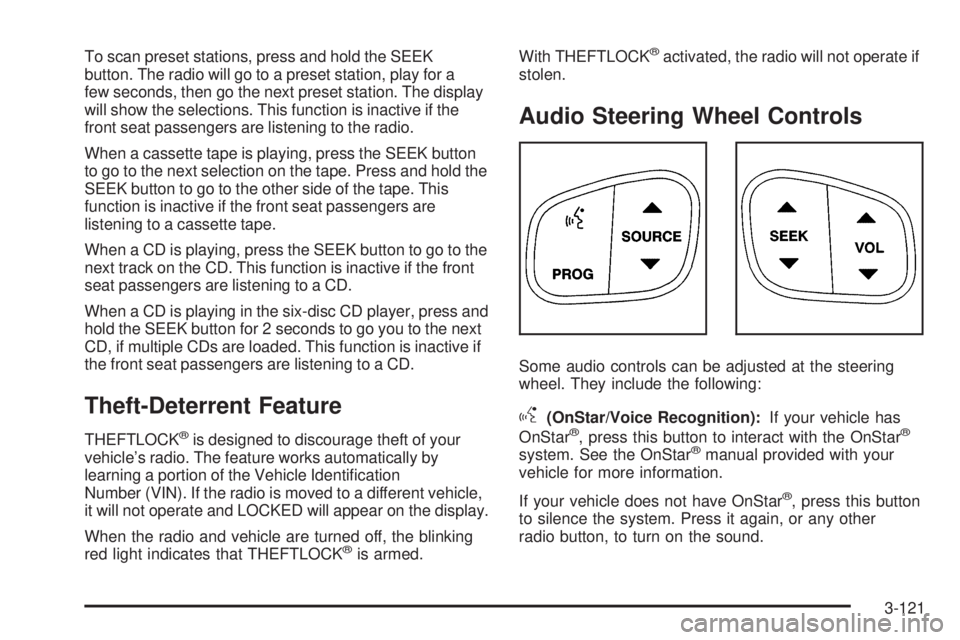
Some audio controls can be adjusted at the steering
wheel. They include the following:
g(OnStar/Voice Recognition):If your vehicle has
OnStar®, press this button to interact with the OnStar®
system. See the OnStar®manual provided with your
vehicle for more information.
If your vehicle does not have OnStar
®, press this button
to silence the system. Press it again, or any other
radio button, to turn on the sound.
3-121
Page 245 of 452
Your Driving, the Road, and Your Vehicle..........4-2
Defensive Driving...........................................4-2
Drunken Driving.............................................4-2
Control of a Vehicle........................................4-5
Braking.........................................................4-5
Anti-Lock Brake System (ABS).........................4-6
Braking in Emergencies...................................4-8
Traction Assist System (TAS)...........................4-8
Locking Rear Axle..........................................4-9
Steering......................................................4-10
Off-Road Recovery.......................................4-12
Passing.......................................................4-12
Loss of Control.............................................4-14
Operating Your All-Wheel-Drive Vehicle Off
Paved Roads............................................4-15Driving at Night............................................4-28
Driving in Rain and on Wet Roads..................4-29
City Driving..................................................4-32
Freeway Driving...........................................4-33
Before Leaving on a Long Trip.......................4-34
Highway Hypnosis........................................4-35
Hill and Mountain Roads................................4-36
Winter Driving..............................................4-38
If You Are Stuck: In Sand, Mud, Ice or Snow........4-42
Rocking Your Vehicle to Get It Out.................4-43
Loading Your Vehicle....................................4-43
Towing..........................................................4-50
Towing Your Vehicle.....................................4-50
Recreational Vehicle Towing...........................4-50
Towing a Trailer...........................................4-50
Section 4 Driving Your Vehicle
4-1
Page 252 of 452
Remember: Anti-lock does not change the time you need
to get your foot up to the brake pedal or always decrease
stopping distance. If you get too close to the vehicle in
front of you, you will not have time to apply your brakes if
that vehicle suddenly slows or stops. Always leave
enough room up ahead to stop, even though you have
anti-lock brakes.
Using Anti-Lock
Do not pump the brakes. Just hold the brake pedal down
rmly and let anti-lock work for you. You may feel the
brakes vibrate, or you may notice some noise, but this is
normal.
Braking in Emergencies
With anti-lock, you can steer and brake at the same
time. In many emergencies, steering can help you more
than even the very best braking.
Traction Assist System (TAS)
If your vehicle has two-wheel drive, it has a Traction
Assist System (TAS) that limits wheel spin. This
is especially useful in slippery road conditions. The
system operates only if it senses that one or both of the
rear wheels are spinning or beginning to lose traction.
When this happens, the system reduces engine
power to limit wheel spin.The low traction symbol next to the button will come on
when the TAS is limiting wheel spin. You may feel or
hear the system working, but this is normal.
The Traction Assist System may operate on dry roads
under some conditions. When this happens, you may
notice a reduction in acceleration. This is normal and
doesn’t mean there’s a problem with your vehicle.
Examples of these conditions include a hard acceleration
in a turn, an abrupt upshift or downshift of the
transmission or driving on rough roads.
If your vehicle is in cruise control when the TAS begins to
limit wheel spin, the cruise control will automatically
disengage. When road conditions allow you to safely use
it again, you may re-engage the cruise control. See
Cruise Control on page 3-11. When the traction control
off symbol on the button is on, the TAS is off and will not
limit wheel spin. Adjust your driving accordingly.
The traction control off symbol on the button will come
on under the following conditions:
The Traction Assist System is turned off, either by
pressing the TAS on/off button or by turning off
the automatic engagement feature of the TAS.
The transmission is in FIRST (1) gear; TAS will not
operate in this gear. This is normal.
4-8
Page 254 of 452
Steering
Power Steering
If you lose power steering assist because the engine
stops or the system is not functioning, you can steer but
it will take much more effort.
Steering Tips
Driving on Curves
It is important to take curves at a reasonable speed.
A lot of the “driver lost control” accidents mentioned on
the news happen on curves. Here is why:
Experienced driver or beginner, each of us is subject to
the same laws of physics when driving on curves.
The traction of the tires against the road surface makes
it possible for the vehicle to change its path when
you turn the front wheels. If there is no traction, inertia
will keep the vehicle going in the same direction. If
you have ever tried to steer a vehicle on wet ice, you
will understand this.
The traction you can get in a curve depends on the
condition of your tires and the road surface, the angle at
which the curve is banked, and your speed. While you are
in a curve, speed is the one factor you can control.Suppose you are steering through a sharp curve.
Then you suddenly accelerate. Both control
systems — steering and acceleration — have to
do their work where the tires meet the road. Adding the
sudden acceleration can demand too much of those
places. You can lose control. SeeTraction Assist
System (TAS) on page 4-8.
What should you do if this ever happens? Ease up on
the accelerator pedal, steer the vehicle the way you
want it to go, and slow down.
Speed limit signs near curves warn that you should
adjust your speed. Of course, the posted speeds
are based on good weather and road conditions. Under
less favorable conditions you will want to go slower.
If you need to reduce your speed as you approach
a curve, do it before you enter the curve, while your front
wheels are straight ahead.
Try to adjust your speed so you can “drive” through the
curve. Maintain a reasonable, steady speed. Wait to
accelerate until you are out of the curve, and then
accelerate gently into the straightaway.
4-10
Page 255 of 452
Steering in Emergencies
There are times when steering can be more effective than
braking. For example, you come over a hill and nd a
truck stopped in your lane, or a car suddenly pulls out
from nowhere, or a child darts out from between parked
cars and stops right in front of you. You can avoid these
problems by braking — if you can stop in time. But
sometimes you cannot; there is not room. That is the time
for evasive action — steering around the problem.
Your vehicle can perform very well in emergencies like
these. First apply your brakes.
SeeBraking on page 4-5. It is better to remove as much
speed as you can from a possible collision. Then
steer around the problem, to the left or right depending
on the space available.An emergency like this requires close attention and a
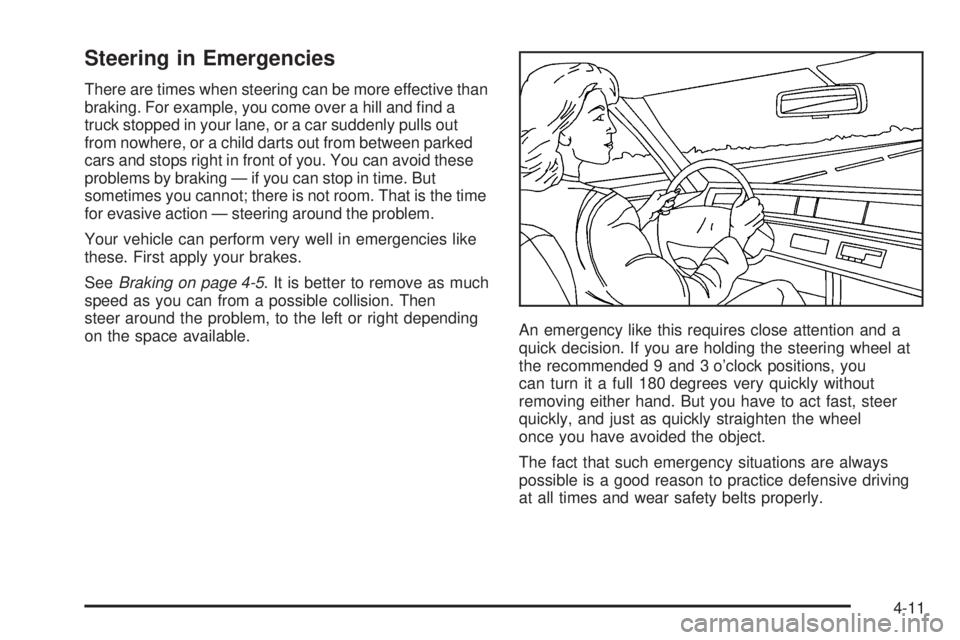
quick decision. If you are holding the steering wheel at
the recommended 9 and 3 o’clock positions, you
can turn it a full 180 degrees very quickly without
removing either hand. But you have to act fast, steer
quickly, and just as quickly straighten the wheel
once you have avoided the object.
The fact that such emergency situations are always
possible is a good reason to practice defensive driving
at all times and wear safety belts properly.
4-11