radio BUICK RAINIER 2005 Repair Manual
[x] Cancel search | Manufacturer: BUICK, Model Year: 2005, Model line: RAINIER, Model: BUICK RAINIER 2005Pages: 452, PDF Size: 2.6 MB
Page 231 of 452
To use the auxiliary inputs on the RSE system, connect
an external auxiliary device to the color-coded RCA jacks
and turn both the auxiliary device and the RSE system
power on. If the RSE system had been previously in the
DVD player mode, pressing the SRCE button on the
faceplate or the remote control will switch the RSE
system between the auxiliary device and the DVD player.
How to Change the Video Format when in
the Auxiliary Mode
The auxiliary input video format is preset to NTSC. In
some countries, the video format may be in the PAL
system. To change the video format, perform the
following:
1. Press the display menu button.
2. Press the down arrow button to highlight the Video
Format option.
3. Press the enter button to select Video Format.
4. Press the right or left arrow button to select
the desired video format.
5. Press the enter button to accept the change.
Audio Output
Audio from the DVD player or auxiliary inputs may be
heard through the following possible sources:
Wireless Headphones
Vehicle Speakers
Vehicle wired headphone jacks on the Rear Seat
Audio system (if equipped)
The RSE system will always transmit the audio signal
by infrared to the wireless headphones, if there is audio
available. See “Headphones” previously for more
information.
The RSE system is capable of outputting audio to the
vehicle speakers by using the radio. The RSE
system may be selected as an audio source on the
radio if the RSE system power is on. Once the
RSE system is selected as an audio source on the
radio, adjust the speaker volume on the radio, if
necessary. If the RSE system power is not on, the RSE
system will not be an available source on the radio.
Refer to the radio information for the radio that
your vehicle has for more information.
The RSE system is capable of outputting audio to the
wired headphone jacks on the rear seat audio system
(if equipped). The RSE system may be selected as
an audio source on the rear seat audio system if
the RSE system power is on. Refer toRear Seat
Audio (RSA) on page 3-120for more information.
3-111
Page 232 of 452
Video Screen
The video screen is located in the overhead console. To
use the video screen, push forward on the release latch
and the screen will fold down. Adjust the screen’s position
as desired. When the video screen is not in use, push it
up into its latched position.
The DVD player and display will continue to operate
when the screen is in the up or the down position. The
video screen contains the transmitters for the wireless
headphones and the remote control. If the screen is in the
closed position, the signals will not be available for the
operation of the headphones or the remote control.
Notice:Directly touching the video screen may
damage it. Do not touch the screen. See “Cleaning
the Video Screen” later in this section for more
information.
DVD Player
The DVD player is located in the overhead console. The
DVD player can be controlled by the buttons on the
DVD player and/or by the buttons on the remote control.
See “Remote Control” later in this section for more
information.The DVD player power may be turned on when the
ignition is in RUN, ACCESSORY, or when Retained
Accessory Power (RAP) is active.
The RSE system DVD player is only compatible with
DVDs of the appropriate region code for the country that
the vehicle was sold in. The DVD region code is
printed on the jacket of most DVDs.
Standard audio CDs, CD-R, CD-RW, Video CD and
Photo CD/CD-R media are fully supported by this DVD
player. DVD-R and DVD-RW media is supported if
formatted as DVD-Video. DVD+R and DVD+RW media
may or may not be supported by the DVD player.
The DVD player does not support DVD-RAM,
DVD-ROM, and DVD Audio media. An error message
will appear on the display if this type of media is inserted
into the DVD player.
When using the wired headphones, not included, if the
front seat passengers play a CD in the Radio with
Six-Disc CD (if equipped) or use XM™ Satellite Radio
Service (if equipped), you will hear the audio for
these sources, instead of the DVD or CD that is currently
playing through the RSE.
If an error message appears on the video screen, see
“DVD Messages” later in this section.
3-112
Page 238 of 452
Problem Recommended Action
After stopping the player, I
push Play but sometimes
the DVD starts where I
left off and sometimes at
the beginning.If the stop button was
pressed one time, the
DVD player will resume
playing where the DVD
was stopped. If the stop
button was pressed two
times the DVD player will
begin to play from the
beginning of the DVD.
The auxiliary source is
running but there is no
picture or sound.Check that the DVD
player is in the auxiliary
source mode. Check the
auxiliary input connections
at both devices.
My disc is stuck in the
player. The Load/Eject
button does not work.Turn the DVD power off,
then on, then press the
load/eject button on the
DVD player. Do not
attempt to forcibly remove
the disc from the DVD
player. This could
permanently damage the
disc and DVD player.Problem Recommended Action
Sometimes the wireless
headphone audio cuts out
or buzzes.Check for obstructions,
low batteries, reception
range, and interference
from cellular telephone
towers or by using your
cellular telephone in the
vehicle. Check that the
headphones are facing
the front of the vehicle.
I lost the remote and/or
the headphones.See your dealer for
assistance.
The DVD is playing, but
there is no picture or
sound.Check that the DVD
player is in DVD mode.
The audio/video skips
or jumps.The DVD or CD could be
dirty, scratched, or
damaged.
The audio from the radio
for the Radio with
Six-Disc CD and XM™
has taken over the audio
from the DVD or CD when
using the wired
headphones.The RSE is working
correctly. Use the wireless
headphones or have the
front seat passengers
listen to another audio
source.
3-118
Page 239 of 452
DVD Messages
The following errors may be displayed on the video
screen:
Disc Format Error:This message will be displayed if a
disc is inserted upside down, if the disc is not readable,
or if the format is not compatible with the DVD player.
Load/Eject Error:This message will be displayed if the
disc is not properly loaded or ejected.
Disc Play Error:This message will be displayed if the
DVD player cannot play the disc. Scratched or
damaged discs will cause this error.
Region Code Error:This message will be displayed if
the region code of the DVD is not compatible with
the region code of the DVD player.
No Disc:This message will be displayed if any of the
buttons on the DVD faceplate or remote control are
pressed and no disc is present in the DVD player.
DVD Distortion
There may be an experience with audio distortion in the
wireless headphones when operating cellular phones,
scanners, CB radios, Global Positioning Systems (GPS)*,
two-way radios, mobile fax, or walkie talkies.
It may be necessary to turn off the DVD player when
operating one of these devices in or near the vehicle.
* Excludes the OnStar
®System.
Cleaning the Video Screen
Pour some isopropyl or rubbing alcohol on a clean cloth
and gently wipe the video screen. Do not spray
directly onto the screen and do not press too hard or
too long on the video screen.
Navigation/Radio System
Your vehicle may have a navigation radio system that
includes Radio Data System (RDS) with Program
Type (PTY) selections that will seek out the kind of music
you want to listen to and XM™ Satellite Radio Service
capabilities (if equipped). The radio can also
communicate with the navigation system to broadcast
announcements on traffic, weather, and emergency alert
communications. For information on how to use this
system, see the “Navigation System” manual.
3-119
Page 240 of 452
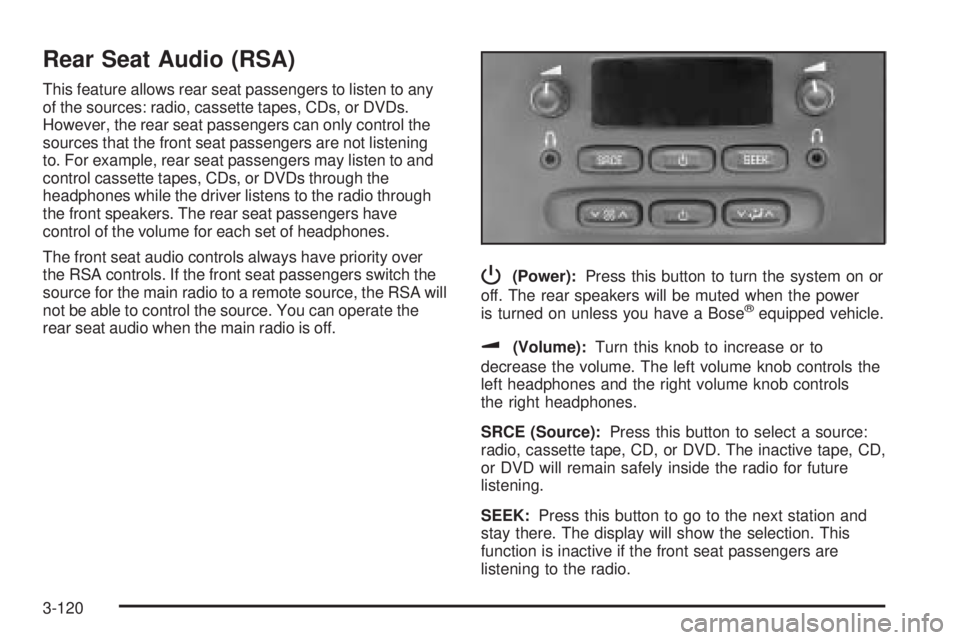
Rear Seat Audio (RSA)
This feature allows rear seat passengers to listen to any
of the sources: radio, cassette tapes, CDs, or DVDs.
However, the rear seat passengers can only control the
sources that the front seat passengers are not listening
to. For example, rear seat passengers may listen to and
control cassette tapes, CDs, or DVDs through the
headphones while the driver listens to the radio through
the front speakers. The rear seat passengers have
control of the volume for each set of headphones.
The front seat audio controls always have priority over
the RSA controls. If the front seat passengers switch the
source for the main radio to a remote source, the RSA will
not be able to control the source. You can operate the
rear seat audio when the main radio is off.
P(Power):Press this button to turn the system on or
off. The rear speakers will be muted when the power
is turned on unless you have a Bose
®equipped vehicle.
u(Volume):Turn this knob to increase or to
decrease the volume. The left volume knob controls the
left headphones and the right volume knob controls
the right headphones.
SRCE (Source):Press this button to select a source:
radio, cassette tape, CD, or DVD. The inactive tape, CD,
or DVD will remain safely inside the radio for future
listening.
SEEK:Press this button to go to the next station and
stay there. The display will show the selection. This
function is inactive if the front seat passengers are
listening to the radio.
3-120
Page 241 of 452
To scan preset stations, press and hold the SEEK
button. The radio will go to a preset station, play for a
few seconds, then go the next preset station. The display
will show the selections. This function is inactive if the
front seat passengers are listening to the radio.
When a cassette tape is playing, press the SEEK button
to go to the next selection on the tape. Press and hold the
SEEK button to go to the other side of the tape. This
function is inactive if the front seat passengers are
listening to a cassette tape.
When a CD is playing, press the SEEK button to go to the
next track on the CD. This function is inactive if the front
seat passengers are listening to a CD.
When a CD is playing in the six-disc CD player, press and
hold the SEEK button for 2 seconds to go you to the next
CD, if multiple CDs are loaded. This function is inactive if
the front seat passengers are listening to a CD.
Theft-Deterrent Feature
THEFTLOCK®is designed to discourage theft of your
vehicle’s radio. The feature works automatically by
learning a portion of the Vehicle Identication
Number (VIN). If the radio is moved to a different vehicle,
it will not operate and LOCKED will appear on the display.
When the radio and vehicle are turned off, the blinking
red light indicates that THEFTLOCK
®is armed.With THEFTLOCK
®activated, the radio will not operate if
stolen.
Audio Steering Wheel Controls
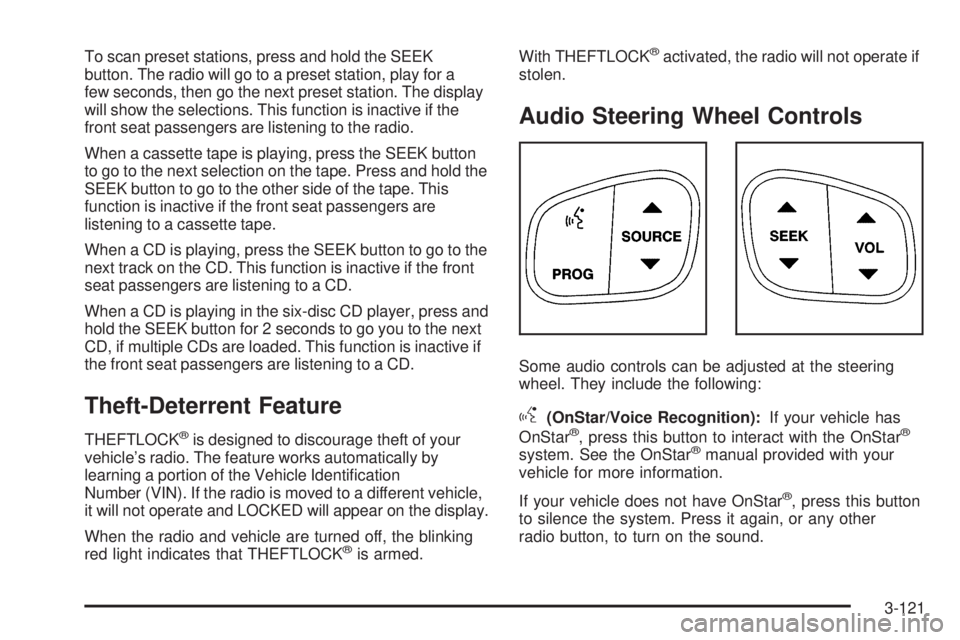
Some audio controls can be adjusted at the steering
wheel. They include the following:
g(OnStar/Voice Recognition):If your vehicle has
OnStar®, press this button to interact with the OnStar®
system. See the OnStar®manual provided with your
vehicle for more information.
If your vehicle does not have OnStar
®, press this button
to silence the system. Press it again, or any other
radio button, to turn on the sound.
3-121
Page 242 of 452
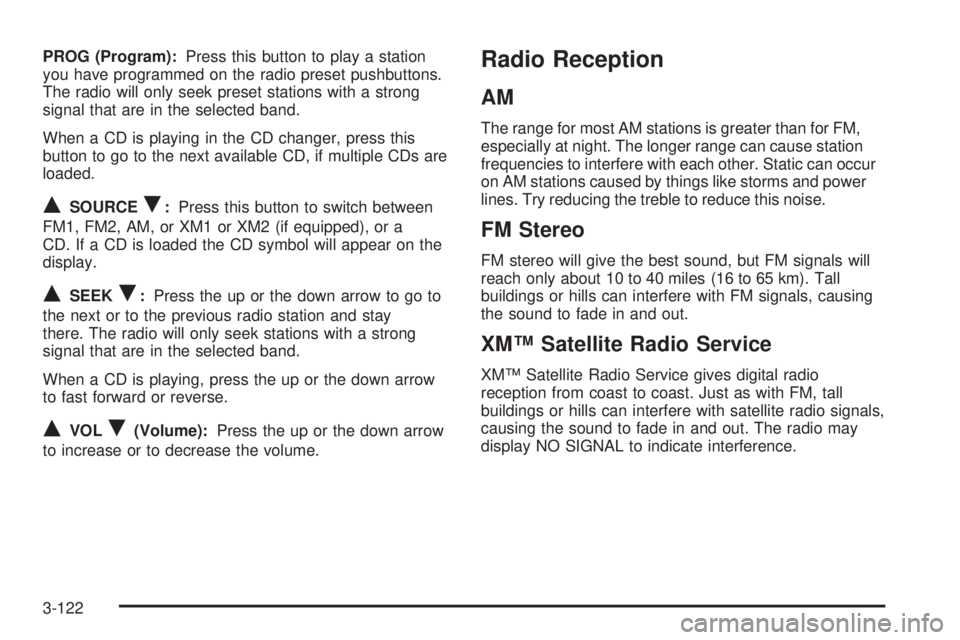
PROG (Program):Press this button to play a station
you have programmed on the radio preset pushbuttons.
The radio will only seek preset stations with a strong
signal that are in the selected band.
When a CD is playing in the CD changer, press this
button to go to the next available CD, if multiple CDs are
loaded.
QSOURCER:Press this button to switch between
FM1, FM2, AM, or XM1 or XM2 (if equipped), or a
CD. If a CD is loaded the CD symbol will appear on the
display.
QSEEKR:Press the up or the down arrow to go to
the next or to the previous radio station and stay
there. The radio will only seek stations with a strong
signal that are in the selected band.
When a CD is playing, press the up or the down arrow
to fast forward or reverse.
QVOLR(Volume):Press the up or the down arrow
to increase or to decrease the volume.
Radio Reception
AM
The range for most AM stations is greater than for FM,
especially at night. The longer range can cause station
frequencies to interfere with each other. Static can occur
on AM stations caused by things like storms and power
lines. Try reducing the treble to reduce this noise.
FM Stereo
FM stereo will give the best sound, but FM signals will
reach only about 10 to 40 miles (16 to 65 km). Tall
buildings or hills can interfere with FM signals, causing
the sound to fade in and out.
XM™ Satellite Radio Service
XM™ Satellite Radio Service gives digital radio
reception from coast to coast. Just as with FM, tall
buildings or hills can interfere with satellite radio signals,
causing the sound to fade in and out. The radio may
display NO SIGNAL to indicate interference.
3-122
Page 243 of 452
Care of Your Cassette Tape Player
A tape player that is not cleaned regularly can cause
reduced sound quality, ruined cassettes, or a damaged
mechanism. Cassette tapes should be stored in their
cases away from contaminants, direct sunlight, and
extreme heat. If they are not, they may not operate
properly or may cause failure of the tape player.
The tape player should be cleaned regularly after every
50 hours of use. The radio may display CLEAN to
indicate that the tape player has been used for
50 hours without resetting the tape clean timer. If this
message appears on the display, the cassette tape
player needs to be cleaned. It will still play tapes, but it
should be cleaned as soon as possible to prevent
damage to the tapes and player. If there is a reduction in
sound quality, try a known good cassette to see if the
tape or the tape player is at fault. If this other cassette has
no improvement in sound quality, clean the tape player.
For best results, use a scrubbing action, non-abrasive
cleaning cassette with pads which scrub the tape
head as the hubs of the cleaner cassette turn. The
recommended cleaning cassette is available through
your dealer.The broken tape detection feature of the cassette tape
player may identify the cleaning cassette as a
damaged tape, in error. To prevent the cleaning cassette
from being ejected, use the following steps:
1. Turn the ignition on.
2. Turn the radio off.
3. Press and hold the TAPE CD button for ve
seconds. READY will appear on the display and a
cassette symbol will ash for ve seconds.
4. Insert the scrubbing action cleaning cassette.
5. Eject the cleaning cassette after the manufacturer’s
recommended cleaning time.
After the cleaning cassette is ejected, the broken
tape detection feature will be active again.
A non-scrubbing action, wet-type cleaner which uses a
cassette with a fabric belt to clean the tape head
can be used. This type of cleaning cassette will not
eject on its own. A non-scrubbing action cleaner may not
clean as thoroughly as the scrubbing type cleaner.
The use of a non-scrubbing action, dry-type cleaning
cassette is not recommended.
After the player is cleaned, press and hold the EJT
button for ve seconds to reset the CLEAN indicator.
The radio will display CLEANED to show the indicator
was reset.
3-123
Page 244 of 452
Cassettes are subject to wear and the sound quality may
degrade over time. Always make sure the cassette tape
is in good condition before the tape player is serviced.
Care of Your CDs and DVDs
Handle discs carefully. Store them in their original cases
or other protective cases and away from direct sunlight
and dust. If the surface of a disc is soiled, dampen
a clean, soft cloth in a mild, neutral detergent solution
and clean it, wiping from the center to the edge.
Be sure never to touch the side without writing when
handling discs. Pick up discs by grasping the outer
edges or the edge of the hole and the outer edge.
Care of Your CD and DVD Player
The use of CD lens cleaners for CDs is not advised, due
to the risk of contaminating the lens of the CD optics
with lubricants internal to the CD mechanism.
Fixed Mast Antenna
The xed mast antenna can withstand most car washes
without being damaged. If the mast should ever
become slightly bent, straighten it out by hand. If the
mast is badly bent, replace it.Check occasionally to make sure the mast is still
tightened to the fender. If tightening is required, tighten
by hand, then with a wrench one quarter turn.
XM™ Satellite Radio Antenna
System
The XM™ Satellite Radio antenna is located on the roof
of your vehicle. Keep this antenna clear of snow and ice
build up for clear radio reception.
The performance of the XM™ system may be affected if
the sunroof is open.
Loading items onto the roof of your vehicle can interfere
with the performance of the XM™ system. Make sure that
the XM™ satellite antenna is not obstructed.
Chime Level Adjustment
The radio is the vehicle’s chime producer. To change the
volume level, press and hold pushbutton 6 with the
ignition on and the radio power off. The chime volume
level will change from the normal level to loud, and LOUD
will appear on the radio display. To change back to the
default or normal setting, press and hold pushbutton 6
again. The chime level will change from the loud level to
normal, and NORMAL will appear on the radio display.
Removing the radio and not replacing it with a factory
radio or chime will disable vehicle chimes.
3-124
Page 345 of 452
Jump Starting
If your battery has run down, you may want to use
another vehicle and some jumper cables to start your
vehicle. Be sure to use the following steps to do it safely.
{CAUTION:
Batteries can hurt you. They can be dangerous
because:
They contain acid that can burn you.
They contain gas that can explode or
ignite.
They contain enough electricity to
burn you.
If you do not follow these steps exactly, some
or all of these things can hurt you.
Notice:Ignoring these steps could result in costly
damage to your vehicle that would not be covered
by your warranty.
Trying to start your vehicle by pushing or pulling it
will not work, and it could damage your vehicle.
1. Check the other vehicle. It must have a 12-volt
battery with a negative ground system.Notice:If the other vehicle’s system is not a 12-volt
system with a negative ground, both vehicles can
be damaged. Only use vehicles with 12-volt systems
with negative grounds to jump start your vehicle.
2. Get the vehicles close enough so the jumper cables
can reach, but be sure the vehicles are not touching
each other. If they are, it could cause a ground
connection you do not want. You would not be able
to start your vehicle, and the bad grounding
could damage the electrical systems.
To avoid the possibility of the vehicles rolling, set
the parking brake rmly on both vehicles involved in
the jump start procedure. Put an automatic
transmission in PARK (P) or a manual transmission
in NEUTRAL before setting the parking brake. If
you have a four-wheel-drive vehicle, be sure
the transfer case is not in NEUTRAL.
Notice:If you leave your radio or other accessories
on during the jump starting procedure, they could
be damaged. The repairs would not be covered
by your warranty. Always turn off your radio and
other accessories when jump starting your vehicle.
3. Turn off the ignition on both vehicles. Unplug
unnecessary accessories plugged into the cigarette
lighter or the accessory power outlets (if equipped).
Turn off the radio and all lamps that are not
needed. This will avoid sparks and help to save
both batteries. And it could save the radio!
5-41