phone BUICK RANDEZVOUS 2005 User Guide
[x] Cancel search | Manufacturer: BUICK, Model Year: 2005, Model line: RANDEZVOUS, Model: BUICK RANDEZVOUS 2005Pages: 480, PDF Size: 2.96 MB
Page 244 of 480
3. Turn the P-TYPE knob to select a PTY.
4. Press and hold one of the six numbered
pushbuttons until you hear a beep. Whenever that
numbered pushbutton is pressed, the PTY that
was set will return.
5. Repeat the steps for each pushbutton.
RDS Messages
ALERT!:Alert warns of local or national emergencies.
When an alert announcement comes on the current
radio station, ALERT! will appear on the display. You will
hear the announcement, even if the volume is low or
a CD is playing. If a CD is playing, play will stop during
the announcement. Alert announcements cannot be
turned off.
ALERT! will not be affected by tests of the emergency
broadcast system. This feature is not supported by
all RDS stations.INFO (Information):If the current station has a
message, INFO will appear on the display. Press this
button to see the message. The message may display
the artist, song title, call in phone numbers, etc.
If the entire message is not displayed, parts of the
message will appear every three seconds. To scroll
through the message, press and release the INFO button.
A new group of words will appear on the display after
every press of this button. Once the complete message
has been displayed, INFO will disappear from the display
until another new message is received. The last message
can be displayed by pressing the INFO button. You can
view the last message until a new message is received or
a different station is tuned to.
TRAF (Traffic):If TRAF appears on the display, the
tuned station broadcasts traffic announcements.
To receive the traffic announcement from the tuned
station, press this button. Brackets will be displayed
around TRAF and when a traffic announcement comes
on the tuned radio station you will hear it.
3-106
Page 253 of 480

If the CD is not playing correctly, for any other reason,
try a known good CD.
If any error occurs repeatedly or if an error cannot be
corrected, contact your dealer. If the radio displays
an error message, write it down and provide it to your
dealer when reporting the problem.
Listening to a DVD
Your vehicle may have a Rear Seat Entertainment
System, seeRear Seat Entertainment System on
page 3-115for more information. If your vehicle has this
system and a DVD is playing, the DVD symbol will appear
on the radio display indicating that the DVD is available
and can be listened through your vehicles speakers.
To listen to the DVD, press the CD AUX button until
RSE appears on the radio display. The current source
will stop and the DVD sound will come through the
speakers. To stop listening to the DVD press the CD
AUX button, if a CD is loaded, or press the BAND button
to select a different source.
When the RSE system is turned off, the radio will
display RSE OFF and the radio will return to the last
radio source that you were listening to.
Rear Seat Entertainment System
Your vehicle may have a DVD Rear Seat
Entertainment (RSE) system. The RSE system includes
a DVD player, a video display screen, two sets of
wireless headphones, and a remote control.
Parental Control
This button is located behind the video screen, next to the
auxiliary jacks, near the driver of the vehicle. Press this
button while a DVD or CD is playing to freeze the video
and mute the audio. The video screen will display
Parental Control On and the power indicator light on the
DVD player will ash. It will also disable all other button
operations from the remote control and the DVD player,
with the exception of the eject button. The driver will then
be able to gain the attention of the rear seat passengers.
Press this button again to restore normal operation of the
DVD player and remote control.
This button may also be used to turn the DVD player
power on and automatically resume play if the vehicle is
in an enabled power mode.
3-115
Page 254 of 480

Before You Drive
The RSE is designed for rear seat passengers only.
The driver cannot safely view the video screen
while driving and should not try to do so.
The DVD system is designed to be inoperable when the
vehicle is exposed to extremely low or high
temperatures, in order to protect the system from
damage. Operate the DVD system under normal or
comfortable cabin temperature ranges.
Headphones
The RSE system includes two sets of wireless
headphones.
The wireless headphones have an ON/OFF switch and
a volume control. To use the headphones, turn the
switch to ON. An indicator light on the headphones will
illuminate. If the light does not illuminate, the batteries
may need to be replaced. See “Battery Replacement”
later in this section for more information. Switch the
headphones to OFF when not in use.The transmitters are located below the overhead RSE
control panel. The headphones will shut off automatically
to save the battery power if the DVD system is shut
off, or if the headphones are out of range of the
transmitters for more than three minutes. If you move
too far forward or step out of the vehicle, the
headphones will lose the audio signal.
To adjust the volume on the wireless headphones, use
the volume control.
You can listen to the RSE system through the wired
headphone jacks on the Rear Seat Audio (RSA) system
(if equipped) when the following occurs:The RSA system is on
A DVD or auxiliary device is playing
RSE is displayed on the front audio system by
pressing the TAPE/CD button on the RSA system
SeeRear Seat Audio (RSA) on page 3-130for more
information.
If the front seat passengers are listening to the RSE
system through the vehicle’s speakers and the rear seat
passengers are using the wired headphones to listen
to the RSA system, the BAND button will not access
XM™ Satellite Radio Service.
3-116
Page 255 of 480
Notice:Do not store the headphones in heat or
direct sunlight. This could damage the headphones
and repairs would not be covered by your warranty.
Keep the headphones stored in a cool, dry place.
If there is a decreased audio signal during CD or DVD
play, there may be a low hissing noise through the
speakers and/or headphones. If the hissing sound in the
wireless headphones seems excessive, make sure
that the headphone batteries are fully charged. Some
amount of hissing is normal.
Battery Replacement
To change the batteries, do the following:
1. Loosen the screw on the battery compartment door
located on the left side of the headphone earpiece.
2. Replace the two AAA batteries in the compartment.
Make sure that they are installed correctly using the
diagram on the inside of the battery compartment.
3. Tighten the screw on the battery compartment door.
If the headphones are to be stored for a long period
of time, remove the batteries, and keep them in a cool,
dry place.
Stereo RCA Jacks
The RCA jacks are located behind the video screen on
the DVD console. The RCA jacks allow audio and
video signals to be connected from an auxiliary device
such as a camcorder or a video game unit to the
RSE. The yellow RCA jack is used for video inputs, the
red RCA jack for right audio inputs, and the white
RCA jack for left audio inputs. The system requires
standard RCA cables, not included, to connect the
auxiliary device to the RCA jacks. Refer to the
manufacturer’s instructions for proper usage.
To use the auxiliary audio and video inputs, connect an
external auxiliary device such as a camcorder to the
RCA jacks and turn on both the auxiliary device power
and the power on the front of the RSE player.
If a disc is present when the RSE power is turned on,
the player will automatically begin playing the disc
and the user will need to press the SRCE button on the
remote control or on the DVD player faceplate to
switch the system between the DVD player and the
auxiliary device. See “DVD Player” and “Remote
Control” later in this section for more information.
3-117
Page 256 of 480

Audio Output
Audio from the DVD player or auxiliary devices can be
heard through the following possible sources:
Wireless Headphones
Vehicle’s Speakers
Rear Seat Audio (RSA) RCA Jacks (if equipped).
Plug the wired headphones (not included) into
the jacks on the RSA system.
Only one audio source can be heard through the
vehicle’s speakers at a time.
The RSE system or an auxiliary device can be heard
through all of the vehicles speakers when the following
occurs:
The RSA system (if equipped) is off
A DVD or auxiliary device is playing
The front audio system is on and either the CD, the
CD TAPE, or the CD AUX button is pressed to
enable the RSE system
RSE will appear on the radio display when the RSE
system is on and RSE OFF, when it is off.To turn the vehicles speakers on and off, press either
the CD, the CD TAPE, or the CD AUX button on
the radio. The audio from the RSE system can be heard
through the wireless headphones and the vehicles
speakers at the same time.
The volume on the radio may vary when switching
between a radio station, CD, DVD, cassette, or auxiliary
device.
If there is a decreased audio signal during CD or DVD
play, there may be a low hissing noise through the
speakers and/or headphones. If the hissing sound in the
wireless headphones seems excessive, make sure
that the headphone batteries are fully charged. Some
amount of hissing is normal.
3-118
Page 257 of 480
Video Screen
The video screen is located in the overhead console.
To use the video screen, do the following:
1. Push forward on the release button and the screen
will fold down.
2. Push the screen away from you and adjust its
position as desired.
When the video screen is not in use, push it up into its
stowed and latched position.
The DVD player and display will continue to operate
when the video screen is in either the up or down
positions.
The video screen contains the transmitters for the
wireless headphones and the receiver for the remote
control. If the screen is in the closed position, the signals
will not be available for the operation of the headphones
or the remote control.
Notice:Directly touching the video screen may
damage it. Do not touch the screen. See “Cleaning
the Video Screen” later in this section for more
information.
DVD Player
The DVD player is located in the overhead console.
The DVD player can be controlled by the buttons on the
DVD player, and/or by the buttons on the remote
control. See “Remote Control” later in this section for
more information.
The RSE system DVD player is only compatible with
DVDs of the appropriate region code for the country that
the vehicle was sold in. The DVD region code is
printed on the jacket of most DVDs.
Standard audio CDs, CD-R, CD-RW, Video CD and
Photo CD/CD-R media are fully supported by this DVD
player. DVD-R and DVD-RW media is supported if
formatted as DVD-Video. DVD+R and DVD+RW media
may or may not be supported by the DVD player.
The DVD player does not support DVD-RAM,
DVD-ROM, and DVD Audio media. An error message
will appear on the display if this type of media is inserted
into the DVD player.
If an error message appears on the video screen, see
“DVD Messages” later in this section.
3-119
Page 264 of 480
Problem Recommended Action
No sound. The volume on the
headphones could be too
low. Adjust the volume on
the right earpiece on the
wireless headphones. If
the DVD system is being
heard through the vehicle
speakers, adjust the
volume from the radio.
The radio must have the
RSE enabled by using the
CD, CD TAPE, or CD
AUX button.
The picture is distorted
during fast forward or
reverse.This is normal for this
operation.
The picture does not ll the
screen. There are black
borders on the top and
bottom or on both sides or
it looks stretched out.Quickly press and release
the display control button
on the remote control or
the DVD player and
choose Display Mode.
Then select Full. This will
ll the screen. If there are
borders on the top and
bottom, the movie may
have been made that way
for a standard screen.Problem Recommended Action
I ejected the disc and tried
to take it out, but it was
pulled back into the slot.Eject the disc again.
The language in the audio
or on the screen is wrong.Press the main menu
button on the DVD player
or the remote control and
change the audio or
language selection on the
DVD menu.
The remote control does
not work.Point the remote control
directly at the transmitter
window. The batteries
could be weak or put in
wrong. The parental
control button might have
been pressed. The power
indicator light will ash.
How do I get subtitles on
or off?Press the subtitle button
on the remote control to go
to the DVDs main menu.
Then follow the screen
prompts.
3-126
Page 266 of 480
Problem Recommended Action
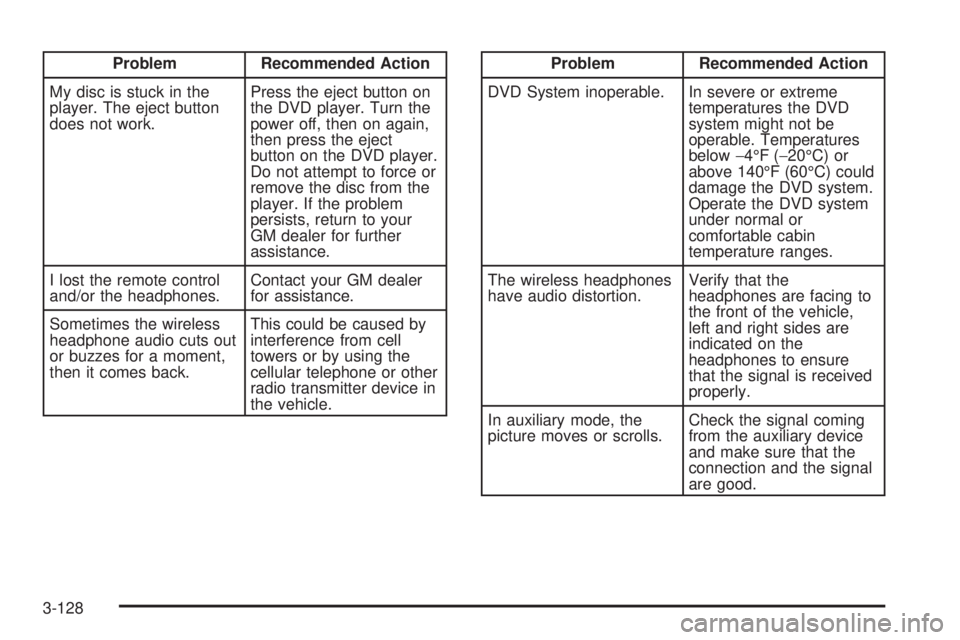
My disc is stuck in the
player. The eject button
does not work.Press the eject button on
the DVD player. Turn the
power off, then on again,
then press the eject
button on the DVD player.
Do not attempt to force or
remove the disc from the
player. If the problem
persists, return to your
GM dealer for further
assistance.
I lost the remote control
and/or the headphones.Contact your GM dealer
for assistance.
Sometimes the wireless
headphone audio cuts out
or buzzes for a moment,
then it comes back.This could be caused by
interference from cell
towers or by using the
cellular telephone or other
radio transmitter device in
the vehicle.Problem Recommended Action
DVD System inoperable. In severe or extreme
temperatures the DVD
system might not be
operable. Temperatures
below−4°F (−20°C) or
above 140°F (60°C) could
damage the DVD system.
Operate the DVD system
under normal or
comfortable cabin
temperature ranges.
The wireless headphones
have audio distortion.Verify that the
headphones are facing to
the front of the vehicle,
left and right sides are
indicated on the
headphones to ensure
that the signal is received
properly.
In auxiliary mode, the
picture moves or scrolls.Check the signal coming
from the auxiliary device
and make sure that the
connection and the signal
are good.
3-128
Page 267 of 480
DVD Messages
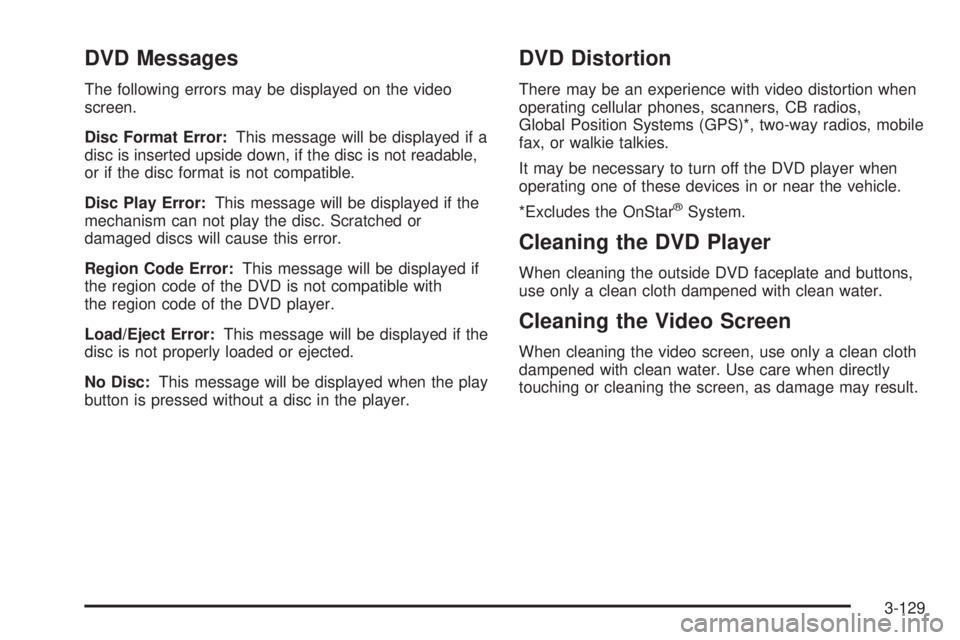
The following errors may be displayed on the video
screen.
Disc Format Error:This message will be displayed if a
disc is inserted upside down, if the disc is not readable,
or if the disc format is not compatible.
Disc Play Error:This message will be displayed if the
mechanism can not play the disc. Scratched or
damaged discs will cause this error.
Region Code Error:This message will be displayed if
the region code of the DVD is not compatible with
the region code of the DVD player.
Load/Eject Error:This message will be displayed if the
disc is not properly loaded or ejected.
No Disc:This message will be displayed when the play
button is pressed without a disc in the player.
DVD Distortion
There may be an experience with video distortion when
operating cellular phones, scanners, CB radios,
Global Position Systems (GPS)*, two-way radios, mobile
fax, or walkie talkies.
It may be necessary to turn off the DVD player when
operating one of these devices in or near the vehicle.
*Excludes the OnStar
®System.
Cleaning the DVD Player
When cleaning the outside DVD faceplate and buttons,
use only a clean cloth dampened with clean water.
Cleaning the Video Screen
When cleaning the video screen, use only a clean cloth
dampened with clean water. Use care when directly
touching or cleaning the screen, as damage may result.
3-129
Page 268 of 480

Navigation/Radio System
Your vehicle may have a navigation radio system that
includes Radio Data System (RDS) with Program
Type (PTY) selections that will seek out the kind of music
you want to listen to and XM™ Satellite Radio Service
capabilities (if equipped). The radio can also
communicate with the navigation system to broadcast
announcements on traffic, weather, and emergency alert
communications. For information on how to use this
system, see the “Navigation System” manual.
Rear Seat Audio (RSA)
This feature allows rear seat passengers to listen to any
of the sources: radio, cassette tapes, or CDs. However,
the rear seat passengers can only control the sources
that the front seat passengers are not listening to.
For example, rear seat passengers may listen to and
control cassette tapes or CDs through the headphones
while the driver listens to the radio through the front
speakers. The rear seat passengers have control of the
volume for each set of headphones.The front seat audio controls always have priority over
the RSA controls. If the front seat passengers switch the
source for the main radio to a remote source, the RSA will
not be able to control the source. You can operate the
rear seat audio when the main radio is off.
If your vehicle has the Rear Seat Entertainment (RSE)
system and the system is on, the rear seat passengers
can listen to the DVDs through the wired headphone
jacks on the RSA system. The RSE system cannot be
controlled with the RSA system.
If the front seat passengers are listening to the RSE
system through the vehicle’s speakers and the rear seat
passengers are using the wired headphones to listen
to the RSA system, the BAND button will not access
XM™ Satellite Radio Service.
Primary Radio Controls
The following function is controlled by the main radio:
PWR (Power):Push this knob twice to turn RSA off.
3-130