ignition BUICK RANDEZVOUS 2006 Repair Manual
[x] Cancel search | Manufacturer: BUICK, Model Year: 2006, Model line: RANDEZVOUS, Model: BUICK RANDEZVOUS 2006Pages: 478, PDF Size: 2.97 MB
Page 238 of 478

To scan cassette tape selections, press and hold either
SEEK arrow for two seconds until SCN appears on
the display and you hear a beep. The tape will go to the
next selection, play for a few seconds, then go on to
the next selection. The cassette tape will only scan
forward. Press either SEEK arrow again to stop
scanning.
BAND:Press this button to listen to the radio when a
cassette tape or CD is playing. The inactive tape or CD
will remain safely inside the radio for future listening.
CD TAPE:Press this button to play a cassette tape or
a CD when listening to the radio. The inactive tape
or CD will remain safely inside the radio for future
listening.
Z(Eject):Press this button, located next to the
cassette tape slot, to eject a tape. Eject may be
activated with either the ignition or radio off. Cassette
tapes may be loaded with the ignition and radio off if
this button is pressed rst.
Cassette Tape Messages
If an error message appears on the display, it could be
for one of the following reasons:
TIGHT TAPE:This message is displayed when the
tape is tight and the player cannot turn the tape hubs.
Remove the tape. Hold the tape with the open end down
and try to turn the right hub counterclockwise with a
pencil. Turn the tape over and repeat. If the hubs do not
turn easily, the tape may be damaged and should not
be used in the player. Try a new tape to make sure the
player is working properly.
BROKEN TAPE:This message is displayed when the
tape is broken. Try a new tape.
CLEAN PLAYER:If this message appears on the
display, the cassette tape player needs to be cleaned.
It will still play tapes, but it should be cleaned as soon as
possible to prevent damage to the tapes and player.
SeeCare of the Cassette Tape Player on page 3-134.
If the cassette tape is not playing correctly, for any other
reason, try a known good cassette.
If any error occurs repeatedly or if an error cannot be
corrected, contact your GM dealer. If the radio displays
an error message, write it down and provide it to
your GM dealer when reporting the problem.
3-96
Page 239 of 478
CD Adapter Kits
It is possible to use a portable CD player with the
cassette tape player after activating the bypass feature
on the tape player.
To activate the bypass feature, use the following steps:
1. Turn the ignition on.
2. Turn the radio off.
3. Insert the adapter into the cassette slot.
4. Press and hold the CD TAPE button until READY
appears on the display.
The override feature will remain active until the eject
button is pressed.
Playing a CD
Insert a CD partway into the slot, label side up. The
player will pull it in and the CD should begin playing.
If you want to insert a CD when the ignition or the radio
is off, rst press the eject or the DISP button.
If the ignition or radio is turned off with the CD in the
player, it will stay in the player. When the ignition
or radio is turned on, the CD will start playing where it
stopped, if it was the last selected audio source.
When a CD is inserted, the CD symbol will appear on
the display. As each new track starts to play, the
track number will appear on the display.
The CD player can play the smaller 3 inch (8 cm) single
CDs with an adapter ring. Full-size CDs and the
smaller CDs are loaded in the same manner.
If playing a CD-R, the sound quality may be reduced
due to CD-R quality, the method of recording, the quality
of the music that has been recorded, and the way the
CD-R has been handled. There may be an increase
in skipping, difficulty in nding tracks, and/or difficulty in
loading and ejecting. If these problems occur, check
the bottom surface of the CD. If the surface of the CD is
damaged, such as cracked, broken, or scratched, the
CD will not play properly. If the surface of the CD
is soiled, see “Care of Your CDs” later in this section.
If there is no apparent damage, try a known good CD.
3-97
Page 241 of 478

To scan tracks, press and hold either SEEK arrow for
two seconds until SCAN appears on the display and you
will hear a beep. The CD will go to the next track,
play for a few seconds, then go on to the next track.
The sound will mute and SCAN and the track number
will appear on the display while scanning. The CD
will only scan forward. Press either SEEK arrow again
to stop scanning.
BAND:Press this button to listen to the radio when a
cassette tape or CD is playing. The inactive tape or CD
will remain safely inside the radio for future listening.
CD TAPE:Press this button to play a cassette tape or
CD when listening to the radio. The inactive tape or
CD will remain safely inside the radio for future listening.
Z(Eject):Press this button to eject the CD. The
CD can be remove. If the CD is not removed, after
25 seconds, the CD will be automatically pulled back
into the player. If the CD is pushed back into the player,
before the 25 second time period is complete, the
player will sense an error and will try to eject the CD
several times before stopping.
Eject may be activated with either the ignition or radio
off. CDs may be loaded with the ignition or radio
off, if this button is pressed rst.
CD Messages
CHECK CD:If this message appears on the radio
display and/or the CD comes out, it could be for
one of the following reasons:
You are driving on a very rough road. When the
road becomes smoother, the CD should play.
The CD is dirty, scratched, wet, or upside down.
It is very hot. When the temperature returns
to normal the CD should play.
The air is very humid. If so, wait about an hour
and try again.
There may have been a problem while burning
the CD.
The label may be caught in the CD player.
If the CD is not playing correctly, for any other reason,
try a known good CD.
If any error occurs repeatedly or if an error cannot be
corrected, contact your GM dealer. If the radio displays
an error message, write it down and provide it to
your GM dealer when reporting the problem.
3-99
Page 244 of 478
RCL (Recall):Press this knob to switch the display
between the radio station frequency and the time. When
the ignition is off, press this knob to display the time.
For RDS, press the RCL knob to change what appears
on the display while using RDS. The display options
are station name, RDS station frequency, PTY, and the
name of the program (if available).
For XM™ (if equipped), press the RCL knob while
in XM mode to retrieve four different categories
of information related to the current song or channel:
Artist, Song Title, Category or PTY, Channel
Number/Channel Name.
To change the default on the display, press the RCL
knob until you see the display you want, then hold the
knob until the display ashes. The selected display
will now be the default.Finding a Station
BAND:Press this button to switch between FM1, FM2,
AM, or XM1 or XM2 (if equipped). The display will
show the selection.
TUNE:Turn this knob to select radio stations.
sSEEKt:Press the right or the left arrow to go to
the next or to the previous station and stay there.
The radio will only seek stations with a strong signal
that are in the selected band.
sSCANt:Press and hold either SCAN arrow for
two seconds until SC appears on the display and
you hear a beep. The radio will go to a station, play for
a few seconds, then go on to the next station. Press
either SCAN arrow again to stop scanning.
To scan preset stations, press and hold either SCAN
arrow for more than four seconds. PRESET SCAN will
appear on the display and you will hear a double
beep. The radio will go to the rst preset station stored
on the pushbuttons, play for a few seconds, then go
on to the next preset station. Press either SCAN arrow
again to stop scanning presets.
The radio will only scan stations with a strong signal
that are in the selected band.
3-102
Page 251 of 478
Playing a CD
If the ignition or radio is turned off, with a CD in the
player, it will stay in the player. When the ignition
or radio is turned on, the CD will start playing where it
stopped, if it was the last selected audio source.
When a CD is inserted, the CD symbol will appear on
the CD. As each new track starts to play, the track
number will appear on the display.
The CD player can play the smaller 3 inch (8 cm) single
CDs with an adapter ring. Full-size CDs and the
smaller CDs are loaded in the same manner.
If playing a CD-R, the sound quality may be reduced
due to CD-R quality, the method of recording, the quality
of the music that has been recorded, and the way the
CD-R has been handled. There may be an increase
in skipping, difficulty in nding tracks, and/or difficulty in
loading and ejecting. If these problems occur, check
the bottom surface of the CD. If the surface of the CD is
damaged, such as cracked, broken, or scratched, the
CD will not play properly. If the surface of the CD
is soiled, see “Care of Your CDs” later in this section.
If there is no apparent damage, try a known good CD.Do not add any label to a CD, it could get caught in the
CD player. If a CD is recorded on a personal computer
and a description label is needed, try labeling the top of
the recorded CD with a soft marker instead.
Notice:If you add any label to a CD, insert more
than one CD into the slot at a time, or attempt
to play scratched or damaged CDs, you could
damage the CD player. When using the CD player,
use only CDs in good condition without any
label, load one CD at a time, and keep the CD player
and the loading slot free of foreign materials,
liquids, and debris.
If an error appears on the display, see “CD Messages”
later in this section.
LOAD CD
Z:Press the LOAD side of this button to
load CDs into the CD player. This CD player will
hold up to six CDs.
To insert one CD, do the following:
1. Turn the ignition on.
2. Press and release the LOAD button.
3. Wait for the light, located to the right of the slot,
to turn green.
4. Load a CD. Insert the CD partway into the slot,
label side up. The player will pull the CD in.
3-109
Page 252 of 478
To insert multiple CDs, do the following:
1. Turn the ignition on.
2. Press and hold the LOAD button for two seconds.
You will hear a beep and the light, located to the
right of the slot, will begin to ash.
3. Once the light stops ashing and turns green, load
a CD. Insert the CD partway into the slot, label side
up. The player will pull the CD in.
4. Once the CD is loaded, the light will begin ashing
again. Press the LOAD button again. Once the
light turns green, load the next disc. Repeat
this procedure for each CD. The CD player takes
up to six CDs. Do not try to load more than six.
To load more than one CD but less than six, complete
Steps 1 through 3. When nished loading CDs, the
radio will begin to play the last CD loaded.
If more than one CD has been loaded, a number for
each CD will be displayed.Playing a Specic Loaded CD
For every CD loaded, a number will appear on the
display. To play a specic CD, rst press the CD AUX
button, then press the numbered pushbutton that
corresponds to the CD. A small bar will appear under
the CD number that is playing and the track number
will appear.
If an error appears on the display, see “CD Messages”
later in this section.
LOAD CD
Z(Eject):Press the CD eject side of this
button to eject a CD(s). You will hear a beep and the
indicator light will ash to let you know when a CD
is being ejected.
REMOVE CD will appear on the display. The CD can
be remove. If the CD is not removed, after 25 seconds,
the CD will be automatically pulled back into the
player. If the CD is pushed back into the player, before
the 25 second time period is complete, the player
will sense an error and will try to eject the CD several
times before stopping.
Do not repeatedly press the CD eject button to eject a
CD after trying to push it in manually. The player’s
25-second eject timer will reset at each press of eject,
causing the player to not eject the CD until the
25-second time period has elapsed.
3-110
Page 267 of 478
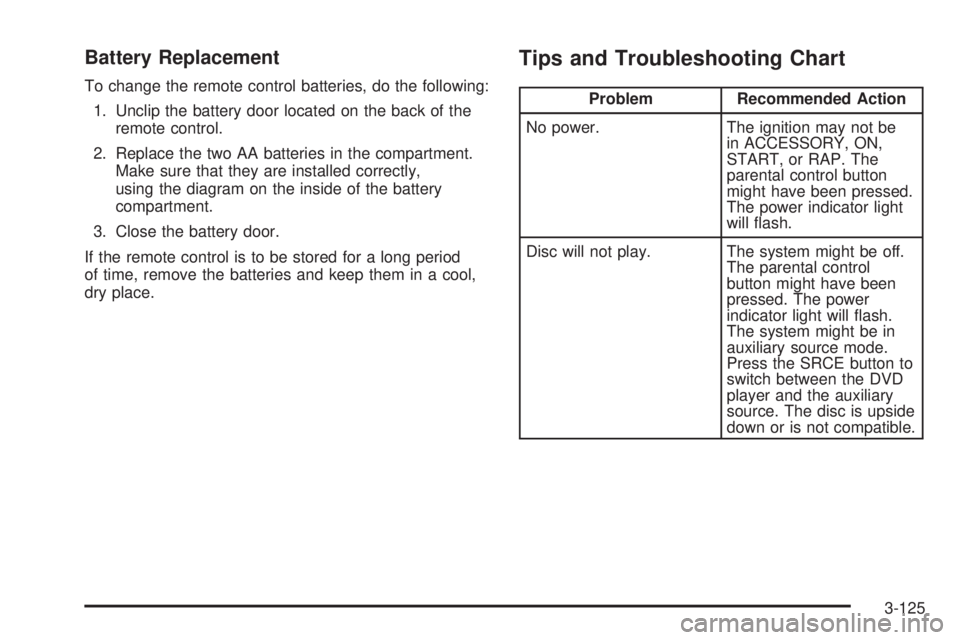
Battery Replacement
To change the remote control batteries, do the following:
1. Unclip the battery door located on the back of the
remote control.
2. Replace the two AA batteries in the compartment.
Make sure that they are installed correctly,
using the diagram on the inside of the battery
compartment.
3. Close the battery door.
If the remote control is to be stored for a long period
of time, remove the batteries and keep them in a cool,
dry place.
Tips and Troubleshooting Chart
Problem Recommended Action
No power. The ignition may not be
in ACCESSORY, ON,
START, or RAP. The
parental control button
might have been pressed.
The power indicator light
will ash.
Disc will not play. The system might be off.
The parental control
button might have been
pressed. The power
indicator light will ash.
The system might be in
auxiliary source mode.
Press the SRCE button to
switch between the DVD
player and the auxiliary
source. The disc is upside
down or is not compatible.
3-125
Page 274 of 478

Theft-Deterrent Feature
THEFTLOCK®is designed to discourage theft of your
vehicle’s radio. It works by using a secret code to
disable all radio functions whenever battery power is
removed and the radio is placed in a different vehicle.
This feature requires no user input to be activated.
The radio is automatically armed when it is put into the
vehicle for the rst time.
When the ignition is turned off, the blinking red light
indicates that THEFTLOCK
®is armed.
If THEFTLOCK
®is activated, the radio will not
operate if stolen. The radio will display LOCKED and
a red LED indicator light will come on above the
key symbol to indicate a locked condition. If this occurs,
the radio will need to be returned to your GM dealer.
Audio Steering Wheel Controls
If your vehicle has this feature, some audio controls
can be adjusted at the steering wheel. They include
the following:
SOURCE:When listening to the radio, press this button
to play a cassette tape, CD, or a DVD (if equipped).
If a cassette tape, and CD, and/or DVD are loaded,
the system will go to the tape play rst. The inactive
tape, CD, or DVD will remain safely inside the player
for future listening.
3-132
Page 303 of 478

{CAUTION:
If you do not shift down, your brakes could get
so hot that they would not work well. You
would then have poor braking or even none
going down a hill. You could crash. Shift down
to let your engine assist your brakes on a
steep downhill slope.
{CAUTION:
Coasting downhill in NEUTRAL (N) or with the
ignition off is dangerous. Your brakes will have
to do all the work of slowing down. They could
get so hot that they would not work well. You
would then have poor braking or even none
going down a hill. You could crash. Always
have your engine running and your vehicle in
gear when you go downhill.
Know how to go down hills. The most important
thing to know is this: let your engine do some of
the slowing down. Shift to a lower gear when you go
down a steep or long hill.
Know how to go uphill. You may want to shift down
to a lower gear. The lower gears help cool your
engine and transaxle, and you can climb the
hill better.
Stay in your own lane when driving on two-lane
roads in hills or mountains. Do not swing wide
or cut across the center of the road. Drive at speeds
that let you stay in your own lane.
As you go over the top of a hill, be alert. There
could be something in your lane, like a stalled car
or an accident.
You may see highway signs on mountains that
warn of special problems. Examples are long
grades, passing or no-passing zones, a falling rocks
area, or winding roads. Be alert to these and take
appropriate action.
4-25
Page 343 of 478

How to Reset the Engine Oil Life
System
The Engine Oil Life System calculates when to change
your engine oil and lter based on vehicle use.
Anytime your oil is changed, reset the system so it can
calculate when the next oil change is required. If a
situation occurs where you change your oil prior to a
CHANGE ENGINE OIL message being turned on,
reset the system.
If your vehicle does not have the optional Driver
Information Center (DIC), do the following:
1. Turn the ignition to ON, with the engine off.
2. Fully press and release the accelerator pedal
slowly three times within ve seconds.
3. Turn the key to OFF.
If the CHANGE ENGINE OIL message comes back
on when you start your vehicle, the engine oil life
system has not reset. Repeat the procedure.
If your vehicle has the optional DIC, do the following:
1. Turn the ignition to ON, with the engine off.
2. Press the MODE button until the DIC reads
OIL LIFE LEFT/HOLD SET TO RESET.3. Press and hold the SET button until 100%
is displayed.
You will hear three chimes and the CHANGE
ENGINE OIL message will go off.
4. Turn the key to OFF.
If the CHANGE ENGINE OIL message comes back on
when you start your vehicle, the engine oil life system
has not reset. Repeat the procedure.
What to Do with Used Oil
Used engine oil contains certain elements that may be
unhealthy for your skin and could even cause cancer.
Do not let used oil stay on your skin for very long. Clean
your skin and nails with soap and water, or a good
hand cleaner. Wash or properly dispose of clothing or
rags containing used engine oil. See the manufacturer’s
warnings about the use and disposal of oil products.
Used oil can be a threat to the environment. If you
change your own oil, be sure to drain all the oil from
the lter before disposal. Never dispose of oil by putting
it in the trash, pouring it on the ground, into sewers,
or into streams or bodies of water. Instead, recycle it by
taking it to a place that collects used oil. If you have
a problem properly disposing of your used oil, ask your
dealer, a service station or a local recycling center
for help.
5-17