DIC BUICK REGAL 2011 Workshop Manual
[x] Cancel search | Manufacturer: BUICK, Model Year: 2011, Model line: REGAL, Model: BUICK REGAL 2011Pages: 368, PDF Size: 5.35 MB
Page 138 of 368
Black plate (30,1)Buick Regal Owner Manual - 2011
5-30 Instruments and Controls
Tire Messages
TIRE PRESSURE LOW ADD
AIR TO TIRE
On vehicles with the Tire Pressure
Monitor System (TPMS), this
message displays when the
pressure in one or more of the
vehicle's tires is low.
The low tire pressure warning light
will also come on. SeeTire
Pressure Light on page 5‑19.
If a tire pressure message appears
on the DIC, stop as soon as you
can. Inflate the tires by adding air
until the tire pressure is equal to
the values shown on the Tire and
Loading Information label. See Tires
on page 10‑42, Vehicle Load Limits
on page 9‑12, and Tire Pressure on
page 10‑49.
You can receive more than one
tire pressure message at a time.
To read the other messages that
may have been sent at the same
time, press the SET/CLR button. The DIC also shows the tire
pressure values. See
Driver
Information Center (DIC) on
page 5‑22.SERVICE TIRE MONITOR
SYSTEM
This message displays if there is a
problem with the Tire Pressure
Monitor System (TPMS). See Tire
Pressure Monitor Operation on
page 10‑52 for more information.
TIRE LEARNING ACTIVE
This message displays when the
system is learning new tires. See
Tire Pressure Monitor Operation on
page 10‑52for more information.
Transmission Messages
SERVICE TRANSMISSION
This message displays if there is
a problem with the transmission.
See your dealer.
SHIFT TO PARK
This message displays when the
transmission needs to be shifted to
P (Park). This may appear when
attempting to remove the key from
the vehicle if the vehicle is not in
P (Park).
TRANSMISSION HOT —IDLE
ENGINE
This message displays and a chime
sounds if the transmission fluid in
the vehicle gets hot. Driving with the
transmission fluid temperature high
can cause damage to the vehicle.
Stop the vehicle and let it idle to
allow the transmission to cool.
This message clears when the fluid
temperature reaches a safe level.
Page 140 of 368
Black plate (32,1)Buick Regal Owner Manual - 2011
5-32 Instruments and Controls
Climate and Air Quality
Select the Climate and Air Quality
menu and the following will be
displayed:
.Auto Fan Speed
.Air Conditioning Mode
.Auto Area Zone Temp
.Auto Defog
.Auto Rear Defog
Auto Fan Speed
This allows selection of the
automatic fan speed to run lower or
higher than normal.
Press the
Zknob when Auto
Fan Speed is highlighted to open
the menu. Turn the knob to highlight
High, Medium, or Low. Press the
knob to confirm the selection and
move back to the last menu. Air Conditioning Mode
This allows selection of automatic
start of the air conditioning upon
vehicle start. Selecting On indicates
the air conditioning will be on when
the vehicle is started. Selecting Off
turns the air conditioning off each
time the vehicle is started. Last
Setting will resume the last setting
when the vehicle was shut off.
Press the
Zknob when Air
Conditioning Mode is highlighted.
Turn the knob to highlight On, Off,
or Last Setting. Press the knob to
confirm the selection and go back to
the last menu.
Auto Area Zone Temp
This allows selection of the number
of zones of temperature control
upon vehicle start. Selecting Single
Zone automatically resets the
passenger temperature setting the
same as the driver's for every vehicle start. The air conditioning
system will operate using only the
driver's setting until the passenger
temperature setting is changed.
Selecting Dual Zone or Last Setting
will keep the passenger temperature
adjustment separate from the
driver's setting all the time.
Press the
Zknob when Auto
Area Zone Temp is highlighted. Turn
the knob to highlight Single Zone,
Dual Zone, or Last Setting. Press
the knob to confirm the selection
and go back to the last menu.
Auto Defog
This allows the auto defog to be
turned on or off on dual zone
climate control systems.
Press the
Zknob when Auto
Defog is highlighted to select On or
Off. Turn the knob to confirm the
selection and move back to the
last menu.
Page 145 of 368
Black plate (1,1)Buick Regal Owner Manual - 2011
Lighting 6-1
Lighting
Exterior Lighting
Exterior Lamp Controls . . . . . . . . 6-1
Exterior Lamps OffReminder . . . . . . . . . . . . . . . . . . . . 6-2
Headlamp High/Low-Beam Changer . . . . . . . . . . . . . . . . . . . . . 6-2
Flash-to-Pass . . . . . . . . . . . . . . . . . 6-2
Daytime Running Lamps (DRL) . . . . . . . . . . . . . . . . 6-2
Automatic Headlamp System . . . . . . . . . . . . . . . . . . . . . . 6-3
Hazard Warning Flashers . . . . . 6-3
Turn and Lane-Change Signals . . . . . . . . . . . . . . . . . . . . . . 6-3
Fog Lamps . . . . . . . . . . . . . . . . . . . . 6-4
Interior Lighting
Instrument Panel Illumination Control . . . . . . . . . . . . . . . . . . . . . . 6-4
Dome Lamps . . . . . . . . . . . . . . . . . 6-5
Reading Lamps . . . . . . . . . . . . . . . 6-5
Lighting Features
Entry Lighting . . . . . . . . . . . . . . . . . 6-6
Exit Lighting . . . . . . . . . . . . . . . . . . . 6-6
Battery Power Protection . . . . . . 6-6
Exterior Lighting
Exterior Lamp Controls
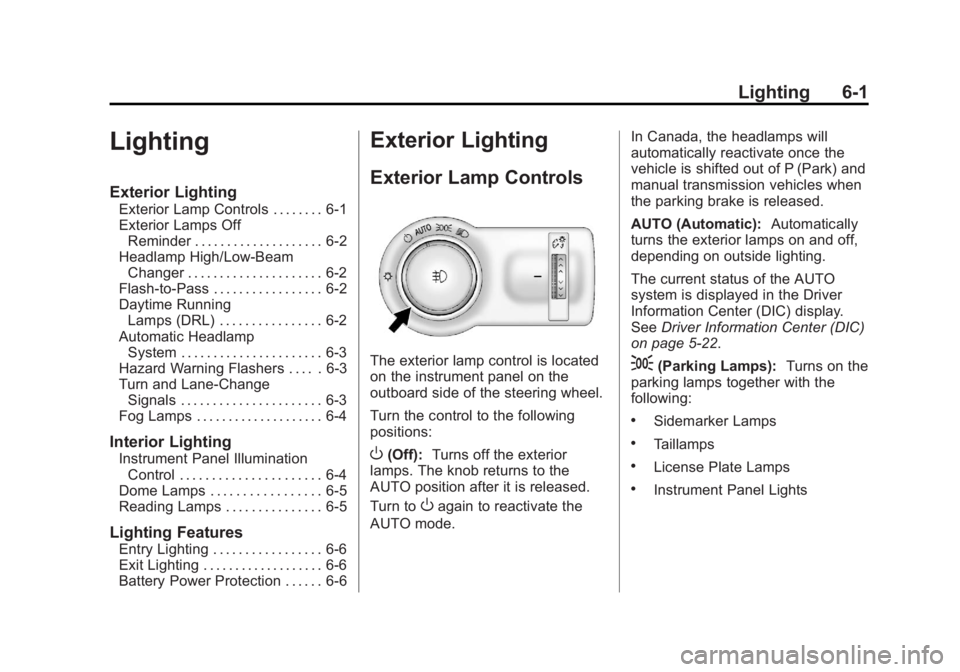
The exterior lamp control is located
on the instrument panel on the
outboard side of the steering wheel.
Turn the control to the following
positions:
O(Off): Turns off the exterior
lamps. The knob returns to the
AUTO position after it is released.
Turn to
Oagain to reactivate the
AUTO mode. In Canada, the headlamps will
automatically reactivate once the
vehicle is shifted out of P (Park) and
manual transmission vehicles when
the parking brake is released.
AUTO (Automatic):
Automatically
turns the exterior lamps on and off,
depending on outside lighting.
The current status of the AUTO
system is displayed in the Driver
Information Center (DIC) display.
See Driver Information Center (DIC)
on page 5‑22.
;(Parking Lamps): Turns on the
parking lamps together with the
following:
.Sidemarker Lamps
.Taillamps
.License Plate Lamps
.Instrument Panel Lights
Page 146 of 368

Black plate (2,1)Buick Regal Owner Manual - 2011
6-2 Lighting
2(Headlamps):Turns on the
headlamps together with the
following:
.Sidemarker Lamps
.Taillamps
.License Plate Lamps
.Instrument Panel Lights
.Parking Lamps
Exterior Lamps Off
Reminder
A warning chime sounds if the driver
door is opened while the ignition is
off and the exterior lamps are on.
Headlamp High/
Low-Beam Changer
2 3
Headlamp High/Low‐Beam
Changer: Push the turn signal/lane
change lever away from you and
release, to turn the high beams on.
To return to low beams, push the
lever again or pull it toward you and
release.
This indicator light turns on in the
instrument panel cluster when the
high‐beam headlamps are on.
Flash-to-Pass
To flash the high beams, pull the
turn signal/lane change lever toward
you, and release.
Daytime Running
Lamps (DRL)
Daytime Running Lamps (DRL) can
make it easier for others to see the
front of your vehicle during the day.
Fully functional daytime running
lamps are required on all vehicles
first sold in Canada. The DRL system turns on the
low-beam headlamps at a reduced
brightness. For vehicles with High
Intensity Discharge (HID)
headlamps, the dedicated DRL will
come on when all of the following
conditions are met:
.The engine is running.
.The exterior lamp band is
in AUTO.
.The light sensor determines it is
daytime.
When the DRL are on, the
low-beam headlamps will be on.
The taillamps, sidemarker lamps,
instrument panel lights, and other
lamps will not be on.
The DRL turn off when the
headlamps are turned to
Oor the
ignition is off.
Page 148 of 368

Black plate (4,1)Buick Regal Owner Manual - 2011
6-4 Lighting
The turn and lane‐change signal
can be turned off manually by
moving the lever back to its original
position.
If after signaling a turn or lane
change, the arrow flashes rapidly or
does not come on, a signal bulb
might be burned out.
Have the bulbs replaced. If the bulb
is not burned out, check the fuse.
SeeFuses and Circuit Breakers on
page 10‑36.Fog Lamps
To turn on the fog lamps, the ignition
and the headlamps or parking lamps
must be on.
If the fog lamps are turned on while
the exterior lamp switch is in the
AUTO position, the headlamps
come on automatically.
#: Press to turn on or off. An
indicator light on the instrument
panel cluster comes on when the
fog lamps are on.
Some localities have laws that
require the headlamps to be on
along with the fog lamps.
Interior Lighting
Instrument Panel
Illumination Control
The brightness of the instrument
panel lighting and steering wheel
controls can be adjusted.
D: Move and hold the
thumbwheel up or down to brighten
or dim the lights.
Page 150 of 368
Black plate (6,1)Buick Regal Owner Manual - 2011
6-6 Lighting
Lighting Features
Entry Lighting
The headlamps, taillamps, license
plate lamps, back‐up lamps, dome
lamps, and most of the interior lights
turn on briefly when the Remote
Keyless Entry (RKE)
Kis pressed.
See Remote Keyless Entry (RKE)
System Operation on page 2‑3.
When the driver door is opened, all
control lights, Driver Information
Center (DIC) lights and door
pocket lights turn on. After about
30 seconds the exterior lamps
turn off, and then the dome and
remaining interior lights will dim to
off. Entry lighting can be disabled
manually by changing the ignition
out of the OFF position, or by
pressing the RKE
Qbutton.
This feature can be activated or
deactivated in the Configuration
Settings menu in the Info Display. Press CONFIG on the audio system
to call up the menu. See
Vehicle
Personalization on page 5‑31.
Exit Lighting
The headlamps, taillamps, parking
lamps, back‐up lamps, and license
plate lamps come on at night, or in
areas with limited lighting, when the
key is removed from the ignition.
The dome lamps also come on
when the key is removed from the
ignition. The exterior lamps and
dome lamps remain on after the
door is closed for a set amount of
time, then automatically turn off.
The exterior lamps turn off
immediately by turning the exterior
lamps control off.
The exit lighting feature can be
changed. See Vehicle
Personalization on page 5‑31.
Battery Power Protection
The battery saver feature is
designed to protect the vehicle's
battery.
To prevent battery discharge while
driving, the following systems are
reduced automatically in two stages
and then turned off:
.Heated rear window and mirrors
.Heated seats
.Fan
In the second stage, a Driver
Information Center (DIC) message
is displayed confirming the
activation of the battery discharge
protection. See Battery Voltage and
Charging Messages on page 5‑26.
If the exterior lamps or any interior
lights are left on and the ignition is
turned off, the battery power
protection system automatically
turns the lamp off after about
10 minutes.
Page 155 of 368

Black plate (5,1)Buick Regal Owner Manual - 2011
Infotainment System 7-5
Submenus
An arrow on the right‐hand edge of
the menu indicates that it has a
submenu with other options.
Activating a Setting
1. Turn theZknob to highlight
the setting.
2. Press the
Zknob to
activate the setting. Setting a Value
1. Turn theZknob to change
the current value of the setting.
2. Press the
Zknob to confirm
the setting.
Turning a Function On or Off
1. Turn theZknob to highlight
the function.
2. Press the
Zknob to turn the
function on or off. Entering a Character Sequence
1. Turn theZknob to highlight
the character.
2. Press the
Zknob to select
the character.
Press the BACK button to delete the
last character in the sequence or
press and hold to delete the entire
character sequence.
Audio Settings
The audio settings can be set for
each radio band and each audio
player source.
To quickly reset an audio setting
value to 0:
1. Press the TONE button.
2. Select the audio setting.
Page 170 of 368
Black plate (20,1)Buick Regal Owner Manual - 2011
7-20 Infotainment System
Phone
Bluetooth (Overview)
Vehicles with a Bluetooth system
can use a Bluetooth‐capable cell
phone with a Hands‐Free Profile to
make and receive phone calls. The
infotainment system and voice
recognition are used to control the
system. The system can be used
while the ignition is in ON/RUN or
ACC/ACCESSORY. The range of
the Bluetooth system can be up to
9.1 m (30 ft). Not all phones support
all functions and not all phones work
with the Bluetooth system. See
www.gm.com/bluetooth for more
information about compatible
phones.
Bluetooth Controls
Use the buttons located on the
infotainment system and the
steering wheel to operate the
Bluetooth system.Steering Wheel Controls
b/g(Push to Talk):
Press to
answer incoming calls, confirm
system information, and start voice
recognition.
$/i(Mute/End Call): Press to
end a call, reject a call, or cancel an
operation.
Infotainment System Controls
For information about how to
navigate the menu system using the
infotainment controls, see Operation
on page 7‑4.
V/$(Phone): Press to enter the
Phone main menu.
Voice Recognition
The voice recognition system uses
commands to control the system
and dial phone numbers.
Noise: The system may not
recognize voice commands if there
is too much background noise. When to Speak:
A tone sounds to
indicate that the system is ready for
a voice command. Wait for the tone
and then speak.
How to Speak: Speak clearly in a
calm and natural voice.
Audio System
When using the Bluetooth system,
sound comes through the vehicle's
front audio system speakers and
overrides the audio system. Use the
3/Oknob during a call to
change the volume level. The
adjusted volume level remains in
memory for later calls. The system
maintains a minimum volume level.
Other Information
The Bluetooth®word mark and
logos are owned by Bluetooth®SIG,
Inc. and any use of such marks by
General Motors is under license.
Other trademarks and trade names
are those of their respective owners.
Page 172 of 368
Black plate (22,1)Buick Regal Owner Manual - 2011
7-22 Infotainment System
Locate the device named
“General Motors”or“Your
Vehicle” in the list on the cell
phone and follow the instructions
on the cell phone to enter the
four‐digit PIN provided by the
system.
6. The system prompts for a name for the phone and confirms the
name provided. This name is
used to indicate which phone is
connected.
7. The system responds with “
successfully paired” after the
pairing process is complete.
8. Repeat Steps 1 through 7 to pair additional phones.
Listing All Paired and Connected
Phones
1. Press the CONFIG button.
2. Select Phone Settings.
3. Select Bluetooth.
4. Select Device List. Deleting a Paired Phone
1. Press the CONFIG button.
2. Select Phone Settings.
3. Select Bluetooth.
4. Select Device List.
5. Select the phone to delete and
follow the on‐screen prompts.
Linking to a Different Phone
To link to a different phone, the new
phone must be in the vehicle and
available to be connected to the
Bluetooth system before the
process is started.
1. Press the CONFIG button.
2. Select Phone Settings.
3. Select Bluetooth.
4. Select Device List.
5. Select the new phone to link to and follow the on‐screen
prompts.
If delete is selected, the
highlighted phone will be
deleted.Making a Call
1. Press theV/$button twice.
2. Enter the character sequence. See “Entering a Character
Sequence” inOperation on
page 7‑4 for more information.
3. Select Call to start dialing the number.
Accepting or Declining a Call
When a call is received, the
infotainment system mutes and a
ring tone is heard in the vehicle.
Accepting a Call
Turn the
Zknob to Answer and
press the
Zknob.
Declining a Call
Turn the
Zknob to Decline and
press the
Zknob.
Call Waiting
Call waiting must be supported on
the Bluetooth phone and enabled by
the wireless service carrier to work.
Page 174 of 368
Black plate (24,1)Buick Regal Owner Manual - 2011
7-24 Infotainment System
Calling, if available. Refer to the
OnStar Owner's Guide for more
information.
The pairing process can be started
by using the voice recognition
system or the controls on the
infotainment system.
Pairing information:
.Up to five cell phones can be
paired to the Bluetooth system.
.The pairing process is disabled
when the vehicle is moving.
.The Bluetooth system links with
the first available paired cell
phone in the order the phone
was paired.
.Only one paired cell phone can
be connected to the Bluetooth
system at a time.
.Pairing only needs to be
completed once, unless the
pairing information changes or
the phone is deleted.To link to a different paired phone,
see
“Linking to a Different Phone”
later in this section.
Pairing a Phone
1. Press
b/g.
.For vehicles without a
navigation system, the
system responds “Ready,”
followed by a tone.
.For vehicles with a
navigation system, the
system responds with a
tone. After the tone, say
“Hands Free.” The system
responds “Ready,”followed
by a tone.
2. Say “Bluetooth.” The system
responds “Bluetooth ready,”
followed by a tone.
3. Say “Pair.”The system responds
with instructions and a four‐digit
Personal Identification Number
(PIN). The PIN will be used in
Step 4. 4. Start the pairing process on the
cell phone that will be paired to
the vehicle. Reference the cell
phone manufacturer's user guide
for information on this process.
Locate the device named
“General Motors” or“Your
Vehicle” in the list on the cell
phone and follow the instructions
on the cell phone to enter the
four‐digit PIN that was provided
in Step 3.
5. The system prompts for a name for the phone. This name will be
used to indicate which phone is
connected. The system confirms
the name.
6. The system responds with “
successfully paired” after the
pairing process is complete.
7. Repeat Steps 1 through 7 for additional phones to be paired.