manual radio set BUICK REGAL SPORTBACK 2019 Infotainment System Guide
[x] Cancel search | Manufacturer: BUICK, Model Year: 2019, Model line: REGAL SPORTBACK, Model: BUICK REGAL SPORTBACK 2019Pages: 78, PDF Size: 0.79 MB
Page 4 of 78
Buick Regal Infotainment System (GMNA-Localizing-U.S./Canada-
12680696) - 2019 - crc - 6/25/18
Introduction 3
Before driving:
.Become familiar with the
operation, controls on the center
stack, steering wheel controls,
and infotainment display.
. Set up the audio by presetting
favorite stations, setting the
tone, and adjusting the
speakers.
. Set up cell phone and mobile
device numbers in advance so
they can be called easily by
pressing a single control or by
using a single voice command.
See “Distracted Driving” in the
owner ’s manual.
Infotainment System
The infotainment system is
controlled by using the infotainment
display, the controls on the center
stack, steering wheel controls, and
voice recognition.
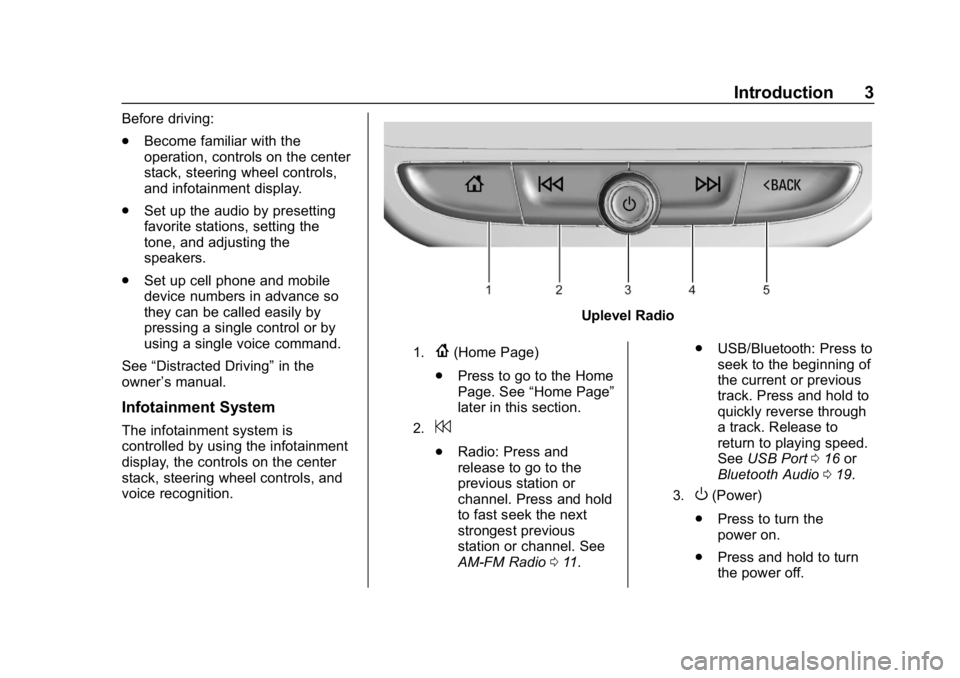
Uplevel Radio
1.{(Home Page)
. Press to go to the Home
Page. See “Home Page”
later in this section.
2.7
. Radio: Press and
release to go to the
previous station or
channel. Press and hold
to fast seek the next
strongest previous
station or channel. See
AM-FM Radio 011. .
USB/Bluetooth: Press to
seek to the beginning of
the current or previous
track. Press and hold to
quickly reverse through
a track. Release to
return to playing speed.
See USB Port 016 or
Bluetooth Audio 019.
3.O(Power)
. Press to turn the
power on.
. Press and hold to turn
the power off.
Page 8 of 78
Buick Regal Infotainment System (GMNA-Localizing-U.S./Canada-
12680696) - 2019 - crc - 6/25/18
Introduction 7
g:Press to answer an incoming
call or start voice recognition.
See Bluetooth (Overview) 046 or
Bluetooth (Pairing and Using the
Phone) 047 or“OnStar Overview”
in the owner ’s manual.
i: Press to decline an incoming
call or end a current call. Press to
mute or unmute the infotainment
system when not on a call.
SorT: Press the five-way control
to go to the previous or next menu
in the instrument cluster.
yorz: Press the five-way
control to go up or down in a list on
the instrument cluster.
V: Press to select a highlighted
menu item.
CorB: Press to go to the next or
previous favorite when listening to
the radio. Press to go to the next or
previous track when listening to a
media source.
x+ orx– :Press to increase or
decrease the volume.
Using the System
Audio
Touch the Audio icon to display the
active audio source page. Examples
of available sources are AM, FM,
SXM (if equipped), MyMedia, USB,
AUX, and Bluetooth.
Phone
Touch the Phone icon to display the
Phone main page.
See Bluetooth (Overview) 046 or
Bluetooth (Pairing and Using the
Phone) 047.
Nav
If equipped, touch the Nav icon to
display the embedded navigation
map. See Using the Navigation
System 023.
Climate
Touch the Climate icon to display
the Climate main page. See “Dual
Automatic Climate Control System”
in the owner ’s manual.
Users
If equipped, touch the Users icon to
sign in or create a new user profile
and follow the on-screen
instructions.
Only four user profiles can be active
at one time in the vehicle. It may be
necessary to remove a profile from
the menu before creating or signing
into an existing profile. The removed
profile can be logged into at a
later time.
Settings
Touch the Settings icon to display
the Settings menu. See Settings
0 53.
Apple CarPlay
Touch the Apple CarPlay icon to
activate Apple CarPlay, if equipped,
after a supported device is
connected. See Apple CarPlay and
Android Auto 051.
Page 13 of 78
Buick Regal Infotainment System (GMNA-Localizing-U.S./Canada-
12680696) - 2019 - crc - 6/25/18
12 Radio
This information will update with
each new valid frequency.
Touch
Hto save the station or
channel as a favorite.
The keypad will gray out entries that
do not contribute to a valid
frequency and will automatically
place a decimal point within the
frequency number.
Touch (X) to delete one number at a
time. Touch and hold (X) to delete
all numbers.
A valid AM or FM station will
automatically tune to the new
frequency but not close the Direct
Tune display. When listening to
SXM (if equipped), touch Go after
entering the channel. Touch the
Back icon on the infotainment
display or touch
zto exit out of
Direct Tune.
The tune arrows on the right side of
the Direct Tune display will tune
through the complete station or
channel list one station step at a
time per touch. A touch and hold
advances through stations or
channels quickly. If equipped, HD Radio multicast
stations cannot be tuned directly
through the Direct Tune feature.
Only the analog or HD1 stations can
use that feature. Use the display
arrows to adjust to the multicast
stations.
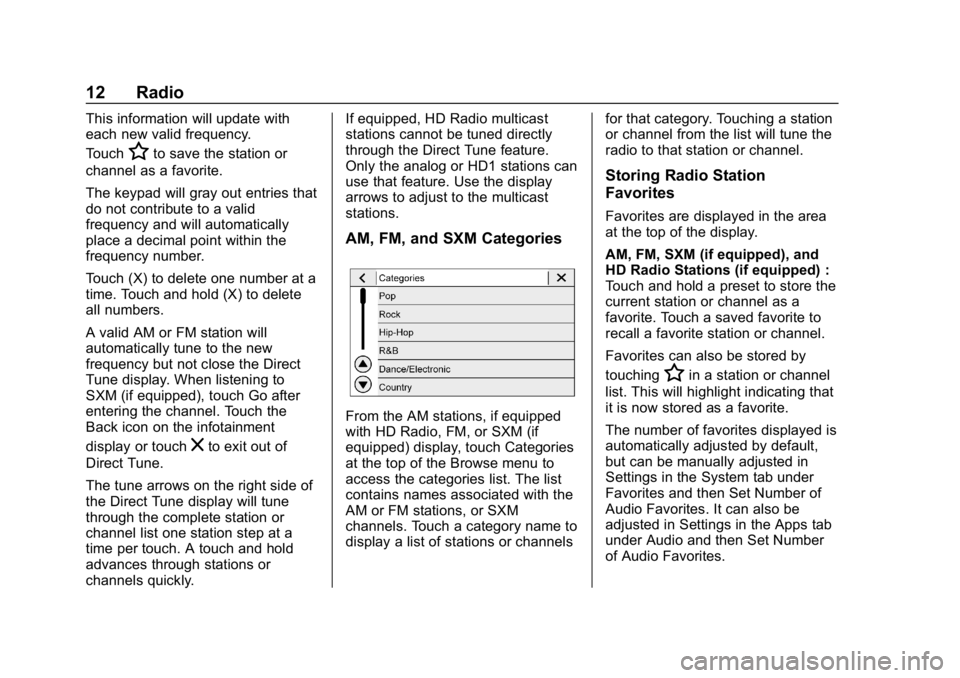
AM, FM, and SXM Categories
From the AM stations, if equipped
with HD Radio, FM, or SXM (if
equipped) display, touch Categories
at the top of the Browse menu to
access the categories list. The list
contains names associated with the
AM or FM stations, or SXM
channels. Touch a category name to
display a list of stations or channels
for that category. Touching a station
or channel from the list will tune the
radio to that station or channel.
Storing Radio Station
Favorites
Favorites are displayed in the area
at the top of the display.
AM, FM, SXM (if equipped), and
HD Radio Stations (if equipped) :
Touch and hold a preset to store the
current station or channel as a
favorite. Touch a saved favorite to
recall a favorite station or channel.
Favorites can also be stored by
touching
Hin a station or channel
list. This will highlight indicating that
it is now stored as a favorite.
The number of favorites displayed is
automatically adjusted by default,
but can be manually adjusted in
Settings in the System tab under
Favorites and then Set Number of
Audio Favorites. It can also be
adjusted in Settings in the Apps tab
under Audio and then Set Number
of Audio Favorites.
Page 63 of 78
Buick Regal Infotainment System (GMNA-Localizing-U.S./Canada-
12680696) - 2019 - crc - 6/25/18
62 Settings
Manage Settings
Audio Volume Limit :Allows the
audio volume limit to be turned on
or off. Touch Set Audio Volume Limit
to choose the maximum allowable
audio volume level.
Set Audio Volume Limit : Allows a
maximum radio volume to be set.
Use the arrows to choose the
maximum allowable level for the
audio volume.
Teen Driver Speed Limiter : Limits
the maximum speed of the vehicle.
When the speed limiter is turned on
and the vehicle is started with a
Teen Driver key, the DIC displays a
message that the top speed is
limited.
On certain vehicles, when the
Speed Limiter is turned ON, the
vehicle’s maximum acceleration will
be limited. The DIC will display a
message that the acceleration is
limited. Teen Driver Speed Warning :
Allows the speed warning to be
turned on or off. Touch Set Teen
Driver Speed Warning to set the
warning speed.
Set Teen Driver Speed Warning :
Displays a warning in the DIC when
exceeding a selectable speed.
Choose the desired speed warning
level. The speed warning does not
limit the speed of the vehicle.
When Teen Driver is Active:
.
The radio will mute when the
driver seat belt is not fastened,
and in some vehicles, when the
front passenger seat belt is not
fastened. The audio from any
device paired to the vehicle will
also be muted.
. Certain devices placed on the
front passenger seat could
cause the passenger sensing
system to falsely sense an
unbuckled front passenger and
mute the radio. See “Passenger
Sensing System” in the owner's
manual. .
Some safety systems,
if equipped and supported,
cannot be turned off. They may
include: Park Assist, Side Blind
Zone Alert, Lane Change Alert,
Rear Cross Traffic Alert, Forward
Collision Alert, Automatic
Braking, Pedestrian Braking,
Lane Departure Warning, Lane
Keep Assist, Daytime Running
Lamps/Automatic Light Control,
Traction Control, Stability
Control, and Antilock Brakes.
. The gap setting for the Forward
Collision Alert and Adaptive
Cruise Control, if equipped,
cannot be changed.
. When trying to change a safety
feature that is not configurable in
Teen Driver, the DIC displays a
message indicating that Teen
Driver is active and the action is
not available.
. Super Cruise, if equipped, is not
available.
. Enhanced Low Fuel Warning (if
equipped) –When the vehicle is
low on fuel, the low fuel light on