ECO mode BUICK TERRAZA 2007 Owner's Guide
[x] Cancel search | Manufacturer: BUICK, Model Year: 2007, Model line: TERRAZA, Model: BUICK TERRAZA 2007Pages: 562, PDF Size: 2.96 MB
Page 310 of 562
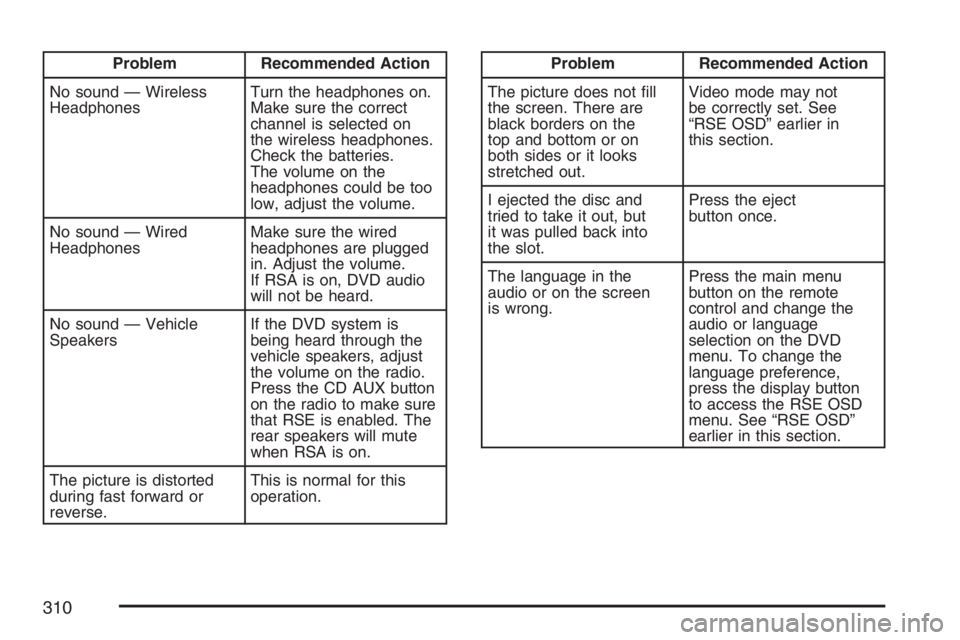
Problem Recommended Action
No sound — Wireless
HeadphonesTurn the headphones on.
Make sure the correct
channel is selected on
the wireless headphones.
Check the batteries.
The volume on the
headphones could be too
low, adjust the volume.
No sound — Wired
HeadphonesMake sure the wired
headphones are plugged
in. Adjust the volume.
If RSA is on, DVD audio
will not be heard.
No sound — Vehicle
SpeakersIf the DVD system is
being heard through the
vehicle speakers, adjust
the volume on the radio.
Press the CD AUX button
on the radio to make sure
that RSE is enabled. The
rear speakers will mute
when RSA is on.
The picture is distorted
during fast forward or
reverse.This is normal for this
operation.Problem Recommended Action
The picture does not ll
the screen. There are
black borders on the
top and bottom or on
both sides or it looks
stretched out.Video mode may not
be correctly set. See
“RSE OSD” earlier in
this section.
I ejected the disc and
tried to take it out, but
it was pulled back into
the slot.Press the eject
button once.
The language in the
audio or on the screen
is wrong.Press the main menu
button on the remote
control and change the
audio or language
selection on the DVD
menu. To change the
language preference,
press the display button
to access the RSE OSD
menu. See “RSE OSD”
earlier in this section.
310
Page 312 of 562
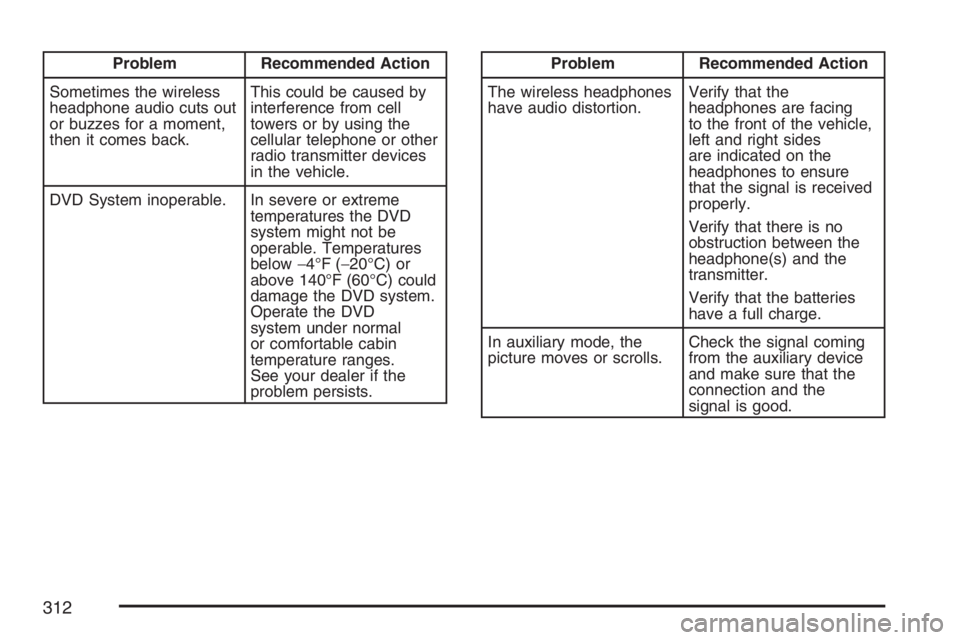
Problem Recommended Action
Sometimes the wireless
headphone audio cuts out
or buzzes for a moment,
then it comes back.This could be caused by
interference from cell
towers or by using the
cellular telephone or other
radio transmitter devices
in the vehicle.
DVD System inoperable. In severe or extreme
temperatures the DVD
system might not be
operable. Temperatures
below−4°F (−20°C) or
above 140°F (60°C) could
damage the DVD system.
Operate the DVD
system under normal
or comfortable cabin
temperature ranges.
See your dealer if the
problem persists.Problem Recommended Action
The wireless headphones
have audio distortion.Verify that the
headphones are facing
to the front of the vehicle,
left and right sides
are indicated on the
headphones to ensure
that the signal is received
properly.
Verify that there is no
obstruction between the
headphone(s) and the
transmitter.
Verify that the batteries
have a full charge.
In auxiliary mode, the
picture moves or scrolls.Check the signal coming
from the auxiliary device
and make sure that the
connection and the
signal is good.
312
Page 324 of 562
Starting the System for Front Seat
Entertainment
The GM Mobile Digital Media system is available
through the DMS mode of your radio. This
system will power on and off automatically and
resume where the system last stopped.
To begin playback, follow the instructions
listed below:
1. Insert the DMS cartridge into the GM Mobile
Digital Media player.
2. Turn on your radio and switch to the DMS
mode by pressing the CD/AUX button on
your radio.
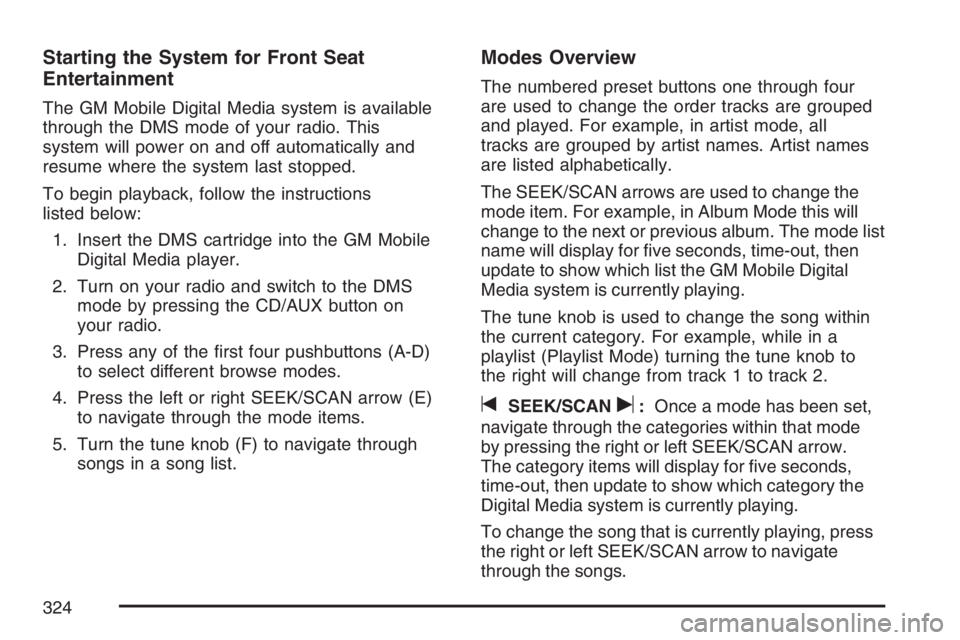
3. Press any of the rst four pushbuttons (A-D)
to select different browse modes.
4. Press the left or right SEEK/SCAN arrow (E)
to navigate through the mode items.
5. Turn the tune knob (F) to navigate through
songs in a song list.
Modes Overview
The numbered preset buttons one through four
are used to change the order tracks are grouped
and played. For example, in artist mode, all
tracks are grouped by artist names. Artist names
are listed alphabetically.
The SEEK/SCAN arrows are used to change the
mode item. For example, in Album Mode this will
change to the next or previous album. The mode list
name will display for ve seconds, time-out, then
update to show which list the GM Mobile Digital
Media system is currently playing.
The tune knob is used to change the song within
the current category. For example, while in a
playlist (Playlist Mode) turning the tune knob to
the right will change from track 1 to track 2.
tSEEK/SCANu:Once a mode has been set,
navigate through the categories within that mode
by pressing the right or left SEEK/SCAN arrow.
The category items will display for ve seconds,
time-out, then update to show which category the
Digital Media system is currently playing.
To change the song that is currently playing, press
the right or left SEEK/SCAN arrow to navigate
through the songs.
324
Page 326 of 562
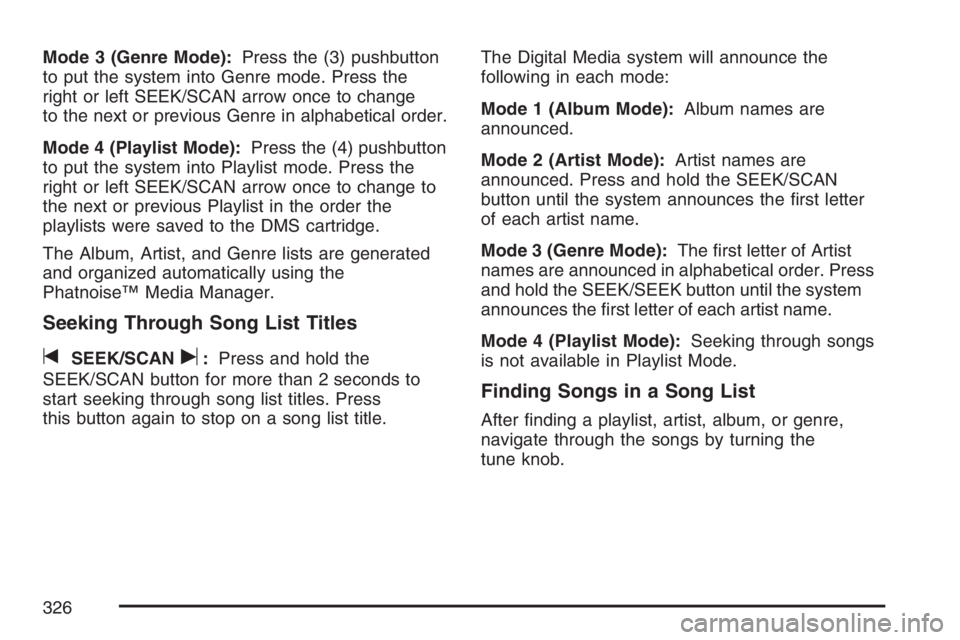
Mode 3 (Genre Mode):Press the (3) pushbutton
to put the system into Genre mode. Press the
right or left SEEK/SCAN arrow once to change
to the next or previous Genre in alphabetical order.
Mode 4 (Playlist Mode):Press the (4) pushbutton
to put the system into Playlist mode. Press the
right or left SEEK/SCAN arrow once to change to
the next or previous Playlist in the order the
playlists were saved to the DMS cartridge.
The Album, Artist, and Genre lists are generated
and organized automatically using the
Phatnoise™ Media Manager.
Seeking Through Song List Titles
tSEEK/SCANu:Press and hold the
SEEK/SCAN button for more than 2 seconds to
start seeking through song list titles. Press
this button again to stop on a song list title.The Digital Media system will announce the
following in each mode:
Mode 1 (Album Mode):Album names are
announced.
Mode 2 (Artist Mode):Artist names are
announced. Press and hold the SEEK/SCAN
button until the system announces the rst letter
of each artist name.
Mode 3 (Genre Mode):The rst letter of Artist
names are announced in alphabetical order. Press
and hold the SEEK/SEEK button until the system
announces the rst letter of each artist name.
Mode 4 (Playlist Mode):Seeking through songs
is not available in Playlist Mode.
Finding Songs in a Song List
After nding a playlist, artist, album, or genre,
navigate through the songs by turning the
tune knob.
326
Page 335 of 562
Wireless Game Controller Synchronization
In the event that your GM Mobile Digital Media
game controller needs to be re-synchronized with
your vehicle, open the battery compartment
and remove a battery. As soon as the battery is
replaced, the game controller will synchronize with
the vehicle during the next ignition cycle.
Wireless Game Controller Play Mode
The functionality of your GM Mobile Digital Media
Game Controller is dependant upon the game
being played. In cases where there are two player
options for a game, you may desire to have a
second controller in your vehicle which may
be purchased through your dealer.
Wireless Game Controller Power
Saving Mode
Your GM Mobile Digital Media Game Controller
has a built-in power saving mode to conserve
battery life. When not in use, the game controller
will automatically go into “Sleep” mode. The
game controller can be awakened at any time by
pressing the “Start” button.
Important Safety and Handling
Instructions
This equipment has been tested and found to
comply with the limits for a Class B digital device,
pursuant to Part 15 of the FCC Rules. These
limits are designed to provide reasonable
protection against harmful interference in a
residential installation. This equipment may cause
harmful interference to radio communications,
if it is not installed and used in accordance with
the instructions provided. However, there is
no guarantee that interference will not occur in
a particular installation. If this equipment does
cause harmful interference to radio or television
reception, which can be determined by turning
the equipment off and on, consult the dealer
for help.
This device also complies with RSS-210 of
Industry Canada. Operation is subject to the
following two conditions:
1. This device may not cause interference.
2. This device must accept any interference
received, including interference that may
cause undesired operation of the device.
335
Page 337 of 562
Tips and Troubleshooting Chart
Problem Cause and Solution
The Digital Media system and RSE system will not
come on at all.
A fuse in the car has blown. After checking for short
circuits in the wires, replace the fuse with one of the
same rating.
The RSE screen displays DMS MEDIA NOT
INSERTED.
The DMS cartridge is not fully inserted.
Fully insert the DMS cartridge.
The RSE screen displays DMS MEDIA LOADING.
The system is still booting. Please wait up to
15 seconds for the system to boot and then switch
back to digital media mode.
The RSE screen displays DMS MEDIA ERROR.
The DMS cartridge is not operating properly or is
damaged. See your dealer if the problem persists.
The RSE screen displays DMS MEDIA FILE ERROR.
A le on your DMS cartridge is corrupted and will
not play properly. Run the PhatNoise DMS Doctor
on your computer and follow the recommendations.
337
Page 455 of 562
Maximum Ination Pressure:The maximum air
pressure to which a cold tire may be inated.
The maximum air pressure is molded onto
the sidewall.
Maximum Load Rating:The load rating for a tire
at the maximum permissible ination pressure
for that tire.
Maximum Loaded Vehicle Weight:The sum of
curb weight, accessory weight, vehicle capacity
weight, and production options weight.
Normal Occupant Weight:The number of
occupants a vehicle is designed to seat multiplied
by 150 lbs (68 kg). SeeLoading Your Vehicle
on page 378.
Occupant Distribution:Designated seating
positions.
Outward Facing Sidewall:The side of an
asymmetrical tire that has a particular side that
faces outward when mounted on a vehicle.
The side of the tire that contains a whitewall, bears
white lettering, or bears manufacturer, brand,
and/or model name molding that is higher
or deeper than the same moldings on the other
sidewall of the tire.Passenger (P-Metric) Tire:A tire used on
passenger cars and some light duty trucks and
multipurpose vehicles.
Recommended Ination Pressure:Vehicle
manufacturer’s recommended tire ination
pressure as shown on the tire placard. See
Ination - Tire Pressure on page 456andLoading
Your Vehicle on page 378.
Radial Ply Tire:A pneumatic tire in which the
ply cords that extend to the beads are laid at
90 degrees to the centerline of the tread.
Rim:A metal support for a tire and upon which
the tire beads are seated.
Sidewall:The portion of a tire between the tread
and the bead.
Speed Rating:An alphanumeric code assigned
to a tire indicating the maximum speed at
which a tire can operate.
455
Page 534 of 562
Alternative Service:There may be times,
when Roadside Assistance cannot provide
timely assistance, your advisor may authorize
you to secure local emergency road service,
and you will be reimbursed up to $100 upon
submission of the original receipt to Roadside
Assistance.
In many instances, mechanical failures are
covered under Buick’s Bumper-to-Bumper
warranty for U.S. customers, and the duration of
the Base Warranty Coverage for Canadian
customers of the new Vehicle Limited Warranty.
However, any cost for parts and labor for
non-warranty repairs are the responsibility of
the driver.
For prompt and efficient assistance when calling,
please provide the following to the Roadside
Assistance Representative:
Your name, home address, and home
telephone number.
Telephone number of your location.
Location of the vehicle.
Model, year, color, and license plate number.
Odometer reading, Vehicle Identication
Number, and delivery date of the vehicle.
Description of the problem.
While we hope you never have the occasion to
use our service, it is added security while traveling
for you and your family. Remember, we are
only a phone call away. U.S. customers call Buick
Roadside Assistance:1-800-252-1112, TTY
users, call1-888-889-2438, Canadian customers
call1-800-268-6800.
Buick and General Motors of Canada Limited
reserve the right to limit services or reimbursement
to an owner or driver when, in their sole
discretion, the claims become excessive in
frequency or type of occurrence.
Roadside Assistance is not part of or included in
the coverage provided by the New Vehicle Limited
Warranty. Buick and General Motors of Canada
Limited reserve the right to make any changes or
discontinue the Roadside Assistance program
at any time without notication.
534
Page 537 of 562
Additional Program Information
All program options, such as shuttle service, may
not be available at every dealer. Please contact
your dealer for specic information about
availability. All Courtesy Transportation
arrangements will be administered by appropriate
dealer personnel.
General Motors reserves the right to unilaterally
modify, change or discontinue Courtesy
Transportation at any time and to resolve all
questions of claim eligibility pursuant to the terms
and conditions described herein at its sole
discretion.
Vehicle Data Collection and Event
Data Recorders
Your vehicle, like other modern motor vehicles, has
a number of sophisticated computer systems that
monitor and control several aspects of the vehicle’s
performance. Your vehicle uses on-board vehicle
computers to monitor emission control components
to optimize fuel economy, to monitor conditions for
airbag deployment and, if so equipped, to provide
anti-lock braking and to help the driver control the
vehicle in difficult driving situations. Someinformation may be stored during regular operations
to facilitate repair of detected malfunctions; other
information is stored only in a crash event by
computer systems, such as those commonly called
Event Data Recorders (EDR).
In a crash event, computer systems, such as the
airbag Sensing and Diagnostic Module (SDM) in
your vehicle may record information about the
condition of the vehicle and how it was operated,
such as data related to engine speed, brake
application, throttle position, vehicle speed, safety
belt usage, airbag readiness, airbag performance,
and the severity of a collision. If your vehicle is
equipped with StabiliTrak
®, steering performance,
including yaw rate, steering wheel angle, and lateral
acceleration, is also recorded. This information has
been used to improve vehicle crash performance
and may be used to improve crash performance of
future vehicles and driving safety. Unlike the data
recorders on many airplanes, these on-board
systems do not record sounds, such as
conversation of vehicle occupants.
537
Page 552 of 562
Engine (cont.)
Drive Belt Routing.................................... 521
Engine Compartment Overview................ 410
Exhaust................................................... 141
Oil ........................................................... 411
Oil Life System........................................ 414
Overheated Protection Operating Mode...... 425
Overheating............................................. 423
Starting.................................................... 130
Entry Lighting.............................................. 184
Event Data Recorders (EDR)...................... 537
Exit Lighting................................................ 185
Extender, Safety Belt..................................... 48
Exterior Lamps............................................ 181
F
Filter
Engine Air Cleaner................................... 416
Finish Damage............................................ 494
Fixed Mast Antenna.................................... 344
Flashers, Hazard Warning........................... 172
Flash-to-Pass.............................................. 174
Flat Tire...................................................... 470
Flat Tire, Changing...................................... 470Flat Tire, Storing......................................... 483
Fluid
Automatic Transaxle................................. 417
Power Steering........................................ 432
Windshield Washer.................................. 433
Folding Tray................................................ 161
Front Console Storage Area........................ 161
Front Reading Lamps.................................. 186
Front Turn Signal, Parking and
Daytime Running Lamps.......................... 445
Fuel............................................................ 402
Additives.................................................. 403
California Fuel.......................................... 403
Filling a Portable Fuel Container.............. 407
Filling Your Tank...................................... 405
Fuels in Foreign Countries....................... 404
Gage....................................................... 222
Gasoline Octane...................................... 402
Gasoline Specications............................ 402
Low Warning Light................................... 222
Fuses
Fuses and Circuit Breakers...................... 497
Instrument Panel Fuse Block................... 498
Underhood Fuse Block............................. 500
Windshield Wiper..................................... 497
552