phone BUICK TERRAZA 2007 Owner's Guide
[x] Cancel search | Manufacturer: BUICK, Model Year: 2007, Model line: TERRAZA, Model: BUICK TERRAZA 2007Pages: 562, PDF Size: 2.96 MB
Page 302 of 562
Vehicle Speakers
Only one audio source can be heard through the
vehicle’s speakers at a time.
The RSE system or an auxiliary device can be
heard through all of the vehicle’s speakers when
the following occurs:
A DVD or auxiliary device is playing
The front audio system is on and the CD AUX
button is pressed to enable the RSE system
DVD appears on the radio display when the RSE
system is on.
To turn the vehicles speakers on and off, press
the CD AUX button on the radio. The audio
from the RSE system can be heard through the
wireless headphones and the vehicles speakers at
the same time. The volume on the radio may
vary when switching between the radio, CD, DVD,
MP3, or an auxiliary device.
Video Screen
The video screen is located in the overhead
console.
To use the video screen, do the following:
1. Push the release button and the screen will
fold down.
2. Adjust its position as desired.
When the video screen is not in use, push it up
into its stowed and latched position.
Notice:Avoid directly touching the video
screen, as damage may occur. See “Cleaning
the Video Screen” later in this section for
more information.
302
Page 304 of 562
43(Wired Headphone Volume):Press this
button to select the correct headphone. Then press
the left or right arrow buttons to increase or
decrease the headphone volume.
When a DVD is playing in the DVD player and the
RSA system is on, the stop/eject and play/pause
buttons are the only buttons that will work.
RSA SRC (Rear Seat Audio Source):Press this
button to switch between playing the AM, FM1,
FM2, XM1™ or XM2™ Satellite Radio Service
(if equipped), or the front CD player. If one of the
sources are not loaded, the system will skip
over the source when this button is pressed.
q,Q,r,R(Directional Arrows):Press these
buttons to move through DVD menus.
The up and down arrows will move through MP3
folders.
g(Fast Reverse):Press this button to fast
reverse the DVD and CD. To stop reversing,
press the play or stop button. This button may
not work when the DVD is playing the copyright
information or the previews.
l(Fast Forward):Press this button to fast
forward the DVD and CD. To stop forwarding,
press the play or stop button. This button may not
work when the DVD is playing the copyright
information or the previews.
MENU (Disc):Press this button to view the main
DVD menu. The menu is different on every
disc. Use the up, down, right, and left arrow
buttons to move the cursor around the menu.
After making a selection, press the enter button.
r(Enter/Select):Press this button to select the
choice that is highlighted in any menu.
z(Display Control Button):For vehicles
without rear seat climate control, this button will
take the place of the fan/temp button. For vehicles
with rear seat climate control, this button is also
found on the remote control. Press this button
to open the RSE On-Screen Display (OSD) menus
to adjust the color, tint, brightness, contrast, and
display modes.
304
Page 310 of 562
Problem Recommended Action
No sound — Wireless
HeadphonesTurn the headphones on.
Make sure the correct
channel is selected on
the wireless headphones.
Check the batteries.
The volume on the
headphones could be too
low, adjust the volume.
No sound — Wired
HeadphonesMake sure the wired
headphones are plugged
in. Adjust the volume.
If RSA is on, DVD audio
will not be heard.
No sound — Vehicle
SpeakersIf the DVD system is
being heard through the
vehicle speakers, adjust
the volume on the radio.
Press the CD AUX button
on the radio to make sure
that RSE is enabled. The
rear speakers will mute
when RSA is on.
The picture is distorted
during fast forward or
reverse.This is normal for this
operation.Problem Recommended Action
The picture does not ll
the screen. There are
black borders on the
top and bottom or on
both sides or it looks
stretched out.Video mode may not
be correctly set. See
“RSE OSD” earlier in
this section.
I ejected the disc and
tried to take it out, but
it was pulled back into
the slot.Press the eject
button once.
The language in the
audio or on the screen
is wrong.Press the main menu
button on the remote
control and change the
audio or language
selection on the DVD
menu. To change the
language preference,
press the display button
to access the RSE OSD
menu. See “RSE OSD”
earlier in this section.
310
Page 311 of 562
Problem Recommended Action
The remote control
does not work.Point the remote control
directly at the face of the
DVD unit. The batteries
could be weak or put in
wrong. The parental
control button might have
been pressed, the power
indicator lights will ash.
How do I get subtitles
on or off?Press the subtitle button
on the remote control to
select subtitle option or go
to the DVDs main menu
and follow the screen
prompts.
The auxiliary source is
running but there is no
picture or sound.Press and release the
AUX button on the remote
control or the DVD AUX
button on the player
faceplate to get to
auxiliary input. Check to
make sure that the
auxiliary source is
connected to the inputs
properly.
The audio or video skips
or jumps.The DVD could be dirty or
scratched. Try cleaning
the disc.Problem Recommended Action
The fast forward, fast
reverse, previous,
and next functions do
not work.Some commands that do
one thing for DVDs will
not always work or
perform the same function
for audio, audio discs, or
games. These functions
may also be disabled
when the DVD is playing
the copyright information
or the previews. When
RSA is on, these buttons
may control RSA
functions.
My disc is stuck in the
player. The eject button
does not work.Press the eject button on
the DVD player. Turn the
ignition off, then on again,
then press the eject
button on the DVD player.
Do not attempt to force or
remove the disc from the
player. If the problem
persists, return to your
dealer for further
assistance.
I lost the remote control
and/or the headphones.Contact your dealer for
assistance.
311
Page 312 of 562
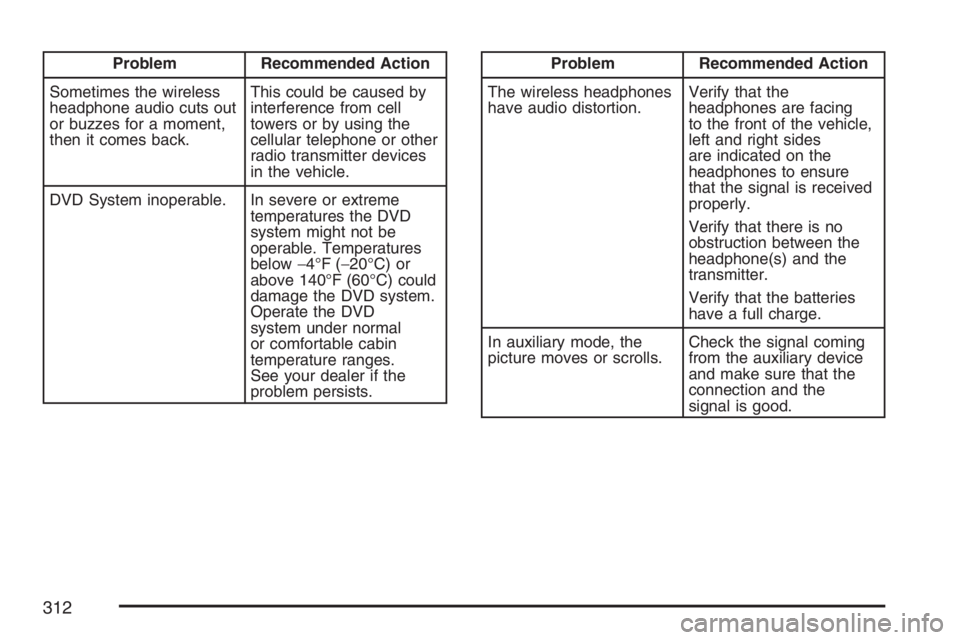
Problem Recommended Action
Sometimes the wireless
headphone audio cuts out
or buzzes for a moment,
then it comes back.This could be caused by
interference from cell
towers or by using the
cellular telephone or other
radio transmitter devices
in the vehicle.
DVD System inoperable. In severe or extreme
temperatures the DVD
system might not be
operable. Temperatures
below−4°F (−20°C) or
above 140°F (60°C) could
damage the DVD system.
Operate the DVD
system under normal
or comfortable cabin
temperature ranges.
See your dealer if the
problem persists.Problem Recommended Action
The wireless headphones
have audio distortion.Verify that the
headphones are facing
to the front of the vehicle,
left and right sides
are indicated on the
headphones to ensure
that the signal is received
properly.
Verify that there is no
obstruction between the
headphone(s) and the
transmitter.
Verify that the batteries
have a full charge.
In auxiliary mode, the
picture moves or scrolls.Check the signal coming
from the auxiliary device
and make sure that the
connection and the
signal is good.
312
Page 313 of 562
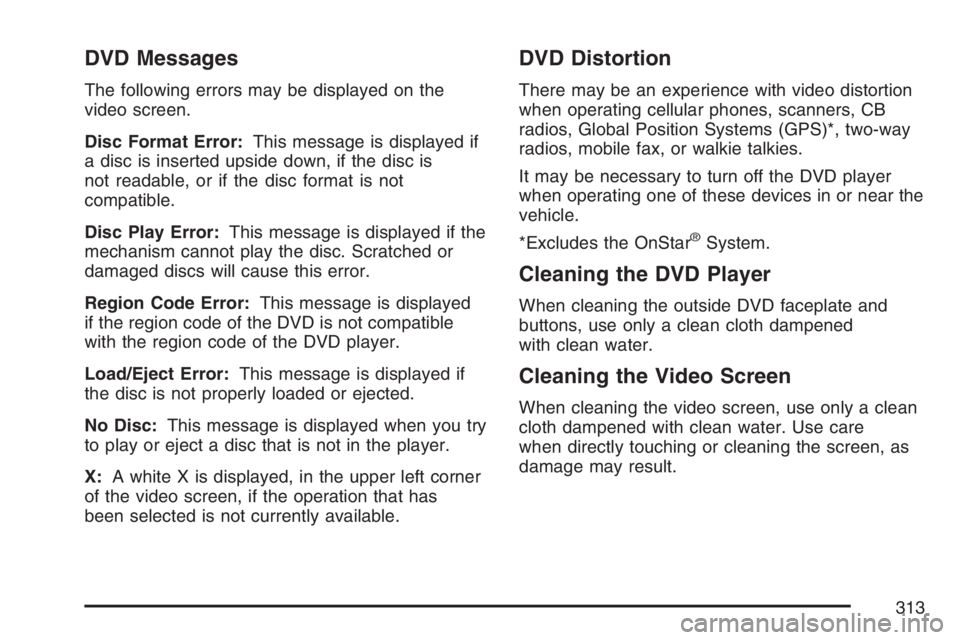
DVD Messages
The following errors may be displayed on the
video screen.
Disc Format Error:This message is displayed if
a disc is inserted upside down, if the disc is
not readable, or if the disc format is not
compatible.
Disc Play Error:This message is displayed if the
mechanism cannot play the disc. Scratched or
damaged discs will cause this error.
Region Code Error:This message is displayed
if the region code of the DVD is not compatible
with the region code of the DVD player.
Load/Eject Error:This message is displayed if
the disc is not properly loaded or ejected.
No Disc:This message is displayed when you try
to play or eject a disc that is not in the player.
X:A white X is displayed, in the upper left corner
of the video screen, if the operation that has
been selected is not currently available.
DVD Distortion
There may be an experience with video distortion
when operating cellular phones, scanners, CB
radios, Global Position Systems (GPS)*, two-way
radios, mobile fax, or walkie talkies.
It may be necessary to turn off the DVD player
when operating one of these devices in or near the
vehicle.
*Excludes the OnStar
®System.
Cleaning the DVD Player
When cleaning the outside DVD faceplate and
buttons, use only a clean cloth dampened
with clean water.
Cleaning the Video Screen
When cleaning the video screen, use only a clean
cloth dampened with clean water. Use care
when directly touching or cleaning the screen, as
damage may result.
313
Page 314 of 562
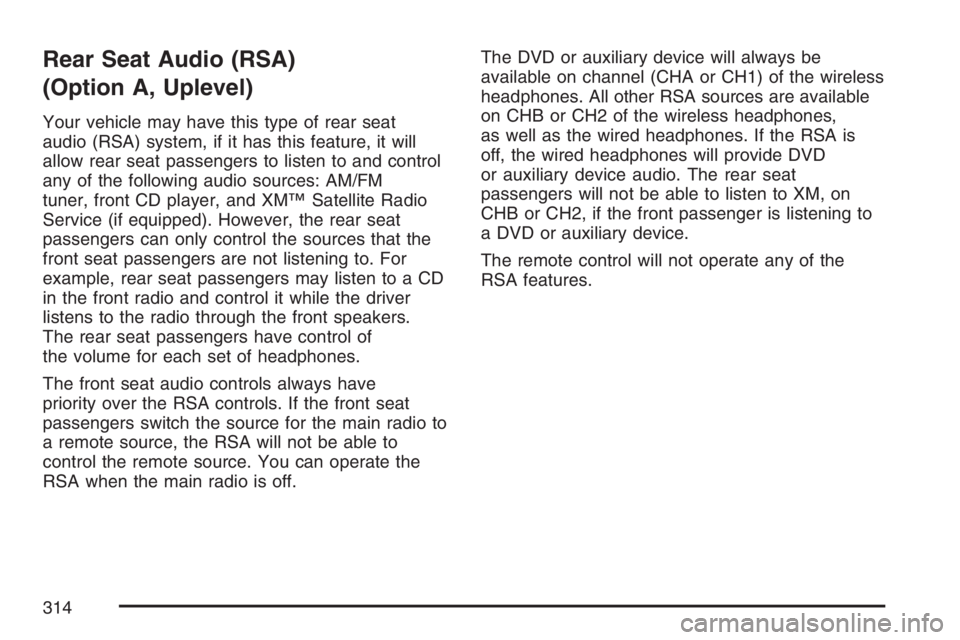
Rear Seat Audio (RSA)
(Option A, Uplevel)
Your vehicle may have this type of rear seat
audio (RSA) system, if it has this feature, it will
allow rear seat passengers to listen to and control
any of the following audio sources: AM/FM
tuner, front CD player, and XM™ Satellite Radio
Service (if equipped). However, the rear seat
passengers can only control the sources that the
front seat passengers are not listening to. For
example, rear seat passengers may listen to a CD
in the front radio and control it while the driver
listens to the radio through the front speakers.
The rear seat passengers have control of
the volume for each set of headphones.
The front seat audio controls always have
priority over the RSA controls. If the front seat
passengers switch the source for the main radio to
a remote source, the RSA will not be able to
control the remote source. You can operate the
RSA when the main radio is off.The DVD or auxiliary device will always be
available on channel (CHA or CH1) of the wireless
headphones. All other RSA sources are available
on CHB or CH2 of the wireless headphones,
as well as the wired headphones. If the RSA is
off, the wired headphones will provide DVD
or auxiliary device audio. The rear seat
passengers will not be able to listen to XM, on
CHB or CH2, if the front passenger is listening to
a DVD or auxiliary device.
The remote control will not operate any of the
RSA features.
314
Page 315 of 562
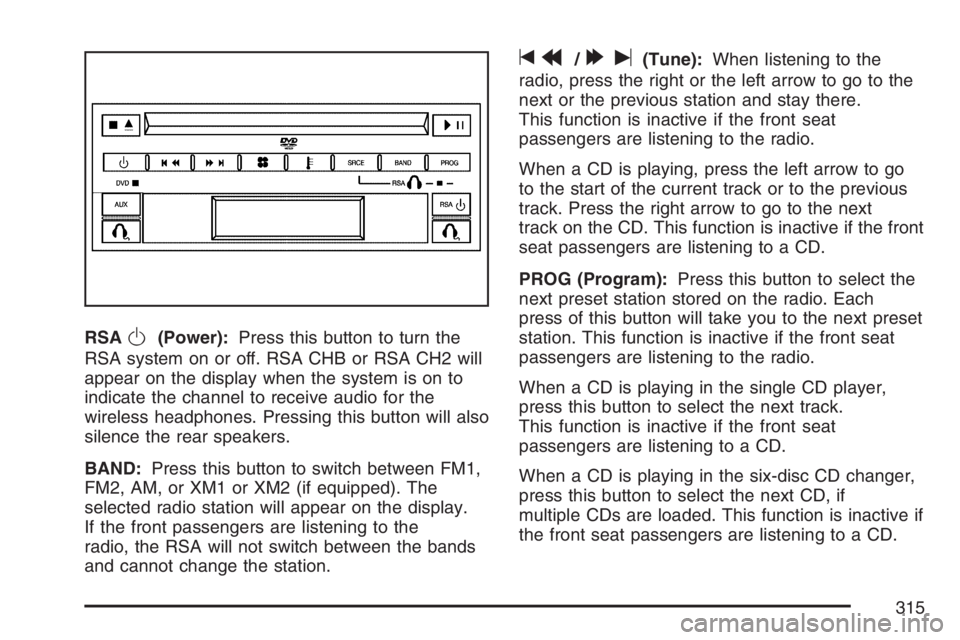
RSAO(Power):Press this button to turn the
RSA system on or off. RSA CHB or RSA CH2 will
appear on the display when the system is on to
indicate the channel to receive audio for the
wireless headphones. Pressing this button will also
silence the rear speakers.
BAND:Press this button to switch between FM1,
FM2, AM, or XM1 or XM2 (if equipped). The
selected radio station will appear on the display.
If the front passengers are listening to the
radio, the RSA will not switch between the bands
and cannot change the station.
tr/[u(Tune):When listening to the
radio, press the right or the left arrow to go to the
next or the previous station and stay there.
This function is inactive if the front seat
passengers are listening to the radio.
When a CD is playing, press the left arrow to go
to the start of the current track or to the previous
track. Press the right arrow to go to the next
track on the CD. This function is inactive if the front
seat passengers are listening to a CD.
PROG (Program):Press this button to select the
next preset station stored on the radio. Each
press of this button will take you to the next preset
station. This function is inactive if the front seat
passengers are listening to the radio.
When a CD is playing in the single CD player,
press this button to select the next track.
This function is inactive if the front seat
passengers are listening to a CD.
When a CD is playing in the six-disc CD changer,
press this button to select the next CD, if
multiple CDs are loaded. This function is inactive if
the front seat passengers are listening to a CD.
315
Page 316 of 562

SRCE (Source):Press this button to switch
between playing the AM/FM tuner, front CD player,
and XM™ Satellite Radio Service (if equipped). If
one of the sources are not loaded, the system will
skip over the source when this button is pressed.
X(Headphone):Press the right or the left
headphone button to enable volume control of the
wired headphone connected to the corresponding
jack. Press the right and left arrow buttons to
change the volume.
rj(Parental Control):This button is located
behind the video screen, below the auxiliary jacks.
Press this button while using RSA, or when a
DVD or CD is playing to blank the video screen
and to mute the audio. The power indicator
lights on the DVD player will ash. Turning on the
parental control will also disable all other button
operations from the remote control and the
DVD player, except for the eject button. Press this
button again to restore operation of the RSA,
DVD player, and remote control.
This button may also be used to turn the DVD
player power on and automatically resume play if
the vehicle is on and a disc is in the player. If
no disc is in the player then the system will power
up in auxiliary mode.
Rear Seat Audio (RSA)
(Option B, Uplevel)
Your vehicle may have this type of rear seat
audio (RSA) system, if it has this feature, it will
allow rear seat passengers to listen to and control
any of the following audio sources: AM/FM
tuner, front CD player, and XM™ Satellite Radio
Service (if equipped). However, the rear seat
passengers can only control the sources that the
front seat passengers are not listening to. For
example, rear seat passengers may listen to a CD
in the front radio and control it while the driver
listens to the radio through the front speakers.
The rear seat passengers have control of
the volume for each set of headphones.
316
Page 317 of 562
The front seat audio controls always have
priority over the RSA controls. If the front seat
passengers switch the source for the main radio to
a remote source, the RSA will not be able to
control the remote source. You can operate the
RSA when the main radio is off.
The DVD or auxiliary device will always be
available on channel (CHA or CH1) of the wireless
headphones. All other RSA sources are available
on channel (CHB or CH2) of the wireless
headphones, as well as the wired headphones.
If the RSA is off, the wired headphones will provide
DVD or auxiliary device audio. The rear seat
passengers will not be able to listen to XM, on
channel (CHB or CH2), if the front passenger
is listening to a DVD or auxiliary device.
The remote control will not operate any of the
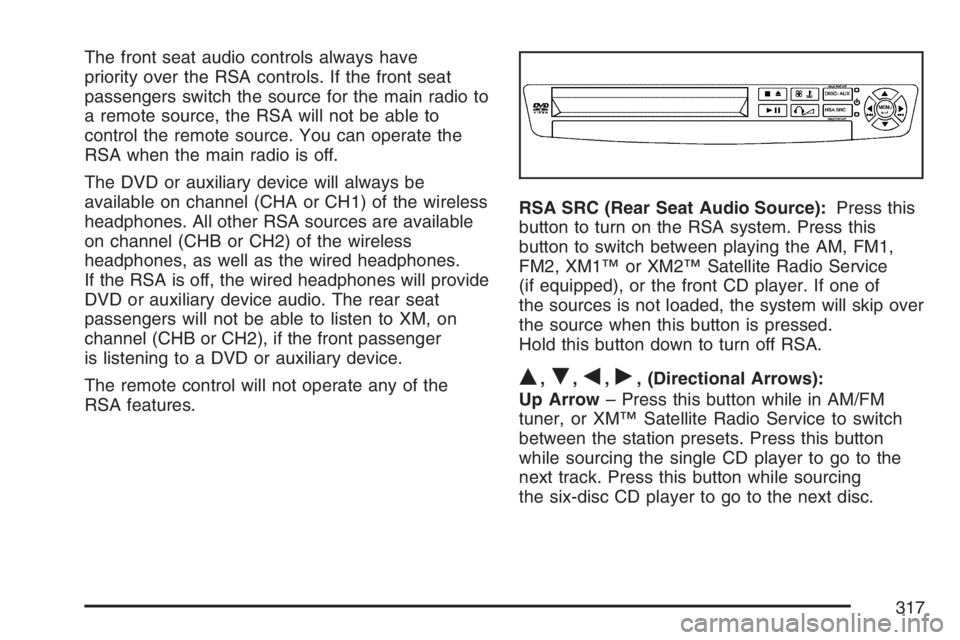
RSA features.RSA SRC (Rear Seat Audio Source):Press this
button to turn on the RSA system. Press this
button to switch between playing the AM, FM1,
FM2, XM1™ or XM2™ Satellite Radio Service
(if equipped), or the front CD player. If one of
the sources is not loaded, the system will skip over
the source when this button is pressed.
Hold this button down to turn off RSA.
Q,R,q,r, (Directional Arrows):
Up Arrow– Press this button while in AM/FM
tuner, or XM™ Satellite Radio Service to switch
between the station presets. Press this button
while sourcing the single CD player to go to the
next track. Press this button while sourcing
the six-disc CD player to go to the next disc.
317