reset BUICK TERRAZA 2007 Owner's Guide
[x] Cancel search | Manufacturer: BUICK, Model Year: 2007, Model line: TERRAZA, Model: BUICK TERRAZA 2007Pages: 562, PDF Size: 2.96 MB
Page 322 of 562
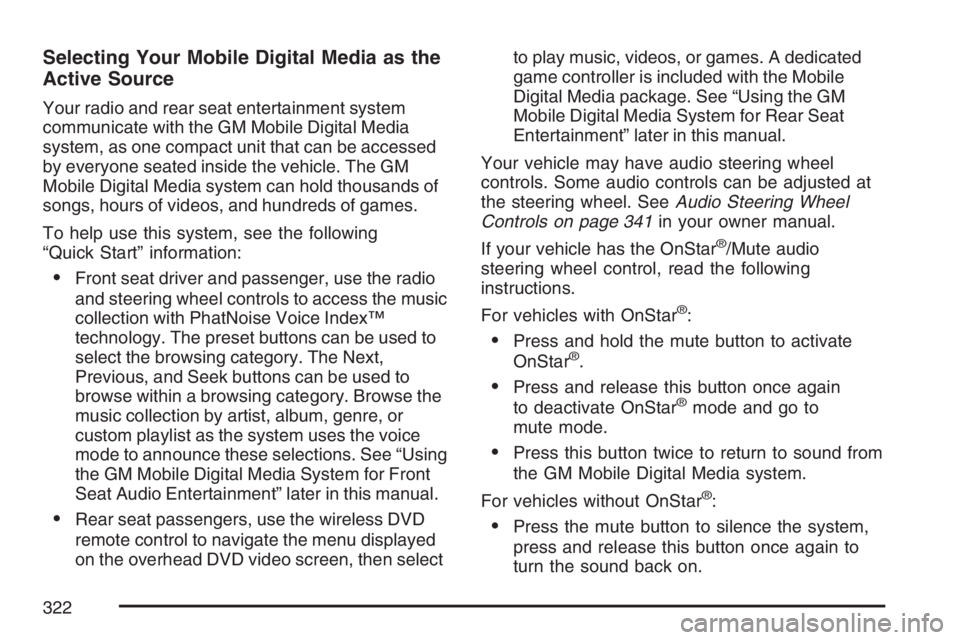
Selecting Your Mobile Digital Media as the
Active Source
Your radio and rear seat entertainment system
communicate with the GM Mobile Digital Media
system, as one compact unit that can be accessed
by everyone seated inside the vehicle. The GM
Mobile Digital Media system can hold thousands of
songs, hours of videos, and hundreds of games.
To help use this system, see the following
“Quick Start” information:
Front seat driver and passenger, use the radio
and steering wheel controls to access the music
collection with PhatNoise Voice Index™
technology. The preset buttons can be used to
select the browsing category. The Next,
Previous, and Seek buttons can be used to
browse within a browsing category. Browse the
music collection by artist, album, genre, or
custom playlist as the system uses the voice
mode to announce these selections. See “Using
the GM Mobile Digital Media System for Front
Seat Audio Entertainment” later in this manual.
Rear seat passengers, use the wireless DVD
remote control to navigate the menu displayed
on the overhead DVD video screen, then selectto play music, videos, or games. A dedicated
game controller is included with the Mobile
Digital Media package. See “Using the GM
Mobile Digital Media System for Rear Seat
Entertainment” later in this manual.
Your vehicle may have audio steering wheel
controls. Some audio controls can be adjusted at
the steering wheel. SeeAudio Steering Wheel
Controls on page 341in your owner manual.
If your vehicle has the OnStar
®/Mute audio
steering wheel control, read the following
instructions.
For vehicles with OnStar
®:
Press and hold the mute button to activate
OnStar®.
Press and release this button once again
to deactivate OnStar®mode and go to
mute mode.
Press this button twice to return to sound from
the GM Mobile Digital Media system.
For vehicles without OnStar
®:
Press the mute button to silence the system,
press and release this button once again to
turn the sound back on.
322
Page 324 of 562
Starting the System for Front Seat
Entertainment
The GM Mobile Digital Media system is available
through the DMS mode of your radio. This
system will power on and off automatically and
resume where the system last stopped.
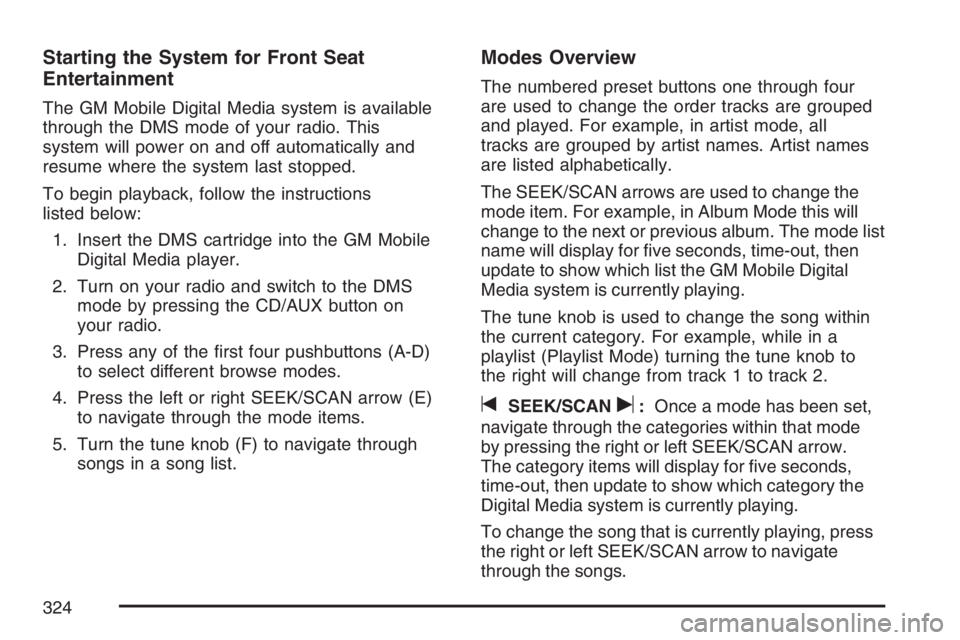
To begin playback, follow the instructions
listed below:
1. Insert the DMS cartridge into the GM Mobile
Digital Media player.
2. Turn on your radio and switch to the DMS
mode by pressing the CD/AUX button on
your radio.
3. Press any of the rst four pushbuttons (A-D)
to select different browse modes.
4. Press the left or right SEEK/SCAN arrow (E)
to navigate through the mode items.
5. Turn the tune knob (F) to navigate through
songs in a song list.
Modes Overview
The numbered preset buttons one through four
are used to change the order tracks are grouped
and played. For example, in artist mode, all
tracks are grouped by artist names. Artist names
are listed alphabetically.
The SEEK/SCAN arrows are used to change the
mode item. For example, in Album Mode this will
change to the next or previous album. The mode list
name will display for ve seconds, time-out, then
update to show which list the GM Mobile Digital
Media system is currently playing.
The tune knob is used to change the song within
the current category. For example, while in a
playlist (Playlist Mode) turning the tune knob to
the right will change from track 1 to track 2.
tSEEK/SCANu:Once a mode has been set,
navigate through the categories within that mode
by pressing the right or left SEEK/SCAN arrow.
The category items will display for ve seconds,
time-out, then update to show which category the
Digital Media system is currently playing.
To change the song that is currently playing, press
the right or left SEEK/SCAN arrow to navigate
through the songs.
324
Page 325 of 562
Setting the Browse Mode Using
Voice Index™
The system automatically organizes all of the
songs on the DMS (digital media storage)
cartridge for you. With Voice Index™ browsing,
the six numbered pushbuttons are used as mode
buttons to browse as the system reads album,
artist, genre and playlist names to you while
you drive.
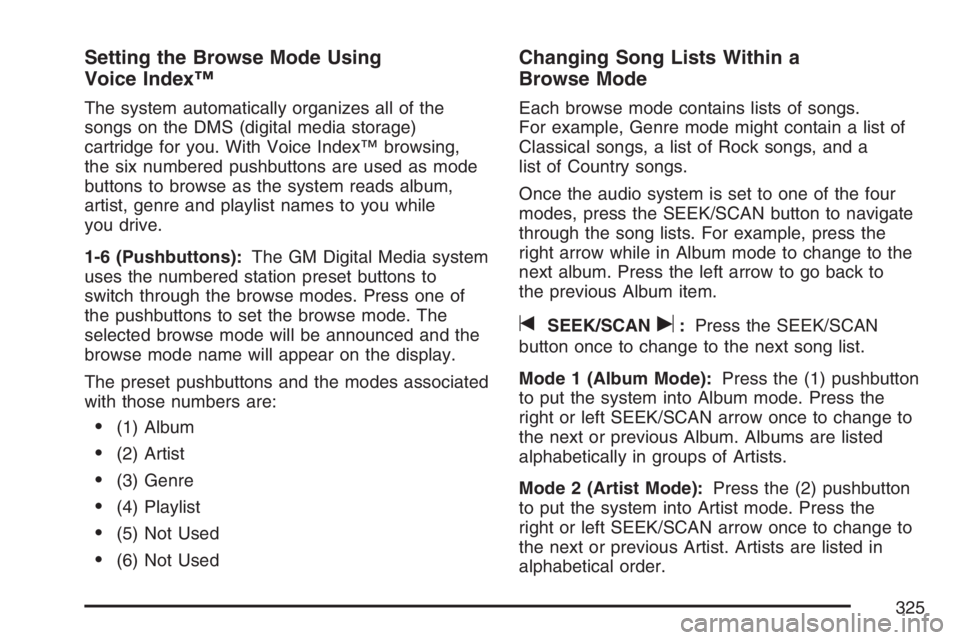
1-6 (Pushbuttons):The GM Digital Media system
uses the numbered station preset buttons to
switch through the browse modes. Press one of
the pushbuttons to set the browse mode. The
selected browse mode will be announced and the
browse mode name will appear on the display.
The preset pushbuttons and the modes associated
with those numbers are:
(1) Album
(2) Artist
(3) Genre
(4) Playlist
(5) Not Used
(6) Not Used
Changing Song Lists Within a
Browse Mode
Each browse mode contains lists of songs.
For example, Genre mode might contain a list of
Classical songs, a list of Rock songs, and a
list of Country songs.
Once the audio system is set to one of the four
modes, press the SEEK/SCAN button to navigate
through the song lists. For example, press the
right arrow while in Album mode to change to the
next album. Press the left arrow to go back to
the previous Album item.
tSEEK/SCANu:Press the SEEK/SCAN
button once to change to the next song list.
Mode 1 (Album Mode):Press the (1) pushbutton
to put the system into Album mode. Press the
right or left SEEK/SCAN arrow once to change to
the next or previous Album. Albums are listed
alphabetically in groups of Artists.
Mode 2 (Artist Mode):Press the (2) pushbutton
to put the system into Artist mode. Press the
right or left SEEK/SCAN arrow once to change to
the next or previous Artist. Artists are listed in
alphabetical order.
325
Page 342 of 562
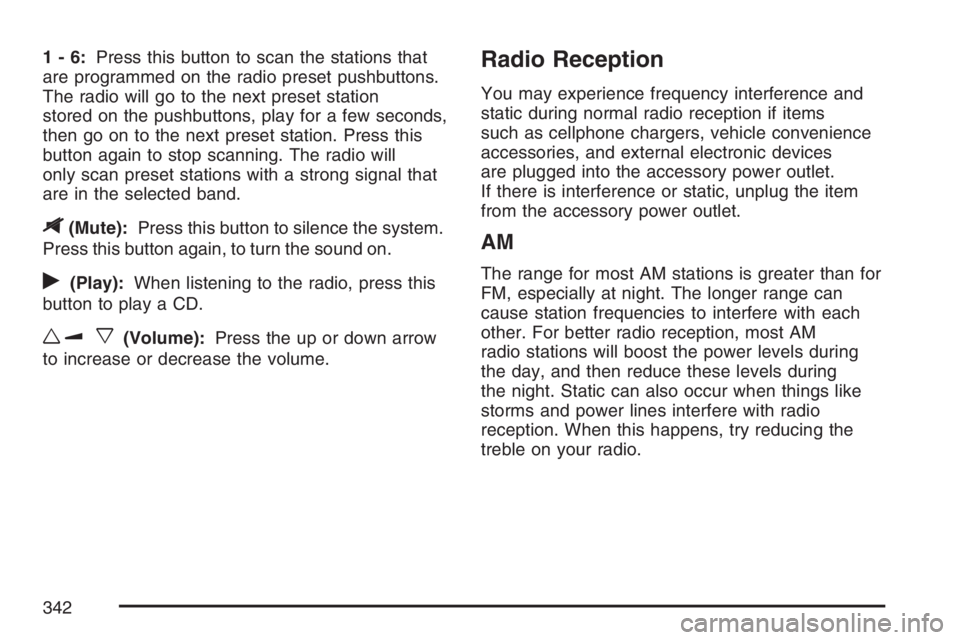
1-6:Press this button to scan the stations that
are programmed on the radio preset pushbuttons.
The radio will go to the next preset station
stored on the pushbuttons, play for a few seconds,
then go on to the next preset station. Press this
button again to stop scanning. The radio will
only scan preset stations with a strong signal that
are in the selected band.
$(Mute):Press this button to silence the system.
Press this button again, to turn the sound on.
r(Play):When listening to the radio, press this
button to play a CD.
wux(Volume):Press the up or down arrow
to increase or decrease the volume.
Radio Reception
You may experience frequency interference and
static during normal radio reception if items
such as cellphone chargers, vehicle convenience
accessories, and external electronic devices
are plugged into the accessory power outlet.
If there is interference or static, unplug the item
from the accessory power outlet.
AM
The range for most AM stations is greater than for
FM, especially at night. The longer range can
cause station frequencies to interfere with each
other. For better radio reception, most AM
radio stations will boost the power levels during
the day, and then reduce these levels during
the night. Static can also occur when things like
storms and power lines interfere with radio
reception. When this happens, try reducing the
treble on your radio.
342
Page 414 of 562
Notice:Use only engine oil identied as
meeting GM Standard GM6094M and showing
the American Petroleum Institute Certied
For Gasoline Engines starburst symbol. Failure
to use the recommended oil can result in
engine damage not covered by your warranty.
GM Goodwrench
®oil meets all the requirements
for your vehicle.
If you are in an area of extreme cold, where the
temperature falls below−20°F (−29°C), it is
recommended that you use either an SAE 5W-30
synthetic oil or an SAE 0W-30 oil. Both will
provide easier cold starting and better protection
for the engine at extremely low temperatures.
Engine Oil Additives
Do not add anything to the oil. The recommended
oils with the starburst symbol meet GM Standard
GM6094M are all you will need for good
performance and engine protection.
Engine Oil Life System
When to Change Engine Oil
Your vehicle has a computer system that lets you
know when to change the engine oil and lter. This
is based on engine revolutions and engine
temperature, and not on mileage. Based on driving
conditions, the mileage at which an oil change will
be indicated can vary considerably. For the oil life
system to work properly, you must reset the system
every time the oil is changed.
When the system has calculated that oil life has
been diminished, it will indicate that an oil change is
necessary. A CHANGE OIL SOON message will
come on. SeeDIC Warnings and Messages on
page 230. Change your oil as soon as possible
within the next 600 miles (1 000 km). It is possible
that, if you are driving under the best conditions, the
oil life system may not indicate that an oil change is
necessary for over a year. However, your engine oil
and lter must be changed at least once a year and
at this time the system must be reset. Your dealer
has GM-trained people who will perform this work
using genuine GM parts and reset the system. It is
also important to check your oil regularly and keep
it at the proper level.
414
Page 415 of 562
If the system is ever reset accidentally, you must
change your oil at 3,000 miles (5 000 km)
since your last oil change. Remember to reset the
oil life system whenever the oil is changed.
How to Reset the Engine Oil Life
System
The Engine Oil Life System calculates when to
change your engine oil and lter based on vehicle
use. Anytime your oil is changed, reset the
system so it can calculate when the next oil
change is required. If a situation occurs where you
change your oil prior to a CHANGE OIL SOON
message being turned on, reset the system.
1. With the ignition key in RUN but the engine
off, repeatedly push the set/reset button until
OIL is displayed on the Driver Information
Center (DIC).
2. Once OIL is displayed, push and hold the
set/reset button for ve seconds. The
number will disappear and be replaced by 100
(indicating 100% oil life remaining).
3. Turn the key to LOCK.If the CHANGE OIL SOON message comes back
on when you start your vehicle, the engine oil
life system has not reset. Repeat the procedure.
What to Do with Used Oil
Used engine oil contains certain elements that
may be unhealthy for your skin and could
even cause cancer. Do not let used oil stay on
your skin for very long. Clean your skin and nails
with soap and water, or a good hand cleaner.
Wash or properly dispose of clothing or rags
containing used engine oil. See the manufacturer’s
warnings about the use and disposal of oil
products.
Used oil can be a threat to the environment. If you
change your own oil, be sure to drain all the oil
from the lter before disposal. Never dispose of oil
by putting it in the trash, pouring it on the
ground, into sewers, or into streams or bodies of
water. Instead, recycle it by taking it to a place
that collects used oil. If you have a problem
properly disposing of your used oil, ask your
dealer, a service station, or a local recycling center
for help.
415
Page 425 of 562
If you get the overheat warning with no sign of
steam, try this for a minute or so:
1. If your air conditioner is on, turn it off.
2. Turn on your heater to full hot at the highest
fan speed and open the windows as
necessary.
3. If you are in a traffic jam, shift to NEUTRAL (N);
otherwise, shift to the highest gear while
driving — DRIVE (D) or THIRD (3).
If you no longer have the overheat warning, you
can drive. Just to be safe, drive slower for
about 10 minutes. If the warning does not come
back on, you can drive normally.
If the warning continues, pull over, stop, and park
your vehicle right away.
If there is still no sign of steam, idle the engine for
three minutes while you are parked. If you still
have the warning, turn off the engine and
get everyone out of the vehicle until it cools down.
Also, see “Overheated Engine Protection
Operating Mode” later in this section.
You may decide not to lift the hood but to get
service help right away.Overheated Engine Protection
Operating Mode
This emergency operating mode allows your
vehicle to be driven to a safe place in an
emergency situation. If an overheated engine
condition exists, an overheat protection mode
which alternates ring groups of cylinders helps
prevent engine damage. In this mode, you
will notice a signicant loss in power and engine
performance. The temperature gage will
indicate an overheat condition exists. Driving
extended miles (km) and/or towing a trailer in the
overheat protection mode should be avoided.
Notice:After driving in the overheated engine
protection operating mode, to avoid engine
damage, allow the engine to cool before
attempting any repair. The engine oil will be
severely degraded. Repair the cause of coolant
loss, change the oil and reset the oil life
system. SeeEngine Oil on page 411.
425
Page 509 of 562
Scheduled Maintenance
When the CHANGE OIL SOON message comes
on, it means that service is required for your
vehicle. Have your vehicle serviced as soon as
possible within the next 600 miles (1 000 km). It is
possible that, if you are driving under the best
conditions, the engine oil life system may
not indicate that vehicle service is necessary for
over a year. However, your engine oil and
lter must be changed at least once a year and at
this time the system must be reset. Your GM
Goodwrench
®dealer has GM-trained service
technicians who will perform this work using
genuine GM parts and reset the system.If the engine oil life system is ever reset
accidentally, you must service your vehicle within
3,000 miles (5 000 km) since your last service.
Remember to reset the oil life system whenever
the oil is changed. SeeEngine Oil Life System on
page 414for information on the Engine Oil Life
System and resetting the system.
When the CHANGE OIL SOON message appears,
certain services, checks, and inspections are
required. Required services are described in the
following for “MaintenanceI” and “MaintenanceII.”
Generally, it is recommended that your rst
service be MaintenanceI, your second service be
MaintenanceII, and that you alternate
MaintenanceIand MaintenanceIIthereafter.
However, in some cases, MaintenanceIImay be
required more often.
509
Page 510 of 562
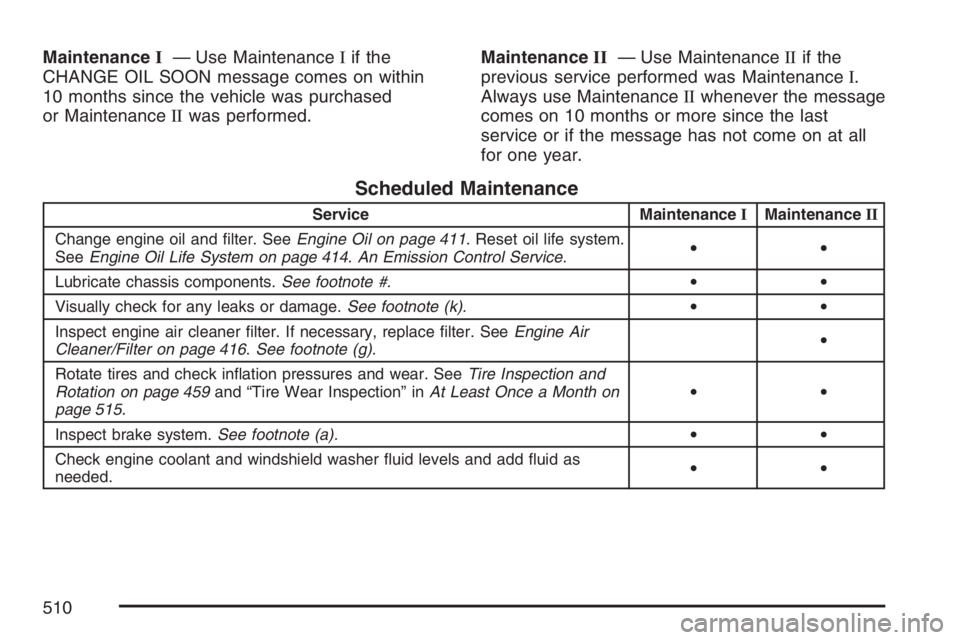
MaintenanceI— Use MaintenanceIif the
CHANGE OIL SOON message comes on within
10 months since the vehicle was purchased
or MaintenanceIIwas performed.MaintenanceII— Use MaintenanceIIif the
previous service performed was MaintenanceI.
Always use MaintenanceIIwhenever the message
comes on 10 months or more since the last
service or if the message has not come on at all
for one year.
Scheduled Maintenance
Service MaintenanceIMaintenanceII
Change engine oil and lter. SeeEngine Oil on page 411. Reset oil life system.
SeeEngine Oil Life System on page 414.An Emission Control Service.••
Lubricate chassis components.See footnote #.••
Visually check for any leaks or damage.See footnote (k).••
Inspect engine air cleaner lter. If necessary, replace lter. SeeEngine Air
Cleaner/Filter on page 416.See footnote (g).•
Rotate tires and check ination pressures and wear. SeeTire Inspection and
Rotation on page 459and “Tire Wear Inspection” inAt Least Once a Month on
page 515.••
Inspect brake system.See footnote (a).••
Check engine coolant and windshield washer uid levels and add uid as
needed.••
510