buttons BUICK TERRAZA 2007 Workshop Manual
[x] Cancel search | Manufacturer: BUICK, Model Year: 2007, Model line: TERRAZA, Model: BUICK TERRAZA 2007Pages: 562, PDF Size: 2.96 MB
Page 316 of 562

SRCE (Source):Press this button to switch
between playing the AM/FM tuner, front CD player,
and XM™ Satellite Radio Service (if equipped). If
one of the sources are not loaded, the system will
skip over the source when this button is pressed.
X(Headphone):Press the right or the left
headphone button to enable volume control of the
wired headphone connected to the corresponding
jack. Press the right and left arrow buttons to
change the volume.
rj(Parental Control):This button is located
behind the video screen, below the auxiliary jacks.
Press this button while using RSA, or when a
DVD or CD is playing to blank the video screen
and to mute the audio. The power indicator
lights on the DVD player will ash. Turning on the
parental control will also disable all other button
operations from the remote control and the
DVD player, except for the eject button. Press this
button again to restore operation of the RSA,
DVD player, and remote control.
This button may also be used to turn the DVD
player power on and automatically resume play if
the vehicle is on and a disc is in the player. If
no disc is in the player then the system will power
up in auxiliary mode.
Rear Seat Audio (RSA)
(Option B, Uplevel)
Your vehicle may have this type of rear seat
audio (RSA) system, if it has this feature, it will
allow rear seat passengers to listen to and control
any of the following audio sources: AM/FM
tuner, front CD player, and XM™ Satellite Radio
Service (if equipped). However, the rear seat
passengers can only control the sources that the
front seat passengers are not listening to. For
example, rear seat passengers may listen to a CD
in the front radio and control it while the driver
listens to the radio through the front speakers.
The rear seat passengers have control of
the volume for each set of headphones.
316
Page 318 of 562

Down Arrow– Press this button while in AM/FM
tuner to change the BAND from AM/FM tuner
to the front CD player or to the XM™ Satellite
Radio Service.
Left Arrow– Press this button while in AM/FM
tuner, or XM™ Satellite Radio Service to
seek down. Press this button while sourcing the
single CD player, or the six-disc CD player to go
to the previous track.
Right Arrow– Press this button while in AM/FM
tuner, or XM™ Satellite Radio Service to seek
up. Press this button while sourcing the single CD
player, or the six-disc CD player to go to the
next track.
43(Wired Headphone Volume):Press this
button to select the correct headphone. Then press
the left or right arrow buttons to increase or
decrease the headphone volume.
rj(Parental Control):This button is located
behind the video screen next to the auxiliary
and headphone jacks. Press this button while
using RSA, or when a DVD or CD is playing
to blank the video screen and to mute the audio.
The power indicator lights on the DVD player
will ash. Turning on the parental control will also
disable all other button operations from the
remote control and the DVD player, except for the
eject button. Press this button again to restore
operation of the RSA, DVD player, and remote
control.
This button may also be used to turn the DVD
player power on and automatically resume play
if the vehicle is on and a disc is in the player.
If no disc is in the player then the system
will power up in auxiliary mode.
318
Page 320 of 562
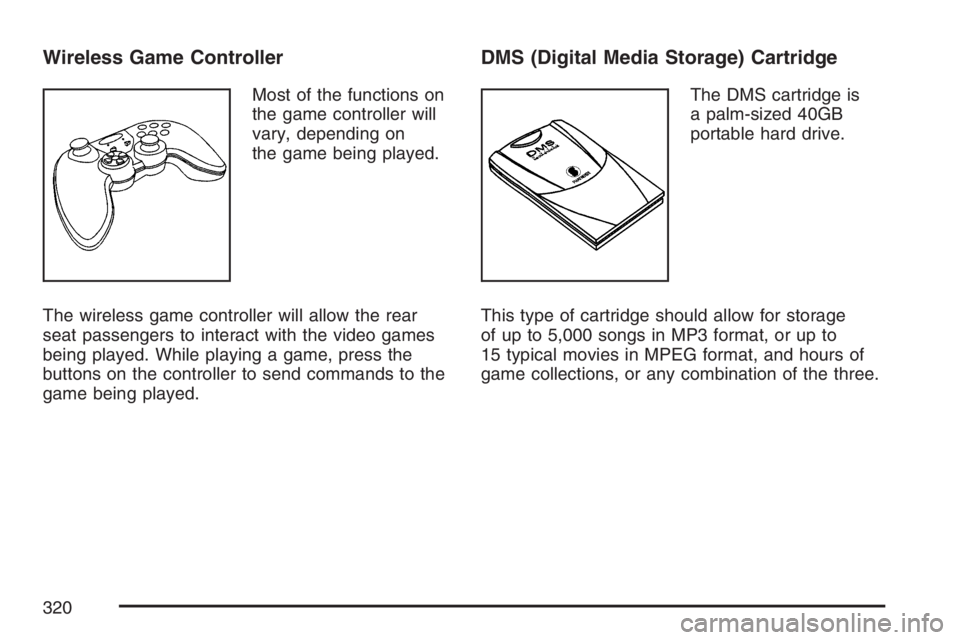
Wireless Game Controller
Most of the functions on
the game controller will
vary, depending on
the game being played.
The wireless game controller will allow the rear
seat passengers to interact with the video games
being played. While playing a game, press the
buttons on the controller to send commands to the
game being played.
DMS (Digital Media Storage) Cartridge
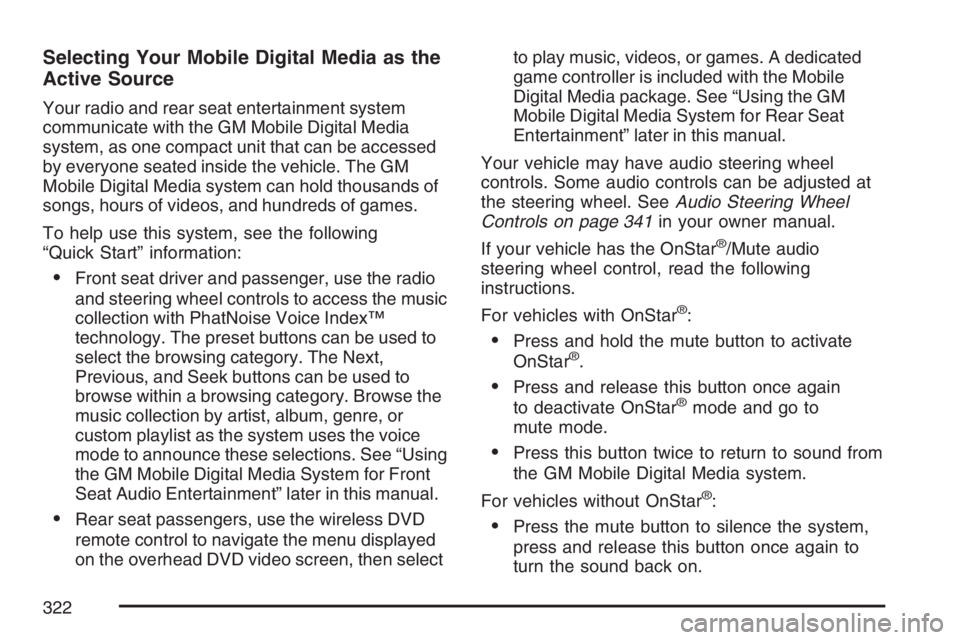
The DMS cartridge is
a palm-sized 40GB
portable hard drive.
This type of cartridge should allow for storage
of up to 5,000 songs in MP3 format, or up to
15 typical movies in MPEG format, and hours of
game collections, or any combination of the three.
320
Page 322 of 562
Selecting Your Mobile Digital Media as the
Active Source
Your radio and rear seat entertainment system
communicate with the GM Mobile Digital Media
system, as one compact unit that can be accessed
by everyone seated inside the vehicle. The GM
Mobile Digital Media system can hold thousands of
songs, hours of videos, and hundreds of games.
To help use this system, see the following
“Quick Start” information:
Front seat driver and passenger, use the radio
and steering wheel controls to access the music
collection with PhatNoise Voice Index™
technology. The preset buttons can be used to
select the browsing category. The Next,
Previous, and Seek buttons can be used to
browse within a browsing category. Browse the
music collection by artist, album, genre, or
custom playlist as the system uses the voice
mode to announce these selections. See “Using
the GM Mobile Digital Media System for Front
Seat Audio Entertainment” later in this manual.
Rear seat passengers, use the wireless DVD
remote control to navigate the menu displayed
on the overhead DVD video screen, then selectto play music, videos, or games. A dedicated
game controller is included with the Mobile
Digital Media package. See “Using the GM
Mobile Digital Media System for Rear Seat
Entertainment” later in this manual.
Your vehicle may have audio steering wheel
controls. Some audio controls can be adjusted at
the steering wheel. SeeAudio Steering Wheel
Controls on page 341in your owner manual.
If your vehicle has the OnStar
®/Mute audio
steering wheel control, read the following
instructions.
For vehicles with OnStar
®:
Press and hold the mute button to activate
OnStar®.
Press and release this button once again
to deactivate OnStar®mode and go to
mute mode.
Press this button twice to return to sound from
the GM Mobile Digital Media system.
For vehicles without OnStar
®:
Press the mute button to silence the system,
press and release this button once again to
turn the sound back on.
322
Page 324 of 562
Starting the System for Front Seat
Entertainment
The GM Mobile Digital Media system is available
through the DMS mode of your radio. This
system will power on and off automatically and
resume where the system last stopped.
To begin playback, follow the instructions
listed below:
1. Insert the DMS cartridge into the GM Mobile
Digital Media player.
2. Turn on your radio and switch to the DMS
mode by pressing the CD/AUX button on
your radio.
3. Press any of the rst four pushbuttons (A-D)
to select different browse modes.
4. Press the left or right SEEK/SCAN arrow (E)
to navigate through the mode items.
5. Turn the tune knob (F) to navigate through
songs in a song list.
Modes Overview
The numbered preset buttons one through four
are used to change the order tracks are grouped
and played. For example, in artist mode, all
tracks are grouped by artist names. Artist names
are listed alphabetically.
The SEEK/SCAN arrows are used to change the
mode item. For example, in Album Mode this will
change to the next or previous album. The mode list
name will display for ve seconds, time-out, then
update to show which list the GM Mobile Digital
Media system is currently playing.
The tune knob is used to change the song within
the current category. For example, while in a
playlist (Playlist Mode) turning the tune knob to
the right will change from track 1 to track 2.
tSEEK/SCANu:Once a mode has been set,
navigate through the categories within that mode
by pressing the right or left SEEK/SCAN arrow.
The category items will display for ve seconds,
time-out, then update to show which category the
Digital Media system is currently playing.
To change the song that is currently playing, press
the right or left SEEK/SCAN arrow to navigate
through the songs.
324
Page 325 of 562
Setting the Browse Mode Using
Voice Index™
The system automatically organizes all of the
songs on the DMS (digital media storage)
cartridge for you. With Voice Index™ browsing,
the six numbered pushbuttons are used as mode
buttons to browse as the system reads album,
artist, genre and playlist names to you while
you drive.
1-6 (Pushbuttons):The GM Digital Media system
uses the numbered station preset buttons to
switch through the browse modes. Press one of
the pushbuttons to set the browse mode. The
selected browse mode will be announced and the
browse mode name will appear on the display.
The preset pushbuttons and the modes associated
with those numbers are:
(1) Album
(2) Artist
(3) Genre
(4) Playlist
(5) Not Used
(6) Not Used
Changing Song Lists Within a
Browse Mode
Each browse mode contains lists of songs.
For example, Genre mode might contain a list of
Classical songs, a list of Rock songs, and a
list of Country songs.
Once the audio system is set to one of the four
modes, press the SEEK/SCAN button to navigate
through the song lists. For example, press the
right arrow while in Album mode to change to the
next album. Press the left arrow to go back to
the previous Album item.
tSEEK/SCANu:Press the SEEK/SCAN
button once to change to the next song list.
Mode 1 (Album Mode):Press the (1) pushbutton
to put the system into Album mode. Press the
right or left SEEK/SCAN arrow once to change to
the next or previous Album. Albums are listed
alphabetically in groups of Artists.
Mode 2 (Artist Mode):Press the (2) pushbutton
to put the system into Artist mode. Press the
right or left SEEK/SCAN arrow once to change to
the next or previous Artist. Artists are listed in
alphabetical order.
325
Page 327 of 562
Using the Fast Forward and Fast
Reverse Buttons
{|(Fast Forward/Fast Reverse):Press and
hold the fast forward or fast reverse arrow to
fast forward or reverse within the current track.
Using the GM Mobile Digital Media
System for Rear Seat Entertainment
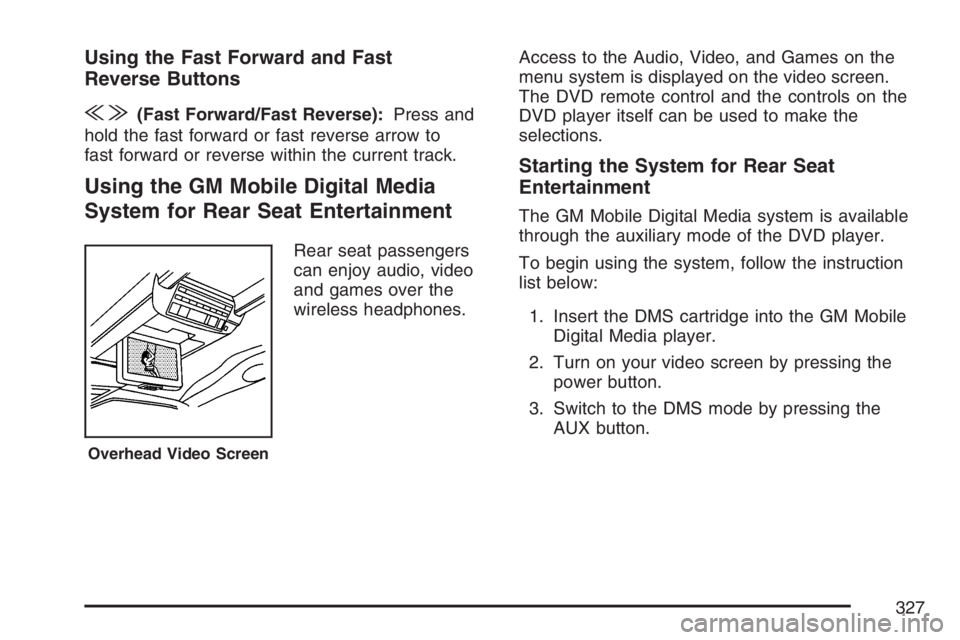
Rear seat passengers
can enjoy audio, video
and games over the
wireless headphones.Access to the Audio, Video, and Games on the
menu system is displayed on the video screen.
The DVD remote control and the controls on the
DVD player itself can be used to make the
selections.
Starting the System for Rear Seat
Entertainment
The GM Mobile Digital Media system is available
through the auxiliary mode of the DVD player.
To begin using the system, follow the instruction
list below:
1. Insert the DMS cartridge into the GM Mobile
Digital Media player.
2. Turn on your video screen by pressing the
power button.
3. Switch to the DMS mode by pressing the
AUX button.
Overhead Video Screen
327
Page 334 of 562
Wireless Game Controller
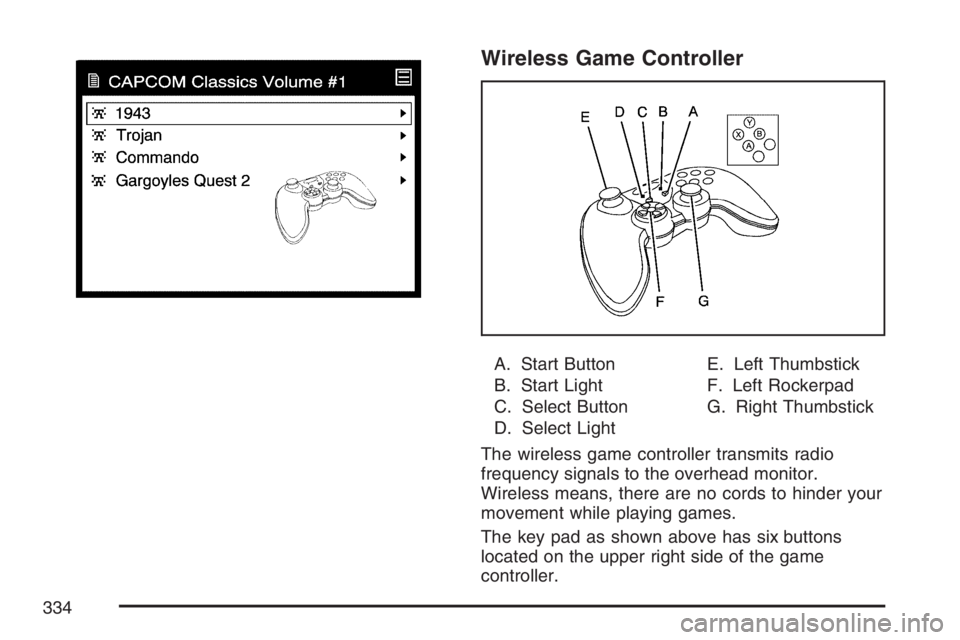
A. Start Button
B. Start Light
C. Select Button
D. Select LightE. Left Thumbstick
F. Left Rockerpad
G. Right Thumbstick
The wireless game controller transmits radio
frequency signals to the overhead monitor.
Wireless means, there are no cords to hinder your
movement while playing games.
The key pad as shown above has six buttons
located on the upper right side of the game
controller.
334
Page 342 of 562
1-6:Press this button to scan the stations that
are programmed on the radio preset pushbuttons.
The radio will go to the next preset station
stored on the pushbuttons, play for a few seconds,
then go on to the next preset station. Press this
button again to stop scanning. The radio will
only scan preset stations with a strong signal that
are in the selected band.
$(Mute):Press this button to silence the system.
Press this button again, to turn the sound on.
r(Play):When listening to the radio, press this
button to play a CD.
wux(Volume):Press the up or down arrow
to increase or decrease the volume.
Radio Reception
You may experience frequency interference and
static during normal radio reception if items
such as cellphone chargers, vehicle convenience
accessories, and external electronic devices
are plugged into the accessory power outlet.
If there is interference or static, unplug the item
from the accessory power outlet.
AM
The range for most AM stations is greater than for
FM, especially at night. The longer range can
cause station frequencies to interfere with each
other. For better radio reception, most AM
radio stations will boost the power levels during
the day, and then reduce these levels during
the night. Static can also occur when things like
storms and power lines interfere with radio
reception. When this happens, try reducing the
treble on your radio.
342
Page 487 of 562
Appearance Care
Cleaning the Inside of Your Vehicle
Your vehicle’s interior will continue to look its
best if it is cleaned often. Although not always
visible, dust and dirt can accumulate on your
upholstery. Dirt can damage carpet, fabric, leather,
and plastic surfaces. Regular vacuuming is
recommended to remove particles from your
upholstery. It is important to keep your upholstery
from becoming and remaining heavily soiled.
Soils should be removed as quickly as possible.
Your vehicle’s interior may experience extremes of
heat that could cause stains to set rapidly.
Lighter colored interiors may require more frequent
cleaning. Use care because newspapers and
garments that transfer color to your home
furnishings may also transfer color to your
vehicle’s interior.When cleaning your vehicle’s interior, only use
cleaners specically designed for the surfaces
being cleaned. Permanent damage may result
from using cleaners on surfaces for which
they were not intended. Use glass cleaner only on
glass. Remove any accidental over-spray from
other surfaces immediately. To prevent over-spray,
apply cleaner directly to the cleaning cloth.
Notice:If you use abrasive cleaners when
cleaning glass surfaces on your vehicle, you
could scratch the glass and/or cause damage to
the rear window defogger. When cleaning the
glass on your vehicle, use only a soft cloth and
glass cleaner.
Many cleaners contain solvents that may become
concentrated in your vehicle’s breathing space.
Before using cleaners, read and adhere to all safety
instructions on the label. While cleaning your
vehicle’s interior, maintain adequate ventilation by
opening your vehicle’s doors and windows.
Dust may be removed from small buttons and
knobs using a small brush with soft bristles.
487