radio controls BUICK TERRAZA 2007 Owner's Manual
[x] Cancel search | Manufacturer: BUICK, Model Year: 2007, Model line: TERRAZA, Model: BUICK TERRAZA 2007Pages: 562, PDF Size: 2.96 MB
Page 147 of 562
OnStar®Steering Wheel Controls
$
:Your vehicle may be equipped with a
Talk/Mute button that can be used to interact with
OnStar
®.
SeeAudio Steering Wheel Controls on page 341
for more information.
When calling into voice mail systems or to dial
directory numbers, press this button once, wait for
the response, say the number(s) to be dialed,
wait for the number(s) to be repeated and then say
“dial.” See the OnStar
®Owner’s Guide for more
information.
Universal Home Remote
System
Universal Home Remote System
(With Three Round LED)
The Universal Home Remote System provides a
way to replace up to three hand-held
Radio-Frequency (RF) transmitters used to
activate devices such as garage door openers,
security systems, and home lighting.This device complies with Part 15 of the FCC
Rules. Operation is subject to the following
two conditions:
1. This device may not cause harmful
interference.
2. This device must accept any interference
received, including interference that may
cause undesired operation.
The FCC Grant of Equipment Authorization
Certicate number is KOBGTE05A.
This device complies with RSS-210 of Industry
Canada. Operation is subject to the following two
conditions:
1. This device may not cause interference.
2. This device must accept any interference
received, including interference that may
cause undesired operation of the device.
The Canadian Registration ID number is
3521A-GTE05A.
Changes or modications to this system by other
than an authorized service facility could void
authorization to use this equipment.
147
Page 168 of 562
Tachometer............................................... 209
Safety Belt Reminder Light........................ 209
Passenger Safety Belt Reminder Light....... 210
Airbag Readiness Light............................. 210
Passenger Airbag Status Indicator............. 211
Charging System Light.............................. 213
Brake System Warning Light..................... 214
Anti-Lock Brake System Warning Light...... 215
Traction Control System (TCS)
Warning Light........................................ 216
Engine Coolant Temperature Gage............ 217
Malfunction Indicator Lamp........................ 217
Oil Pressure Light..................................... 220
Security Light............................................ 221
Cruise Control Light.................................. 221
Highbeam On Light................................... 221
Fuel Gage................................................. 222
Low Fuel Warning Light............................ 222
Driver Information Center (DIC).................. 223
DIC Operation and Displays...................... 224
DIC Compass (Uplevel Only)..................... 228
DIC Warnings and Messages.................... 230
DIC Vehicle Personalization
(Uplevel Only)........................................ 249Audio System(s)......................................... 258
Setting the Time........................................ 259
Radio with CD........................................... 260
Using an MP3........................................... 274
XM Radio Messages................................. 280
Navigation/Radio System........................... 282
Rear Seat Entertainment System
(Option A, Uplevel)................................ 282
Rear Seat Entertainment System
(Option B, Uplevel)................................ 298
Rear Seat Audio (RSA)
(Option A, Uplevel)................................ 314
Rear Seat Audio (RSA)
(Option B, Uplevel)................................ 316
Mobile Digital Media System..................... 319
Theft-Deterrent Feature............................. 340
Audio Steering Wheel Controls.................. 341
Radio Reception........................................ 342
Care of Your CDs and DVDs.................... 343
Care of the CD and DVD Player............... 343
Fixed Mast Antenna.................................. 344
XM™ Satellite Radio Antenna System....... 344
Chime Level Adjustment............................ 344
Section 3 Instrument Panel
168
Page 191 of 562
Accessory Power Outlet(s)
Your vehicle may be equipped with a front
accessory power outlet located below the climate
controls on the instrument panel. It can be
used to plug in electrical equipment such as a
cellular telephone or CB radio.
Pull the cover down to use the accessory power
outlet. When not in use, keep the cover on.
The rear accessory power outlet is located on the
rear compartment on the driver’s side.
To remove the cover, pull the tab on the cover
and pull it off. To put the cover back on, line up
the tabs at the back of the cover and put the
cover in place. Push down the tab to secure the
cover. When not in use, always cover the rear
accessory power outlet with the protective cap.
Notice:Leaving electrical equipment on
for extended periods will drain the battery.
Always turn off electrical equipment when
not in use and do not plug in equipment that
exceeds the maximum amperage rating of
20 amperes.Certain electrical accessories may not be
compatible with the accessory power outlet and
could result in blown vehicle or adapter fuses.
If you experience a problem see your dealer for
additional information on accessory power outlets.
Notice:Adding any electrical equipment to
your vehicle may damage it or keep other
components from working as they should.
The repairs would not be covered by your
warranty. Do not use equipment exceeding
maximum amperage rating of 20 amperes.
Check with your dealer before adding electrical
equipment.
When adding electrical equipment, be sure to
follow the proper installation instructions included
with the equipment.
Notice:Improper use of the power outlet can
cause damage not covered by your warranty.
Do not hang any type of accessory or
accessory bracket from the plug because the
power outlets are designed for accessory
power plugs only.
191
Page 258 of 562
Audio System(s)
Determine which radio your vehicle has and then
read the pages following to familiarize yourself
with its features.
Driving without distraction is a necessity for a
safer driving experience. SeeDefensive Driving on
page 346. By taking a few moments to read this
manual and get familiar with your vehicle’s
audio system, you can use it with less effort, as
well as take advantage of its features. While your
vehicle is parked, set up your audio system by
presetting your favorite radio stations, setting the
tone, and adjusting the speakers. Then, when
driving conditions permit, you can tune to
your favorite stations using the presets and
steering wheel controls if the vehicle has them.{CAUTION:
This system provides you with a far greater
access to audio stations and song listings.
Giving extended attention to entertainment
tasks while driving can cause a crash and
you or others can be injured or killed.
Always keep your eyes on the road and
your mind on the drive — avoid engaging
in extended searching while driving.
Keeping your mind on the drive is important for
safe driving. Here are some ways in which you can
help avoid distraction while driving.
While your vehicle is parked:
Familiarize yourself with all of its controls.
Familiarize yourself with its operation.
Set up your audio system by presetting your
favorite radio stations, setting the tone, and
adjusting the speakers. Then, when driving
conditions permit, you can tune to your favorite
radio stations using the presets and steering
wheel controls if the vehicle has them.
258
Page 263 of 562
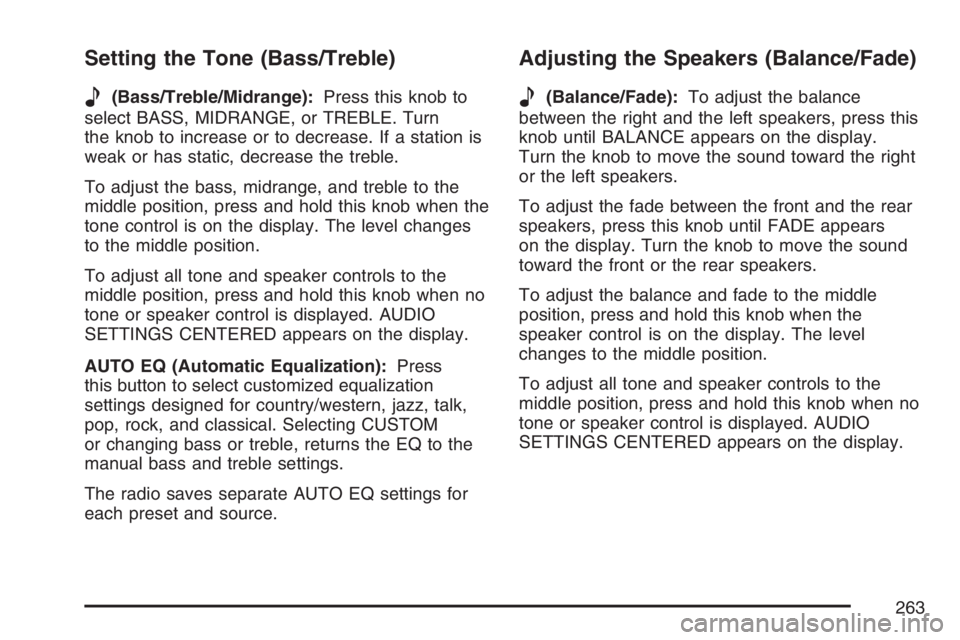
Setting the Tone (Bass/Treble)
e
(Bass/Treble/Midrange):Press this knob to
select BASS, MIDRANGE, or TREBLE. Turn
the knob to increase or to decrease. If a station is
weak or has static, decrease the treble.
To adjust the bass, midrange, and treble to the
middle position, press and hold this knob when the
tone control is on the display. The level changes
to the middle position.
To adjust all tone and speaker controls to the
middle position, press and hold this knob when no
tone or speaker control is displayed. AUDIO
SETTINGS CENTERED appears on the display.
AUTO EQ (Automatic Equalization):Press
this button to select customized equalization
settings designed for country/western, jazz, talk,
pop, rock, and classical. Selecting CUSTOM
or changing bass or treble, returns the EQ to the
manual bass and treble settings.
The radio saves separate AUTO EQ settings for
each preset and source.
Adjusting the Speakers (Balance/Fade)
e
(Balance/Fade):To adjust the balance
between the right and the left speakers, press this
knob until BALANCE appears on the display.
Turn the knob to move the sound toward the right
or the left speakers.
To adjust the fade between the front and the rear
speakers, press this knob until FADE appears
on the display. Turn the knob to move the sound
toward the front or the rear speakers.
To adjust the balance and fade to the middle
position, press and hold this knob when the
speaker control is on the display. The level
changes to the middle position.
To adjust all tone and speaker controls to the
middle position, press and hold this knob when no
tone or speaker control is displayed. AUDIO
SETTINGS CENTERED appears on the display.
263
Page 314 of 562
Rear Seat Audio (RSA)
(Option A, Uplevel)
Your vehicle may have this type of rear seat
audio (RSA) system, if it has this feature, it will
allow rear seat passengers to listen to and control
any of the following audio sources: AM/FM
tuner, front CD player, and XM™ Satellite Radio
Service (if equipped). However, the rear seat
passengers can only control the sources that the
front seat passengers are not listening to. For
example, rear seat passengers may listen to a CD
in the front radio and control it while the driver
listens to the radio through the front speakers.
The rear seat passengers have control of
the volume for each set of headphones.
The front seat audio controls always have
priority over the RSA controls. If the front seat
passengers switch the source for the main radio to
a remote source, the RSA will not be able to
control the remote source. You can operate the
RSA when the main radio is off.The DVD or auxiliary device will always be
available on channel (CHA or CH1) of the wireless
headphones. All other RSA sources are available
on CHB or CH2 of the wireless headphones,
as well as the wired headphones. If the RSA is
off, the wired headphones will provide DVD
or auxiliary device audio. The rear seat
passengers will not be able to listen to XM, on
CHB or CH2, if the front passenger is listening to
a DVD or auxiliary device.
The remote control will not operate any of the
RSA features.
314
Page 317 of 562
The front seat audio controls always have
priority over the RSA controls. If the front seat
passengers switch the source for the main radio to
a remote source, the RSA will not be able to
control the remote source. You can operate the
RSA when the main radio is off.
The DVD or auxiliary device will always be
available on channel (CHA or CH1) of the wireless
headphones. All other RSA sources are available
on channel (CHB or CH2) of the wireless
headphones, as well as the wired headphones.
If the RSA is off, the wired headphones will provide
DVD or auxiliary device audio. The rear seat
passengers will not be able to listen to XM, on
channel (CHB or CH2), if the front passenger
is listening to a DVD or auxiliary device.
The remote control will not operate any of the
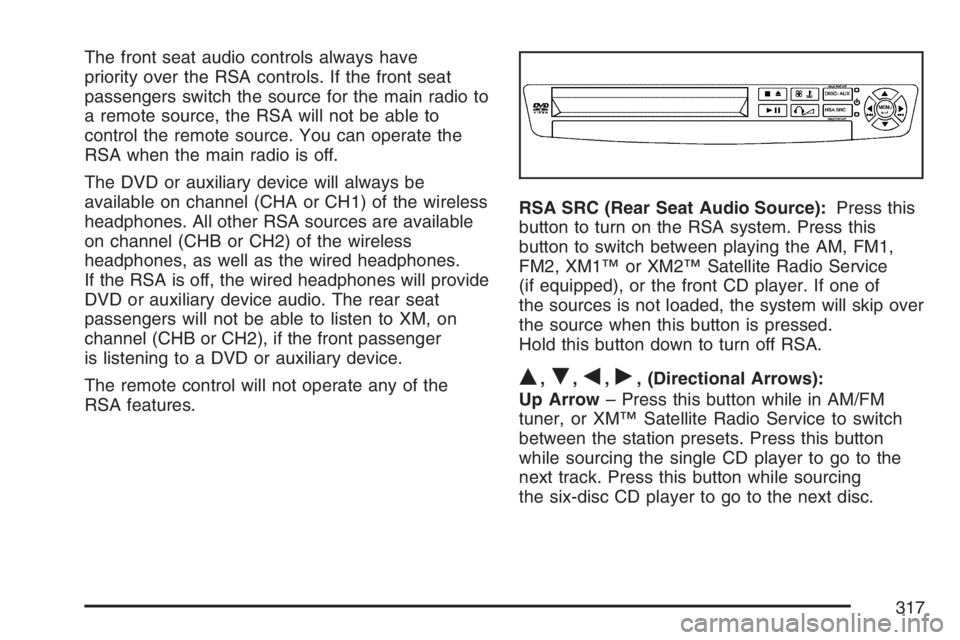
RSA features.RSA SRC (Rear Seat Audio Source):Press this
button to turn on the RSA system. Press this
button to switch between playing the AM, FM1,
FM2, XM1™ or XM2™ Satellite Radio Service
(if equipped), or the front CD player. If one of
the sources is not loaded, the system will skip over
the source when this button is pressed.
Hold this button down to turn off RSA.
Q,R,q,r, (Directional Arrows):
Up Arrow– Press this button while in AM/FM
tuner, or XM™ Satellite Radio Service to switch
between the station presets. Press this button
while sourcing the single CD player to go to the
next track. Press this button while sourcing
the six-disc CD player to go to the next disc.
317
Page 319 of 562
Mobile Digital Media System
Your vehicle may have the GM Mobile Digital
Media system which is made up of a digital media
player, a wireless game controller, the digital
media storage (DMS) cartridge, the USB 2.0 cradle
(docking station), and the PhatNoise™ Media
Manager software.
See the following information to learn more about
the components that make up the complete
Digital Media system.
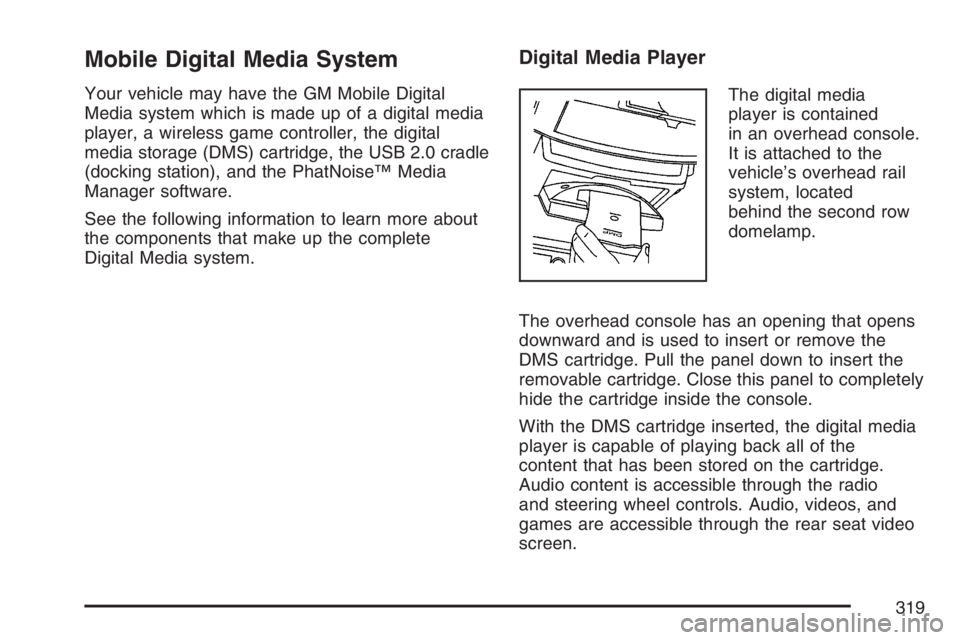
Digital Media Player
The digital media
player is contained
in an overhead console.
It is attached to the
vehicle’s overhead rail
system, located
behind the second row
domelamp.
The overhead console has an opening that opens
downward and is used to insert or remove the
DMS cartridge. Pull the panel down to insert the
removable cartridge. Close this panel to completely
hide the cartridge inside the console.
With the DMS cartridge inserted, the digital media
player is capable of playing back all of the
content that has been stored on the cartridge.
Audio content is accessible through the radio
and steering wheel controls. Audio, videos, and
games are accessible through the rear seat video
screen.
319
Page 322 of 562
Selecting Your Mobile Digital Media as the
Active Source
Your radio and rear seat entertainment system
communicate with the GM Mobile Digital Media
system, as one compact unit that can be accessed
by everyone seated inside the vehicle. The GM
Mobile Digital Media system can hold thousands of
songs, hours of videos, and hundreds of games.
To help use this system, see the following
“Quick Start” information:
Front seat driver and passenger, use the radio
and steering wheel controls to access the music
collection with PhatNoise Voice Index™
technology. The preset buttons can be used to
select the browsing category. The Next,
Previous, and Seek buttons can be used to
browse within a browsing category. Browse the
music collection by artist, album, genre, or
custom playlist as the system uses the voice
mode to announce these selections. See “Using
the GM Mobile Digital Media System for Front
Seat Audio Entertainment” later in this manual.
Rear seat passengers, use the wireless DVD
remote control to navigate the menu displayed
on the overhead DVD video screen, then selectto play music, videos, or games. A dedicated
game controller is included with the Mobile
Digital Media package. See “Using the GM
Mobile Digital Media System for Rear Seat
Entertainment” later in this manual.
Your vehicle may have audio steering wheel
controls. Some audio controls can be adjusted at
the steering wheel. SeeAudio Steering Wheel
Controls on page 341in your owner manual.
If your vehicle has the OnStar
®/Mute audio
steering wheel control, read the following
instructions.
For vehicles with OnStar
®:
Press and hold the mute button to activate
OnStar®.
Press and release this button once again
to deactivate OnStar®mode and go to
mute mode.
Press this button twice to return to sound from
the GM Mobile Digital Media system.
For vehicles without OnStar
®:
Press the mute button to silence the system,
press and release this button once again to
turn the sound back on.
322
Page 323 of 562
Using GM Mobile Digital Media System
for Front Seat Audio Entertainment
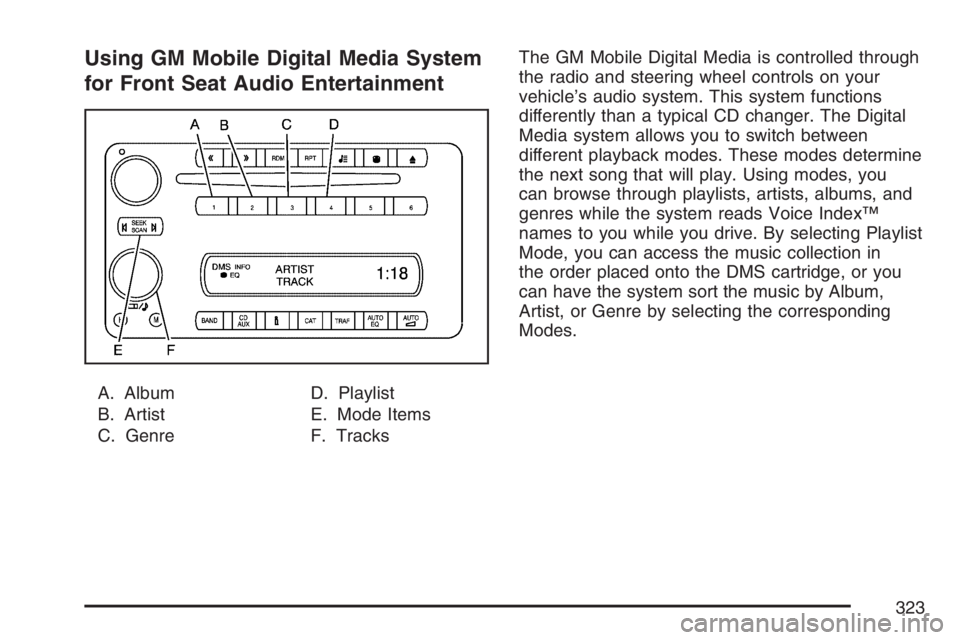
A. Album
B. Artist
C. GenreD. Playlist
E. Mode Items
F. TracksThe GM Mobile Digital Media is controlled through
the radio and steering wheel controls on your
vehicle’s audio system. This system functions
differently than a typical CD changer. The Digital
Media system allows you to switch between
different playback modes. These modes determine
the next song that will play. Using modes, you
can browse through playlists, artists, albums, and
genres while the system reads Voice Index™
names to you while you drive. By selecting Playlist
Mode, you can access the music collection in
the order placed onto the DMS cartridge, or you
can have the system sort the music by Album,
Artist, or Genre by selecting the corresponding
Modes.
323