audio BUICK VERANO 2015 User Guide
[x] Cancel search | Manufacturer: BUICK, Model Year: 2015, Model line: VERANO, Model: BUICK VERANO 2015Pages: 393, PDF Size: 4.74 MB
Page 158 of 393
Black plate (1,1)Buick Verano Owner Manual (GMNA-Localizing-U.S./Canada/Mexico-
7707488) - 2015 - CRC - 10/31/14
Infotainment System 7-1
Infotainment
System
Introduction
Infotainment . . . . . . . . . . . . . . . . . . . 7-1
Theft-Deterrent Feature . . . . . . . 7-2
Overview (Radio with CD) . . . . . 7-3
Operation . . . . . . . . . . . . . . . . . . . . . 7-4
Radio
AM-FM Radio . . . . . . . . . . . . . . . . . 7-7
Satellite Radio . . . . . . . . . . . . . . . 7-11
Radio Reception . . . . . . . . . . . . . 7-12
Backglass Antenna . . . . . . . . . . 7-13
Multi-Band Antenna . . . . . . . . . . 7-14
Audio Players
CD Player . . . . . . . . . . . . . . . . . . . 7-14
Auxiliary Devices . . . . . . . . . . . . 7-16
Phone
Bluetooth (Overview) . . . . . . . . 7-19
Bluetooth (InfotainmentControls) . . . . . . . . . . . . . . . . . . . 7-21
Bluetooth (Voice Recognition) . . . . . . . . . . . . . . . 7-24
Trademarks and License
Agreements
Trademarks and License
Agreements . . . . . . . . . . . . . . . . 7-30
Introduction
Infotainment
Base radio information is included in
this manual. See the navigation
manual for information on other
available infotainment systems.
Read the following pages to
become familiar with these features.
{Warning
Taking your eyes off the road for
too long or too often while using
any infotainment feature can
cause a crash. You or others
could be injured or killed. Do not
give extended attention to
infotainment tasks while driving.
Limit your glances at the vehicle
displays and focus your attention
on driving. Use voice commands
whenever possible.
Page 159 of 393
Black plate (2,1)Buick Verano Owner Manual (GMNA-Localizing-U.S./Canada/Mexico-
7707488) - 2015 - CRC - 10/31/14
7-2 Infotainment System
The infotainment system has built-in
features intended to help avoid
distraction by disabling some
functions when driving. These
functions may gray out when they
are unavailable. Many infotainment
features are also available through
the instrument cluster and steering
wheel controls.
Before driving:
.Become familiar with the
operation, faceplate buttons, and
screen buttons.
.Set up the audio by presetting
favorite stations, setting the
tone, and adjusting the
speakers.
.Set up phone numbers in
advance so they can be called
easily by pressing a single
button or by using a single voice
command if equipped with
Bluetooth phone capability.
See Defensive Driving on page 9-3.
To play the infotainment system with
the ignition off, see Retained
Accessory Power (RAP) on
page 9-21.Theft-Deterrent Feature
The theft-deterrent feature works by
learning a portion of the Vehicle
Identification Number (VIN) to the
infotainment system. The
infotainment system does not
operate if it is stolen or moved to a
different vehicle.
Page 160 of 393
Black plate (3,1)Buick Verano Owner Manual (GMNA-Localizing-U.S./Canada/Mexico-
7707488) - 2015 - CRC - 10/31/14
Infotainment System 7-3
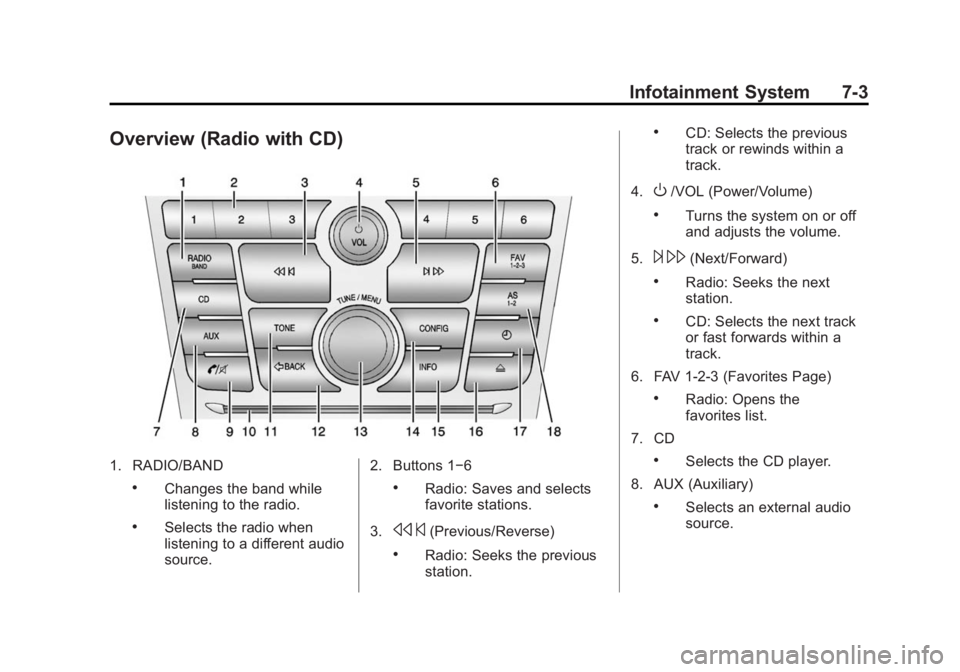
Overview (Radio with CD)
1. RADIO/BAND
.Changes the band while
listening to the radio.
.Selects the radio when
listening to a different audio
source.2. Buttons 1−6
.Radio: Saves and selects
favorite stations.
3.
s ©(Previous/Reverse)
.Radio: Seeks the previous
station.
.CD: Selects the previous
track or rewinds within a
track.
4.
O/VOL (Power/Volume)
.Turns the system on or off
and adjusts the volume.
5.
¨ \(Next/Forward)
.Radio: Seeks the next
station.
.CD: Selects the next track
or fast forwards within a
track.
6. FAV 1-2-3 (Favorites Page)
.Radio: Opens the
favorites list.
7. CD
.Selects the CD player.
8. AUX (Auxiliary)
.Selects an external audio
source.
Page 161 of 393
Black plate (4,1)Buick Verano Owner Manual (GMNA-Localizing-U.S./Canada/Mexico-
7707488) - 2015 - CRC - 10/31/14
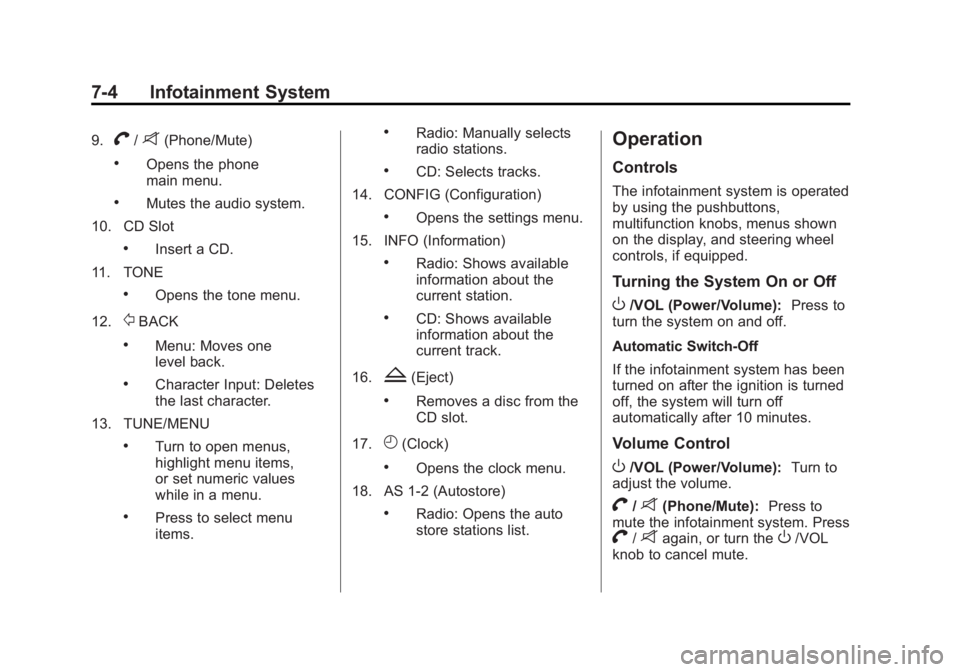
7-4 Infotainment System
9.V/8(Phone/Mute)
.Opens the phone
main menu.
.Mutes the audio system.
10. CD Slot
.Insert a CD.
11. TONE
.Opens the tone menu.
12.
/BACK
.Menu: Moves one
level back.
.Character Input: Deletes
the last character.
13. TUNE/MENU
.Turn to open menus,
highlight menu items,
or set numeric values
while in a menu.
.Press to select menu
items.
.Radio: Manually selects
radio stations.
.CD: Selects tracks.
14. CONFIG (Configuration)
.Opens the settings menu.
15. INFO (Information)
.Radio: Shows available
information about the
current station.
.CD: Shows available
information about the
current track.
16.
Z(Eject)
.Removes a disc from the
CD slot.
17.
H(Clock)
.Opens the clock menu.
18. AS 1-2 (Autostore)
.Radio: Opens the auto
store stations list.
Operation
Controls
The infotainment system is operated
by using the pushbuttons,
multifunction knobs, menus shown
on the display, and steering wheel
controls, if equipped.
Turning the System On or Off
O/VOL (Power/Volume): Press to
turn the system on and off.
Automatic Switch-Off
If the infotainment system has been
turned on after the ignition is turned
off, the system will turn off
automatically after 10 minutes.
Volume Control
O/VOL (Power/Volume): Turn to
adjust the volume.
V/8(Phone/Mute): Press to
mute the infotainment system. Press
V/8again, or turn theO/VOL
knob to cancel mute.
Page 163 of 393
Black plate (6,1)Buick Verano Owner Manual (GMNA-Localizing-U.S./Canada/Mexico-
7707488) - 2015 - CRC - 10/31/14
7-6 Infotainment System
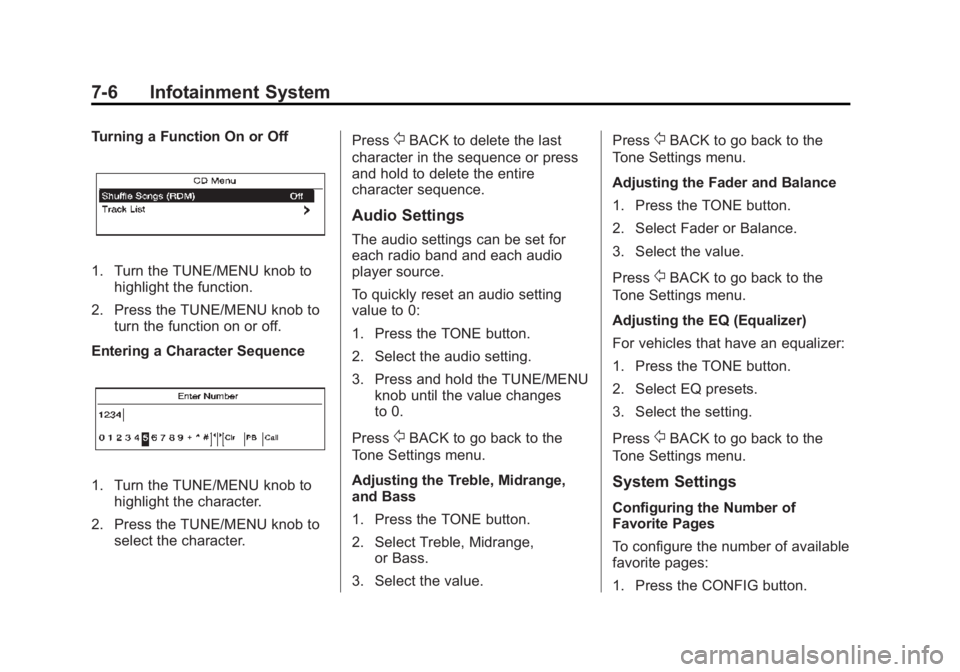
Turning a Function On or Off
1. Turn the TUNE/MENU knob tohighlight the function.
2. Press the TUNE/MENU knob to turn the function on or off.
Entering a Character Sequence
1. Turn the TUNE/MENU knob to highlight the character.
2. Press the TUNE/MENU knob to select the character. Press
/BACK to delete the last
character in the sequence or press
and hold to delete the entire
character sequence.
Audio Settings
The audio settings can be set for
each radio band and each audio
player source.
To quickly reset an audio setting
value to 0:
1. Press the TONE button.
2. Select the audio setting.
3. Press and hold the TUNE/MENU knob until the value changes
to 0.
Press
/BACK to go back to the
Tone Settings menu.
Adjusting the Treble, Midrange,
and Bass
1. Press the TONE button.
2. Select Treble, Midrange, or Bass.
3. Select the value. Press
/BACK to go back to the
Tone Settings menu.
Adjusting the Fader and Balance
1. Press the TONE button.
2. Select Fader or Balance.
3. Select the value.
Press
/BACK to go back to the
Tone Settings menu.
Adjusting the EQ (Equalizer)
For vehicles that have an equalizer:
1. Press the TONE button.
2. Select EQ presets.
3. Select the setting.
Press
/BACK to go back to the
Tone Settings menu.
System Settings
Configuring the Number of
Favorite Pages
To configure the number of available
favorite pages:
1. Press the CONFIG button.
Page 164 of 393
Black plate (7,1)Buick Verano Owner Manual (GMNA-Localizing-U.S./Canada/Mexico-
7707488) - 2015 - CRC - 10/31/14
Infotainment System 7-7
2. Select Radio Settings.
3. Select Radio Favorites.
4. Select the number of availablefavorite pages.
5. Press
/BACK to go back to the
System Configuration menu.
Auto Volume
The auto volume feature
automatically adjusts the radio
volume to compensate for road and
wind noise as the vehicle speeds up
or slows down, so that the volume
level is consistent.
The level of volume compensation
can be selected, or the auto volume
feature can be turned off.
1. Press the CONFIG button.
2. Select Radio Settings. 3. Select Auto Volume.
4. Select the setting.
5. Press
/BACK to go back to the
System Configuration menu.
Maximum Startup Volume
The maximum volume played when
the radio is first turned on can
be set.
1. Press the CONFIG button.
2. Select Radio Settings.
3. Select Maximum Startup Volume.
4. Select the setting.
5. Press
/BACK to go back to the
System Configuration menu.
Radio
AM-FM Radio
For radios with CD and touch
screen, see “AM-FM Radio” in the
infotainment manual.
Control Buttons
The buttons used to control the
radio are:
O/VOL (Power/Volume):
.Press to turn the radio on or off.
.Turn the knob to increase or
decrease the volume. The
volume is adjusted for the
current audio source or voice
prompts.
RADIO/BAND: Press to turn the
radio on and choose between AM,
FM, and SiriusXM
®, if equipped.
TUNE/MENU: Turn to navigate the
available menus and to search for
stations.
Page 166 of 393
Black plate (9,1)Buick Verano Owner Manual (GMNA-Localizing-U.S./Canada/Mexico-
7707488) - 2015 - CRC - 10/31/14
Infotainment System 7-9
3. Select the programming type.A list of stations that transmit
programming of the selected
type displays.
4. Select the station.
The category lists are updated when
the station lists are updated.
Updating Station & Category Lists
If stations stored in the station list
can no longer be received:
1. Turn the TUNE/MENU knob.
2. Select Update AM or FM Station List, if the stations stored in the
station list are no longer
received. A station search will be
completed and the first station in
the updated list will play.
To cancel the station search, press
the TUNE/MENU knob.
Radio Settings
To access the Radio Settings menu:
1. Press the CONFIG button. 2. Turn the TUNE/MENU knob until
Radio Settings displays. Press
the TUNE/MENU knob to display
other options within that feature.
Audio system settings or features
can be customized for:
.Auto Volume
.Maximum Start Up Volume
.Radio Favorites
.RDS Options
.XM Categories
Auto Volume: Turn the TUNE/
MENU knob to select volume Off,
Low, Medium, or High.
Maximum Start Up Volume: Turn
the TUNE/MENU knob to increase
or decrease the infotainment startup
volume.
Radio Favorites: Turn the TUNE/
MENU knob to highlight the number
of favorites. Press the TUNE/MENU
knob to select.
RDS Options: Press the TUNE/
MENU knob to turn RDS on or off. XM Categories:
If equipped, turn
the TUNE/MENU knob to highlight
the category. Press the TUNE/
MENU knob to select. Turn the
TUNE/MENU knob to Show all XM
Categories to display all categories.
Finding a Station
Select a band such as AM, FM,
or SIriusXM (if equipped).
Turn the TUNE/MENU knob to find
a radio station. To select a preset
station, press the corresponding
preset button.
Seeking a Station
Press
s ©or¨\to search for a
station.
Storing a Station as a Favorite
Up to 36 preset stations can be
stored. Each page can store
six preset stations. The presets
within a page can be from different
radio bands.
Page 167 of 393
Black plate (10,1)Buick Verano Owner Manual (GMNA-Localizing-U.S./Canada/Mexico-
7707488) - 2015 - CRC - 10/31/14
7-10 Infotainment System
To scroll through the pages, press
the FAV 1-2-3 (favorites) button. The
current page number displays above
the preset buttons. The stored
stations for each list display at the
bottom of the screen. The number of
preset FAV lists can be changed.
To store a radio station to a
favorites page:
1. Press the RADIO/BAND buttonuntil the desired band is
selected.
2. Turn the TUNE/MENU knob to the station.
3. Press the FAV 1-2-3 button to scroll the list.
4. Press and hold one of the preset buttons for more than
two seconds. The station
frequency appears on the preset
button at the bottom of the
display.
5. Repeat the steps for each preset in each page. To recall a preset station from a
favorites page:
1. Press the FAV 1-2-3 button to
scroll to the page.
2. Press the preset button. The stored preset station is recalled.
Autostore Stations
AS 1-2 (Autostore): Autostore
searches and stores six FM and
six AM stations with the strongest
signal. To use autostore:
1. Press RADIO/BAND to select FM or AM.
2. Press AS 1-2 for at least two seconds until a beep
sounds. SEARCH displays on
the radio, followed by the
number of stations found.
3. The radio will automatically store the six strongest stations found
as autostore presets.
Press the AS 1-2 button to alternate
between the autostore stations and
favorites. AS displays on the radio when using
autostore presets.
Autostore does not delete
previously stored favorite stations.
Autostore does not function with
SIriusXM radio stations.
Radio Data System (RDS)
The audio system has RDS. RDS
features are available for use only
on FM stations that broadcast RDS
information. With RDS, the
radio can:
.Seek to stations broadcasting
the selected type of
programming.
.Receive announcements
concerning local and national
emergencies.
.Display messages from radio
stations.
This system relies on receiving
specific information from these
stations and only works when the
information is available. In rare
cases, a radio station could
Page 168 of 393
Black plate (11,1)Buick Verano Owner Manual (GMNA-Localizing-U.S./Canada/Mexico-
7707488) - 2015 - CRC - 10/31/14
Infotainment System 7-11
broadcast incorrect information that
causes the radio features to work
improperly. If this happens, contact
the radio station.
The RDS system is always on.
When information is broadcast from
the current FM station, the station
name or call letters display on the
audio screen. RDS can provide a
program type (PTY) for current
programming and the name of the
program being broadcast.
Satellite Radio
For radios with CD and touch
screen, see“Satellite Radio” in the
infotainment manual.
Vehicles with a SiriusXM
®Satellite
Radio tuner and a valid SiriusXM
Satellite Radio subscription can
receive SiriusXM programming.
SiriusXM Satellite Radio
Service
SiriusXM is a satellite radio service
based in the 48 contiguous United
States and 10 Canadian provinces. SiriusXM Satellite Radio has a wide
variety of programming and
commercial-free music, coast to
coast, and in digital-quality sound.
A service fee is required to receive
the SiriusXM service. If SiriusXM
service needs to be reactivated, the
radio will display "No Subscription
Please Renew" on channel XM1.
For more information, contact
SiriusXM at www.siriusxm.com or
1-866-635-2349 (U.S.), and
www.xmradio.ca or 1-877-209-0079
(Canada).
Control Buttons
The buttons used to control the
SiriusXM radio are:
RADIO/BAND:
Press to turn the
radio on and choose between AM,
FM, and XM.
s ©or¨\: Press to go to the
previous or next channel.
FAV 1-2-3: Press to open the
favorites list.
Buttons 1−6: Press to select a
favorite. TUNE/MENU:
Turn to select a
channel.
INFO: Press to display additional
information that may be available
about the current song.
w/j(Play/Pause): Press to
pause time shifted content,
if equipped.
Selecting the SiriusXM Band
Press the RADIO/BAND button to
choose between AM, FM, and XM.
The last channel played in that band
begins to play when that band is
selected.
SiriusXM Categories
SiriusXM channels are organized in
categories.
Removing or Adding Categories
Channels in a category that have
been removed can still be accessed
by using the
s ©or¨\buttons,
or the TUNE/MENU knob.
Page 171 of 393
Black plate (14,1)Buick Verano Owner Manual (GMNA-Localizing-U.S./Canada/Mexico-
7707488) - 2015 - CRC - 10/31/14
7-14 Infotainment System
Caution (Continued)
metallic tinting materials will not
be covered by the vehicle
warranty.
Multi-Band Antenna
The multi-band antenna is on the
roof of the vehicle. The antenna is
used for the AM-FM radio, OnStar,
the SiriusXM Satellite Radio Service
System, and GPS (Global
Positioning System), if the vehicle
has these features. Keep the
antenna clear of obstructions for
clear reception.
If the vehicle has a sunroof, and it is
open, reception can also be
affected.
Audio Players
CD Player
For radios with CD and touch
screen, see“CD Player” in the
infotainment manual.
The CD player can be used for CDs
and MP3s.
With the ignition on, insert a CD into
the slot, label side up. The player
pulls it in and begins playing.
The vehicle must be in P (Park) for
video to display.
The system is capable of playing:
.Most audio CDs
.CD-R
.CD-RW
.MP3 or unprotected WMA
formats
When playing any compatible
recordable disc, the sound quality
can be reduced due to disc quality,
the method of recording, the quality of the music or video that has been
recorded, or the way the disc has
been handled.
To avoid damage to the CD player:
.Do not use scratched or
damaged discs.
.Do not apply labels to discs. The
labels could get caught in the
player.
.Insert only one disc at a time.
.Keep the loading slot free of
foreign materials, liquids, and
debris.
If a description label is needed, try
labeling the top of the disc using a
marking pen.
Control Buttons
The buttons used to control the CD
player are:
CD: Press to select the CD player.
s©or¨\:Press to select
tracks or to rewind or fast forward
within a track.