change time CADILLAC ATS 2013 1.G Owner's Manual
[x] Cancel search | Manufacturer: CADILLAC, Model Year: 2013, Model line: ATS, Model: CADILLAC ATS 2013 1.GPages: 450, PDF Size: 6.98 MB
Page 205 of 450
Black plate (33,1)Cadillac ATS Owner Manual - 2013 - CRC - 10/5/12
Infotainment System 7-33
Trademarks and
License Agreements
FCC Information
SeeRadio Frequency Statement on
page 13‑21 for more information
regarding Part 15 of the Federal
Communications Commission (FCC)
rules and Industry Canada
Standards RSS-GEN/210/220/310.
“Made for iPod” and“Made for
iPhone” mean that an electronic
accessory has been designed to
connect specifically to iPod or
iPhone and has been certified by
the developer to meet Apple
performance standards. iPod and iPhone are trademarks of
Apple Computer, Inc., registered in
the U.S. and other countries.
Fees and Taxes: Subscription fee,
taxes, one time activation fee, and
other fees may apply. Subscription
fee is consumer only. All fees
and programming subject to
change. Subscriptions subject to
Customer Agreement available at
www.siriusxm.com. SiriusXM
®
service only available in the
48 contiguous United States and
Canada.
In Canada: Some deterioration of
service may occur in extreme
northern latitudes. This is beyond
the control of SiriusXM
®Satellite
Radio.
Explicit Language Notice: Channels
with frequent explicit language are
indicated with an “XL”preceding the
channel name. Channel blocking is
available for SiriusXM Satellite
Radio receivers by notifying
SiriusXM:
.USA Customers —Visit
www.siriusxm.com or call
1-866-635-2349.
.Canadian Customers —Visit
www.xmradio.ca or call
1-877-209-0079.
Page 208 of 450
Black plate (2,1)Cadillac ATS Owner Manual - 2013 - CRC - 10/5/12
8-2 Climate Controls
10. Rear Window Defogger
11. Recirculation
Automatic Operation
The system automatically controls
the fan speed, air delivery, air
conditioning, and recirculation in
order to heat or cool the vehicle to
the desired temperature.
When the indicator light is on or
AUTO is displayed on the screen,
the system is in full automatic
operation. If the air delivery mode or
fan setting is manually adjusted, the
auto indicator turns off and the
display will show the selected
settings.
For automatic operation:
1. Press AUTO.
2. Set the temperature. Allow thesystem time to stabilize. Then
adjust the temperature as
needed for best comfort.
To improve fuel efficiency and to
cool the vehicle faster, recirculation
may be automatically selected in warm weather. The recirculation
light will not come on. Press
@to
select recirculation; press it again to
select outside air.
English units can be changed to
metric units through the instrument
cluster. See “Settings”under
Instrument Cluster on page 5‑9.
OFF (Fan): Press to turn the fan on
or off. The temperature control and
air delivery mode can still be
adjusted.
w/x(Driver and Passenger
Temperature Controls): The
temperature can be adjusted
separately for the driver and the
passenger. Press to increase or
decrease the temperature. Press
and hold to rapidly increase or
decrease the temperature.
SYNC (Synchronized
Temperature): Press SYNC to link
all climate zone settings to the
driver settings. The SYNC indicator
will be lit. Adjust the driver side
temperature control to change the
linked temperature. When the passenger settings are adjusted, the
temperatures are unlinked and the
SYNC indicator turns off.
Manual Operation
z 9or9 y(Fan Control):
Press the fan control buttons to
increase or decrease the fan speed.
Press and hold the buttons to adjust
speed more quickly. The fan speed
setting displays. Pressing either
button cancels automatic fan control
and the fan can be controlled
manually. Press AUTO to return to
automatic operation. To turn off the
fan, press OFF.
z N y(Air Delivery Mode
Control): Press the air delivery
mode buttons to change the
direction of the airflow. Selecting
any of the air delivery modes
cancels automatic air delivery
control and the direction of the
airflow can be controlled manually.
Press AUTO to return to automatic
operation.
Page 248 of 450
Black plate (30,1)Cadillac ATS Owner Manual - 2013 - CRC - 10/5/12
9-30 Driving and Operating
If driving safely on a wet road and it
becomes necessary to slam on the
brakes and continue braking to
avoid a sudden obstacle, a
computer senses that the wheels
are slowing down. If one of the
wheels is about to stop rolling, the
computer will separately work the
brakes at each wheel.
ABS can change the brake pressure
to each wheel, as required, faster
than any driver could. This can help
the driver steer around the obstacle
while braking hard.
As the brakes are applied, the
computer keeps receiving updates
on wheel speed and controls
braking pressure accordingly.
Remember: ABS does not change
the time needed to get a foot up to
the brake pedal or always decrease
stopping distance. If you get too
close to the vehicle in front of you,there will not be enough time to
apply the brakes if that vehicle
suddenly slows or stops. Always
leave enough room up ahead to
stop, even with ABS.
Using ABS
Do not pump the brakes. Just hold
the brake pedal down firmly and let
ABS work. You might hear the ABS
pump or motor operating and feel
the brake pedal pulsate, but this is
normal.
Braking in Emergencies
ABS allows the driver to steer and
brake at the same time. In many
emergencies, steering can help
more than even the very best
braking.
Parking Brake (Electric)
Automatic Transmission
Manual Transmission
Page 260 of 450
Black plate (42,1)Cadillac ATS Owner Manual - 2013 - CRC - 10/5/12
9-42 Driving and Operating
Adaptive Cruise Control
For vehicles with Adaptive Cruise
Control (ACC), it allows the driver to
select the cruise control set speed
and following gap. Read this entire
section before using this system.
The following gap is the following
time between your vehicle and a
vehicle detected directly ahead in
your path moving in the same
direction. If no vehicle is detected in
your path, ACC works like regular
cruise control. ACC uses camera
and radar sensors. SeeRadio
Frequency Statement on
page 13‑21 for information
regarding Part 15 of the Federal
Communications Commission (FCC)
rules and Industry Canada
Standards RSS-GEN/210/220/310.
If a vehicle is detected in your path,
ACC can apply acceleration or
limited, moderate braking to
maintain the selected following gap.
To disengage ACC, apply the brake. If ACC is controlling your vehicle
speed when the Traction Control
System (TCS) activates, the ACC
will automatically disengage. See
Traction Control System (TCS) on
page 9‑34. When road conditions
allow ACC to be safely used, the
ACC can be turned back on.
{WARNING
ACC has limited braking ability
and may not have time to slow
the vehicle down enough to avoid
a collision with another vehicle
you are following. This can occur
when vehicles suddenly slow or
stop ahead, or enter your lane.
Also see
“Alerting the Driver” in
this section. Complete attention is
always required while driving and
you should be ready to take
action and apply the brakes. See
Defensive Driving on page 9‑3.
{WARNING
Adaptive Cruise Control will not
detect or brake for children,
pedestrians, animals, or other
objects.
Do not use Adaptive Cruise
Control when:
.On winding and hilly roads or
when the sensors are
blocked by snow, ice, or dirt.
The system may not detect a
vehicle ahead. Keep the
entire front of the vehicle
clean.
.Visibility is low, such as in
fog, rain, or snow conditions.
Adaptive Cruise Control
performance is limited under
these conditions.
.On slippery roads where fast
changes in tire traction can
cause excessive wheel slip.
Page 263 of 450
Black plate (45,1)Cadillac ATS Owner Manual - 2013 - CRC - 10/5/12
Driving and Operating 9-45
.Press and hold SET–down until
the desired lower speed is
reached, then release it.
.To decrease the vehicle speed in
small increments, press SET−
down to the first detent. For
each press, the vehicle goes
about 1 km/h (1 mph) slower.
.To decrease the vehicle speed in
larger increments, press SET−
down to the second detent. For
each press, the vehicle speed
decreases to the next 5 km/h
(5 mph) mark on the
speedometer.
The speedometer reading can be
displayed in either English or metric
units. See Instrument Cluster on
page 5‑9. The increment value used
depends on the units displayed.
Selecting the Follow Distance
When a slower moving vehicle is
detected ahead within the selected
following gap, ACC will adjust the
vehicle's speed and attempt to
maintain the follow distance gap
selected. Press
3on the steering wheel to
adjust the following gap. Each press
cycles the gap button through three
settings: Far, Medium, or Near.
When pressed, the current gap
setting displays briefly on the
instrument cluster and HUD. The
gap setting will be maintained until it
is changed.
Since each gap setting corresponds
to a following time (Far, Medium,
or Near), the following distance will
vary based on vehicle speed. The
faster the vehicle speed, the further
back your vehicle will follow a
vehicle detected ahead. Consider
traffic and weather conditions when
selecting the following gap. The
range of selectable gaps may not be
appropriate for all drivers and
driving conditions. Changing the gap setting
automatically changes the alert
timing sensitivity (Far, Medium,
or Near) for the Forward Collision
Alert (FCA) feature. See
Forward
Collision Alert (FCA) System on
page 9‑55.
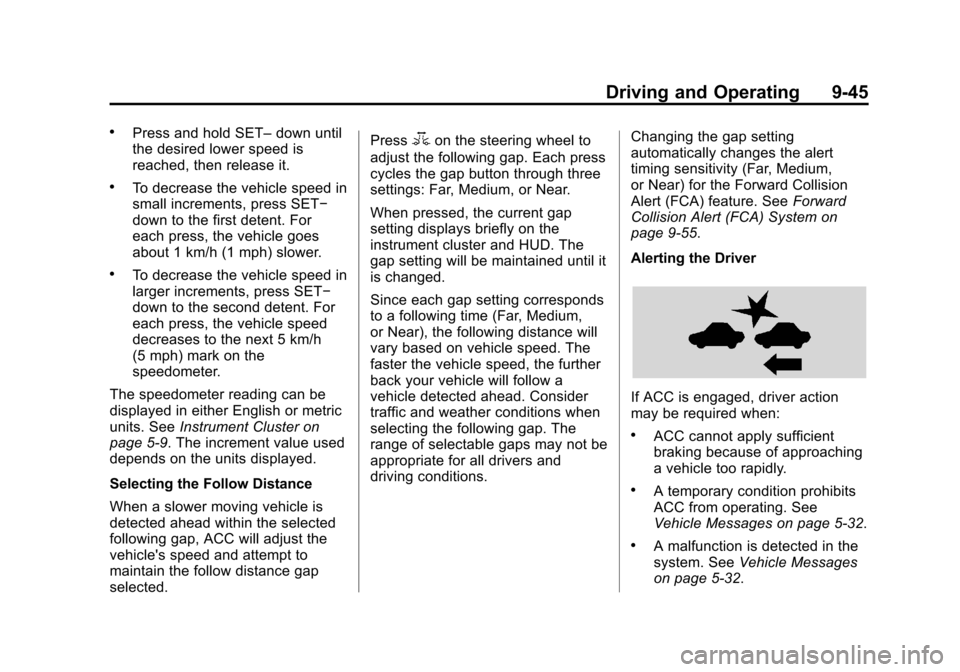
Alerting the Driver
If ACC is engaged, driver action
may be required when:
.ACC cannot apply sufficient
braking because of approaching
a vehicle too rapidly.
.A temporary condition prohibits
ACC from operating. See
Vehicle Messages on page 5‑32.
.A malfunction is detected in the
system. See Vehicle Messages
on page 5‑32.
Page 269 of 450
Black plate (51,1)Cadillac ATS Owner Manual - 2013 - CRC - 10/5/12
Driving and Operating 9-51
WARNING (Continued)
Under many conditions, these
systems will not:
.Detect children, pedestrians,
bicyclists, or animals.
.Detect vehicles or objects
outside the area monitored by
the system.
.Work at all driving speeds.
.Warn you or provide you with
enough time to avoid a crash.
.Work under poor visibility or
bad weather conditions.
.Work if the detection sensor
is not cleaned or is covered
by ice, snow, mud, or dirt.
Complete attention is always
required while driving, and you
should be ready to take action
and apply the brakes and/or steer
the vehicle to avoid crashes. Audible or Safety Alert Seat
Some driver assistance features
alert the driver of obstacles by
beeping. To change the volume of
the warning chime, see
“Comfort
and Convenience” underVehicle
Personalization on page 5‑43.
If equipped with the Safety Alert
Seat, the driver seat cushion may
provide a vibrating pulse alert
instead of beeping. To change this,
see “Collision/Detection Systems”
under Vehicle Personalization on
page 5‑43.
Assistance Systems for
Parking or Backing
When the vehicle is in R (Reverse),
the Rear Vision Camera (RVC) and
Rear Parking Assist may help the
driver to avoid a crash or to reduce
crash damage. Some models may
also have the Rear Automatic
Braking and Backing Warning
System, Rear Cross Traffic Alert
(RCTA), and/or Front Parking
Assist.
When the vehicle is shifted into
R (Reverse), the RVC displays an
image of the area behind the vehicle
in the center stack display. When
the vehicle is shifted out of
R (Reverse), the screen returns to
the previous content, after a short
delay. To see this screen sooner,
press one of the radio buttons. If the
message Service Rear Camera
System is displayed, the vehicle
may need service.
Page 271 of 450
Black plate (53,1)Cadillac ATS Owner Manual - 2013 - CRC - 10/5/12
Driving and Operating 9-53
Use caution while backing up when
towing a trailer, as the RCTA
detection zones that extend out
from the back of the vehicle do not
move further back when a trailer is
towed.
With URPA, as the vehicle backs up
at speeds of less than 8 km/h
(5 mph), the sensors on the rear
bumper detect objects up to 2.5 m
(8 ft) behind the vehicle that are
within a zone 25 cm (10 in) high off
the ground and below bumper level.
{WARNING
The parking assist system does
not detect children, pedestrians,
bicyclists, animals, or objects
located below the bumper or that
are too close or too far from the
vehicle. It is not available at
speeds greater than 8 km/h
(5 mph). To prevent injury, death,
or vehicle damage, even with
parking assist, always check the(Continued)
WARNING (Continued)
area around the vehicle and
check all mirrors before moving
forward or backing.
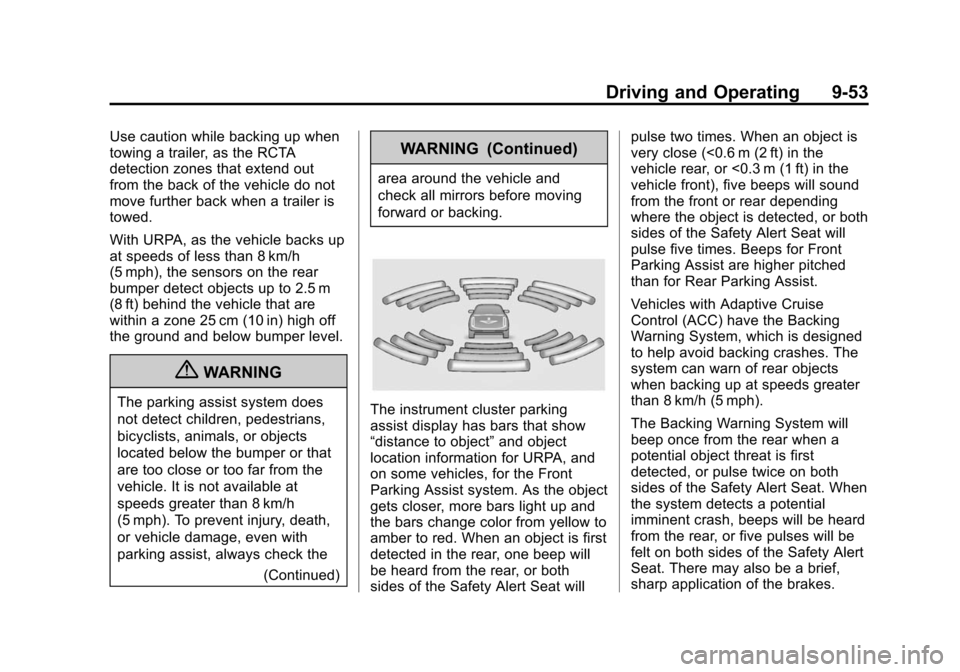
The instrument cluster parking
assist display has bars that show
“distance to object”and object
location information for URPA, and
on some vehicles, for the Front
Parking Assist system. As the object
gets closer, more bars light up and
the bars change color from yellow to
amber to red. When an object is first
detected in the rear, one beep will
be heard from the rear, or both
sides of the Safety Alert Seat will pulse two times. When an object is
very close (<0.6 m (2 ft) in the
vehicle rear, or <0.3 m (1 ft) in the
vehicle front), five beeps will sound
from the front or rear depending
where the object is detected, or both
sides of the Safety Alert Seat will
pulse five times. Beeps for Front
Parking Assist are higher pitched
than for Rear Parking Assist.
Vehicles with Adaptive Cruise
Control (ACC) have the Backing
Warning System, which is designed
to help avoid backing crashes. The
system can warn of rear objects
when backing up at speeds greater
than 8 km/h (5 mph).
The Backing Warning System will
beep once from the rear when a
potential object threat is first
detected, or pulse twice on both
sides of the Safety Alert Seat. When
the system detects a potential
imminent crash, beeps will be heard
from the rear, or five pulses will be
felt on both sides of the Safety Alert
Seat. There may also be a brief,
sharp application of the brakes.
Page 275 of 450
Black plate (57,1)Cadillac ATS Owner Manual - 2013 - CRC - 10/5/12
Driving and Operating 9-57
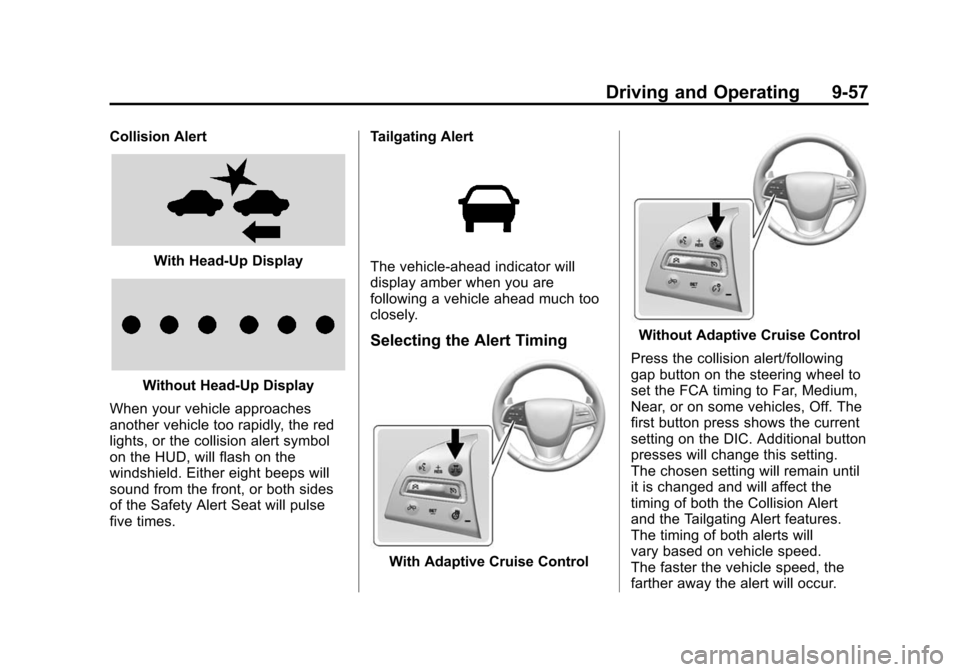
Collision Alert
With Head-Up Display
Without Head-Up Display
When your vehicle approaches
another vehicle too rapidly, the red
lights, or the collision alert symbol
on the HUD, will flash on the
windshield. Either eight beeps will
sound from the front, or both sides
of the Safety Alert Seat will pulse
five times. Tailgating Alert
The vehicle-ahead indicator will
display amber when you are
following a vehicle ahead much too
closely.
Selecting the Alert Timing
With Adaptive Cruise Control
Without Adaptive Cruise Control
Press the collision alert/following
gap button on the steering wheel to
set the FCA timing to Far, Medium,
Near, or on some vehicles, Off. The
first button press shows the current
setting on the DIC. Additional button
presses will change this setting.
The chosen setting will remain until
it is changed and will affect the
timing of both the Collision Alert
and the Tailgating Alert features.
The timing of both alerts will
vary based on vehicle speed.
The faster the vehicle speed, the
farther away the alert will occur.
Page 276 of 450
Black plate (58,1)Cadillac ATS Owner Manual - 2013 - CRC - 10/5/12
9-58 Driving and Operating
Consider traffic and weather
conditions when selecting the alert
timing. The range of selectable alert
timing may not be appropriate for all
drivers and driving conditions.
Changing the FCA timing setting
automatically changes the following
gap setting (Far, Medium, or Near)
for the Adaptive Cruise Control
(ACC) feature.
Unnecessary Alerts
FCA may provide unnecessary
alerts for turning vehicles, vehicles
in other lanes, objects that are not
vehicles, or shadows. These alerts
are normal operation and the
vehicle does not need service.
Cleaning the System
If the FCA system does not seem to
operate properly, cleaning the
outside of the windshield in front of
the camera sensor and the front of
the vehicle may correct the issue.
Active Emergency
Braking System
If the vehicle has Adaptive Cruise
Control (ACC) it also has the Active
Emergency Braking System,
which includes Intelligent Brake
Assist (IBA) and the Automatic
Collision Preparation (ACP) System.
Intelligent Brake Assist (IBA)
IBA may activate when the brake
pedal is applied quickly by providing
a boost to braking based on the
speed of approach and distance to
a vehicle ahead.
Minor brake pedal pulsations or
pedal movement during this time is
normal and the brake pedal should
continue to be applied as needed.
IBA will automatically disengage
when the brake pedal is released or
brake pedal pressure is quickly
decreased.
{WARNING
IBA may increase vehicle braking
in situations when it may not be
necessary. You could block the
flow of traffic. If this occurs, take
your foot off the brake pedal and
then apply the brakes as needed.
Automatic Collision
Preparation (ACP) System
ACP may help reduce crash
damage by applying the vehicle’s
brake system and has a detection
range of approximately 60 m
(197 ft). Braking can only occur if a
vehicle is detected ahead. This is
shown by the FCA vehicle-ahead
indicator being lit. SeeForward
Collision Alert (FCA) System on
page 9‑55.
Page 281 of 450
Black plate (63,1)Cadillac ATS Owner Manual - 2013 - CRC - 10/5/12
Driving and Operating 9-63
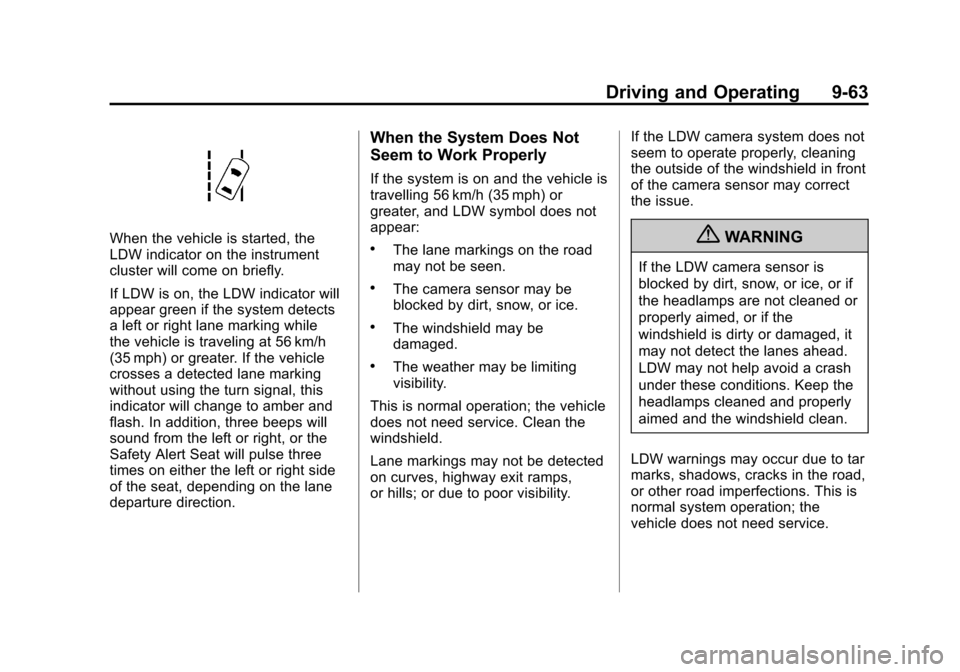
When the vehicle is started, the
LDW indicator on the instrument
cluster will come on briefly.
If LDW is on, the LDW indicator will
appear green if the system detects
a left or right lane marking while
the vehicle is traveling at 56 km/h
(35 mph) or greater. If the vehicle
crosses a detected lane marking
without using the turn signal, this
indicator will change to amber and
flash. In addition, three beeps will
sound from the left or right, or the
Safety Alert Seat will pulse three
times on either the left or right side
of the seat, depending on the lane
departure direction.
When the System Does Not
Seem to Work Properly
If the system is on and the vehicle is
travelling 56 km/h (35 mph) or
greater, and LDW symbol does not
appear:
.The lane markings on the road
may not be seen.
.The camera sensor may be
blocked by dirt, snow, or ice.
.The windshield may be
damaged.
.The weather may be limiting
visibility.
This is normal operation; the vehicle
does not need service. Clean the
windshield.
Lane markings may not be detected
on curves, highway exit ramps,
or hills; or due to poor visibility. If the LDW camera system does not
seem to operate properly, cleaning
the outside of the windshield in front
of the camera sensor may correct
the issue.
{WARNING
If the LDW camera sensor is
blocked by dirt, snow, or ice, or if
the headlamps are not cleaned or
properly aimed, or if the
windshield is dirty or damaged, it
may not detect the lanes ahead.
LDW may not help avoid a crash
under these conditions. Keep the
headlamps cleaned and properly
aimed and the windshield clean.
LDW warnings may occur due to tar
marks, shadows, cracks in the road,
or other road imperfections. This is
normal system operation; the
vehicle does not need service.