audio CADILLAC ATS 2014 User Guide
[x] Cancel search | Manufacturer: CADILLAC, Model Year: 2014, Model line: ATS, Model: CADILLAC ATS 2014Pages: 434, PDF Size: 5.61 MB
Page 151 of 434
Black plate (43,1)Cadillac ATS Owner Manual (GMNA-Localizing-U.S./Canada/Mexico-
6014430) - 2014 - 2nd Edition - 8/23/13
Instruments and Controls 5-43
Vehicle
Personalization
Use the audio system controls to
access the personalization menus
for customizing vehicle features.
The following are all possible
personalization features. Depending
on the vehicle, some may not be
available.
Base Radio Audio System
Controls
MENU:Press the center of the
knob to enter the menus and select
menu items. Turn the knob to scroll
through the menus.
SBACK: Press to exit or move
backward in a menu.
To access the
personalization menu:
1. On the Home page, turn the
MENU knob to highlight Settings
and press the MENU knob. 2. Turn the MENU knob to highlight
the desired feature and press
the MENU knob.
CUE Infotainment System Audio
System Controls
To access the
personalization menu:
1. Press SETTINGS on the Home page on the infotainment system
display.
2. Press the desired feature to display a list of available
options.
3. Press to select the desired feature setting.
4. Press the[Back screen button
to return to the previous menu.
Personalization Menus
The following list of menu items may
be available:
.Time and Date
.Language [Language]
.Valet Mode
.Radio
.Vehicle
.Bluetooth
.Voice
.Display
.Rear Camera
.Return to Factory Settings
.Software Information
Each menu is detailed in the
following information.
Time and Date
Manually set the time and date. See
Clock (Base Radio) on page 5-6 or
Clock (Uplevel Radio) on page 5-6.
Language [Language]
Select Language, then select from
the available language(s).
Select the language. The selected
language will display on the system,
and voice recognition will reflect the
selected language.
Page 152 of 434

Black plate (44,1)Cadillac ATS Owner Manual (GMNA-Localizing-U.S./Canada/Mexico-
6014430) - 2014 - 2nd Edition - 8/23/13
5-44 Instruments and Controls
Valet Mode
This will lock the infotainment
system, the infotainment controls,
and screen storage location.
To turn Valet Mode on and off, enter
a four-digit code on the keypad.
Press Enter to go to the
confirmation screen. Re-enter the
four-digit code. Press LOCK to lock
the system. Enter the four-digit code
to unlock the system. Press the
Back screen button to go back to
the previous menu.
Radio
Press to display the Radio Menu
and the following may display:
.Manage Favorites
.Number of Favorites Pages
.Audible Touch Feedback
.Auto Volume
.Bose Audio Pilot
.Maximum Start Up Volume
.Audio Cue VolumeManage Favorites
This allows favorites to be edited.
Select a displayed Favorite to select
that favorite to edit. Select Rename
to rename the favorite or Delete to
delete it.
Number of Favorites Pages
Select to set the number of favorites
to display.
Select the desired number or select
Auto and the infotainment system
will automatically adjust the number
of favorite shown.
Audible Touch Feedback
This allows Audible Touch
Feedback to be turned on or off.
Select Off or On.
Auto Volume
If equipped, this feature adjusts the
volume based on the vehicle speed.
Bose Audio Pilot
This feature adjusts the volume
based on the noise in the vehicle.
See
“Bose AudioPilot Noise
Compensation Technology” under
“Infotainment System Settings” in
the infotainment manual.
Maximum Startup Volume
This feature sets the maximum
startup volume. If the vehicle is
started and the volume is greater
than this level, the volume is
adjusted to this level. To set the
maximum startup volume, select +
or −to increase or decrease.
Audio Cue Volume
If equipped, this feature adjusts the
startup and shutdown sounds. To
adjust the volume, select + or −to
increase or decrease.
Vehicle
Select and the following may
display:
.Climate and Air Quality
Page 157 of 434
Black plate (49,1)Cadillac ATS Owner Manual (GMNA-Localizing-U.S./Canada/Mexico-
6014430) - 2014 - 2nd Edition - 8/23/13
Instruments and Controls 5-49
.Prompt Length
.Audio Feedback Speed
Confidence Threshold
This feature allows the adjustment
of the sensitivity of the speech
recognition system.
Select Confirm More or
Confirm Less.
Prompt Length
This feature adjusts the voice
prompt length.
Select Short or Long.
Audio Feedback Speed
This feature adjusts the audio
feedback speed.
Select Slow, Medium, or Fast.
Display
Select and the following may
display:
.Mode
.Proximity Sensing
.Calibrate Touchscreen
.Turn Display Off
Mode
Select to change the display screen
for day or night driving.
Select Auto, Day, or Night.
Proximity Sensing
This allows the feature to be turned
on or off.
Select Off, On, or On-Map Only.
Calibrate Touchscreen
Select to calibrate the touchscreen,
then follow the prompts.
Turn Display Off
Select to turn the display off. Press
anywhere on the display area or any
faceplate button to turn the
display on.
Rear Camera
Select and the following may
display:
.Guidance Lines
.Rear Park Assist Symbols Guidance Lines
Select to turn Off or On. See
Assistance Systems for Parking or
Backing on page 9-49.
Rear Park Assist Symbols
Select to turn Off or On. See
Assistance Systems for Parking or
Backing on page 9-49.
Return to Factory Settings
Select and the following may
display:
.Restore Vehicle Settings
.Clear All Private Data
.Restore Radio Settings
Restore Vehicle Settings
This allows selection of restoring
vehicle settings.
Select Cancel or Restore.
Clear All Private Data
This allows selection to clear all
private information from the vehicle.
Select Cancel or Delete.
Page 171 of 434
Black plate (1,1)Cadillac ATS Owner Manual (GMNA-Localizing-U.S./Canada/Mexico-
6014430) - 2014 - 2nd Edition - 8/23/13
Infotainment System 7-1
Infotainment
System
Introduction
Infotainment . . . . . . . . . . . . . . . . . . . 7-1
Theft-Deterrent Feature . . . . . . . 7-2
Overview . . . . . . . . . . . . . . . . . . . . . . 7-3
Home Page . . . . . . . . . . . . . . . . . . . 7-4
Software Updates . . . . . . . . . . . . . 7-7
Radio
AM-FM Radio . . . . . . . . . . . . . . . . . 7-8
Satellite Radio . . . . . . . . . . . . . . . 7-10
Radio Reception . . . . . . . . . . . . . 7-11
Backglass Antenna . . . . . . . . . . 7-12
Multi-Band Antenna . . . . . . . . . . 7-12
Audio Players
CD Player . . . . . . . . . . . . . . . . . . . 7-12
USB Port . . . . . . . . . . . . . . . . . . . . 7-15
SD Card Reader . . . . . . . . . . . . . 7-18
Auxiliary Jack . . . . . . . . . . . . . . . . 7-19
Phone
Bluetooth (Overview) . . . . . . . . 7-20
Bluetooth (InfotainmentControls) . . . . . . . . . . . . . . . . . . . 7-21
Bluetooth (Voice Recognition) . . . . . . . . . . . . . . . 7-26
Trademarks and License
Agreements
Trademarks and License
Agreements . . . . . . . . . . . . . . . . 7-31
Introduction
Infotainment
Read the following pages to
become familiar with the
infotainment system featured in this
owner manual.
{Warning
Taking your eyes off the road for
too long or too often while using
any infotainment features can
cause a crash resulting in injury
or death. Do not give extended
attention to infotainment tasks
while driving. Focus your attention
on driving and limit glances to the
instrument cluster or center stack
screens. Use voice guidance
whenever possible.
The infotainment system has built-in
features intended to help with this
by disabling some functions when
driving. A grayed-out function is not
Page 172 of 434
Black plate (2,1)Cadillac ATS Owner Manual (GMNA-Localizing-U.S./Canada/Mexico-
6014430) - 2014 - 2nd Edition - 8/23/13
7-2 Infotainment System
available when the vehicle is
moving. All functions are available
when the vehicle is parked.
Before driving:
.Become familiar with the
infotainment system operation
and buttons on the faceplate.
.Set up the audio by presetting
favorite stations, setting the
tone, and adjusting the
speakers.
.Set up phone numbers in
advance so they can be called
easily by pressing a single
button or by using a single voice
command for vehicles equipped
with phone capability.
See Defensive Driving on page 9-3.
This vehicle’s infotainment system
may be equipped with a noise
reduction system, which can work
improperly if the audio amplifier,
engine calibrations, exhaust system,
microphones, radio, or speakers are modified or replaced. This could
result in more noticeable engine
noise at certain speeds.
The vehicle has Retained
Accessory Power (RAP). With RAP,
the audio system can be played
even after the ignition is turned off.
See
Retained Accessory Power
(RAP) on page 9-21.
The base radio is included in this
manual. See the CUE infotainment
manual for information on the CUE
radio, audio players, phone,
navigation system, and voice or
speech recognition. There is also
information on settings and
downloadable applications (if
equipped).
Theft-Deterrent Feature
TheftLock®is designed to
discourage theft of the vehicle's
radio by learning a portion of the
Vehicle Identification Number (VIN).
The radio does not operate if it is
stolen or moved to a different
vehicle.
Page 173 of 434
Black plate (3,1)Cadillac ATS Owner Manual (GMNA-Localizing-U.S./Canada/Mexico-
6014430) - 2014 - 2nd Edition - 8/23/13
Infotainment System 7-3
Overview
Infotainment System Overview
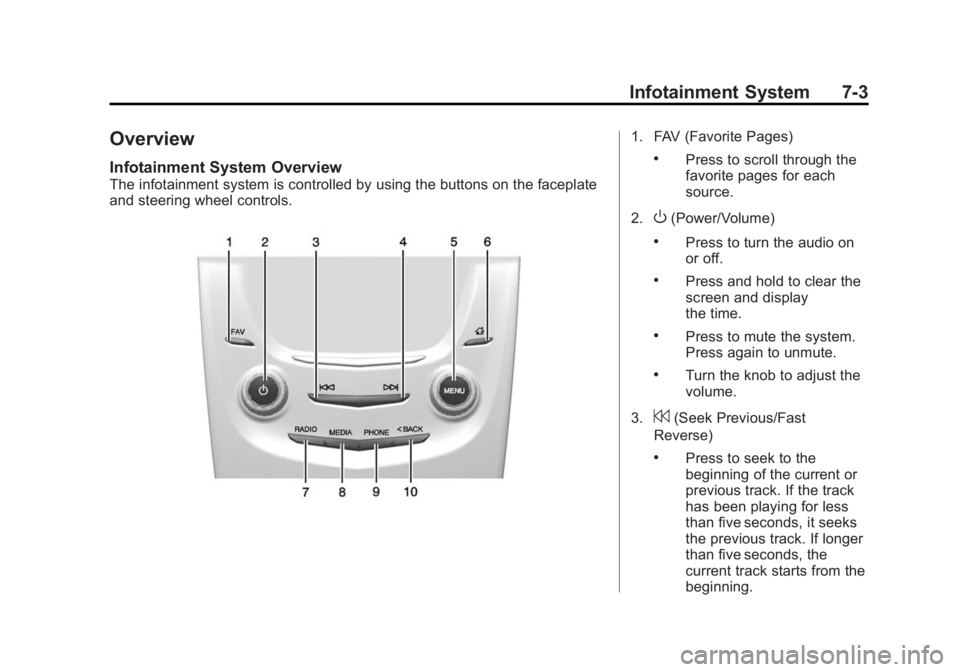
The infotainment system is controlled by using the buttons on the faceplate
and steering wheel controls.
1. FAV (Favorite Pages)
.Press to scroll through the
favorite pages for each
source.
2.
O(Power/Volume)
.Press to turn the audio on
or off.
.Press and hold to clear the
screen and display
the time.
.Press to mute the system.
Press again to unmute.
.Turn the knob to adjust the
volume.
3.
7(Seek Previous/Fast
Reverse)
.Press to seek to the
beginning of the current or
previous track. If the track
has been playing for less
than five seconds, it seeks
the previous track. If longer
than five seconds, the
current track starts from the
beginning.
Page 174 of 434
Black plate (4,1)Cadillac ATS Owner Manual (GMNA-Localizing-U.S./Canada/Mexico-
6014430) - 2014 - 2nd Edition - 8/23/13
7-4 Infotainment System
.Press and hold to quickly
reverse through a track.
Release the button to return
to playing speed. SeeCD
Player on page 7-12.
.For AM, FM, or SiriusXM®
(if equipped), press to seek
to the previous strong
station.
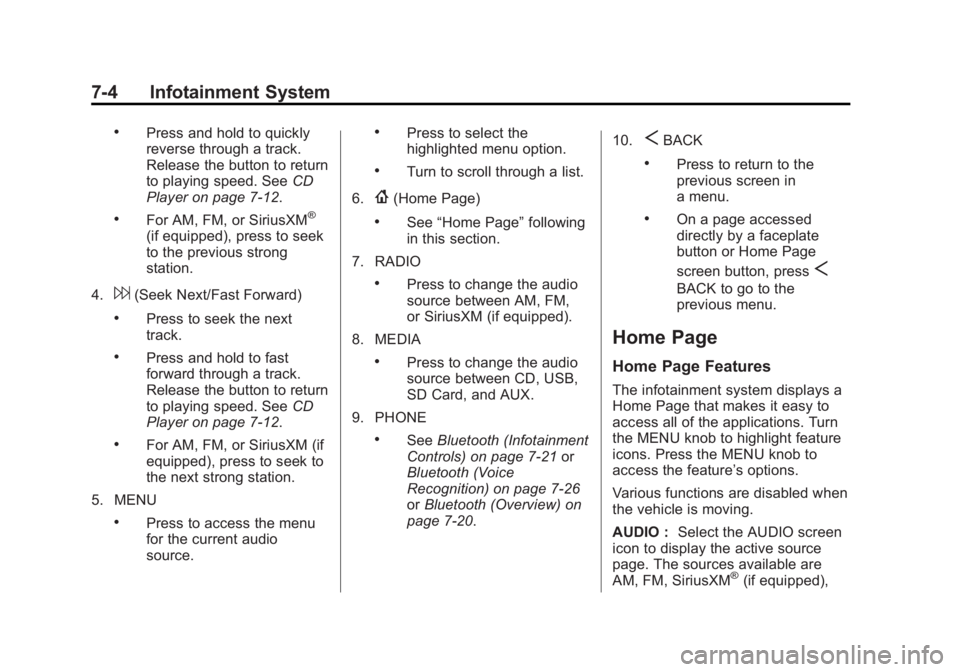
4.
6(Seek Next/Fast Forward)
.Press to seek the next
track.
.Press and hold to fast
forward through a track.
Release the button to return
to playing speed. See CD
Player on page 7-12.
.For AM, FM, or SiriusXM (if
equipped), press to seek to
the next strong station.
5. MENU
.Press to access the menu
for the current audio
source.
.Press to select the
highlighted menu option.
.Turn to scroll through a list.
6.
{(Home Page)
.See “Home Page” following
in this section.
7. RADIO
.Press to change the audio
source between AM, FM,
or SiriusXM (if equipped).
8. MEDIA
.Press to change the audio
source between CD, USB,
SD Card, and AUX.
9. PHONE
.See Bluetooth (Infotainment
Controls) on page 7-21 or
Bluetooth (Voice
Recognition) on page 7-26
or Bluetooth (Overview) on
page 7-20. 10.
SBACK
.Press to return to the
previous screen in
a menu.
.On a page accessed
directly by a faceplate
button or Home Page
screen button, press
S
BACK to go to the
previous menu.
Home Page
Home Page Features
The infotainment system displays a
Home Page that makes it easy to
access all of the applications. Turn
the MENU knob to highlight feature
icons. Press the MENU knob to
access the feature’s options.
Various functions are disabled when
the vehicle is moving.
AUDIO :
Select the AUDIO screen
icon to display the active source
page. The sources available are
AM, FM, SiriusXM
®(if equipped),
Page 176 of 434
Black plate (6,1)Cadillac ATS Owner Manual (GMNA-Localizing-U.S./Canada/Mexico-
6014430) - 2014 - 2nd Edition - 8/23/13
7-6 Infotainment System
From the RADIO screen icon, the
following may be displayed:
Manage Favorites:
.Turn the MENU knob and push
to select a Favorite.
.Push the area just above the
chrome bar and below the
DELETE screen button to delete
a favorite.
.While a station is highlighted,
press the MOVE screen button.
The screen button will change to
DROP. Turn the MENU knob and
the station tab will follow the
path to the desired location.
Press the area just above the
chrome bar and below the
DROP screen button to relocate
the station.
Number of Favorites Shown : To
set the number of favorites for
display, select Auto to automatically
adjust the number of Favorites
pages shown as Favorites are
added and removed. Another way to
adjust is to select a number from 5– 25 to show that selection of
favorites. Press
SBACK to go back
to the previous menu.
Audible Touch Feedback : Select
Audible Touch Feedback to turn
feedback Off or On. Press
SBACK
to go back to the previous menu.
Auto Volume (If Equipped): This
feature adjusts the volume based on
vehicle speed. The options are Off,
Low, Medium-Low, Medium,
Medium-High, or High. Select the
desired volume. Press
SBACK to
go back to the previous menu.
Bose
®AudioPilot®Noise
Compensation Technology (If
Equipped): While turned ON,
AutoPilot
®detects ambient noise
and vehicle speed to continuously
monitor and adjust many aspects of
the audio signal so that your music
will sound the same at a set volume
level.
The options are ON and OFF. This feature is most effective at
lower radio volume settings where
background noise can affect how
well the music can be heard while
being played through your vehicle’s
audio system. At higher volume
settings, where the music is much
louder than the background noise,
there may be little or no adjustments
by AudioPilot
®.
For more information on
Bose
®AudioPilot®noise
compensation technology, visit
www.bose.com//audiopilot.
Maximum Startup Volume : This
feature sets the maximum startup
volume. If the vehicle is started and
the volume is greater than this level,
the volume is adjusted to this level.
To set the maximum startup volume,
Turn the MENU knob to increase or
decrease startup volume. Press
S
BACK to go back to the
previous menu.
Page 178 of 434
Black plate (8,1)Cadillac ATS Owner Manual (GMNA-Localizing-U.S./Canada/Mexico-
6014430) - 2014 - 2nd Edition - 8/23/13
7-8 Infotainment System
Radio
AM-FM Radio
Playing the Radio
While on the audio main page,
press the RADIO button to cycle
through the radio sources: AM, FM,
or SiriusXM
®(if equipped) or press
the MEDIA button to cycle through
the media sources: CD, USB, SD,
or AUX.
AM, FM, SiriusXM (If Equipped)
To select AM, FM, or SiriusXM (if
equipped):
1. Press
{.
2. Turn the MENU knob to highlight the AUDIO screen icon.
3. Press the MENU knob to select.
4. Turn the MENU knob to highlight AM, FM, or SiriusXM (if
equipped) and press the MENU
knob to select. Press the RADIO faceplate button
to change the active radio source.
Press the MENU knob and the
following radio settings may display:
Tone Settings:
.Bass, Midrange, and Treble:
Turn the MENU knob and
highlight. Press the MENU knob
to select. Turn the MENU knob
to adjust.
.Balance:
Turn the MENU knob
to highlight. Press the MENU
knob to select. Turn the MENU
knob left for more sound from
the left speakers or right for
more sound from the right
speakers. The middle position
balances the sound between the
left and right speakers.
.Fade: Turn the MENU knob to
highlight. Press the MENU knob
to select. Turn the MENU knob
to the left for more sound from
the front speakers and to the
right for more sound from the
rear speakers. The middle position balances the sound
between the front and rear
speakers.
.EQ (Equalizer): Turn the MENU
knob to highlight. Turn the
MENU knob to scroll through the
options. Press the MENU knob
to select. Press the
SBACK
button to go back to the
previous menu.
Station List: Select to display a list
of AM or FM stations. Press
S
BACK to go to the previous menu.
Auto Volume : If equipped, this
feature adjusts the volume based on
the vehicle speed. Select the level
between off, low, medium-low,
medium, medium-high, and high.
Press
SBACK to go to the
previous menu.
Bose
®AudioPilot®Noise
Compensation Technology (If
Equipped): While turned ON,
AutoPilot
®detects ambient noise
and vehicle speed to continuously
monitor and adjust many aspects of
Page 179 of 434

Black plate (9,1)Cadillac ATS Owner Manual (GMNA-Localizing-U.S./Canada/Mexico-
6014430) - 2014 - 2nd Edition - 8/23/13
Infotainment System 7-9
the audio signal so that your music
will sound the same at a set volume
level.
The options are ON and OFF.
This feature is most effective at
lower radio volume settings where
background noise can affect how
well the music can be heard while
being played through your vehicle’s
audio system. At higher volume
settings, where the music is much
louder than the background noise,
there may be little or no adjustments
by AudioPilot
®.
For more information on
Bose
®AudioPilot®noise
compensation technology, visit
www.bose.com//audiopilot.
EQ (Equalizer) Settings: For
vehicles equipped with a Bose
Sound System the available choices
are Manual and Talk. DSP Modes:
If equipped with a
Bose
®Surround Sound System, it
will have the following four DSP
modes:
.Normal: Adjusts the audio to
normal mode. This provides the
best sound quality for all seating
positions.
.Driver: Adjusts the audio to give
the driver the best possible
sound quality.
.Rear: Adjusts the audio to give
the rear seat occupants the best
possible sound quality.
.Centerpoint®: Turns on Bose
Centerpoint®surround
technology.
Centerpoint creates a surround
sound from nearly any audio
source; existing CD collection,
satellite radio, and audio players.
Options for SiriusXM Only
XM View: XM view allows the
channel list to be viewed by channel
name, artist playing on channel, or song playing on channel. Turn
the MENU knob to highlight XM
view and press the MENU knob to
select. Press
SBACK to go to the
previous menu.
Channel List: Select to display a
list of SiriusXM channels. Turn the
MENU knob to highlight and press
the MENU knob to select. Press
S
BACK to go to the previous menu.
Also see the radio settings common
for all sources earlier in this section.
Finding a Station
Seeking a Station
Press
7or6to search for the
previous or next strongest station.
Tuning a Station
Turn the MENU knob to manually
find a station.
Storing Radio Station Presets
Favorites are stored in the favorites
area at the bottom of the screen.