air CADILLAC ATS 2014 Workshop Manual
[x] Cancel search | Manufacturer: CADILLAC, Model Year: 2014, Model line: ATS, Model: CADILLAC ATS 2014Pages: 434, PDF Size: 5.61 MB
Page 167 of 434
Black plate (5,1)Cadillac ATS Owner Manual (GMNA-Localizing-U.S./Canada/Mexico-
6014430) - 2014 - 2nd Edition - 8/23/13
Lighting 6-5
The system may also turn on the
headlamps when driving through a
parking garage or tunnel.
When it is bright enough outside,
the headlamps will turn off or may
change to Daytime Running
Lamps (DRL).
The automatic headlamp system
turns off when the exterior lamp
control is turned to
Oor the ignition
is off.
Lights On with Wipers
If the windshield wipers are
activated in daylight with the engine
on, and the exterior lamp control is
in AUTO, the headlamps, parking
lamps, and other exterior lamps
come on. The transition time for the
lamps coming on varies based on
wiper speed. When the wipers are
not operating, these lamps turn off.
Move the exterior lamp control to
P
or;to disable this feature.
Adaptive Forward
Lighting (AFL)
On vehicles with the AFL system,
the headlamps pivot horizontally to
provide greater road illumination
while turning. To enable AFL, set
the exterior lamp control on the turn
signal lever to the AUTO position.
Moving the control out of the AUTO
position will deactivate the system.
AFL will operate when the vehicle
speed is greater than 3 km/h
(2 mph). AFL will not operate when
the transmission is in R (Reverse).
AFL is not immediately operable
after starting the vehicle; driving a
short distance is required to
calibrate the AFL. See Exterior
Lamp Controls on page 6-1.
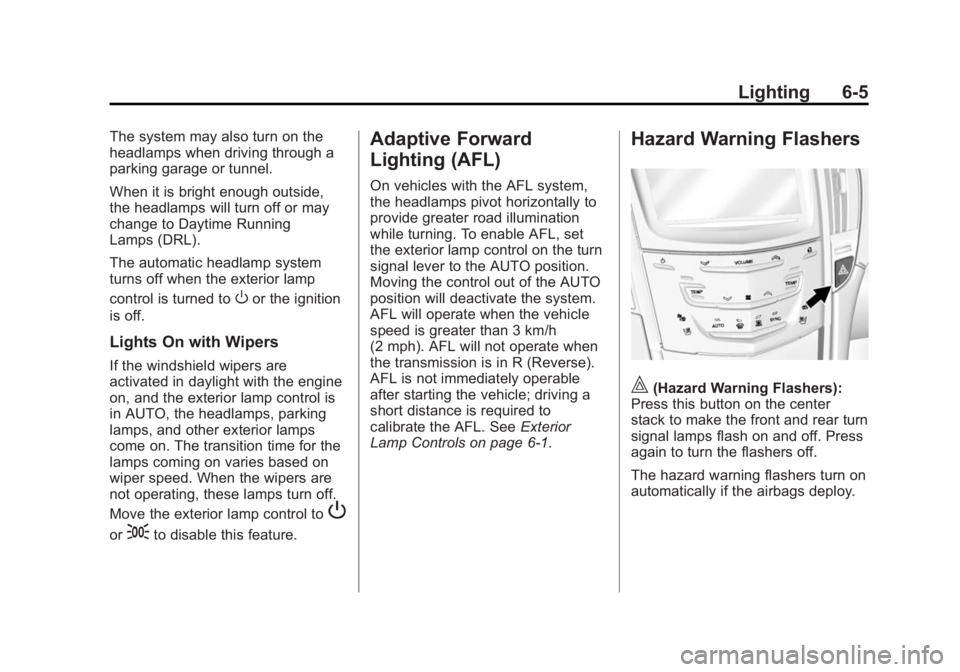
Hazard Warning Flashers
|(Hazard Warning Flashers):
Press this button on the center
stack to make the front and rear turn
signal lamps flash on and off. Press
again to turn the flashers off.
The hazard warning flashers turn on
automatically if the airbags deploy.
Page 180 of 434

Black plate (10,1)Cadillac ATS Owner Manual (GMNA-Localizing-U.S./Canada/Mexico-
6014430) - 2014 - 2nd Edition - 8/23/13
7-10 Infotainment System
Up to 25 preset stations can be
stored under the following:
AM, FM, or SiriusXM (if
equipped):While on the active
source main page, such as AM, FM,
and SiriusXM (if equipped), press
and hold the area just above the
chrome bar and below one of the
preset screen buttons to save the
current station as a favorite. Press
the area just above the chrome bar
to recall a favorite station.
Favorites
Favorites can be stored including
radio stations and media.
To display the favorites page, press
the FAV button on the radio
faceplate.
From Settings press the MENU
knob and push to select Manage
Favorites. The Manage Favorites
feature has the options of moving or
deleting a favorite and how many
favorite pages to display. See
“Manage Favorites” underHome
Page on page 7-4.
Satellite Radio
SiriusXM®Satellite Radio
Service
Vehicles with a SiriusXM satellite
radio tuner and a valid SiriusXM
satellite radio subscription can
receive SiriusXM programming.
SiriusXM is a satellite radio service
based in the 48 contiguous United
States and 10 Canadian provinces.
SiriusXM satellite radio has a wide
variety of programming and
commercial-free music, coast to
coast, and in digital-quality sound.
A service fee is required to receive
the SiriusXM service. See
www.siriusxm.com or call
1-866-635-2349 in the U.S. In
Canada, see www.xmradio.ca or call
1-877-209-0079.
When SirisuXM is active, the
channel name and number, song
title, and artist display on the
screen.
Browsing SiriusXM Channels
To browse the SiriusXM channels:
1. While XM is the active source,
press the MENU knob.
2. Turn the MENU knob to highlight XM Channel List. Press the
MENU knob to select.
3. Turn the MENU knob to highlight the desired channel and push to
select that channel for playback.
SiriusXM Messages
XL (Explicit Language
Channels): These stations, or any
others, can be blocked by request,
by calling 1-866-635-2349 in the
U.S., and 1-877-209-0079 in
Canada.
Loading XM : The audio system is
acquiring and processing audio and
text data. No action is needed.
Channel Off Air : This station is
not currently in service.
Page 182 of 434
Black plate (12,1)Cadillac ATS Owner Manual (GMNA-Localizing-U.S./Canada/Mexico-
6014430) - 2014 - 2nd Edition - 8/23/13
7-12 Infotainment System
Backglass Antenna
The AM-FM antenna is integrated
with the rear window defogger in the
rear window. Do not scratch the
inside surface or damage the lines
in the glass. If the inside surface is
damaged, it could interfere with
radio reception. For proper radio
reception, the antenna connector
needs to be properly attached to the
post on the glass.
If attaching a cell phone antenna to
the glass, attach it between the grid
lines.
{Caution
Using a razor blade or sharp
object to clear the inside rear
window can damage the rear
window antenna and/or the rear
window defogger. Repairs would
not be covered by the vehicle
warranty. Do not clear the inside
rear window with sharp objects.
{Caution
Do not apply aftermarket glass
tinting with metallic film. The
metallic film in some tinting
materials will interfere with or
distort the incoming radio
reception. Any damage caused to
the backglass antenna due to
metallic tinting materials will not
be covered by the vehicle
warranty.
Multi-Band Antenna
The roof antenna is for OnStar,
SiriusXM Satellite Radio (U.S. and
Canada only), and GPS (Global
Positioning System). Keep clear of
obstructions for clear reception.
If the vehicle has a sunroof, and it is
open, reception can also be
affected.
Audio Players
CD Player
The player can be used for CD and
MP3 audio.
With the vehicle on, insert a disc
into the slot, label side up. Press the
MEDIA button to select CD as a
source.
The system is capable of playing:
.Most audio CDs
.CD-R
.CD-RW
.MP3 or unprotected WMA
formats
When playing any compatible
recordable disc, the sound quality
can be reduced due to disc quality,
the method of recording, the quality
of the music that has been
recorded, or the way the disc has
been handled.
Page 184 of 434

Black plate (14,1)Cadillac ATS Owner Manual (GMNA-Localizing-U.S./Canada/Mexico-
6014430) - 2014 - 2nd Edition - 8/23/13
7-14 Infotainment System
If a Blu-ray Disc®or DVD disc is
loaded into the CD player and the
CD screen button is selected, a
message comes on the screen to
use the Video application. The
Video application is only available
on vehicles with rear seat
entertainment.
CD Menu
While on the CD main page, press
the MENU knob to display the CD
menu and the following may display:
Browse : Select to display the files
or songs on the CD. See “Browse
CD Media” later in this section.
Tone Settings : Select to adjust
Bass, Midrange, Treble, Balance,
Fade, and EQ (Equalizer). See
“Tone Settings” underAM-FM Radio
on page 7-8.
Auto Volume : If equipped, this
feature adjusts the volume based on
the vehicle speed. Select the level
between off, low, medium-low, medium, medium-high, and high.
Press
SBACK to go to the
previous menu.
Bose AudioPilot
®: If equipped,
this feature can be turned on or off.
See “Bose
®AudioPilot®”in AM-FM
Radio on page 7-8.
EQ (Equalizer) Settings:
If equipped, this feature adjusts the
pre-defined EQ modes. See “EQ
(Equalizer) Settings” inAM-FM
Radio on page 7-8.
DSP Modes: If equipped with a
Bose
®Surround Sound System, this
feature adjusts DSP modes. See
“DSP Modes” inAM-FM Radio on
page 7-8.
Error Messages
If Disc Error displays and/or the disc
comes out, it could be for one of the
following reasons:
.The disc has an invalid or
unknown format.
.The disc is very hot. Try the disc
again when the temperature
returns to normal.
.The road is very rough. Try the
disc again when the road is
smoother.
.The disc is dirty, scratched, wet,
or upside down.
.The air is very humid. Try the
disc again later.
.There was a problem while
burning the disc.
.The label is caught in the CD
player.
If Disc Player Error displays, it could
be for one of the following reasons:
.The player temperature is
too high.
.There are load or eject errors.
If the CD is not playing correctly, for
any other reason, try a known
good CD.
If any error continues, contact your
dealer.
Page 190 of 434

Black plate (20,1)Cadillac ATS Owner Manual (GMNA-Localizing-U.S./Canada/Mexico-
6014430) - 2014 - 2nd Edition - 8/23/13
7-20 Infotainment System
Phone
Bluetooth (Overview)
Instructions for using the cell phone
may differ between infotainment
systems. For vehicles with the CUE
infotainment system, see the CUE
infotainment manual.
Bluetooth-capable systems can
interact with many cell phones,
allowing:
.Placement and receipt of calls in
a hands-free mode.
.Sharing of the cell phone’s
address book or contact list with
the vehicle.
To minimize driver distraction,
before driving, and with the vehicle
parked:
.Become familiar with the
features of the cell phone.
Organize the phone book and
contact lists clearly and delete duplicate or rarely used entries.
If possible, program speed dial
or other shortcuts.
.Review the controls and
operation of the infotainment
system.
.Pair cell phone(s) to the vehicle.
The system may not work with
all cell phones. See
“Pairing”in
this section.
.If the cell phone has voice
dialing capability, learn to use
that feature to access the
address book or contact list. See
“Voice Pass-Thru” in this
section.
.See “Storing and Deleting Phone
Numbers” in this section.
{Warning
When using a cell phone, it can
be distracting to look too long or
too often at the screen of the
phone or the infotainment system.
(Continued)
Warning (Continued)
Taking your eyes off the road too
long or too often could cause a
crash resulting in injury or death.
Focus your attention on driving.
Vehicles with a Bluetooth system
can use a Bluetooth-capable cell
phone with a Hands-Free Profile to
make and receive phone calls. The
infotainment system and voice
recognition are used to control the
system. The system can be used
while in ON/RUN/START or ACC/
ACCESSORY. The range of the
Bluetooth system can be up to 9.1 m
(30 ft). Not all phones support all
functions and not all phones work
with the Bluetooth system. See
www.gm.com/bluetooth for more
information about compatible
phones.
Page 192 of 434

Black plate (22,1)Cadillac ATS Owner Manual (GMNA-Localizing-U.S./Canada/Mexico-
6014430) - 2014 - 2nd Edition - 8/23/13
7-22 Infotainment System
Switching to Handset or
Handsfree Mode
To switch between handset mode,
use the OnStar command,
“transfer call.”
Pairing
A Bluetooth-enabled cell phone
must be paired to the Bluetooth
system and then connected to the
vehicle before it can be used. See
your cell phone manufacturer's user
guide for Bluetooth functions before
pairing the cell phone. If a Bluetooth
phone is not connected, calls can
be made using OnStar Hands-Free
Calling, if available. SeeOnStar
Overview on page 14-1.
Pairing Information
.Up to five cell phones can be
paired to the Bluetooth system.
.The pairing process is disabled
when the vehicle is moving.
.Pairing only needs to be
completed once, unless the
pairing information on the cell
phone changes or the cell phone
is deleted from the system.
.Only one paired cell phone can
be connected to the Bluetooth
system at a time.
.If multiple paired cell phones are
within range of the system, the
system connects to the first
available paired cell phone in the
order that they were newly
paired to the system. To link to a
different paired phone, see
“Connecting to a Different
Phone”after in this section.
Pairing a Phone or Device
1. From the Home Page, turn the MENU knob to access the
PHONE screen button, then
press the MENU knob to select
the PHONE screen button. If a
device has been previously
paired, the main Phone menu will be shown. If no devices
have been paired, Step two can
be skipped.
2. Turn the MENU knob and press to select Manage Phones.
3. Press the area just above the chrome bar and below the PAIR
screen button. A four-digit
Personal Identification Number
(PIN) appears on the display.
The PIN is used in Step 5.
4. Start the pairing process on the cell phone to be paired to the
vehicle. See the cell phone
manufacturer's user guide for
information on this process.
5. Locate the device named “Your
Vehicle” in the list on the cell
phone. Follow the instructions
on the cell phone to enter the
PIN provided in Step 3. The
system recognizes the new
connected phone after the
pairing process is complete.
Page 193 of 434

Black plate (23,1)Cadillac ATS Owner Manual (GMNA-Localizing-U.S./Canada/Mexico-
6014430) - 2014 - 2nd Edition - 8/23/13
Infotainment System 7-23
6. If the phone prompts to acceptconnection or allow phone book
download, select always accept
and allow. The phone book may
not be available if not accepted.
7. Repeat steps 1–6 to pair additional phones or devices.
Listing All Paired and Connected
Phones
1. To list all paired devices, turn the MENU knob, then press to
select the PHONE screen
button.
2. Turn the MENU knob and press to select Manage Phones.
Deleting a Paired Phone
1. From the Home Page, turn the MENU knob, then press to
select the PHONE screen button
or press the PHONE button on
the faceplate.
2. Turn the MENU knob and press to select Manage Phones.
3. Turn the MENU knob to highlight the phone to be deleted. 4. Press the area just above the
chrome bar and below the
DELETE screen button to delete
the highlighted device.
5. A confirmation screen is displayed. Press the button just
below the DELETE screen
button to confirm deletion.
Connecting to a Different Phone
1. From the Home Page, turn the MENU knob, then press to
select the PHONE screen button
or press the PHONE button on
the faceplate.
2. Turn the MENU knob and press to select Manage Phones.
3. Turn the MENU knob to highlight the phone to be connected.
4. Press the button just below the CONNECT screen button to
connect to the highlighted
device.Phone Menu
Once a phone is connected and
selected, the following may display:
Recent Calls : Turn the MENU
knob to highlight Recent Calls and
press to select.
Contacts : Turn the MENU knob to
highlight Contacts and press to
select.
Keypad : Turn the MENU knob to
highlight Keypad and press to
select.
Active Call: Turn the MENU knob
to highlight Active Call and press to
select and display the active call
screen.
Manage Phones: Turn the MENU
knob to highlight Manage Phones
and press to select.
Making a Call Using Contacts
and Recent Calls
For cell phones that support the
Contacts and Recent Calls feature,
the Bluetooth system can use the
contacts stored on your cell phone
Page 194 of 434
Black plate (24,1)Cadillac ATS Owner Manual (GMNA-Localizing-U.S./Canada/Mexico-
6014430) - 2014 - 2nd Edition - 8/23/13
7-24 Infotainment System
to make calls. See your cell phone
manufacturer’s user guide or
contact your wireless provider to
find out if this feature is supported
by your phone.
If the phone prompts to allow phone
book download during the pairing
process, select Always Accept and
Allow. The phone book may not be
available if not accepted.
When a cell phone supports the
phone book feature, the Contacts
and Recent Calls menus are
automatically available.
The Contacts menu allows you to
access the phone book stored in the
cell phone to make a call.
The Recent Calls menu allows you
to access the phone numbers from
the Incoming Calls, Outgoing Calls,
and Missed Calls menus on the cell
phone to make a call. To make a call using the
Contacts menu:
1. Turn the MENU knob, then press
to select the PHONE screen
button, or press the PHONE
button on the faceplate.
2. Turn the MENU knob to highlight Contacts and press to select.
3. Turn the MENU knob to highlight the letter group and press to
select.
4. Turn the MENU knob to highlight the contact and press to select.
5. Turn the MENU knob to highlight the desired number, then press
the MENU knob to call the
contact.
To make a call using the Recent
Calls menu:
1. From the Home Page, turn the MENU knob, then press to
select the PHONE screen
button. 2. Turn the MENU knob to highlight
Recent Calls and press to
select.
If necessary, select between
Missed, Recent, and Sent calls
by turning the MENU knob to
highlight the desired screen
button, then pressing the MENU
knob to select it.
3. Turn the MENU knob to highlight the contact or the phone
number.
4. Press the MENU knob to call the contact.
Making a Call Using the
Keypad
To make a call:
1. Turn the MENU knob, then pressto select the PHONE screen
button.
2. Turn the MENU knob and press to select Keypad.
3. Turn the MENU knob to highlight the first digit and press to select.
Continue this process through
Page 196 of 434

Black plate (26,1)Cadillac ATS Owner Manual (GMNA-Localizing-U.S./Canada/Mexico-
6014430) - 2014 - 2nd Edition - 8/23/13
7-26 Infotainment System
From the PHONE main menu, turn
the MENU knob to highlight“Active
Call” and press to select.
Bluetooth (Voice
Recognition)
Using Voice Recognition
To use voice recognition, pressg
on the steering wheel. Use the
commands below for the various
voice features. For additional
information, say “Help”while you
are in a voice recognition menu.
Pairing
A Bluetooth-enabled cell phone
must be paired to the Bluetooth
system and then connected to the
vehicle before it can be used. See
your cell phone manufacturer's user
guide for Bluetooth functions before
pairing the cell phone. If a Bluetooth
phone is not connected, calls can
be made using OnStar Hands-Free
Calling, if available. See OnStar
Overview on page 14-1. Pairing a Phone
1. Press
g. The system responds
“Ready,” followed by a tone.
2. Say “Bluetooth.”
3. Say “Pair.”The system responds
with instructions and a four-digit
Personal Identification Number
(PIN). The PIN is used in Step 5.
4. Start the pairing process on the cell phone that you want to pair.
For help with this process, see
your cell phone manufacturer's
user guide.
5. Locate the device named “Your
Vehicle” in the list on the cell
phone. Follow the instructions
on the cell phone to enter the
PIN provided in Step 3. After the
PIN is successfully entered, the
system prompts you to provide a
name for the paired cell phone.
This name will be used to
indicate which phones are
paired and connected to the
vehicle. The system responds with
“
successfully paired” after the
pairing process is complete.
6. Repeat Steps 1−5 to pair additional phones.
Listing All Paired and Connected
Phones
The system can list all cell phones
paired to it. If a paired cell phone is
also connected to the vehicle, the
system responds with “is connected”
after that phone name.
1. Press
g. The system responds
“Ready,” followed by a tone.
2. Say “Bluetooth.”
3. Say “List.”
Deleting a Paired Phone
If the phone name to delete is
unknown, see “Listing All Paired
and Connected Phones.”
1. Press
g. The system responds
“Ready,” followed by a tone.
2. Say “Bluetooth.”
Page 197 of 434

Black plate (27,1)Cadillac ATS Owner Manual (GMNA-Localizing-U.S./Canada/Mexico-
6014430) - 2014 - 2nd Edition - 8/23/13
Infotainment System 7-27
3. Say“Delete.” The system asks
for which phone to delete.
4. Say the name of the phone to delete.
Connecting to a Different Phone
To connect to a different cell phone,
the Bluetooth system looks for the
next available cell phone in the
order in which all available cell
phones were paired. This may need
to be repeated depending on how
many cell phones have been
connected.
1. Press
g. The system responds
“Ready,” followed by a tone.
2. Say “Bluetooth.”
3. Say “Change phone.”
.If another cell phone is
found, the response will be
“
connected.”
.If another cell phone is not
found, the original phone
remains connected.
Storing and Deleting Phone
Numbers
The following commands are used
to delete and store phone numbers.
Store:This command will store a
phone number, or a group of
numbers as a name tag.
Digit Store: This command allows
a phone number to be stored as a
name tag by entering the digits one
at a time.
Delete : This command is used to
delete individual name tags.
Delete All Name Tags: This
command deletes all stored name
tags in the Hands-Free Calling
Directory and the Destinations
Directory.
Using the “Store”Command
1. Press
g. The system responds
“Ready,” followed by a tone.
2. Say “Store.” 3. Say the entire phone number or
a group of digits all at once with
no pauses, then follow the
directions given by the system to
save a name tag for this number.
Using the “Digit Store” Command
If an unwanted number is
recognized by the system, say
“Correction” at any time to clear the
last number.
To hear all of the digits recognized
by the system, say “Verify”at
any time.
1. Press
g. The system responds
“Ready,” followed by a tone.
2. Say “Digit Store.”
3. Say each digit, one at a time. After each digit is entered, the
system repeats back the digit it
heard followed by a tone. After
the last digit has been entered,
say “Store,” and then follow the
directions given by the system to
save a name tag for this number.