light CADILLAC ATS 2015 1.G CUE Manual
[x] Cancel search | Manufacturer: CADILLAC, Model Year: 2015, Model line: ATS, Model: CADILLAC ATS 2015 1.GPages: 138, PDF Size: 1.05 MB
Page 62 of 138
Black plate (62,1)Cadillac CUE Infotainment System (GMNA-Localizing-U.S./Canada-
7639728) - 2015 - CRC - 9/3/14
62 Infotainment System
many frequencies selected on the
Sound Around portion of the
system’s remote control. See
“Remote Control” later in this
section.
Only one audio source can be heard
through the vehicle’ s speakers at a
time. The audio source being used
is specified by the A/V (audio/video)
source selected on the driver side
head restraint video display screen.
To turn the RSE system audio
output to the vehicle’s speakers,
press Sound Around ON, on the
system’ s remote control. The audio
from the RSE system can be heard
through the wireless/wired
headphones and the vehicle’s
speakers at the same time. The
volume on the radio can vary when
switching between the radio, CD,
DVD, MP3, or an auxiliary device.
Wired Headphones
VOL0(Volume): Use to adjust
the volume on the headphones. 100 Channel FM-Modulation
Control
For Monitor
“A”Only:
To activate the FM modulation
feature, press the “Sound Around
On/Off ”button on the remote until
the text “FM CH XX.XMH2” is
dislpayed on the monitor.
On the remote, press the “Sound
Around Select” button to cycle
through a pre-established list of
6 channels (88.3MHz, 88.7MHz,
89.1MHz, 89.5MHz, 89.9MHz,
90.3MHz.)
If none of these stations are suitable
for FM Modulation, use the “Fine
Tune” Option. To “Fine Tune” the
modulator to a specific target station
while the display is active, press the
“Up” or“Down” keys on the remote
to change the channel by 0.2MHz.
Hold down the “Up or“Down” keys
to cycle quickly through the stations.
When the end (107.9MHz) or
beginning (87.5MHz) of the FM
band is reached, the channels will continue from the beginning
(87.5MHz) or end (107.9MHz),
respectively.
To deactivate the FM modulation
feature, press the
“Sound Around
On/Off ”button on the remote until
the text “FM OFF” is displayed on
the monitor.
{Caution
Do not store the headphones in
heat or direct sunlight. This could
damage the headphones and
repairs will not be covered by the
warranty. Storage in extreme cold
can weaken the batteries. Keep
the headphones stored in a cool,
dry place.
Remote Control
To use the remote control, aim at
the remote sensor on top center of
the video display screen and press
the desired button.
Page 63 of 138
Black plate (63,1)Cadillac CUE Infotainment System (GMNA-Localizing-U.S./Canada-
7639728) - 2015 - CRC - 9/3/14
Infotainment System 63
Objects blocking the line of sight
can affect the function of the remote
control. Direct or very bright light
can affect the ability of the
transmitter to receive signals from
the remote control. If the remote
control does not seem to be
working, the batteries might need to
be replaced. See“Battery
Replacement” following this section.
The remote control provided with
the Headrest DVD RSE system is
not a universal remote control and
will not control other equipment.
{Caution
Storing the remote control in a hot
area or in direct sunlight can
damage it, and the repairs will not
be covered by the warranty.
Storage in extreme cold can
weaken the batteries. Keep the
remote control stored in a cool,
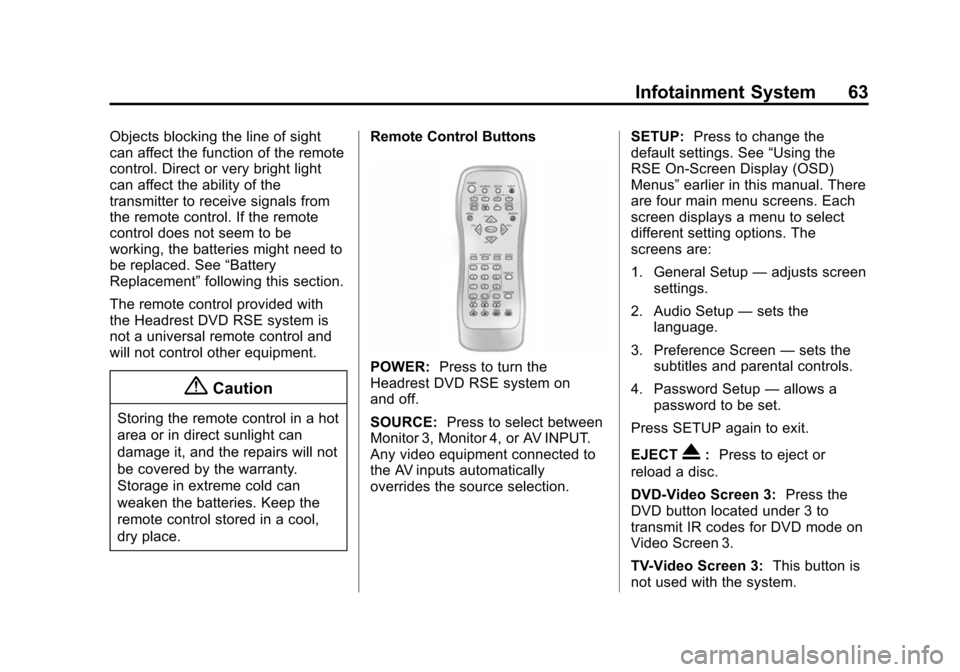
dry place. Remote Control Buttons
POWER:
Press to turn the
Headrest DVD RSE system on
and off.
SOURCE: Press to select between
Monitor 3, Monitor 4, or AV INPUT.
Any video equipment connected to
the AV inputs automatically
overrides the source selection. SETUP:
Press to change the
default settings. See “Using the
RSE On-Screen Display (OSD)
Menus” earlier in this manual. There
are four main menu screens. Each
screen displays a menu to select
different setting options. The
screens are:
1. General Setup —adjusts screen
settings.
2. Audio Setup —sets the
language.
3. Preference Screen —sets the
subtitles and parental controls.
4. Password Setup —allows a
password to be set.
Press SETUP again to exit.
EJECT
X: Press to eject or
reload a disc.
DVD-Video Screen 3: Press the
DVD button located under 3 to
transmit IR codes for DVD mode on
Video Screen 3.
TV-Video Screen 3: This button is
not used with the system.
Page 66 of 138
Black plate (66,1)Cadillac CUE Infotainment System (GMNA-Localizing-U.S./Canada-
7639728) - 2015 - CRC - 9/3/14
66 Infotainment System
DISPLAY:Press to choose from
the following display options:
1. Press DISPLAY once and Single
Elapsed appears along with the
current track playing and the
length of time for that track.
2. Press DISPLAY twice and Single Remain appears along with the
current track playing and the
amount of time left on the track.
3. Press DISPLAY three times and Total Elapsed appears along
with the current track playing
and the total time that has
played on the CD.
4. Press DISPLAY four times and Total Remain appears along with
the current track playing and the
amount of time left on the CD.
REPEAT: Press to toggle between
Track and All. The default for repeat
is OFF.
.Track repeats the track that is
playing.
.All repeats the disc that is
playing.
Playing MP3 CD
MP3 is the format for storing digital
audio. An audio CD quality song
can be compressed into the MP3
format with very little loss of quality,
while taking up much less space.
CD-R/RW discs that have been
encoded in MP3 format can be
played on the DVD player.
Selecting Folders and Songs
When an MP3 disc is inserted in the
player, the navigation screen
appears. The folders and songs can
be changed by navigating through
the file system. The DVD player
plays the songs in the order they
were burned to the disc.
1. Press STOP if a disc is playing. Press the up or down navigation
arrows on the remote control to
go through the folder list on the
left side of the screen.
2. Press ENTER when the desired folder is highlighted. 3. Press the up or down navigation
arrows to go through the song
list and highlight the desired
song. Press ENTER to begin the
playback of the selected song.
Skipping a Song
NEXT: Press to go to the
next song.
PREV (Previous): Press to return
to the beginning of the song that is
currently playing. Press PREV twice
to go to the previous song.
Selecting a Play Mode
The order the songs are played can
be temporarily chosen on a disc.
The FOLDER play mode is the
default. Press the REPEAT button to
access the play mode options.
The play mode options are:
.Single —Play a selected song.
.Folder —Play the folder in the
order the songs were recorded.
Page 67 of 138
Black plate (67,1)Cadillac CUE Infotainment System (GMNA-Localizing-U.S./Canada-
7639728) - 2015 - CRC - 9/3/14
Infotainment System 67
.Shuffle—Play the songs in
random order, from within the
selected folder.
Using the REPEAT Feature
REPEAT: Press to change between
Repeat One and Repeat Folder.
.Repeat One —Repeats the
song that is playing.
.Repeat Folder —Repeats the
folder that is playing.
Tips and Troubleshooting
IR Sensor Inoperative: Check that
the batteries are good in the remote
control. Check that the remote
Control IR Sensor is not blocked.
Aim the remote control toward the
IR Sensor being controlled. Select
the correct screen, 3 or 4.
No picture: Check that the correct
video input mode is selected. Check
that the video cable is plugged into
the jack securely. No Sound:
Check that the correct
audio input mode is selected. Check
that the audio cable is securely
plugged into the jack.
Cleaning the Video Screens
The video display screens are made
of a specially coated glass and can
be scratched or damaged by
abrasive products, solvents,
or ammonia-based window
cleaners. Clean with a soft, lint-free,
cotton cloth that has been slightly
dampened with warm water. Dry the
screens by wiping with a clean dry
cotton cloth.
Cleaning the Components
Use care when touching or cleaning
the components such as the DVD
player or the discs.
Do not use DVD lens cleaners for
DVD players because the lens of
the DVD optics can become
contaminated by lubricants. Handle CDs and DVDs carefully.
Store them in their original cases or
other protective cases and away
from direct sunlight and dust. The
DVD player scans the bottom
surface of the disc. If the surface of
a CD or DVD is damaged, such as
cracked, broken, or scratched, the
CD or DVD may not play properly or
not at all. If the surface of a CD or
DVD is soiled, take a soft, lint free
cloth or dampen a clean, soft cloth
in a mild, neutral detergent solution
mixed with water, and clean it. Make
sure the wiping process starts from
the center to the edge.
Do not touch the bottom side of a
CD or DVD while handling it; this
could damage the surface. Pick up
CDs or DVDs by grasping the outer
edges or the edge of the hole and
the outer edge.
Page 71 of 138
Black plate (71,1)Cadillac CUE Infotainment System (GMNA-Localizing-U.S./Canada-
7639728) - 2015 - CRC - 9/3/14
Infotainment System 71
Audio Information On/Off
Press to turn the audio information
view on or off from the main map
view. When ON, the audio
information becomes an audio
status pane. This allows for two
lines of audio information in the
status pane and enables the use of
some Interaction Selector controls.
The audio status screen contains
the following elements:
.Station Frequency
.Artist Information
.Song Information
.r/jort/uStation and
Channel Controls
Press the
t/uStation controls to
go to the next or previous strong
signal station or digital channel.
When the audio status pane
displays Artist and Song
Information, press the
t/u
controls to go to the next or
previous track based on the current
media mode.
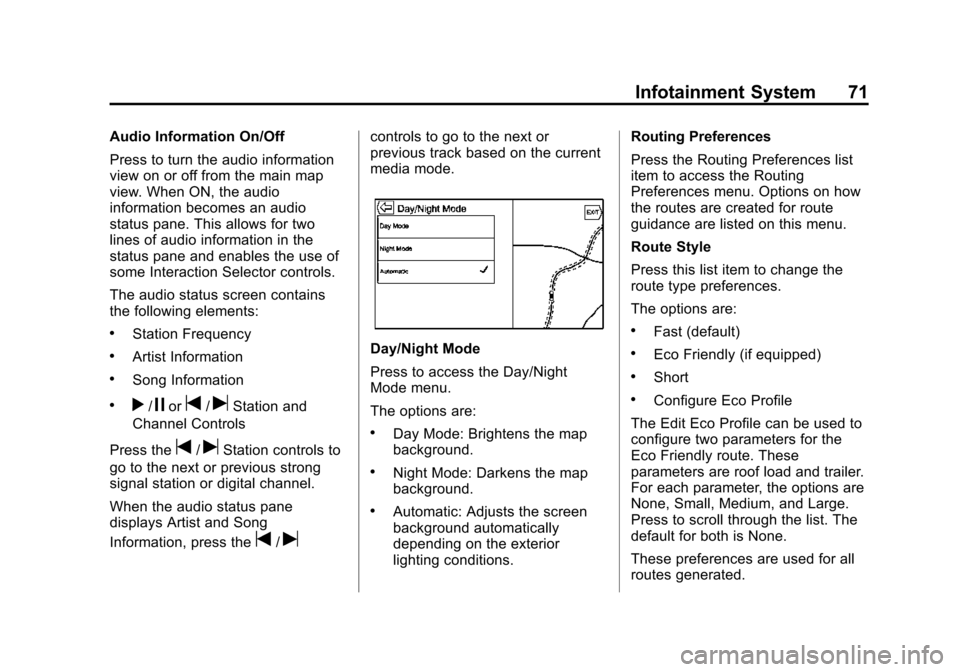
Day/Night Mode
Press to access the Day/Night
Mode menu.
The options are:
.Day Mode: Brightens the map
background.
.Night Mode: Darkens the map
background.
.Automatic: Adjusts the screen
background automatically
depending on the exterior
lighting conditions. Routing Preferences
Press the Routing Preferences list
item to access the Routing
Preferences menu. Options on how
the routes are created for route
guidance are listed on this menu.
Route Style
Press this list item to change the
route type preferences.
The options are:
.Fast (default)
.Eco Friendly (if equipped)
.Short
.Configure Eco Profile
The Edit Eco Profile can be used to
configure two parameters for the
Eco Friendly route. These
parameters are roof load and trailer.
For each parameter, the options are
None, Small, Medium, and Large.
Press to scroll through the list. The
default for both is None.
These preferences are used for all
routes generated.
Page 78 of 138
Black plate (78,1)Cadillac CUE Infotainment System (GMNA-Localizing-U.S./Canada-
7639728) - 2015 - CRC - 9/3/14
78 Infotainment System
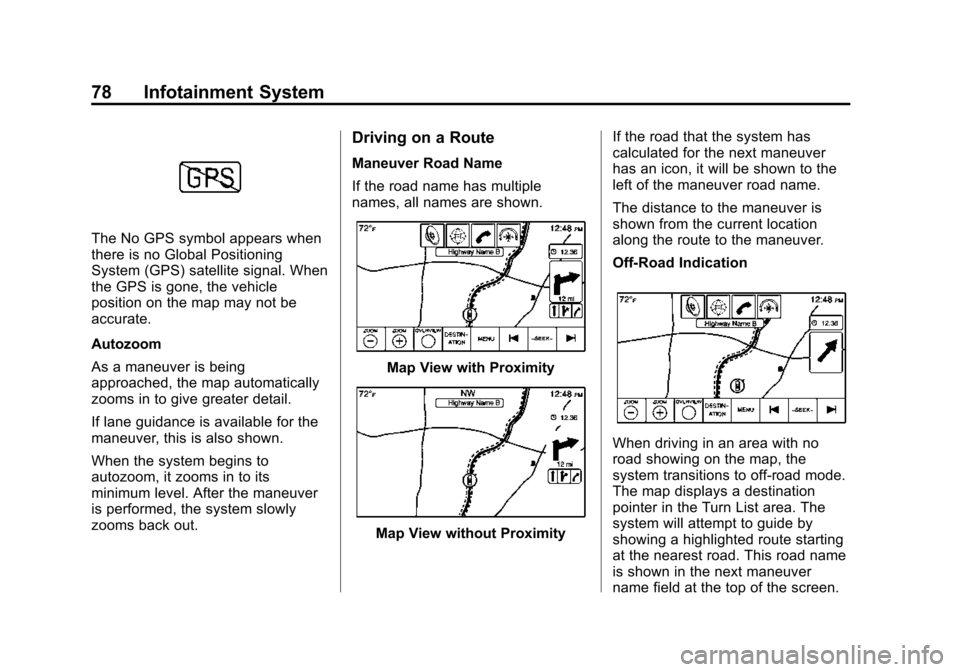
The No GPS symbol appears when
there is no Global Positioning
System (GPS) satellite signal. When
the GPS is gone, the vehicle
position on the map may not be
accurate.
Autozoom
As a maneuver is being
approached, the map automatically
zooms in to give greater detail.
If lane guidance is available for the
maneuver, this is also shown.
When the system begins to
autozoom, it zooms in to its
minimum level. After the maneuver
is performed, the system slowly
zooms back out.
Driving on a Route
Maneuver Road Name
If the road name has multiple
names, all names are shown.
Map View with Proximity
Map View without ProximityIf the road that the system has
calculated for the next maneuver
has an icon, it will be shown to the
left of the maneuver road name.
The distance to the maneuver is
shown from the current location
along the route to the maneuver.
Off-Road Indication
When driving in an area with no
road showing on the map, the
system transitions to off-road mode.
The map displays a destination
pointer in the Turn List area. The
system will attempt to guide by
showing a highlighted route starting
at the nearest road. This road name
is shown in the next maneuver
name field at the top of the screen.
Page 80 of 138
Black plate (80,1)Cadillac CUE Infotainment System (GMNA-Localizing-U.S./Canada-
7639728) - 2015 - CRC - 9/3/14
80 Infotainment System
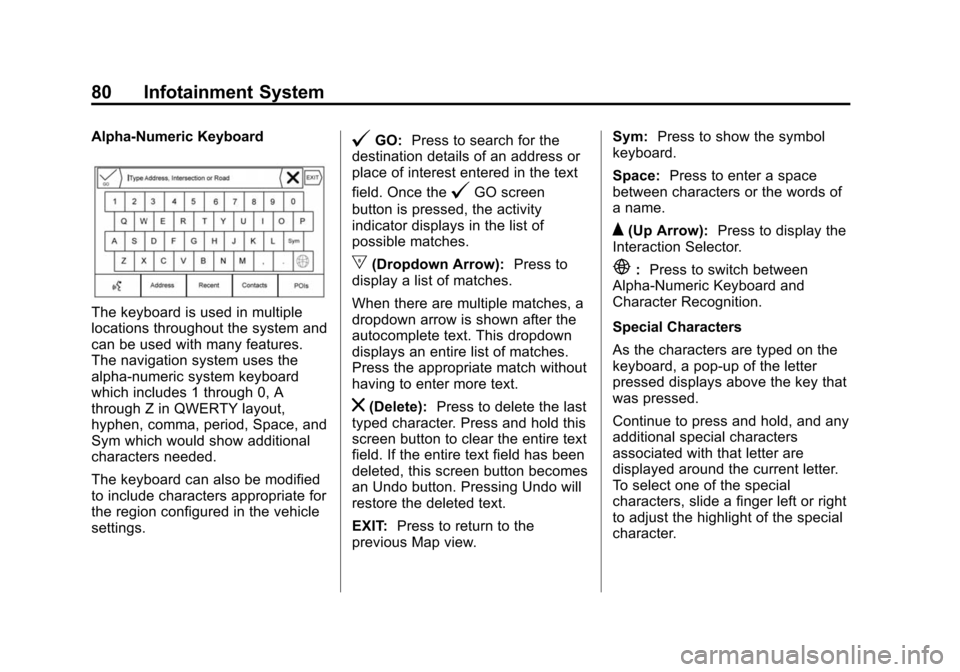
Alpha-Numeric Keyboard
The keyboard is used in multiple
locations throughout the system and
can be used with many features.
The navigation system uses the
alpha-numeric system keyboard
which includes 1 through 0, A
through Z in QWERTY layout,
hyphen, comma, period, Space, and
Sym which would show additional
characters needed.
The keyboard can also be modified
to include characters appropriate for
the region configured in the vehicle
settings.
@GO:Press to search for the
destination details of an address or
place of interest entered in the text
field. Once the
@GO screen
button is pressed, the activity
indicator displays in the list of
possible matches.
|(Dropdown Arrow): Press to
display a list of matches.
When there are multiple matches, a
dropdown arrow is shown after the
autocomplete text. This dropdown
displays an entire list of matches.
Press the appropriate match without
having to enter more text.
z(Delete): Press to delete the last
typed character. Press and hold this
screen button to clear the entire text
field. If the entire text field has been
deleted, this screen button becomes
an Undo button. Pressing Undo will
restore the deleted text.
EXIT: Press to return to the
previous Map view. Sym:
Press to show the symbol
keyboard.
Space: Press to enter a space
between characters or the words of
a name.
Q(Up Arrow): Press to display the
Interaction Selector.
E: Press to switch between
Alpha-Numeric Keyboard and
Character Recognition.
Special Characters
As the characters are typed on the
keyboard, a pop-up of the letter
pressed displays above the key that
was pressed.
Continue to press and hold, and any
additional special characters
associated with that letter are
displayed around the current letter.
To select one of the special
characters, slide a finger left or right
to adjust the highlight of the special
character.
Page 81 of 138
Black plate (81,1)Cadillac CUE Infotainment System (GMNA-Localizing-U.S./Canada-
7639728) - 2015 - CRC - 9/3/14
Infotainment System 81
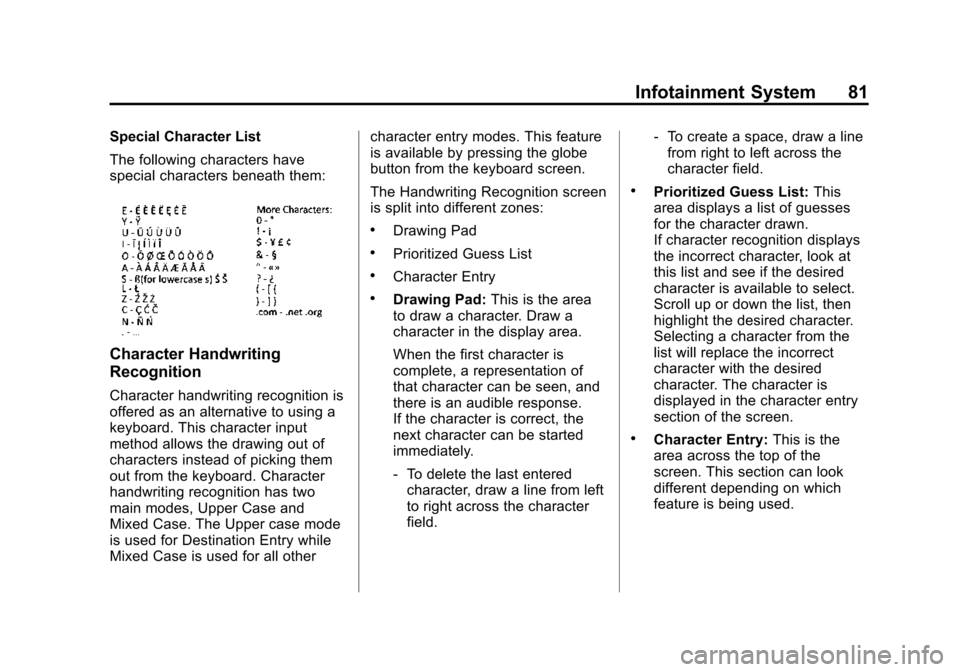
Special Character List
The following characters have
special characters beneath them:
Character Handwriting
Recognition
Character handwriting recognition is
offered as an alternative to using a
keyboard. This character input
method allows the drawing out of
characters instead of picking them
out from the keyboard. Character
handwriting recognition has two
main modes, Upper Case and
Mixed Case. The Upper case mode
is used for Destination Entry while
Mixed Case is used for all othercharacter entry modes. This feature
is available by pressing the globe
button from the keyboard screen.
The Handwriting Recognition screen
is split into different zones:
.Drawing Pad
.Prioritized Guess List
.Character Entry
.Drawing Pad:
This is the area
to draw a character. Draw a
character in the display area.
When the first character is
complete, a representation of
that character can be seen, and
there is an audible response.
If the character is correct, the
next character can be started
immediately.
‐ To delete the last entered
character, draw a line from left
to right across the character
field. ‐
To create a space, draw a line
from right to left across the
character field.
.Prioritized Guess List: This
area displays a list of guesses
for the character drawn.
If character recognition displays
the incorrect character, look at
this list and see if the desired
character is available to select.
Scroll up or down the list, then
highlight the desired character.
Selecting a character from the
list will replace the incorrect
character with the desired
character. The character is
displayed in the character entry
section of the screen.
.Character Entry: This is the
area across the top of the
screen. This section can look
different depending on which
feature is being used.
Page 93 of 138

Black plate (93,1)Cadillac CUE Infotainment System (GMNA-Localizing-U.S./Canada-
7639728) - 2015 - CRC - 9/3/14
Infotainment System 93
.Press the ETA information area
to switch between the estimated
arrival time, total driving time
resulting, and driving distance.
Turn List
Press on the next turn indicator
shown on the map to display the
turn list or waypoint list. The
Interaction Selector is minimized
automatically. Press
Qto reveal the
following options:
Destination
Press the Destination screen button
to add a waypoint or change the
destination while viewing the turn
list. When the Destination screen
button is pressed, the display shows
the Destination screens.
End Guidance
Press the End screen button to
suspend the current route in the turn
list. When the End screen button is
pressed, the turn list is exited and
the display returns to the main
map view. Avoid Areas
Press the Avoid Areas screen
button to select the highway name
that is to be avoided. The system
shows a pop-up asking how many
miles or if the entire road should be
avoided.
Turn List
.When under a waypoint trip,
press on the Turn List Interaction
Selector button to show the turn
list. When entering a turn list, the
next maneuver instruction is
spoken.
.The turn list title is the name or
address of the destination. Press
on the information button next tothe name of the destination to
display the destination
information.
.The turn list is sorted in order
with the next maneuver at the
top of the list and the
subsequent maneuvers listed
below it. The next maneuver is
always highlighted upon entry
into the Turn List to quickly show
what the next maneuver is.
.Each maneuver indicates the
distance between it and the
previous maneuver or the
vehicle’s current location. The
next maneuver at the top will
count down until the maneuver
is reached, and then the next
maneuver will begin to
count down.
.Each maneuver has an
estimated time of arrival based
on the current driving conditions.
Page 97 of 138
Black plate (97,1)Cadillac CUE Infotainment System (GMNA-Localizing-U.S./Canada-
7639728) - 2015 - CRC - 9/3/14
Infotainment System 97
Date, Sport Mode, Language, Valet
Mode, or Radio. For setting options,
seeSettings on page 118.
A few of the setting options change
the way the navigation system
displays or reacts while in use.
1. Press the SETTINGS screen button on the Home Page.
2. Press the scroll bar until the desired option displays. Select
the desired settings to change.
Voice
Voice recognition allows for
hands-free operation within the
navigation, audio, phone, and
weather applications. See Voice
Recognition on page 100.
Press the voice screen button to
display the Voice menu.
Prompt Length: Press to change
the prompt length to Short or Long.
Audio Feedback Speed: Press to
change the audio feedback speed to
Slow, Medium, or Fast. Confidence Threshold:
Press to
change the sensitivity of the voice
recognition system.
Display
Mode: Press Mode to change the
screen background. This setting
controls map colors.
.The Auto setting adjusts the
screen background automatically
depending on the exterior
lighting conditions.
.The Day setting brightens the
map background.
.The Night setting darkens the
map background.
Calibrate Touchscreen: Press to
display the Touchscreen Calibration
Screen.
Turn Display Off: Press to turn the
Display option off.
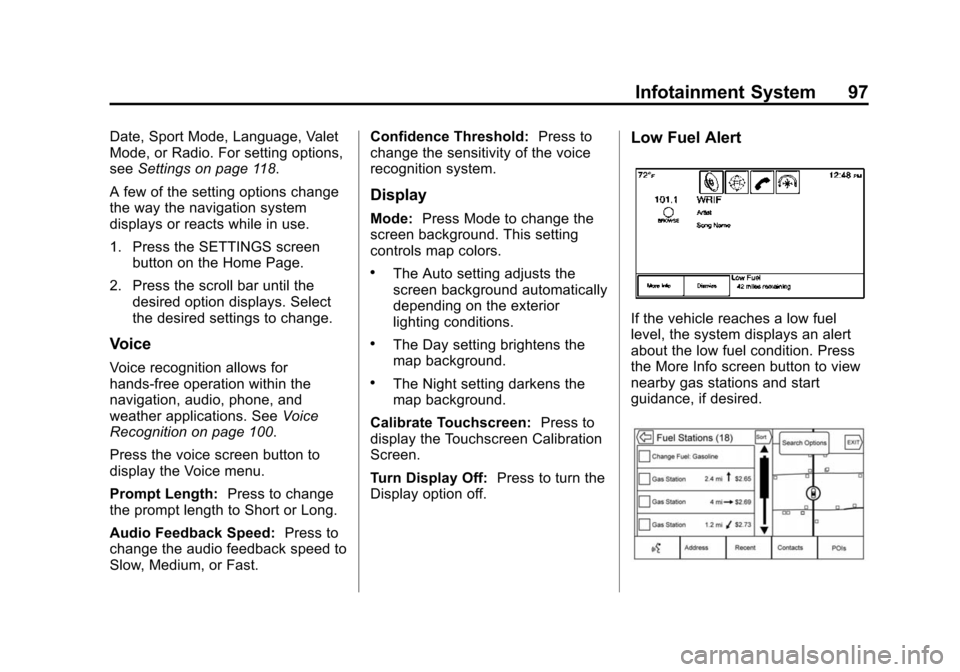
Low Fuel Alert
If the vehicle reaches a low fuel
level, the system displays an alert
about the low fuel condition. Press
the More Info screen button to view
nearby gas stations and start
guidance, if desired.